
Table of Contents
🟦 Introduction
Canvas LMS is a widely used learning management system in US schools, colleges, and universities where students submit assignments, participate in discussions, and communicate with instructors online. In most courses, discussion posts are a key part of participation grades, and even small formatting issues can affect how clearly your response is understood.
In many US college courses, students are expected to present their ideas in a clean, structured, and readable format inside Canvas discussions. However, most students only type plain text without proper spacing, emphasis, or structure. This can make responses look unorganized and harder for instructors to read.
Because of this, many students unintentionally lose marks or fail to fully express their ideas simply because their answers are poorly formatted—not because their answers are wrong, but because they are not clearly presented. In competitive academic environments, presentation matters almost as much as content.
This guide solves that problem by providing ready-to-use Canvas HTML code for discussions. You will learn simple copy-and-paste formatting snippets that help you make your posts more readable, structured, and professional-looking—without needing any technical experience.
🟦 How Canvas LMS Handles HTML (Important Rules for Students)
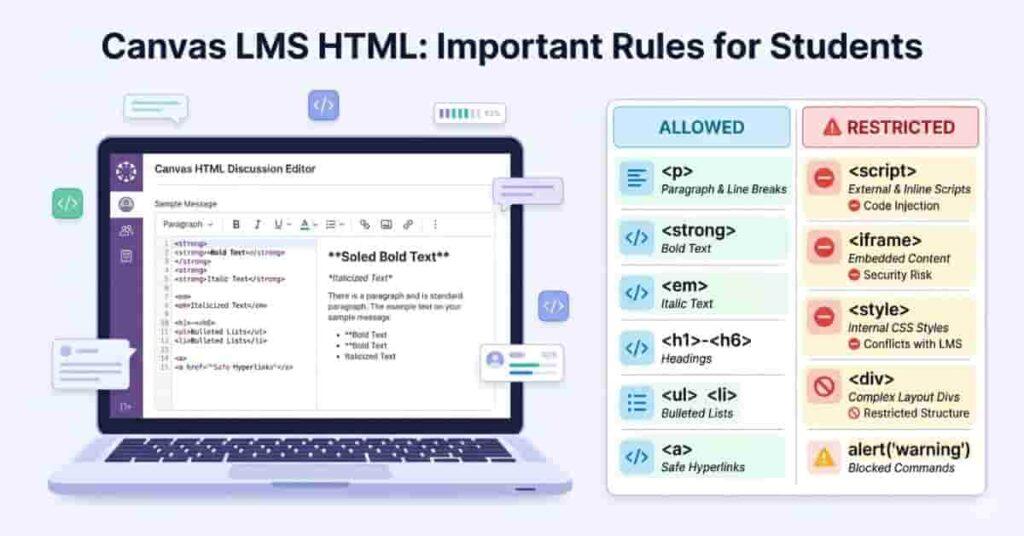
Canvas LMS supports basic HTML formatting, which allows students to improve the structure and readability of their discussion posts and assignment comments. However, it is important to understand that Canvas is not a full web development platform, so it only allows a limited set of safe HTML elements.
In most US colleges and universities, HTML formatting is primarily used in areas like discussion boards and assignment comments, where students can enhance their responses with simple tags such as bold, paragraphs, and line breaks. This helps make posts easier to read and more professional-looking.
However, Canvas strictly restricts advanced or potentially unsafe code to maintain security and consistency across the platform. As a result, several HTML elements are automatically blocked or removed when you submit your content.
🚫 Not Supported in Canvas LMS:
- <script> tags (JavaScript is not allowed)
- <iframe> embeds (external content is blocked)
- Advanced or external CSS styling
These restrictions ensure that all content remains safe, fast-loading, and compatible across the devices and browsers students use.
Understanding these limitations is important before using HTML in Canvas. It helps you avoid formatting issues and ensures your discussion posts display correctly every time.
🟦 Essential Canvas HTML Formatting Codes
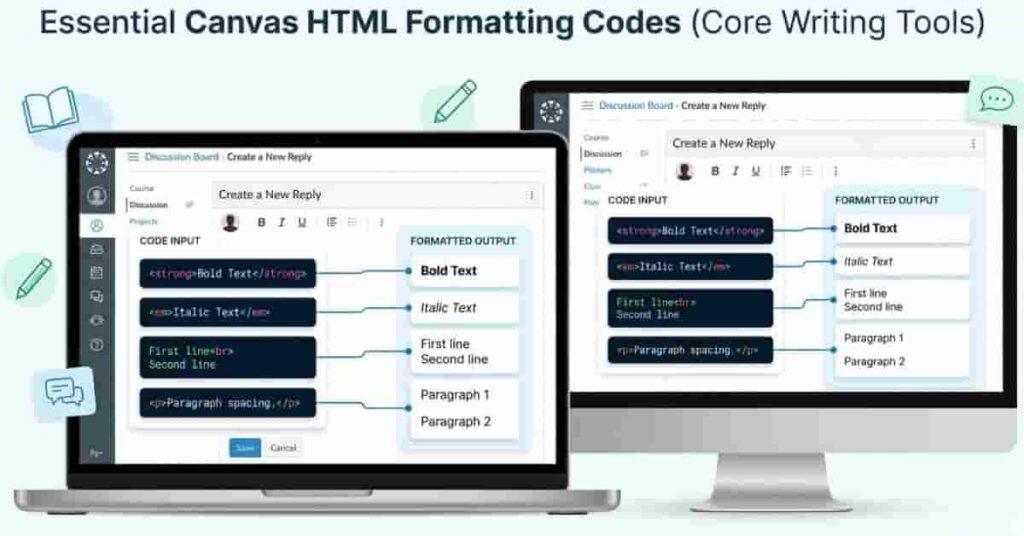
This section covers the most commonly used basic HTML formatting codes that work in Canvas LMS discussions and assignment comments. These simple tags help students improve readability, structure their answers, and make their posts look more professional without any technical complexity.
Below are the essential formatting elements every student should know:
✔ Bold Text (Highlight Important Points)
Use bold text when you want to emphasize key ideas, definitions, or important statements in your discussion posts.
<strong>Important Point</strong>
👉 This is especially useful when you want your instructor to quickly notice the main idea or conclusion in your response.
✔ Italic Text (Add Emphasis or Notes)
Italic text is used to highlight thoughts, explanations, or supporting remarks that are slightly less important than bold text.
<em>Note this carefully</em>
👉 Use this when adding extra explanation, reflection, or clarification in your discussion answer.
✔ Line Break (Improve Readability)
Line breaks help separate ideas without starting a new paragraph, making your content easier to scan.
<br>
👉 Useful in discussion replies where you want clean spacing between sentences or points.
✔ Paragraph Spacing (Organize Content Properly)
Paragraph tags help structure your response into clear sections, improving readability and flow.
<p>This is a paragraph.</p>
👉 Use this when writing full answers in Canvas discussions or assignment comments to keep your content organized and easy to read.
🟩 When Students Should Use These in Canvas Discussions
Students should use these HTML formatting codes when:
- Writing discussion board responses in US college courses
- Submitting assignment comments or reflections
- Explaining complex ideas that need a clear structure
- Wanting to make their posts look more professional and readable
Using these simple formatting tools correctly can improve clarity, help instructors understand your points faster, and make your participation stand out in Canvas LMS discussions.
🟦 Canvas Safe Colored & Styled Text (Limited CSS Rules)
Canvas LMS supports only limited inline CSS, which means you can add basic colors and simple emphasis within text, but advanced styling is restricted for security and compatibility reasons. This is why students should always use safe, minimal formatting when applying colors in discussions or assignment comments.
Using color in Canvas can help highlight important points, but it should be used carefully so your content remains readable across devices and is not stripped by the system.
✔ Safe Colored Text Example (Highlight Important Info)
You can use inline styling to emphasize key announcements or important statements in your post.
<span style="color: blue; font-weight: bold;">Important Announcement</span>
👉 This is useful when you want to draw attention to key instructions, definitions, or main points in a discussion response.
✔ Warning / Alert Style Example
You can also use simple red text to highlight warnings, deadlines, or critical instructions.
<span style="color: red;"><strong>Warning:</strong> Submit before deadline</span>
👉 This is especially helpful in assignments or group discussions where urgency needs to be clearly communicated.
⚠️ Important Usage Note
Even though Canvas supports limited inline CSS, students should:
- Avoid excessive use of colors in one post.
- Stick to simple styles like color and bold only.
- Never use complex CSS layouts or external styling.
- Always ensure text remains readable on mobile devices.
Using styling correctly helps improve clarity without breaking Canvas formatting rules.
🟦 Copy-Paste Canvas Discussion Templates
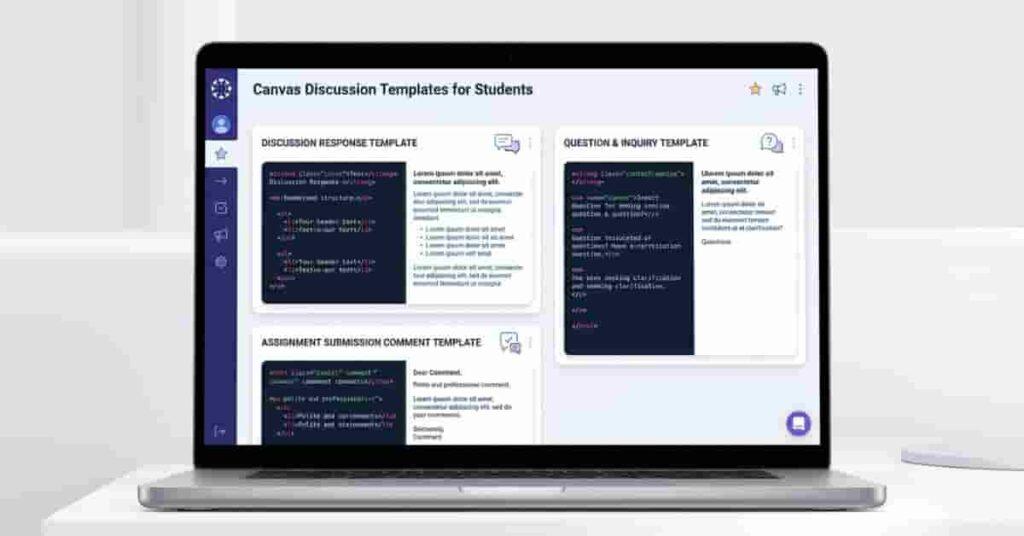
This section provides ready-to-use Canvas HTML templates that students can directly copy and paste into discussion posts, replies, and assignment comments. These templates help you structure your responses in a clear, academic, and professional way—without needing any coding knowledge.
Using structured templates is especially helpful in US college courses where clarity, organization, and participation quality can impact your grades.
✔ Student Reply Template (Discussion Response)
Use this format when responding to another student’s post in a Canvas discussion.
<p><strong>Response:</strong></p><p>I agree with your point because...</p>
👉 This template helps you clearly separate your response label from your explanation, making your post easier for instructors to read and evaluate.
✔ Question Asking Template (Engagement in Discussions)
Use this format when you want to ask a clear and structured question in a discussion thread.
<p><strong>Question:</strong></p><p>I would like to ask about...</p>
👉 This is useful for encouraging academic interaction and showing active participation in class discussions.
✔ Assignment Comment Template (Submission Note)
Use this format when submitting assignments and adding a short comment or note to your instructor.
<p><strong>Submission Note:</strong></p><p>I have completed the assignment as required.</p>
👉 This helps present your submission in a clean and professional format, which improves clarity and communication with instructors.
🟩 Why These Templates Matter
Using structured templates in Canvas LMS helps students:
- Improve readability of discussion posts.
- Maintain a professional academic tone.
- Save time while writing responses.
- Make participation more organized and consistent.
These simple formats can significantly improve how your contributions are perceived in online classes.
🟦 Real Canvas Student Scenarios
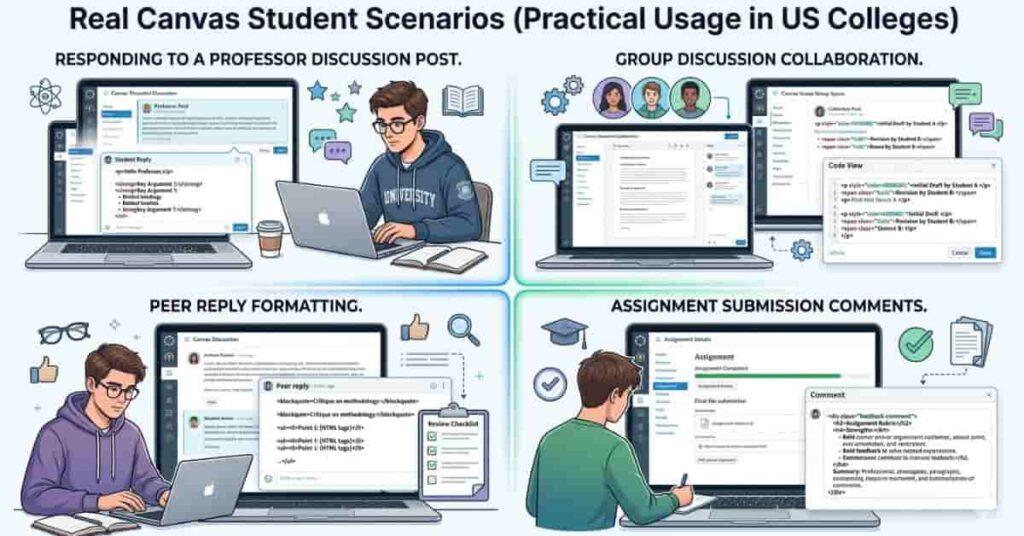
Understanding when and how to use Canvas HTML formatting is just as important as knowing the code itself. In real US college environments, students use these formatting techniques in different academic situations to improve clarity, structure, and engagement in their coursework.
Below are common real-life scenarios where Canvas HTML formatting is especially useful:
✔ Responding to Professor Discussion Posts
In many courses, professors ask students to respond to weekly discussion prompts. Using basic HTML formatting helps you structure your response clearly and highlight key points.
For example, students often use bold headings such as ‘Response’ or ‘Key Idea’ to make their answers easier to follow and more professional in appearance.
👉 This improves readability and helps instructors quickly identify your main arguments.
✔ Group Discussion Formatting
In group discussions, multiple students contribute to the same thread. Without formatting, responses can become messy and hard to follow.
By using simple HTML spacing, paragraphs, and emphasis, students can clearly separate ideas and avoid confusion between different points or participants.
👉 This is especially useful in collaborative assignments where clarity improves teamwork and grading accuracy.
✔ Peer Reply Improvement
When replying to classmates, structured formatting helps make your feedback more organized and respectful. Instead of writing a single block of text, students can clearly label responses, questions, or agreements.
👉 This makes peer interaction more meaningful and shows active engagement in the course.
✔ Assignment Submission Comment Formatting
Many instructors allow students to add a short comment when submitting assignments in Canvas. Using HTML formatting here helps present your note in a clean and professional way.
For example, separating a Submission Note from the main message improves clarity and shows attention to detail.
👉 This can create a better impression on instructors and improve communication quality.
🟩 Why These Scenarios Matter
These real-world use cases show that Canvas HTML formatting is not just about styling text—it is about:
- Improving academic communication
- Making participation easier to read and evaluate
- Enhancing professionalism in online learning environments
- Helping students avoid losing marks due to unclear formatting
When used correctly, even simple HTML can significantly improve how your work is perceived in Canvas LMS discussions and assignments.
🟦 Before vs After Formatting Examples
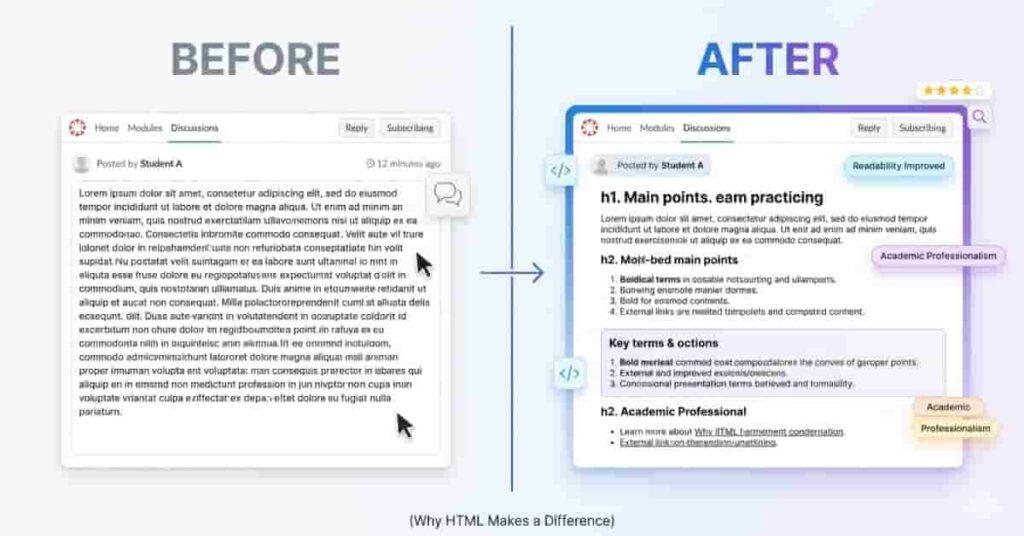
One of the biggest advantages of using Canvas HTML formatting is the clear improvement in how your discussion posts and assignment comments look. Proper structure doesn’t change your content—it only improves how it is presented, making it easier for instructors and classmates to read and understand your ideas.
Below are simple before-and-after examples to show the transformation.
❌ Before (Plain Text – Unstructured & Hard to Read)
In a normal Canvas discussion, many students write like this:
I agree with your point because it is important. I also think online learning helps students improve skills. What do you think about this topic I would like to know your opinion.
👉 This version has:
- No structure
- No clear separation of ideas
- Hard to scan quickly
- Less professional appearance
✔ After (HTML Structured – Clean & Professional)
Now the same content using simple Canvas HTML formatting:
<p><strong>Response:</strong></p><p>I agree with your point because it is important.</p><p>I also think online learning helps students improve skills.</p><p><strong>Question:</strong> What do you think about this topic?</p>
👉 This version:
- Clearly separates ideas
- Uses headings for structure
- Improves readability
- Looks more professional to instructors
🟩 Why This Transformation Matters
In US college Canvas courses, instructors often review dozens of discussion posts. A well-formatted response:
- Stands out visually
- It is easier to grade and understand
- Shows effort and attention to detail
- Improves overall engagement in discussions
Even though the content is the same, the presentation can significantly improve how your work is perceived inside Canvas LMS.
🟦 Common Canvas HTML Problems (And How Students Can Avoid Them)
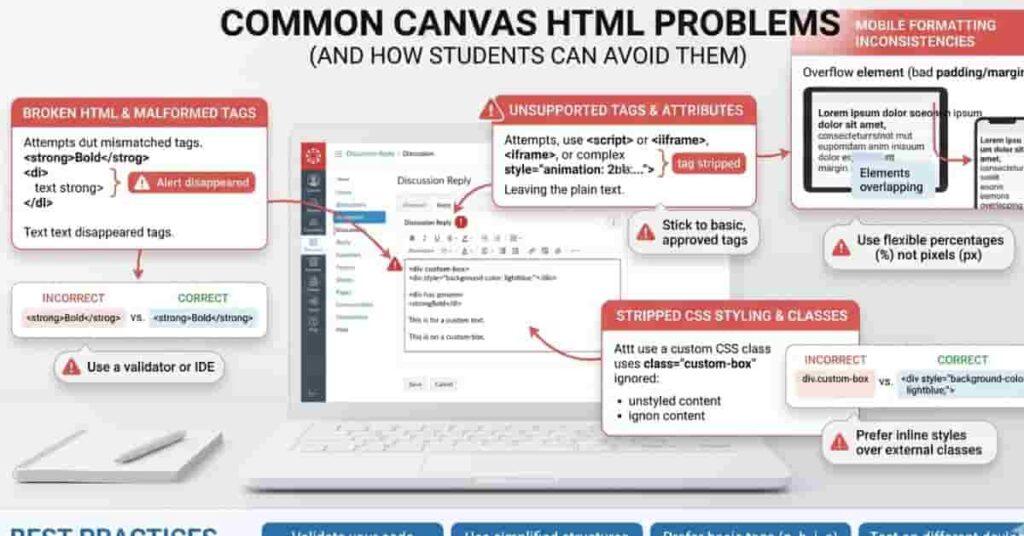
While Canvas LMS supports basic HTML formatting, many students at US colleges still encounter issues where their formatting is not displayed correctly after submission. These problems are usually not due to content errors but to Canvas’s built-in restrictions and formatting rules.
Below are the most common issues students experience when using HTML in Canvas discussions and assignments:
❌ Why HTML is Not Showing in Canvas
One of the most common problems is that the HTML code does not appear as expected after posting. This usually happens because Canvas automatically filters or removes unsupported tags for security reasons.
👉 Canvas only supports basic, safe HTML, so advanced elements or incorrect tags may be stripped or ignored.
❌ Mobile Formatting Issues
Many students access Canvas on mobile devices, where formatting can sometimes differ from the desktop view. Spacing, alignment, or styled text may look slightly inconsistent on smaller screens.
👉 This happens because Canvas adjusts layout automatically for mobile responsiveness, which can reduce the effect of some formatting.
❌ Copy-Paste Breaks Formatting
Another frequent issue is when students copy HTML code from external sources and paste it into Canvas. In some cases, hidden characters or unsupported formatting from word processors (like Word or Google Docs) can break the HTML structure.
👉 Always use clean, simple HTML to avoid formatting errors inside Canvas LMS.
❌ Limited CSS Support Confusion
Many students assume Canvas supports full CSS styling like a website, but this is not true. Canvas only allows very limited inline CSS, and most advanced styling features are blocked.
👉 This confusion often leads to broken layouts or missing formatting when students try to use complex styles.
🟩 Key Takeaway
Most Canvas HTML problems stem from misunderstandings of platform limitations rather than actual errors. By sticking to basic HTML tags and safe formatting rules, students can ensure their discussion posts display correctly across all devices and avoid common submission issues.
🟦 Safe Usage Rules (Important for Canvas HTML Formatting)
To ensure your Canvas HTML formatting works correctly and does not cause display or submission issues, follow these basic safety rules. Canvas LMS supports only simple, secure formatting, so using clean, minimal code is always the best approach.
These rules help you avoid broken layouts, missing content, or rejected formatting inside discussions and assignments.
❌ Do Not Use JavaScript
Canvas does not allow JavaScript for security reasons. Any attempt to use <script> tags or interactive code will be automatically removed or blocked.
👉 This ensures a safe learning environment and prevents malicious or unstable content from running inside the platform.
❌ Avoid Complex CSS Styling
While Canvas allows limited inline styling, advanced CSS features such as layouts, animations, or external stylesheets are not supported.
👉 Stick to simple styling like:
- color
- font-weight
- basic emphasis tags
This keeps your formatting stable across all devices.
✔ Keep Formatting Minimal and Clean
Less is more when it comes to Canvas HTML. Overusing colors, styles, or nested tags can make your content harder to read or even cause formatting issues.
👉 Simple structure always performs better in academic discussions.
✔ Always Preview Before Submitting
Before posting your discussion or assignment comment, always preview your content if possible.
👉 This helps you:
- Catch formatting mistakes
- Check spacing and readability.
- Ensure everything displays correctly.
✔ Use HTML Only in Allowed Fields
Canvas does not support HTML everywhere. It should only be used in:
- Discussion posts
- Assignment comments (if allowed)
- Text submission areas that support formatting
👉 Avoid using HTML in restricted fields like quizzes or file uploads unless explicitly permitted.
🟩 Final Reminder
Following these safe usage rules ensures that your Canvas HTML formatting:
- Works consistently across devices
- Does not get removed or broken
- Remains professional and readable
- Complies with Canvas LMS restrictions
Proper usage is key to maintaining both functionality and academic quality in your submissions.
🟦 Quick Copy Cheat Sheet (Canvas HTML Formatting)
This section gives you a simple, all-in-one reference block of the most useful Canvas HTML formatting codes. You can copy and reuse these directly in Canvas discussions, assignments, or comments without needing to rewrite anything.
This cheat sheet is designed for quick access, especially when you want to format your response fast during exams, discussions, or weekly submissions.
✔ Canvas HTML Quick Copy Block
<!-- Bold Text --><strong>Important Text</strong><!-- Italic Text --><em>Note or Emphasis</em><!-- Colored Text --><span style="color: blue; font-weight: bold;">Important Highlight</span><!-- Line Break --><br><!-- Paragraph --><p>This is a structured paragraph for a Canvas discussion or assignment response.</p>
🟩 How to Use This Cheat Sheet
You can use these snippets when:
- Writing Canvas discussion replies
- Submitting assignment comments
- Highlighting important points in responses
- Structuring long answers in a clean format
🚀 Why This Section Is Useful
This cheat sheet is designed for:
- Fast copying during assignments
- Better organization in discussions
- Reducing formatting errors
- Improving readability instantly
👉 It increases user convenience, saves time, and encourages students to reuse the formatting regularly in Canvas LMS.
🟦 Conclusion
Using HTML formatting in Canvas LMS discussions is a simple but powerful way to improve the clarity, structure, and professionalism of your academic responses. While Canvas only supports basic HTML and limited inline styling, even these small tools—such as bold text, spacing, and simple color highlights—can significantly enhance how your work is presented.
For students in US colleges and universities, strong discussion participation is not just about writing the correct answer, but also about communicating ideas in a clear and organized format. Proper formatting helps instructors quickly understand your points, improves readability for peers, and creates a more engaging academic discussion experience.
By following the safe usage rules, using ready-made templates, and applying the copy-paste snippets provided in this guide, you can avoid common formatting issues and ensure your posts always appear clean and professional.
Ultimately, Canvas HTML formatting is not about complexity—it is about better communication, better presentation, and better academic performance inside your online learning environment.