Table of Contents
Introduction
Missing grades causes anxiety as assignments and quizzes quickly accumulate.
If you’re wondering how to check grades on Canvas, you’re not alone. Many students struggle to find scores and feedback inside the Canvas grades dashboard. New users often miss assignment comments, weighted grades, or hidden submissions.
Canvas is widely used in U.S. schools and colleges. Tracking your progress helps you avoid surprises before exams or final grades, and lets you spot missing work early.
This guide is organized into four sections: viewing grades on Canvas (desktop and mobile), checking instructor feedback, understanding grade calculations, and resolving grade display issues.
Want to stay ahead in class? Try our Canvas Grade Calculator to track your progress and see exactly what you need for your target grade.
What Is the Grades Section in Canvas?
Canvas Grades is the section where students can view assignment scores, instructor feedback, overall course grades, and grading breakdowns.
The Canvas grades dashboard enables students to efficiently monitor their academic performance. Access it from your course menu to review quizzes, homework, discussions, and exams. Many schools in the USA use this tool to streamline and organize student grading.
When you check the Grades section, you can usually see:
- Assignment grades and percentages
- Weighted grade categories
- Missing or late assignments
- Instructor comments and feedback
- Rubric scores
- Overall course score
- Submission status for each assignment
Some courses display colored indicators for missing, late, or incomplete work. This allows you to identify potential issues before your final grade is affected.
The student view in Canvas gradebook varies depending on your school or instructor. For instance, some teachers may hide grades until reviews are finished, or adjust grade calculations based on settings.
Understanding the Canvas grades dashboard supports student organization and reduces confusion when checking scores or monitoring course averages throughout the semester.
Pro Tip
Review your Canvas student grades weekly. Early errors are simpler to correct before major exams or deadlines.
Takeaways
- The Grades section shows scores, feedback, and course progress.
- Students can view assignment grades and weighted totals.
- Missing assignments often appear with warning labels.
- Some grade details depend on instructor settings.
How to Check Grades on Canvas (Desktop)
Checking grades on Canvas is simple once you know where to look. The desktop version gives a full view of assignment scores, feedback, and course progress. You can also track missing work and review instructor comments more easily on a larger screen.
Most students use the Canvas grades dashboard to monitor quiz results, homework scores, and final averages throughout the semester.
Log in to Your Canvas Account
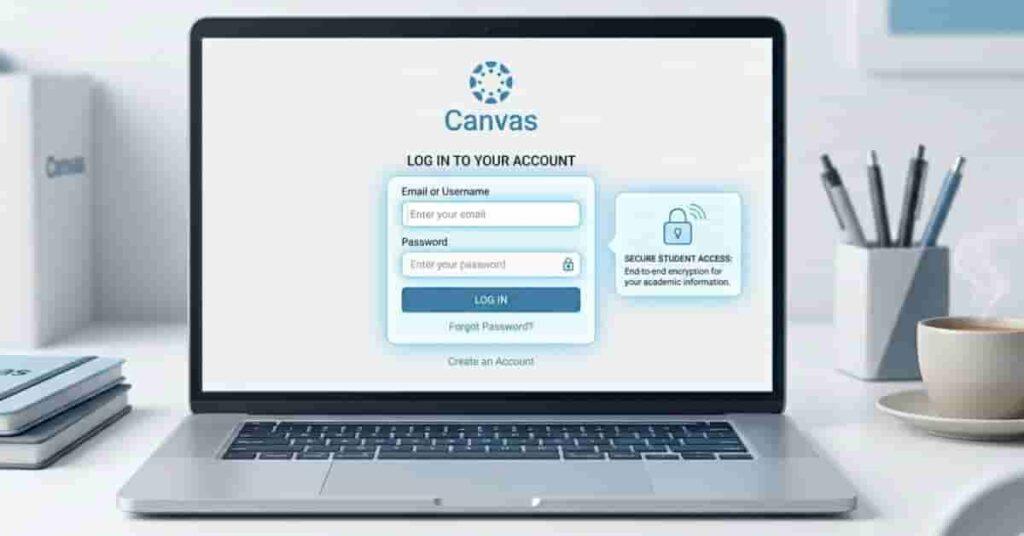
Start by opening your school’s Canvas website in a browser. Enter your student email and password to sign in.
After logging in, you’ll see the main Canvas dashboard. This page usually displays all your active courses and announcements.
If your school uses a custom login portal, you may need to sign in through your college or district website first.
Open Your Course Dashboard
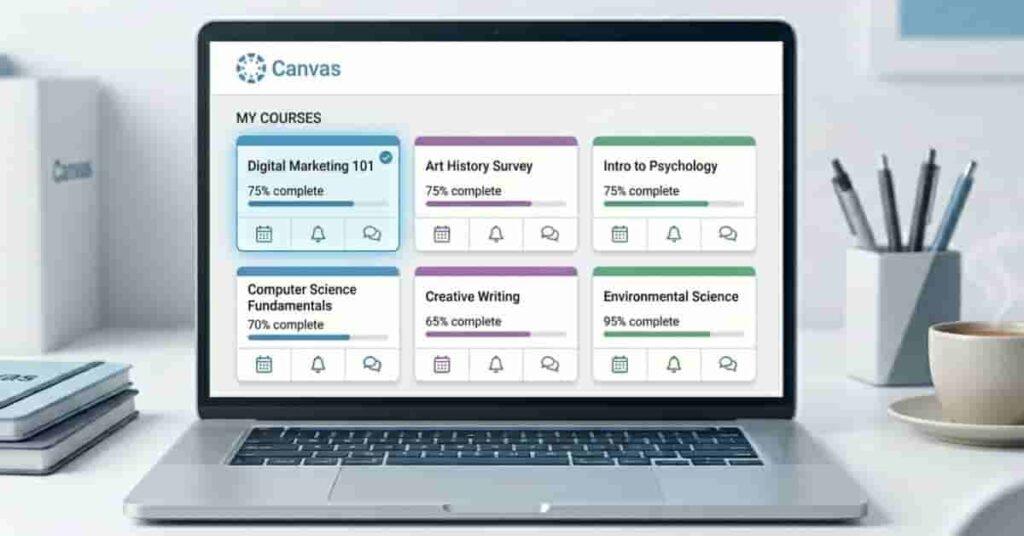
Click the course you want to check grades for. This opens the course dashboard, which contains assignments, modules, discussions, and announcements.
The left-side menu is important here. Most courses include a “Grades” option in this navigation panel.
Some instructors customize their course layout. If you cannot find Grades immediately, scroll through the course menu carefully.
Click the “Grades” Tab
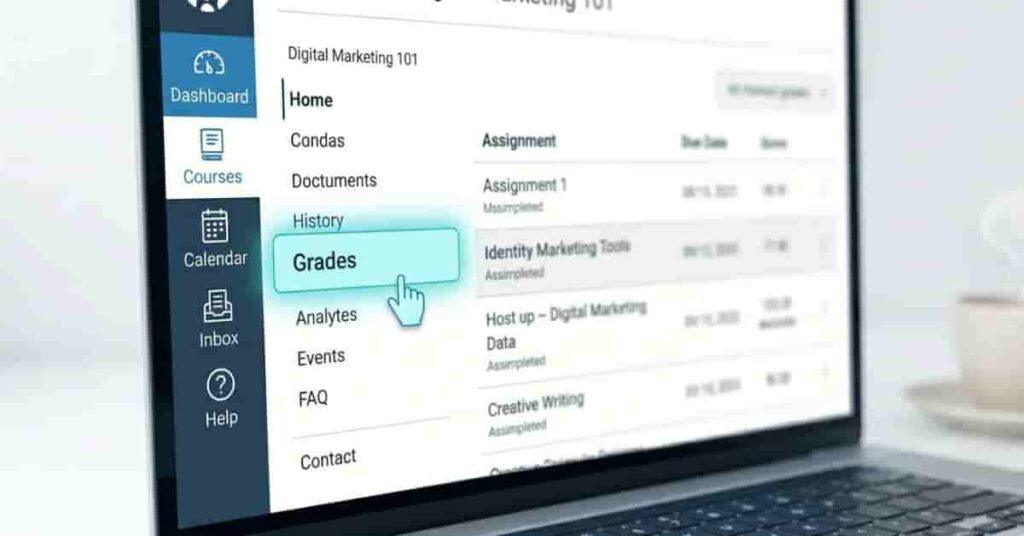
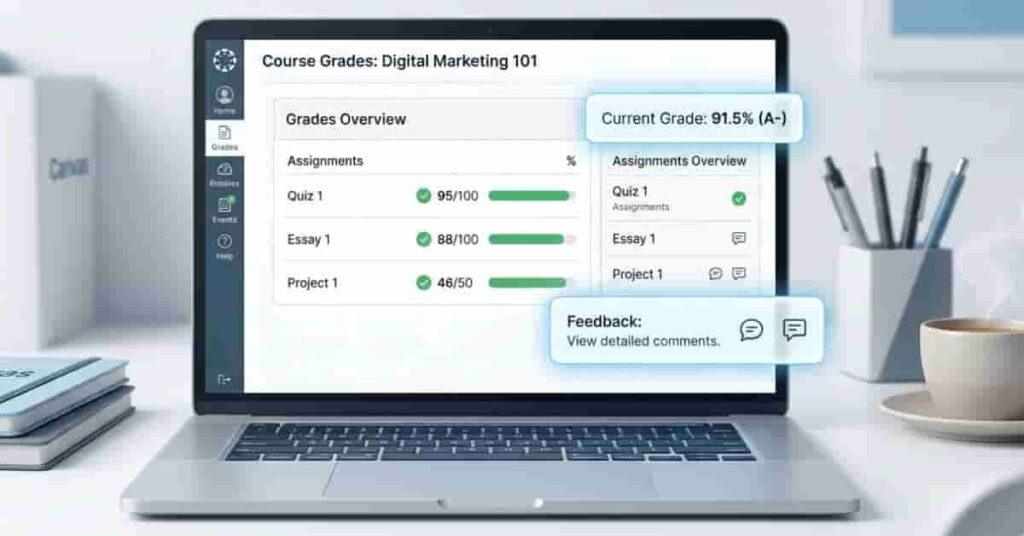
Select the “Grades” tab from the course menu. This opens your Canvas student grades page.
Here, you can usually see:
- Assignment names
- Grade percentages
- Points earned
- Submission status
- Due dates
- Late or missing labels
Some courses also display weighted grade categories and running totals. This helps students understand how quizzes, homework, and exams affect the overall course score.
If your instructor temporarily hides grades, some scores may not appear yet.
View Assignment Scores and Total Grade
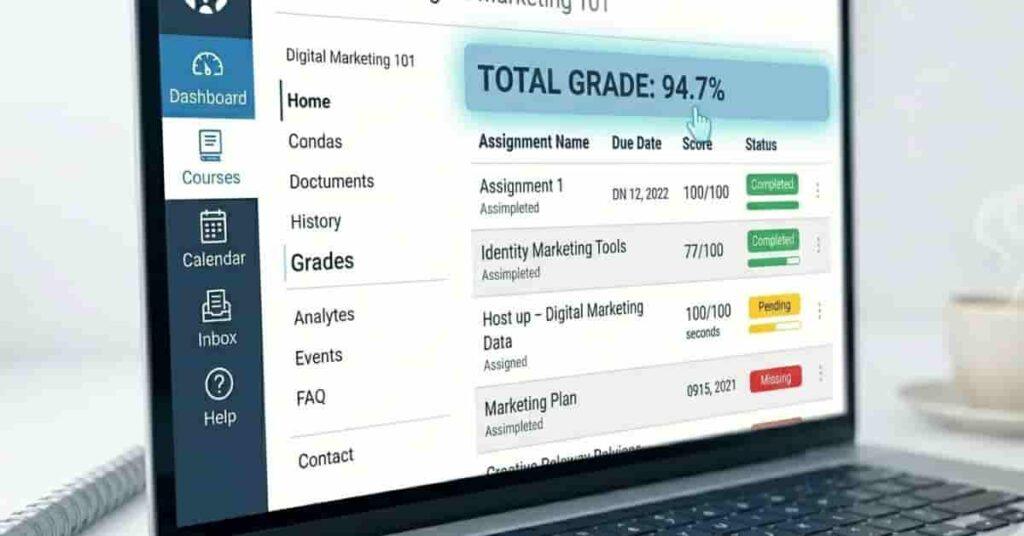
In the gradebook student view, each assignment appears in a list. You can compare scores quickly and track completed work.
Canvas often shows labels such as:
- Missing
- Late
- Submitted
- Excused
These status labels help students identify unfinished work before deadlines become a bigger problem.
Many courses also display your current total grade at the top or side of the page. This percentage may change when instructors add new assignments or update grades.
Remember that some schools enable weighted grading. In that case, exams may count more than homework assignments.
Pro Tip
Check your submission status after uploading assignments. A successful upload should show a submitted label and timestamp.
Open Detailed Feedback and Rubrics
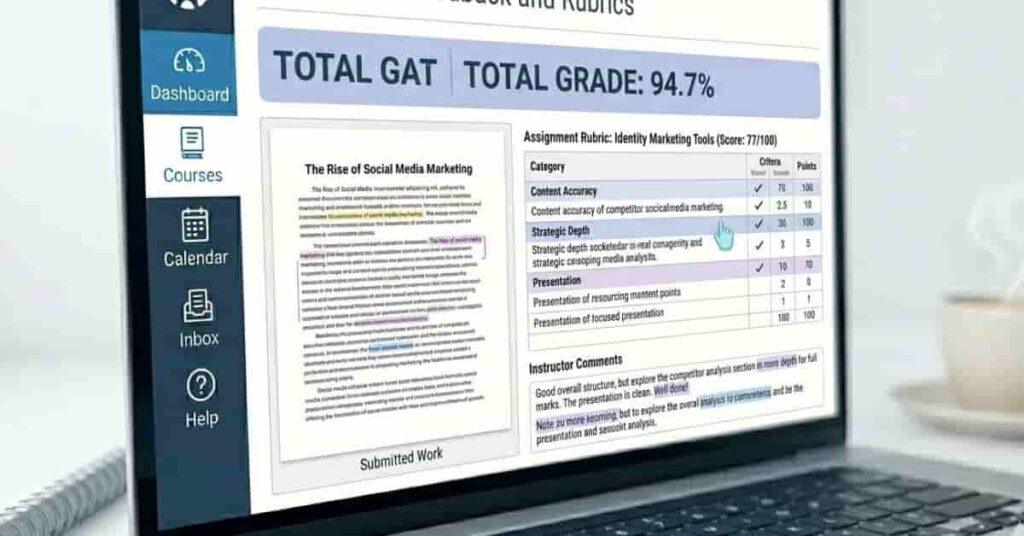
Click any assignment title to open more details. This section often includes instructor comments, grading notes, and rubric feedback.
Teachers may leave:
- Written comments
- File annotations
- Rubric scores
- Suggestions for improvement
Reading feedback carefully can help you improve future assignments and avoid repeating mistakes.
Some instructors also attach scoring rubrics. These rubrics explain exactly how points were awarded for each section of the assignment.
How to View Grades on the Canvas Mobile App
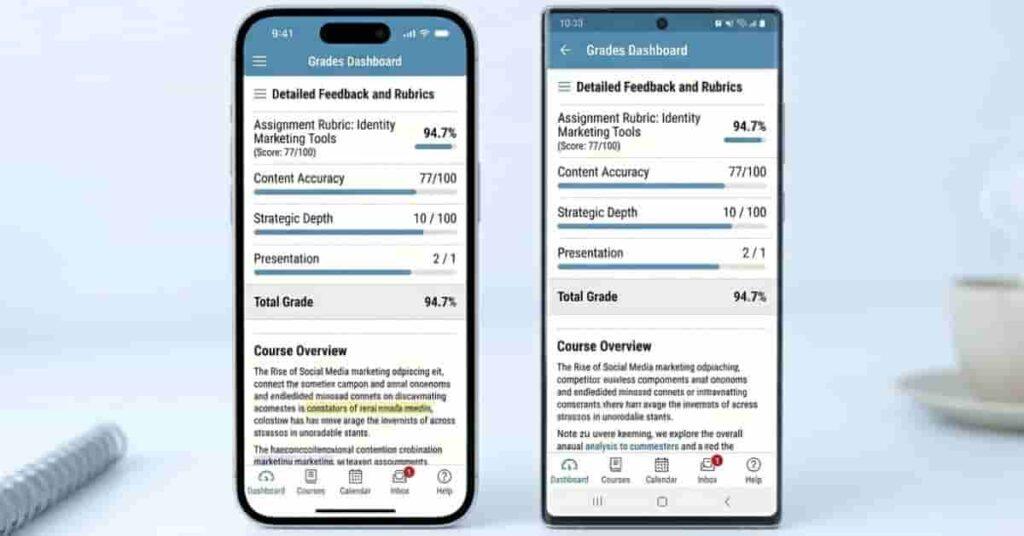
The Canvas Student app makes it easy to check grades anywhere. Many students use it to track scores between classes or after submitting assignments.
The app works on both iPhone and Android devices. While the layout may look slightly different on each device, the main features stay mostly the same.
Using the mobile app is helpful for quick grade checks, assignment updates, and instructor notifications.
Open the Canvas Student App

Start by downloading the Canvas Student app from the App Store or Google Play Store. After installing it, log in using your school email and password.
Some schools may ask you to enter their district or college name first. Once you sign in, the app opens your main dashboard with all active courses.
The iPhone and Android versions have similar tools, but menu placement may differ slightly depending on your device and app version.
Select Your Course
Tap the course you want to check grades for. This opens the course home page inside the app.
Most courses display tabs for modules, assignments, announcements, and grades. Some instructors may customize the course layout, so menu options can appear in different positions.
If you take multiple classes, double-check the course name before reviewing grades. This helps avoid confusion between subjects.
Tap Grades
Open the “Grades” section to view your Canvas assignment grades and current course performance.
The app usually displays:
- Assignment names
- Scores and percentages
- Submission status
- Due dates
- Missing or late labels
Some schools also allow students to view weighted grades and running totals on mobile devices.
The Canvas grades dashboard on phones is simpler than the desktop version. However, it still gives enough detail for quick progress checks.
Check Assignment Feedback
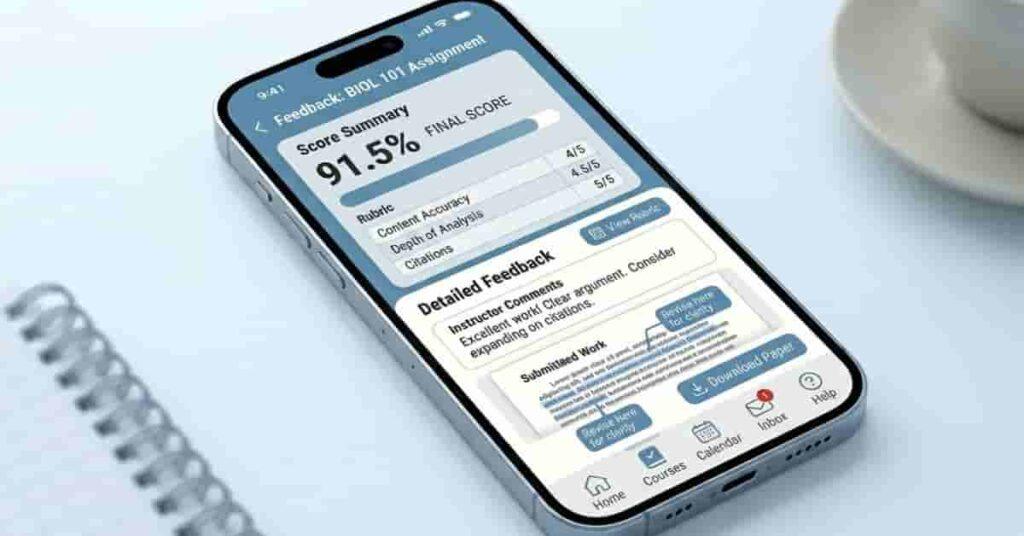
Tap any assignment to open detailed grading information. You can review instructor comments, rubric scores, and submission details directly in the app.
Teachers may leave:
- Written feedback
- Rubric comments
- File annotations
- Grade adjustment notes
The Canvas Student app also supports notifications for grades. Students can receive alerts when instructors post new scores, comments, or assignment updates.
Enabling notifications helps you stay updated without checking the app.
Understanding the Canvas Grades Dashboard
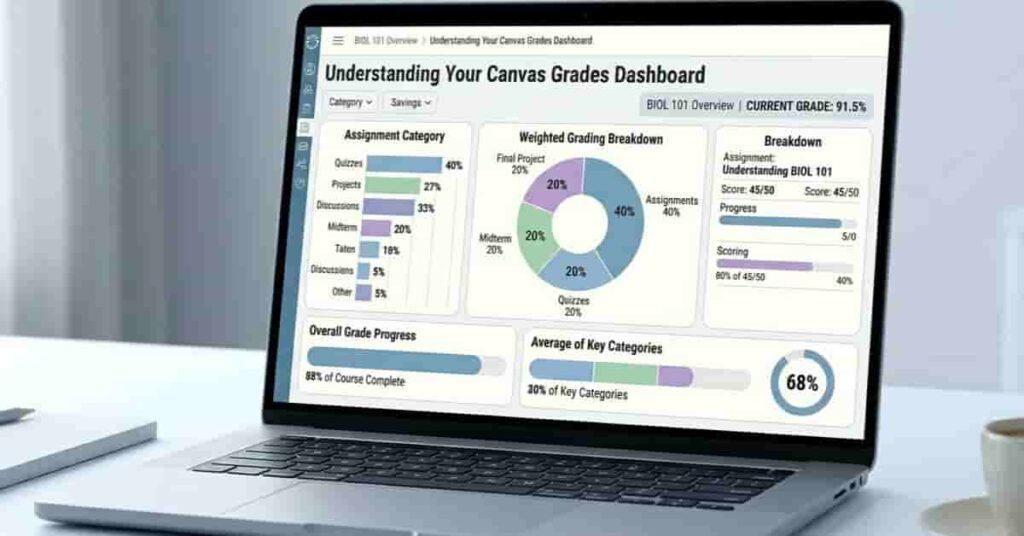
The Canvas grades dashboard provides students with a comprehensive view of their academic progress. It helps you track assignment scores, monitor missing work, and understand how your course grade changes over time.
Many students check grades without understanding what the numbers actually mean. This often leads to confusion about running totals, hidden grades, or weighted assignments.
Learning how the dashboard works can help you avoid grade surprises later in the semester.
Current Grade
Your current grade shows the percentage you have earned so far in the course. Canvas calculates this number using graded assignments that are already available.
For example, if only quizzes and homework are graded, your current score may not yet include future exams or projects.
Some courses display two important numbers:
- Current grade
- Total grade
Students often confuse these values. The current grade usually ignores ungraded assignments, while the total grade may include all coursework depending on instructor settings.
This is why your score can suddenly change after new grades appear.
Assignment Groups
Many instructors organize coursework into assignment groups. These categories help separate different types of activities inside the course.
Common assignment groups include:
- Homework
- Quizzes
- Discussions
- Projects
- Exams
Grouping assignments makes the Canvas grades dashboard easier to read. It also helps students understand which categories most affect their performance.
For example, low quiz scores may hurt your average less than exam grades if quizzes have a smaller weight.
Weighted Grades
Some schools use weighted grading in Canvas. This means certain assignment groups count more toward the final course score.
A common setup looks like this:
- Homework: 20%
- Quizzes: 30%
- Midterm Exam: 25%
- Final Exam: 25%
In weighted courses, a high exam score can improve your grade faster than smaller homework assignments.
Many students misunderstand the “running total” feature here. Running totals usually calculate grades using only graded assignments. Missing or future work may not yet appear in the percentage.
This can create a false sense of security if major assignments remain incomplete.
Missing Assignments
Canvas often marks incomplete work with labels such as “Missing” or “Late.” These warnings help students identify problems quickly.
Missing assignments may lower your overall course score immediately if instructors count them as zeros.
However, grading rules vary from school to school and from teacher to teacher. Some instructors allow late submissions, while others lock assignments after deadlines pass.
Regularly checking for missing work can prevent unexpected drops in your total grade.
Ungraded Assignments
Ungraded assignments can also confuse students. If a teacher has not reviewed submissions yet, Canvas may temporarily exclude those assignments from calculations.
Some instructors also hide grades until all students finish the assignment. These are often called hidden grades or manually posted grades.
This means you may submit work successfully but still not see a score right away.
If your Canvas grades are not showing correctly, the issue may simply be an unpublished or hidden grade.
Why Your Grades May Not Be Showing on Canvas
It can feel frustrating when grades disappear or never appear in Canvas. Many students think something is broken, but the issue is often linked to instructor settings or unfinished submissions.
If your Canvas grades are not displaying correctly, there are several common reasons. Understanding these issues can help you avoid unnecessary stress and find answers faster.
| Grade not visible | Instructor has not posted grades | Wait for grading updates or contact your teacher |
| Assignment missing score | Work was not submitted correctly | Check submission status and resubmit if needed |
| Course total not updating | Running total or weighted grading settings | Review grading rules in the syllabus |
| Grades hidden | Instructor uses manual posting policy | Wait until grades are released |
| Delayed updates | Canvas sync or refresh delay | Refresh the page or reopen the app |
Instructor Has Not Posted Grades
In many courses, instructors need to manually post grades before students can see them. This is common after quizzes, exams, or large assignments.
Teachers often wait until every student finishes the assignment before releasing scores. Until then, the grade may stay hidden inside the Canvas grades dashboard.
If you recently submitted work, give instructors time to review and publish grades.
Still unsure about your final score? Try using our Canvas Grade Calculator to quickly estimate your current and final grades. It helps you understand what you need to score on upcoming assignments or exams to reach your target grade.
Grades Are Hidden
Canvas allows teachers to temporarily hide grades. This feature prevents students from viewing scores before grading is complete.
Hidden grades usually appear after instructors select the “Post Grades” option inside Canvas.
Students often confuse hidden grades with missing assignments. However, hidden grades usually indicate that the work was submitted successfully but has not been released yet.
If classmates cannot see scores either, hidden grading is likely the reason.
Pro Tip
Check assignment comments and announcements before contacting your instructor. Teachers often explain when grades will become visible.
Assignment Is Not Submitted
Sometimes students believe an assignment was uploaded correctly when it was not. Canvas may show labels like:
- Missing
- Not Submitted
- Late
Always confirm that your submission includes a timestamp and “Submitted” status.
Weak internet connections, unsupported files, or accidental page exits can interrupt uploads without warning.
This issue happens often with mobile submissions.
Course Uses Manual Grading
Some instructors use manual grading policies instead of automatic posting. In these courses, grades stay hidden until teachers review all submissions.
Manual grading is common in:
- Essay assignments
- Group projects
- Discussion boards
- Written exams
This helps instructors review work fairly before publishing scores.
If your total grade looks incomplete, manual grading may delay updates for several assignments.
Canvas Sync Delay
Canvas occasionally experiences refresh or sync delays, especially during busy school periods. Grades may take several minutes to appear after instructors post them.
You can try these quick fixes:
- Refresh the browser
- Log out and back in
- Update the Canvas Student app.
- Clear browser cache
- Switch internet connections
If the issue continues, contact your school’s Canvas support team.
How to See Detailed Assignment Feedback on Canvas
Canvas does more than show your score. It also gives detailed feedback that helps you understand how your work was graded. Many students ignore this section, but it is one of the most useful parts of the platform.
If you want to improve your grades, always check assignment feedback after each submission. It explains what you did well and what needs improvement.
Rubric Scores
Some assignments use a rubric. A rubric breaks your work into sections and assigns points for each part.
You may see categories like:
- Content quality
- Organization
- Grammar or writing
- Accuracy
Each section shows how many points you earned. This makes it easy to see exactly where you lost marks.
Rubrics are especially common in essays, projects, and presentations. They help you understand grading expectations clearly.
Instructor Comments
Instructors often leave written comments after grading your work. These comments explain your mistakes or highlight strong areas.
You might see feedback like:
- “Good structure, but needs more detail.”
- “Check calculation in question 3.”
- “Strong introduction and clear argument”
These notes are important because they show how your teacher thinks about your performance.
Reading comments carefully can help you avoid repeating the same mistakes in future assignments.
Annotation Feedback
Some assignments allow direct annotation. This means your teacher can highlight, underline, or mark your submitted file.
Annotation feedback is common in:
- PDFs
- Essays
- Written reports
- Uploaded documents
Teachers may circle errors, add notes in margins, or highlight important sections.
This visual feedback makes it easier to understand exactly where improvements are needed.
File Comments
If you upload files, Canvas may include file-based comments. These comments appear directly on your submission or in a separate feedback panel.
File comments often explain:
- Formatting issues
- Missing sections
- Incorrect answers
- Suggestions for improvement
This feedback is especially useful for long assignments where small mistakes can affect your grade.
Resubmission Notes
Some instructors allow students to resubmit assignments. If this option is available, you may see resubmission notes inside your feedback section.
These notes explain:
- What needs to be fixed
- Whether resubmission is allowed
- Deadlines for re-uploading work
Resubmission feedback gives you a second chance to improve your score. Not all courses allow this, so always check instructions carefully.
How Canvas Calculates Your Current Grade
Canvas uses a mix of rules to calculate your current grade, and this is why the number can sometimes look confusing. Many students expect a simple average, but Canvas often uses weighted systems, running totals, and hidden data to build their score.
Understanding this calculation helps you avoid surprises and track your real performance more accurately throughout the semester.
Weighted Categories
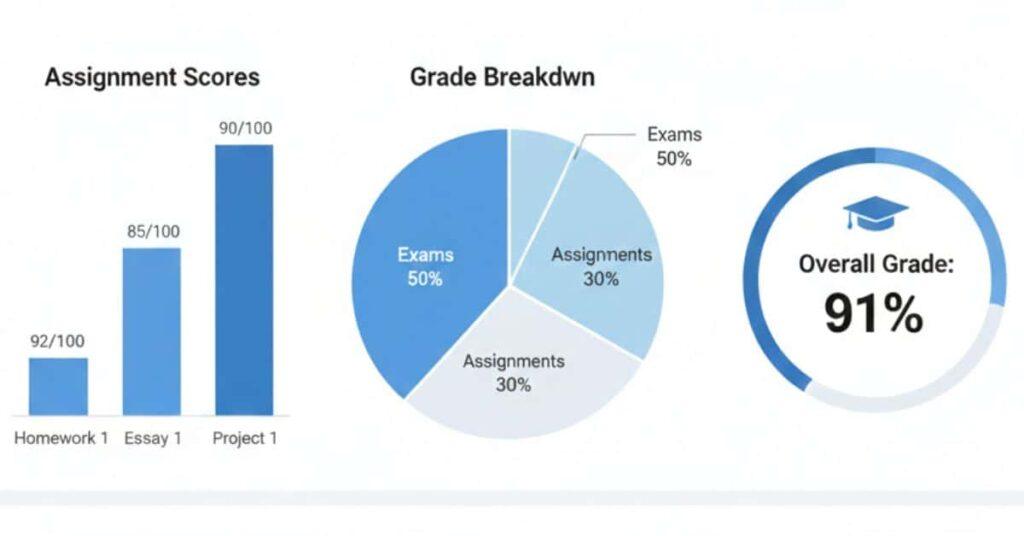
Most Canvas courses use weighted grading. This means different types of work contribute different amounts to your final grade.
For example:
- Homework might count 20%
- Quizzes might count 30%
- Exams might count 50%
Even if you score high in one category, a low score in a heavily weighted section can still drop your overall grade.
Weighted categories ensure your final score reflects the importance of each assignment type, not just the number of tasks completed.
Running Totals
Canvas often shows a “running total,” which updates as new grades are added. However, this number can be misleading.
The running total usually includes only graded assignments. It may ignore:
- Upcoming assignments
- Unposted grades
- Hidden or incomplete work
This is why your grade might change suddenly after an instructor posts new scores.
Many students confuse the running total with their final grade, but they are not the same.
Hidden Assignments
Some assignments are not included in your visible grade calculation right away. These are often hidden by instructors until grading is complete.
Hidden assignments may include:
- Exams are still being graded.
- Essays under review
- Group projects are waiting for final evaluation
When assignments are hidden, your Canvas grades dashboard may show a higher or lower score than expected.
Once grades are released, your total can be automatically adjusted.
Ungraded Work Impact
Ungraded assignments can also affect your current grade in different ways depending on the course settings.
In some cases:
- Ungraded work is ignored temporarily.
- It may be treated as zero.
- Or it may be excluded until grading is complete.
This depends on how your instructor configures the Canvas gradebook student view.
Because of this, your grade may not fully reflect your real performance until all work is graded.
If you want more accuracy, you can use tools like:
These tools help you predict your real score by factoring in missing assignments, weighted categories, and future exam results. They are especially useful when your running total does not match your expectations.
Difference Between Current Grade and Final Grade in Canvas
Many students get confused when they see different numbers in Canvas. Your current grade and final grade are not always the same, and they measure different things. Understanding this difference helps you avoid stress and plan your studies better.
Current Score
Your current score shows how you are performing based solely on graded work. It updates as instructors add new scores to the Canvas grades dashboard.
This score often includes:
- Completed assignments
- Graded quizzes and exams
- Submitted work that has been reviewed
However, it may ignore upcoming or ungraded tasks. That means your current score can look higher or lower depending on what has been graded so far.
Many students think this is their final result, but it is only a snapshot of progress.
Projected Grade
Your projected grade gives a more realistic idea of your final outcome. It estimates your total performance by considering remaining assignments and the course weight.
Some Canvas courses show a “total grade” or estimated score, but this depends on the instructor’s settings.
Projected grades are useful because they help you understand:
- Where your final score might land
- How upcoming exams will impact your results
- Whether you need to improve in certain areas
Ungraded Assignments
Ungraded assignments play a big role in the difference between current and final grades. These are tasks that you have submitted, but your teacher has not graded yet.
They may also include:
- Upcoming exams
- Pending essays
- Group projects under review
Because Canvas may not include these in your current score, your grade can change suddenly once they are added.
This is one of the most common reasons students feel their grade “jumped” unexpectedly.
“What-If” Grades
The “What-If” feature in Canvas lets you test possible scores before they are actually entered. It is useful for predicting your final grade.
With what-if grades, you can:
- Enter hypothetical scores
- See how future exams affect your grade.
- Plan what score you need to reach your target.
This feature is especially helpful during midterms and finals when every point matters.
It gives students more control and reduces guesswork about final results.
Takeaways
- The current grade shows only the work that has already been graded.
- Final or projected grade includes future impact and course weight.
- Ungraded assignments can change your score later.
- What-if grades help you predict possible outcomes.
- Canvas grades can shift until all work is finalized.
Tips for Tracking Your Grades Better in Canvas
Keeping track of your grades in Canvas helps you stay ahead and avoid last-minute surprises. Many students only check grades during exams, but regular monitoring gives them better control over their performance.
Small habits like checking feedback, enabling alerts, and using tools like a grade calculator can make a big difference in your final score.
Enable Notifications
Turn on Canvas notifications so you never miss a grade update. This feature sends alerts when instructors post scores, comments, or changes to assignments.
You can receive notifications through:
- Email updates
- Mobile push alerts (iPhone and Android)
- In-app messages
Notifications help you respond quickly to missing work or new grades. This is especially useful during busy exam weeks.
Check Grades Weekly
Make it a habit to check your Canvas grades dashboard at least once a week. This helps you track progress before small issues become big problems.
Weekly checks allow you to:
- Catch missing assignments early.
- Monitor score changes
- Stay aware of upcoming deadlines.
Regular review keeps your current grade stable and reduces last-minute stress.
Review Instructor Feedback
Don’t just look at your score. Always read instructor feedback after each assignment.
Feedback often explains:
- Mistakes in your work
- Areas for improvement
- Strengths in your submission
This helps you improve future assignments instead of repeating the same errors. Over time, it can significantly raise your grade.
Monitor Missing Assignments
Missing assignments is one of the fastest ways to lose points in Canvas. Always check for labels like “Missing” or “Late” in your gradebook.
These indicators show:
- Work not submitted
- Late submissions
- Assignments needing resubmission
Fixing missing work early can prevent unnecessary drops in your overall grade.
Conclusion
In this guide, we explained how Canvas grades work and how students can easily track their academic progress. You learned how to navigate the dashboard, view assignment scores, and understand grading details on both desktop and mobile. We also covered common issues, such as missing grades and how Canvas calculates your final score.
Now you clearly understand how to check grades on Canvas using the grades dashboard and mobile app. You also know how to view grades on Canvas, track assignment feedback, and avoid confusion with hidden or ungraded work.
If you still feel unsure, use these tips regularly to stay on top of your Canvas student grades. It can make a big difference in your final performance.
Try checking your Canvas gradebook student view today and stay updated. Share your experience or questions in the comments to help other students improve, too.

We are the Canvas Academic Team, a developer team focused on building simple and practical tools that help students succeed academically. This platform was created specifically for Canvas LMS students to make grade tracking, GPA calculations, exam planning, and academic management easier and more efficient.
Our focus is on creating fast, accurate, and student-friendly educational tools along with helpful learning resources that improve productivity and reduce academic stress.
Through CanvasGradeCalculator.com, our goal is to continue building useful resources that help students study smarter, stay organized, and achieve better academic results.