

Table of Contents
Introduction
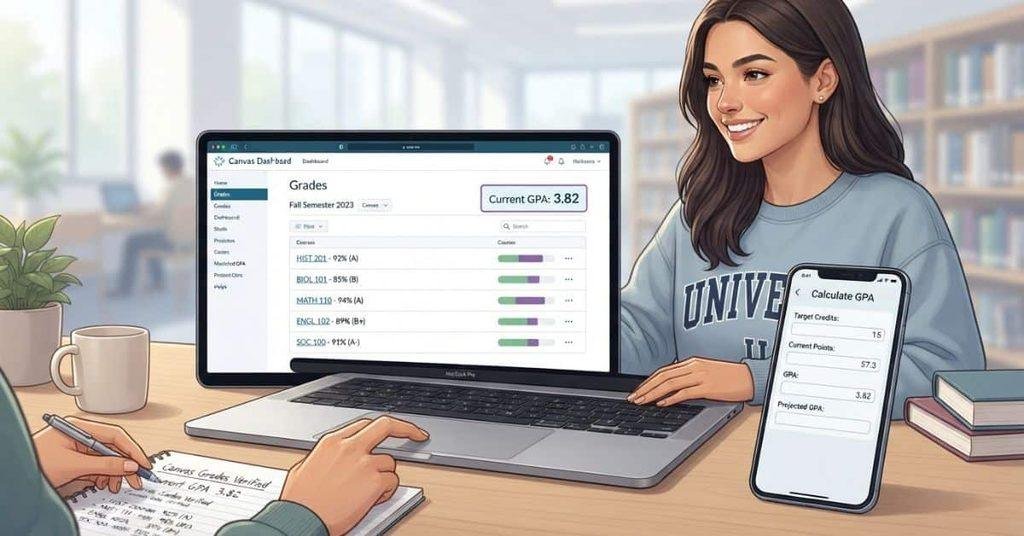
Wondering why you can see your grades in Canvas but still can’t find your GPA?
If you’re asking how to check GPA on Canvas, you’re not alone. Many U.S. college students use Canvas daily but aren’t sure where GPA information appears.
Canvas can show your current course grades, percentages, and total scores. However, your official college GPA may come from a separate student portal.
In this guide, you’ll learn exactly where to look for your grades in Canvas. You’ll also learn how to calculate your GPA when Canvas doesn’t show it directly.
We’ll cover the difference between course grades and your official GPA. You’ll also see how credit hours affect your GPA calculation.
By the end, you’ll know whether Canvas provides your GPA and what to do if it doesn’t. You’ll also have a simple method for estimating your GPA from your Canvas grades.
Can You Check Your GPA on Canvas?
If you’re trying to check your GPA on Canvas, you may not find a GPA number on your Dashboard. Canvas usually focuses on individual course grades rather than your official college GPA.
Canvas can display your current grades, percentages, points, and sometimes an overall course grade. However, it does not automatically calculate or display an official cumulative GPA for every student. Your school decides what grade information appears in Canvas.
Your Canvas course grade also differs from your cumulative college GPA. A course grade reflects your performance in one class. Your cumulative GPA combines grades from multiple courses, usually based on their credit hours.
Your GPA may not appear on the Dashboard for several reasons:
- Your school may not display GPA information in Canvas.
- Your instructor may not enable total or current grades.
- Your official GPA may come from your school’s student information system.
- Canvas and your college portal may serve different academic purposes.
Pro Tip: If Canvas shows your course grades but no GPA, check your school’s student portal for your official cumulative GPA.
How to Check Your GPA on Canvas
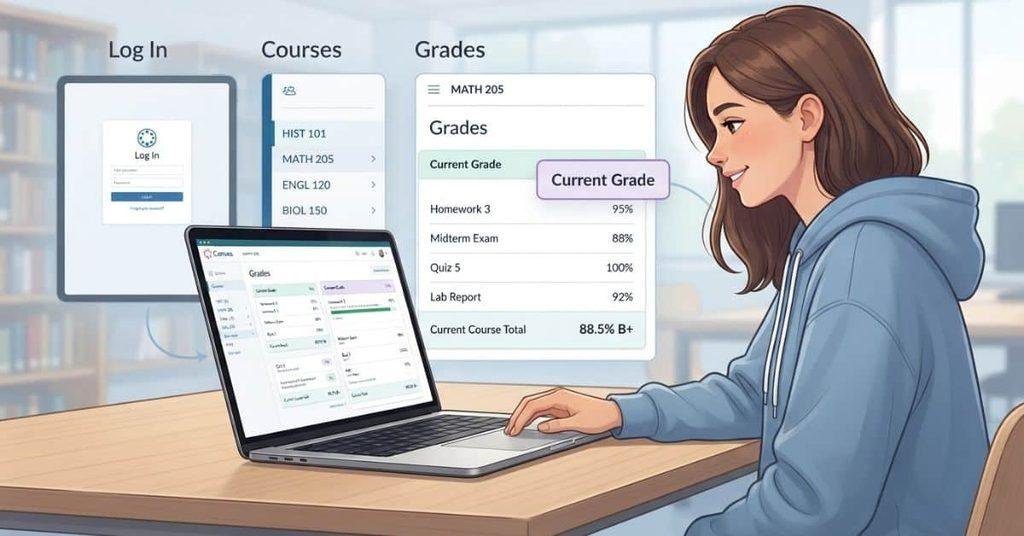
Checking your grades in Canvas is straightforward, but finding your official GPA can be different. Canvas mainly organizes grades by individual courses.
Follow these steps to review your current grades and find out where your GPA may be available.
If you also want your grades to be easier to monitor, learn how to display grades on Canvas Dashboard cards and keep your course information visible.
Step 1 — Log In to Canvas
Start by opening Canvas through your college or university’s official Canvas login page. Enter your school credentials and open your Canvas account.
You can use Canvas through a web browser or the Canvas Student app. The layout may look slightly different between devices, but the basic steps remain similar.
Step 2 — Open the Grades Page
After logging in, select Courses from the Canvas navigation menu. Choose the course where you want to review your grades.
Next, open the Grades page for that course. You’ll see the assignments, quizzes, exams, and other graded activities listed there.
If you want to estimate your overall course grade, a Canvas Grade Calculator can help organize your scores and calculate the result.
Step 3 — Review Your Current Course Grade
Look for a total or current grade near the top of the Grades page. This appears only when your instructor or institution has enabled the relevant Canvas settings.
Your grade may appear as a percentage, points, or letter grade. For example, Canvas might show a percentage alongside an A, B, or C grade.
Remember that this is your course grade, not necessarily your cumulative college GPA. A Canvas GPA Calculator can help you estimate GPA from multiple course grades when Canvas does not provide a GPA figure.
Step 4 — Check Whether Your School Provides a GPA View
If Canvas does not show your GPA, check your college’s student portal. Some schools connect Canvas with separate academic systems that handle official GPA records.
Your student portal may show your term GPA, cumulative GPA, or both. The exact location depends on your institution.
Pro Tip: Use Canvas to review individual course grades, then use your school’s official portal for your recorded cumulative GPA.
How to Calculate Your GPA From Canvas Grades
Canvas can help you review your course grades, but it may not show your cumulative GPA. You can still estimate your GPA by converting your grades into grade points.
Your college may use a different grading scale, so always check your school’s GPA policy. The 4.0 scale below is common, but it is only a general reference.
Convert Your Letter Grades to Grade Points
Start by changing each letter grade from Canvas into its corresponding grade-point value. A typical 4.0 scale looks like this:
| Letter Grade | Typical GPA Points |
|---|---|
| A | 4.0 |
| A- | 3.7 |
| B+ | 3.3 |
| B | 3.0 |
| B- | 2.7 |
| C+ | 2.3 |
| C | 2.0 |
| C- | 1.7 |
| D+ | 1.3 |
| D | 1.0 |
| F | 0.0 |
These values can vary by college or university. Some schools use different scales or handle plus and minus grades differently.
If you already have your Canvas grades, our Canvas GPA Calculator can make the conversion and estimation easier.
Use Credit Hours to Calculate GPA
After converting your grades, include the credit hours for each course. Courses with more credit hours have a larger effect on your GPA.
Use this formula:
GPA = Total Grade Points ÷ Total Credit Hours
For example, suppose you completed four courses:
| Course | Grade | Grade Points | Credit Hours |
|---|---|---|---|
| English | A | 4.0 | 3 |
| Biology | B | 3.0 | 4 |
| History | B+ | 3.3 | 3 |
| Math | A- | 3.7 | 3 |
Calculate the weighted grade points:
(4.0 × 3) + (3.0 × 4) + (3.3 × 3) + (3.7 × 3) = 42.0
Then divide by the total 13 credit hours:
42.0 ÷ 13 = 3.23
So, your estimated GPA would be 3.23 on this example 4.0 scale.
For a quicker calculation, you can also use a Canvas Grade Calculator to organize your current course scores before estimating your GPA.
Can Canvas Calculate This Automatically?
Canvas can calculate certain course-grade totals when your instructor enables the relevant grading settings. It may show percentages, points, or a current course grade based on your assignments.
However, that calculation does not necessarily equal your official college GPA. Your official GPA can depend on credit hours, weighted grading, plus/minus grades, repeated courses, and school-specific policies.
For example, a repeated course may affect GPA differently depending on your institution’s rules. Some schools may replace an earlier grade, while others may include both attempts.
Pro Tip: Use Canvas to track your course performance, but verify your official GPA through your school’s student portal.
Understanding your GPA starts with knowing how Canvas displays course grades, so you may also want to read what T means in Canvas and how grade symbols work.
How to Check Your GPA in the Canvas Student App
The Canvas Student app makes it easy to review grades from your phone. However, it may not display your official cumulative GPA.
Open the Canvas Student App
Open the Canvas Student app on your iPhone or Android device. Sign in using your school’s Canvas account.
Your school may use a customized Canvas setup. Because of this, some menu options can look different.
Select Your Course
After signing in, open the Courses section. Select the course where you want to check your grades.
Choose the correct semester and course if your account contains multiple classes. This helps you avoid checking an older course by mistake.
Open Grades
Inside your course, look for Grades in the course navigation menu. Tap it to view your graded assignments and other course activities.
You may see assignment scores, percentages, points, and letter grades. The available information depends on your instructor’s Canvas settings.
Check Your Current Grade
Review the total or current grade if your instructor has enabled it. This number represents your performance in that specific course.
The app may show a course grade without showing your official cumulative GPA. If you need a GPA estimate, you can use our Canvas GPA Calculator to calculate it from your course grades.
For your official GPA, check your college’s student portal or academic records system.
Why Can’t I See My GPA on Canvas?
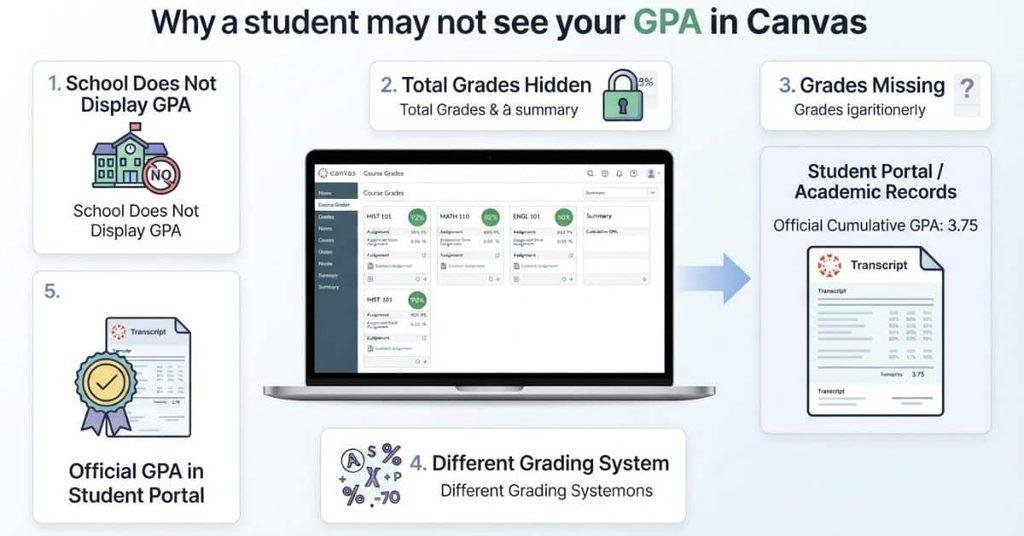
Not seeing a GPA in Canvas does not necessarily mean something is wrong. Canvas primarily manages course grades, while your school may store official GPA records elsewhere.
Here are the most common reasons your GPA does not appear.
Your School Does Not Display GPA in Canvas
Your college may not configure Canvas to display cumulative GPA information. In this case, Canvas can still show your individual course grades.
Check your school’s student portal for your official GPA. That system usually manages academic records and cumulative GPA information.
For a quick estimate of your current course percentage, use the Canvas Grade Calculator alongside your Canvas grades.
Your Instructor Has Hidden Total Grades
Your instructor may disable or hide total grades in the Canvas Grades page. You might still see individual assignment scores.
This means you can have grades in Canvas without seeing an overall course total.
Grades Are Still Missing
Some assignments may not have grades yet. Missing scores can make your current course grade incomplete or change the displayed total.
Check whether upcoming assignments, exams, or other activities still need grading.
The Course Uses a Different Grading System
Not every Canvas course uses the same grading method. Your instructor might use points, percentages, weighted categories, or another grading structure.
A course grade based on weighted categories may not translate directly into a standard GPA value.
Your Official GPA Is Stored in Your Student Information System
Your college may keep official GPA records in a separate student information system (SIS). Canvas and the SIS can serve different purposes.
Canvas helps you track course performance. Your student portal typically provides official academic records, including cumulative GPA.
Pro Tip: If you cannot find your GPA in Canvas, don’t assume your grades are missing. Check your school’s official student portal first.
Canvas Grade vs. Official College GPA
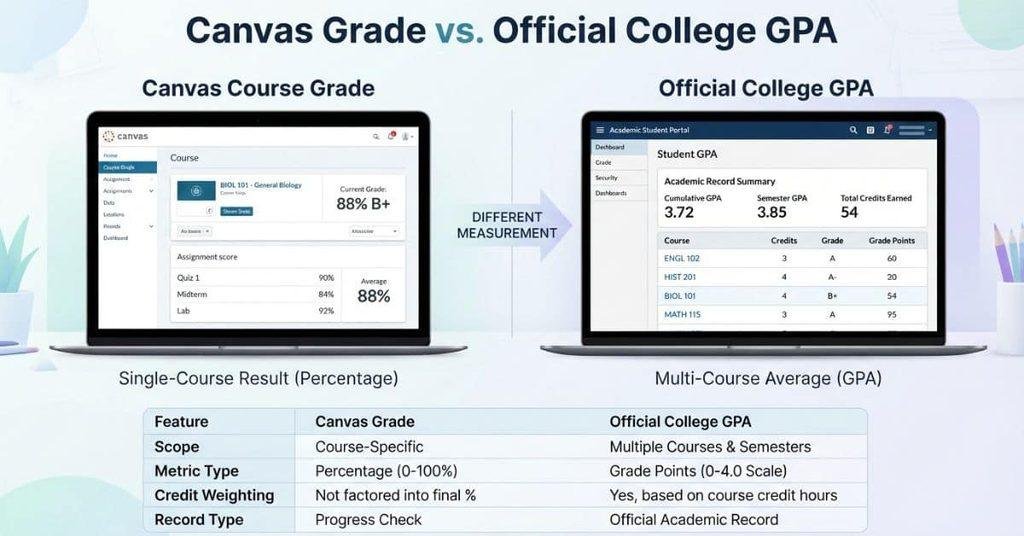
Students often confuse their Canvas course grade with their official college GPA. These numbers serve different purposes and may use different calculation methods.
| Canvas Grade | Official College GPA |
|---|---|
| Usually course-specific | Usually cumulative |
| Based on course grading setup | Based on institutional GPA rules |
| May use percentages, points, or letters | Usually uses a GPA scale |
| Controlled by course settings | Maintained by the school |
For example, Canvas might show 88% for your Biology course. That percentage does not automatically mean your GPA is 3.7.
Your course percentage depends on how your instructor calculates grades. Your official GPA considers factors such as credit hours, grade points, repeated courses, and your school’s policies.
This distinction matters when you’re estimating your GPA from Canvas grades. You can use our Canvas GPA Calculator to estimate your GPA, but your school’s records remain the official source.
If you want to understand how individual course scores affect your overall grade, our Canvas Grade Calculator can also help you check your course results.
How to Find Your Official GPA If Canvas Doesn’t Show It
If Canvas does not display your GPA, you still have several reliable ways to find it. Most U.S. colleges provide GPA information through their academic records system.
Check Your College Student Portal
Log in to your college or university’s student portal. Look for sections named Grades, Academic Records, Student Records, or Academic Progress.
Your portal may show both your current-term GPA and cumulative GPA.
Open Your Unofficial Transcript
Many colleges provide an unofficial transcript through the student portal. Open it and look for your GPA near the academic summary or term information.
Your transcript can also show the courses, grades, and credit hours used in your GPA.
Check the Academic Records or Grades Section
If you cannot find your transcript, check the portal’s academic records area. Search for terms such as GPA, Academic History, or Grades and Transcripts.
The exact menu names vary between colleges.
Contact Your Academic Advisor
Your academic advisor can help you locate your official GPA. They can also explain how your school calculates GPA if the number seems confusing.
Contact the Registrar if Your GPA Appears Incorrect
If your GPA looks wrong, contact your school’s registrar’s office. The registrar typically handles official academic records and can investigate record-related issues.
Pro Tip: Treat Canvas as a tool for tracking course performance. Use your official student portal or transcript when you need your recorded college GPA.
Can You Check Your Semester GPA on Canvas?
Canvas usually shows grades for individual courses, not your official semester GPA. Your semester GPA combines the grades and credit hours from all courses completed during that term.
You can estimate your semester GPA using the grades shown in Canvas. First, convert each letter grade into grade points. Then multiply each grade point by its course credit hours.
Add those grade points together and divide by your total credit hours. For example, an A in a four-credit course contributes more to your GPA than an A in a one-credit course.
You can use our Canvas GPA Calculator to make this calculation easier. However, your estimate may differ from your official GPA.
Your college may apply specific rules for plus/minus grades, repeated courses, withdrawals, or other situations. Always verify your final semester GPA through your school’s student portal or transcript.
Can You Check Your Cumulative GPA on Canvas?
Canvas usually does not provide your official cumulative GPA directly. It primarily displays information related to your current courses and their grading setup.
Your cumulative GPA combines eligible coursework across multiple semesters. Your school’s academic system applies its own rules when calculating this number.
If you cannot find your cumulative GPA in Canvas, check your college’s student portal. Look under Academic Records, Grades, Academic History, or Transcripts.
You can also open your unofficial transcript to find your recorded cumulative GPA. This information is more reliable than estimating your GPA from Canvas grades.
Some colleges integrate their student information systems with Canvas. Others keep these systems separate. Because each institution configures these tools differently, the GPA information available in Canvas can vary.
Pro Tip: Use our Canvas GPA Calculator to estimate your cumulative GPA from course grades. Then compare the result with your school’s official record.
What to Do If Your Canvas Grade Looks Wrong
A grade that looks incorrect does not always mean Canvas calculated it incorrectly. Check the underlying scores and grading settings before contacting your instructor.
Check Assignment Scores
Open the Grades page and review each assignment score. Look for scores that differ from your graded work or feedback.
Make sure Canvas recorded every score correctly. One incorrect assignment score can change your displayed course grade.
Check Missing Assignments
Look for assignments marked missing, late, or ungraded. A missing score may affect your current grade depending on the course rules.
Check whether you actually submitted the assignment and whether your instructor has graded it.
Review the Grading Scheme
Check how your instructor calculates the course grade. Some courses use weighted categories rather than simply adding assignment points.
A weighting error can make the displayed percentage look different from your expectations.
Ask Your Instructor
If the numbers still look wrong, contact your instructor. Point to the specific assignment or calculation that seems incorrect.
Your instructor can confirm whether the grade follows the course syllabus and grading rules.
Contact Your School if Needed
If your instructor confirms the grade but your official academic record looks different, contact your school’s appropriate academic office.
For official GPA or transcript issues, the registrar’s office can usually explain which record controls your reported GPA.
If you are trying to reach a specific final percentage, the Canvas Grade Calculator can help you test the scores you may need on upcoming work.
Conclusion
Canvas makes it easy to review your course grades, but it may not show your official semester or cumulative GPA. We covered how to check GPA on Canvas, calculate an estimate from your grades, and find your official GPA when Canvas doesn’t display it.
Remember, your Canvas percentage does not automatically equal your college GPA. Your school may use specific rules for credit hours, grading scales, and repeated courses.
For the most accurate result, check your student portal or unofficial transcript. You can also use our Canvas GPA Calculator to estimate your GPA from your course grades.
Have questions about your Canvas grades? Explore our other Canvas calculators for quick, practical help with your coursework.
Canvas may show your current course grades, but it does not always show your official GPA. Whether GPA information appears depends on your school’s Canvas setup. Your official cumulative GPA usually comes from your college’s student information system or transcript.
Log in to Canvas and open Courses. Select your course, then open Grades to review your current course grade. Canvas may show a percentage, points, or letter grade. If you need your official GPA, check your college’s student portal or transcript.
Your school may not display GPA information through Canvas. Your instructor may also hide total grades or use a grading system that does not show GPA. Check your student portal for your official GPA if Canvas only shows individual course grades.
Canvas does not necessarily calculate or display an official cumulative GPA. It can calculate course grades based on your instructor’s grading setup. Your college usually calculates cumulative GPA using institutional rules, credit hours, and eligible coursework.
The Canvas Student app can show your course grades and other grading information. However, it may not display your official cumulative GPA. If you cannot find your GPA in the app, check your school’s student portal or unofficial transcript.
Convert each Canvas letter grade into grade points using your school’s grading scale. Then multiply each grade point by its course credit hours. Add those results and divide by your total credit hours. Our Canvas GPA Calculator can simplify this calculation.
No. A Canvas grade usually represents your performance in one course. Your GPA combines grades from multiple courses using your school’s GPA rules. A Canvas percentage, such as 90%, does not automatically equal a specific GPA value.
Check your college’s student portal and look under Grades, Academic Records, or Academic History. You can also check your unofficial transcript. If you cannot locate your GPA, contact your academic advisor or registrar’s office.
Canvas may show grades for individual courses, but it does not necessarily show your official semester GPA. You can estimate your semester GPA from your Canvas grades and credit hours. Verify the final result through your school’s official academic records.
Your Canvas estimate may use different grading assumptions than your school’s official system. Differences can come from credit hours, plus/minus grades, repeated courses, weighted grading, or institutional policies. Your school’s official transcript should be treated as the final GPA record.

We are the Canvas Academic Team, a developer team focused on building simple and practical tools that help students succeed academically. This platform was created specifically for Canvas LMS students to make grade tracking, GPA calculations, exam planning, and academic management easier and more efficient.
Our focus is on creating fast, accurate, and student-friendly educational tools along with helpful learning resources that improve productivity and reduce academic stress.
Through CanvasGradeCalculator.com, our goal is to continue building useful resources that help students study smarter, stay organized, and achieve better academic results.

