


Table of Contents
Introduction
Have you ever opened Canvas Grades and wondered why a mysterious T is showing next to your grade?
If you are new to Canvas, unfamiliar letters and symbols can be confusing. A T may look like a normal grade, but its meaning is not always obvious. Canvas displays grades and status indicators based on course and assignment settings.
Understanding these symbols can help you avoid unnecessary worry about your grades. It can also help you understand what your instructor expects and how your course is graded.
In this guide, we’ll explain what does a T mean in Canvas and where you might see it. We’ll also cover what the T can mean in Canvas grades and how to check its meaning in your course.
You’ll learn how to interpret common Canvas grade symbols without guessing. We’ll also explain what to do when a symbol is unclear.
By the end, you’ll know exactly where to look for answers and when to contact your instructor.
What Does T Mean in Canvas?
So, what does a T mean in Canvas? The answer depends on where you see the T and how your instructor configured the course. Canvas can display different grading indicators based on assignment and course settings.
You may see a T in the Grades area, beside an assignment, or within an assignment’s details. Its location matters because the Gradebook and assignment view can show different types of grading information.
In the Gradebook, a T may appear as a grade-related indicator or status. In the assignment view, you may find additional details about your submission, score, or grading method. The surrounding information can help you understand what the symbol represents.
A T doesn’t always function like a traditional letter grade. Instructors can use different grading methods, including custom grading schemes and assignment settings. These settings can change what students see in Canvas.
If you’re unsure about the T, check the assignment details and course grading information first. Your syllabus may also explain special grades or symbols used in the course.
Pro Tip: Don’t assume a Canvas symbol has the same meaning in every course. Check its context before interpreting it as a grade.
If you are checking several grades in Canvas, you may also want to learn how to check your GPA on Canvas and understand your broader academic standing.
What Does T Mean in Canvas Grades?
If you see a T in Canvas Grades, don’t immediately assume it is a traditional letter grade. The meaning depends on how your instructor set up the assignment and gradebook.
A T can appear beside or within a grade as a status, grading indicator, or course-specific label. The Grades page gives you the displayed result, while the assignment page can provide more context about your submission and grading.
Instructor settings can also affect what appears in the gradebook. For example, courses may use different grading schemes, assignment types, or submission settings. These choices can change how Canvas presents information to students.
If the T doesn’t make sense, start by opening the related assignment. Check the displayed score, submission details, grading information, and any instructor comments. Then compare them with your course syllabus or grading policy.
What Does P Span Mean on Canvas?
Wondering what does P span mean on Canvas? You may be seeing text that looks unusual rather than an actual grade or status.
“P span” can refer to HTML formatting elements behind the Canvas page. The visible text and the underlying webpage structure are not necessarily the same thing. A <p> element represents a paragraph, while a <span> element can format part of that text.
This can become confusing when copied text, browser tools, accessibility features, or other displays expose webpage markup. Instead of seeing a normal label, you might notice terms such as “p” or “span.”
That doesn’t automatically mean your instructor assigned a special grade called P Span. The underlying HTML structure can simply control how information appears on the page.
If you encounter this wording, check the original Canvas Grades page first. Open the assignment and look for the actual score, status, or grading information.
What Does SPAN Mean on Canvas?
If you’re searching what does span mean on Canvas, you may be looking at a label that doesn’t behave like a normal grade. The word “SPAN” can appear confusing when students view grading information or copied Canvas content.
In many cases, “span” relates to how webpage content is structured or formatted. A span is an HTML element that can apply formatting to part of a line or piece of text. It isn’t automatically a grade, score, or grading status.
However, the surrounding Canvas content still matters. If SPAN appears near an assignment, grade, or status, check the information around it before deciding what it means.
Open the assignment and review its score, submission status, and grading details. You should also check your course syllabus for any special grading labels or policies.
Expert Tip: Don’t treat “SPAN” as a standard Canvas grade without checking its context. The visible label may relate to page formatting rather than your academic result.
What Does EX Mean on Canvas?
Wondering what does EX mean on Canvas? EX may appear near an assignment or within the Grades area, but its exact meaning can depend on your course setup.
It may function as a grading or assignment status rather than a traditional letter grade. Canvas can display information based on instructor settings, assignment configurations, and course grading policies.
If you don’t recognize EX, open the related assignment first. Check the assignment instructions, submission details, displayed grade, and any comments from your instructor.
Your syllabus may also explain special grades, exemptions, or course-specific labels. If the meaning still isn’t clear, ask your instructor before assuming how EX affects your grade.
Why Does Canvas Show Letters or Symbols Instead of a Grade?
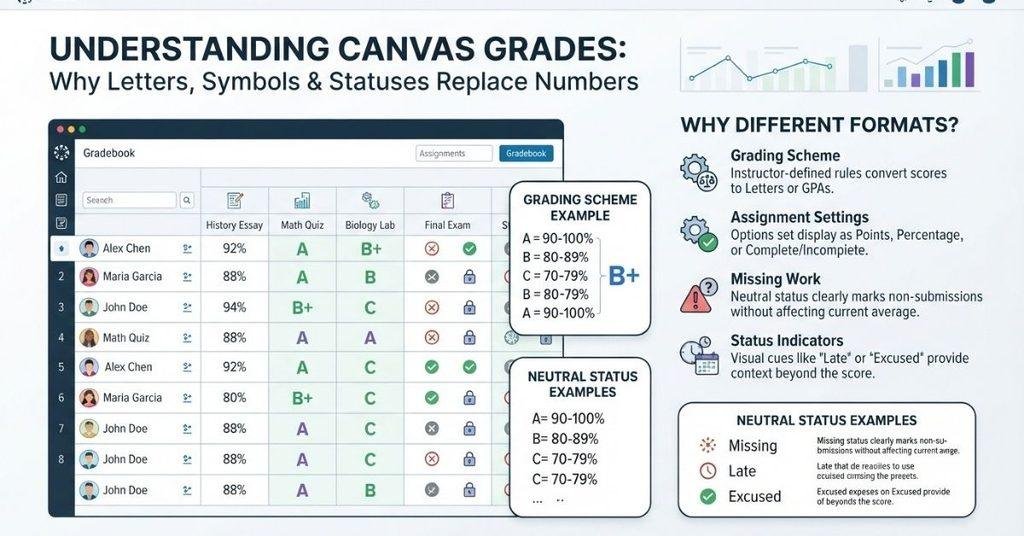
Canvas may show a letter, symbol, or status instead of a numeric grade for several reasons. The displayed indicator depends on how the assignment and course are configured.
Common reasons include:
- The assignment uses a non-standard grading method.
- Your instructor configured a specific grading scheme.
- The assignment is incomplete or hasn’t received a grade yet.
- Canvas is showing a status or notation instead of a numeric score.
- Your course uses specific grading policies or custom labels.
For example, an assignment may use a grading method that doesn’t require a percentage. In that case, Canvas can display another type of result instead.
The best approach is to check the assignment itself and compare the result with your course grading policy. This helps you understand whether the symbol represents a grade, status, or another course-specific indicator.
Students who monitor grades from their Dashboard can also see how to display grades on Canvas Dashboard cards for easier access to course scores.
Are Canvas Grade Symbols the Same for Every Course?
No, you shouldn’t assume Canvas grade symbols mean exactly the same thing in every course. What you see can depend on how your instructor and school configure Canvas.
Several factors can affect the letters, symbols, and statuses displayed in your course:
- Instructor settings: Your instructor may use specific grading methods or labels.
- Assignment settings: Different assignments can use different grading options.
- Course grading scheme: A course may use a particular grading scale or scheme.
- Institution: Your school may have its own Canvas policies or configurations.
- Canvas feature: Different Canvas features can display grading information differently.
This means a symbol that appears in one course may not have the same meaning elsewhere. Context is especially important when you’re trying to understand an unfamiliar grade indicator.
If you’re unsure about a symbol, don’t compare it with another Canvas course and assume the meaning matches. Instead, check the grading information for that specific course.
How to Find Out What a Canvas Grade Symbol Means
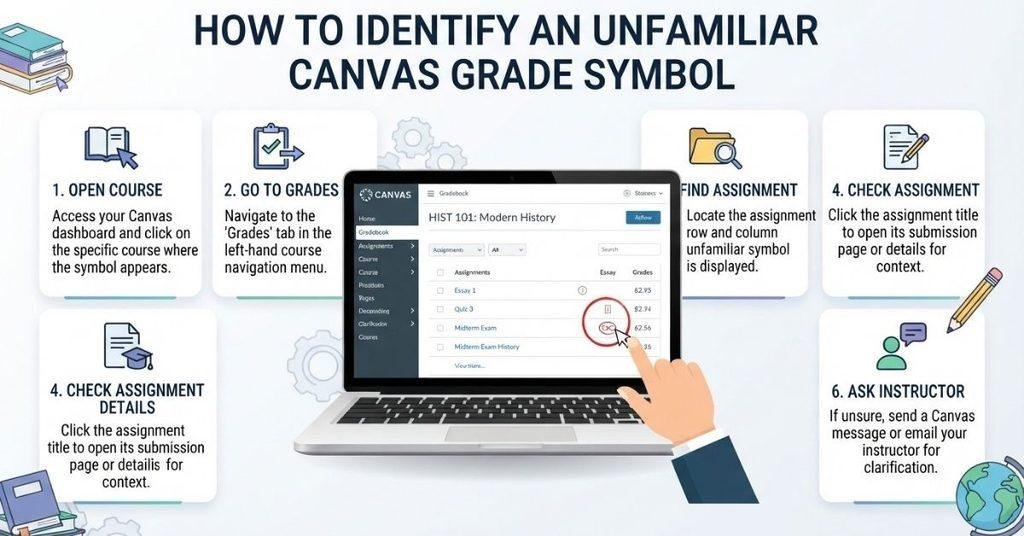
If a Canvas grade symbol isn’t clear, you can usually narrow down its meaning by checking the course information.
Step 1: Open the Course
Log in to Canvas and open the course where you noticed the symbol.
Step 2: Go to Grades
Select Grades from the course navigation menu. Find the assignment showing the unfamiliar letter or symbol.
Step 3: Check the Assignment
Open the assignment or select its details. Look for the score, submission status, grading information, or instructor comments.
Step 4: Review the Instructions
Read the assignment instructions and any grading information provided by your instructor.
Step 5: Check the Syllabus
Your course syllabus may explain grading schemes, special labels, or other grading policies.
Step 6: Ask Your Instructor
If you’re still unsure, contact your instructor. They can explain exactly what the symbol means and whether it affects your grade.
When you are close to a target grade, the Canvas Grade Calculator can help you test how future assignment scores may change your overall percentage.
Do Canvas Grade Symbols Affect Your GPA?
Seeing a letter or symbol in Canvas doesn’t automatically mean your GPA will change. A displayed grade or status is different from the grade points used in GPA calculations.
Canvas may show a numeric grade, letter grade, or status for an assignment. However, your GPA usually depends on the final course grades, their grade-point values, and how your courses are weighted.
For example, an assignment can show a status instead of a percentage. That status doesn’t necessarily represent GPA points. Assignment weighting can also affect your course grade without directly changing the value of an individual symbol.
Before calculating your GPA, check these factors:
- Displayed grade or status: What Canvas currently shows.
- Actual grade points: The points or letter grade that contributes to grading.
- Assignment weighting: How much an assignment contributes to the course grade.
- GPA calculation: How final course grades convert into GPA points.
Don’t assume that every Canvas symbol automatically affects your GPA. Check your course grading policy to understand how assignments contribute to your final grade.
If you want to estimate your overall GPA, you can also use the Canvas GPA Calculator on CanvasGradeCalculator.com.
What Is the Difference Between a Canvas Grade and a Grade Status?
A Canvas grade tells you about your academic result, while a grade status can describe the condition of an assignment or grade.
| Type | Meaning |
|---|---|
| Numeric grade | Shows the score or points earned. |
| Letter grade | Shows a grade such as A, B, or C. |
| Status | Indicates a particular assignment or grading condition. |
| Course-specific symbol | May depend on your instructor or course setup. |
For example, a numeric grade might show the points you earned on an assignment. A letter grade can represent the result according to your course’s grading scheme.
A status or symbol may provide different information. It doesn’t necessarily represent a percentage or GPA value.
This distinction explains why you might see something other than a normal percentage in Canvas. Always check the assignment and course grading information when a symbol appears unfamiliar.
What If a Canvas Grade Looks Wrong?
Sometimes a Canvas grade may look different from what you expected. Before worrying about your final grade, check the assignment and course information carefully.
Try these troubleshooting steps:
- Refresh the Grades page: Reload Canvas and check whether the displayed result changes.
- Check assignment details: Open the assignment and review the score, submission, and grading information.
- Check whether grading is complete: Your instructor may not have finished grading the assignment.
- Review instructor comments: Comments may explain adjustments, missing work, or grading decisions.
- Check the course grading policy: Your syllabus may explain grading schemes, weights, or special statuses.
- Contact your instructor: Ask for clarification if the displayed result doesn’t match your assignment.
Keep in mind that a displayed symbol or status may not represent your final course grade. Assignment settings can also affect how results appear in Canvas.
Conclusion
Canvas can display letters, symbols, and statuses that may look confusing at first. We explained what does a T mean in Canvas, how grade symbols can vary, and what students should check.
The meaning of a symbol depends on the assignment, grading scheme, instructor, and course settings. A displayed status also doesn’t automatically affect your GPA.
If you’re unsure about a T, SPAN, EX, or another Canvas label, check the assignment details first. Then review your syllabus or ask your instructor for clarification.
Understanding these indicators can help you read your Canvas Grades page with more confidence.
For more help with college grades and GPA calculations, explore the tools available on CanvasGradeCalculator.com. Share this guide with classmates who may have the same Canvas questions.
Frequently Asked Questions
A T in Canvas doesn’t have one universal meaning for every course. Its meaning depends on where it appears and how your instructor configured grading. Check the related assignment, course grading information, and syllabus before treating T as a traditional letter grade.
A T in Canvas Grades may appear as a grading indicator, status, or course-specific label. It doesn’t automatically mean you received a T letter grade. Open the assignment and review its score, submission details, and grading information to understand what the symbol means.
If you see T on Canvas, check the context where it appears. Canvas can display different indicators based on assignment settings and grading schemes. Your instructor or course syllabus is the best source for confirming what T means in your specific course.
P span may refer to webpage formatting rather than an actual Canvas grade. In HTML, <p> represents a paragraph and <span> can format part of a text line. If you see these terms instead of normal grading information, check the original Canvas page and assignment details.
SPAN isn’t automatically a standard Canvas grade. It can refer to an HTML formatting element used to display or style text on a webpage. If SPAN appears near a grade or assignment, check the surrounding information before assuming it affects your academic result.
EX in Canvas may appear near an assignment or within the Grades area. Its exact meaning can depend on your instructor’s grading setup and course policies. Check the assignment details, syllabus, and grading information. Ask your instructor if the meaning remains unclear.
Canvas may show a letter, symbol, or status when an assignment uses a particular grading method. Your instructor may also configure a grading scheme that displays letters instead of percentages. Check the assignment settings and course grading policy to understand the displayed result.
Not necessarily. A Canvas symbol or status doesn’t automatically represent GPA points. GPA calculations usually depend on final course grades, grade-point values, and applicable course weighting. Check your institution’s grading policy before deciding whether a specific Canvas symbol affects your GPA.
No. Canvas grade symbols and labels can vary between courses. The displayed information may depend on your instructor, assignment settings, grading scheme, institution, or Canvas feature being used. Always check the specific course information before interpreting an unfamiliar symbol.
First, refresh the Grades page and open the related assignment. Check the submission details, grading status, instructor comments, and course grading policy. If the displayed result still doesn’t match your assignment, contact your instructor for clarification.
Yes. A status can provide information about an assignment without representing the same thing as a numeric or letter grade. Check the assignment details and grading policy to determine whether the displayed indicator represents a score, status, or course-specific notation.

We are the Canvas Academic Team, a developer team focused on building simple and practical tools that help students succeed academically. This platform was created specifically for Canvas LMS students to make grade tracking, GPA calculations, exam planning, and academic management easier and more efficient.
Our focus is on creating fast, accurate, and student-friendly educational tools along with helpful learning resources that improve productivity and reduce academic stress.
Through CanvasGradeCalculator.com, our goal is to continue building useful resources that help students study smarter, stay organized, and achieve better academic results.

