

Table of Contents
Introduction
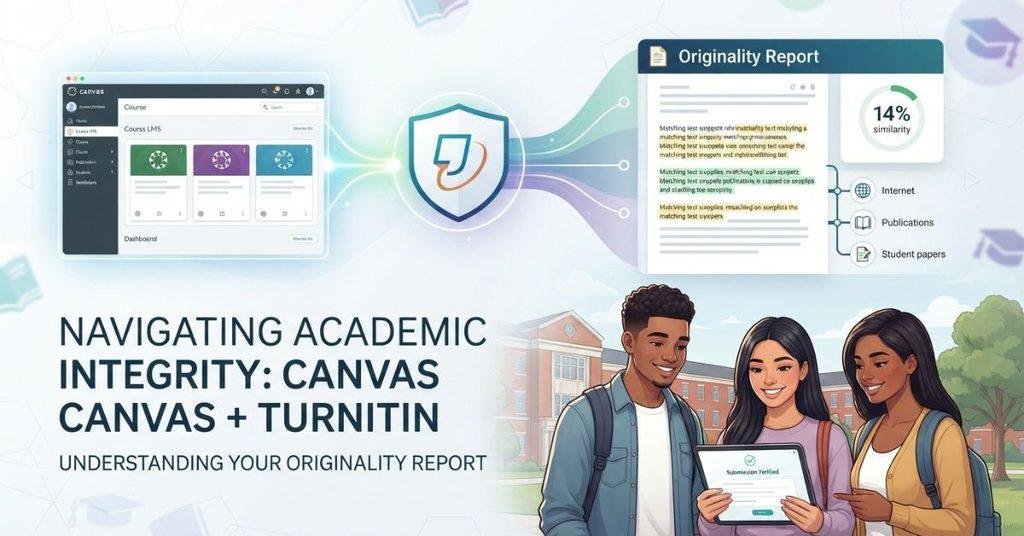
If you use Canvas for college assignments, these results can feel confusing at first. Many students wonder what their scores mean and whether a match automatically signals plagiarism.
The question what does originality report mean on Canvas is especially important for beginners. Canvas and Turnitin are different tools, but they can work together when a school enables Turnitin. The report may highlight matching text, sources, and a similarity percentage.
A high or low score does not automatically determine whether your work is plagiarized. Your instructor usually considers the context behind each match.
In this guide, you will learn how Canvas and Turnitin work together. We will explain originality reports, similarity scores, colored flags, and processing times. You will also learn how to understand these results without unnecessary worry.
By the end, you will know what your Canvas Turnitin results mean and what to check before contacting your instructor.
If you are also wondering whether Canvas itself checks assignments for AI-generated content, read our guide on whether Canvas has AI detection and how it relates to student submissions.
What Does an Originality Report Mean on Canvas?
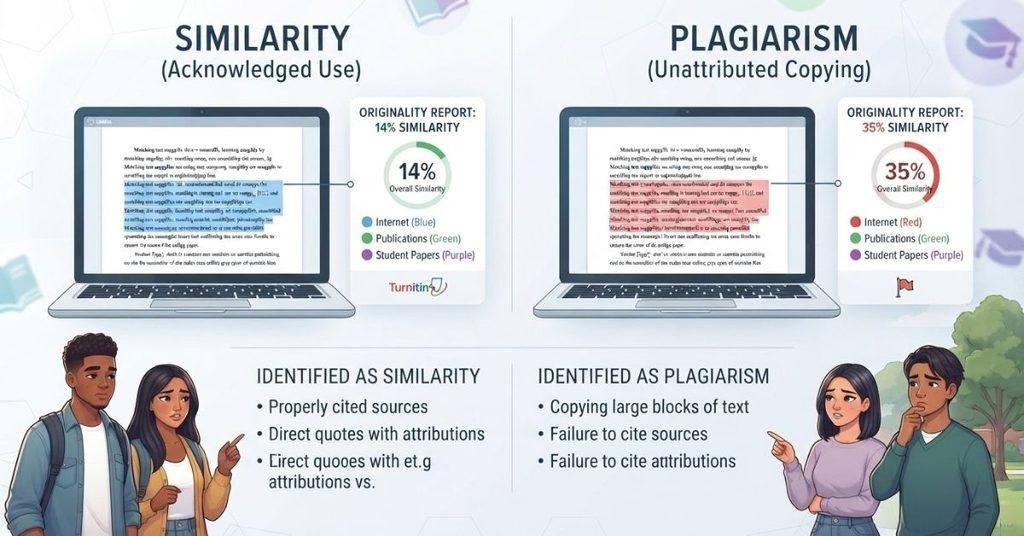
An Originality Report on Canvas shows how much of your submitted work matches content found in other sources. If you’re wondering what does originality report mean on Canvas, think of it as a similarity check, not a plagiarism verdict.
Students may see an Originality Report when their instructor uses a tool such as Turnitin with a Canvas assignment. The report helps instructors review submitted work for matching phrases, sentences, or other text.
An originality report is designed to identify similarities between your submission and existing sources. These sources can include websites, publications, academic papers, and previously submitted student work.
Similarity Is Not the Same as Plagiarism
A similarity score shows matched content, but it doesn’t automatically prove plagiarism. For example, properly quoted or cited material can still appear as a match.
Your instructor usually reviews the highlighted text and sources to determine whether the matches are acceptable. Context matters more than the percentage alone.
Where Can You Find the Report?
Depending on your school’s setup, you may find the report through the Canvas assignment submission page. Some courses may show a similarity score, originality icon, or link to the detailed report.
If you don’t see a report, your instructor may have disabled student access or configured the assignment differently.
Turnitin is part of a broader set of activity and submission questions, so you may also want to learn what professors can see on Canvas after students submit coursework.
Does Canvas Use Turnitin?
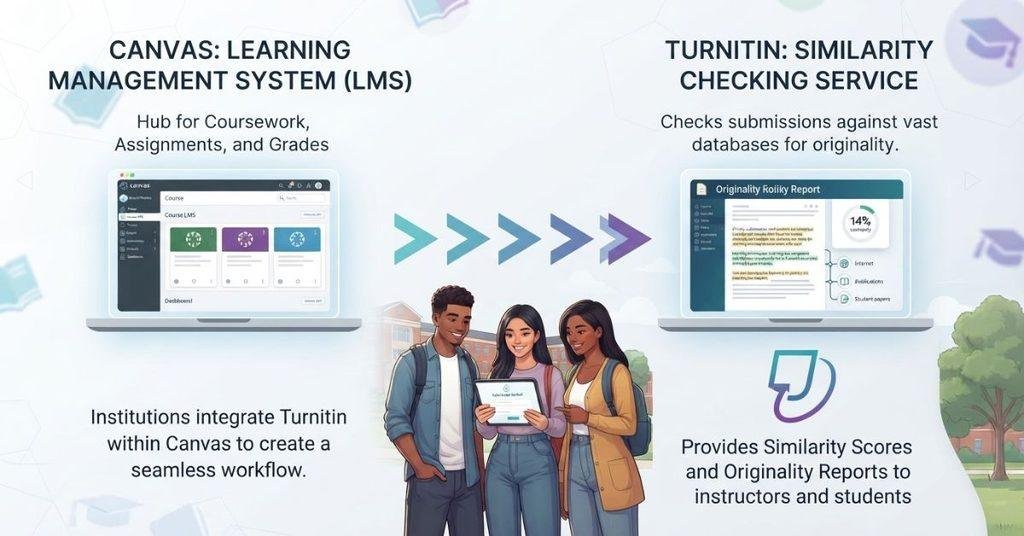
If you use Canvas for college assignments, you may wonder whether Canvas automatically checks every submission with Turnitin. It doesn’t.
Canvas is a learning management system (LMS) that colleges use to manage courses, assignments, grades, and submissions. Turnitin is a separate academic integrity service that can check submitted work for similarities.
A Canvas course can integrate with Turnitin when an instructor or institution enables it. However, not every Canvas course uses Turnitin. Your assignment settings determine whether a Turnitin check applies to your submission.
This means seeing Canvas doesn’t automatically mean you’re using Turnitin. Look for an originality report, similarity score, or Turnitin-related option on the assignment page. If you’re unsure, check your assignment instructions or ask your instructor.
How Does Turnitin Work With Canvas?
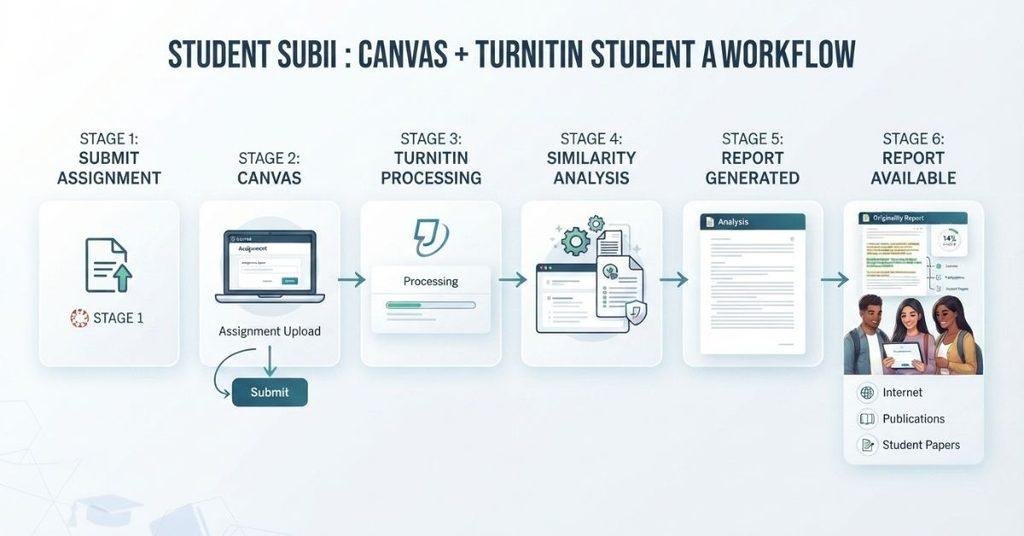
When Turnitin is connected to a Canvas assignment, the process usually happens after you submit your work. The exact screens and options can vary based on your school’s setup.
The basic workflow looks like this:
- You submit your assignment in Canvas.
- Canvas sends the submission through the configured Turnitin integration.
- Turnitin processes your submitted work.
- The system generates similarity information.
- The result may appear through Canvas.
- You or your instructor can view the available report, depending on course settings.
Processing isn’t always instant. The report may take some time to appear, especially when the system needs to process the submission.
Your instructor may also control whether you can see the detailed report. Some assignments may show a similarity percentage, while others may provide additional report details.
What Does a Similarity Score Mean on Canvas?
A similarity score isn’t a plagiarism score. It indicates how much of your submitted work matches material identified by the similarity-checking system.
For example, a report might identify matching text from:
- Websites
- Published sources
- Previously submitted papers
- Direct quotations
- Properly cited material
- Common phrases
A match doesn’t automatically mean you did something wrong. Academic writing often includes quotations, references, standard terminology, and phrases that also appear elsewhere.
The instructor must consider why the text matched and whether you properly used and cited the source. A higher similarity percentage may deserve closer review, but the number alone doesn’t determine whether plagiarism occurred.
What Does a Green Originality Report Mean on Canvas?
If you see a green indicator beside your Canvas submission, it usually relates to the similarity score. In Turnitin’s current Similarity Report guidance, green represents 1%–24% matching text in Feedback Studio/Originality Check.
However, Turnitin uses different color ranges across some integrations. For example, certain Similarity and SimCheck interfaces use green for 0% matching text and blue for 1%–24%. Turnitin confirms that color schemes can vary by integration.
So, don’t judge your submission from the color alone. Open the report and check the similarity percentage, highlighted matches, and matched sources. A match can come from a quotation, citation, bibliography, or common wording.
Most importantly, green doesn’t mean “plagiarism-free,” and another color doesn’t automatically mean plagiarism. Turnitin identifies matching text, while your instructor decides whether those matches create an academic concern.
What Does a Blue Flag Mean on Canvas Turnitin?
The phrase “blue flag” can be confusing because Turnitin’s current documentation does not define blue as its standard integrity-flag color. In the current Similarity Report, integrity flags appear with a red flag icon when Turnitin detects unusual text characteristics.
Blue can instead refer to a similarity indicator or another interface element, depending on the Turnitin integration your school uses. For example, Turnitin’s current guidance lists blue as 0% matching text in some interfaces.
If you see a blue icon or flag in Canvas, open the report and check its label and details. Don’t assume the color alone indicates plagiarism or academic misconduct.
Turnitin also notes that a flag isn’t necessarily proof of a problem. Flags are designed to identify unusual document characteristics for further review.
How Long Does Turnitin Take on Canvas?
Wondering how long does Turnitin take on Canvas? A Similarity Report may appear within a few minutes, but the timing depends on the assignment and submission settings.
Turnitin says uploaded files can take up to 10–15 minutes to process and generate a Similarity Report. Overwritten or resubmitted files can take longer.
Processing can also depend on factors such as:
- File type and file contents
- Submission size
- Turnitin processing
- Assignment configuration
- Whether reports generate immediately or on the due date
- Whether the submission is a resubmission
Some instructors configure reports to generate immediately. Others set Turnitin to generate reports only when the assignment deadline arrives.
Therefore, don’t worry if your report doesn’t appear immediately after submitting. Check the assignment settings first, then allow additional processing time if needed.
Why Is My Turnitin Originality Report Not Showing?
Not seeing your Turnitin Originality Report after submitting can be confusing. In many cases, the report simply isn’t available yet or the assignment settings limit access.
Several things can cause the report to remain unavailable:
- The report is still processing. Turnitin may need additional time to analyze your submission.
- The assignment isn’t set for immediate results. Your instructor may configure reports to generate later.
- Your submission hasn’t finished processing. Canvas may show your submission before the report becomes available.
- Your file isn’t supported for the configured check. Certain file types may have different processing requirements.
- Student access is restricted. Your instructor may choose not to let students view the report.
- An integration or system issue occurred. Canvas and Turnitin must communicate correctly for the report to appear.
What Should You Do?
First, wait a little and refresh the assignment page. Then reopen the assignment and check your submission status.
If the report still doesn’t appear, review your course instructions for Turnitin settings. If you’re sure a report should be available, contact your instructor for clarification.
Can Students See Their Turnitin Similarity Report on Canvas?
Sometimes, but not always. Whether students can view a Turnitin Similarity Report depends on the assignment and instructor settings.
Some instructors allow students to open their report after Turnitin processes the submission. Others restrict student access and keep the report available only to instructors.
The report may also take time to appear after submission. This means not seeing a similarity score immediately doesn’t necessarily indicate a problem.
If student access is enabled, you may see a similarity score or report option within the Canvas assignment. The exact location can vary with the Turnitin integration and Canvas setup.
If you can’t find the report, check the assignment instructions first. You can also ask your instructor whether students are allowed to view Similarity Reports for that assignment.
Does a High Similarity Score Mean You Plagiarized?
No, a high similarity score does not automatically mean you plagiarized. A similarity report identifies matching content, but it doesn’t decide whether plagiarism occurred.
Your score may include legitimate matches from:
- Correctly used quotations
- Reference lists and citations
- Common academic terminology
- Properly cited sources
- Assignment templates or required instructions
- Previously submitted material
For example, a correctly quoted sentence can match a published source. That match doesn’t necessarily represent improper use of someone else’s work.
The important part is why the text matches and how you used the source. Your instructor reviews the report and applies your school’s academic-integrity standards.
A similarity percentage should therefore be treated as a starting point for review. It isn’t a final judgment about your academic work.
What Should You Do If Your Similarity Score Is High?
A high score is a reason to review your submission carefully, not panic. Start by opening the Similarity Report and examining the highlighted sections.
Work through each match and ask:
- Is the matching text a properly formatted quotation?
- Did you provide the required citation?
- Did you accidentally copy wording without quotation marks?
- Did you paraphrase the source in your own words?
- Does your paraphrasing still closely follow the original wording?
- Does your work follow your instructor’s academic-integrity requirements?
If you find accidental copying, revise the affected passage appropriately. Add citations where required, use quotation formatting for direct wording, or rewrite poorly paraphrased material in your own words.
The goal isn’t to manipulate or bypass Turnitin. Instead, use the report to understand your sources and correct legitimate citation or paraphrasing problems before your work is evaluated.
Does Turnitin Check for AI?
Turnitin’s similarity checking and AI-writing detection are separate features. A Similarity Report looks for matching text, while AI detection evaluates writing for patterns associated with AI-generated content.
AI detection availability can depend on your institution, instructor, Turnitin product, account, and assignment configuration. Not every Canvas assignment with Turnitin will necessarily include AI-writing detection.
For that reason, don’t assume a similarity score tells you whether Turnitin detected AI-generated writing. These features answer different questions and may appear separately in supported interfaces.
For a deeper explanation of Canvas and AI detection, see our dedicated guide: [Does Canvas Have AI Detection?] This keeps the topics separate without repeating the same information here.
Turnitin Similarity Score vs. Originality Report
Understanding the difference between these terms makes Canvas results much easier to interpret.
| Term | What it means |
|---|---|
| Similarity Score | A percentage or indicator showing matching text identified by the system. |
| Originality Report | A detailed report showing matching text and the sources connected to those matches. |
| Match | Text identified as similar to content found in another source. |
| Plagiarism | An academic-integrity judgment based on how matching content was used. |
A similarity score gives you a quick overview, while the report provides more detail. You can use the report to identify where matches occurred and review their sources.
Remember that a match doesn’t automatically mean plagiarism. Proper quotations, citations, and common phrases can also produce matching text.
Canvas Turnitin Colors & Flags at a Glance
Turnitin indicators can vary between products, integrations, and interface versions. Use the color or flag as a starting point, then open the available report for context.
| Indicator | What students should do |
|---|---|
| Green | Review the displayed similarity result and matching details. |
| Blue flag | Open the report or details to understand what the indicator represents. |
| Similarity percentage | Review the highlighted matches and their sources. |
| No report | Check whether processing is complete and whether student access is enabled. |
Don’t rely on a color alone to decide whether your work has a problem. Turnitin’s interface can change, and the same color may have different meanings across integrations.
For the most accurate interpretation, open the report and review the label, percentage, highlighted text, and source information shown for your specific assignment.
If you are trying to understand how another assignment could affect your final percentage, use the Canvas Grade Calculator to test different score scenarios.
Conclusion
Understanding what does originality report mean on Canvas can make assignment results much less confusing. Canvas and Turnitin are separate tools, but they can work together through an integration. A similarity score shows matching text, not an automatic plagiarism judgment.
We also covered originality reports, Turnitin colors, flags, processing times, and report visibility. Remember that proper citations, quotations, and common phrases can create legitimate matches.
If your similarity score is high, review the highlighted matches and check your citations carefully. Follow your instructor’s academic-integrity requirements when making corrections.
Have you seen a confusing Turnitin result in Canvas? Share your experience or questions in the comments. You can also explore our related Canvas and academic-writing guides for more helpful tips.
Frequently Asked Questions
An Originality Report shows matching text found in your submitted work. It may include a similarity score and sources connected to those matches. A match doesn’t automatically mean plagiarism. Your instructor reviews the context and decides whether the matched content creates an academic concern.
Canvas can integrate with Turnitin for assignments that use the service. Canvas is an LMS, while Turnitin provides similarity and academic-integrity tools. Not every Canvas course uses Turnitin. Your instructor or institution decides whether Turnitin is enabled for a particular assignment.
A similarity score indicates the amount of matching text identified in your submission. Matches can come from websites, publications, student papers, quotations, or common phrases. The score isn’t a plagiarism score. You should review the highlighted matches and their sources before drawing conclusions.
A green indicator generally relates to a lower similarity result in relevant Turnitin interfaces. However, color meanings can vary between Turnitin products and integrations. Open the report to check the displayed percentage, highlighted matches, and sources. Don’t use the color alone to determine plagiarism.
A blue indicator doesn’t have one universal meaning across every Turnitin interface. Its meaning can depend on the integration and product version. Open the report and review the label or details connected to the indicator. This gives you more reliable information than interpreting the color alone.
Turnitin processing can take several minutes, although timing varies by submission and assignment settings. File type, submission size, processing demands, and configuration can affect availability. A report may not appear immediately. Check the assignment again after some time if the report remains unavailable.
Your report may still be processing, or the assignment may not generate reports immediately. Your instructor may also restrict student access. File compatibility or an integration issue can affect availability. Refresh the assignment, check your submission status, and review the course instructions before contacting your instructor.
Students can see Turnitin reports when the assignment and instructor settings allow student access. Some instructors restrict reports to instructors only. The report may also become available only after processing finishes. Check the assignment page and course instructions to see whether your report should be visible.
No. A high similarity score doesn’t automatically mean plagiarism. Matching text can come from quotations, references, properly cited sources, templates, or previously submitted material. Review the highlighted matches and sources carefully. Your instructor makes the academic judgment based on context and applicable integrity rules.
Turnitin’s AI-writing detection and similarity checking are separate features. AI detection availability depends on the institution, instructor, Turnitin product, and assignment configuration. A similarity score doesn’t tell you whether AI-generated writing was detected. Check your course settings or instructor guidance for the features enabled.

We are the Canvas Academic Team, a developer team focused on building simple and practical tools that help students succeed academically. This platform was created specifically for Canvas LMS students to make grade tracking, GPA calculations, exam planning, and academic management easier and more efficient.
Our focus is on creating fast, accurate, and student-friendly educational tools along with helpful learning resources that improve productivity and reduce academic stress.
Through CanvasGradeCalculator.com, our goal is to continue building useful resources that help students study smarter, stay organized, and achieve better academic results.

