

Table of Contents
Introduction
Have you ever submitted an assignment or started a Canvas quiz and wondered what your professor can actually see?
If you are new to Canvas, this question is completely understandable. Students often worry about their activity, browser tabs, quiz actions, and assignment submissions.
So, what can professors see on Canvas, and what stays private on your computer? The answer depends on the Canvas features, course settings, and tools your school uses.
In this guide, we’ll explain what professors can see during regular course activity and Canvas quizzes. You’ll also learn what Canvas may record about assignments, grades, discussions, and quiz activity.
We’ll clarify common questions about browser history, other tabs, copy and paste actions, screenshots, and your screen. You’ll also see how lockdown browsers and proctoring software can change what gets monitored.
By the end, you’ll have a clear understanding of Canvas visibility without confusing standard Canvas with separate monitoring tools.
What Can Professors See on Canvas?
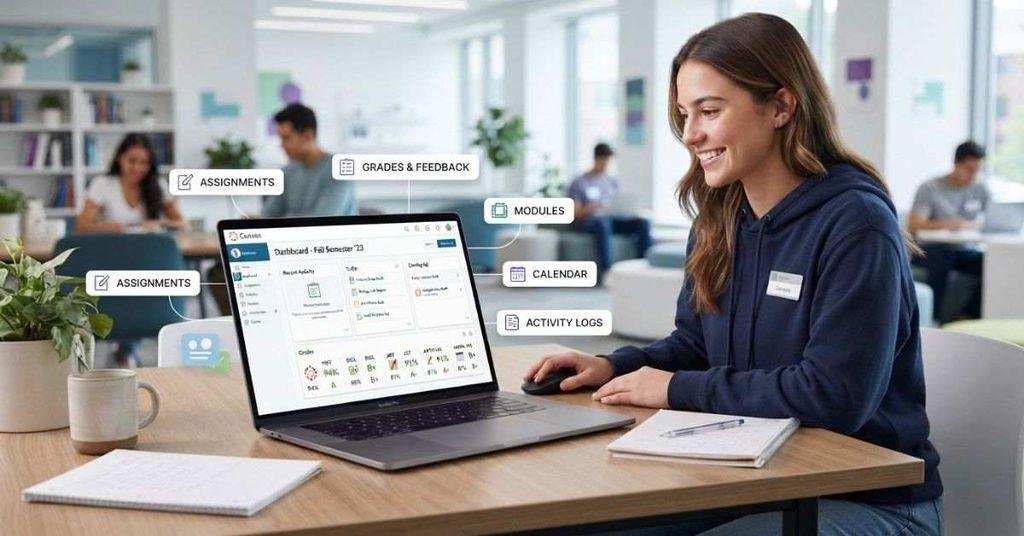
What can professors see on Canvas? Generally, they can view information and activity that Canvas records within their course. The exact details depend on course settings, instructor permissions, and enabled Canvas features.
Professors can generally see:
- Your name and profile information: Information your course makes available to instructors.
- Course enrollment: Your enrollment and participation in their course.
- Assignment submissions: Files, submission status, and available submission details.
- Grades: Assignment, quiz, and other grades available through Canvas.
- Quiz attempts: Attempt information, scores, and certain quiz activity.
- Discussion participation: Posts, replies, and related discussion activity.
- Course activity: Certain activity Canvas records within the course.
- Submission details: Information such as submission dates, times, and resubmissions where supported.
However, Canvas activity is different from monitoring your entire computer. Professors don’t automatically get access to everything you do outside Canvas.
Students often ask about activity during online quizzes, so you can also learn whether Canvas can see if you switch tabs while taking a quiz.
Professors generally can’t automatically see:
- Everything happening on your computer
- Private files stored outside Canvas
- The contents of unrelated websites
- Private messages outside Canvas
- Your complete browsing history
- Everything displayed on your screen
The key word is “automatically.” Your school’s setup can change what information becomes available. Third-party integrations, lockdown browsers, and proctoring tools may provide additional monitoring capabilities.
Pro Tip: Check your course’s exam instructions before a quiz. Look for any required browser extensions, lockdown software, or proctoring services.
What Can Professors See During a Canvas Quiz?
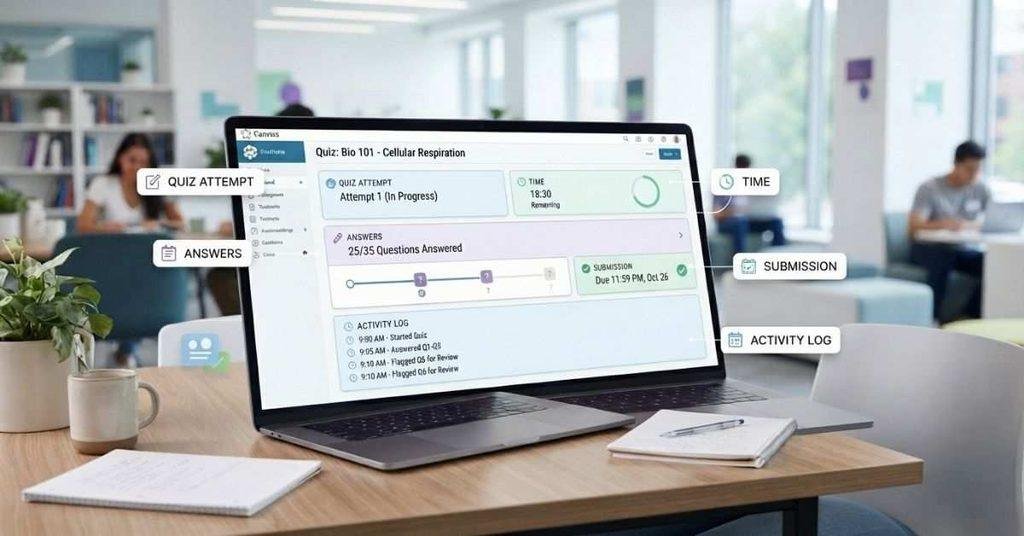
What can professors see on Canvas during a quiz? They can generally see information Canvas records about your quiz attempt. This may include your answers, submission status, attempt details, and available timing information.
Depending on the quiz type and settings, Canvas may also provide activity or quiz log information. Some logs can show events such as viewing questions, answering questions, or leaving and returning to the quiz page.
However, a quiz activity event does not necessarily show what you were doing elsewhere. For example, an event indicating that the quiz page lost focus doesn’t automatically show the professor the contents of another website or browser tab.
The information available can vary based on the Canvas feature, course configuration, and instructor permissions. Separate proctoring or monitoring software can also provide additional information.
Expert Tip: Don’t treat a Canvas quiz log like a screen recording. Activity logs record specific events, while monitoring software may provide broader oversight.
Can Professors See Your Activity on Canvas?
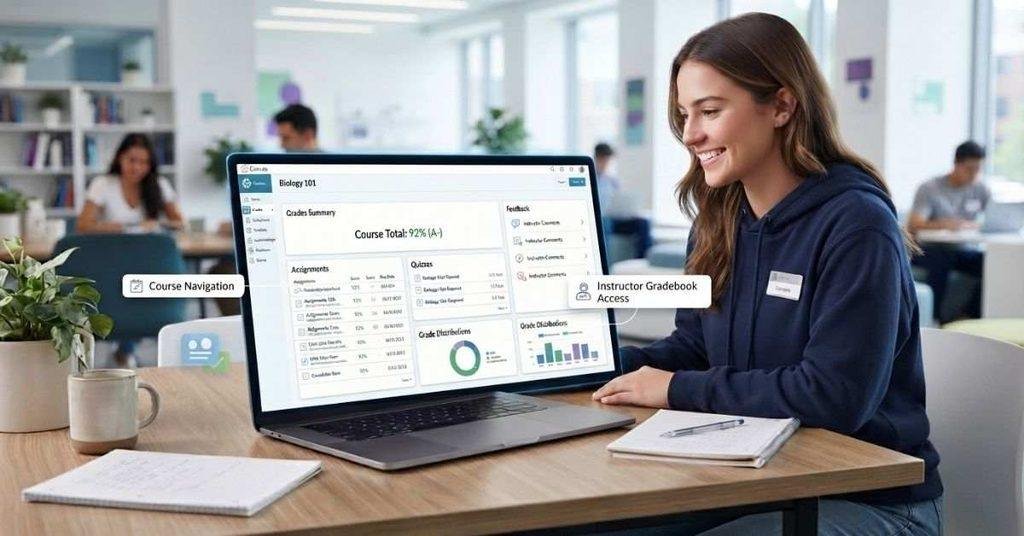
Yes, can professors see your activity on Canvas? They can generally view activity that Canvas records within their course. This information helps instructors understand participation and track coursework.
If your course uses online monitoring, see our guide on whether Canvas records your screen and what students should know about screen monitoring.
Depending on the available features, activity may include:
- Assignments: Submissions and related assignment activity.
- Quizzes: Attempts, results, and certain quiz activity.
- Discussions: Posts, replies, and participation.
- Course pages: Certain recorded page views or course interactions.
- Submissions: Submission status, dates, and available details.
- Grades: Assignment, quiz, and course-related grade information.
Canvas activity data focuses mainly on what happens inside the learning platform. It isn’t automatically a complete record of everything you do on your device.
For example, seeing activity within a Canvas course doesn’t mean your professor automatically sees your private files or complete browsing history.
Can Professors See Your Assignment Submissions?
Yes. Professors can generally see assignments you submit through Canvas, along with submission information available to them. This helps instructors review your work and track whether you completed an assignment.
Depending on the assignment setup, professors may see:
- Submitted files: Documents, images, or other files you upload.
- Submission date and time: When Canvas recorded your submission.
- Submission status: Whether an assignment is submitted, missing, or late.
- Resubmissions: Previous or newer attempts when the assignment allows multiple submissions.
- Grades and feedback: Scores, comments, rubrics, or other instructor feedback.
- Annotations: Markups or comments added through Canvas’s available grading tools.
The exact information can vary based on the assignment settings and Canvas features your course uses. For example, some assignments allow multiple submissions, while others may restrict resubmissions.
If you accidentally submitted the wrong file, don’t assume your earlier submission disappears after uploading another one. Canvas may retain submission history that instructors can access.
Can Professors See Your Grades on Canvas?
Yes. Professors can generally see grades associated with coursework in their Canvas course. This includes information needed to grade assignments, quizzes, and other assessed activities.
Depending on the course setup, they may see:
- Current grades: Grades currently recorded in the course.
- Assignment grades: Scores for individual assignments.
- Quiz grades: Scores from graded quizzes and exams.
- Grade-related information: Available feedback and grading details.
- Grade calculation or status information: Information Canvas provides through the course gradebook.
What a professor can see depends on their permissions and how the instructor configured the course. Some grade information may also change as assignments are graded or updated.
If you’re checking your own academic performance, Canvas can help you review course grades. For a broader GPA estimate, you can also read [How to Check GPA on Canvas] or use the [Canvas GPA Calculator].
Can Professors See Your Quiz Activity?
Yes, professors can generally access information Canvas records about your quiz attempts. However, quiz results and quiz activity logs are not exactly the same thing.
Quiz result information usually relates to the outcome of your attempt. Depending on the quiz setup, this can include:
- Quiz attempts
- Submitted answers
- Submission status
- Scores and results
- Time-related attempt information
Quiz activity or log information focuses more on events that occur during the attempt. Available logs may record actions such as viewing questions, answering questions, or leaving and returning to the quiz page.
These logs can help professors understand how a quiz attempt progressed. However, they don’t necessarily prove what caused a particular event or what you were doing elsewhere.
For example, a recorded event may show that the quiz page lost focus. It doesn’t automatically show the contents of another website or explain why the event occurred.
The available information depends on the Canvas quiz type, settings, and features enabled by your institution.
Can Professors See If You Switch Tabs?
Standard Canvas isn’t simply a window that lets professors watch every browser tab you have open. However, certain quiz activity events may be recorded depending on the quiz type and setup.
For example, Canvas may record an event showing that the quiz page lost focus and later regained focus. This can indicate that something happened to the quiz page during your attempt.
That doesn’t necessarily mean your professor can see what was displayed in another tab. An activity event and direct access to another website are two different things.
Your experience can also change when a lockdown browser or separate proctoring tool is required. Those tools may have additional monitoring or browser-control capabilities.
Can Professors See If You Copy and Paste?
Canvas doesn’t automatically give professors access to everything you copy or paste on your device. Copying text and seeing the source of that text are also two different things.
For example, Canvas may record certain activity during a quiz, depending on the quiz type and configuration. However, a quiz activity log doesn’t necessarily show everything you copied, where you copied it from, or what another website contained.
What Canvas can record depends on the specific feature and course setup. A separate browser extension, lockdown browser, or proctoring tool may have different capabilities.
So, don’t assume that a Canvas quiz log is the same as complete copy-and-paste monitoring.
Can Professors See Screenshots?
Generally, Canvas itself doesn’t automatically give professors access to every screenshot you take on your computer or phone.
Standard Canvas should not be confused with screen-monitoring software. Your browser and device handle screenshots separately from normal Canvas course activity.
However, things can change when a course requires additional monitoring software. A proctoring service or specialized browser may have different permissions and monitoring capabilities.
The exact capabilities depend on the tool, device, browser, and settings your school uses. Always check your exam instructions before assuming what is or isn’t monitored.
Can Professors See If You Use ChatGPT or AI?
Canvas itself isn’t a universal AI detector that automatically identifies everything you write with ChatGPT.
However, professors or schools may use separate AI-detection or academic-integrity tools. These tools can review submitted work or provide additional information, depending on the institution and course setup.
It’s important to separate Canvas activity from AI detection. Your Canvas activity may show course-related actions, while an AI-detection tool evaluates the content of your work.
So, simply using Canvas doesn’t mean your professor automatically knows that you used ChatGPT.
Questions about assignments and submissions can also lead to concerns about AI, so read our guide on whether Canvas has AI detection and how it relates to student work.
Can Professors See Your Browsing History?
Generally, Canvas activity is not the same as your browser history. Using Canvas doesn’t automatically give your professor a complete list of every website you visit.
If your course uses additional quiz security, you can also read whether Canvas has a lockdown browser and when these tools may be used.
Canvas can record certain activity within its learning environment. This may include course interactions, page views, assignments, quizzes, and other available activity data.
Your complete browser history is different. It is handled by your browser and device rather than automatically shared with Canvas.
However, additional monitoring software can change what information is collected during an exam. Lockdown browsers and proctoring tools may have capabilities beyond standard Canvas.
If your course requires one of these tools, check its instructions and privacy information to understand what it monitors.
Can Professors See Your Other Browser Tabs?
Generally, Canvas isn’t a live viewer of your other browser tabs. Your professor doesn’t automatically see the content of every tab you have open while using Canvas.
Canvas monitoring questions often involve browser activity, so see our guide on whether Canvas can see if you switch tabs during quizzes.
During a quiz, however, Canvas may record certain activity events depending on the quiz type and settings. For example, an available quiz log may indicate when the quiz page loses focus or when you return to it.
That doesn’t necessarily mean your professor can see what was displayed in another tab. An activity event can show that something happened without revealing the contents of another website.
Third-party monitoring and proctoring software can work differently. Some tools may restrict browser activity or provide additional monitoring features during assessments.
Therefore, what professors can see during a Canvas quiz depends on the setup. Standard Canvas and Canvas combined with monitoring software should not be treated as the same thing.
What Can Professors See in Canvas Discussions?
Professors can generally see activity you complete within Canvas discussions. This allows them to review your participation and provide feedback on your responses.
Depending on the discussion setup, they may see:
- Discussion posts: Your original responses submitted to the discussion.
- Replies: Responses you make to other students or discussion threads.
- Post activity: Available information about when you posted or participated.
- Timestamps: Dates and times Canvas records for your posts or replies.
- Instructor feedback: Comments, grades, or other feedback provided by your professor.
The exact information available depends on the discussion type and course configuration. Canvas discussions can also involve additional tools for grading or academic-integrity checks.
If your instructor uses an AI-related tool, that is separate from normal Canvas discussion tracking. The tool may analyze submitted content according to its own capabilities.
What Can Professors See in Canvas Activity Logs?
Canvas can record certain activity that happens within a course or quiz. These records can help professors understand student participation and coursework activity.
However, the exact information available depends on the Canvas feature, course configuration, permissions, and enabled tools. Not every instructor has access to the same activity information.
Depending on the feature, Canvas may provide records related to:
- Course participation and interactions
- Assignment submissions
- Quiz attempts and activity
- Discussion participation
- Certain page or course activity
- Submission-related events
It’s important to understand what these logs actually represent. Activity logs provide recorded events, not a complete recording of everything you do.
For example, a quiz log might record an event during an attempt. That doesn’t necessarily explain everything happening on your device at that exact moment.
So, avoid assuming that every Canvas instructor can see the same information. The available data depends on the specific Canvas tools and settings used by the course.
Pro Tip
Think of Canvas logs as an activity trail within the learning platform, rather than a recording of your entire computer.
What Professors Can’t See Through Canvas Alone
Standard Canvas doesn’t automatically give professors access to everything happening on your device. Your course activity and your personal computer activity are separate things.
Through Canvas alone, professors generally aren’t automatically given access to:
- Your complete browser history
- Private messages outside Canvas
- Files stored elsewhere on your device
- Everything happening on another website
- Your entire screen by default
- The contents of unrelated browser tabs by default
This distinction is important because Canvas activity isn’t the same as computer monitoring. Seeing that you interacted with a Canvas quiz doesn’t automatically mean your professor can see everything else you were doing.
However, separate proctoring, lockdown, or monitoring software may have additional capabilities. These tools can impose browser restrictions or collect additional information during an assessment.
The exact capabilities depend on the specific software, permissions, device, and settings chosen by your school.
What Changes When a Lockdown Browser or Proctoring Tool Is Used?
Standard Canvas and monitored exams can provide very different experiences. The biggest difference comes from additional software, not Canvas alone.
Normal Canvas
Regular Canvas works as a learning management system. Professors can access course-related information such as assignments, grades, quizzes, discussions, and available activity data.
It doesn’t automatically turn into a screen-monitoring system simply because you’re using the platform.
Canvas + Lockdown Browser
A lockdown browser can add restrictions during an assessment. Depending on the software and setup, it may limit access to other websites, applications, or browser functions.
The exact restrictions depend on the specific lockdown browser and your institution’s configuration.
Related: [Does Canvas Have a Lockdown Browser?]
Canvas + Proctoring
A proctoring tool can add additional monitoring during an exam. Depending on the service, this may involve features that standard Canvas doesn’t provide.
What gets monitored depends on the specific tool, permissions, device, and exam settings.
Related: [Does Canvas Record Your Screen?]
Canvas + Third-Party Integrations
Schools can connect Canvas with other educational services. These integrations can expand the information or features available during coursework.
However, third-party integrations don’t all work the same way. Always check the specific tool your course uses before assuming what it can monitor.
If you want to track the grades your professor has posted, use the Canvas Grade Calculator to estimate your overall course percentage and possible final grade.
Canvas Professor Visibility During a Quiz vs. Regular Course Activity
The following comparison shows the general difference between standard Canvas activity and additional monitoring tools.
| Information | Regular Canvas | During Quiz | Extra Monitoring Tool |
|---|---|---|---|
| Assignments | ✅ Available | — | Depends on tool |
| Grades | ✅ Available | Possible | — |
| Quiz attempts | — | ✅ Available | Depends on setup |
| Discussion activity | ✅ Available | — | — |
| Quiz activity/logs | — | Depends on feature/setup | Depends on tool |
| Other website content | ❌ Not through Canvas alone | ❌ Not through Canvas alone | Depends on tool |
| Screen monitoring | ❌ Not through Canvas alone | ❌ Not through Canvas alone | Depends on tool |
| Webcam monitoring | ❌ Not through Canvas alone | ❌ Not through Canvas alone | Depends on tool |
The table highlights an important distinction: Canvas features and monitoring tools aren’t interchangeable.
Regular Canvas provides course and assessment information that the platform records. Quiz features can provide additional attempt or activity information.
A lockdown browser or proctoring service can add capabilities beyond standard Canvas. Those capabilities depend on the specific software and how your school configured it.
Conclusion
Canvas gives professors access to course-related information, including assignments, grades, quizzes, discussions, and certain activity records. However, standard Canvas doesn’t automatically provide a complete view of everything happening on your computer.
So, what can professors see on Canvas? They can generally see activity that Canvas records within their course. Quiz logs may provide additional event information, depending on the quiz setup.
Your browsing history, private files, other websites, and unrelated tabs aren’t automatically visible through standard Canvas. However, lockdown browsers and proctoring tools can add different monitoring capabilities.
If you’re taking a monitored exam, always check your course instructions first. Understanding the setup can help you know what to expect.
Have you had an interesting Canvas experience? Share it in the comments, or explore more Canvas guides on our website.
Frequently Asked Questions
What can teachers see on Canvas?
Teachers can generally see course-related information that Canvas records. This may include assignments, submissions, grades, quiz attempts, discussions, and certain course activity. The exact information available depends on course settings, Canvas features, and instructor permissions.
What can professors see on Canvas during a quiz?
Professors can generally see information about your quiz attempt. This may include answers, submission status, scores, attempts, and certain timing or activity information. Available quiz logs can also record specific events, depending on the quiz setup. These logs don’t necessarily show everything you do on your computer.
Can professors see your activity on Canvas?
Yes. Professors can see certain activity that Canvas records within their course. This may include assignments, quizzes, discussions, course pages, submissions, and grades. Canvas activity isn’t automatically a complete record of everything you do on your device.
Can teachers see if you switch tabs?
Canvas may record certain quiz activity events when the quiz page loses focus. However, this doesn’t necessarily show teachers the contents of another tab. The exact behavior depends on the quiz type, settings, and available Canvas features.
Can teachers see your other tabs?
Standard Canvas isn’t normally a live viewer of your other browser tabs. Teachers shouldn’t automatically be assumed to see the contents of unrelated tabs. However, a separate lockdown browser or proctoring tool may provide additional monitoring capabilities.
Can teachers see if you copy and paste?
Canvas doesn’t automatically give teachers access to everything you copy or paste. Quiz activity logs may record certain events, depending on the setup. However, these logs don’t necessarily show the source or full contents of copied information. Third-party tools can have different capabilities.
Can teachers see screenshots?
Standard Canvas doesn’t automatically give teachers access to screenshots you take on your device. Canvas should be distinguished from separate monitoring software. A proctoring or monitoring tool may have additional capabilities depending on its permissions and configuration.
Can teachers see your browser history?
Generally, Canvas doesn’t automatically provide teachers with your complete browser history. Canvas records certain activity within its learning environment. Separate monitoring software can have different capabilities, so check your exam requirements carefully.
Can teachers see ChatGPT on Canvas?
Canvas itself isn’t a universal ChatGPT detector. However, professors or schools may use separate AI-detection or academic-integrity tools. These tools are separate from normal Canvas activity tracking and can have different capabilities.
Can Canvas teachers see your screen?
Standard Canvas doesn’t automatically give teachers a live view of your entire screen. Screen monitoring may become possible when a separate proctoring or monitoring tool is required. The exact capabilities depend on the software, device, and exam settings.

We are the Canvas Academic Team, a developer team focused on building simple and practical tools that help students succeed academically. This platform was created specifically for Canvas LMS students to make grade tracking, GPA calculations, exam planning, and academic management easier and more efficient.
Our focus is on creating fast, accurate, and student-friendly educational tools along with helpful learning resources that improve productivity and reduce academic stress.
Through CanvasGradeCalculator.com, our goal is to continue building useful resources that help students study smarter, stay organized, and achieve better academic results.

