

Table of Contents
Introduction
Have you ever opened Canvas and wondered, “How do I get this course off my dashboard?”
If you’re searching for how to leave a Canvas course, the process may seem confusing at first. Canvas settings can vary between colleges and universities across the USA. Some students can leave a course themselves, while others need help from their school.
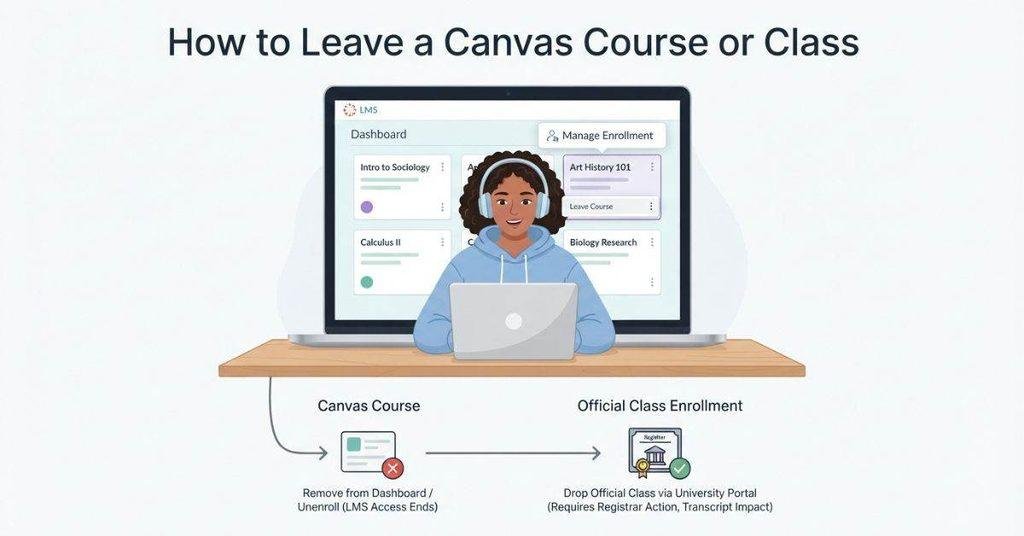
There’s also an important difference between leaving a Canvas course and officially dropping a college class. Removing a course from Canvas does not automatically change your academic enrollment or registration status.
In this guide, you’ll learn how to leave a course on Canvas when the option is available. You’ll also learn what to do when you can’t unenroll yourself. Most importantly, we’ll explain how Canvas enrollment differs from officially dropping a course through your school.
Can You Leave a Course on Canvas?
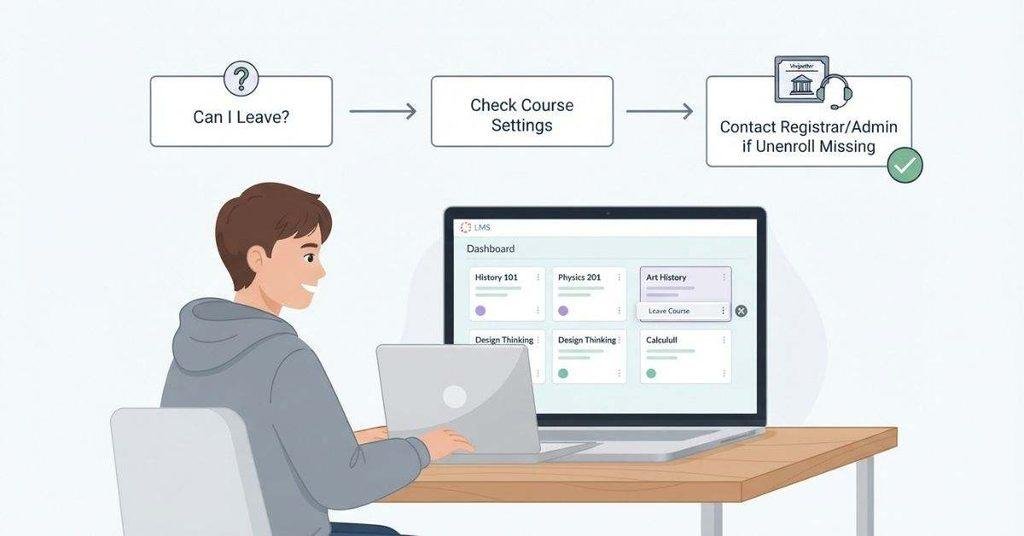
Yes, some Canvas users can leave a course themselves, but the option depends on their school’s Canvas settings. Many colleges and universities restrict students from manually unenrolling from courses. You may not see a Leave Course or Unenroll option at all.
Active courses and completed courses can also work differently. Your school may automatically move concluded courses into a separate area instead of allowing you to remove them manually. If you don’t see an option to leave the course, contact your instructor or school’s Canvas support team.
What Does “Leave a Course” Mean on Canvas?
Leaving a course usually means removing it from your Canvas course list or account view. This can help keep your dashboard organized, especially when you have old or unwanted courses.
However, leaving a course in Canvas doesn’t necessarily change your official student status. Canvas only manages your access to course materials and online learning activities. Your college’s registration system controls your academic enrollment.
For example, you might remove a course from your Canvas view while remaining officially enrolled through your school. That’s why you should always check your registration status separately.
If you are organizing the courses that appear on your account, you may also want to learn how to customize your Canvas Dashboard and manage your course cards.
Does Leaving Canvas Drop You From the Class?
No. Leaving a Canvas course is not the same as officially dropping a college class. This distinction matters because Canvas and your school’s registration system serve different purposes.
Think of enrollment as three separate layers:
- Registration system: Records the classes you officially registered for.
- Academic enrollment: Determines whether you’re enrolled in the course for credit.
- Canvas enrollment: Gives you access to the online course space.
If you want to drop a course, follow your college’s official withdrawal or registration process. Don’t rely on removing the course from Canvas. When you’re unsure, contact your academic advisor or registrar before taking action.
Pro Tip: Always confirm your official enrollment status outside Canvas before assuming you’ve dropped a class.
How to Leave a Canvas Course
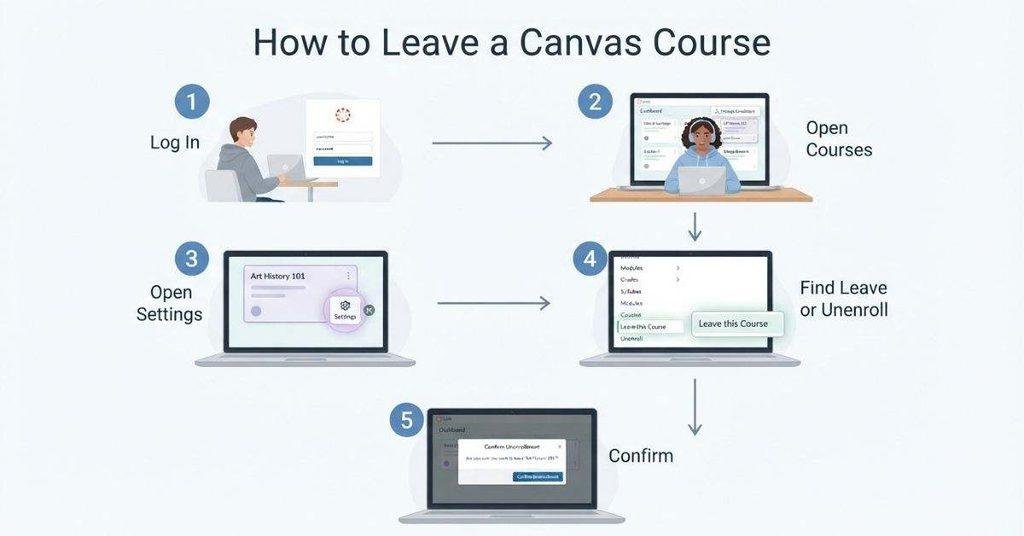
If your school allows student unenrollment, you can usually check for a leave option through the course settings. However, Canvas permissions vary by institution, so your screen may look different.
Follow these steps to check whether your account has the option. If you don’t find it, don’t assume something went wrong. Your school may require an instructor, administrator, or support team to remove your Canvas enrollment.
Step 1 — Log In to Canvas
Open your school’s Canvas website and sign in with your student credentials. Use the official Canvas link provided by your college or university.
After signing in, you’ll typically arrive at your Canvas dashboard. Make sure you’re using the correct student account before continuing.
Step 2 — Open Your Courses
Select Courses from the Global Navigation menu. Depending on your school’s setup, you may see a list of current and previous courses.
Find the course you want to leave and select its name. This opens the course homepage and gives you access to its available navigation options.
Step 3 — Open the Course Settings
Look for Settings in the course navigation menu. If you can access it, open the settings page and review the available options.
Important: Students may not see Settings or any option for leaving the course. Canvas administrators can control which features students can access.
If you don’t see the required option, your school may have disabled student unenrollment.
Step 4 — Look for the Leave or Unenroll Option
If your institution enables student unenrollment, you may find a Leave Course, Unenroll, or similar option within the course settings.
The exact wording and location can vary between Canvas accounts. Don’t expect every course to display the same option.
If no leave option appears, contact your instructor or Canvas support team. They can tell you whether your school allows students to leave courses themselves.
Step 5 — Confirm the Action
If Canvas provides a confirmation screen, carefully review the message before continuing. Confirm only if you’re certain you want to leave the Canvas course.
After leaving, you may lose access to the course homepage, assignments, discussions, files, and other materials. The exact result depends on your school’s Canvas configuration.
Pro Tip: Take a screenshot or save important course materials before leaving. More importantly, verify your official academic enrollment separately. Leaving Canvas does not automatically mean you’ve dropped the college class.
Students who regularly access Canvas from different devices can also see our guide on whether Canvas has a student app and what it offers.
How to Remove a Class From Your Canvas Dashboard
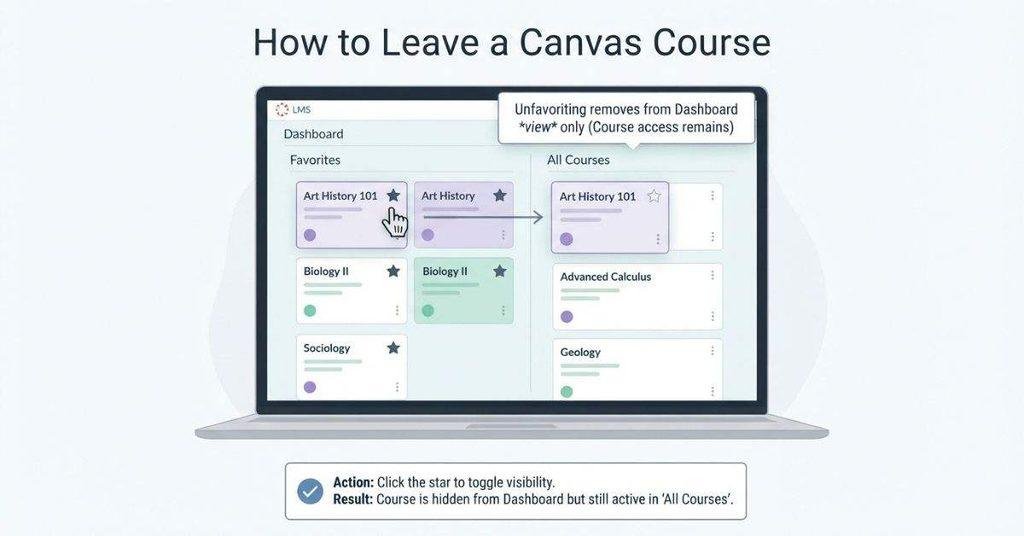
Sometimes you don’t need to leave a Canvas course. You may simply want to remove it from your Dashboard. Canvas lets you manage which courses appear as favorites, depending on your school’s settings.
Removing a course from your Dashboard only changes its visibility. It does not remove your Canvas enrollment or officially drop the class.
Remove a Course From Dashboard Favorites
You can usually manage your Dashboard courses through the Courses menu. Open Courses, then select All Courses to view your available courses.
Look for the Favorites section and manage your course favorites. If the course appears as a favorite, select the option to remove or unfavorite it.
Once you unfavorite the course, it should no longer appear among your Dashboard favorites. You can still find it through Courses → All Courses, if your enrollment remains active.
The key difference is simple: unfavoriting changes your Dashboard view, while leaving or unenrolling changes your Canvas course enrollment.
If you’re only trying to clean up your Dashboard, unfavoriting is usually the better choice. You don’t need to leave the course just to hide it from your main view.
How to Leave a Class on Canvas Without Dropping It
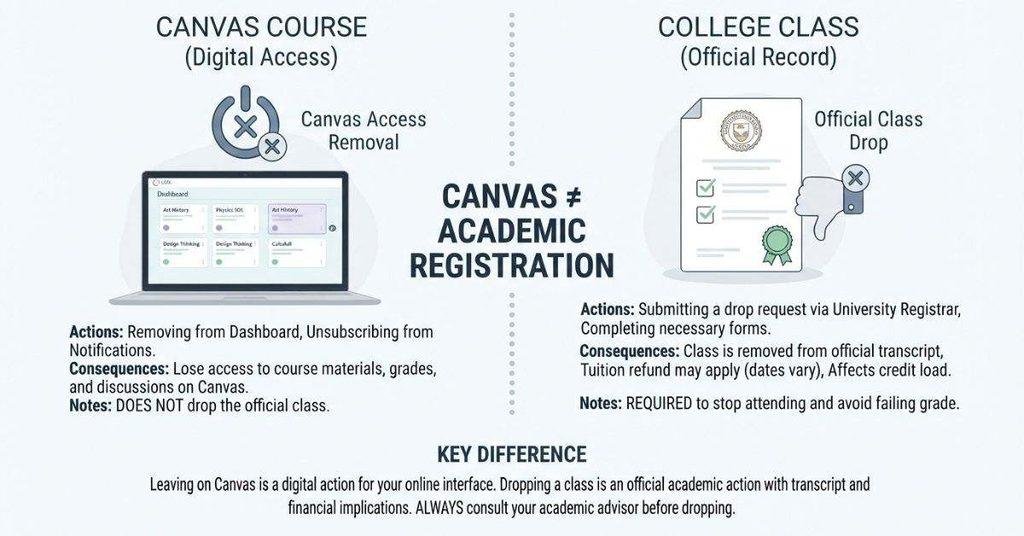
If you want to leave a class on Canvas without dropping it academically, first decide what you actually want to change. These three actions have different results.
- Unfavorite a course: Removes the course from your Dashboard favorites. You remain enrolled in the Canvas course.
- Leave or unenroll from a Canvas course: Removes your Canvas enrollment if your school permits student unenrollment.
- Drop a college class: Changes your official academic enrollment. You must follow your school’s withdrawal or registration procedures.
For most students who simply want to clean up their Dashboard, unfavoriting the course is the safest option. It doesn’t mean you’ve left the course or dropped the class.
If you genuinely want to stop taking the class, don’t rely on Canvas alone. Check your school’s official registration system or contact your academic advisor.
What If There Is No “Leave Course” Option?
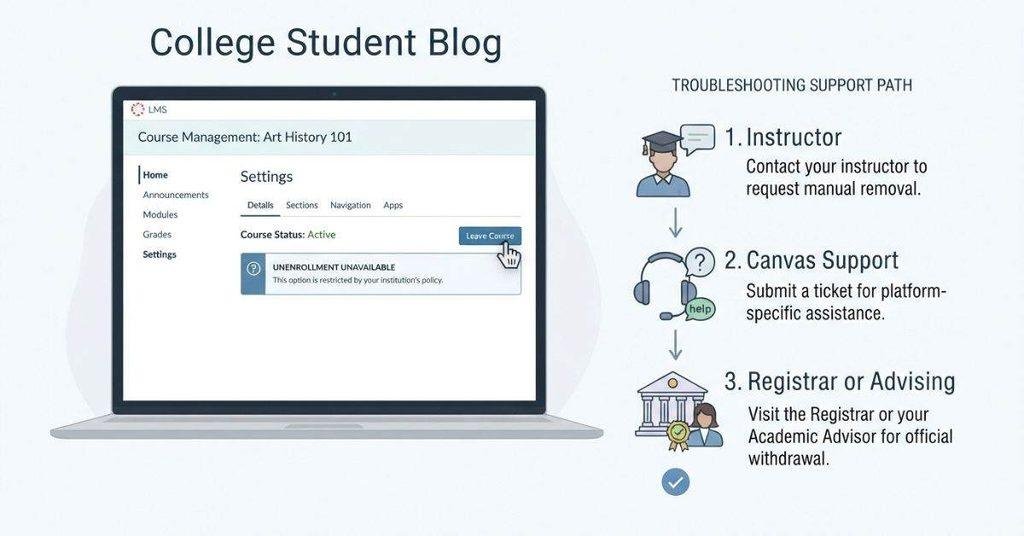
Can’t find a Leave Course or Unenroll button? Don’t worry. This doesn’t necessarily mean you’re doing something wrong. Canvas lets schools control student permissions, so some students cannot remove themselves from a course.
Before trying workarounds, identify who manages the type of access you’re trying to change. Canvas enrollment, academic registration, and course access can involve different people.
If you are leaving a completed course but want to check your final standing first, the Canvas Grade Calculator can help you estimate the final result from your assignment scores.
Your School May Not Allow Student Unenrollment
Your college or university controls many Canvas permissions and course settings. Administrators can prevent students from manually leaving active courses.
If you don’t see a Leave Course option, your institution may simply have disabled student unenrollment. This is especially common when schools want enrollment changes handled through official systems.
Don’t try to bypass these restrictions by deleting course materials or changing unrelated settings. Those actions won’t necessarily change your enrollment.
Instead, contact the appropriate person based on your situation. If you’re unsure who handles it, your instructor or school’s Canvas support team can point you in the right direction.
Contact Your Instructor
Your instructor can be a good first contact when you need help with a course in Canvas. They may explain your school’s process or confirm whether you should remain enrolled.
An instructor may also help when a course appears incorrectly or when you need access removed for a specific reason.
However, instructors may not control your official academic enrollment. For withdrawal or registration changes, you may need another office.
Contact Your Canvas Administrator
Contact your school’s Canvas administrator or learning technology support team when the issue involves Canvas enrollment or access.
They can check whether your account remains enrolled and explain why the leave option isn’t available. They can also tell you whether your school’s Canvas setup allows students to unenroll themselves.
This is especially useful when you’ve already completed the official registration process but Canvas still shows the course.
Contact Your Registrar or Academic Advising Office
If you want to drop or withdraw from the college class, contact your school’s registrar or academic advising office.
These offices handle official academic enrollment and can explain deadlines, withdrawal procedures, and registration requirements.
Pro Tip: Never assume that removing a course from Canvas changes your academic enrollment. Confirm the change through your school’s official registration system.
How to Remove a Dropped Course From Canvas
Did you already drop a class officially, but it still appears in Canvas? This can happen when your Canvas course list hasn’t updated yet.
Canvas often receives enrollment information through your school’s systems. Your institution controls how and when those systems synchronize with Canvas.
You may still see the dropped course under Courses, All Courses, or your Dashboard during the transition. The course might also remain visible while the school processes the enrollment change.
If the course remains after your school’s expected update period, contact your instructor or Canvas support team. Ask them to verify whether your Canvas enrollment still exists.
For an officially dropped class, don’t use the Leave Course option as a substitute for the school’s withdrawal process. Your academic drop should already be recorded through the official registration system.
Important: Seeing a course in Canvas doesn’t automatically mean you’re still academically enrolled. Check your school’s registration portal for your official enrollment status.
How to Leave a Canvas Course on the Mobile App
The Canvas Student app lets you access courses from your phone, but available management options depend on your school. You may not have an option to leave or unenroll from a course.
Open the Canvas Student App
Open the Canvas Student app on your phone and sign in through your school’s Canvas account. Make sure you’re using the student account connected to the correct institution.
After signing in, you’ll typically see your available courses or the Dashboard. Select the course you want to manage.
Open Your Course List
Open the Courses area to view your available courses. Find the course you want to leave and select it.
The app’s layout can vary based on your Canvas version and school’s configuration. Look through the available course options for any management features.
Check Whether Course Management Options Are Available
If your school allows student unenrollment through the mobile app, a relevant option may appear in the available course management settings.
However, don’t expect to see a Leave Course or Unenroll option on every account. Your institution controls many Canvas permissions and may restrict this action.
What to Do If You Cannot Leave the Course
If the app doesn’t provide a way to leave the course, don’t assume the feature is missing because of an app problem.
Contact your instructor or school’s Canvas support team. If you actually want to drop the college class, contact your registrar or academic advising office instead.
Can You Leave a Canvas Course After It Ends?
You may still see a Canvas course after the semester ends. This doesn’t necessarily mean you can leave or remove it yourself.
Schools can move completed courses into concluded, completed, or archived states. These courses may become read-only, allowing students to review certain materials without making changes.
Old courses can remain visible because your institution controls how Canvas handles concluded enrollments. Your school may also keep previous courses available for reference, records, or academic review.
If you see an old course in Canvas, check whether it is active or concluded before trying to remove it. A concluded course may have different settings from an active course.
Your school may also control whether students can hide, remove, or unenroll from these courses. If no management option appears, contact Canvas support or your institution’s designated administrator.
Pro Tip: Don’t assume an old course needs removal simply because the semester ended. If you still need access to grades or course materials, keeping it visible may be useful.
What Happens After You Leave a Canvas Course?
What happens after leaving a Canvas course depends on your school’s settings and how Canvas handles that enrollment. In general, leaving can change your access to the course and its content.
You may notice that:
- The course disappears from your active course list.
- Course materials may no longer be accessible.
- Grades or other course content may no longer appear through that enrollment.
- You may need an instructor or Canvas administrator to restore access.
Leaving a course doesn’t necessarily permanently delete the course or its records. Your institution may retain the course and related information even when your access changes.
If you accidentally leave a course, contact your instructor or Canvas administrator promptly. They can determine whether your enrollment can be restored.
Most importantly, remember that leaving Canvas isn’t the same as dropping a college class. Your academic enrollment remains a separate matter handled through your school’s official registration system.
Leave vs Remove vs Drop a Canvas Course
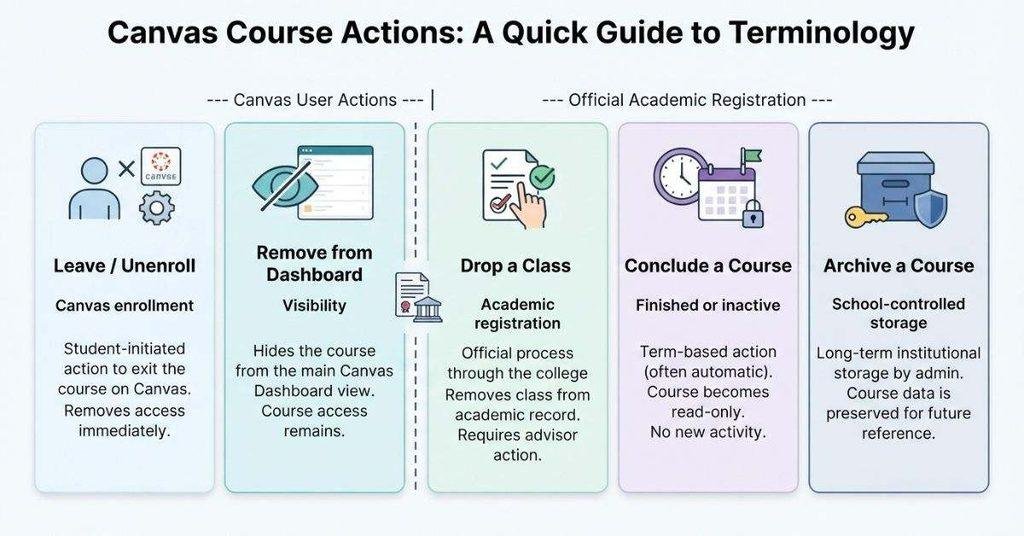
The terms leave, remove, drop, conclude, and archive can sound similar in Canvas. However, each action can have a different meaning and result.
Use the table below to understand the difference before changing your course settings.
| Action | What It Does |
|---|---|
| Leave / Unenroll | Removes your Canvas enrollment if your institution permits student unenrollment. |
| Remove From Dashboard | Hides or unfavorites the course from your Dashboard view. You may still remain enrolled. |
| Drop a Class | Officially changes your academic enrollment through your school’s registration process. |
| Conclude a Course | Marks a course as finished or inactive based on the institution’s Canvas setup. |
| Archive a Course | Places course content into a school-controlled storage or access state. |
The most important distinction is between removing a course from Canvas and dropping a college class. Removing or unfavoriting a course doesn’t automatically change your academic enrollment.
If you only want to clean up your Dashboard, unfavoriting the course may be enough. If you want to stop taking the class, follow your school’s official withdrawal process.
Pro Tip: When you’re unsure which action you need, check your school’s registration system before changing your Canvas enrollment.
Conclusion
Knowing how to leave a Canvas course starts with understanding what you actually want to change. You may only need to remove a course from your Dashboard, or you may need to leave your Canvas enrollment.
Remember, leaving or removing a Canvas course does not automatically drop you from the college class. Official course withdrawal must go through your school’s registration or academic advising process.
If Canvas doesn’t show a Leave Course option, your institution may restrict student unenrollment. In that case, contact your instructor or Canvas support team for guidance.
Before making changes, confirm your official enrollment status. If this guide helped, share it with another student who may need it.
Frequently Asked Questions
Open the course in Canvas and check Settings for a Leave Course or Unenroll option. This option isn’t available for every student because schools control Canvas permissions. If you don’t see it, contact your instructor or Canvas support team.
Open Courses and select the class you want to leave. Check the available course settings for a leave or unenroll option. If your school doesn’t allow student unenrollment, contact your instructor or Canvas administrator.
Yes, but the meaning of “remove” matters. You may be able to unfavorite a course and remove it from your Dashboard. However, you may not be able to remove your Canvas enrollment yourself. Your school controls these permissions.
Your school may not allow students to manually unenroll from Canvas courses. Canvas permissions vary between institutions. If there’s no Leave Course option, contact your instructor or Canvas support team for help.
Open Courses, then select All Courses. Find the course under your favorites and remove it from your favorites list. This only changes your Dashboard view. It doesn’t leave the course or change your academic enrollment.
No. Leaving or unenrolling from Canvas isn’t the same as officially dropping a college class. Academic drops must follow your school’s registration or withdrawal process. Always check your official enrollment status separately.
The Canvas Student app may let you manage certain course options, but available features depend on your institution. You may not have a leave or unenroll option. If you can’t find one, contact your school’s Canvas support team.
If you already dropped the class officially, Canvas may need time to update your enrollment. Your school controls how enrollment information synchronizes with Canvas. If the course remains visible, contact your instructor or Canvas support team.
Some students can unenroll themselves when their institution enables that permission. However, many schools restrict student unenrollment. If your Canvas account doesn’t show a leave option, follow your school’s required process.
Old courses may become concluded, completed, or archived after the semester ends. Your school controls how these courses appear and whether students can remove them. If you still see an old course, check Courses → All Courses or contact Canvas support.

We are the Canvas Academic Team, a developer team focused on building simple and practical tools that help students succeed academically. This platform was created specifically for Canvas LMS students to make grade tracking, GPA calculations, exam planning, and academic management easier and more efficient.
Our focus is on creating fast, accurate, and student-friendly educational tools along with helpful learning resources that improve productivity and reduce academic stress.
Through CanvasGradeCalculator.com, our goal is to continue building useful resources that help students study smarter, stay organized, and achieve better academic results.

