

Table of Contents
Introduction
Have you ever opened Canvas and struggled to find the course you need?
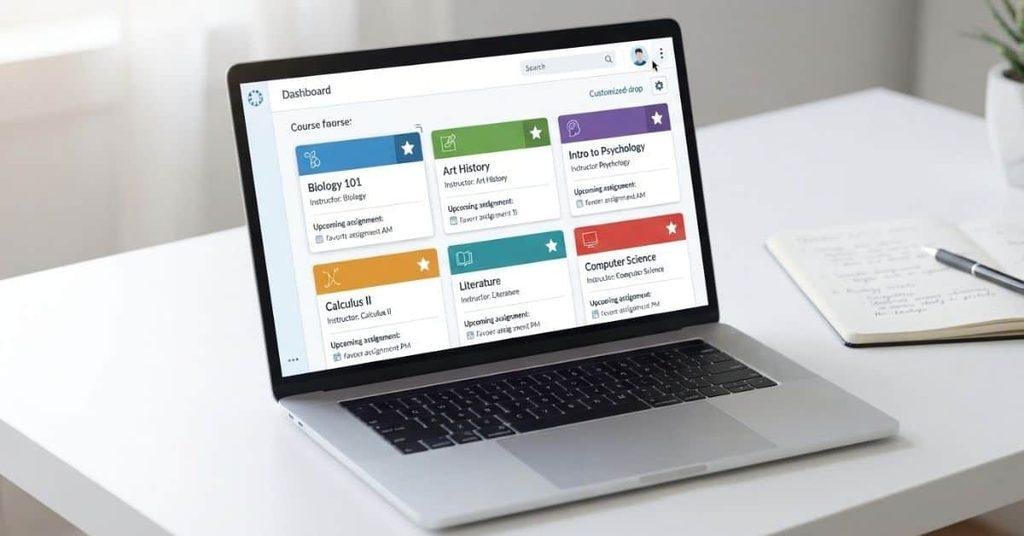
Learning how to customize Canvas dashboard can make your online classes much easier to manage. For many U.S. college students, Canvas holds several courses, assignments, announcements, and important class resources. A cluttered Dashboard can make finding the right course frustrating.
Canvas lets students personalize parts of the Dashboard to fit their needs. You can organize course cards, mark courses as favorites, change course colors, and add nicknames. Some options may vary based on your school’s Canvas setup.
In this guide, you’ll learn how to customize Canvas dashboard step by step. You’ll also discover simple ways to organize active courses and make important classes easier to spot. By the end, your Canvas Dashboard can feel cleaner, more organized, and easier to use.
Once your dashboard is organized, you can also learn how to display grades on Canvas Dashboard cards to keep your academic progress easier to track.
What Can You Customize on the Canvas Dashboard?
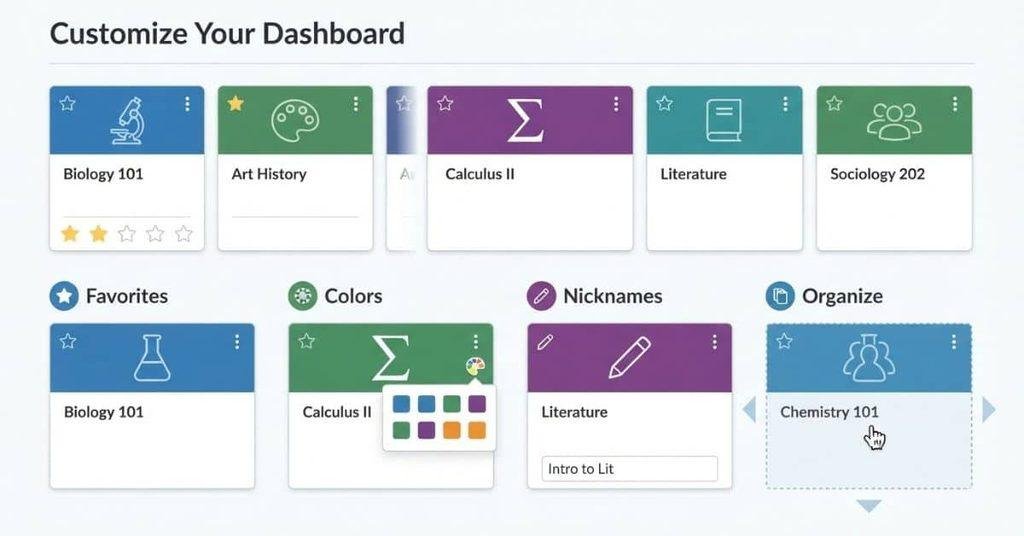
Canvas gives students several ways to make the Dashboard easier to scan and organize. The exact options can vary by your school’s Canvas setup.
You can usually customize course cards, choose favorite courses, adjust card colors, and add course nicknames. Canvas may also provide different Dashboard viewing options.
Course Cards
Course cards are the tiles you see on the Canvas Dashboard. Each card represents a course and can show details such as the course name, color, and recent activity.
These cards help you quickly identify your current classes. You can arrange or manage them based on the customization options available in your Canvas account.
Favorite Courses
Your favorite courses are the classes you want to access directly from the Dashboard. Selecting favorites helps reduce clutter when you have many courses listed in Canvas.
Older or inactive courses may not appear as expected. Canvas can separate past, concluded, or unpublished courses from your active Dashboard courses.
Course Card Colors
Canvas may let you choose a color for individual course cards. Using different colors can help you recognize classes faster.
For example, you could use one color for math and another for writing. This simple visual system can make a busy Dashboard easier to scan.
Course Nicknames
A course nickname gives a course a shorter, easier-to-recognize name on your Dashboard. This can help when your school uses long official course names or codes.
For example, a course with a lengthy department name and course number could use a simple nickname. Choose something that clearly reminds you which class the card represents.
Dashboard View
Canvas may offer different ways to view your Dashboard, depending on your institution and Canvas environment. Some students may see a card-based view, while others may have additional viewing options.
These settings can change how courses appear without changing the actual course content.
If you mainly use Canvas from your phone, see our guide on whether Canvas has a student app and what you can manage from mobile.
How to Customize Your Canvas Dashboard
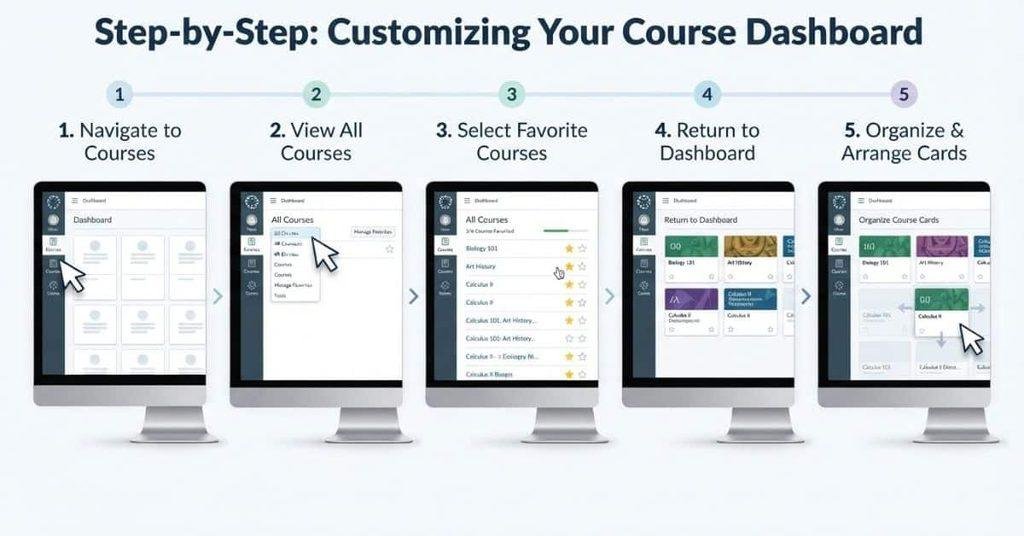
Customizing your Canvas Dashboard starts with choosing the courses you want to access most often. Follow these steps to create a cleaner and more useful course list.
Step 1 — Open Your Canvas Dashboard
Sign in to your Canvas account through your college or university. Open Dashboard from the main navigation menu.
You should see your current course cards on the Dashboard. The layout may look different depending on your school’s Canvas setup.
Step 2 — Open All Courses
Open Courses from the Canvas navigation menu. Then select All Courses to view the courses connected to your account.
Find the course list and review which classes are available. You may see current, past, unpublished, or concluded courses.
Step 3 — Choose Your Favorite Courses
Look for the star or favorite option beside each course. Select the courses you want to appear regularly on your Dashboard.
Remove the favorite selection from courses you don’t need to access often. This helps keep your Dashboard focused on your current classes.
Step 4 — Return to the Dashboard
Return to Dashboard after selecting your favorite courses. Check whether your chosen courses now appear as course cards.
If a course doesn’t appear, check Courses → All Courses again. Your school may also control whether certain courses can appear on the Dashboard.
Step 5 — Organize Your Course Cards
Some Canvas interfaces allow students to arrange course cards on the Dashboard. If this option is available, place your most important classes where they’re easiest to find.
Consider putting current or high-priority courses first. A simple arrangement can save time when you switch between classes.
How to Add or Remove Courses From Your Canvas Dashboard
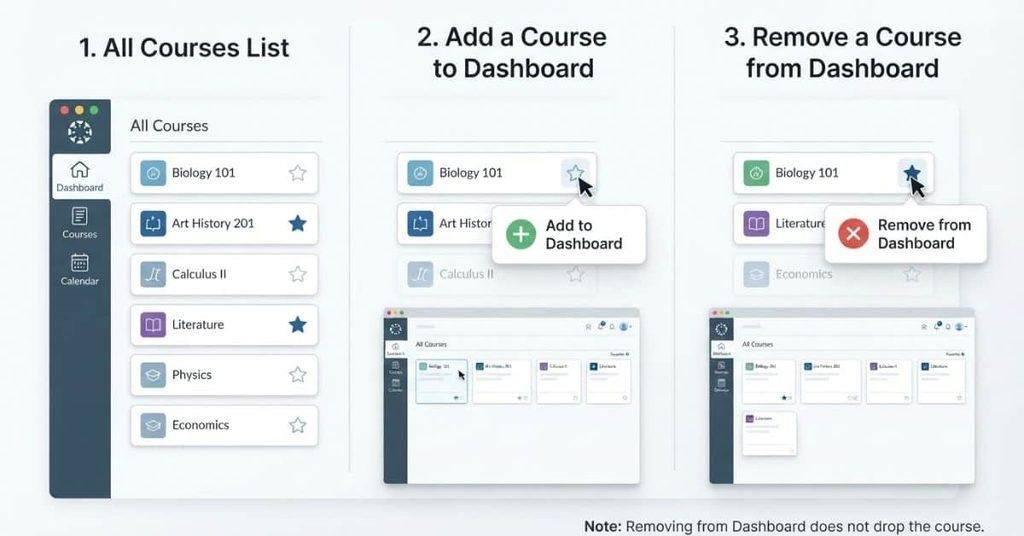
Managing your course cards helps keep your Dashboard focused. You can add important classes and remove courses you rarely need.
Add a Course to the Dashboard
Open Courses → All Courses and find the course you want to add. Look for the star or favorite option next to the course.
Select the option when available. The course should then appear on your Dashboard if your institution allows it.
Remove a Course From the Dashboard
Open Courses → All Courses and find the course you want to remove. Select the star again to unfavorite the course.
Removing a course from your Dashboard does not unenroll you from it. You can still access the course through the available Canvas course list.
What Happens After You Remove a Course?
Removing or unfavoriting a course only changes how it appears on your Dashboard. It does not mean you left the course or dropped the class.
You can still remain enrolled and access the course through Canvas. If you actually need to leave a course, follow your school’s process instead.
“How to Leave a Canvas Course or Class” for students who need to understand the difference.
How to Change Canvas Course Card Colors
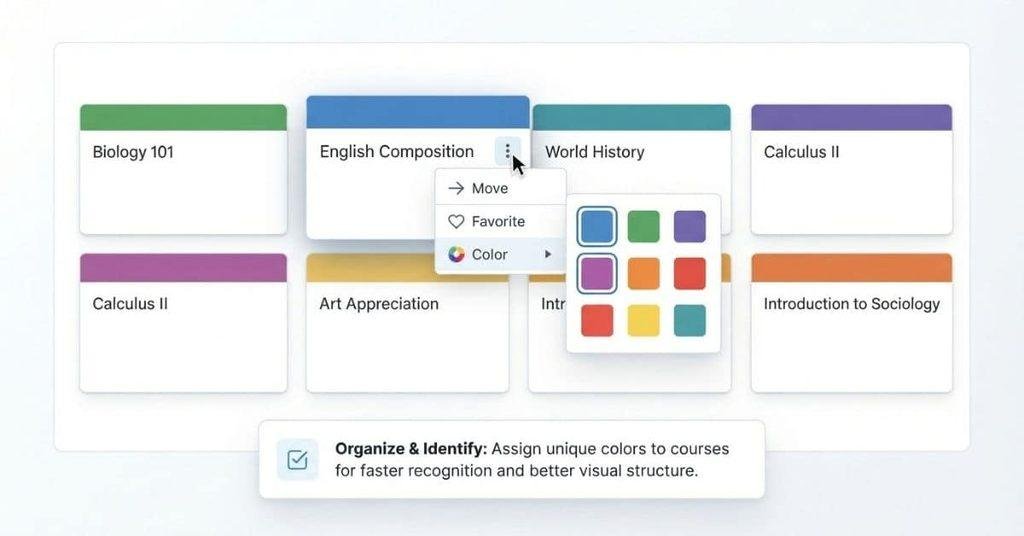
Canvas can let you change the colors of course cards on your Dashboard. These colors help you recognize classes quickly without changing the course itself.
Find the Course Card
Open your Canvas Dashboard and find the course card you want to customize. Each active course usually appears as a separate card.
Look for the class you want to organize. If you don’t see it, check Courses → All Courses first.
Open the Card Options
Find the options menu on the course card. Depending on your Canvas interface, this may appear as a three-dot menu or another options button.
Open the menu to view the available customization settings. Your school’s Canvas version may show slightly different options.
Choose a Color
Select the available color option from the card settings. Choose a color that makes the course easy to recognize.
If Canvas doesn’t offer custom colors in your account, you may not have this option. Available features can vary between institutions.
Use Colors to Organize Your Courses
A simple color system can make your Dashboard easier to scan. For example, you could organize your courses like this:
- Blue → English
- Green → Science
- Yellow → Math
The colors are mainly for Dashboard organization. They don’t change your course content, assignments, grades, or other course settings.
Keeping your courses organized also makes it easier to monitor your grades, and the Canvas Grade Calculator can help you estimate your overall percentage.
How to Rename a Course on Your Canvas Dashboard
Canvas may let you use a course nickname to give a course a shorter name on your Dashboard. This option can make long course titles easier to recognize.
Why Use a Course Nickname?
A course nickname can help when your college uses long course names, department codes, or detailed class titles. A shorter name can make your Dashboard easier to scan.
For example, you might use “English Comp” instead of a long official course title. Choose a nickname that helps you identify the class quickly.
Open the Course Card Options
Open your Canvas Dashboard and find the course card you want to rename. Open the card’s available options menu.
Look for a setting related to the course nickname. The exact option may vary based on your Canvas environment.
Enter a Short Nickname
Enter a short name that clearly identifies the course. Avoid nicknames that could confuse you with another class.
Save the change if Canvas provides a save option. The nickname should apply to your personal Dashboard view.
Check the Dashboard
Return to your Dashboard and find the updated course card. Check that the new nickname makes the class easier to recognize.
A personal nickname does not officially rename the course for other students or instructors. It only helps you organize your own Canvas view.
How to Rearrange Canvas Dashboard Cards
Rearranging course cards can help you place important classes where you can find them quickly. The available options depend on your Canvas version and settings.
Move a Course Card
If your Canvas interface supports card movement, select and drag a course card to a different position. Place it where you can access it easily.
You may also see other controls for organizing Dashboard cards. Use whichever options your Canvas account provides.
Put Current Courses First
Place your current courses near the easiest-to-access positions. This can reduce the time you spend searching through less relevant classes.
For example, keep this semester’s classes ahead of older courses when the interface allows it.
Organize Courses by Priority
You can organize cards based on how often you use each course. Put classes with frequent assignments or upcoming deadlines in prominent positions.
You might place your highest-priority course first, followed by your other active classes. This creates a simple system for navigating your Dashboard.
What If You Can’t Move a Course Card?
Don’t worry if you can’t rearrange your course cards. Canvas Dashboard behavior can vary by version, institution, and account settings.
Some environments may provide limited organization controls. You can still use favorite courses, colors, and nicknames when those features are available.
If you want to check how individual assignments affect your final result, try the Canvas Grade Calculator before your next submission or exam.
How to Customize Canvas Dashboard on the Student App
The Canvas Student app gives you mobile access to your courses and Dashboard. However, its customization options may differ from the desktop version.
Open the Canvas Student App
Open the Canvas Student app on your phone and sign in through your college or university. Your institution may use a specific Canvas login process.
After signing in, use the app’s navigation menu to access your available courses and Dashboard.
View Your Dashboard
Open Dashboard to see the courses currently displayed in your account. Course cards or a course list may appear depending on your app and Canvas setup.
Tap a course to open its content, assignments, announcements, and other available resources.
Manage Your Course List
Use the available course and Dashboard controls to manage which classes you access regularly. Your options may depend on your institution’s Canvas settings.
If you need more detailed organization controls, check Canvas from a computer. The desktop interface may provide options that aren’t available in the app.
What Can You Change on Mobile?
The Student app can provide access to your courses and Dashboard, but not every desktop customization feature appears on mobile.
Depending on your setup, you may be able to manage course visibility or access courses from your mobile Dashboard. Check the options shown in your own app before assuming a feature is available.
What Is Easier to Manage on a Computer?
A computer can provide a broader view of your Canvas Dashboard and course list. Some organization features may also be easier to find and use.
For detailed Dashboard customization, open Canvas in a desktop browser when possible. Your institution’s Canvas configuration still determines which features you can use.
How to Organize Canvas Courses You No Longer Need
Old courses can make your Canvas Dashboard harder to scan. Removing unnecessary favorites can help you focus on your current semester.
Remove Old Courses From Favorites
Open Courses → All Courses and review your available classes. Unfavorite older courses that you don’t need to access regularly.
Removing a course from favorites changes its Dashboard visibility. It doesn’t remove your enrollment or erase the course.
Keep Current Courses on the Dashboard
Keep your active courses selected as favorites when the option is available. This keeps your most important classes easy to reach.
You can review your favorites at the start of each semester. Remove older courses when they no longer need regular attention.
Access Past Courses Through All Courses
Past courses may remain available under Courses → All Courses. Their availability depends on your institution and the course’s status.
If an older course doesn’t appear on your Dashboard, check the All Courses area first. You may still have access to it there.
Can You Permanently Delete a Canvas Course?
Students generally shouldn’t assume they can permanently delete institutional courses themselves. Course removal and deletion are usually controlled by the institution or authorized Canvas administrators.
If you no longer need a course on your Dashboard, unfavorite it instead. This keeps your course access intact while reducing Dashboard clutter.
How to Show Only Current Classes on Canvas Dashboard
You can keep your Canvas Dashboard focused by favoriting current classes and unfavoriting older ones. This reduces clutter without changing your course enrollment.
Open All Courses
Open Courses in Canvas and select All Courses. Review the courses connected to your account.
Identify your current classes and separate them from older or completed courses. Some courses may have different availability or enrollment statuses.
Favorite Current Courses
Find each current class in the course list. Select the star or favorite option when Canvas provides it.
Favoriting a course can make it appear on your Dashboard. Repeat this process for the current classes you use regularly.
Unfavorite Older Courses
Find older courses you no longer need on your Dashboard. Select the favorite option again to remove them from your favorites.
This only changes your Dashboard organization. It doesn’t drop the class or remove your access.
Check the Dashboard
Return to Dashboard and review your course cards. Your current favorites should appear if your Canvas setup supports this behavior.
If something looks different, return to All Courses and check the course’s status and favorite setting.
What If an Old Course Still Appears?
An older course may remain visible because of its enrollment status, course availability, or institutional Canvas settings. Some courses may also remain accessible even after you unfavorite them.
You may not have a way to manually remove every course from Canvas. Check All Courses to understand where the course is listed.
Why Can’t I Customize My Canvas Dashboard?
Canvas Dashboard controls can vary between schools, account types, and Canvas environments. If a customization option is missing, the feature may not be available to your account.
The Course Isn’t Showing
A course may not appear on your Dashboard for several reasons:
- You haven’t favorited the course.
- Your enrollment status has changed.
- The course isn’t currently available.
- Your institution controls its Dashboard visibility.
Start by checking Courses → All Courses. If the course appears there, review its available options.
I Can’t Change the Course Color
Some Canvas accounts may not provide course color customization. Check the course card options to see whether a color setting is available.
If you don’t see the option, your Canvas environment may not support that customization.
I Can’t Rename the Course
Canvas may use a course nickname feature for personal Dashboard organization. If you can’t find this option, your account may not provide it.
Don’t assume you can change the official course name. Course names can be controlled by your institution.
I Can’t Move the Course Card
Some Canvas Dashboards may not allow students to freely rearrange course cards. Available organization controls depend on your Canvas environment.
If you can’t move a card, use favorites or other available options to prioritize your current classes.
A Course I Removed Keeps Coming Back
Check whether you actually unfavorited the course under Courses → All Courses. Also check whether your institution controls how courses appear.
If the course repeatedly returns, it may be managed by your school’s Canvas settings. You may need institutional support to change its behavior.
Canvas Dashboard Isn’t Updating
Try these basic troubleshooting steps:
- Refresh the Canvas page or app.
- Sign out and sign back in.
- Check Courses → All Courses.
- Try Canvas in a desktop browser instead of the app.
- Check whether the course is available and active.
- Contact your college’s Canvas or IT support if the issue continues.
Canvas Dashboard vs. Canvas Courses vs. All Courses
Canvas uses several areas to help students access their classes. Understanding their differences makes Dashboard customization much easier.
| Canvas Area | Main Purpose |
|---|---|
| Dashboard | Quick access to selected or current courses |
| Courses | Navigate between your courses |
| All Courses | View available, current, and past enrollments |
| Course Home | View content inside one specific course |
The Dashboard is mainly for quick access and organization. Courses helps you navigate your classes, while All Courses provides a broader view of your enrollments.
The Course Home belongs to an individual class. It contains that course’s content, assignments, announcements, and other resources.
Customizing your Dashboard doesn’t modify the actual course. Changing a card’s color, nickname, or favorite status only affects how you organize your Canvas view.
Canvas Dashboard Customization vs. Grade Display
Dashboard customization and grade visibility are two separate Canvas features. Changing your course cards doesn’t automatically change how grades appear.
Customizing Course Cards
You can use available Dashboard features to organize your courses. These may include:
- Colors to visually identify different classes
- Favorites to highlight courses you access often
- Nicknames to make long course names easier to recognize
- Organization to arrange or prioritize course cards when supported
These options focus on making your Dashboard easier to navigate. They don’t control your grades or change course information.
Displaying Grades on Course Cards
Grade display is a separate issue. Whether grades appear on Dashboard course cards can depend on Canvas and individual course settings.
Not every Dashboard customization changes grade visibility. You can organize your course cards without affecting the grades shown on them.
Internal link: → How to Display Grades on Canvas Dashboard Cards
Keeping these topics separate helps students understand Dashboard organization without confusing it with grade display settings.
How to Reset or Restore Your Canvas Dashboard
You can restore your Dashboard when a course disappears or your course cards look different. Start by checking your course list before changing other settings.
Restore a Missing Course
Open Courses → All Courses and look for the missing class. Check whether the course appears there and whether you currently have access.
If the course is available, review its favorite or Dashboard options. If you can’t find it, your enrollment or course availability may have changed.
Re-Favorite a Course
Find the course under All Courses and select the star or favorite option when available. Then return to your Dashboard to check whether the course appears.
If you don’t see a favorite option, your institution may control how that course appears.
Reset Course Card Organization
If your Dashboard supports moving course cards, you can reorganize them based on your current needs. Put active or high-priority classes in easy-to-find positions.
Canvas doesn’t provide the same organization controls in every environment. If a reset option isn’t available, use the customization features your account provides.
What to Do if Your Dashboard Looks Different
Don’t assume something is wrong if your Dashboard looks different from another student’s. Canvas appearance can change based on course availability, enrollment, and institutional configuration.
First, check All Courses and confirm your current enrollments. Then refresh Canvas or sign out and back in. If the problem continues, contact your college’s Canvas or IT support team.
Conclusion
Customizing your Canvas Dashboard can make your courses easier to find and manage. You learned how to customize Canvas Dashboard using favorites, colors, nicknames, and available organization options.
You also learned how to manage current and older courses without changing your enrollment. Remember that Canvas features can vary by school, account, and device.
A few simple changes can make your Dashboard less cluttered and easier to navigate. Start with your current classes, then adjust other options based on your needs.
Ready to make Canvas easier to use? Explore more Canvas guides on our website for practical tips and step-by-step help. You can also share this guide with classmates who need a cleaner Dashboard.
“`Open Canvas and go to Dashboard. Use available options to favorite courses, change card colors, add nicknames, or organize cards. Features can vary by institution and Canvas setup.
Canvas may offer different Dashboard layouts depending on your institution and account. You may see course cards or other viewing options. Check your Dashboard settings and use the options available to you.
Go to Courses → All Courses and find the course. Select the star or favorite option when available. Return to the Dashboard to check whether the course appears.
Go to Courses → All Courses and find the course. Select the star again to unfavorite it. Removing a favorite does not remove your enrollment.
Open the course card’s options menu on your Dashboard. Choose a color if the option is available. The color only helps organize your Dashboard and doesn’t change the course.
Use the course nickname option when your Canvas account supports it. Enter a shorter name and save the change. A nickname only changes your personal Dashboard view.
If your Canvas Dashboard allows card movement, drag a course card to your preferred position. Place current or high-priority classes where they’re easiest to access.
Favorite your current courses and unfavorite older classes you rarely use. When available, use colors, nicknames, and card organization to make courses easier to identify.
Your institution or Canvas configuration may limit available customization features. Check All Courses and your course options first. Contact your college’s Canvas or IT support if needed.
You can access your Dashboard through the Canvas Student app. However, mobile options may differ from the desktop version. Some customization features may be easier to manage using a computer.
Open Courses → All Courses and favorite your current classes. Unfavorite older courses when possible. Some courses may still appear because of enrollment, availability, or institutional settings.
No. Removing or unfavoriting a course only changes its Dashboard visibility. It does not drop the class, cancel enrollment, or remove the course from Canvas.

We are the Canvas Academic Team, a developer team focused on building simple and practical tools that help students succeed academically. This platform was created specifically for Canvas LMS students to make grade tracking, GPA calculations, exam planning, and academic management easier and more efficient.
Our focus is on creating fast, accurate, and student-friendly educational tools along with helpful learning resources that improve productivity and reduce academic stress.
Through CanvasGradeCalculator.com, our goal is to continue building useful resources that help students study smarter, stay organized, and achieve better academic results.

