

Table of Contents
Introduction
Have you ever opened a Canvas assignment and wondered, “Why do I need to review another student’s work?”
If so, you’re not alone. How does peer review work in Canvas is a common question for students using Canvas for online or college courses. Peer review can feel confusing when you receive an assignment from a classmate without clear instructions.
Canvas peer review lets students review another student’s submission and share helpful feedback. Your instructor controls how reviews are assigned, what you need to evaluate, and when feedback is due.
In this guide, you’ll learn how Canvas peer review works from start to finish. We’ll explain how to find an assigned review, open a classmate’s submission, leave comments, and submit your feedback correctly.
You’ll also learn what to do if you can’t see a peer review or aren’t sure what your instructor expects. By the end, you’ll feel more confident completing peer reviews in Canvas.
What Is Peer Review in Canvas?
Canvas peer review is a feature that lets students evaluate another student’s assignment. Your instructor sets up the peer review and decides what students should review. The assigned work may include an essay, discussion response, project, or other submission.
Peer review is often connected to Canvas assignments, so you may also want to learn whether you can unsubmit or delete a submission on Canvas after submitting your work.
Instructors use peer review to give students more practice with critical thinking and constructive feedback. Reviewing someone else’s work can also help you notice strengths and weaknesses in your own assignments.
You may receive another student’s work because your instructor wants you to assess it using specific criteria. Canvas can assign peer reviewers based on the instructor’s settings. Your task is usually to read the submission, follow the provided instructions, and leave useful comments.
The goal is not simply to find mistakes. Good peer feedback should help another student understand what works, what needs improvement, and how to improve it. Always follow your instructor’s rubric or review instructions.
How Does Peer Review Work in Canvas?
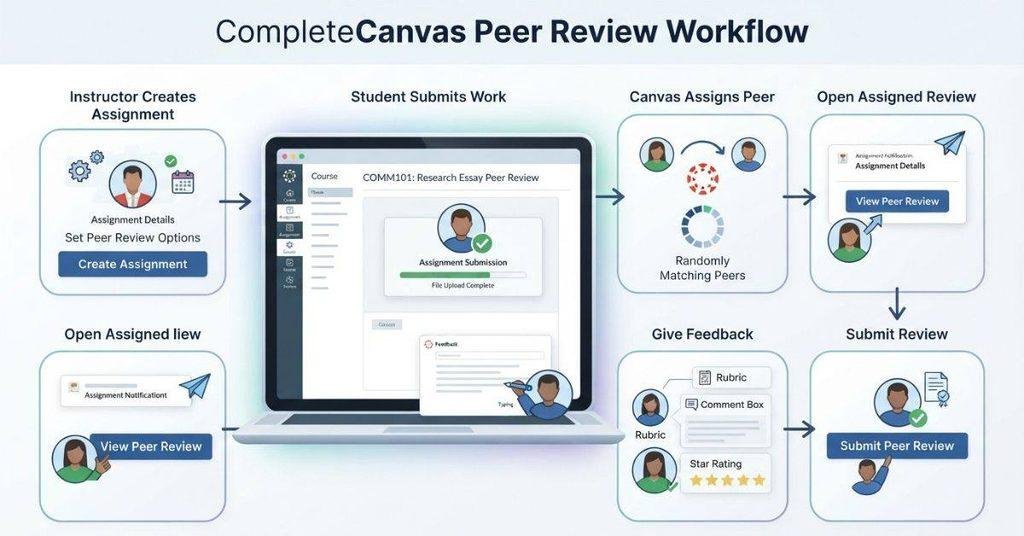
Wondering how does peer review work in Canvas from a student’s perspective? The process usually follows a simple sequence. However, your instructor’s settings can change some steps.
- The instructor creates a peer-review assignment. They set the review instructions, deadline, and other options.
- Students submit their own work. You usually need to submit your assignment before completing a peer review.
- Canvas assigns or provides a peer review. Your instructor may assign a specific student or let Canvas handle assignments.
- You open the assigned peer review. Find the assignment and access the submission you need to evaluate.
- You review the student’s work. Read the submission carefully and compare it with the instructions or rubric.
- You provide comments and feedback. Point out strengths and suggest specific improvements.
- You submit the peer review. Make sure your comments and required ratings are complete.
- The instructor handles grading. Depending on the setup, they may grade your original assignment, peer-review participation, or both.
Pro Tip: Read the rubric before reviewing. It helps you give focused feedback instead of general comments.
How Do You Find a Peer Review Assignment in Canvas?
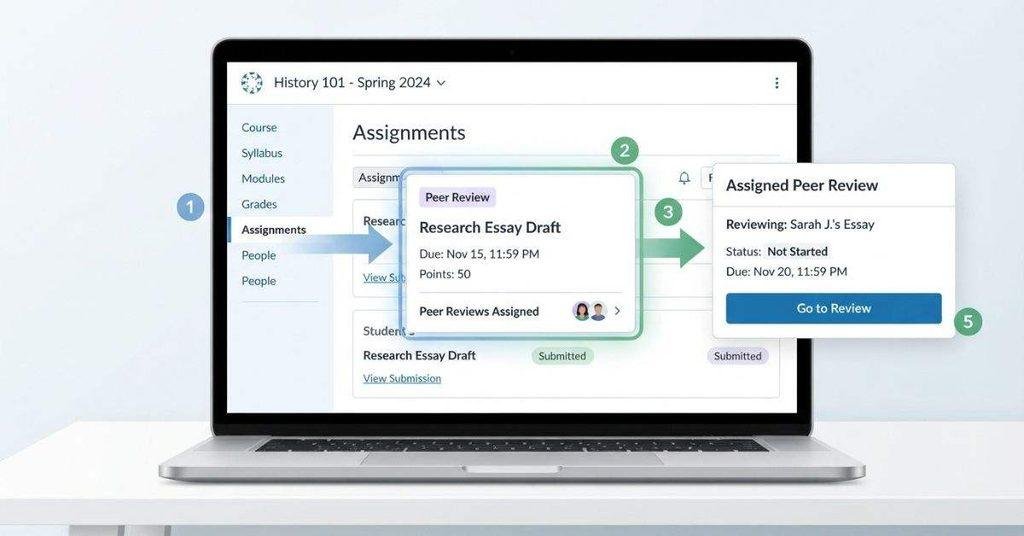
Finding a peer review in Canvas usually takes only a few steps. The exact labels and interface can vary based on your school, course settings, and Canvas version.
- Open your Canvas course. Select the course where your instructor created the peer review.
- Go to Assignments. Look for the assignment connected to the peer-review activity.
- Open the relevant assignment. Read the instructions and check the submission and review details.
- Look for peer-review information. You may see an Assigned Peer Reviews section or similar peer-review details.
- Open the assigned student’s submission. Select the available peer review to view the student’s work.
If you don’t see an assigned peer review, check whether your instructor has released it yet. Also confirm that you submitted your own assignment when required.
How Do You Complete a Peer Review in Canvas?
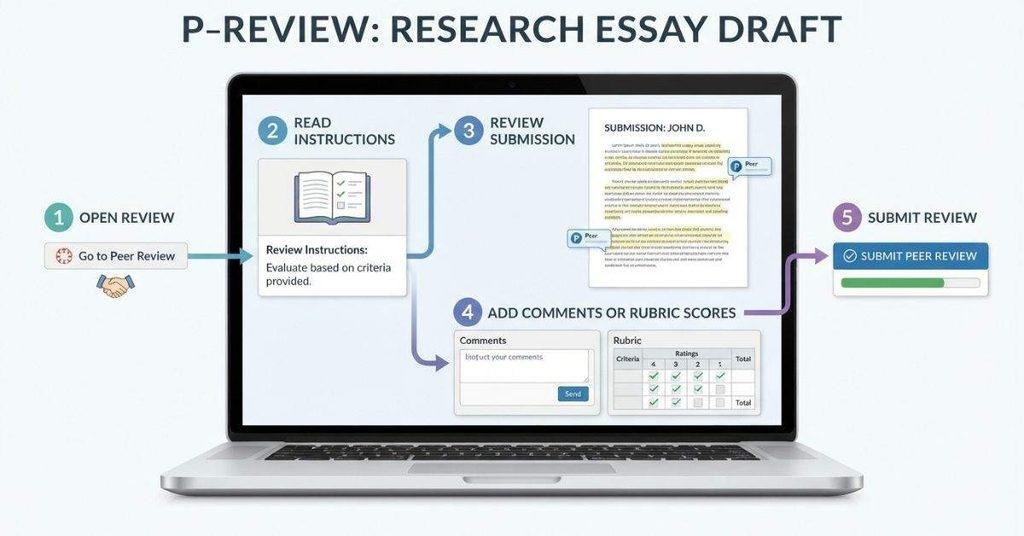
Once Canvas gives you a peer review, completing it involves reviewing the submission and providing useful feedback. Your available options depend on your instructor’s assignment settings.
Step 1: Open the assigned peer review.
Open the assignment and select the student submission assigned to you.
Step 2: Read the instructions and rubric.
Check the instructor’s requirements before evaluating the work. The rubric shows which areas you should consider.
Step 3: Review the student’s submission.
Read or examine the work carefully. Compare it with the assignment requirements and rubric criteria.
Step 4: Add comments or rubric scores.
Provide specific feedback about strengths and areas for improvement. If available, complete the rubric scores as instructed.
Step 5: Submit the peer review.
Check your feedback and required ratings. Then use the available option to submit or complete the review.
Pro Tip: Keep feedback specific and respectful. Explain what the student did well and suggest practical improvements.
Can You See Who You Are Reviewing on Canvas?
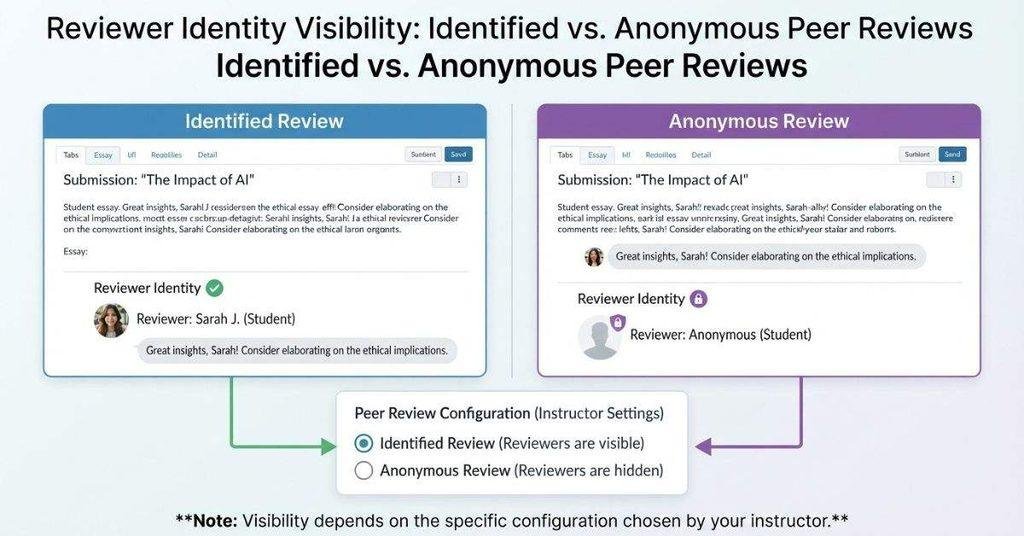
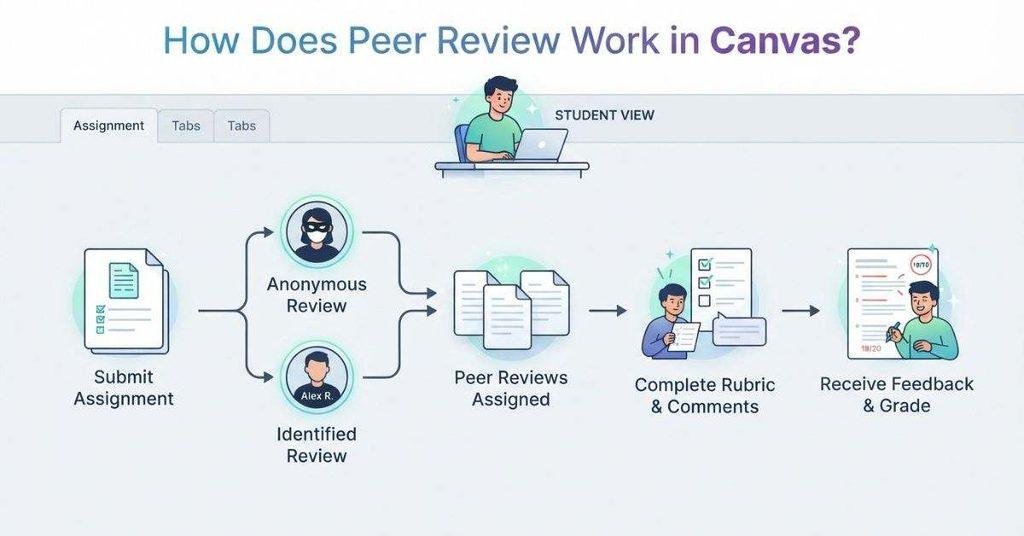
Whether you can see the student’s name depends on how your instructor configured the peer review. Canvas supports both anonymous and identified peer reviews, so the experience can differ between courses.
If your instructor assigns you a specific student, Canvas may show that student’s submission within the peer-review area. With a non-anonymous review, you may also see identifying information connected to the submission.
An anonymous peer review hides certain identifying details from the reviewer. However, anonymity can depend on the assignment settings and Canvas features your instructor uses.
Depending on the setup, you may see information such as:
- The assigned student’s submission
- The student’s name or identifying details
- Rubric criteria or scoring options
- Comments or feedback areas
- Your assigned reviewer status
Don’t assume that every peer review works the same way. Check the assignment instructions and peer-review interface to see what information your course makes available.
Are Canvas Peer Reviews Anonymous?
Yes, Canvas peer reviews can be anonymous, but your instructor controls the relevant assignment settings. Some courses use anonymous reviews, while others identify the students involved.
With an anonymous peer review, Canvas can hide the reviewer’s or submitted student’s identity from the relevant participants. This helps students focus on the work rather than the person.
With an identified peer review, participants can see identifying information that the assignment makes available. Your instructor may use this setup when transparency or direct feedback matters.
The key difference is whether Canvas hides student identities during the review process. Your course settings determine how much information you can see.
Before starting your review, check the assignment instructions and available peer-review details. If you’re unsure whether your review is anonymous, ask your instructor rather than making assumptions.
If you are editing a discussion response before submitting it, our guide on how to undo your last action in a Canvas discussion post can help you correct a recent mistake.
Can Students See Their Peer Reviewer’s Name?
Whether you can see your peer reviewer’s name depends on your instructor’s assignment settings. Anonymous peer review can hide identifying information from students.
If anonymous reviewing is enabled, you may not see who reviewed your work. With a non-anonymous setup, the reviewer’s identity may be visible.
Canvas assignments can use different configurations, so don’t assume every peer review works the same way. Check the assignment instructions or ask your instructor if you’re unsure.
Does Peer Review Affect Your Canvas Grade?
Peer review may or may not affect your Canvas grade. The instructor decides how the assignment handles peer-review participation, points, and grading.
Your course may use peer review in several ways:
- Participation-only: Completing the review matters, but it doesn’t directly add points.
- Peer review has points: Your instructor assigns a grade for completing the review.
- Original assignment is separate: Your submitted work receives its own grade.
- Rubric-based grading: Your instructor may use a rubric to evaluate your work or peer-review activity.
Check the assignment details before assuming a peer review changes your grade. Look for points, rubrics, grading instructions, and submission requirements.
If you’re tracking your overall course grade, our Canvas Grade Calculator can help you estimate how assignment scores affect your average.
How Are Peer Reviews Graded in Canvas?
There is no single grading method for every Canvas peer-review assignment. Your instructor decides how the review affects your course work and grade.
Your peer review may involve a rubric with specific criteria and scoring levels. You may need to select scores, add comments, or complete both.
Some instructors award participation points for completing the review by the deadline. Others may grade the quality of your feedback or use additional assignment-specific requirements.
Your instructor may also review peer-review submissions manually. They can check whether you followed the instructions and provided useful feedback.
Before starting, check the assignment instructions carefully. Look for:
- Rubric requirements and available scores
- Required comments or feedback
- Participation points
- Peer-review deadlines
- Instructor grading requirements
- Any additional assignment-specific instructions
If the assignment doesn’t clearly explain how grading works, ask your instructor before submitting the review.
If a peer-reviewed assignment contributes to your course grade, the Canvas Grade Calculator can help you estimate its effect on your overall percentage.
What Happens If You Don’t Complete a Peer Review?
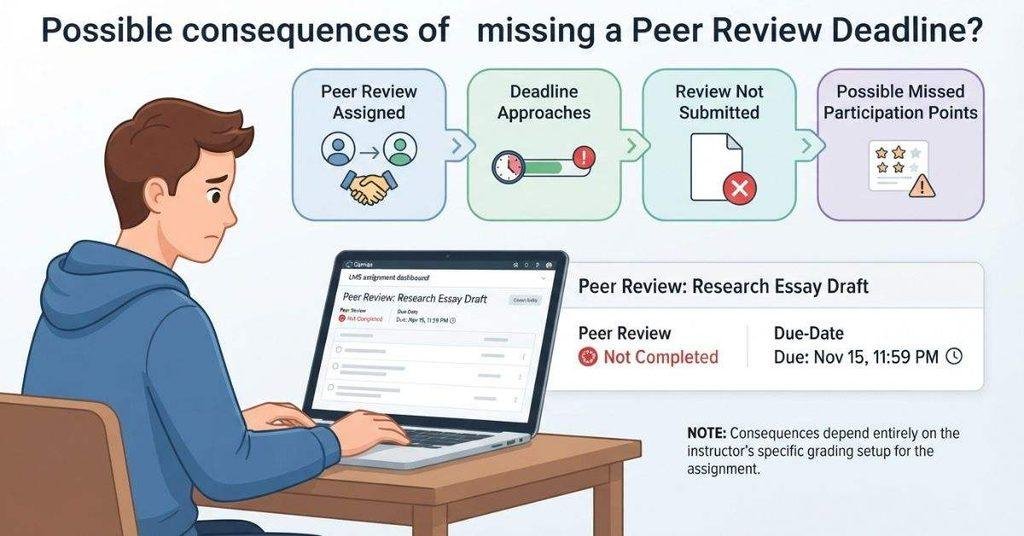
Missing a Canvas peer review can affect your course work, depending on the assignment requirements. Your instructor may set a separate deadline for completing the review.
Possible consequences include:
- Missing the peer-review deadline
- Losing participation points
- Leaving a required assignment incomplete
- Needing the instructor to manually reassign a review
Some courses require students to complete a peer review before receiving full credit. Other instructors may use peer review only as a learning activity.
If you cannot access an assigned review, don’t simply ignore it. Check that you submitted your own assignment and look for any available peer-review instructions.
If the assigned review still doesn’t appear, contact your instructor promptly. They may need to check the assignment settings or manually reassign a peer review.
Can You Edit a Canvas Peer Review After Submitting It?
Whether you can edit a submitted Canvas peer review depends on the assignment and interface configuration. Canvas does not guarantee the same editing options for every peer-review assignment.
After submitting your review, check whether the interface provides an option to modify your comments or rubric responses. If an editing option isn’t available, you may not be able to change the completed review yourself.
If you submitted incorrect feedback or missed an important requirement, contact your instructor. Explain what happened and ask whether they can reopen, adjust, or otherwise handle the review.
It’s best to review your comments and rubric scores carefully before submitting. This can help you avoid mistakes when the assignment doesn’t provide an editing option.
Why Can’t I See My Canvas Peer Review?
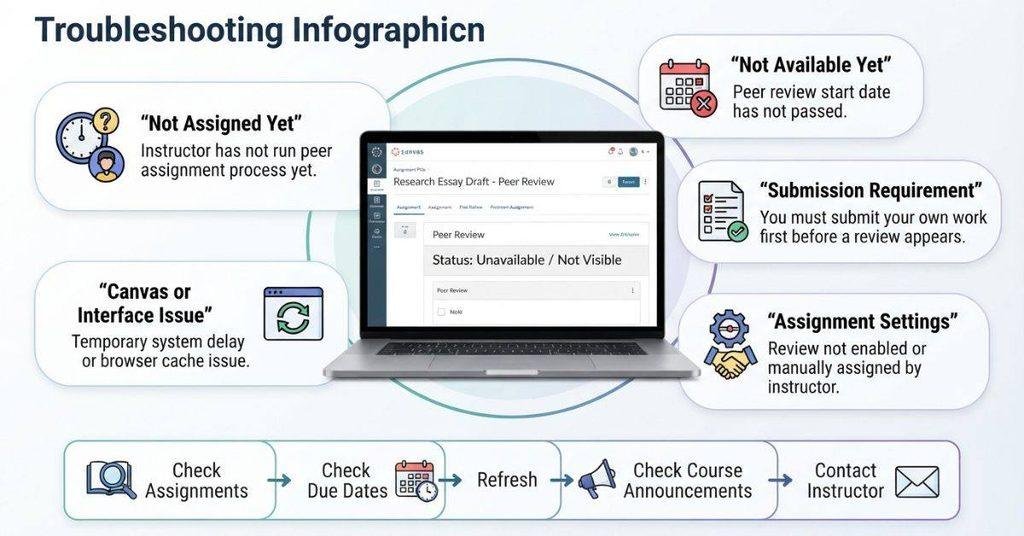
If you can’t see an assigned Canvas peer review, several things could explain the problem. The review may not be available yet, or your instructor may still need to assign it.
Common reasons include:
- Your instructor hasn’t assigned the peer review yet.
- The peer review isn’t available until a specific date.
- Assignment deadlines or settings limit access.
- You haven’t submitted your own assignment when required.
- The review was assigned but isn’t visible because of the course configuration.
- Canvas or your current interface may have a temporary issue.
Try these steps before contacting your instructor:
- Check Assignments and open the relevant assignment.
- Review the due dates and availability information.
- Refresh Canvas and reopen the assignment.
- Check course announcements for updated instructions.
- Contact your instructor if the peer review still isn’t available.
If your classmates can access their reviews but you can’t, tell your instructor what you see. They can check your assignment and peer-review settings.
Canvas Peer Review vs. Regular Assignment
A regular Canvas assignment usually focuses on your own submission. A peer review adds another step where you evaluate someone else’s work.
| Feature | Regular Assignment | Peer Review |
|---|---|---|
| Submit your own work | ✅ | Usually |
| Review another student’s work | ❌ | ✅ |
| Give feedback | Optional | Usually required |
| Rubric | Possible | Possible |
| Peer-review grade | Usually no | Depends on setup |
The exact requirements depend on how your instructor configured the assignment. For example, you may need to submit your work before Canvas gives you access to a peer review.
Tips for Writing a Good Canvas Peer Review
A useful peer review should help your classmate understand what works and what could improve. Focus on the assignment requirements instead of simply giving a personal opinion.
Start by reading the rubric first. It shows which areas your instructor wants you to evaluate. Then review the submission carefully before writing your comments.
Use these tips:
- Be specific: Explain exactly what works or needs improvement.
- Give constructive feedback: Suggest a practical way to improve the work.
- Mention strengths: Point out strong ideas, organization, or supporting details.
- Use examples: Support your comments with specific parts of the submission.
- Follow requirements: Complete every required rubric item and comment.
- Avoid vague comments: Don’t simply write “good job” without explaining why.
Pro Tip: Write feedback as if you’re helping a classmate improve before the final submission. Keep your comments respectful, clear, and focused on the work.
Conclusion
Understanding how peer review works in Canvas makes these assignments much easier to complete. You now know how reviews are assigned, completed, graded, and submitted.
You also learned how anonymity works and what to check when a peer review isn’t visible. Remember that instructors can configure peer reviews differently for each assignment.
Focus on the rubric, give specific feedback, and follow every instruction before submitting your review. If something looks missing, check the assignment details first.
Peer review can become a useful way to improve your own work and help classmates improve theirs.
Have you completed a Canvas peer review before? Share your experience or questions in the comments. You can also explore more helpful Canvas guides and student resources on our website.
Frequently Asked Questions
Canvas peer review lets students review another student’s assignment and provide feedback. Your instructor creates the peer-review assignment and sets its requirements. Canvas may assign a specific student for you to review. You then open the submission, read the work, and use the rubric or instructions to evaluate it. You may need to leave comments, give rubric scores, or complete other requirements. Finally, you submit the peer review before its deadline. The exact process can vary based on your instructor’s settings.
Start by opening the relevant Canvas course and selecting Assignments. Find and open the assignment connected to the peer review. Look for an Assigned Peer Reviews section or similar peer-review information. If your instructor has assigned a review, you should find the available student submission there. Check the assignment instructions and due dates carefully. If you don’t see a review, it may not be available yet. You may also need to submit your own assignment first.
Canvas peer reviews can be anonymous, but anonymity depends on the assignment settings. Your instructor decides how the peer-review activity is configured. An anonymous review can hide identifying information from students during the review process. A non-anonymous review can show information about the students involved. Don’t assume every Canvas peer review uses the same setup. Check the assignment instructions and peer-review interface for details.
Students may or may not see who reviewed their work. This depends on how the instructor configured the peer-review assignment. Anonymous peer reviews can hide the reviewer’s identity from the student receiving feedback. Non-anonymous reviews may show identifying information when students access their feedback. Canvas courses can use different configurations, so the experience isn’t always the same.
Peer review may affect your Canvas grade, but it depends on your instructor’s grading setup. Some instructors use peer review as participation and don’t award separate points. Others may assign points for completing the review or evaluating the quality of your feedback. Your original assignment may also receive a separate grade. Some instructors use rubrics for either the original assignment or peer-review activity. Always check the assignment details for points, rubrics, deadlines, and grading requirements.
Canvas peer reviews don’t have one universal grading method. Your instructor decides how each peer-review assignment is evaluated. You may receive points for completing the review, or your instructor may assess the quality of your feedback. A rubric may also require specific scores and comments. Some assignments treat peer review as participation only. Others connect it directly to your course grade. Check the assignment instructions to understand whether comments, rubric scores, participation, or other requirements affect your grade.
Failing to complete a required peer review can have different consequences. You could miss participation points or leave an assignment requirement incomplete. Your instructor may also need to manually reassign the review if you miss the deadline. The actual consequence depends on the course and assignment settings. If you cannot access an assigned peer review, check the assignment details first and contact your instructor promptly if the review remains unavailable.
Whether you can edit a submitted Canvas peer review depends on the assignment configuration. Some peer-review interfaces may provide options for modifying submitted feedback. Others may not allow changes after submission. Before submitting, carefully check your comments, rubric scores, and required responses. If you notice an error afterward and cannot edit the review, contact your instructor and ask whether they can reopen or otherwise handle the submitted review.
Several reasons can prevent an assigned peer review from appearing in Canvas. Your instructor may not have assigned it yet, or the review may not be available until a specific date. You may also need to submit your own assignment before receiving a review. First, open Assignments and check the relevant assignment, deadlines, and instructions. Refresh Canvas and check course announcements. If you still can’t find the review, contact your instructor for help.

We are the Canvas Academic Team, a developer team focused on building simple and practical tools that help students succeed academically. This platform was created specifically for Canvas LMS students to make grade tracking, GPA calculations, exam planning, and academic management easier and more efficient.
Our focus is on creating fast, accurate, and student-friendly educational tools along with helpful learning resources that improve productivity and reduce academic stress.
Through CanvasGradeCalculator.com, our goal is to continue building useful resources that help students study smarter, stay organized, and achieve better academic results.

