

Table of Contents
Introduction
Did your Canvas grade show 89.5% when you expected it to become 90%?
If you are checking your grades before a deadline, this can feel confusing. Many U.S. college and high school students wonder, does Canvas round up grades automatically?
Canvas can display grades with rounding, but that does not always mean your final course grade is rounded up. Your result can depend on course settings, grading schemes, assignment groups, and your instructor’s policies.
This matters when you are close to an important letter-grade cutoff. A small percentage difference could affect whether you see an A, B, or another grade.
In this guide, you will learn how Canvas handles grade rounding and displayed percentages. We will also explain why your Canvas grade may differ from your final course grade.
You will see simple examples to understand rounding, grading schemes, and instructor decisions. By the end, you will know what your Canvas grade really means and what to check before contacting your instructor.
Does Canvas Round Up Grades?
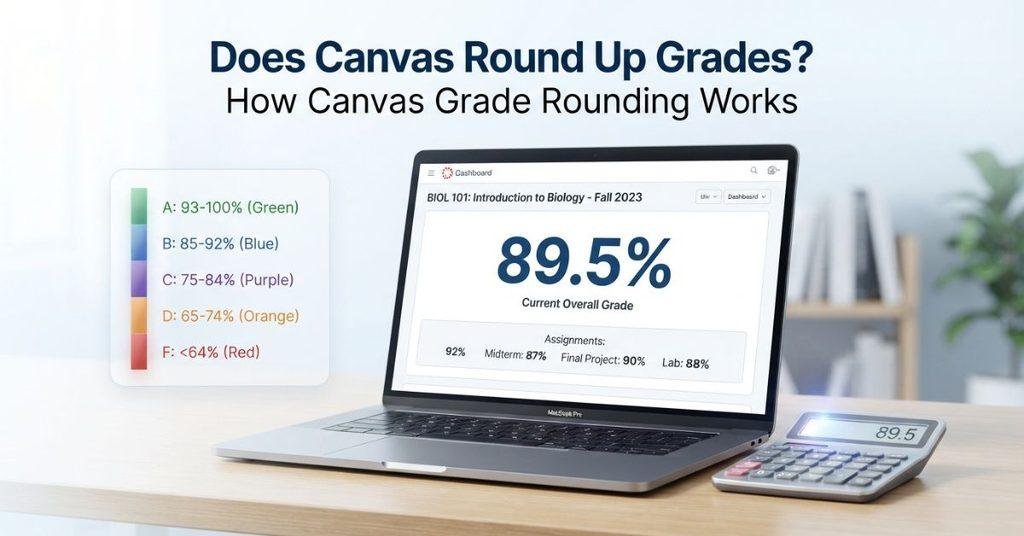
When students ask, “does Canvas round up grades?”, they usually mean whether Canvas automatically increases a decimal grade. For example, a student may wonder if 89.5% becomes 90% and changes a B+ into an A-.
Canvas can display grades using rounding or decimal settings, but the displayed number doesn’t always determine your final letter grade. The way grades appear can depend on the course’s grading setup and the instructor’s configuration.
A key difference exists between the displayed percentage and the actual calculated grade. Canvas may show a rounded value for easier viewing while using the underlying calculated value for grading. Your instructor may also apply a grading scheme that assigns letter grades based on specific percentage ranges.
Course settings matter because instructors control several grading options in Canvas. These can include assignment groups, grading schemes, and other course-level settings. As a result, two Canvas courses can handle similar percentages differently.
Pro Tip: Don’t assume a displayed 90% guarantees a 90% final grade. Check the course grading scheme and your instructor’s policy before relying on the rounded number.
If you are checking your grade in Canvas, you may also want to learn how to check your GPA on Canvas and understand what your course grades mean.
How Does Canvas Calculate Your Final Grade?
Canvas calculates your course grade from the scores and grading rules set for your course. Your final percentage isn’t always a simple average of every assignment.
Several factors can affect the calculation:
- Assignment scores: Canvas uses the grades recorded for your assignments.
- Assignment groups: Assignments may belong to groups such as quizzes, exams, or homework.
- Group weights: Your instructor can give different groups different percentages of the final grade.
- Missing assignments: A missing assignment may affect your grade based on the course settings.
- Excused assignments: An excused assignment can be excluded from the grade calculation.
- Grading schemes: A grading scheme can map percentage ranges to letter grades.
- Instructor configuration: Your instructor controls many of the rules that determine your course grade.
For example, an exam worth 40% affects your final grade more than homework worth 10%. This means your Canvas grade depends on both your scores and how your instructor structures the course.
If your grade looks different from your own calculation, check the assignment groups and their weights first. Also review any missing or excused assignments before assuming Canvas made an error.
Does Canvas Round Up Percentage Grades?
Students often expect Canvas to turn decimal percentages into the next whole number. However, you shouldn’t assume that Canvas automatically rounds every percentage upward.
For example, a grade of 89.4% may remain displayed as 89.4%. A grade of 89.5% may or may not appear as 90%, depending on the applicable display and grading rules.
The important distinction is between how Canvas displays a grade and how the course determines the final letter grade. A rounded number on your screen doesn’t necessarily mean Canvas changed the underlying grade.
Your instructor’s grading scheme and course configuration can also affect how percentages translate into letter grades. That’s why a student shouldn’t assume that reaching a displayed whole number automatically changes their final grade.
Your displayed grade is also easier to understand when you know what T means in Canvas and how Canvas grade symbols can appear.
Why Does My Canvas Grade Look Different From My Calculation?
If your Canvas grade doesn’t match your own math, the difference may come from how your course handles assignments. Canvas can use grading rules that aren’t obvious from a simple average.
Common reasons include:
- Weighted assignment groups: Exams, quizzes, and homework may contribute different amounts to your final grade.
- Dropped assignments: Your instructor may exclude your lowest score from a group.
- Missing assignments: Missing work can affect your grade according to the course settings.
- Excused assignments: An excused assignment may not count toward your grade.
- Different grading scheme: Your course may use specific percentage ranges for letter grades.
- Unreleased or incomplete grades: Some grades may not yet appear in the calculation.
- Display rounding: Canvas may display a rounded number without changing the underlying calculation.
- Instructor-specific policies: Your instructor may use additional grading rules or adjustments.
For example, you might calculate an average of 89.5% by adding assignment percentages and dividing by the number of assignments. However, Canvas may calculate a different result when those assignments have different weights.
Does Canvas Round Up Letter Grades?
Rounding a percentage and assigning a letter grade are two different processes. Understanding this difference can prevent confusion near an important grade cutoff.
First, Canvas calculates or displays a percentage. That percentage may appear with decimals or according to the course’s display settings. A student might see 89.5% on the grades page.
Next, the course’s grading scheme can determine which letter grade matches that percentage. The grading scheme sets the percentage ranges for grades such as A, B, or C.
Therefore, seeing 89.5% doesn’t automatically mean Canvas will move your grade to the next letter category. You need to check the grading scheme and course policies that apply to your class.
The key distinction is simple:
- Percentage → Displayed number: This concerns how your grade appears.
- Percentage → Letter grade: This concerns how the course maps your grade to a letter.
Pro Tip: If you’re near an A/B boundary, check your course’s grading scheme instead of assuming that rounding will change your letter grade.
You can also enter your current scores and upcoming assignment weights into the Canvas Grade Calculator to see whether different scores could change your final percentage.
Does Canvas Round Up Grades for GPA?
A rounded percentage in Canvas doesn’t necessarily mean your GPA grade points will change. Your course percentage, letter grade, and GPA can involve different grading rules.
For example, Canvas might display a percentage with rounding. However, the letter grade assigned to that percentage still depends on the course’s grading scheme. Your school may then use that final letter grade to calculate GPA.
This distinction matters when you’re close to a grade boundary. Seeing 89.5% doesn’t automatically mean your course grade will move into the next letter category.
If you want to estimate your GPA, use a Canvas GPA Calculator with your actual course letter grades and credit hours. This can help you understand how different final grades could affect your overall GPA.
How to Check Whether Your Canvas Grade Has Been Rounded
You can check your Canvas grade systematically instead of guessing whether rounding affected it. This process also helps you spot other calculation differences.
- Open Grades: Go to the Grades section of your Canvas course.
- Check the percentage: Note the percentage Canvas currently displays.
- Review individual assignments: Open your assignments and verify the recorded scores.
- Check assignment groups: Look for different weights assigned to quizzes, exams, homework, or other groups.
- Review the syllabus: Check your instructor’s grading policy and letter-grade boundaries.
- Compare your calculation: Calculate your grade using the same weights and included assignments.
- Ask your instructor: Contact your instructor if the final grade boundary remains unclear.
Remember that your own calculation may differ if you don’t account for weighted groups, dropped assignments, missing work, or excused assignments. Checking the course rules first can explain many apparent differences.
How to Calculate Your Canvas Grade Yourself
You can calculate your Canvas grade yourself when your course uses a simple, unweighted points system. This method works when each point has the same value toward your final grade.
Use this formula:
Grade Percentage = (Total Points Earned ÷ Total Points Possible) × 100
For example, suppose you’ve earned 450 points out of 500 possible points:
450 ÷ 500 × 100 = 90%
Your calculated grade would be 90%.
However, this method doesn’t work the same way for weighted courses. If exams count for 40% and homework counts for 20%, you need to calculate each category separately before combining them.
For a faster calculation, use our Canvas Grade Calculator to estimate your current or expected course percentage. It can make complex grade calculations easier, especially when your course uses different assignment weights.
What If You’re Just Below a Grade Boundary?
Being just below a grade boundary can feel stressful, especially when you’re close to the next letter grade. For example, you might have 89.4% while hoping to reach a 90% cutoff.
Don’t assume Canvas will automatically round your grade up. The displayed percentage doesn’t guarantee that your final letter grade will change.
Start by checking your syllabus for the official grading scale. Then review your instructor’s grading policy for any specific rounding rules or grade adjustments.
Also check whether your Canvas percentage includes all assignments correctly. Weighted groups, missing work, dropped assignments, or other course settings can affect the calculation.
If the policy isn’t clear, ask your instructor directly. They can confirm how the final grade boundary applies to your course.
Pro Tip: Don’t rely on a rounded display alone when you’re near a grade cutoff. Use the official grading policy to determine what final grade you can expect.
Conclusion
Canvas grade rounding can be confusing, especially when you’re close to an important letter-grade boundary. We covered how Canvas calculates grades and why displayed percentages may differ from your own calculation.
So, does Canvas round up grades? Not necessarily. Rounding can depend on course settings, grading schemes, display rules, and your instructor’s policies. A displayed percentage also doesn’t automatically guarantee a change in your final letter grade or GPA.
If you’re near a grade cutoff, check your syllabus and review the grading setup in Canvas. When the policy remains unclear, ask your instructor for confirmation.
Use our Canvas Grade Calculator to check your grades quickly and explore more helpful student resources on our website.
Frequently Asked Questions
Canvas doesn’t automatically round every grade in the same way. The displayed percentage can depend on course settings and grading configurations. Your instructor’s grading scheme also matters when converting a percentage into a letter grade. If you’re near a grade boundary, check the syllabus and course grading policy before assuming Canvas will round your grade.
Canvas may display a percentage according to the course’s grading and display settings. However, you shouldn’t assume every decimal percentage rounds to the next whole number. A displayed percentage and the underlying course grade can differ. Check your course settings and grading policy when the exact percentage matters.
You shouldn’t assume that Canvas universally changes 89.5% to 90%. How the number appears can depend on applicable display settings and course configuration. More importantly, a displayed 90% doesn’t automatically guarantee a higher letter grade. Check your course’s grading scheme and instructor’s policy for the final grade boundary.
Canvas doesn’t automatically guarantee that a percentage just below a letter-grade boundary will move into the next category. Letter grades depend on the grading scheme used for the course. If you’re close to a boundary, review the syllabus and ask your instructor if the rounding policy isn’t clear.
A rounded Canvas percentage isn’t necessarily the same as a change in GPA grade points. GPA usually depends on the final letter grades assigned to your courses and their credit values. Don’t assume a displayed percentage change will automatically increase your GPA. Use your official final grades when estimating GPA.
Your calculation may differ because Canvas can account for weighted assignment groups, dropped assignments, missing work, or excused assignments. The course may also use a grading scheme or other instructor-specific settings. Review the assignment groups and syllabus before assuming Canvas calculated your grade incorrectly.
For an unweighted points-based course, divide your total points earned by total points possible, then multiply by 100. For example, 450 ÷ 500 × 100 = 90%. Weighted courses require a different calculation because each assignment group contributes a specific percentage of the final grade.

We are the Canvas Academic Team, a developer team focused on building simple and practical tools that help students succeed academically. This platform was created specifically for Canvas LMS students to make grade tracking, GPA calculations, exam planning, and academic management easier and more efficient.
Our focus is on creating fast, accurate, and student-friendly educational tools along with helpful learning resources that improve productivity and reduce academic stress.
Through CanvasGradeCalculator.com, our goal is to continue building useful resources that help students study smarter, stay organized, and achieve better academic results.

