
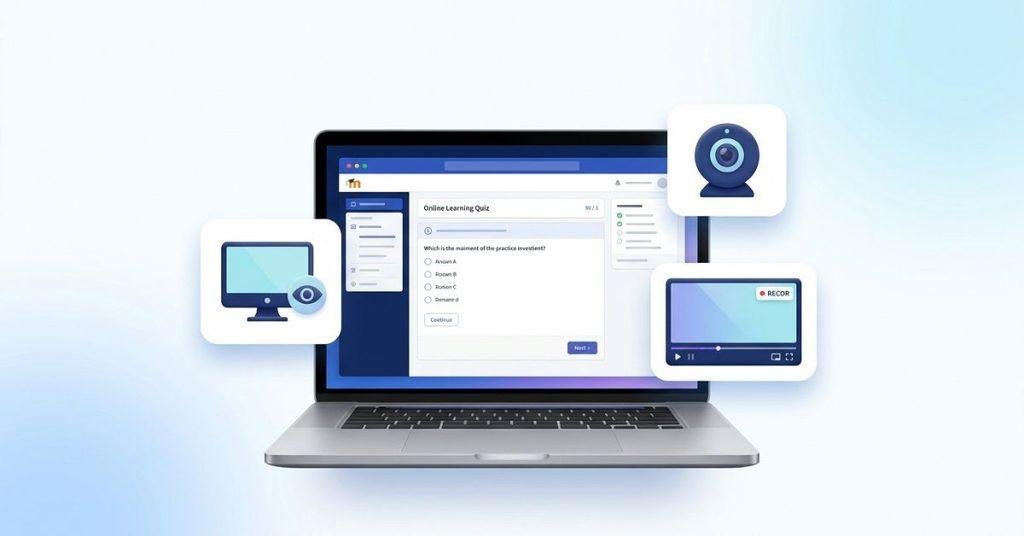
- Introduction
- Can Moodle See Your Screen?
- Can Moodle Record Your Screen?
- Can Moodle Access Your Camera?
- Can Moodle Detect Screenshots?
- Can Moodle Detect Screen Recording?
- Can Moodle Detect Split Screen?
- Moodle vs Proctoring Software: What Can Each One Monitor?
- What Can Moodle Actually See or Record?
- Does Moodle Know What You Are Doing on Another Screen?
- Can Moodle See Your Camera, Screen and Microphone During an Exam?
- What Happens When Moodle Uses Proctoring?
- Moodle Screen Monitoring vs Tab Switching
- Moodle Screen Monitoring vs AI Detection vs Cheating Detection
- Conclusion
- Frequently Asked Questions
Introduction
Have you ever wondered whether your instructor can watch everything you do on your computer during a Moodle quiz?
If you’re taking an online exam, privacy concerns are completely understandable. Many students wonder, can Moodle monitor your screen while they complete assignments or quizzes? They also worry about screenshots, screen recording, split-screen activity, and webcam access.
The good news is that standard Moodle functionality and third-party proctoring software are not the same. Simply logging into Moodle does not automatically give instructors access to your entire computer screen. However, additional exam monitoring tools may have different capabilities.
In this guide, you’ll learn what Moodle can and cannot monitor during online assessments. We’ll explain whether Moodle can record your screen, detect screenshots, identify screen recording, or access your camera. You’ll also discover how proctoring software can change what an institution monitors.
By the end, you’ll have a clearer understanding of Moodle’s monitoring capabilities and your privacy during online exams.
Can Moodle See Your Screen?
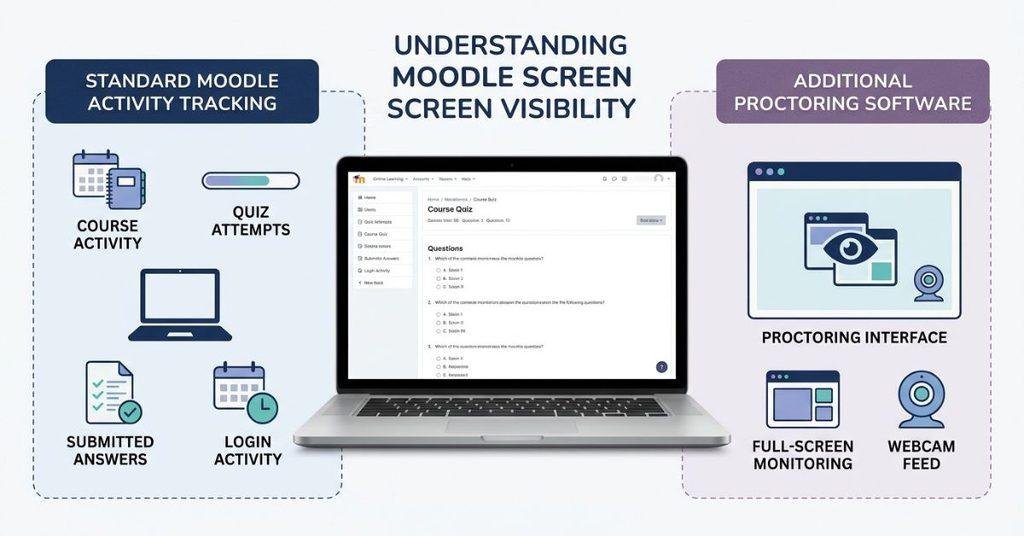
If you’re wondering, can Moodle see your screen during an online quiz, the answer depends on your school’s exam setup. Standard Moodle does not automatically give instructors a live view of your entire computer screen. It mainly tracks activity within the Moodle platform.
When you use Moodle, the platform can collect information about your learning activity. For example, it can record quiz attempts, submitted answers, login times, and course activity. Instructors may also review available activity logs to understand how you used the platform.
However, tracking activity inside Moodle is different from watching your entire desktop. Simply opening a Moodle course or starting a quiz does not automatically let your instructor see other applications or browser windows.
Your school’s monitoring setup also matters. Some institutions use additional proctoring tools or secure exam browsers alongside Moodle. These tools may offer screen monitoring, webcam checks, or other exam supervision features.
Moodle’s built-in quiz settings can also apply certain restrictions. For example, a quiz may open in a full-screen pop-up or use Safe Exam Browser. These features can limit some browser actions, but they don’t mean Moodle automatically records your desktop.
Can Moodle Monitor Everything on Your Computer?
No. A normal Moodle website cannot automatically monitor everything happening on your computer. It mainly interacts with your browser and the Moodle platform. This is an important difference for students taking online exams.
Without additional monitoring software, Moodle does not automatically gain access to:
- Other applications: It cannot simply watch programs like Microsoft Word or Zoom.
- Other browser windows: It does not automatically see everything you open in separate windows or tabs.
- Desktop activity: It cannot automatically watch your mouse movements or everything displayed on your desktop.
- Computer files: It cannot freely browse your personal documents, photos, or downloads.
- External websites: It does not automatically see everything you do on websites outside Moodle.
However, additional software can change these limitations. A school may require students to install a secure browser or use a separate proctoring service. Such tools may request additional permissions to monitor exam activity.
For example, Safe Exam Browser can restrict access to other browser functions during an exam. Its restrictions differ from ordinary Moodle activity tracking.
Pro Tip: Before starting an online exam, check your school’s instructions. Look for any required browser, webcam, or proctoring software. This helps you understand what monitoring your exam actually uses.
Can Moodle Record Your Screen?
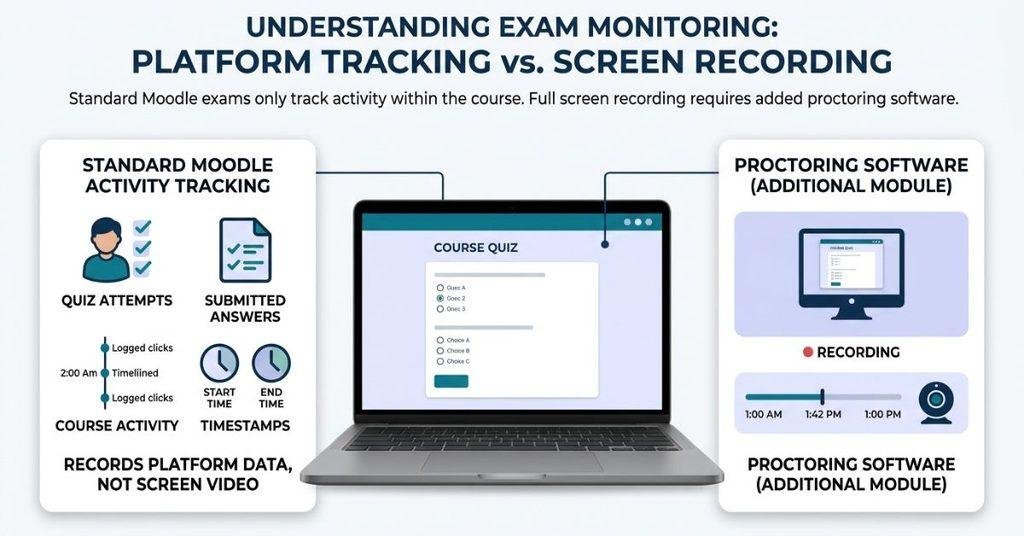
Many students worry about screen recording during online exams. However, standard Moodle does not automatically record your entire computer screen. Its normal quiz functionality focuses on managing assessments and recording student activity within the platform.
Screen recording requires additional technical functionality. A website or exam tool needs suitable access and permissions to capture screen content. A regular Moodle quiz should not be treated as a universal screen recorder.
Some schools use third-party proctoring systems alongside Moodle. Depending on the software, these systems may monitor screen activity, capture exam sessions, or record other information. Some secure exam browsers also restrict access to other applications and browser features.
The important difference is between Moodle’s built-in features and additional exam monitoring tools. Your institution decides which tools students must use and what monitoring features those tools provide.
Does Moodle Record Your Screen During a Quiz?
A Moodle quiz alone does not automatically mean your screen gets recorded. The actual monitoring depends on how your institution configures the assessment.
Before an exam, consider these four factors:
- Quiz configuration: Moodle settings control quiz behavior, timing, attempts, and other assessment options.
- Proctoring setup: Your school may connect a separate proctoring service that offers screen recording or monitoring.
- Secure browser: Some exams require Safe Exam Browser or another restricted testing environment.
- Institution requirements: Your instructor or institution may specify additional software, permissions, and monitoring rules.
Can Moodle Access Your Camera?
Moodle can use your camera when an enabled feature or plugin requires webcam access. However, simply logging into Moodle does not automatically activate your camera.
Standard Moodle does not provide unrestricted camera access to instructors. Camera use depends on the specific Moodle activity, installed plugins, and any third-party proctoring software your institution requires.
For example, some Moodle quizzes use webcam-based proctoring. These tools may capture student photos during an exam or provide a live camera preview. Other systems may record video throughout the assessment.
Your browser also plays an important role. When a website requests camera access, your browser normally displays a permission prompt. You can review or change camera permissions through your browser settings.
Before starting an exam, check whether your instructor requires webcam monitoring. Also, read any permission messages carefully so you understand what the exam software requests.
Can Moodle Access Your Camera Without Permission?
Generally, no. A normal Moodle webpage cannot simply activate your webcam without the required browser permission. Modern browsers control camera access through their permission systems.
When a Moodle feature or proctoring plugin needs your camera, your browser may ask you to allow access. You should pay attention to these prompts before starting an exam.
Keep these points in mind:
- Browser permission: Check whether your browser asks you to allow camera access.
- Permission settings: You can review which websites have camera access in your browser’s privacy settings.
- Third-party software: Some proctoring tools require additional installation, setup, or permissions.
- Exam requirements: Your institution may require camera access before allowing you to start a proctored quiz.
For example, Moodle’s Proctoring plugin can capture webcam images during quizzes. Students must grant camera permission before taking an exam that uses this plugin.
Pro Tip: If Moodle requests camera access unexpectedly, check your quiz instructions and confirm which feature requires it. Don’t approve unfamiliar permission requests without understanding their purpose.
Can Moodle Detect Screenshots?
Many students ask, can Moodle detect screenshots during an online quiz? In general, standard Moodle does not automatically detect every screenshot you take. Taking a screenshot and sending that screenshot to Moodle are two different things.
For example, you might take a screenshot of a Moodle quiz question using your computer’s built-in screenshot shortcut. Your operating system captures the displayed content. This action does not automatically send the screenshot to Moodle.
The same applies to normal browser screenshot functionality. Moodle does not automatically receive every screenshot simply because you opened its website.
However, additional security tools may behave differently. Some proctoring systems can monitor exam activity and apply extra restrictions. Their capabilities depend on the software and device permissions.
Here are some important differences:
- Moodle quiz questions: Viewing or capturing a question does not automatically send a screenshot to your instructor.
- Operating-system tools: Built-in screenshot shortcuts generally capture content locally.
- Browser screenshots: Normal screenshot functionality does not automatically notify Moodle.
- Website activity: Moodle may record quiz interactions, but this differs from detecting screenshots.
- Proctoring software: Additional monitoring tools may offer security features beyond standard Moodle.
Can Moodle See If You Screenshot a Quiz Question?
A standard Moodle quiz does not automatically tell your instructor every time you screenshot a question. Moodle’s normal activity logs focus on interactions within the platform, not every action you perform on your computer.
For example, imagine you’re reviewing a question during an online assessment. You use your computer’s screenshot shortcut to capture the question. Standard Moodle does not automatically receive that image or a notification about the screenshot.
However, some institutions use additional exam security software. These tools may apply restrictions or monitoring features that differ from normal Moodle functionality.
The exact capabilities depend on the installed software, browser, and exam configuration. Therefore, don’t assume every Moodle assessment handles screenshots in exactly the same way.
Can Moodle Detect Screen Recording?
Screen recording and Moodle activity logging are two different things. Standard Moodle does not automatically function as a universal screen-recording detector.
Your computer may have built-in screen recording features. You can also find recording tools in some browsers and third-party applications. However, using these tools does not automatically mean Moodle receives a notification.
Detecting screen recording may require specialized monitoring software. Some online exam proctoring systems offer additional security features to monitor student activity. Their capabilities depend on their technical design and permissions.
It’s important to understand the differences between these systems:
- Moodle: Records supported learning and assessment activity within the platform.
- Operating system: Provides screen recording features that can capture desktop activity.
- Browser: May provide recording or screen-sharing functionality through supported features and permissions.
- Proctoring software: May offer additional exam monitoring and security capabilities.
- Secure exam browser: Can restrict certain browser and computer functions during assessments.
A normal Moodle quiz and a fully proctored examination are not the same experience.
Does Moodle Know If You Are Recording Your Screen?
Standard Moodle does not automatically know every time you start recording your screen. Its normal activity tracking does not provide universal access to your computer’s recording activity.
However, the answer may change when your institution uses additional exam security tools.
Consider these differences:
- Moodle: Tracks supported activity within your courses and quizzes.
- Browser: Controls website permissions and supported screen-sharing features.
- Proctoring software: May include additional monitoring features, depending on its configuration.
- Secure exam browser: Can restrict certain computer and browser activities during an assessment.
For example, an institution may require a separate proctoring application before allowing students to enter an online exam. That application may have monitoring capabilities beyond standard Moodle.
Pro Tip: Always review your institution’s exam instructions before starting an assessment. Check which browser extensions, secure browsers, or proctoring applications your exam requires.
Can Moodle Detect Split Screen?
Split screen allows you to display two windows or applications side by side. For example, you might place a Moodle quiz on one side and another browser window on the other.
Many students wonder, can Moodle detect split screen during an online exam? Standard Moodle does not automatically monitor your entire desktop layout. It mainly tracks activity within the Moodle platform.
However, split-screen detection and browser tab tracking are two different things. Moodle may record certain quiz interactions, such as when a student leaves a quiz page or switches browser tabs. These records depend on the available features and assessment configuration.
Simply arranging two windows side by side does not automatically give Moodle access to your full desktop. However, additional proctoring software may provide broader monitoring capabilities.
Keep these differences in mind:
- Split-screen layout: Displays two windows or applications together.
- Tab switching: Involves moving between browser tabs or pages.
- Window activity: Refers to interactions with different open applications.
- Screen monitoring: May involve capturing or analyzing displayed content.
Standard Moodle functionality and specialized exam monitoring tools do not offer identical capabilities.
Can Moodle Proctoring Detect Split Screen?
Moodle proctoring tools may provide additional monitoring features, but their capabilities depend on the specific product and configuration.
Some proctoring solutions can monitor browser activity, restrict certain actions, or capture screen content. Others may focus mainly on webcam checks and identity verification.
Therefore, you should not assume every Moodle proctoring setup can detect split-screen activity.
Your institution’s exam requirements also matter. Some assessments use additional software or secure browsers with restrictions beyond standard Moodle settings.
For a clearer understanding, it’s helpful to distinguish between split-screen layouts and browser tab changes. Read our guide on Moodle Tab Switching to learn how Moodle handles browser navigation during online quizzes.
Pro Tip: Before an online exam, review the required browser and proctoring software. Check your institution’s instructions to understand which monitoring features apply to your assessment.
Moodle vs Proctoring Software: What Can Each One Monitor?
Standard Moodle and additional proctoring software serve different purposes. Moodle manages online courses, quizzes, assignments, and student activity. Proctoring tools add exam supervision and may provide extra monitoring features.
This difference matters when you take an online exam. Your instructor may use Moodle alone or combine it with separate security software. Each setup offers different monitoring capabilities.
The following table compares their general capabilities.
| Monitoring Capability | Standard Moodle | Additional Proctoring/Security Tool |
|---|---|---|
| Moodle activity | Yes | Yes |
| Quiz attempts | Yes | Yes |
| Full-screen monitoring | Not inherently | May be available |
| Screen recording | Not a universal standard feature | May be available |
| Camera monitoring | Depends on feature/plugin | May be available |
| Microphone monitoring | Depends on feature/plugin | May be available |
| Screenshot detection | Not a universal standard feature | Depends on tool |
| Secure browser restrictions | May require additional setup | Often supported |
| Device/environment monitoring | Limited | Depends on tool |
Understanding the Differences
Here are the main differences students should understand:
- Moodle activity: Standard Moodle records supported course and quiz interactions. Proctoring tools may collect additional exam information.
- Screen monitoring: Full-screen monitoring requires suitable additional functionality. Standard Moodle does not automatically provide it.
- Camera and microphone: Access depends on the installed features, browser permissions, and proctoring requirements.
- Screenshot detection: Neither standard Moodle nor every proctoring tool provides universal screenshot detection.
- Secure browser restrictions: Some institutions require special browsers to restrict access to other applications or websites.
Important: Not every proctoring system offers all these capabilities. Features depend on the software, installation, permissions, and institutional configuration.
Pro Tip: Check your exam instructions to identify the exact monitoring software your institution uses. Its official documentation provides the most reliable information about available features.
What Can Moodle Actually See or Record?
Moodle can record different types of information about your activity within its learning platform. This helps instructors review course participation, quiz attempts, and assignment progress.
The exact information depends on your institution’s Moodle settings and enabled features. However, standard Moodle provides activity logs that help instructors understand how students interact with their courses.
Here are some examples of information Moodle may record:
- Login and activity information: Moodle can record login events and other supported account activity.
- Course activity: Instructors may review your participation in course activities and learning materials.
- Quiz attempts: Moodle records quiz attempts, submitted answers, grades, and other available attempt details.
- Submission information: Assignment submissions may include submission times, uploaded files, and grading information.
- Accessed pages: Activity logs can show which Moodle course pages and resources you accessed.
- Timing information: Moodle can record timestamps associated with supported actions, such as quiz submissions and resource access.
These records help instructors understand your activity within Moodle. However, they do not automatically provide a complete picture of everything happening on your computer.
Moodle Activity Data vs Device Surveillance
It’s important to understand the difference between platform activity tracking and device surveillance.
Moodle activity data relates to actions you perform within the learning platform. For example, an instructor may review when you opened a course resource or submitted a quiz.
Device surveillance involves monitoring activity outside Moodle. This may include desktop activity, other applications, webcam footage, or screen recording.
Standard Moodle does not automatically provide unrestricted access to your entire device. Additional monitoring software may offer some of these capabilities.
If you’re concerned about exam monitoring, read our guide on Can Moodle Detect Cheating? It explains how Moodle records activity and how instructors may review assessment behavior.
Does Moodle Know What You Are Doing on Another Screen?
Moodle does not automatically know everything you do on another screen. Its standard website functionality mainly focuses on activity within the Moodle platform.
However, students often use multiple windows, applications, or monitors while studying. Understanding the difference helps avoid confusion about Moodle’s monitoring capabilities.
Here are some common situations:
- Another browser window: Moodle does not automatically see everything displayed in a separate browser window.
- Another application: Opening programs such as Microsoft Word or Excel does not automatically share their contents with Moodle.
- Phone: Moodle does not automatically monitor everything happening on your phone just because you access a course from it.
- Second monitor: A standard Moodle session does not automatically provide a live view of another connected display.
- Split-screen setup: Arranging two applications side by side does not automatically give Moodle access to your desktop layout.
However, additional proctoring software can change these limitations. Some tools may monitor screen content, restrict application access, or apply other exam security controls.
Your institution’s assessment setup determines which monitoring features apply. Standard Moodle activity tracking should never be confused with complete device surveillance.
Pro Tip: If your exam requires special monitoring software, review its official documentation before the assessment. This helps you understand what information the software may collect.
Can Moodle See Your Camera, Screen and Microphone During an Exam?
During an online exam, students often worry about webcam access, screen recording, and microphone monitoring. These features can make an assessment feel different from a regular Moodle quiz.
However, Moodle does not automatically activate every monitoring feature. Camera, screen, and microphone access depend on the enabled features, browser permissions, and additional proctoring software.
Camera
Moodle may use your camera when an enabled activity or proctoring plugin requires webcam access. For example, an institution may require webcam verification before allowing you to start an exam.
Camera access generally requires browser permission or an appropriate software setup. Standard Moodle does not automatically give instructors unrestricted webcam access.
Screen
Full-screen monitoring is different from normal Moodle activity tracking. Standard Moodle records supported course and quiz interactions rather than automatically recording your entire desktop.
However, additional proctoring software may request screen-sharing permission or provide screen-recording features. The exact capabilities depend on the software and exam configuration.
Microphone
Microphone monitoring also depends on the assessment setup. Some proctoring systems may request microphone access to monitor audio during an online exam.
A normal Moodle quiz does not automatically mean your microphone is recording. Check the browser permission prompts and your institution’s exam instructions.
Browser and Device
Some institutions require students to use secure browsers or additional exam software. These tools may restrict certain browser functions, applications, or websites during an assessment.
For example, Safe Exam Browser can create a restricted testing environment. However, its capabilities depend on the configuration selected by the institution.
What Happens When Moodle Uses Proctoring?
When an institution combines Moodle with proctoring software, the exam may involve additional setup steps. Moodle can host the quiz while another tool handles some monitoring functions.
Although the exact process varies, students may follow a workflow like this:
- Start the examYou open the Moodle course and select the assigned quiz.
- Complete permissions and setupThe exam software may request webcam, microphone, or screen-sharing permissions.
- Complete security checksSome systems may check your identity, browser, or testing environment.
- Take the quizYou answer questions within Moodle while any required monitoring features operate.
- Follow exam restrictionsDepending on the software, certain applications, websites, or browser functions may be restricted.
- Submit your answersMoodle processes your quiz submission and records the available attempt information.
- Instructor reviews relevant dataYour instructor or institution may review available quiz records and proctoring information.
Remember, not every Moodle exam follows this process. Some assessments use Moodle alone, while others require separate proctoring software.
Moodle Screen Monitoring vs Tab Switching
Screen monitoring and tab switching are related to online exam supervision, but they are not the same thing. Understanding this difference helps you avoid common misunderstandings.
| Feature | Screen Monitoring | Tab Switching |
|---|---|---|
| Main purpose | Screen or device visibility | Browser navigation and focus |
| Tracks | May involve screen capture or recording | May involve page or tab focus changes |
| Monitoring method | Often associated with proctoring | Depends on browser and implementation |
| Additional software | May be required | May depend on exam configuration |
| Standard Moodle | Not a universal built-in feature | Some tracking may be available |
Screen monitoring focuses on what a monitoring tool can access or capture on your device. Tab switching focuses on changes in browser focus or navigation.
These features may work independently. A system that detects browser focus changes does not automatically record your entire screen.
For more details, read our dedicated guide: Can Moodle Track Tabs? Does Moodle Detect Tab Switching?
Moodle Screen Monitoring vs AI Detection vs Cheating Detection
Moodle screen monitoring, AI detection, and cheating detection are different concepts. Students sometimes confuse these features because institutions may use several assessment tools together.
However, each feature serves a different purpose. Understanding these differences helps you know what your instructor may review during an online assessment.
| Feature | Main Purpose |
|---|---|
| Screen monitoring | Observe or record parts of the exam environment |
| Tab monitoring | Detect browser navigation or focus changes |
| AI detection | Analyze submitted text for possible AI-generated content |
| Plagiarism detection | Find similarities between submitted work and existing sources |
| Cheating detection | Broader category involving multiple signals and assessment records |
Here is what each feature means:
- Screen monitoring: Some proctoring tools may capture screen activity or monitor the exam environment.
- Tab monitoring: Certain systems can track browser focus changes or navigation during an assessment.
- AI detection: Separate tools may analyze submitted writing for patterns associated with AI-generated content. These results are not definitive proof of AI use.
- Plagiarism detection: These tools compare submitted work with existing sources to identify matching text.
- Cheating detection: Instructors may review multiple signals, including quiz activity, unusual patterns, and assessment records.
Important: These features do not automatically come with every Moodle installation. Their availability depends on installed plugins, integrations, and institutional settings.
If you want to understand these topics separately, explore our related guides:
- Moodle AI Detection: How Moodle and external tools handle AI-generated writing.
- Moodle Cheating Detection: How instructors may identify suspicious assessment activity.
- Moodle Copy & Paste Detection: What Moodle can record about copying and pasting during quizzes.
Conclusion
Understanding Moodle’s monitoring capabilities can help you feel more confident about online exams. Standard Moodle tracks supported course and quiz activity, but it does not automatically record your entire computer screen. Camera access, screen recording, screenshot detection, and other monitoring features depend on additional plugins or proctoring software.
If you’re wondering can Moodle monitor your screen, remember that Moodle and third-party exam monitoring tools have different capabilities. Your institution’s exam setup determines which features apply.
Before your next quiz, review your exam instructions and required software. This helps you understand what monitoring to expect.
Have you experienced screen monitoring during a Moodle exam? Share your experience in the comments, and explore our other Moodle guides for helpful answers.
Frequently Asked Questions
Can Moodle see my screen?
Standard Moodle cannot automatically see everything on your computer screen. It can track activity within the Moodle platform, such as quiz attempts and course interactions. However, your institution may use additional proctoring software to monitor your screen during exams. The exact monitoring depends on the software, settings, and permissions required for your assessment.
Can Moodle see your screen?
Moodle does not normally have access to your entire desktop or other applications. It mainly records activity related to your Moodle account and courses. If your school uses a secure browser or third-party monitoring tool, it may add screen-monitoring features. Check your exam instructions to understand which tools your institution requires.
Can Moodle monitor your screen?
Standard Moodle does not automatically monitor your full screen during a quiz. Screen monitoring usually requires additional software, a plugin, or a supported proctoring service. These tools may capture screen activity or apply exam restrictions. Their capabilities vary, so check your institution’s specific exam setup.
Can Moodle record your screen?
Moodle is not a universal screen-recording tool. A standard Moodle quiz does not automatically record everything displayed on your computer. However, an institution may use third-party proctoring software that supports screen recording. Whether recording happens depends on the software, exam configuration, and permissions.
Can Moodle access your camera?
Moodle does not automatically turn on your webcam during every quiz. Camera access depends on the activity, plugin, or external proctoring software used by your institution. Some online exams require webcam monitoring to verify student identity or observe the testing environment. Check your browser’s camera permission settings before starting an exam.
Can Moodle access your camera without permission?
A Moodle webpage generally needs browser permission to use your camera. Your browser should display a permission request when a website tries to access it. Some institutions also require separate proctoring software, which may have its own installation and permission requirements. Review the software instructions and camera permissions before taking your exam.
Can Moodle detect screenshots?
Standard Moodle does not automatically detect every screenshot taken on your device. Taking a screenshot with your computer’s built-in tools does not normally send an automatic notification to Moodle. However, additional proctoring or secure-browser software may have different monitoring capabilities. Check your exam requirements for details.
Can Moodle see if you screenshot?
In a standard Moodle quiz, Moodle does not normally receive a notification when you take a screenshot. Your computer’s screenshot feature works separately from Moodle’s regular activity tracking. However, specialized exam software may apply additional restrictions or monitoring. Its exact capabilities depend on the tool and your institution’s configuration.
Can Moodle tell if you screenshot?
Moodle does not generally know when you use a normal screenshot shortcut. It mainly records actions that happen within the platform. Some secure browsers or proctoring tools may restrict screenshots or monitor certain device activities. Therefore, the answer depends on whether your exam uses standard Moodle or additional monitoring software.
Can Moodle detect screen recording?
Standard Moodle does not automatically detect every screen recording made through your computer’s operating system. Screen recording and Moodle activity tracking are separate functions. However, some proctoring tools may restrict or monitor recording-related activity. Their capabilities depend on the software, device, and exam settings.
Can Moodle detect split screen?
Standard Moodle does not automatically monitor your entire desktop layout. This means it cannot normally see whether you arrange two windows side by side. However, additional proctoring software may restrict multiple windows or monitor parts of your testing environment. Browser tab tracking is also different from full desktop monitoring.
Can Moodle proctoring detect split screen?
It depends on the proctoring software your institution uses. Some tools may detect certain window changes, restrict other applications, or require a full-screen exam environment. Others may not identify every split-screen arrangement. Moodle itself does not provide one universal split-screen detection feature. Check your exam instructions to learn which restrictions apply.

We are the Canvas Academic Team, a developer team focused on building simple and practical tools that help students succeed academically. This platform was created specifically for Canvas LMS students to make grade tracking, GPA calculations, exam planning, and academic management easier and more efficient.
Our focus is on creating fast, accurate, and student-friendly educational tools along with helpful learning resources that improve productivity and reduce academic stress.
Through CanvasGradeCalculator.com, our goal is to continue building useful resources that help students study smarter, stay organized, and achieve better academic results.