
- Introduction
- How Do I Log Into My Moodle Account?
- How to Use Moodle as a Student
- How to Use Moodle for Students
- What Do Students See After Logging Into Moodle?
- What If I Don't Know My Moodle Username or Password?
- Why Can't I Log Into Moodle?
- Can I Log Into Moodle From My Phone?
- What Can I Do After Logging Into Moodle?
- Moodle Login vs Your School's Student Portal
- Do You Need a Separate Moodle Account for Every Course?
- Moodle Student Login Troubleshooting Checklist
- Conclusion
Introduction
Trying to log into Moodle for the first time but don’t know where to start?
If you’re a college or university student in the USA, Moodle helps you access your online courses and learning materials. However, finding the correct login page can sometimes be confusing. Each school may use a different Moodle website and login process. Some students also need help setting up their accounts or recovering forgotten passwords.
If you’re wondering, how do I log into my LMS account, you’re in the right place. This guide explains how to find your school’s Moodle login page and access your student account. You’ll learn how to enter your credentials, complete your first-time login, and handle common login problems. We’ll also explain what to expect after signing in.
Whether you’re a new student or returning to an existing course, this guide will help you get started. Follow the simple steps to access your Moodle account with confidence.
How Do I Log Into My Moodle Account?

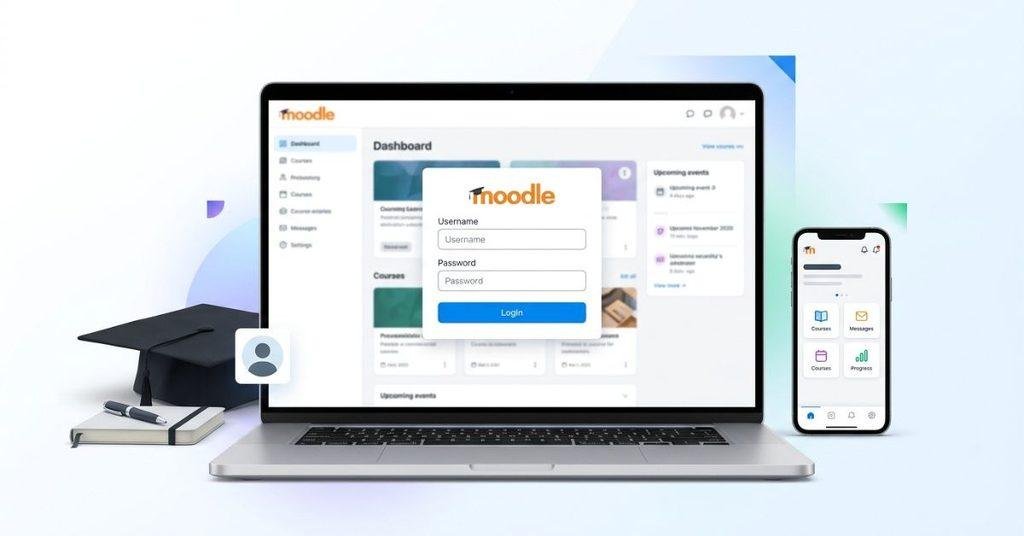
Logging into Moodle starts with finding the correct website for your school. Most colleges and universities provide students with a dedicated Moodle login page. You’ll also need the username and password your institution assigned to you.
If you’re wondering how to use Moodle as a student for the first time, follow these simple steps. The exact login process may vary depending on your institution.
1. Find Your School’s Moodle Login Page
First, find the official Moodle website your school uses. Moodle doesn’t provide one universal login page for every student. Each institution can have its own Moodle website and login system.
Here are five ways to find your school’s login page:
- School website: Visit your college or university’s official website. Look for links labeled Moodle, LMS, or Student Login.
- Student portal: Sign in to your school’s student portal. Check its menu for a Moodle or Learning Management System link.
- Welcome email: Review your admission or orientation email. Your school may include the Moodle login address and account instructions.
- Course instructions: Check your course registration details or messages from your instructor.
- Ask for help: Contact your instructor or school IT help desk if you can’t find the correct login page.
Important: Always use your institution’s official Moodle login address. Avoid entering your credentials on unfamiliar websites.
2. Enter Your Username or Email
Once you reach your school’s Moodle login page, look for the username or email field. Enter the login information your institution provided.
Your school may ask you to use:
- Your student ID or assigned username.
- Your school email address.
- Your institutional network account.
Different institutions use different login systems. Some schools also connect Moodle to their existing student portal. If you’re unsure which username to enter, check your school’s welcome email or account instructions.
Make sure you enter the correct information. Watch for extra spaces, spelling mistakes, or incorrect characters. If your school uses single sign-on (SSO), you may see a separate institutional login page instead.
3. Enter Your Password
Next, enter the password linked to your Moodle account. Use the password your school provided or the one you created during account setup.
Check these details before continuing:
- Make sure Caps Lock is off.
- Check that you entered the correct password.
- Use your school account password if your institution requires it.
- Select the eye icon if you want to check your password while typing.
If you haven’t received a password, check your school’s account setup instructions. You may need to activate your student account before accessing Moodle.
4. Select Log In
After entering your username and password, select the Log In button. Moodle will check your credentials and attempt to open your student account.
If your information is correct, you’ll usually reach your Moodle dashboard or course overview page.
If you see an error message, don’t keep guessing your password. Check your login details and try again. You can also use the password recovery option if your school enables it.
Some institutions require additional verification through their own login system. Follow the instructions on the screen if this happens.
5. Open Your Course
After logging in successfully, look for your enrolled courses. Your Moodle dashboard may display a course overview or a section called My Courses.
Select your course name to open its learning page. Depending on your instructor’s setup, you may see:
- Dashboard: A central page with course information and activity updates.
- My Courses: A list of courses linked to your account.
- Course Overview: A summary of your enrolled classes.
- Assignments: Activities your instructors have assigned.
- Quizzes: Available tests and practice activities.
- Grades: Your recorded scores and feedback.
- Calendar: Upcoming course activities and important dates.
How to Use Moodle as a Student
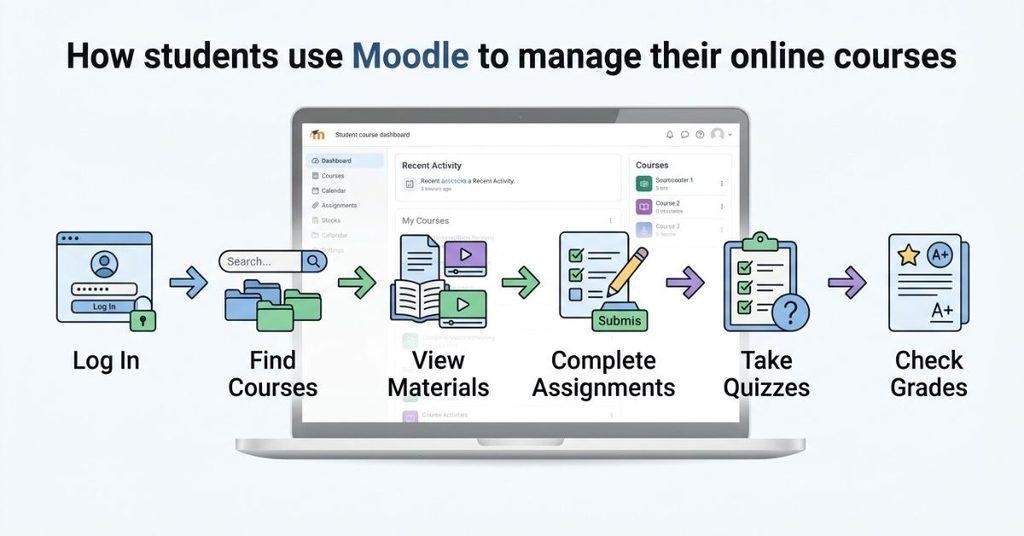
Moodle gives students one place to access course materials, complete activities, and track academic progress. Once you log in, you can use its course tools to manage your regular schoolwork.
If you’re learning how to use Moodle as a student, start with these common activities. The available features may differ depending on your school’s setup and instructor’s settings.
Find Your Courses
Start by opening the Dashboard or My Courses section. You’ll usually find the courses connected to your student account there. Select a course name to access its page. If a course doesn’t appear, check your enrollment status or contact your instructor.
Open Course Materials
Your instructor may upload lecture notes, PDF files, presentations, videos, and other learning resources. Open your course page and look for sections containing these materials. Select an available resource to view or download it.
Check Assignments
Open the Assignments section to review your coursework. Each assignment may include instructions, due dates, attached files, and submission requirements. Read these details carefully before starting your work.
Take Moodle Quizzes
Moodle quizzes let students complete online tests and assessments. Your instructor controls quiz availability, time limits, attempts, and other settings. Open the quiz activity and review its instructions before selecting the attempt option.
Submit Assignments
When you’ve finished your coursework, open the relevant assignment activity. Follow the submission instructions and upload your file or enter your response. Some assignments require you to select a final submission button to complete the process.
Check Your Grades
Visit the Grades section to review available scores and instructor feedback. You may see grades for assignments, quizzes, and other course activities. Your instructor controls when grades become visible.
Check Deadlines and Calendar
Use Moodle’s Calendar to keep track of upcoming activities and important dates. It may show assignment deadlines, quiz dates, and scheduled course events. Check it regularly to stay aware of upcoming work.
For detailed instructions, explore our dedicated guides on [Moodle assignments], [Moodle quizzes], and [checking grades in Moodle].
How to Use Moodle for Students
The easiest way to understand Moodle is to follow its basic student workflow. You don’t need to explore every feature immediately. Start with your courses and complete your academic activities step by step.
Here’s how a typical Moodle student workflow looks:
- Log InAccess Moodle through your school’s official login page.
- Open DashboardFind your enrolled courses and recent activities.
- Select a CourseOpen the class you want to work on.
- Review MaterialsRead course notes, download files, and watch available lessons.
- Complete ActivitiesWork on assignments and take available quizzes.
- Submit Your WorkUpload assignments or complete the required online activities.
- Check Your GradesReview available scores and instructor feedback.
This process covers the basic steps most students follow when using Moodle. Your school may organize its courses differently, but the general workflow remains similar.
What Do Students See After Logging Into Moodle?
After signing in, Moodle usually takes students to a dashboard or another page selected by their institution. This page provides access to courses, learning activities, and other available tools.
The layout can vary between schools. However, students commonly find these sections:
| Moodle Area | What Students Use It For |
|---|---|
| Dashboard | View courses and recent activities |
| My Courses | Access enrolled courses |
| Course Page | View class materials and resources |
| Assignments | Submit coursework |
| Quizzes | Complete online assessments |
| Grades | View available grades and feedback |
| Calendar | Track dates and deadlines |
| Messages | Access course-related communication |
You may not see every section immediately. Some features appear only when your school enables them or your instructor adds them to a course.
For example, the Grades section may not show scores until your instructor publishes them. Similarly, a quiz may remain unavailable until its scheduled opening time.
If you can’t find a particular feature, check your course page first. You can also ask your instructor where to find it.
What If I Don’t Know My Moodle Username or Password?
Forgetting your login details can prevent you from accessing your courses. Fortunately, most institutions provide account recovery options or support services.
The correct solution depends on how your school manages Moodle accounts. Try the following steps before contacting technical support.
Forgot Your Moodle Password
If you can’t remember your password, look for a Forgotten your username or password? link on your institution’s Moodle login page.
Follow these steps:
- Open your school’s official Moodle login page.
- Select the password recovery option, if available.
- Enter the requested username or email address.
- Follow the password reset instructions.
- Check the email associated with your student account.
Your school may send a password reset link or provide separate instructions. Check your spam or junk folder if you don’t receive the email.
Some institutions manage Moodle passwords through a central student account. In that case, reset your password through your school’s account portal instead.
Don’t Know Your Moodle Username
Your Moodle username may be different from your personal email address. Some schools use student IDs, institutional usernames, or school email addresses.
If you don’t know your username, try these options:
- Check enrollment information: Review your admission or welcome email for account details.
- Visit your student portal: Check the login information you use for other school services.
- Review account instructions: Look for messages from your institution’s IT department.
- Contact school support: Ask your instructor or IT help desk to confirm your Moodle username.
Avoid guessing different usernames repeatedly. Your institution’s support team can help identify the correct login information.
Your Moodle Account Has Not Been Created
Sometimes, new students cannot log in because their institution hasn’t created or activated their Moodle accounts yet.
This can happen during enrollment or before a new semester begins. Your school may need to complete your registration or connect your student account to Moodle.
If you think this is the problem, take these steps:
- Confirm that your course registration is complete.
- Check your admission or enrollment confirmation.
- Look for account activation instructions from your school.
- Contact the IT help desk if you still cannot access Moodle.
Important: Creating a Moodle account yourself may not be possible. Some institutions create student accounts automatically after enrollment. Others require students to complete an activation process.
Wait for your institution’s instructions before creating another account. This helps prevent confusion with duplicate or incorrect accounts.
Why Can’t I Log Into Moodle?
Moodle login problems can happen for several reasons. You might enter incorrect credentials, visit the wrong website, or try accessing an account that isn’t activated yet.
Before contacting your school’s IT department, check these common problems:
Incorrect Username or Password
A small typing mistake can prevent Moodle from accepting your login. Check your username, email address, and password carefully. Also, make sure Caps Lock is off. If you still can’t sign in, try the password recovery option.
Wrong Moodle Website
Your school may use a dedicated Moodle website. Visiting another institution’s Moodle page won’t give you access to your courses. Check your school’s official website or student portal for the correct login address.
Account Not Activated
New students may need to activate their accounts before accessing Moodle. Check your welcome email for activation instructions. Contact your school’s IT department if you haven’t received them.
Not Enrolled in the Course
You may successfully log in but still not see your expected course. Your instructor or institution may need to complete your course enrollment.
Expired Password
Some institutions require students to update their passwords regularly. If your password has expired, follow your school’s password update instructions.
Browser or Cache Issue
An outdated browser session or stored cache may cause login problems. Try refreshing the page, clearing your browser cache, or opening Moodle in another supported browser.
Institution Login or SSO Problem
Some schools use single sign-on (SSO) to connect Moodle with student accounts. If this service has a problem, you may not reach your Moodle dashboard. Contact your institution if the issue continues.
Moodle Server Outage
Sometimes, Moodle websites become temporarily unavailable because of maintenance or technical problems. Check your institution’s service announcements before trying again.
If Moodle isn’t loading for other students either, read our guide: [Is Moodle Down?]
Can I Log Into Moodle From My Phone?
Yes, students can generally access Moodle using a smartphone or tablet. You don’t always need a computer to check your courses or access learning materials.
Open your phone’s web browser and visit your institution’s official Moodle login page. Enter your student credentials and follow the usual sign-in process. The mobile layout may look different from the desktop version, but many common features remain accessible.
Some institutions also support the official Moodle app. However, app availability, login settings, and supported features can vary by school. Your institution may provide specific instructions for connecting the app to its Moodle website.
Before installing or configuring the app, check your school’s technical support page. This helps you use the correct Moodle site and account.
Can Students Use Moodle on a Computer and Phone?
Yes, students can commonly access their Moodle courses from multiple supported devices. You can use a computer for longer assignments and a phone for checking announcements or upcoming deadlines.
Keep these points in mind:
- Use your institution’s official Moodle website.
- Check whether your school supports the Moodle app.
- Keep your browser or app updated.
- Follow your institution’s device and security policies.
Your available features may depend on your school’s Moodle configuration.
What Can I Do After Logging Into Moodle?
After logging into Moodle, you can access several tools that support your daily academic activities. Your course page brings together learning materials, assignments, quizzes, and other resources provided by your instructors.
Here’s a quick checklist of common student activities:
- View courses: Open your enrolled classes from the Dashboard or My Courses section.
- Read course materials: Access lecture notes, presentations, documents, and other learning resources.
- Complete assignments: Review coursework instructions and prepare your submissions.
- Take quizzes: Complete available online tests and assessments.
- Check grades: Review published scores and instructor feedback.
- View deadlines: Check upcoming assignment and quiz dates.
- Use communication tools: Read course messages and announcements.
- Track course progress: Review available activity completion information.
You don’t need to use every Moodle feature immediately. Start with your current courses and explore the tools your instructors provide.
For more detailed instructions, explore these related guides:
- [How to Use Moodle] – Learn how to navigate Moodle as a student.
- [How to Check Grades in Moodle] – Find your available scores and feedback.
- [Moodle Calendar] – Understand how to track course dates and deadlines.
Our [Moodle Quiz Creation] guide may also help explain how instructors create quizzes and assessments.
Moodle Login vs Your School’s Student Portal
Your school’s student portal and Moodle account may look similar, but they usually serve different purposes. Understanding the difference helps you find the correct place for academic information.
A student portal generally manages your broader relationship with your institution. Moodle mainly supports your online learning activities.
| Feature | Student Portal | Moodle |
|---|---|---|
| Course registration | Commonly available | Usually not its primary purpose |
| Tuition information | May be available | Not usually available |
| Academic records | May provide access | Limited to available course information |
| Class schedules | May display schedules | May show course activities |
| Learning materials | May provide links | Main learning resource area |
| Assignments | May link to course tools | Supports assignment activities |
| Online quizzes | Usually not its main purpose | Supports quiz activities |
| Course grades | May show academic records | Shows available course grades |
Some colleges and universities connect Moodle with their student portals through single sign-on (SSO). This lets students use one institutional login to access multiple services.
However, the connection depends on your school’s technology setup. You may still need to open Moodle separately after signing into your student portal.
If you’re unsure where to find your courses, check your institution’s instructions or contact its IT support team.
Do You Need a Separate Moodle Account for Every Course?
Usually, students don’t need a separate Moodle account for every course. An institution generally provides one student account for its Moodle website. Students then access the courses connected to that account.
For example, if you’re enrolled in three classes at the same college, your Moodle account may display all three courses. You can open each course from your Dashboard or My Courses section.
However, the exact setup depends on your institution. Some schools manage accounts across different Moodle websites or use separate systems for particular programs.
Keep these points in mind:
- Use the account provided by your institution.
- Check that you’re enrolled in the correct courses.
- Contact your instructor if an expected course doesn’t appear.
- Avoid creating duplicate accounts unless your school instructs you to do so.
If you attend multiple institutions, each school may have its own Moodle website and account. Your login credentials may also differ.
Moodle Student Login Troubleshooting Checklist
Still having trouble accessing your Moodle account? Use this quick checklist before contacting your school’s support team.
Login Troubleshooting Checklist
Work through these steps to identify and fix common Moodle login problems.
Still Can’t Log In?
If you’ve checked everything and still can’t log in, contact your institution’s IT help desk. Provide the error message you see and explain which troubleshooting steps you’ve already tried.
Your school’s support team can check your account status, login permissions, and course access.
Conclusion
Logging into Moodle becomes easier once you know where to find your school’s login page and account details. This guide covered student login steps, first-time access, password recovery, common login problems, and essential Moodle features.
If you’ve been wondering, how do I log into my LMS account, you now have the steps to get started. Remember to use your institution’s official Moodle website and contact its IT support when login problems continue. Once you’re signed in, you can access courses, review assignments, take quizzes, and check available grades.
Ready to make your online learning easier? Explore our other Moodle student guides for helpful tips and instructions. Share this guide with classmates who need help accessing their Moodle accounts.
How do I log into my LMS account?
To log into your LMS account, visit your school’s official learning platform website. Enter the username and password provided by your institution. If your school uses Moodle, open its dedicated Moodle login page. Contact your school’s IT help desk if you don’t know your login details.
How do I log into Moodle as a student?
Visit your college or university’s official Moodle website. Enter your student username or school email address and password. Select Log In to access your account. After signing in, open the Dashboard or My Courses section to find your enrolled classes.
How do I use Moodle as a student?
Start by opening your enrolled courses from the Moodle dashboard. You can access lecture materials, read announcements, complete assignments, and take quizzes. You can also check available grades and upcoming deadlines. The features you see depend on your instructor’s course settings.
How do I use Moodle for students?
Moodle provides tools that help students manage their online learning activities. Log in, select a course, and explore its available resources. Complete assigned activities, submit coursework, and review your grades. Check your dashboard regularly for course updates and upcoming activities.
Do I need a Moodle account to access my course?
Generally, yes. Most institutions require students to have an account on their Moodle website before accessing enrolled courses. Your school may create your account automatically or provide activation instructions. Contact your institution if you haven’t received your login details.
What if I forgot my Moodle password?
Visit your institution’s Moodle login page and look for the password recovery option. Follow the instructions to reset your password using your registered email address or username. Some schools manage passwords through a separate student portal. Contact IT support if recovery doesn’t work.
Why can’t I log into Moodle?
You may have entered incorrect credentials or visited the wrong Moodle website. Your account might also need activation, or your school may not have enrolled you in the course. Browser problems and institutional login issues can also cause difficulties. Check your login details and contact school support if the problem continues.
Can I use Moodle on my phone?
Yes, students can generally access Moodle through a mobile browser. Some institutions also support the official Moodle mobile app. You can use your phone to view courses, read materials, and check activities. App access and available features depend on your institution’s configuration.

We are the Canvas Academic Team, a developer team focused on building simple and practical tools that help students succeed academically. This platform was created specifically for Canvas LMS students to make grade tracking, GPA calculations, exam planning, and academic management easier and more efficient.
Our focus is on creating fast, accurate, and student-friendly educational tools along with helpful learning resources that improve productivity and reduce academic stress.
Through CanvasGradeCalculator.com, our goal is to continue building useful resources that help students study smarter, stay organized, and achieve better academic results.