
- Introduction
- Can Moodle Track Tabs?
- Does Moodle Detect Tab Switching?
- Can Moodle See What Tabs You Have Open?
- Can Moodle Detect Tab Switching During a Quiz?
- What Is Safe Exam Browser in Moodle?
- Can Moodle See Other Websites You Open?
- Can Moodle Track Tab Switching Without Proctoring Software?
- Does Moodle Track Tabs on Chrome?
- What Can Moodle Monitor During a Quiz?
- Moodle Tab Switching vs. Screen Monitoring
- Conclusion
- Frequently Asked Questions
Introduction
Have you ever switched tabs during a Moodle quiz and wondered whether your instructor could see it?
If you’re taking an online test, this is a common concern. Many students want to know how Moodle monitors their activity during quizzes and exams. Understanding these features can help you feel more confident before starting an assessment.
So, can Moodle track tabs when you switch to another browser tab? The answer depends on your quiz settings, browser restrictions, and any additional exam software your school uses. Standard Moodle pages have different capabilities from specialized proctoring tools.
It’s also important to understand that detecting a tab switch is not the same as viewing another tab’s contents. These are two different things, and the distinction matters.
In this guide, you’ll learn how Moodle handles tab switching, whether it can detect when you leave a quiz, and what instructors may be able to see. We’ll also explain how Safe Exam Browser can change the testing experience. By the end, you’ll understand the key differences and know what to expect during your next Moodle quiz.
Can Moodle Track Tabs?
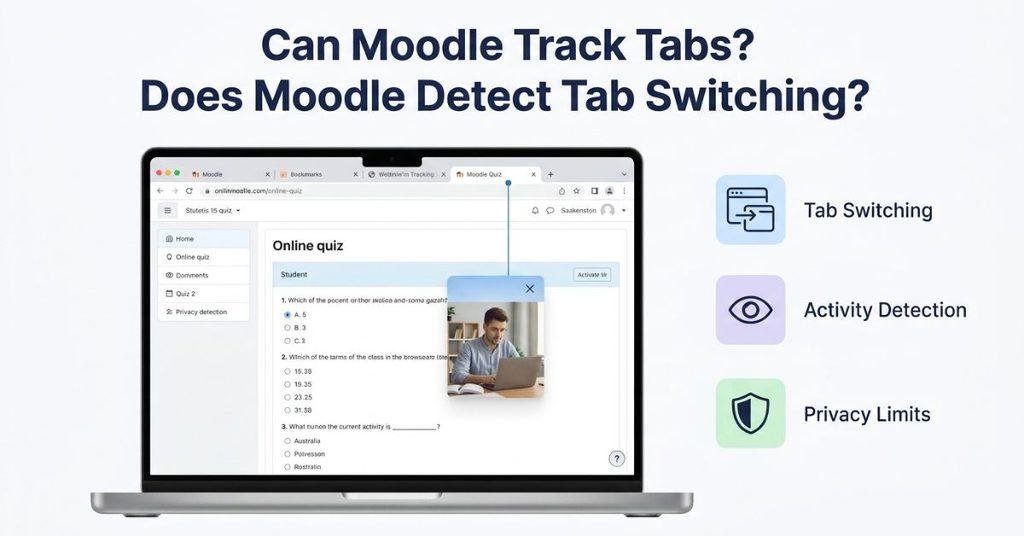
Moodle can sometimes detect when a student switches away from a quiz page, but it does not automatically see everything happening in other browser tabs. The exact behavior depends on the quiz setup, browser restrictions, and any additional exam monitoring software.
When students ask, “Can Moodle track tabs?” they usually want to know whether their instructor can tell when they open another website during a quiz. They may also wonder whether Moodle can see their search history or read content from other tabs.
These concerns involve two different things: detecting activity and viewing content.
A normal Moodle webpage can use standard browser features to detect certain events, such as when a page loses focus or becomes hidden. However, these signals do not automatically reveal which website a student opened or what they viewed there.
Detecting a tab switch is not the same as seeing what’s inside another tab. This is the most important distinction to understand. Moodle’s ability to record or act on these events also depends on the assessment configuration and available monitoring tools.
For example, a quiz may run in a regular browser without specialized monitoring software. Another assessment may use Safe Exam Browser or an approved proctoring tool with additional restrictions and monitoring features.
Therefore, don’t assume every Moodle quiz tracks tab switching in the same way. Check your institution’s exam instructions to understand which restrictions and monitoring features apply to your assessment.
Does Moodle Detect Tab Switching?
Moodle does not automatically detect and record every tab switch in every quiz. Its ability to detect when you leave a quiz page depends on the browser, quiz restrictions, and any additional monitoring software your institution uses.
A standard Moodle quiz runs inside a web browser. Browser features may allow a page to detect when it loses focus or becomes hidden. However, these signals do not necessarily tell Moodle which website you opened or what you viewed.
Some institutions use browser-based restrictions to limit access to other applications or websites during an exam. Others may require Safe Exam Browser or approved proctoring software. These tools can provide additional controls, depending on their configuration.
Moodle’s own documentation explains that browser-based quiz security measures have limits. A webpage cannot fully control what students do on their computers, so these restrictions should not be treated as foolproof monitoring.
For this reason, saying “Moodle always detects every tab switch” would be inaccurate. One quiz may use basic browser functionality, while another may include additional security tools. Your instructor’s available activity records also depend on the setup.
Moodle can record quiz-related events, such as submitted answers, attempt progress, and navigation within the quiz. The exact information available to instructors depends on Moodle’s logs, quiz reports, and installed tools.
Can Moodle See When You Switch Tabs?
Can Moodle see if you switch tabs? Can Moodle tell if you switch tabs? Sometimes, a Moodle page can detect that you switched away from it, but that does not mean Moodle can see the contents of your other tabs.
Modern browsers provide a page visibility feature that can report when a page becomes hidden. A page may also detect when it loses focus. These signals can indicate that you’re no longer actively viewing the quiz page.
However, detecting these events does not automatically reveal the website you opened, the text you read, or the actions you performed elsewhere. A standard Moodle webpage also cannot freely inspect unrelated browser tabs.
Whether Moodle records or uses these signals depends on the quiz setup and any additional monitoring software. Browser restrictions can limit certain actions, but Moodle’s standard browser security settings do not guarantee complete monitoring.
What Moodle May Know About Quiz Activity
During a Moodle quiz, instructors may have access to several types of activity information:
- Quiz attempt activity: When you start, submit, or finish a quiz attempt.
- Page and navigation activity: Which quiz pages you visit and how you move through the questions, depending on the available reports.
- Responses and autosave behavior: Your submitted answers and, where supported, saved response changes.
- Other recorded events: Additional activity captured by Moodle logs, plugins, or approved monitoring tools.
The exact records vary by configuration. Not every setup captures the same events, and a recorded event may not explain why it occurred.
Activity data is not the same as access to everything on your computer. Moodle quiz records alone do not automatically show every website you visit, everything you type in another tab, or the contents of unrelated applications. Additional monitoring tools may have different capabilities, so check your institution’s exam policy for details.
Can Moodle See What Tabs You Have Open?
Moodle cannot automatically list every browser tab you have open just because you take a quiz on its website. A standard Moodle page may detect when it loses focus, but that does not mean it can identify every other tab or read its contents.
When students ask, “Can Moodle detect other tabs?” they often want to know whether their instructor can see open websites, search pages, or other resources during an exam. The answer depends on the tools and restrictions your institution uses.
A browser can tell a webpage when that page becomes hidden or loses focus. For example, switching from a Moodle quiz to a search engine may trigger a visibility or focus event. However, that event does not automatically reveal the search engine’s URL, search terms, or page contents.
Knowing that you left a Moodle page is different from knowing what you opened next. Standard Moodle access does not automatically grant unrestricted access to your entire browser.
Some institutions use additional exam software to restrict websites, control application switching, or monitor specific activities. Those tools may have capabilities beyond a regular Moodle webpage.
If you’re preparing for an online exam, check your institution’s testing instructions. They can explain which browser restrictions or monitoring tools apply to your particular assessment.
Can Moodle Detect Tab Switching During a Quiz?
Moodle’s ability to detect or restrict tab switching during a quiz depends on the assessment setup. A standard quiz, a restricted browser session, and a proctored exam can work differently.
In a regular browser, Moodle may receive signals when its quiz page loses focus or becomes hidden. However, those signals do not automatically identify the other website or reveal its contents.
Some Moodle quizzes use browser security settings, such as a full-screen popup with JavaScript restrictions. These settings can discourage certain actions, but Moodle’s documentation explains that a quiz running on a web server has limited control over a student’s computer.
Other institutions require dedicated exam software. For example, Safe Exam Browser can restrict application switching, disable certain keyboard shortcuts, and limit access to websites. Its behavior depends on the configuration selected for the exam.
Your institution may also use third-party proctoring software or Moodle integrations. These tools can introduce additional monitoring features, depending on their permissions and settings.
The key point is that not every Moodle quiz detects tab switching in the same way. To understand what applies to your exam, check the instructions provided by your instructor or testing administrator.
What Happens When You Leave a Moodle Quiz Tab?
The result can vary based on the browser and monitoring tools your institution requires. Here are four common scenarios.
1. Normal browser with a Moodle quiz
If you take a quiz in Chrome, Firefox, or another standard browser, switching tabs may cause the Moodle page to lose focus. Moodle does not automatically gain access to the contents of the tab you open.
2. Browser with configured restrictions
A quiz may use JavaScript-based security features or a full-screen popup. These settings can discourage certain actions, but they cannot fully control the student’s computer.
3. Secure or proctored browser
Software such as Safe Exam Browser can restrict switching to other applications and limit access to unapproved websites. Other proctoring tools may offer additional monitoring features. The exact behavior depends on the software and its configuration.
4. Institution-specific monitoring or integrations
Your school may connect Moodle with external exam systems or monitoring tools. These systems may collect information beyond standard Moodle quiz records, depending on their capabilities and permissions.
Before an exam, review your institution’s instructions. If you need clarification, ask which software the assessment requires and what activity it records.
What Is Safe Exam Browser in Moodle?
Suggested visual: Place a simple comparison graphic here showing a standard browser beside a secure exam browser. Caption: “Moodle hosts the quiz, while Safe Exam Browser helps control the testing environment.” Alt text: “Comparison of Moodle quiz access in a standard browser and Safe Exam Browser.”
Safe Exam Browser (SEB) is a dedicated browser designed to create a more controlled environment for online exams. It can integrate with Moodle so instructors can require students to use it for specific quizzes.
Unlike a regular webpage, SEB runs as software on the student’s device. This allows it to apply restrictions that a standard Moodle page cannot enforce on its own.
Depending on its configuration, SEB can hide the browser’s address and search fields, restrict switching to other applications, disable certain keyboard shortcuts, and limit access to approved websites. It can also disable screenshot functionality and control which web resources students may access.
These controls help institutions maintain a more restricted exam environment. However, the available features depend on the SEB configuration, operating system, and institutional requirements.
Not every Moodle quiz requires Safe Exam Browser. Your instructor or institution must configure the quiz to use it, and you may need to install SEB and open the provided configuration before starting the exam.
The important distinction is that Safe Exam Browser controls and restricts the exam environment; it is not simply a feature that lets ordinary Moodle view every browser tab.
Does Safe Exam Browser Detect Tab Switching?
Safe Exam Browser focuses on controlling what students can do during an exam, rather than simply reporting every tab switch.
When an institution configures SEB for a Moodle quiz, it can restrict switching to other applications by default. It can also disable shortcuts such as Alt+Tab or Cmd+Tab, depending on the operating system and configuration.
SEB also supports URL filtering, which lets administrators specify which websites or resources students can access during an exam. Some approved applications may be allowed if the configuration permits them.
These features make SEB different from a standard Moodle quiz in a regular browser. Instead of relying only on events from a webpage, SEB applies restrictions through dedicated software on the student’s device.
However, the exact controls depend on the settings used for the assessment. It is more accurate to say that SEB can restrict application switching and website access than to claim it always records every attempt to switch tabs.
If your exam requires SEB, follow your institution’s setup instructions and test the required configuration before exam day.
Is Safe Exam Browser the Same as Moodle?
No. Moodle and Safe Exam Browser serve different purposes, although they can work together during online assessments.
| Moodle | Safe Exam Browser |
|---|---|
| A learning management system | A secure exam browser |
| Hosts courses, quizzes, and learning materials | Controls access and behavior within the exam environment |
| Runs through a supported web browser | Runs as dedicated software |
| Manages learning activities and quiz attempts | Applies configured browser and application restrictions |
| Records supported learning and quiz activity | Enforces exam restrictions and supports configured security checks |
Moodle provides the platform where students access courses and complete quizzes. Safe Exam Browser helps institutions restrict the environment in which students take selected assessments.
An institution can use Moodle without requiring SEB for every quiz. When SEB is required, students must follow the setup instructions for that particular assessment.
Remember: Moodle and Safe Exam Browser can work together, but they are not the same product. Understanding this difference helps explain why tab-switching behavior can vary between exams.
Can Moodle See Other Websites You Open?
Moodle does not automatically have unrestricted access to every website you open. What your instructor can see depends on Moodle’s activity records, your quiz configuration, and any additional monitoring software your institution uses.
It’s helpful to separate four types of activity:
- Moodle page activity: Moodle can record supported events related to quiz attempts, answers, submissions, and navigation within the platform.
- Browser activity: A standard Moodle webpage may detect when it loses focus or becomes hidden. This does not automatically reveal the URL or contents of another website.
- Secure exam software: Tools such as Safe Exam Browser can restrict access to websites and other applications, depending on their configuration.
- External monitoring or proctoring systems: Some institutions use additional tools that may collect information beyond standard Moodle records, depending on their features and permissions.
For example, opening a search engine in another tab does not automatically give Moodle access to your search history. A webpage can detect certain changes in its visibility without being able to inspect everything happening elsewhere in the browser.
However, additional exam software may apply restrictions or collect other information. You should check your institution’s exam policy to understand which tools it uses.
The key distinction is that Moodle quiz activity, browser activity, and proctoring data are not the same thing. Don’t assume Moodle itself can see everything you do online, but don’t assume every exam has identical monitoring settings either.
Can Moodle Track Tab Switching Without Proctoring Software?
Yes, a regular Moodle quiz may detect certain tab-switching signals without separate proctoring software, but it does not automatically track every switch. The exact behavior depends on the quiz configuration and the browser’s capabilities.
A standard Moodle quiz runs in a web browser. Browser features can notify a webpage when it becomes hidden or loses focus. If the quiz or its scripts use these events, they may detect that a student has moved away from the quiz page.
However, this does not mean Moodle can automatically identify the other tab, read its contents, or monitor everything happening on the computer. Browser-based restrictions also have limits because a normal webpage cannot fully control the student’s device.
Additional software can introduce different capabilities. For example, Safe Exam Browser can restrict application switching and limit access to websites. Third-party proctoring tools may offer further monitoring features, depending on their permissions and configuration.
It’s important to distinguish between Moodle’s standard functionality and additional exam monitoring. Moodle manages courses and assessments, while proctoring tools provide separate monitoring or security features.
If your quiz does not require proctoring software, don’t automatically assume it records every tab switch. Check your institution’s exam instructions to understand which restrictions and monitoring features apply.
Does Moodle Track Tabs on Chrome?
Moodle does not automatically track every Chrome tab you open. Chrome is simply the browser in this scenario, and the available detection depends on browser features and the Moodle quiz configuration.
A Moodle quiz may detect when its page loses focus or becomes hidden. However, that signal does not automatically reveal the URL, text, or activity inside another Chrome tab.
Some quizzes use browser-based restrictions, while others require secure exam software or external proctoring tools. These additional systems may restrict tab switching, limit access to other websites, or provide other monitoring features.
The same general distinction applies when students use other supported browsers. The browser alone does not determine what an instructor can see; the assessment setup matters too.
If you’re taking a Moodle quiz in Chrome, check whether your institution requires special exam software. That is a more reliable way to understand the restrictions than assuming every Moodle quiz monitors tabs in the same way.
What Can Moodle Monitor During a Quiz?
Moodle can record different types of quiz activity, but the information available to instructors depends on the quiz settings, installed plugins, and any additional exam software. Understanding these differences helps you know what standard Moodle quiz records can show.
| Activity | Depends on setup? |
|---|---|
| Quiz responses | Yes. Moodle records submitted responses and supported response changes. |
| Quiz navigation | Yes. Quiz reports and logs can show supported navigation activity. |
| Moodle page activity | Yes. Moodle can record supported events within the platform. |
| Leaving or losing focus on the quiz page | May depend on the page implementation and whether the quiz uses relevant browser events. |
| Contents of other browser tabs | Tab-switch detection does not automatically reveal other tabs’ contents. |
| Activity in other applications | Usually requires additional controls or monitoring software to observe or restrict. |
| Device-wide monitoring | Requires appropriate software, permissions, and configuration. |
A key distinction is that recording quiz activity does not mean Moodle can automatically monitor everything on your computer. Standard Moodle logs focus on events the platform records, while additional tools may provide different monitoring capabilities.
For example, a quiz report may show submitted answers and attempt progress without revealing what you viewed in another browser tab. A separate exam tool may impose restrictions or collect additional information.
If you need to know exactly what your instructor can access, check your institution’s exam policy and the tools required for your assessment.
Moodle Tab Switching vs. Screen Monitoring
Tab switching and screen monitoring are related to online exam security, but they describe different activities.
Tab switching refers to leaving the Moodle quiz page or moving focus to another browser tab or application. A webpage may detect certain focus or visibility changes, but those signals do not automatically reveal what appears on the other screen or tab.
Screen monitoring refers to tools designed to observe or control some aspects of a student’s screen during an assessment. Depending on the software and permissions, these tools may capture screen images, record screen activity, or restrict access to other applications.
The main differences are:
- Tab-switch detection: May indicate that the Moodle page lost focus or became hidden.
- Screen monitoring: May show screen content or activity when an appropriate monitoring tool is configured.
- Secure exam controls: May restrict application switching, websites, or keyboard shortcuts without necessarily recording every action.
These capabilities depend on the software and its configuration. Not every Moodle quiz includes screen monitoring, and detecting a tab switch does not automatically mean an instructor can see your screen.
For a related explanation, see our guide to Moodle Screenshot / Screen Monitoring. Replace the placeholder link with the URL of your published article before publishing.
Conclusion
So, can Moodle track tabs? Moodle may detect certain tab-switching signals, but it does not automatically see everything you open or do online. Its capabilities depend on the quiz configuration, browser restrictions, and any additional exam software your institution uses.
Remember, detecting when you leave a Moodle quiz page is different from viewing another tab’s contents. Tools such as Safe Exam Browser and proctoring software may introduce additional restrictions or monitoring features.
Before your next online exam, review your instructor’s testing guidelines to understand which tools and restrictions apply. This can help you prepare confidently and avoid unexpected issues.
Did your Moodle quiz use special browser restrictions? Share your experience in the comments, and explore our other educational guides for more helpful answers.
Frequently Asked Questions
Find answers to common questions about Moodle tab switching, browser activity, quiz monitoring, and Safe Exam Browser.
Can Moodle track tabs?
Moodle may detect certain tab-switching signals, depending on the quiz setup and browser features. However, a standard Moodle webpage does not automatically see every browser tab you open or everything you do online. Additional exam software may introduce more restrictions or monitoring capabilities.
Does Moodle detect tab switching?
Moodle does not automatically detect and record every tab switch in every quiz. A quiz page may detect when it loses focus or becomes hidden, depending on its implementation and configuration. Some institutions also use secure exam browsers or proctoring tools for additional controls.
Can Moodle see when you switch tabs?
Moodle may detect when its quiz page loses focus or becomes hidden after you switch tabs. However, this signal does not automatically reveal which website you opened or what you viewed there. The information available depends on the assessment setup and any additional monitoring software.
Can Moodle see what tabs you have open?
A standard Moodle webpage cannot automatically list every open browser tab or read the contents of unrelated tabs. Detecting that the Moodle page became hidden is different from identifying other open websites. Additional exam software may impose browser restrictions or provide monitoring features, depending on its configuration.
Can Moodle detect other tabs?
Moodle may detect certain events when you move away from its quiz page. However, these events do not automatically identify every other tab or reveal its contents. What Moodle can record depends on the quiz implementation, browser capabilities, and any additional tools used by your institution.
Can Moodle tell if you switch tabs during a quiz?
Sometimes. A Moodle quiz may detect when its page loses focus or becomes hidden. However, not every quiz records these events, and a detected change does not necessarily identify the destination tab. Secure exam browsers and proctoring tools may introduce additional restrictions or monitoring features.
Can Moodle track tabs without proctoring software?
A regular Moodle quiz may detect certain browser events without separate proctoring software. Browser features can report when a page becomes hidden or loses focus. However, Moodle does not automatically gain unrestricted access to other tabs, applications, or everything happening on your computer.
Does Safe Exam Browser prevent tab switching?
Safe Exam Browser can restrict switching to other applications and limit access to websites, depending on its configuration. It may also disable certain keyboard shortcuts used to switch applications. These controls create a more restricted exam environment, but the exact behavior depends on the institution’s settings.
Can Moodle see what websites you visit during a quiz?
A standard Moodle quiz does not automatically reveal every website you visit outside Moodle. It may detect certain changes in the quiz page’s visibility or focus, but that does not automatically reveal another website’s URL or contents. Additional monitoring software may collect different information, depending on its features and permissions.
Can Moodle detect tab switching on Chrome?
Moodle may detect certain focus or visibility changes when you switch away from a quiz in Chrome. However, Chrome does not give a standard Moodle webpage unrestricted access to every open tab. The actual behavior depends on the quiz implementation and any additional exam software.
Does Moodle know if you open Google during a quiz?
Opening Google in another tab does not automatically tell Moodle which website you opened or what you searched for. A Moodle quiz may detect that its page lost focus or became hidden. Additional exam software may impose restrictions or collect more information, depending on its configuration.
Can teachers see when you leave a Moodle quiz?
Teachers may have access to quiz attempts, submitted responses, navigation records, and other events that Moodle records. Whether they can see a tab-switching event depends on the quiz setup and available monitoring tools. A standard quiz report does not automatically show everything you do outside Moodle.
Does switching tabs automatically flag a Moodle quiz?
No. Switching tabs does not automatically mean Moodle flags a student or records a violation. Some setups may detect page-focus or visibility changes, while others may not record them. Whether an event triggers a warning or review depends on the assessment configuration and any monitoring software.
Can Moodle record my screen during a quiz?
Standard Moodle quiz functionality does not automatically record your entire screen. Screen recording or monitoring generally requires an additional tool with the necessary permissions and configuration. If your institution uses proctoring software, review its instructions and privacy information to understand what it collects.
Can Moodle track tabs on a phone or tablet?
Moodle’s ability to detect page visibility or focus changes may vary across mobile browsers and devices. A standard Moodle webpage still does not automatically gain unrestricted access to other applications or browser tabs. If your exam requires a secure browser or proctoring app, check whether your device is supported.
How can I know whether my Moodle quiz uses Safe Exam Browser?
Check your instructor’s exam instructions or the quiz’s access requirements. Your institution may ask you to install Safe Exam Browser and open a specific configuration before starting the assessment. If the instructions are unclear, contact your instructor or testing administrator to confirm which software and restrictions apply.

We are the Canvas Academic Team, a developer team focused on building simple and practical tools that help students succeed academically. This platform was created specifically for Canvas LMS students to make grade tracking, GPA calculations, exam planning, and academic management easier and more efficient.
Our focus is on creating fast, accurate, and student-friendly educational tools along with helpful learning resources that improve productivity and reduce academic stress.
Through CanvasGradeCalculator.com, our goal is to continue building useful resources that help students study smarter, stay organized, and achieve better academic results.