
- Introduction
- How Does Moodle Work for Students?
- How to Use Moodle Step by Step
- What Can Students Do on Moodle?
- How to Find Assignments on Moodle
- How to Take a Quiz on Moodle
- How to Check Grades in Moodle
- How to Use Moodle Calendar
- How to Use Moodle on a Phone
- How to Find Your Moodle Courses
- How to Submit Work on Moodle
- How to Know If You Successfully Submitted an Assignment
- Common Moodle Problems for Students
- Tips for Using Moodle Effectively
- Moodle Student Quick-Start Checklist
- Conclusion
Introduction
Have you ever opened Moodle for the first time and wondered where to find your assignments, grades, or course materials?
If you’re new to online learning, Moodle might seem confusing at first. Many colleges and universities across the United States use Moodle to manage online courses and student activities. It gives students one place to access learning resources, complete assignments, take quizzes, and track academic progress.
Learning how to use Moodle can make your college experience much easier. You don’t need advanced technical skills to get started. You just need to understand where everything is and how each feature works.
In this guide, you’ll learn how to log in, navigate your courses, find study materials, submit assignments, and check grades. We’ll also explain how to take quizzes and keep track of important deadlines.
Whether you’re using Moodle for the first time or need help with a specific feature, this guide will help you use it with confidence.
How Does Moodle Work for Students?
Moodle works as a central online learning platform where students manage their courses and academic activities. Your college or university creates a Moodle site and gives you access to your enrolled courses. Once you log in, you can find course materials, complete assignments, take quizzes, and check your grades.
Most students follow a simple workflow: log in, open a course, review learning materials, complete activities, and track their progress. Your school’s Moodle layout may look different because institutions can customize their websites. However, the main student features usually work in similar ways.
Here are the seven basic steps to using Moodle as a student.
1. Log In to Your Moodle Site
Start by opening the Moodle website provided by your college or university. Most institutions share a Moodle login link through their official website, student portal, or welcome email.
Enter your assigned username and password to access your account. Some colleges also use single sign-on (SSO), which lets you log in through your existing school account. You may need to complete an additional security step if your institution requires it.
If you cannot access your account, check your login details or contact your school’s IT support team. Your institution manages student accounts, so Moodle cannot always fix login problems directly.
For detailed instructions, read our guide on [How to Log Into Moodle as a Student].
2. Open Your Course
After logging in, find the My Courses section on your Moodle dashboard. This area usually displays the courses connected to your student account. Select the course you want to study.
Each course has its own page with learning resources, activities, announcements, and other information. Your instructor organizes these items based on the course schedule.
Some courses use weekly sections, while others organize content by topic or learning unit. Look for the course outline to understand where each subject begins.
If you cannot find a course, make sure your enrollment is complete. Your instructor or college may also need to activate your course before it appears.
3. Find Course Materials
Moodle gives students access to different types of learning materials. Your instructor may upload these resources directly to the course page.
Common course materials include:
- PDF files: Lecture notes, reading materials, and study guides.
- PowerPoint slides: Lesson presentations and lecture summaries.
- Videos: Recorded lectures, tutorials, and demonstrations.
- Links: External websites, online textbooks, and learning resources.
- Books and pages: Reading materials organized into sections within Moodle.
Open each resource to review its content. You can download available files and save them for offline study. Some resources may open directly inside your browser.
Check your course page regularly for new materials. Instructors may add readings or update lesson resources throughout the semester.
4. Complete Assignments and Activities
Moodle allows students to complete assignments and other learning activities online. Your instructor usually provides instructions, submission requirements, and due dates on the course page.
Select an assignment to review its details before starting. Check the required file format, word count, submission method, and deadline.
Depending on the assignment settings, you may need to:
- Upload a document, such as a Word or PDF file.
- Enter your answer directly into an online text box.
- Complete an assignment with multiple submission steps.
- Submit supporting files requested by your instructor.
After preparing your work, select Add submission or the available submission option. Follow the instructions to upload or enter your response. Some assignments also require you to click Submit assignment to confirm your work.
Always check the submission status after uploading. A saved draft does not always count as a final submission.
5. Take Quizzes and Tests
Your instructor may use Moodle quizzes to assess your understanding of course topics. These quizzes can include multiple-choice questions, true-or-false statements, short answers, and other question types.
Open the quiz from your course page and read its instructions carefully. Check the available time, number of attempts, and closing date before starting.
When you’re ready, select Attempt quiz now if that option appears. Answer each question and review your responses before submitting. Some quizzes allow you to move between questions, while others use different navigation settings.
Keep these points in mind:
- Start your quiz before the closing time.
- Check whether the quiz has a time limit.
- Understand how many attempts your instructor allows.
- Save your answers when the quiz settings require it.
- Submit your attempt before the deadline.
Your instructor controls quiz settings, so the experience can differ between courses.
6. Check Grades and Feedback
Moodle helps students review their academic performance through the Grades section. Open your course and look for the Grades link in the course navigation or dashboard.
Your gradebook may display scores for assignments, quizzes, tests, and other activities. Some instructors also provide written feedback to explain your results.
Depending on your school’s settings, you may see:
- Individual assignment and quiz scores.
- Feedback from your instructor.
- Grading comments and evaluation notes.
- Overall course grades.
- Grades for completed learning activities.
Remember that not every activity receives an immediate grade. Some instructors review submissions manually before publishing results. Your gradebook may also hide certain grades until the instructor releases them.
Check your grades regularly to understand your progress and identify areas that need improvement.
7. Track Deadlines
Keeping track of deadlines helps you avoid missing important coursework. Moodle offers tools that can help students monitor upcoming activities and submission dates.
Look for the Calendar and Upcoming Events sections on your dashboard or course page. These areas may display assignment deadlines, quiz closing dates, and scheduled course activities.
You can also review individual assignment pages for their due dates. Some Moodle sites display a timeline that highlights upcoming tasks.
For better organization, try these simple habits:
- Check your Moodle dashboard at the beginning of each day.
- Review upcoming deadlines for every course.
- Record important dates in your personal calendar.
- Start assignments before their submission deadlines.
- Check for announcements about schedule changes.
Your instructor and institution control which calendar events appear in Moodle. Therefore, compare Moodle deadlines with your official course syllabus when necessary.
How to Use Moodle Step by Step
Now that you understand how Moodle works, it’s time to explore its main features. The easiest way to learn Moodle is to follow each step and practice using your course page.
Your dashboard, course sections, and available activities may look slightly different depending on your college or university. However, most students follow a similar process when accessing their courses and completing academic tasks.
Step 1: Open Your Moodle Dashboard
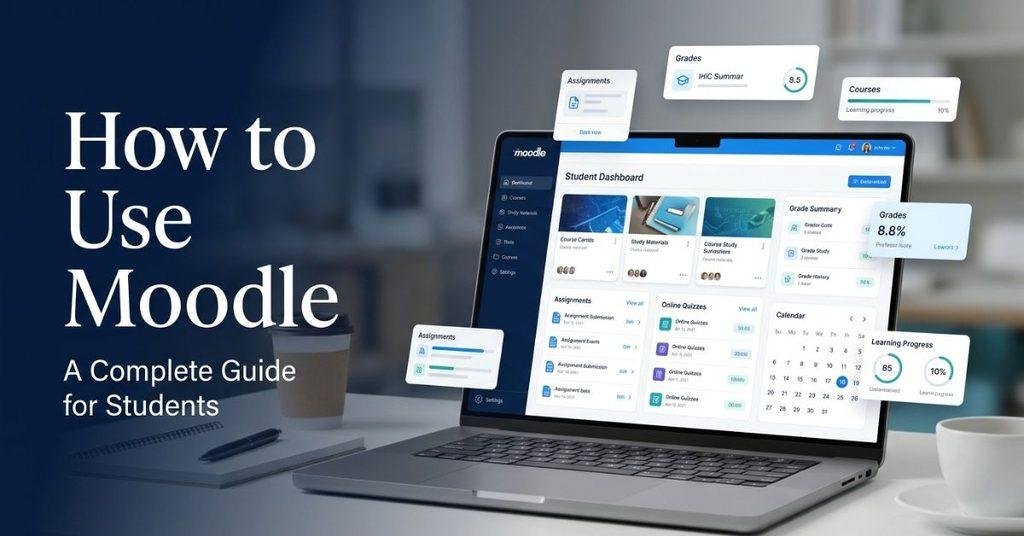
After logging in, Moodle usually takes you to your Dashboard or another default landing page. This page helps you access your courses, review learning activities, and find important updates.
Start by exploring these common dashboard areas:
- Dashboard: Provides an overview of your learning activities and course information.
- Course Overview: Displays courses associated with your Moodle account.
- My Courses: Gives you direct access to your enrolled courses.
- Recently Accessed Courses: Helps you return to courses you opened recently.
- Navigation: Provides links to your dashboard, courses, grades, and other available features.
Take a few minutes to explore these sections. You don’t need to understand every option immediately. Focus on finding your courses and learning how to move between different pages.
<caption>Suggested screenshot: Moodle student dashboard highlighting My Courses, Course Overview, and Recently Accessed Courses.</caption>
Step 2: Select Your Course
Once you find your courses, select the one you want to open. Moodle takes you to that course’s main page, where your instructor organizes lessons and learning activities.
Depending on the course structure, you may find weekly sections, topic-based sections, or separate learning units.
Look for these common course elements:
- Weekly or Topic Sections: Organize lessons and activities into manageable units.
- Course Materials: Include lecture notes, presentations, reading files, and videos.
- Assignments: Show coursework instructions, submission options, and due dates.
- Quizzes: Provide online tests and practice assessments.
- Discussion Activities: Allow students to share ideas and respond to classmates.
- Announcements: Display important updates and messages from instructors.
- Grades: Show available scores and instructor feedback.
Your instructor decides which activities appear in each course. Some courses may include all these features, while others use only a few.
Before starting your coursework, review the course page and check for any important announcements.
Step 3: Read Course Materials
Moodle makes it easy to access course materials from one place. Your instructor may share lesson resources directly on the course page.
Select a resource to open it. Depending on its format, Moodle may display the content in your browser or provide a download option.
Here are some common learning resources you’ll find:
- Pages: Display lesson notes, explanations, and reading content directly inside Moodle.
- PDFs and Documents: Provide lecture notes, worksheets, study guides, and other downloadable files.
- Videos: Include recorded lectures, demonstrations, and educational tutorials.
- External Links: Direct you to websites, online textbooks, and additional learning resources.
- Lecture Resources: Contain presentations, reading lists, and supporting materials for class sessions.
Try to review the available materials before completing assignments or quizzes. This helps you understand the lesson and prepare better answers.
You can also organize downloaded files into separate folders on your device. This makes it easier to find study materials when you need them.
Step 4: Complete Assignments
Your Moodle course page usually displays assignments with instructions and submission deadlines. Open an assignment to understand what your instructor expects.
Most Moodle assignments follow a simple process:
- Open the Assignment: Select the assignment from your course page.
- Read the Instructions: Review the requirements, due date, and submission format.
- Prepare Your Work: Complete the task using the instructions provided.
- Upload or Enter Your Response: Attach your document or type your answer online.
- Submit Your Assignment: Follow the final submission instructions to complete the process.
Some assignments allow file uploads, while others require online text responses. Your instructor chooses the available submission method.
After submitting, check the assignment status to confirm Moodle received your work. If the page shows a draft or requires final confirmation, complete the remaining steps.
Always follow your instructor’s submission requirements and check the deadline before uploading your work.
Step 5: Take a Moodle Quiz
Moodle quizzes let instructors assess your understanding through online questions. You may find quizzes under weekly topics, course activities, or assessment sections.
To take a quiz, open it from your course page and review the instructions first. Check the time limit, closing date, and number of allowed attempts.
Follow these basic steps:
- Open the quiz you want to complete.
- Read the instructions and review the quiz settings.
- Select Attempt quiz now to begin, if available.
- Answer the questions using the available response options.
- Review your answers if the quiz allows it.
- Select the submission option to finish your attempt.
- Review your results if your instructor has made them available.
Some quizzes display results immediately, while others release grades after the instructor reviews submissions. Your available review options also depend on the quiz settings.
If you want to understand Moodle quizzes in more detail, explore our guides on [Moodle Quiz Creation], [Moodle Cheating Detection], and [Moodle Tab Switching].
Step 6: Check Your Grades
Checking your grades regularly helps you understand your academic progress. Moodle provides a gradebook where students can view available scores and feedback.
Open your course and look for the Grades option in the navigation menu or course menu. Select it to access your gradebook.
Depending on your instructor’s settings, you may find:
- Course Grades: Your overall course grade, if available.
- Assignment Grades: Scores for submitted coursework.
- Quiz Scores: Results from completed quizzes and tests.
- Instructor Feedback: Comments, grading notes, and suggestions for improvement.
Some grades appear automatically after an activity, while others require manual review. Your instructor may also choose when students can view their results.
If a grade is missing, check whether the activity has been graded or whether results remain hidden. You can also contact your instructor for clarification.
For more detailed instructions, read our guide on [How to Check Grades on Moodle].
Step 7: Check Your Moodle Calendar
Moodle includes a calendar that helps students keep track of important course dates. It can display upcoming assignments, quiz deadlines, and scheduled learning activities.
Look for the Calendar option in your dashboard or navigation menu. Open it to review available events and important dates.
You may find the following information:
- Assignment Deadlines: Dates when coursework submissions are due.
- Quiz Dates: Scheduled quiz openings and closing times.
- Course Events: Important activities added by your instructor.
- Upcoming Activities: Events and tasks approaching their scheduled dates.
Some Moodle calendars also allow you to view events by day, week, or month. This makes it easier to plan your study schedule.
Using these seven steps regularly can make Moodle easier to navigate. Once you understand the dashboard, course materials, assignments, quizzes, grades, and calendar, you’ll have a clearer picture of your daily learning activities.
What Can Students Do on Moodle?
Moodle gives students several tools to manage their online learning activities. You can access courses, study lesson materials, submit assignments, complete quizzes, and review your academic progress.
Each feature serves a different purpose. Your college or university may enable additional tools depending on its course requirements and Moodle settings.
Here is a quick overview of the main Moodle features students commonly use.
| Moodle Feature | What Students Use It For |
|---|---|
| Courses | Access enrolled classes and course pages. |
| Course Materials | Read or watch lectures, notes, PDFs, and other learning resources. |
| Assignments | Complete and submit coursework online. |
| Quizzes | Take online tests, practice questions, and assessments. |
| Grades | View available scores and instructor feedback. |
| Calendar | Track assignment deadlines, quiz dates, and course events. |
| Forums | Participate in discussions and share ideas with classmates. |
| Messages | Communicate with instructors or other users where enabled. |
| Dashboard | View courses, activities, and important learning information. |
| Notifications | Receive updates about course activities and other events. |
You don’t need to use every feature daily. Your regular activities depend on your course schedule and instructor’s requirements.
For example, you might use course materials before class, submit assignments during the week, and check grades after completing a quiz. Checking your dashboard and notifications regularly also helps you stay informed.
How to Find Assignments on Moodle
Finding assignments on Moodle is simple once you know where to look. Your instructor usually adds assignments to the relevant course page, often under weekly sections or specific topics.
You can also use your dashboard and calendar to identify upcoming coursework. Follow these steps to find assignments, check deadlines, and confirm your submissions.
Find Assignments From Your Course Page
Start by logging in to your Moodle account and opening the course where you need to complete an assignment.
Look through the course sections for an activity labeled Assignment. Your instructor may place it under a weekly topic, learning unit, or assessment section.
Select the assignment to open its details. You can usually find the instructions, submission requirements, availability dates, and due date on this page.
Some Moodle courses also display assignment activities with an assignment icon. If you cannot find the activity, check the course sections or ask your instructor where they placed it.
Check Upcoming Assignments
Moodle can help you identify assignments that need your attention. Open your dashboard and look for sections such as Timeline, Upcoming Events, or Course Overview.
These sections may display upcoming coursework and activities based on their due dates. Select an assignment to open its details and review the requirements.
You can also check the Calendar for scheduled assignment deadlines. However, the information displayed depends on your instructor’s settings and the activities added to your course.
Make it a habit to review upcoming tasks regularly. This helps you plan your study time and avoid overlooking important coursework.
See Assignment Due Dates
To check an assignment’s deadline, open the activity from your Moodle course page. Look for the Due date information in the assignment details.
The page may also show an availability date or a cut-off date. These dates have different purposes:
- Allow submissions from: The date when students can start submitting work.
- Due date: The expected submission deadline.
- Cut-off date: The final time Moodle accepts submissions, depending on the assignment settings.
Not every assignment uses all these dates. Your instructor controls the submission schedule and any late submission rules.
Always check the displayed time and your institution’s time zone. If anything looks unclear, confirm the deadline with your instructor.
Check Whether an Assignment Was Submitted
After uploading your work, return to the assignment page to check its submission status. Moodle usually displays a submission summary with information about your uploaded work.
Look for labels such as:
- Draft (not submitted): Your work is saved, but you may still need to submit it.
- Submitted for grading: Moodle has received your final submission.
- Graded: Your instructor has evaluated your work.
- Reopened: Your instructor has allowed another submission.
The exact labels depend on your assignment settings. Some assignments require you to select Submit assignment after uploading your file.
If Moodle still shows a draft, follow the remaining submission instructions. Always confirm the final status before leaving the page.
How to Take a Quiz on Moodle
Moodle allows students to take online quizzes directly through their course pages. Instructors use these quizzes for practice activities, chapter tests, and course assessments.
The quiz experience depends on your instructor’s settings. Some quizzes have time limits, multiple attempts, or specific availability periods. Follow these steps to complete a Moodle quiz successfully.
Before Starting the Quiz
Before opening a quiz, review its instructions and settings. This helps you understand the requirements and avoid unexpected problems during your attempt.
Check these important details:
- Quiz Instructions: Read the information provided by your instructor.
- Time Limit: Check how much time you have to complete the quiz.
- Number of Attempts: Find out how many attempts your instructor allows.
- Availability Period: Check when the quiz opens and closes.
Some quizzes allow only one attempt, while others provide multiple opportunities. Your instructor also decides whether you can review previous attempts.
Make sure you have a reliable internet connection and enough time to complete the quiz. Avoid starting an attempt just before its closing time.
During the Quiz
Once you’re ready, open the quiz and select Attempt quiz now if available. Moodle displays the questions based on the quiz settings.
Read each question carefully and select or enter your answer. Depending on the quiz format, you may see multiple-choice questions, true-or-false statements, matching questions, or written responses.
Keep these points in mind while answering:
- Use the question navigation panel to move between questions when available.
- Review unanswered questions before finishing.
- Save or continue your attempt using the available controls.
- Monitor the remaining time if the quiz has a time limit.
- Follow the instructions before moving to another page.
Some quizzes allow you to return to previous questions, while others restrict navigation. The available options depend on your instructor’s configuration.
After Submitting
When you finish answering the questions, review your responses if Moodle allows it. Select Submit all and finish or the available submission option to complete your attempt.
Moodle may ask you to confirm your submission. Follow the confirmation instructions and return to the quiz page to check its status.
Your results may appear immediately or later, depending on your instructor’s settings. If feedback is available, you may also see correct answers, scores, and comments.
If you’re concerned about quiz monitoring, browser activity, or screen monitoring, explore our detailed guides:
- [Moodle Cheating Detection]
- [Moodle Tab Switching]
- [Moodle Copy & Paste Detection]
- [Moodle Screenshot / Screen Monitoring]
These guides explain different monitoring concerns and Moodle quiz settings in more detail.
How to Check Grades in Moodle
Moodle provides a gradebook where students can review their available course scores. You can use it to check assignment results, quiz scores, and instructor feedback.
Follow these simple steps:
- Open Your Course: Log in to Moodle and select the course you want to review.
- Find Grades: Look for the Grades option in your course navigation or menu.
- Review Available Scores: Check your assignment grades, quiz results, and other published marks.
- Open Individual Activities: Select an assignment or quiz to review additional feedback when available.
Your gradebook may display an overall course grade if your instructor has configured it. Some activities may not show scores immediately because instructors sometimes grade submissions manually.
You may also find written comments explaining your performance or suggesting improvements. If a grade is missing or unclear, contact your instructor for help.
How to Use Moodle Calendar
Moodle Calendar helps students keep track of important academic dates and upcoming activities. It can display assignment deadlines, quiz dates, course events, and other scheduled activities.
To access your calendar, open your Moodle dashboard and look for the Calendar option. Depending on your institution’s layout, you may also find it through the navigation menu or course page.
Here are a few ways to use Moodle Calendar effectively:
- Find Upcoming Deadlines: Review upcoming assignment submissions and quiz closing dates.
- View Course Events: Check scheduled activities and important events added by your instructors.
- Understand Due Dates: Open individual activities to confirm their deadlines and submission requirements.
- Review Calendar Events: Switch between available calendar views to organize your academic schedule.
Keep in mind that your calendar may not display every course activity. Its contents depend on your institution’s Moodle configuration and the events instructors add to their courses.
Check your calendar regularly so you don’t miss important deadlines. You can also learn [Can You Sync Moodle With a Calendar?] to understand how Moodle events can work with an external calendar.
How to Use Moodle on a Phone
You don’t always need a computer to access Moodle. Students can use Moodle on their phones through a mobile browser or the official Moodle app.
Both options provide convenient access to course information and learning activities. However, available features may vary depending on your institution’s configuration and the type of activity.
Using Moodle in a Mobile Browser
The simplest way to access Moodle on your phone is through a mobile browser. Open Chrome, Safari, or another browser and visit your institution’s Moodle website.
Enter your login details to access your account. Once logged in, you can open your courses and navigate the available features.
Moodle pages usually adapt to smaller screens, making it easier to read course materials and access important information.
A mobile browser is useful when you don’t want to install another app. However, some activities may work better on a desktop or laptop, especially when they require larger screens or additional software.
Using the Moodle App
Students can also use the official Moodle App to access their learning environment on supported mobile devices.
Download the app from the Apple App Store or Google Play Store. Open it and enter your institution’s Moodle site address when prompted. Then log in using your school account.
The app provides access to supported courses and learning activities. Depending on your institution’s settings, you may also be able to download certain materials for offline access.
Some features require an internet connection. Your institution may also need to enable mobile access before you can use the app with its Moodle site.
What Students Can Do on Mobile
Moodle’s mobile experience allows students to manage several everyday learning activities without opening a computer.
Depending on the available features, you can:
- View Courses: Open enrolled courses and explore their sections.
- Read Materials: Access supported PDFs, documents, pages, and other learning resources.
- Check Grades: Review available assignment scores and instructor feedback.
- View Deadlines: Check upcoming activities and important course dates.
- Complete Activities: Submit assignments, participate in discussions, and complete supported quizzes.
Not every Moodle activity works exactly the same way on mobile. Some features may require a browser, an updated app, or a desktop device.
For important assignments and timed quizzes, check the activity requirements before starting. This helps you avoid compatibility issues during your coursework.
How to Find Your Moodle Courses
Finding your enrolled courses is one of the first things you should learn when using Moodle. Your courses usually appear on the dashboard after your institution processes your enrollment and makes them available.
Start by logging in to your Moodle account. Open the Dashboard or My Courses section to see the courses connected to your account.
You can also use the Course Overview area to review your available classes. Depending on your Moodle version and institution’s settings, you may find options to filter courses or search for specific course names.
If your institution enables course search, enter the course name or relevant keyword. You can also check the navigation menu for available course links.
Some Moodle dashboards include a Recently Accessed Courses section. This makes it easier to return to classes you’ve opened before.
What If a Course Is Missing?
Sometimes, a course doesn’t appear immediately after you log in. This doesn’t always mean something is wrong with your Moodle account.
Several reasons can explain why a course is missing:
- Enrollment Hasn’t Been Processed: Your college may still be updating your course registration.
- Course Isn’t Available Yet: Your instructor may not have opened the course for students.
- Course Has Not Started: Some institutions restrict access until the official course start date.
- Institution Has Hidden the Course: Your instructor or administrator may have temporarily hidden it.
- Account or Enrollment Issue: You may be using a different account or have an enrollment problem.
First, confirm that you’re using the correct Moodle account. Then check your official course registration and contact your instructor if the course remains missing.
If you cannot access your account or have trouble with your login details, read our guide on [Moodle Login / Account] for more help.
How to Submit Work on Moodle
Moodle allows students to submit coursework online through assignment activities. Your instructor may ask you to upload a document or enter your response directly into Moodle.
Most assignments follow a simple submission process:
- Open the Activity: Go to your course page and select the assignment.
- Read the Requirements: Check the instructions, file format, word count, and due date.
- Prepare Your Work: Complete the assignment according to your instructor’s requirements.
- Upload or Type Your Work: Attach the required file or enter your response in the online text editor.
- Save Your Work: Use the available save option if you need to keep your submission as a draft.
- Submit the Assignment: Select the final submission option if Moodle requires it.
Saving a Draft vs. Submitting an Assignment
One important difference can affect your assignment submission. Saving a draft does not always mean you’ve officially submitted your work.
- Saving a Draft: Moodle stores your work, but your assignment may remain unsubmitted. You might still need to confirm the final submission.
- Submitting an Assignment: Moodle records your work as a final submission for grading, according to the activity settings.
Some assignments allow students to update their drafts before the deadline. Others require a separate confirmation step.
Always return to the assignment page after uploading your work. Check its status to make sure Moodle has received your final submission.
How to Know If You Successfully Submitted an Assignment
After submitting an assignment, you should confirm that Moodle recorded your work correctly. Uploading a file alone doesn’t always mean the submission process is complete.
Open the assignment again from your course page. Look for the submission information or status displayed on its page.
Here are a few things to check:
- Submission Status: Look for a status indicating that Moodle received your work. Depending on the settings, you may see labels such as “Submitted for grading.”
- Confirmation Message: Check whether Moodle displays a message confirming your submission.
- Submission Timestamp: Some assignments display the date and time when you submitted your work.
- Uploaded File: Confirm that the correct document appears in the submission summary.
- Assignment Status: Reopen the activity to check whether it still requires a final submission.
Moodle labels and confirmation messages can differ between institutions. Your instructor also controls whether assignments require a separate submission confirmation.
If the page still shows a draft or indicates that submission is incomplete, review the remaining instructions. If you’re unsure whether Moodle received your work, contact your instructor before the deadline.
Common Moodle Problems for Students
Moodle is generally straightforward to use, but students sometimes experience login, course access, and submission problems. Most issues relate to account access, course availability, or institution-specific settings.
Here are some common problems and practical ways to troubleshoot them.
Moodle Won’t Let Me Log In
If Moodle rejects your login details, first check your username and password. Make sure you’re using the correct Moodle website provided by your college or university.
Other possible reasons include an expired password, an account issue, or additional security requirements.
Try these steps:
- Confirm that you’re visiting the correct institutional Moodle site.
- Check your username and password.
- Use your institution’s password recovery option if available.
- Contact your college’s IT support team if the problem continues.
For more help, read our guide on [Moodle Login / Account].
My Course Isn’t Showing
If a course doesn’t appear on your Moodle dashboard, check whether your institution has processed your enrollment. Your instructor may also have hidden the course or scheduled it to open later.
Try checking the Course Overview and available course search options. Make sure you’re logged in with the correct student account.
If the course remains missing, contact your instructor or college’s Moodle administrator. You can also read our [Moodle Login / Account] guide for additional account-related help.
Moodle Isn’t Working
Sometimes Moodle pages may load slowly, display errors, or stop responding. The problem could involve your internet connection, browser, device, or Moodle service.
Try refreshing the page and checking your internet connection. You can also open Moodle in another browser or clear your browser’s temporary cache.
If other students experience the same issue, the problem may involve your institution’s Moodle server.
Read our guide on [Is Moodle Down?] to learn how to investigate Moodle access and service problems.
My Grade Isn’t Showing
A missing grade doesn’t always indicate a Moodle error. Your instructor may not have graded the activity or released the results yet.
Open the relevant assignment or quiz and check its status. Then visit the course’s Grades section to review available results.
If your grade remains unavailable, ask your instructor when results will be published. For detailed instructions, visit our [Moodle Grades] guide.
I Can’t Access an Assignment or Quiz
If Moodle doesn’t let you open an assignment or quiz, the activity may not be available to your account yet.
Several settings can affect access:
- Availability Dates: The activity may not have opened or may have passed its closing date.
- Enrollment: You may not have the required course enrollment.
- Permissions: Your account may not have permission to access the activity.
- Instructor Settings: Your instructor may have restricted access or changed the activity settings.
Check the activity instructions and course announcements first. If you believe you should have access, contact your instructor for clarification.
Tips for Using Moodle Effectively
Using Moodle regularly can make it easier to manage your college coursework. A few simple habits can help you stay informed and avoid missing important activities.
Try these practical tips:
- Check Your Dashboard Regularly: Review your courses and recent activity updates when you log in.
- Review Upcoming Deadlines: Use the Moodle Calendar and course pages to track assignments and quizzes.
- Enable Useful Notifications: Adjust available notification settings so you don’t miss important course updates.
- Check Grades After Submissions: Return to completed activities to review scores and instructor feedback.
- Download Important Materials: Save available lecture notes and study resources when offline access is useful.
- Read Instructions Before Starting: Review assignment requirements and quiz rules before beginning an activity.
- Track Course-Specific Requirements: Different instructors may use different submission methods, grading rules, and deadlines.
These habits help you use Moodle more efficiently. They also make it easier to keep track of your responsibilities across multiple courses.
Moodle Student Quick-Start Checklist
New to Moodle? Use this checklist to make sure you’ve completed the basic steps for accessing and managing your online courses.
- Log into your institution’s Moodle site.
- Open your enrolled course.
- Review available course materials.
- Check upcoming deadlines and events.
- Complete your assigned coursework.
- Take quizzes and other required assessments.
- Submit your work correctly.
- Check your grades and instructor feedback.
- Review course announcements regularly.
You don’t need to complete every activity in one sitting. Follow your course schedule and return to Moodle regularly to check for new tasks and updates.
Once you’ve completed these basic steps, you’ll have a better understanding of how to navigate Moodle and manage your student activities.
Conclusion
Learning how to use Moodle can make managing your college coursework much easier. Once you understand the dashboard, course pages, and main features, you can navigate your learning activities with confidence.
Start by checking your courses, reviewing study materials, and tracking upcoming deadlines. Submit assignments carefully, complete quizzes on time, and review your grades regularly. If something doesn’t work, check your account or contact your institution’s support team.
With regular use, Moodle becomes a helpful tool for staying organized and keeping up with your academic responsibilities.
Find quick answers to common questions about using Moodle as a student.
To use Moodle, log in through your college or university’s Moodle website. Open your course to access learning materials, assignments, quizzes, grades, and announcements. You can also use the calendar to track upcoming deadlines and course activities.
Students use Moodle to manage their online coursework and learning activities. Start by opening your dashboard and selecting an enrolled course. Then review course materials, complete assignments, take quizzes, participate in discussions, and check your grades regularly.
Log in to Moodle and open the Dashboard or My Courses section. Your enrolled courses usually appear under Course Overview. You may also find a course search option or recently accessed courses, depending on your institution’s settings.
Open your Moodle course and look through its weekly or topic sections. Find activities labeled Assignment and select the one you need. You can review its instructions, submission requirements, and due date before starting your work.
Open the assignment and read your instructor’s requirements. Prepare your work, upload the required file or enter your response, and follow the submission instructions. If Moodle requires final confirmation, select Submit assignment to complete the process.
Open your course and select the available quiz. Review its instructions, time limit, and allowed attempts before starting. Select Attempt quiz now, answer the questions, and submit your attempt before the deadline. Check your results when they become available.
Open your course and select Grades from the navigation menu. Your gradebook may display assignment scores, quiz results, overall course grades, and instructor feedback. Some results appear later because instructors may need to grade activities manually.
Yes. You can access Moodle through your phone’s web browser or the official Moodle app. Supported features include viewing courses, reading materials, checking grades, and completing certain activities. Some features may require a computer or desktop browser.
Your course may not appear because enrollment hasn’t been processed, the course hasn’t started, or your instructor hasn’t made it available. First, check your account and course registration. If the problem continues, contact your instructor or institution’s Moodle support team.
First, check your internet connection and refresh the Moodle page. Try another browser or clear your browser’s temporary cache. If Moodle still doesn’t work, check with your institution’s IT support team to determine whether the problem involves your account or its Moodle server.

We are the Canvas Academic Team, a developer team focused on building simple and practical tools that help students succeed academically. This platform was created specifically for Canvas LMS students to make grade tracking, GPA calculations, exam planning, and academic management easier and more efficient.
Our focus is on creating fast, accurate, and student-friendly educational tools along with helpful learning resources that improve productivity and reduce academic stress.
Through CanvasGradeCalculator.com, our goal is to continue building useful resources that help students study smarter, stay organized, and achieve better academic results.