

Table of Contents
Introduction
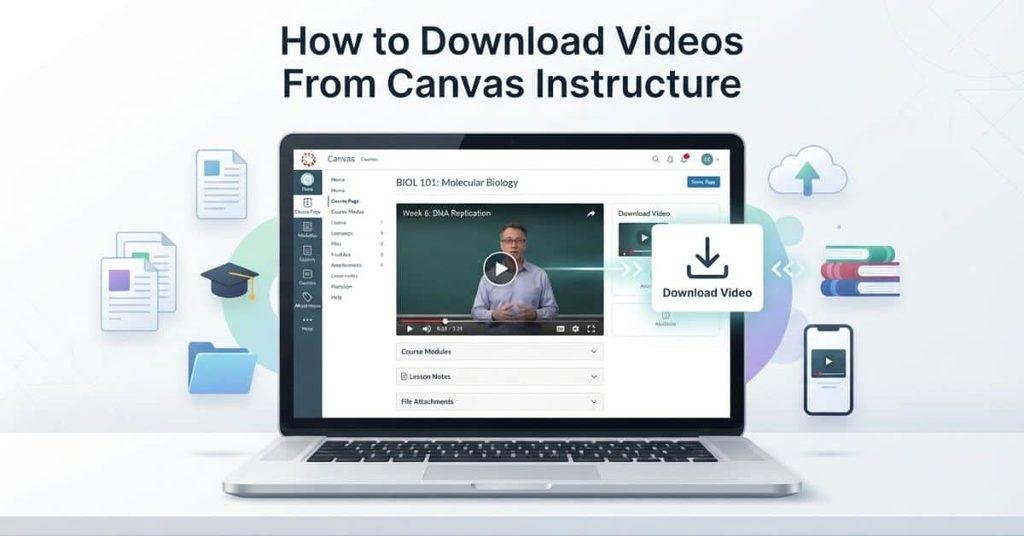
Ever needed to save a Canvas lecture video for offline viewing, but couldn’t find the download button?
If you’re wondering how to download videos from Canvas Instructure, the answer depends on the video source. Some course videos offer a direct download option, while others are available only for online streaming.
Canvas may host videos directly or connect with platforms such as Panopto, Kaltura, or Studio. Each platform can handle downloads differently. Your instructor may also control whether students can save course videos.
This guide explains the safest and simplest ways to check for a Canvas video download option. You’ll learn where to find download controls and what to do when they are missing.
We’ll also cover common access issues and troubleshooting steps. By the end, you’ll know when downloading is possible and when you should use Canvas’s built-in viewing options instead.
Can You Download Videos From Canvas?
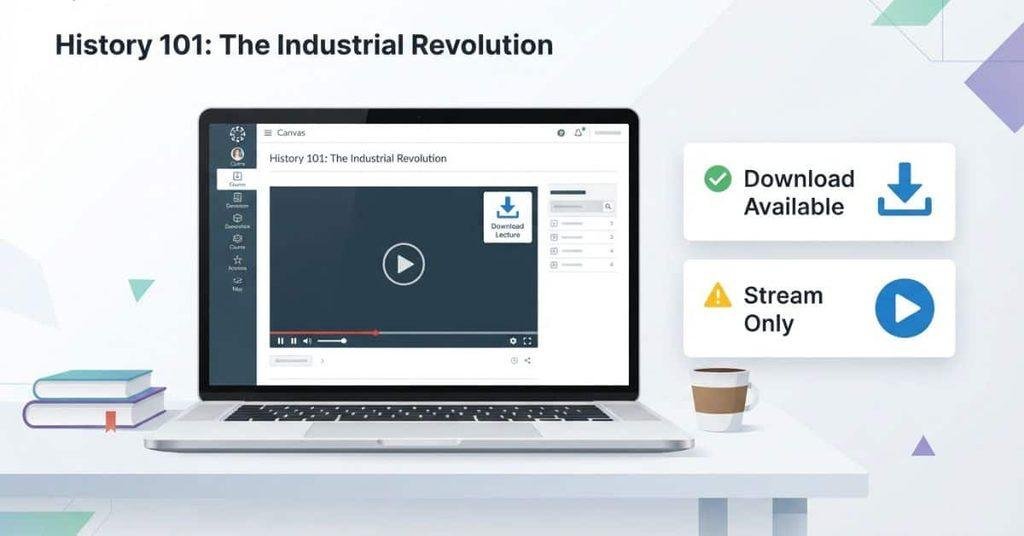
Yes, you can download some videos from Canvas, but not every course video supports downloads. The key factor is how the video was uploaded and whether downloading is enabled. If Canvas or the video platform provides an authorized download option, you can save the video for offline viewing.
If you also need to submit a video for a class, learn how to post a Kaltura video to a Canvas assignment with the correct submission steps.
When Can You Download a Canvas Video?
You can usually download a Canvas video when the course provides an official download option. Look for a Download button or menu near the video player. The available options can vary based on the video type and course settings.
A download may also be available when the video exists as a downloadable file. In some courses, your instructor may enable downloads for students. Integrated platforms can also provide their own authorized download controls.
Common situations include:
- A visible Download button appears below or beside the video.
- The instructor uploaded the video as a downloadable file.
- Your instructor enabled student downloads.
- An integrated video platform provides an authorized download option.
Always use the download method provided by Canvas or your course platform.
When Can’t You Download a Canvas Video?
You may not see a download option when the instructor or platform disables downloading. Some videos support streaming only, even though you can watch them normally through Canvas.
The video may also come from an external platform with separate access rules. Your college or university may further restrict downloads based on its course settings or licensing requirements.
You might be unable to download a video when:
- Downloading is disabled for students.
- The video is configured for streaming only.
- The video comes from an external platform.
- Your institution restricts video downloads.
In these situations, don’t assume the missing button means something is wrong with your browser.
Does Canvas Automatically Let Students Download Videos?
No. Being able to watch a video in Canvas doesn’t automatically mean you can download its original file. Canvas can provide access to video playback without giving students a downloadable copy.
The download option depends on the video’s source, permissions, and course settings. If no authorized download option appears, streaming may be the only available method.
Canvas supports different types of media, so our guide on how to embed media on Canvas can help when a video needs to appear directly inside a course page.
How to Download a Video From Canvas
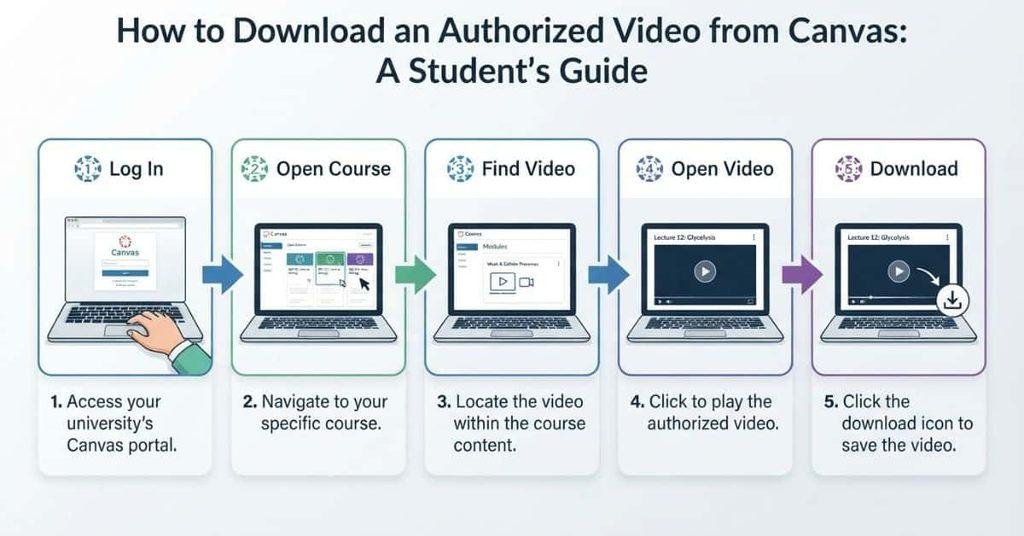
Downloading a Canvas video starts with finding the video and checking whether an authorized download option exists. The exact controls can vary by course and video platform. Follow these steps to check whether your video is available for download.
Step 1 — Log In to Canvas
Sign in to your Canvas account through your college or university’s Canvas portal. Use your regular student credentials and open your Canvas dashboard.
Step 2 — Open Your Course
Select the course that contains the video you want to download. Check that you’re viewing the correct course before searching for the lecture.
Step 3 — Find the Video
Your instructor may place videos in different areas of the course. Check these common locations:
- Modules: Look through weekly or lesson-based course modules.
- Pages: Open pages containing lecture notes or course resources.
- Assignments: Check assignments that include video instructions or lectures.
- Files: Look for uploaded video files or related resources.
- Course Media: Check the course’s media section if one is available.
If you don’t find the video immediately, review the module where the relevant lesson appears.
Step 4 — Open the Video
Open the video and allow the player to fully load. Wait until the available controls appear before checking for download options.
This matters because some video players display additional controls only after loading finishes. If the player doesn’t load correctly, refresh the page and try again.
Step 5 — Look for the Download Option
Check the video player’s controls for a Download button, download icon, or options menu. The exact location and appearance can vary between Canvas video players and integrated platforms.
If you don’t see a download option, don’t assume you missed it. The instructor or platform may have disabled downloads for that video.
Step 6 — Choose the Download Location
If an authorized download option appears, select it and choose where to save the video on your device. Your browser may automatically save the file to its default downloads folder.
Avoid using third-party tools to bypass download restrictions. Use the download feature provided by Canvas or the authorized video platform.
Step 7 — Verify the Download
After the download finishes, open the saved file on your device. Make sure the video plays correctly from beginning to end.
If the file doesn’t play, check whether the download completed successfully. You can also try downloading it again using the official option.
How to Download Canvas Videos From the Course Files
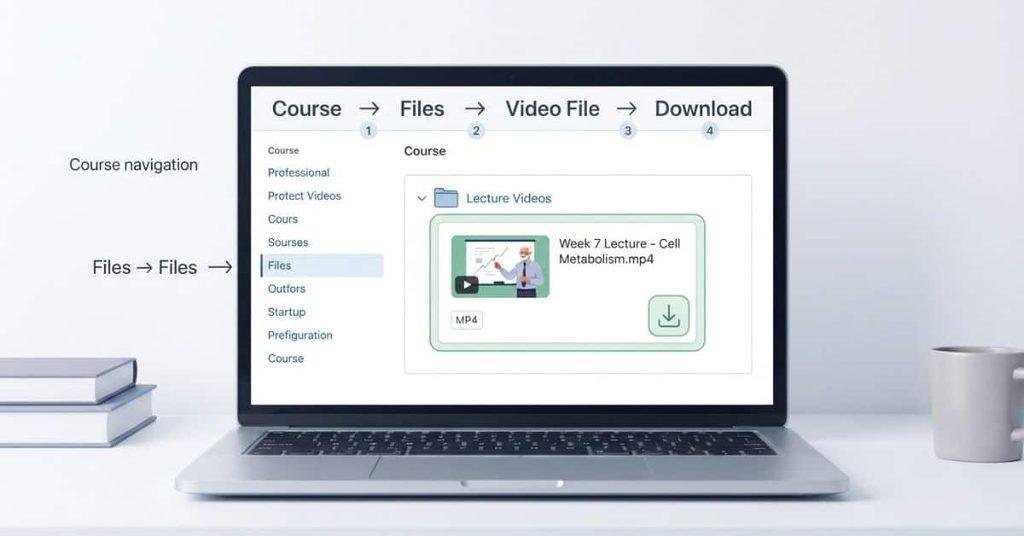
Some instructors upload videos directly to Canvas as course files. When this happens, you may be able to download the original video file without using the video player.
Open the Course Files Area
Open your Canvas course and look for Files in the course navigation menu. Some instructors may organize files inside folders instead of the main Files area.
If you don’t see Files, your instructor or institution may have restricted access. The video could also be linked from another course area.
Find the Video File
Browse the folders and look for the video using its file name. Common video formats include MP4, MOV, and other standard media formats.
Check folders related to lectures, lessons, weeks, or course resources. Your instructor may use a different folder structure.
Open the File
Select the video file to open it. Canvas may display the file in a preview window or open it through your browser.
Check the available file controls before taking any further action.
Download the Video
If Canvas provides an official Download option, select it to save the video. Your browser may ask where you want to store the file.
Use only the download option provided through Canvas or your authorized course platform.
What If Students Can’t Access Course Files?
File access depends on course permissions and how your instructor organized the course. An instructor may hide files while still linking them from a Module or Page.
If you can’t access the Files area, return to the course’s Modules or Pages. The video may be available through a different authorized location.
How to Download Canvas Videos From Modules
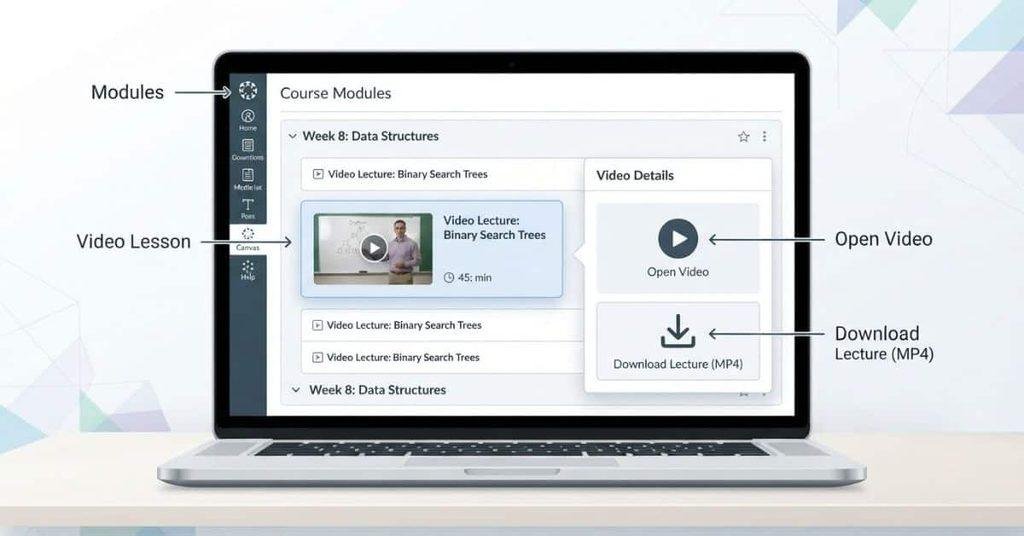
Many students find course videos through Modules rather than the Files area. Modules often organize videos alongside readings, assignments, and other lesson materials.
Open Modules
Open your Canvas course and select Modules from the course navigation menu. Find the module containing the lesson or week you need.
Find the Video Lesson
Review the items listed inside the module. Look for a video title, lecture recording, media link, or related course resource.
Open the Video
Select the video lesson and allow the video player to load completely. Wait for the available controls to appear.
Look for an Available Download Option
Check the video player or its options menu for an official Download button. The available controls depend on the video source and course settings.
If no download option appears, the video may support streaming only.
Check the Course Files if No Download Option Appears
If the video doesn’t offer a download option, check Files if you have access. The instructor may have uploaded the video there separately.
If you still can’t find a downloadable file, the video may not be available for student download.
How to Download Kaltura Videos From Canvas
Some Canvas courses use Kaltura to host and manage course videos. The download process depends on the permissions set for that specific video.
How Kaltura Videos Appear in Canvas
A Kaltura video may appear inside a Canvas Page, Module, Assignment, or other course area. You may see a Kaltura video player instead of the standard Canvas media player.
Open the video and wait for the player controls to load. This helps you identify which options are available for that specific video.
Check for the Kaltura Download Option
Look through the Kaltura player controls or options menu for a Download option. The exact location can vary based on the Kaltura interface and course setup.
If you see an official download control, you can use it to save the video.
Download the Video if the Owner Has Allowed It
If the video owner has enabled downloads, select the available download option. Follow the prompts to choose the file or quality, if those options appear.
Only use the download features provided by Kaltura or Canvas. Don’t try to bypass restrictions placed on the video.
What If There Is No Download Button?
No download button usually means the video owner or institution hasn’t enabled student downloads. The restriction can apply even when you can watch the video normally.
If you need an offline copy for legitimate coursework, ask your instructor whether they can provide an authorized download.
Internal link: Add a natural link here to How to Upload and Submit a Kaltura Video to a Canvas Assignment.
Why Can’t I Download a Video From Canvas?
A missing download option doesn’t always mean Canvas has a technical problem. The video owner, platform, or course permissions may control whether downloading is available.
There Is No Download Button
Check the video player’s options menu first. If no authorized download control appears, the video may not allow student downloads.
Try accessing the video from a desktop browser if you’re using the mobile app. If the option remains unavailable, ask your instructor about download access.
The Instructor Disabled Downloads
Instructors can control how students access course media. If downloads are disabled, you may still be able to stream the video.
There isn’t a legitimate Canvas setting that students can use to override this restriction. Ask the instructor for an approved copy if you need one.
The Video Is Stream-Only
Some videos are configured for streaming rather than file downloads. You can watch the video through the provided player, but an original video file may not be available.
Use the platform’s supported offline feature if one exists. Otherwise, continue watching the video online.
The Video Comes From an External Platform
Canvas may display videos hosted by another service. That platform can have its own download permissions and controls.
Open the video through its authorized interface and check its available options. If downloading isn’t offered, contact your instructor.
You Don’t Have Permission to Access the Original File
You may have permission to watch a video without permission to download its original file. This often happens when course media has restricted access.
Check that you’re signed into the correct student account. If access still seems limited, ask your instructor or institution for help.
The Canvas Video Player Is Not Loading Correctly
A broken or incomplete player can hide controls that normally appear. Refresh the page and make sure your browser has a stable internet connection.
You can also try another supported browser or clear temporary browser data. If the problem continues, contact your school’s Canvas support team.
The Canvas Mobile App Has Fewer Options
The Canvas Student app may not provide every control available through a desktop browser. This can depend on the video platform and its integration with Canvas.
Try opening the course through a desktop browser and check the video’s official download controls there. If no option appears, the restriction may apply across devices.
How to Fix a Canvas Video Download That Isn’t Working
A Canvas video download can fail because of browser issues, connection problems, or course permissions. Try these simple checks before assuming the video cannot be downloaded.
Refresh the Canvas Page
Refresh the course page and wait for Canvas to load completely. Then open the video again and check whether the download control appears.
Reopen the Video
Close the video player and open it again from the course. Allow the player to load fully before checking its controls.
Try Canvas in a Desktop Browser
If you’re using the Canvas Student app, try accessing the course through a desktop browser. The desktop version may display controls that aren’t available in the mobile app.
Check Your Internet Connection
A weak connection can prevent the video player or its controls from loading correctly. Make sure your connection is stable, then reload the page.
Try a Supported Browser
Try Canvas in another current browser if the video still doesn’t work. This can help identify whether the issue comes from your current browser.
Check Whether the Download Option Is Actually Enabled
Look carefully through the video player’s available controls and options menu. If there’s no authorized download option, downloading may be disabled for that video.
Contact Your Instructor if the Option Is Missing
If other students can access a download but you cannot, contact your instructor or course support team. They can confirm whether downloads are allowed and provide an authorized copy when appropriate.
After watching or downloading course materials, use our Canvas Grade Calculator to estimate your current course grade and see what scores you may need.
Can You Download a Canvas Video Without a Download Button?
Usually, you should not assume that a Canvas video can be downloaded without an official download button. Watching a video through Canvas does not automatically give you access to its original file.
A missing download button may mean the instructor, video owner, or institution hasn’t enabled downloads. The video may also be configured for streaming only.
If the video belongs to your instructor or institution, the best solution is to ask for an authorized copy. Your instructor can provide the file or enable an appropriate download option if course policies allow it.
Avoid treating browser tricks, developer tools, screen-recording workarounds, or third-party downloaders as standard solutions. These methods can bypass access controls or conflict with course and institutional policies.
For reliable access, use the download or offline features officially provided by Canvas or the integrated video platform.
Canvas Video Download vs. Offline Viewing
Downloading and offline viewing are not always the same thing. Understanding the difference helps you know what happens after you select an available option.
| Option | What It Means |
|---|---|
| Download | Saves an actual video file to your device. |
| Stream | Plays the video online through the course or video player. |
| Offline feature | Allows supported content to be viewed without an active internet connection. |
| Course Files download | Downloads a video file that was uploaded directly to Canvas Files. |
An offline feature doesn’t always create a normal video file you can move between devices. Some platforms manage offline content inside their own apps.
Where Are Downloaded Canvas Videos Saved?
The location depends on your device and browser. If you can’t find the file, check your device’s default downloads location first.
Windows Downloads Folder
On Windows, downloaded Canvas videos usually appear in your browser’s Downloads folder. You can also check your browser’s download history to locate the file.
If you selected a different location during the download, check that folder instead.
Mac Downloads Folder
On a Mac, your browser commonly saves downloaded videos in the Downloads folder. Open Finder and select Downloads from the sidebar.
You can also use your browser’s download history to locate the file.
iPhone/iPad Files App
On iPhone or iPad, downloaded files can appear in the Files app. Check Downloads under On My iPhone/iPad or iCloud Drive, depending on your browser settings.
The exact location can vary based on where you chose to save the file.
Android Downloads
On Android, check the Downloads folder using your device’s Files or file manager app. Your browser may also show the downloaded video in its download history.
If you selected another storage location, check that folder instead.
What If You Can’t Find the Downloaded Video?
Start by checking your browser’s download history. It can show whether the download finished and where the file was saved.
If the download isn’t listed, try the authorized download option again. Make sure you have enough storage space and that your browser allows file downloads.
Is It Allowed to Download Videos From Canvas?
Yes, downloading a Canvas video can be allowed when the course provides an official download option. However, access to a video doesn’t automatically give you permission to save, copy, or share it.
Downloading When Canvas Provides a Download Option
If Canvas or the integrated video platform provides a Download button, you can generally use that authorized feature. Follow the course platform’s instructions and save the file for your intended coursework.
Keep in mind that permission to download doesn’t necessarily mean you can redistribute the video.
Instructor and Institution Restrictions
Your instructor or institution may restrict downloads for course videos. These restrictions can depend on course policies, licensing, privacy, or how the video platform is configured.
If downloading isn’t available, don’t try to bypass the restriction. Ask your instructor whether an authorized copy is available.
Copyright and Course Materials
Course videos can contain lectures, presentations, recordings, or other copyrighted materials. Your college or university may have specific rules for using these materials.
For everyday coursework, use downloaded videos only as permitted by your course and institution. When you’re unsure, check the course syllabus or ask your instructor.
Don’t Share Course Videos Without Permission
A downloaded video should not automatically be uploaded to social media, shared publicly, or sent to other people. Your permission to view or download course content may not include permission to redistribute it.
Pro Tip: Treat downloaded course videos like other class materials. Keep them for your authorized coursework unless your instructor gives you permission to share them.
Conclusion
Downloading a Canvas video depends on the video source, course settings, and available download permissions. We covered how to find authorized downloads, troubleshoot missing options, and access videos across different devices.
If you’re learning how to download videos from Canvas Instructure, always use the download features provided by Canvas or the video platform. A missing download button may mean the video is restricted or streaming-only.
For Kaltura and other integrated platforms, download availability can also depend on the video owner. When you’re unsure, ask your instructor for an authorized copy.
Found this guide helpful? Share it with classmates who may need it. You can also explore our other Canvas guides for more practical student tips.
Frequently Asked Questions
Open your Canvas course and find the video through Modules, Pages, Assignments, or Files. Open the video and look for an official Download option. If one appears, follow the prompts to save the file. If no download option exists, the video may be streaming-only or restricted by the instructor.
Students can download Canvas videos when the instructor, video owner, or platform provides an authorized download option. Not every Canvas video supports downloads. Some videos only allow online streaming, even when students can watch them normally.
The video may not allow downloads, or the instructor may have disabled the option. External video platforms can also control download permissions. Try opening Canvas in a desktop browser and checking the player’s options. If the download option remains unavailable, ask your instructor for an authorized copy.
Open the course video and check the player for an official Download button or menu option. Select it and choose where to save the file if prompted. After downloading, open the file and confirm that it plays correctly.
Open the Canvas Student app and find the course video. Check the video player for an official Download or Save option. Mobile options can differ from desktop. If no download option appears, try Canvas through a desktop browser or ask your instructor about offline access.
You shouldn’t assume that a video can be downloaded without an official download option. A missing button may indicate that downloads are disabled or that the video supports streaming only. Don’t use methods designed to bypass these restrictions. Ask your instructor for an authorized copy instead.
Open the Kaltura video through Canvas and check its player controls or options menu. If the video owner has enabled downloads, an official download option should be available. If you don’t see one, the owner or institution may have restricted downloads.
On Windows and Mac, downloaded videos commonly appear in the browser’s Downloads folder. On iPhone or iPad, check the Files app. On Android, check the Downloads folder or your browser’s download history.
Yes, if you have an authorized video file or the platform supports official offline viewing. Simply streaming or loading a video doesn’t necessarily create a playable file. Offline availability depends on the video platform and its settings.
Yes. Download availability can depend on the instructor’s course settings and the video platform being used. An instructor can provide streaming access without providing a downloadable video file. If you need offline access, ask whether an authorized download or copy is available.

We are the Canvas Academic Team, a developer team focused on building simple and practical tools that help students succeed academically. This platform was created specifically for Canvas LMS students to make grade tracking, GPA calculations, exam planning, and academic management easier and more efficient.
Our focus is on creating fast, accurate, and student-friendly educational tools along with helpful learning resources that improve productivity and reduce academic stress.
Through CanvasGradeCalculator.com, our goal is to continue building useful resources that help students study smarter, stay organized, and achieve better academic results.

