

Table of Contents
Introduction
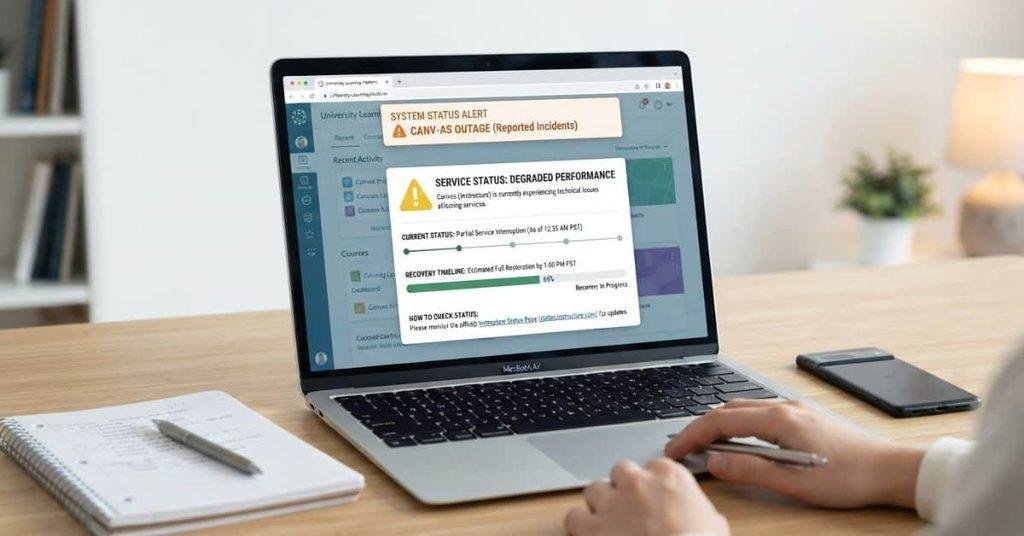
Is Canvas suddenly refusing to load when you need to submit an assignment or take a quiz?
If you’re wondering when will Canvas be back up, the answer depends on the cause and current outage status. Canvas may recover within minutes, or a larger issue may take longer.
For college students, even a short Canvas outage can create real stress. You may need to check grades, upload coursework, join a discussion, or complete a timed quiz.
This guide explains how to check if Canvas is down and find reliable outage updates. You’ll also learn how to tell when Canvas is back up and what to do while you wait.
By the end, you’ll know where to check for restoration information without constantly refreshing the Canvas login page.
Is Canvas Down Right Now?
If Canvas suddenly stops loading, first check whether the problem affects everyone or only your account. A widespread outage usually affects multiple users, while local issues may affect only your device or connection. Checking the right sources can save time and prevent repeated login attempts.
How to Check if Canvas Is Down
Start with official Canvas status information, which can show active incidents and service updates. You can also try the Canvas login page to see whether the platform loads normally.
Your school may provide a separate Canvas access page or status notice. Check that page for institution-specific problems or announcements.
It also helps to ask classmates whether Canvas works for them. If several students report the same issue, the problem may extend beyond your device. Reliable outage reports can provide another quick signal when an issue affects many users.
How to Tell if Canvas Is Down for Everyone
A platform-wide outage affects Canvas services across many schools and users. You’ll often see reports from students outside your institution when this happens.
A school or institution outage may affect only your college or university. Canvas can work normally for students at other schools during this type of issue.
A course-specific problem affects one class, assignment, quiz, or course area. Other Canvas pages may continue working normally.
An individual internet or browser problem usually affects only your device. Testing another website or device can help identify this situation.
Canvas Is Not Working for Me — Is It Actually Down?
Before assuming Canvas is experiencing an outage, try a few quick checks. Confirm your internet connection and open another website. Then try Canvas in a different browser.
If you normally use the Canvas app, open Canvas through your browser instead. You can also test another device if one is available. These quick checks can help separate a Canvas outage from a local access problem.
Avoid spending too much time troubleshooting if other students also report the same outage. In that case, checking official updates is usually more useful.
When Will Canvas Be Back Up?
So, when will Canvas be back up? There’s no single answer because each outage has different circumstances. Canvas may recover quickly during a limited technical issue, while larger incidents can require more time.
The recovery time can depend on several factors:
- Cause: Different technical problems require different fixes.
- Scope: A widespread outage may take longer than a limited issue.
- Maintenance: Planned maintenance follows a scheduled timeframe when available.
- Technical issue: Engineers may need to identify and resolve an unexpected problem.
- Recovery progress: Services may return gradually as systems recover.
Avoid relying on an assumed average outage time. Instead, check the latest incident information for the most accurate update.
How Long Does a Canvas Outage Usually Last?
Canvas outages don’t follow one fixed timeline. The duration depends on what caused the disruption and how widely it affects Canvas services.
A minor issue may resolve relatively quickly, while a larger technical incident may require additional investigation and recovery work. Planned maintenance can also have a stated schedule, but actual service restoration can vary.
The most reliable approach is to follow official updates rather than estimate the recovery time yourself. Look for changes in the incident status as the response progresses.
How to Find Canvas’s Estimated Restoration Time
Check the official Canvas status information for the active incident. Look for details such as the current incident status, recent updates, and any expected resolution time.
Pay attention to terms such as investigating, identified, monitoring, or resolved. These updates can show how the response is progressing.
If an expected resolution time appears, treat it as an estimate rather than a guarantee. Continue checking for recovery updates if Canvas remains unavailable after that time.
What If Canvas Has Not Given a Restoration Time?
Sometimes Canvas may report an active issue without providing an estimated restoration time. This usually means there isn’t enough information to give students a reliable timeframe yet.
Don’t repeatedly refresh the login page. Instead, check for new incident updates and monitor your school’s announcements.
If you have an upcoming assignment or quiz, contact your instructor or school support team when appropriate. Keep screenshots or other evidence of the access problem if you need to explain a missed deadline.
Most importantly, don’t assume that a missing ETA means Canvas won’t return soon. It simply means [placeholder: no reliable restoration estimate has been announced].
How to Check When Canvas Will Be Back Online
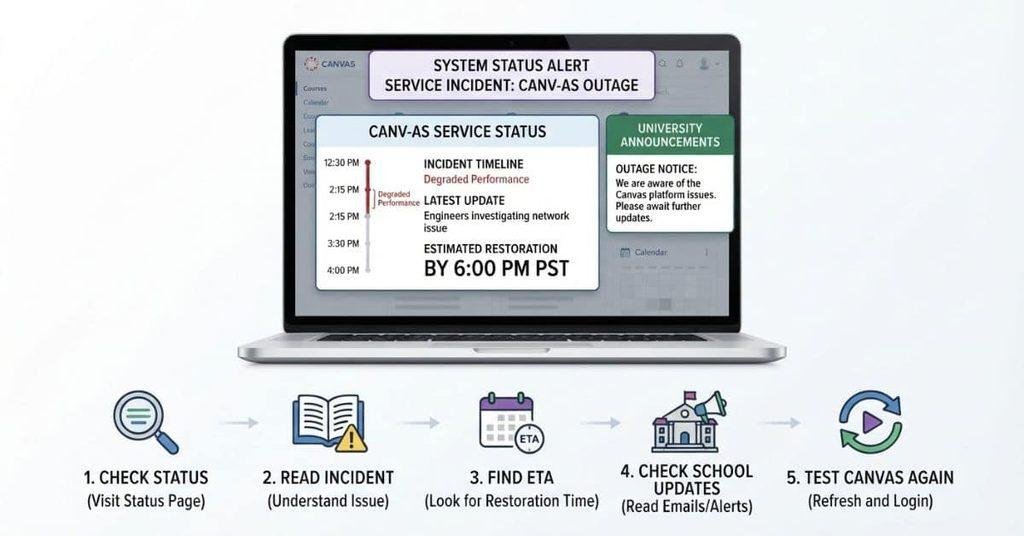
When students search when will Canvas be back online, the best approach is to check reliable updates instead of guessing. Follow these steps to find the latest information and determine whether Canvas should be available again.
Step 1 — Check Canvas Status
Start with Canvas’s official status information. Look for any active incidents affecting Canvas services. This gives you a better answer than repeatedly refreshing the login page.
Step 2 — Look for the Current Incident
If an outage appears, open the incident details. Check which Canvas services are affected and whether the issue is still active.
The incident scope can help explain whether the problem affects many users or a specific service.
Step 3 — Check the Latest Update
Read the most recent incident update carefully. Updates may explain whether the issue is being investigated, addressed, or monitored.
Always use the newest update when deciding when is Canvas expected to be back up. Older updates may no longer reflect the current situation.
Step 4 — Look for an Estimated Resolution
Check the incident details for an estimated resolution or expected recovery time. If Canvas provides one, remember that it’s an estimate rather than a guaranteed return time.
If no timeframe appears, don’t assume Canvas has stopped working indefinitely. The support team may still be investigating the issue.
Step 5 — Check Your School’s Canvas Updates
Your college or university may share additional information about Canvas access. Check your school’s technology announcements, student portal, or Canvas support page.
This step matters when the problem affects only your institution. Your school may also provide instructions for assignments or quizzes affected by the outage.
Step 6 — Test Canvas Again After an Update
Once an update indicates recovery, return to Canvas and try loading your course. Open the specific page, assignment, or quiz you need.
If Canvas still doesn’t work, wait for another update and perform a few basic connection checks. This helps answer when should Canvas be back up based on the latest available information.
When Did Canvas Go Down?
Knowing when Canvas went down can help you understand whether an outage affected an important deadline. The official incident information usually provides the clearest record of when the disruption began.
How to Find When the Canvas Outage Started
Check the official Canvas status information for the active incident. Look for the incident’s reported start time or the earliest update describing the problem.
If the outage remains ongoing, compare the listed updates. This can show when Canvas first identified the issue and how the situation has changed.
Don’t rely only on the time you personally noticed the problem. Canvas may have experienced an issue before you tried to access your course.
Why Does the Canvas Outage Start Time Matter?
The outage start time can provide useful context when coursework becomes affected. It can help you explain why you couldn’t access Canvas during an important academic task.
This matters especially when you face:
- Assignment deadlines: You may be unable to upload required work.
- Quizzes: An outage can interrupt access to timed assessments.
- Exams: Students may lose access during an online exam.
- Discussion posts: You may be unable to submit required responses.
- Submission problems: Canvas may fail while processing or confirming a submission.
Keep relevant screenshots and note when you experienced the problem. Your instructor or school support team may request these details.
How to Know When Canvas Is Back Up
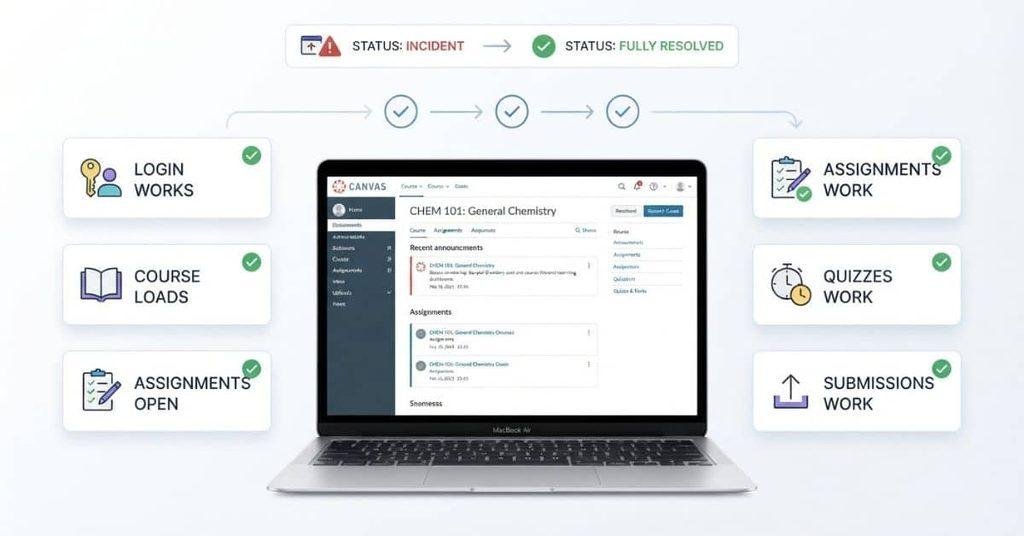
Seeing the Canvas homepage load doesn’t always mean everything has fully recovered. A better check involves the official status and the specific course features you need.
Check the Official Status
Start with the latest Canvas status update. Look for language indicating that the affected service has recovered or the incident has been resolved.
This provides a stronger signal than checking one page on your device.
Open Canvas and Log In
Visit Canvas and sign in normally. Make sure your dashboard loads without unusual errors or repeated login requests.
If the login works, continue testing the specific course you need.
Test Your Course
Open the affected course and move through a few pages. Check whether announcements, modules, or other course content load correctly.
A working dashboard alone doesn’t confirm that every course feature has recovered.
Check Assignments and Modules
Open the assignment, module, or other area you need. Confirm that the relevant content appears and that navigation works normally.
Pay attention to missing pages, loading errors, or features that remain unavailable.
Confirm That Submissions Work
If you need to submit work, test the submission process when appropriate. Check that Canvas accepts the file and displays a successful submission confirmation.
A status update may say the service has recovered while some features still behave unexpectedly. If submissions continue failing, save evidence and contact your instructor or school support team.
What Does “Canvas Is Back Up” Actually Mean?
When Canvas reports that a service is restored, it doesn’t always mean every feature works normally. Recovery can happen across different parts of the platform.
For example, the service may be restored while some students still experience access problems. Login working confirms you can enter Canvas, but it doesn’t confirm your courses load correctly.
Your courses loading means you can access course content normally. Assignments working means you can open relevant coursework and interact with it. Submissions working confirms Canvas accepts and records your work.
The mobile app working is another separate check. The app may behave differently from Canvas in a web browser during recovery.
Canvas Loads but My Course Doesn’t
If Canvas opens but your course doesn’t load, the platform may still have a partial service problem. Try opening another course if you have access to one.
If other courses work normally, the issue may involve that specific course rather than the entire Canvas platform. Your instructor or school support team can provide further guidance.
Canvas Works but I Still Can’t Submit
If Canvas loads normally but a submission fails, don’t assume the entire platform is down. The problem may affect the assignment or submission feature specifically.
Check whether other course pages work and whether Canvas shows any error message. Keep a screenshot of the failed submission and note the time it happened.
If the deadline is close, contact your instructor promptly. This creates a record that you attempted to submit while the issue was occurring.
What to Do While Canvas Is Down
A Canvas outage can become stressful when an assignment or assessment deadline is approaching. Focus on protecting your work and documenting the problem while you wait for service to return.
Save Your Assignment Work Offline
Write your assignment in Word, Google Docs, or another reliable editor. Saving your work outside Canvas prevents an outage from causing you to lose your progress.
Keep a timestamped copy when possible. This can help show when you completed or attempted to complete your work.
Take Screenshots of Important Errors
Capture clear screenshots whenever Canvas displays an error or prevents access. Include important details such as:
- Error message
- Assignment page
- Due date
- Failed submission
- Time and date
These screenshots can provide useful evidence if the outage affects your deadline.
Check Your Instructor’s Communication
Your instructor may provide alternative instructions during a Canvas outage. Check your email, course announcements, and school notifications for updates.
Look for instructions about submitting work through another method. Follow your instructor’s directions rather than choosing an alternative submission method yourself.
Don’t Keep Refreshing for Hours
Repeatedly refreshing Canvas won’t make an outage recover faster. It can also waste time you could spend protecting your assignment and checking official updates.
Check for meaningful status updates instead. Then test Canvas again after the service shows recovery.
Keep Evidence if a Deadline Is Affected
Save screenshots, assignment files, and relevant communication if you cannot submit because of a verified Canvas outage. Record when you experienced the problem and when you attempted to submit.
This documentation can help your instructor understand what happened. It may also support your request for an alternative submission method or deadline adjustment.
What If My Canvas Assignment Is Due While Canvas Is Down?
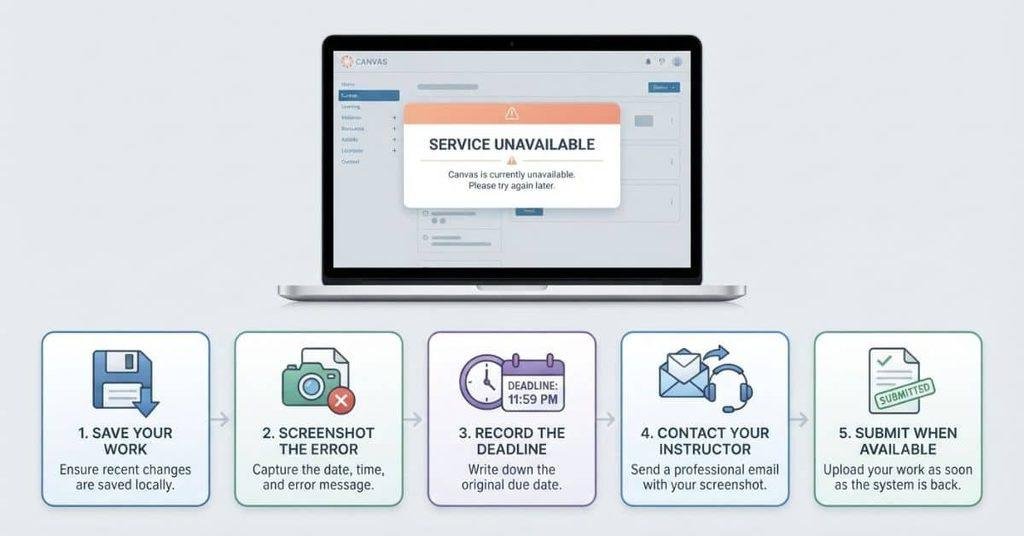
A Canvas outage becomes more urgent when an assignment deadline is approaching. Stay focused on documenting the problem, protecting your work, and following your instructor’s instructions.
Check Whether the Assignment Deadline Has Passed
First, confirm the assignment’s listed due date and time. Check your course page, syllabus, or other official course information if Canvas remains accessible.
Don’t assume the deadline has changed because Canvas is experiencing an outage. The original deadline may still apply unless your instructor or school provides different instructions.
Document the Canvas Outage
Take screenshots showing the Canvas error, assignment page, and listed deadline. Include the date and time whenever possible.
Also check official Canvas status information for an active incident. This provides additional context if the outage affects your submission.
Save Your Completed Work
Keep a complete copy of your assignment outside Canvas. Use Word, Google Docs, or another reliable editor.
Save the final file before the deadline whenever possible. This ensures your completed work remains available even if Canvas stays unavailable.
Contact Your Instructor
If you cannot submit your assignment, contact your instructor promptly. Briefly explain the problem and include relevant screenshots or other evidence.
Avoid waiting until Canvas returns if the deadline is approaching. Early communication gives your instructor more context about the situation.
Follow Any Alternative Submission Instructions
Your instructor may provide another way to submit your assignment. This could include instructions through email or another school-approved system.
Follow the specific instructions provided by your instructor or institution. Don’t choose an alternative method without guidance when none has been provided.
Don’t Assume the Deadline Automatically Changes
A Canvas outage does not automatically mean your assignment deadline changes. Instructors and institutions may have different policies for technology-related disruptions.
Look for an official announcement before assuming you have extra time. If no announcement exists, contact your instructor and ask how you should proceed.
What If Canvas Comes Back After My Assignment Deadline?
If Canvas returns after your deadline, act quickly. The next steps can help you complete the submission and document what happened.
Try Submitting Immediately
Log into Canvas and open the affected assignment as soon as the service returns. Submit your completed work without unnecessary delay.
If the assignment remains available, complete the submission process normally.
Check Whether Canvas Accepts the Submission
Confirm that Canvas successfully records your submission. Look for a submission confirmation, timestamp, or other indication that your work was received.
Don’t assume the upload succeeded simply because the page stopped showing an error.
Save Proof of the Original Problem
Keep your screenshots, saved assignment file, and relevant outage information. These records can help explain why your submission occurred after the listed deadline.
Record the approximate time you first encountered the Canvas problem when possible.
Contact Your Instructor if You Were Unable to Submit
If Canvas rejects your late submission or the assignment remains inaccessible, contact your instructor promptly. Explain that you attempted to submit but encountered an outage.
Include relevant evidence rather than relying only on a verbal explanation.
Follow Your School’s Outage Policy
Check your college or university’s technology and academic policies for guidance on Canvas disruptions. Some schools may have specific procedures for documented technology outages.
If your instructor provides different instructions, follow the official guidance that applies to your course.
Canvas Is Back Up but Still Isn’t Working
Sometimes Canvas returns after an outage, but certain features may still fail. If you’re wondering when will Canvas work again, first confirm whether the issue affects your device, course, or the wider platform.
Refresh Canvas
Refresh the Canvas page after an outage update. This can load the latest version of the page after service recovery.
Avoid refreshing continuously. Try again after a meaningful status update instead.
Sign Out and Back In
Sign out of Canvas and then log back into your account. This can help establish a fresh session after service recovery.
Check whether your dashboard and courses load normally afterward.
Try a Different Browser
Open Canvas in another supported browser if your current browser still shows errors. This helps determine whether the problem is limited to your current browser session.
If Canvas works elsewhere, the outage may no longer be affecting the platform itself.
Try Canvas in a Private/Incognito Window
Open a private or incognito browser window and sign into Canvas. This provides a fresh browsing session without using your normal browser session.
If Canvas works there, your regular browser session may need further attention.
Try the Canvas Student App
If you normally use a browser, try the Canvas Student app instead. You can also switch back to your browser if the app doesn’t work.
Testing both can help determine whether the problem affects a specific access method.
Check Whether the Problem Affects Only One Course
Open another course if possible. If other courses load normally, the problem may involve one course rather than Canvas as a whole.
Contact your instructor or school support team if the affected course remains unavailable.
Check for a Continuing Incident
Return to the official Canvas status information and read the newest incident update. A service may appear restored while engineers continue monitoring specific features.
For deeper troubleshooting, see our [Why Is Canvas Down?] guide, which covers common causes and more detailed solutions.
When Will Canvas Be Fixed?
If you’re searching when will Canvas be fixed, the latest official incident information provides the best answer. Avoid relying on guesses or unofficial recovery times.
Check the Latest Incident Update
Review the newest update for the active Canvas incident. It may explain what engineers are addressing and whether recovery is progressing.
Use the most recent information because earlier updates may no longer reflect the current situation.
Look for a Resolution Announcement
Look for an update stating that the affected service has been restored or the incident has been resolved. Then test Canvas yourself to confirm that the features you need work correctly.
A resolution announcement is stronger evidence than simply seeing the Canvas homepage load.
Understand That ETAs Can Change
An estimated restoration time is not a guarantee. Technical incidents can take longer than initially expected when recovery requires additional work.
Treat an ETA as a current estimate and continue checking official updates if Canvas remains unavailable.
What If Canvas Says “Resolved” but You Still Have Problems?
First, refresh Canvas and sign in again. Then test another browser, the Canvas Student app, or another course.
If the same problem continues, check whether a new incident has appeared. Contact your school’s Canvas support team if the official status says resolved but your course or required feature still doesn’t work.
If an assignment deadline is affected, keep screenshots and your completed work. Contact your instructor promptly and explain the problem with supporting evidence.
When Is Canvas Coming Back? Quick Status Checklist
If you’re searching when is Canvas coming back, use this quick checklist before contacting support. It helps you find the latest information and protect your coursework during an outage.
- Canvas appears down → Check the official Canvas status information.
- Check the latest incident update → Read the newest information about the outage.
- Look for an ETA → Check whether Canvas has provided an estimated restoration time.
- Check your school’s announcements → Look for emails, student alerts, or technology updates.
- Save your coursework → Keep completed assignments outside Canvas.
- Document errors → Screenshot error messages, deadlines, and failed submissions.
- Contact your instructor → Reach out if the outage affects an important deadline.
- Test Canvas again → Check your course and required features after recovery.
Canvas Down vs. Your Internet Is Down
Not every Canvas problem means the platform itself is experiencing an outage. This comparison can help you identify where the problem may be occurring.
| Problem | What You May Notice |
|---|---|
| Canvas outage | Other websites work, but Canvas doesn’t. |
| Internet problem | Multiple websites and online services fail. |
| Browser issue | Canvas works normally in another browser. |
| App issue | Canvas works in your browser, but the app doesn’t. |
| Course-specific issue | Other Canvas courses work normally. |
| School-specific issue | Other Canvas users at your institution are also affected. |
When several Canvas users experience the same problem, check official status information first. If only your device has trouble, test your internet connection, browser, and app before assuming Canvas is down.
Introduction
Canvas outages can be frustrating, but knowing where to check can save time and protect your coursework. This guide explained when will Canvas be back up, how to check outage updates, and what to do while you wait.
Always check official status information before assuming the problem is on your device. Look for incident updates, restoration estimates, and announcements from your school. If a deadline is affected, save your work and document any errors.
Canvas may return gradually, so test your course and submission features after recovery. If problems continue, contact your instructor or school support team.
Have you experienced a Canvas outage before? Share what happened in the comments. You can also explore more beginner-friendly guides and resources on our website.
Frequently Asked Questions
Canvas will be back up when the current outage is resolved. Check the official Canvas status page for incident updates and any estimated restoration time. If no ETA appears, continue checking for new updates. Your school may also share outage information through email or student announcements.
There is no single recovery time for every Canvas outage. The timing depends on the cause and severity of the problem. Check official status updates for the latest information. Avoid relying on guesses about when Canvas will return.
Canvas should return after the technical issue causing the outage gets resolved. Check the latest incident update for progress. If Canvas shows a resolved status but still doesn’t work, test your browser, app, and course access.
Canvas will be back online after the affected services recover. Check the official status information for the current incident and estimated resolution. Remember that some features may return before others.
If Canvas is currently down, check its latest status update to see whether an ETA exists. Your college may also provide updates through its technology department. Keep your coursework saved locally while waiting.
Canvas should become available once the outage gets resolved. Check the official status page rather than repeatedly refreshing the login screen. If your school reports a separate issue, follow its updates too.
Canvas may work again once the platform fully recovers. However, individual features can sometimes take longer to return. Test your course, assignments, and submission features after Canvas appears online.
Look for an estimated restoration time in the latest Canvas incident update. An ETA can change as technicians investigate the problem. If no estimate appears, monitor official updates and your school’s announcements.
There is no fixed time when Canvas should be back up after every outage. Recovery depends on the issue affecting the platform. Check current status information for the most reliable estimate.
Check the current or recent Canvas incident details for the outage start time. The incident timeline can show when the problem began and when updates were posted. This information can also help document an assignment deadline issue.
Check the official status information first. Then log into Canvas and open your course. Test important features, such as assignments, quizzes, modules, and submissions. A working login alone doesn’t always mean every feature has recovered.
Save your completed work outside Canvas and take screenshots of any errors. Record the assignment deadline and when you experienced the problem. Contact your instructor as soon as possible. Follow any alternative submission instructions they provide, and don’t assume the deadline automatically changes.

We are the Canvas Academic Team, a developer team focused on building simple and practical tools that help students succeed academically. This platform was created specifically for Canvas LMS students to make grade tracking, GPA calculations, exam planning, and academic management easier and more efficient.
Our focus is on creating fast, accurate, and student-friendly educational tools along with helpful learning resources that improve productivity and reduce academic stress.
Through CanvasGradeCalculator.com, our goal is to continue building useful resources that help students study smarter, stay organized, and achieve better academic results.

