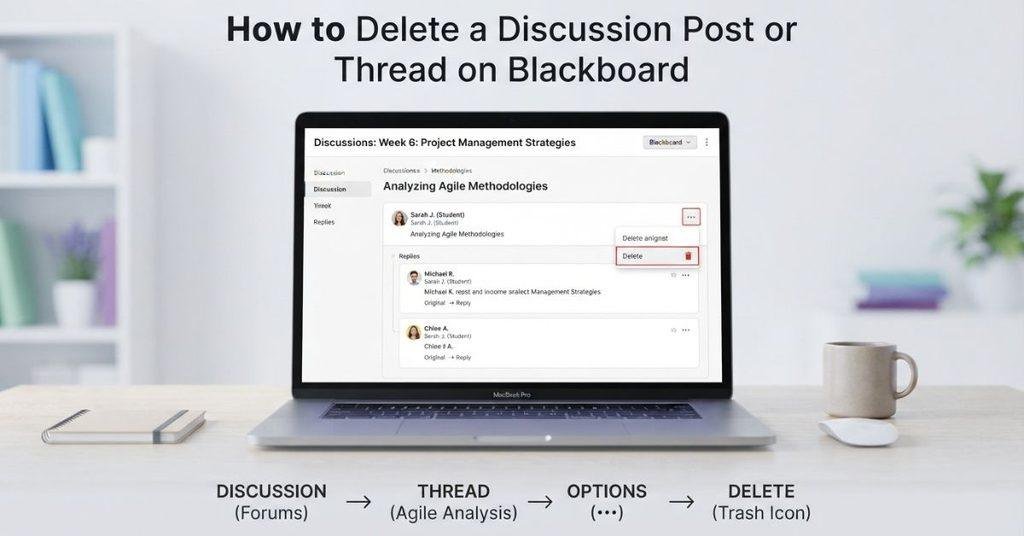
Table of Contents
Introduction
What if you posted something on Blackboard and now need to remove it before your instructor sees it?
For many students, discussion boards are a regular part of online and college courses. A simple mistake can leave you wondering how to remove an old reply, post, or entire thread. How to delete a discussion post or thread on Blackboard depends on your course settings and user permissions.
Blackboard does not give every student the same deletion options. Your instructor may allow students to delete their own posts. In other courses, you may only be able to edit a post or ask your instructor to remove it.
This guide explains the different ways Blackboard discussion deletion can work. You will learn how to check for the Delete option and what to do when it is unavailable.
We will also explain the difference between deleting a post and deleting a thread. By the end, you will know which options to look for and when instructor help is required.
How to Delete a Discussion Post on Blackboard
If you need to remove a discussion response, Blackboard may let you delete it directly. The available option depends on your course settings and Blackboard version. If your instructor has restricted deletion, you may not see a Delete button.
Open Your Blackboard Course
Sign in to Blackboard and open the course containing the discussion post. From your course homepage, look for the area where your instructor placed course discussions.
The location can differ between Blackboard course layouts. Check the course menu, navigation panel, or content area for Discussions.
Open the Discussion
Open the Discussions area and find the discussion where you posted your response. Select the discussion title to view its threads and replies.
If your course uses a different layout, your instructor may place the discussion inside a content folder. Follow the course navigation to locate the correct activity.
Find Your Discussion Post
Look through the discussion until you find the post you want to remove. Make sure you select your own post before opening its options.
This step matters because Blackboard may display different actions depending on your role and the discussion settings.
Open the Post Options
Look for the More Options, three-dot menu, or another options button near your post. Select it to view the actions available for that post.
The exact button and menu design can vary by Blackboard version, course setup, and discussion settings.
Select Delete if Available
If Blackboard allows you to remove the post, select Delete from the available options. Some courses may allow students to edit their posts but not delete them.
If you do not see Delete, do not assume something went wrong. Your instructor may have disabled student deletion for that discussion.
Confirm the Deletion
Blackboard may ask you to confirm before removing the discussion post. Review the confirmation message and select the option to proceed if you are sure.
After deletion, check the discussion again to confirm that the post no longer appears. If no deletion option exists, contact your instructor and ask whether they can remove it.
How to Delete a Thread on Blackboard
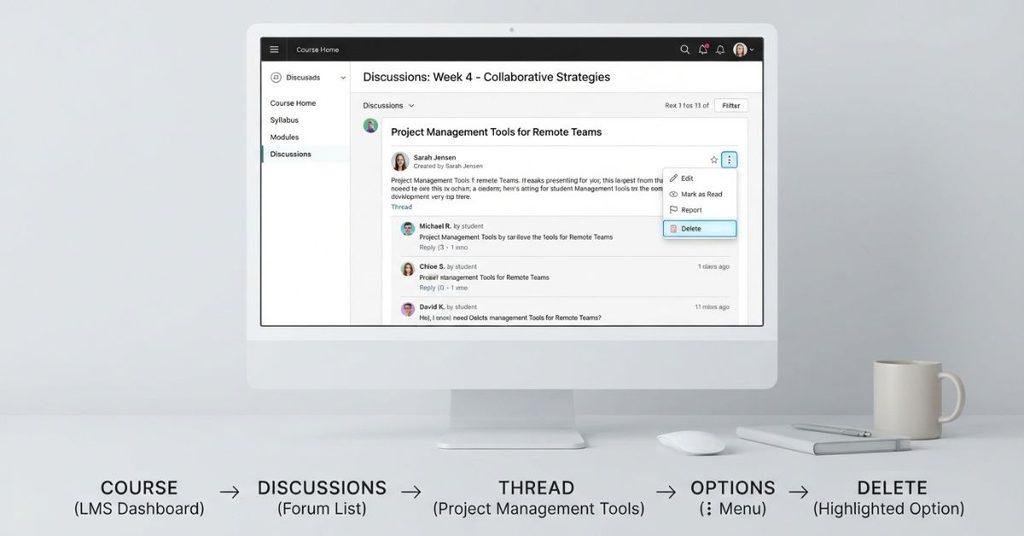
If you created a discussion thread and want to remove it, Blackboard may provide a Delete option. However, student permissions vary by course, discussion settings, and Blackboard version.
Open the Discussion Board
Sign in to Blackboard and open the course containing your discussion thread. Navigate to the Discussions area or the location provided by your instructor.
Some courses place discussions inside a specific content area. If you cannot find the discussion board, check your course navigation or assignment instructions.
Find Your Thread
Locate the thread you created and open it. Check the thread title and content before taking any action.
Make sure you have selected your own thread. Blackboard may show different options based on your role and the discussion configuration.
Open the Thread Options
Look for a three-dot menu, More Options, or another action menu near your thread. Select it to see the available options.
The menu design can differ between Blackboard versions. Your course settings can also affect which actions appear.
Select Delete if Available
If Delete appears, select it to remove your thread. Some discussions allow students to edit their content without allowing them to delete it.
If you cannot find a Delete option, you may not have permission to remove the thread. Avoid assuming that Blackboard has a technical problem.
Confirm
If Blackboard displays a confirmation message, review it carefully before proceeding. Select the confirmation option if you want to continue.
Afterward, return to the discussion and check whether the thread has been removed. If you cannot delete it, ask your instructor about the available options.
Can You Delete a Discussion Post on Blackboard?
Sometimes, but not always. Blackboard may allow students to delete their own discussion posts, but the option depends on how the course is configured.
When asking can you delete a discussion post on Blackboard, check these factors:
- Blackboard version: Different Blackboard interfaces can display different controls.
- Discussion configuration: The instructor can configure how students interact with discussions.
- Instructor permissions: Your instructor may control whether students can remove their content.
- Post or thread status: Some content may remain editable without being removable.
- Course policies: Your instructor or school may have specific rules for discussion activity.
If Delete does not appear, you may still be able to edit the post. In some situations, only the instructor can remove discussion content.
Before deleting anything, consider whether your course requires discussion posts to remain available for grading or participation records. When you’re unsure, contact your instructor rather than assuming the post can be removed.
Can Students Delete Their Own Discussion Posts?
Students may be able to delete their own Blackboard discussion posts, but Blackboard does not guarantee this option for every course. Your available actions depend on the discussion configuration and permissions set by your instructor.
If you do not see Delete, that does not necessarily mean Blackboard is broken. The instructor may have configured the discussion to prevent students from removing published content.
Your options can also differ based on the Blackboard environment used by your school. Some discussions may allow you to edit a response while keeping deletion unavailable.
Before contacting your instructor, check the options menu on your own post. Look for Delete, Edit, or another available action.
If Delete is missing, ask your instructor whether they can remove the post or whether you should leave it unchanged. This approach helps avoid accidentally violating course discussion policies.
How to Delete a Discussion Post on Blackboard Ultra
Blackboard Ultra uses a modern course interface, but the available discussion actions still depend on your course configuration. You may see a Delete option for your own post, or you may not.
The general workflow is:
Course → Discussions → Discussion → Your Post → Options → Delete, if available
Open Your Course
Sign in to Blackboard and open the course containing your discussion post. Find Discussions in the course navigation.
Open the Discussion
Select Discussions, then open the specific discussion containing your post. Find the thread or response you want to manage.
Open Your Post Options
Locate your post and open its Options menu. This may appear as a three-dot menu or another action control.
Select Delete if Available
If Blackboard displays Delete, select it and review the confirmation message. If the option does not appear, your course may restrict student deletion.
Blackboard Ultra can display different actions based on the discussion configuration and your permissions. Therefore, you should not expect every student to see the same controls.
If you cannot delete the post, check whether Edit is available. Otherwise, contact your instructor for guidance.
How to Delete a Discussion Post on Blackboard Original
Blackboard Original uses a different navigation style from Blackboard Ultra. The general process starts from the course’s Discussion Board area.
The usual workflow is:
Course → Discussion Board → Forum → Your Thread/Post → Options → Delete, if available
Open your course and select Discussion Board from the course menu. Then choose the forum containing your discussion activity and locate your thread or post.
Open the available options for your post and look for Delete. If Blackboard provides the option, follow the confirmation prompt to complete the removal.
The exact controls can vary based on your course configuration and permissions. If Delete does not appear, use the troubleshooting steps below instead of assuming something went wrong.
What If There Is No Delete Option on Blackboard?
If you cannot find Delete on your Blackboard discussion post, the option may simply be unavailable for your account. Blackboard gives instructors control over many discussion settings, so students may have different permissions across courses.
Common reasons include:
- Students cannot delete posts: The discussion may restrict student removal.
- Instructor controls deletion: Your instructor may need to remove the content.
- Discussion settings prevent removal: The forum may not allow students to delete published posts.
- Participation configuration: Certain discussion settings can affect available actions.
- Graded discussion: The activity may use settings that limit changes after submission.
- Different Blackboard interface: Blackboard Original and Ultra can display different controls.
If you posted something accidentally or found an error, first check whether Edit is available. Editing may solve the problem without removing the entire post.
Also review the discussion instructions for any deletion or editing rules. If you still need the post removed, contact your instructor and explain what happened. Ask whether they can delete it or recommend another solution
Can You Edit a Discussion Post Instead of Deleting It?
You may not need to delete a Blackboard discussion post if it only contains a small mistake. If Edit is available, you can usually correct the content without removing the entire response.
Open your discussion post and check its options menu. If you see Edit, select it and make the necessary corrections. Review your changes before saving the updated post.
Editing can work well for common issues such as:
- A spelling or grammar mistake
- An incorrect detail
- A missing sentence
- A formatting problem
- A minor wording change
If both Edit and Delete are unavailable, your discussion permissions may restrict changes. Check the discussion instructions before taking further action.
When you need a post removed or corrected but cannot change it yourself, contact your instructor. Explain the issue clearly and ask what action they prefer.
What If I Accidentally Posted on Blackboard?
Accidentally submitting the wrong discussion post can happen, especially when you’re working through several course activities. The right solution depends on the options available on your post.
You might have accidentally:
- Posted the wrong response
- Submitted your answer to the wrong discussion
- Created a duplicate post
- Submitted an incomplete response
- Attached the wrong file
- Published a post containing a typo or other error
First, open the post and check its available options. If Delete appears, you can remove the accidental post if you are sure that is appropriate.
If deletion is unavailable but Edit appears, correct the post instead. This can be useful when the content is mostly correct and only needs changes.
If neither option appears, contact your instructor. Tell them what happened and provide enough detail for them to identify the post.
The basic order is: Delete if available → Edit if available → Contact your instructor if neither option exists.
Can You Delete Someone Else’s Discussion Post?
Students generally should not assume they can delete another student’s Blackboard discussion post. Normal student permissions usually differ from instructor or moderator permissions.
If another student’s post contains a problem, avoid trying to remove it yourself. Contact your instructor or the appropriate course moderator instead.
Your ability to manage other students’ content depends on the permissions assigned to your Blackboard account and the course discussion settings.
Does Deleting a Blackboard Discussion Post Remove It Permanently?
Deleting a Blackboard discussion post can remove it from the discussion view, but you should not assume it disappears from every record or system location.
The exact behavior can depend on your Blackboard environment, discussion configuration, and user permissions. Different course setups may handle deleted content differently.
If the discussion affects grades or participation records, your instructor or institution may have additional procedures for managing the content.
If you need certainty about what happens after deletion, check your course instructions or ask your instructor. This is especially important when the post was submitted as part of a graded discussion.
How to Delete a Blackboard Discussion Thread vs Post
The terms thread and post can be confusing when you’re trying to remove discussion content. They describe different parts of a Blackboard discussion.
A discussion thread is the main topic or conversation that can contain multiple replies. A discussion post is a contribution made within that discussion, such as an original response or reply.
For example, an instructor may create a discussion topic, while students add posts or replies underneath it. Depending on the course setup, the available controls may differ for each item.
Blackboard’s terminology and interface can also vary between versions and configurations. Focus on the specific item you want to remove and check its available options.
If you’re trying to remove your own response, open that specific post and look for Delete or Edit. If you’re trying to remove an entire thread, check the thread’s options instead.
If neither option appears, your permissions may not allow you to remove that content. In that case, contact your instructor.
If your discussion is graded, use our Blackboard Grade Calculator to estimate your current course grade after your discussion participation.
Conclusion
Deleting a Blackboard discussion post or thread depends on your course settings and student permissions. We covered how to check the available options in Blackboard Ultra and Blackboard Original.
If you’re wondering how to delete a discussion post on Blackboard, start by opening your post’s options menu. Look for Delete or Edit. If neither option appears, your instructor may control those actions.
For accidental posts, check your options before making changes. Contact your instructor when deletion is unavailable or the discussion is graded.
You can also use our Blackboard Grade Calculator to estimate your course grade when discussion participation affects your score.
Have you encountered a Blackboard discussion issue? Share your experience or explore more Blackboard resources on our website.
Frequently Asked Questions
Find quick answers to common questions about deleting and editing Blackboard discussion posts and threads.
Open your course and go to Discussions. Find your post, open its options menu, and select Delete if available. Confirm the deletion when prompted. If you do not see Delete, your course settings or instructor permissions may prevent students from removing posts.
Open the course’s Discussions area and find your thread. Open the thread options and look for Delete. If the option appears, follow the confirmation prompt. Blackboard does not give every student permission to delete threads, so the available options depend on your course configuration.
Sometimes, but not always. Blackboard may allow students to delete their own posts when the discussion settings permit it. If Delete does not appear, your instructor may have restricted that action. Check whether Edit is available or contact your instructor for guidance.
You may be able to delete your own discussion post if your instructor allows it. Open the post’s options menu and check for Delete. If you cannot find that option, your course may restrict deletion. Review the discussion instructions before contacting your instructor.
Go to your course’s Discussions area and locate the thread you created. Open its available options and select Delete if Blackboard provides that option. Confirm the action if prompted. If Delete is unavailable, you may not have permission to remove the thread.
Open the relevant course and navigate to the discussion containing your thread. Find your thread and open its options menu. Choose Delete if available, then confirm the action. The exact controls can differ between Blackboard versions and course configurations.
Find the discussion thread inside your Blackboard course and open its options menu. If Delete is available, select it and follow the confirmation prompt. Students may not have permission to delete threads in every course. If the option is missing, check the discussion rules or contact your instructor.
Open the discussion and locate the specific post you want to remove. Open the post’s options menu and look for Delete. If Blackboard allows deletion, confirm the action. If Delete is unavailable, check for an Edit option or ask your instructor for help.
Students may be able to delete their own posts, but this depends on the discussion settings and permissions. Some courses allow students to edit or delete their posts, while others restrict these actions. If you cannot see Delete, do not assume Blackboard is malfunctioning.
Your instructor may have disabled student deletion for that discussion. Other factors can include discussion configuration, participation settings, grading requirements, or differences between Blackboard versions. Check whether Edit is available. If you still need the post removed, contact your instructor.
Yes, if your course allows editing. Open your post’s options menu and look for Edit. You can then correct mistakes and save your changes. If neither Edit nor Delete appears, your permissions may restrict changes. Contact your instructor if you need assistance.
First, open the post and check whether Delete is available. If deletion is unavailable, look for Edit and correct the post if permitted. If neither option exists, contact your instructor and explain what happened. This is especially important for graded discussions or posts submitted to the wrong forum.
Do not assume you can delete another student’s discussion post. Student permissions usually differ from instructor or moderator permissions. If another student’s post needs attention, contact your instructor or course moderator. They can determine whether the content should be removed.

We are the Canvas Academic Team, a developer team focused on building simple and practical tools that help students succeed academically. This platform was created specifically for Canvas LMS students to make grade tracking, GPA calculations, exam planning, and academic management easier and more efficient.
Our focus is on creating fast, accurate, and student-friendly educational tools along with helpful learning resources that improve productivity and reduce academic stress.
Through CanvasGradeCalculator.com, our goal is to continue building useful resources that help students study smarter, stay organized, and achieve better academic results.