Table of Contents
Introduction
Ever stared at a Blackboard discussion and wondered, “Where do I actually post my response?”
Learning how to post on a discussion board on Blackboard can feel confusing during your first online course. The menus, discussion settings, and posting buttons may look different from one class to another.
Many colleges and universities in the USA use Blackboard for online assignments, class discussions, and student participation. Your instructor may require both an original post and replies to classmates.
The good news is that posting is usually straightforward once you know where to look. You only need to follow a few simple steps.
In this guide, you’ll learn how to post a discussion board response on Blackboard from start to finish. We’ll cover where to find your discussion, how to write your post, and how to submit it correctly.
You’ll also learn what can differ between Blackboard Ultra and Blackboard Original. This will help you complete your discussion assignment with confidence.
How to Post on a Discussion Board on Blackboard
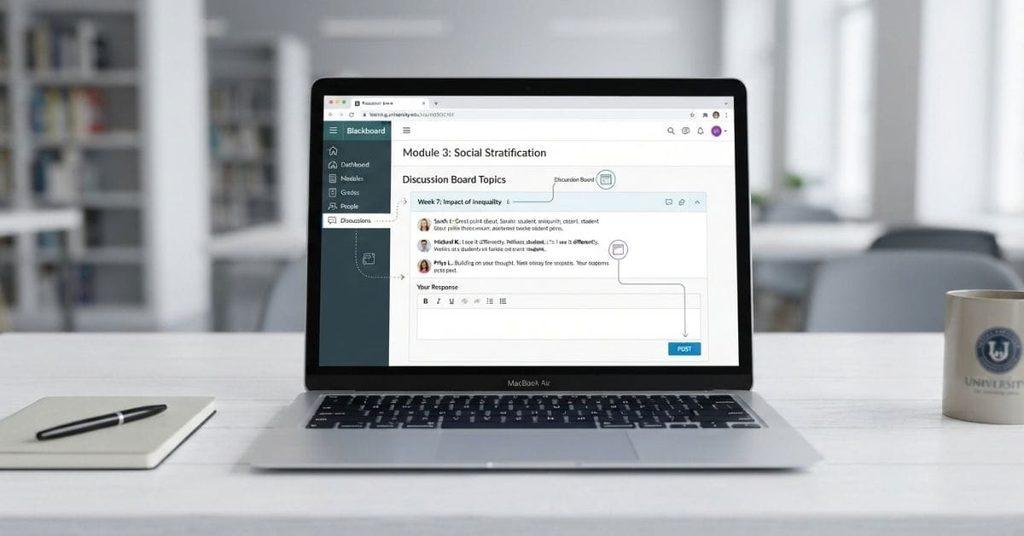
If you’re new to Blackboard, finding the correct discussion can take a few extra clicks. The steps below show how to post on a discussion board on Blackboard from start to finish.
The exact layout depends on whether your school uses Blackboard Ultra or Blackboard Original. Button names can also vary by course settings. Your instructor may require an original post, replies, attachments, or specific formatting.
Open Your Blackboard Course
Sign in to Blackboard through your school’s official learning portal. Open the course where you need to complete the discussion assignment.
Look through your course list and select the correct class. Make sure you choose the course for the current assignment before continuing.
Open Discussions or Discussion Board
Once inside your course, look for Discussions in the course navigation menu. Blackboard Ultra commonly displays Discussions as a dedicated area.
Blackboard Original may use a Discussion Board link instead. Your instructor may also place the discussion inside a specific content area.
Select the Required Discussion
Find the discussion your instructor assigned. Check the title and instructions before opening it.
Look for details such as the due date, required word count, number of replies, and attachment requirements. These instructions can affect what you need to submit.
Open the Discussion
Select the discussion title to view its instructions and existing posts. Read the prompt carefully before writing your response.
If classmates have already posted, you may see their responses. Some courses hide other posts until you submit your own response.
Write Your Post
Select the option to create a new post or response. The button may appear as Start a New Thread, Reply, or similar wording.
Write your answer directly in the Blackboard editor. Address every part of the instructor’s prompt and follow the required length and formatting.
Before moving on, check that your response answers the question clearly. Avoid adding unrelated information just to increase the word count.
Add an Attachment if Required
Some discussion assignments require an uploaded file. This could include a document, presentation, image, or other course-related file.
Use the attachment or paperclip option in the editor. Select the correct file from your device and wait for it to finish uploading.
Check that the file appears before submitting your post. If your instructor provided a file format requirement, make sure your attachment follows it.
Review Your Response
Take a moment to review your discussion post before submitting it. Look for missing information, spelling errors, broken formatting, or an incorrect attachment.
Also confirm that you followed the instructor’s requirements. Check the word count, citations, links, and required questions if applicable.
Pro Tip: Copy your response before submitting it if the discussion contains important work. This gives you a backup if the page refreshes unexpectedly.
Post or Submit Your Response
When your response looks correct, select the available Post, Submit, or similar button. Blackboard will then add your response to the discussion.
Check the discussion afterward to confirm that your post appears successfully. If your course requires replies, return to the discussion and respond to the required classmates.
The exact process for how to post in Blackboard Discussion Board can vary slightly by Blackboard version and instructor settings. Always follow the instructions shown inside your specific course.
How to Post on Blackboard Discussion Board
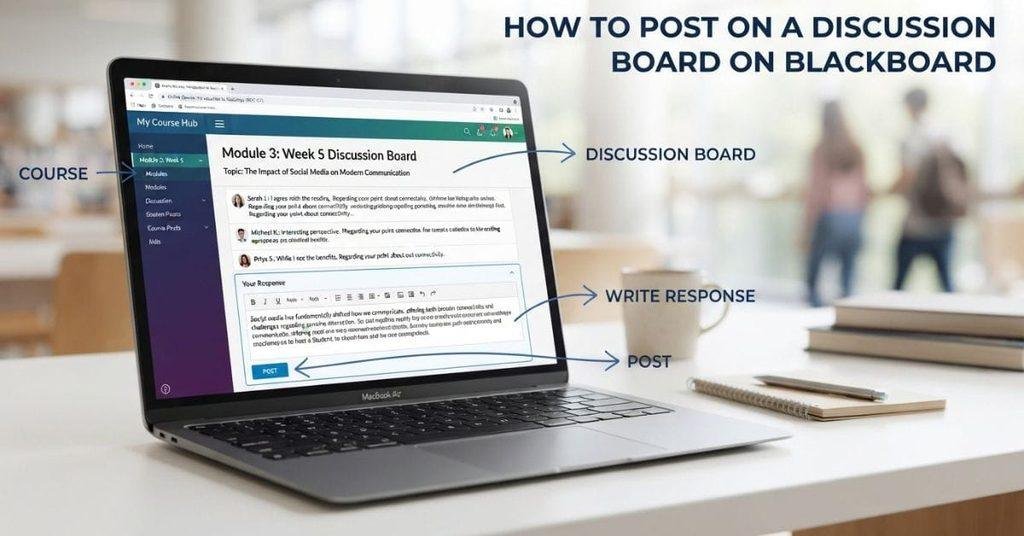
To post on a Blackboard Discussion Board, open your course and select Discussions or Discussion Board. Then choose the required discussion and follow the posting option provided.
The basic flow is:
Course → Discussions/Discussion Board → Discussion → Write Post → Post/Submit
After submitting, check that your response appears in the discussion. If your instructor requires replies, you’ll need to complete those separately.
How to Post in a Discussion Board on Blackboard
Knowing how to post in a discussion board on Blackboard also means understanding whether you need a new thread or a reply.
Your instructor may ask you to do either of these:
- Create a new discussion thread: Start your own response to the instructor’s discussion prompt.
- Reply to an existing thread: Respond to a post that already exists in the discussion.
A post is the response you write and submit. A thread is the discussion topic that contains the original post and related replies.
For example, your instructor might ask you to create one original post and reply to two classmates. In that case, you start a new thread for your response. You then use the Reply option under your classmates’ threads.
Always read the discussion instructions first. They tell you whether to create a thread, reply to someone, or complete both tasks.
How to Post on Blackboard Ultra
If your course uses Blackboard Ultra, the discussion process is usually straightforward. The layout may differ slightly based on your instructor’s course settings.
Follow these general steps:
- Open Courses and select the class with your discussion assignment.
- Open Discussions from the course navigation area.
- Select the required discussion from the available topics.
- Read the instructor’s prompt and requirements carefully.
- Write your response in the discussion editor.
- Add an attachment if the discussion allows or requires one.
- Review your response for errors and missing information.
- Select the available Post, Submit, or similar option.
Your instructor may configure discussions with different posting rules. For example, some discussions may require you to post before viewing classmates’ responses.
You may also see different options for replying, editing, or attaching files. Follow the instructions displayed within the specific discussion rather than relying on button names alone.
Expert Tip: Before selecting the final posting option, check whether Blackboard shows a word count, required attachment, or reply requirement.
How to Post on Blackboard Original
Blackboard Original uses a different discussion layout from Blackboard Ultra. The exact buttons can also vary between courses.
The general process is:
Course → Discussion Board → Discussion Forum → Create Thread/Reply → Write → Submit
Open the appropriate Discussion Board from your course menu. Then select the required discussion forum.
If you need to start a new response, choose Create Thread. If you need to respond to an existing post, select Reply.
Write your response in the editor, review it, and select Submit when it meets the assignment requirements.
What Is the Difference Between a Blackboard Post and a Thread?
Understanding the difference between a Blackboard post and a thread can prevent confusion when completing discussion assignments. The two terms describe different parts of a Blackboard discussion.
Thread
A thread is a discussion topic that contains an original contribution and its related replies. Depending on the course setup, students may create a new thread to respond to an instructor’s prompt.
Other students can then open that thread and add their own replies. Think of the thread as the main conversation that keeps related responses together.
For example, an instructor may ask students to discuss a reading. You might create one thread with your answer, while classmates reply to that thread.
If you need to learn how to start one, see our guide on How to Create a Discussion Thread on Blackboard.
Post
A post is the actual contribution a student submits within a Blackboard discussion. Your original response can be a post, and a reply to another student can also be a post.
The exact terminology may vary between Blackboard versions and course settings. Always follow the instructions provided by your instructor.
How to Reply to a Discussion Post on Blackboard
Replying to classmates is a common requirement in Blackboard discussion assignments. The process is usually simple once you locate the correct thread.
Open the Discussion
Sign in to Blackboard and open the course containing your discussion assignment. Select Discussions or Discussion Board, depending on your Blackboard version.
Open the discussion topic where you need to participate. Read the instructor’s requirements before choosing a response.
Select the Post or Thread
Find the classmate’s post or the discussion thread you need to answer. Read the complete response before writing your reply.
Pay attention to any instructions about which classmates you should respond to. Your instructor may also specify a minimum response length.
Select Reply
Choose Reply beneath the post or thread. Blackboard should open an editor where you can enter your response.
If you don’t see a Reply option, the discussion may have different permissions or posting settings. Check the instructions or course settings.
Write Your Response
Write a thoughtful response that directly addresses your classmate’s ideas. Add a question, explanation, example, or relevant point when appropriate.
Avoid submitting a response that only says you agree. A useful reply should contribute something meaningful to the discussion.
Post Your Reply
Review your response before submitting it. Check spelling, formatting, required citations, and any word-count requirements.
Select Post, Submit, or the corresponding button shown by your Blackboard course. Then confirm that your reply appears beneath the original discussion post.
How to Write a Good Blackboard Discussion Post
Posting your response is only part of completing a Blackboard discussion. Your post should also follow the instructor’s requirements.
Use these simple guidelines before submitting:
- Read the full discussion prompt: Make sure you understand exactly what your instructor asks.
- Answer every required part: Don’t skip questions or specific points in the prompt.
- Follow the word count: Stay within the required minimum or maximum length.
- Use your own words: Write your response clearly and avoid copying another student’s work.
- Add sources when required: Include citations or references when your instructor requests them.
- Stay relevant: Keep your response focused on the assigned discussion topic.
- Proofread before posting: Check grammar, spelling, formatting, and missing information.
Expert Tip: Write your response in a separate document first when the discussion requires a longer answer. You can review it more easily before pasting it into Blackboard.
A well-prepared response also makes it easier to meet reply requirements. After posting, check whether your instructor requires responses to classmates.
Can You Edit a Blackboard Discussion Post After Posting?
Whether you can edit a Blackboard discussion post depends on the discussion settings. Your instructor or course configuration may allow editing, limit it, or disable it completely.
If an Edit option is available, the general process is:
Open your post → Select Edit → Make your changes → Save/Update
After saving, reopen the post and check that your changes appear correctly. This is especially useful when you notice a spelling mistake or missing detail.
If you don’t see an Edit option, Blackboard may not allow students to change that post. In this situation, contact your instructor and explain what needs to be corrected.
Don’t create a second post simply to replace the first one unless your instructor allows it. Multiple submissions could affect how your discussion participation is recorded.
Can You Delete a Blackboard Discussion Post?
You may not always have permission to delete a Blackboard discussion post after submitting it. The available options depend on your course and discussion settings.
If you see a Delete option, follow the on-screen instructions to remove the post. Check carefully before confirming because deletion may affect your participation.
If no Delete option appears, you likely don’t have permission to remove the post yourself. Contact your instructor if the post contains an error or needs to be removed.
Avoid submitting duplicate posts unless your instructor tells you to do so.
Why Can’t I Post on the Blackboard Discussion Board?
If Blackboard won’t let you post, the issue may come from the discussion settings or your course access. Check these common possibilities first:
- The discussion hasn’t opened: Your instructor may have set a future start date.
- The deadline has passed: Some discussions stop accepting posts after the due date.
- Posting is disabled: Your instructor may have restricted new posts or replies.
- You opened the wrong discussion: Confirm that you’re using the assigned discussion topic.
- An initial post is required: Some discussions require your original post before you can view or reply to classmates.
- Course participation rules apply: Your instructor may have set specific posting requirements or restrictions.
- A temporary technical issue exists: Try refreshing Blackboard or reopening the course. You can also try a supported browser or another device.
If you’ve checked these possibilities and still can’t post, review the assignment instructions first. If the problem continues, contact your instructor or your school’s Blackboard support team.
Why Can’t I See the Discussion Board on Blackboard?
If you can’t find the Discussion Board in Blackboard, the discussion may still exist under a different location or name. Check these possibilities:
- Your instructor hasn’t enabled discussions: Some courses don’t use Blackboard discussions.
- The discussion is elsewhere: Your instructor may place it inside a content area, learning module, or specific assignment section.
- Your Blackboard version differs: Blackboard Ultra and Original organize discussion features differently.
- The discussion isn’t currently available: Your instructor may have set an opening date or other availability restrictions.
Start by checking the course navigation and any modules containing your current assignment. If you still can’t find the discussion, review the assignment instructions.
If the instructions mention a discussion that you can’t access, contact your instructor for clarification.
What If My Blackboard Discussion Post Isn’t Submitting?
Sometimes Blackboard may prevent a discussion post from submitting because of a missing requirement or temporary technical problem. Try these checks before contacting support:
- Check your internet connection: Make sure your connection is stable before submitting.
- Complete required fields: Look for any missing information marked as required.
- Check your attachment: Make sure any required file has finished uploading.
- Refresh Blackboard: Reopen the discussion and try submitting again if appropriate.
- Try another browser or device: A different supported browser may help identify a local issue.
- Save evidence of the problem: Take a screenshot of any error message before contacting your instructor.
If the post still won’t submit, contact your instructor promptly. Include the discussion name and a screenshot of the error when possible.
If your Blackboard discussion is graded, you can use our Blackboard Grade Calculator to estimate how your discussion score affects your overall course grade.
This can help you understand your current grade and see how a discussion score may affect your overall course average.
Conclusion
Posting a discussion response on Blackboard becomes easier once you know where each option appears. We covered the steps for finding discussions, writing posts, replying to classmates, and troubleshooting common issues.
Now you know how to post on a discussion board on Blackboard using either Blackboard Ultra or Original. Remember to follow your instructor’s specific requirements for word count, attachments, replies, and deadlines.
Before submitting, review your response and confirm that everything required is included. If Blackboard doesn’t let you post, check the discussion settings and access dates first.
Ready to complete your discussion? Open your Blackboard course and follow the steps above. You can also explore more Blackboard guides and calculators on our website for additional help.
Frequently Asked Questions
Find clear answers to common questions about posting and replying to Blackboard discussions.
Open your Blackboard course and select Discussions or Discussion Board. Choose the required discussion, write your response, review it, and select Post or Submit. The exact button names depend on your Blackboard version and course settings.
Open your course and find the Discussions or Discussion Board area. Select the assigned discussion and follow the instructions. You may need to create a new thread or reply to an existing post. Review your response before selecting the available Post or Submit option.
Go to your Blackboard course and open the assigned discussion. Select the option to create a new post or thread, depending on the assignment. Write your response and check the requirements. Then select Post, Submit, or the corresponding button shown in your course.
Open your Blackboard course and select Discussion Board or Discussions. Find the correct discussion and open it. Enter your response in the editor, add any required attachment, and review your work. Select Post or Submit when you’re ready.
First, open the correct Blackboard course. Then select Discussions or Discussion Board and choose the required topic. Depending on your instructor’s instructions, create a thread or respond to an existing one. Complete your response and select the available submission option.
Open the course containing your discussion assignment. Go to the Discussion Board or Discussions section and select the appropriate topic. Write your response, follow any word-count or attachment requirements, and select Post or Submit.
Open the required discussion and find the post you need to answer. Select Reply beneath the post or thread. Write your response according to the instructor’s requirements. Review it, then select Post, Submit, or the available reply button.
A thread is a discussion topic that contains an original contribution and related replies. A post is an individual contribution submitted within that discussion. For example, you may create an original post inside a thread and classmates can reply to it.
You may be able to edit your post if your course settings provide an Edit option. Open your post, select Edit, make your changes, and choose Save or Update. If editing isn’t available, contact your instructor if you need to correct the post.
You can delete a discussion post only when your course settings give you permission to do so. If you don’t see a Delete option, you may not have permission. Contact your instructor if the post needs to be corrected or removed.
Several issues can prevent you from posting. The discussion may not have opened, the deadline may have passed, or your instructor may have disabled posting. You may also need to submit an initial post before replying. Check the discussion instructions and course settings first.
Your instructor may not have enabled discussions for the course. The discussion could also be located inside a module, content area, or another course section. Blackboard Ultra and Original organize discussions differently. The discussion may also be unavailable until its scheduled opening date.
Check your internet connection and confirm that all required fields are complete. Make sure any attachment has finished uploading before submitting. You can also refresh Blackboard or try another supported browser or device. If the problem continues, take a screenshot of the error and contact your instructor or school support team.

We are the Canvas Academic Team, a developer team focused on building simple and practical tools that help students succeed academically. This platform was created specifically for Canvas LMS students to make grade tracking, GPA calculations, exam planning, and academic management easier and more efficient.
Our focus is on creating fast, accurate, and student-friendly educational tools along with helpful learning resources that improve productivity and reduce academic stress.
Through CanvasGradeCalculator.com, our goal is to continue building useful resources that help students study smarter, stay organized, and achieve better academic results.