
- Introduction
- Can Moodle Detect Copy and Paste?
- Can Moodle See When You Copy and Paste?
- Can Moodle Tell If You Copy a Question?
- Does Moodle Know Where You Copied Text From?
- Can Moodle Detect Copy and Paste Without Extra Software?
- Can Moodle Prevent Copy and Paste?
- Can Moodle Detect Copy and Paste in Assignments?
- Moodle Copy & Paste vs. Other Monitoring
- Conclusion
- Frequently Asked Questions
Introduction
Have you ever copied a question or pasted an answer into Moodle and wondered if your instructor could see it?
If so, you are not alone. Many students in the USA use Moodle for online classes, quizzes, assignments, and exams. Understanding what the platform tracks can help you avoid unnecessary stress and make informed decisions about your coursework.
So, can Moodle see if you copy and paste? The answer depends on how Moodle is configured and which tools your school uses. Standard Moodle activity logs can record certain actions, but they are not the same as direct clipboard monitoring. Additional browser tools, quiz settings, or plagiarism-detection software may provide different types of information.
In this guide, you will learn how Moodle handles copying and pasting, what instructors may be able to track, and whether copying a question leaves a detectable record. We will also explain the difference between Moodle’s built-in features and third-party monitoring tools.
By the end, you will have a clearer understanding of Moodle’s capabilities, common misconceptions, and what to expect during online coursework.
Can Moodle Detect Copy and Paste?
Can Moodle detect copy and paste? The answer depends on your school’s Moodle setup, the activity you’re using, and any additional monitoring tools. Standard Moodle features focus on course activities, quiz attempts, submissions, and other recorded events. They do not automatically provide a universal record of everything students copy on their devices.
For example, Moodle may record when you start a quiz, submit an assignment, or complete certain course activities. However, these activity logs are different from a dedicated clipboard-monitoring system. A standard activity log does not necessarily reveal whether you copied text from another website or pasted it into an answer field.
Your experience can also vary by activity type. During a regular assignment, Moodle may accept pasted text without identifying its original source. During an online quiz, instructors may enable additional restrictions or use third-party tools that monitor certain browser activities.
Browser limitations also matter. A website generally cannot inspect everything happening across your computer or access your entire clipboard history. However, browser-based tools can respond to certain clipboard events when the browser permits them.
Some institutions also use plagiarism-detection software, browser extensions, or exam-monitoring systems. These tools may provide information beyond Moodle’s standard functionality, depending on their permissions and configuration.
Therefore, there is no single copy-and-paste detection behavior that applies to every Moodle site. The tools enabled by your institution determine what the system can monitor and record.
Can Moodle See When You Copy and Paste?
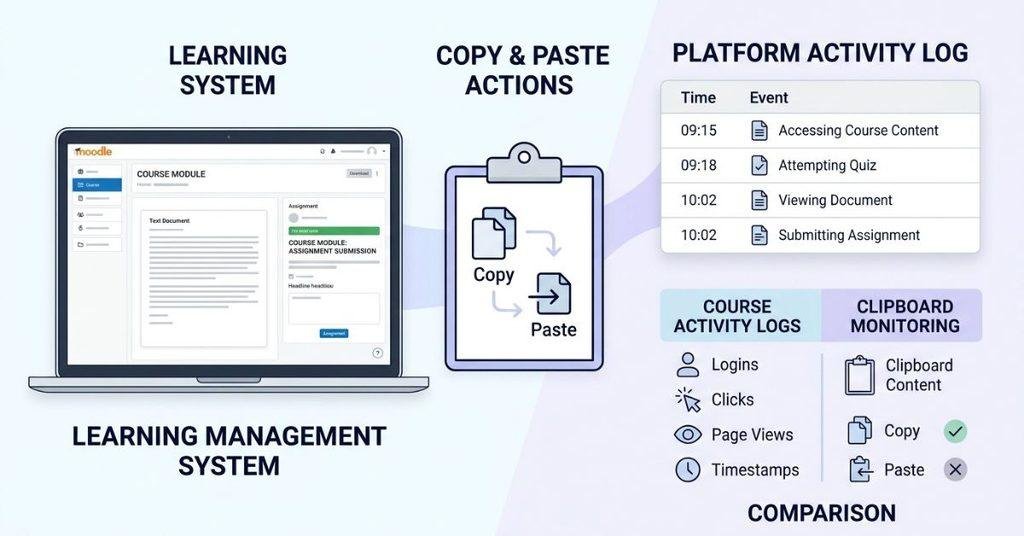
Many students wonder, “Can Moodle see when you copy and paste?” or “Can Moodle tell when you copy and paste during a quiz?” The answer depends on whether the system records clipboard activity or simply records your interactions with Moodle.
To understand the difference, consider these three things:
- Clipboard event: This happens when you copy or paste content. A webpage or additional tool may detect certain clipboard events if the browser allows it and the tool has the appropriate functionality.
- Moodle activity log: Moodle can record specific events associated with your course activities. These records may include quiz attempts, page views, and assignment submissions, depending on the activity and logging configuration.
- Submitted content: This is the text or material you ultimately submit through Moodle. An instructor may review it, compare it with other sources, or use plagiarism-detection software when available.
These three things are not interchangeable. For example, you might copy a paragraph from an external website and paste it into a Moodle assignment. Moodle may receive the submitted paragraph without automatically knowing which website supplied it.
Similarly, an activity log showing that you submitted an answer does not, by itself, prove that you copied and pasted the text. A separate monitoring tool could record additional information, but its capabilities depend on its design and configuration.
The key takeaway: Recording a submission is not the same as recording every clipboard action. To understand what Moodle can detect in your situation, consider the specific activity, browser restrictions, and any additional tools your institution uses.
Can Moodle See If I Copy and Paste During a Quiz?
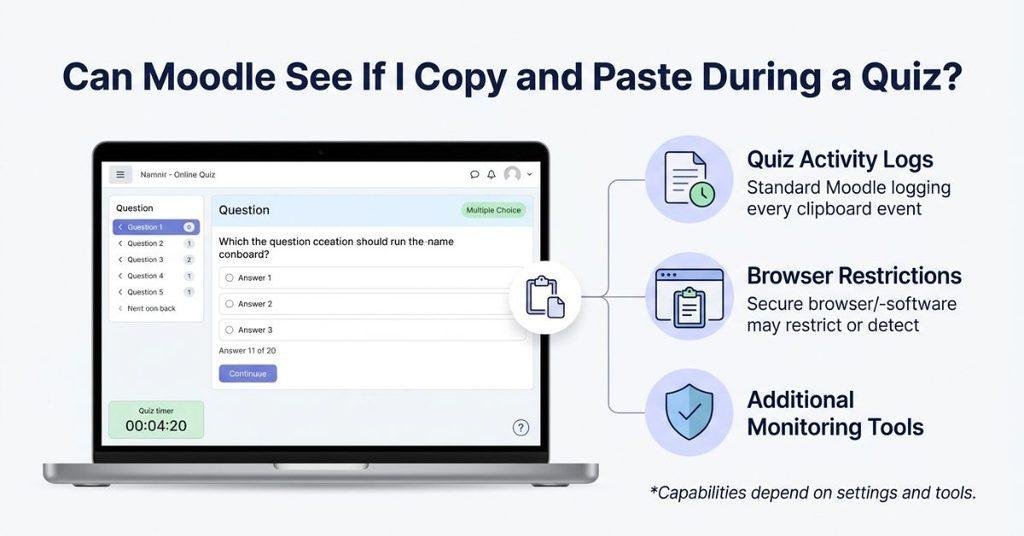
Students often wonder whether copying text during a Moodle quiz leaves a detectable record. The answer depends on the quiz settings, browser environment, and any additional monitoring tools your school uses.
If you copy text from another website and paste it into a quiz answer field, standard Moodle logging does not necessarily identify the original source. However, certain browser-based tools or exam-monitoring systems may detect clipboard events or restrict copying and pasting.
Copying a question is slightly different. Moodle may record certain quiz interactions, but ordinary activity logs do not automatically reveal every action you perform with copied text. If you copy a question and paste it into another application, Moodle does not necessarily know where that text goes.
Copying an answer from an external source also raises academic-integrity concerns. Instructors may review submitted responses or use plagiarism-detection tools, depending on their institution’s setup.
Secure or proctored exam environments can impose additional restrictions. These systems may limit clipboard access, block certain applications, or monitor specific browser activities.
Does Copy and Paste Work in Every Moodle Quiz?
No. Copy-and-paste behavior can differ between Moodle quizzes because institutions may use different settings, browser restrictions, and security tools.
Some quizzes allow normal copying and pasting, while others may restrict these actions through additional software. A browser’s capabilities and permissions can also affect what a tool detects.
Remember that allowing paste does not guarantee privacy from monitoring tools. Likewise, blocking paste does not automatically mean the system records every copying attempt. Your quiz environment determines the actual behavior.
Can Moodle Tell If You Copy a Question?
Can Moodle see if you copy a question? Moodle may record certain activity within a quiz or course, but recording an interaction is different from tracking everything you do with copied text.
For example, you might highlight a question on a Moodle page and copy it. Standard Moodle activity logs do not necessarily record that clipboard action or identify where you paste the question afterward.
Similarly, can Moodle tell if you copy a question and use it in another application? Not through standard activity logging alone. Moodle does not automatically gain access to every application on your computer or your complete clipboard history.
However, additional exam-security tools may detect clipboard events, restrict copying, or monitor certain browser activities. Their capabilities depend on the software, permissions, and configuration.
If your instructor reviews a submitted answer, they may also compare its content with external sources using plagiarism-detection tools. That review is separate from detecting the original copying action.
The important distinction is that copying a visible question, recording quiz activity, and identifying copied content are three different things. The tools enabled by your institution determine which activities it can actually monitor.
Can Moodle Detect Copying From Another Website?
Copying information from Google or another website and pasting it into a Moodle assignment or quiz does not automatically reveal the original source to Moodle. The platform receives the text you submit, but standard activity logs do not necessarily record where you copied it from.
For example, you might copy a paragraph from an educational website and paste it into an assignment response. Moodle may record the submission and related activity, depending on the configuration. However, these records do not automatically establish that you copied the paragraph from that particular website.
External plagiarism-detection and academic-integrity tools can provide additional analysis. Depending on the tool, they may compare submitted text with websites, published materials, academic databases, or previously submitted work. Some exam-monitoring tools can also track specific browser activities.
These functions serve different purposes. Monitoring copying behavior is not the same as checking submitted text for similarities with existing sources.
If you want to understand the broader monitoring capabilities, read our guide to Moodle Cheating Detection. Replace this link with your published Moodle Cheating Detection article URL when available.
Does Moodle Know Where You Copied Text From?
Moodle receiving submitted text does not automatically mean it knows the text’s original source. When you paste content into an assignment or quiz, the platform receives the content you submit. Standard Moodle activity logs do not necessarily identify the website, document, or application from which you copied it.
Source identification requires a different process. Plagiarism-detection and similarity-checking tools can compare submitted content against available sources. Depending on the tool and its database, these sources may include public webpages, academic publications, and previously submitted assignments.
For example, if a student pastes a paragraph from a publicly available website, a similarity-checking tool may identify matching text. However, the result depends on whether the tool can access that source and recognize the matching content.
A similarity match also does not automatically prove plagiarism. Proper quotations, citations, and commonly used phrases can produce matches. Instructors must consider the context when reviewing the results.
Copy & Paste Detection vs. Plagiarism Detection
Copy-and-paste detection and plagiarism detection serve different purposes. Understanding the distinction helps explain what Moodle and additional academic-integrity tools may reveal.
| Feature | Copy-and-Paste Detection | Plagiarism Detection |
|---|---|---|
| Main focus | Clipboard actions or copying behavior | Similarity between submitted content and existing sources |
| Typical methods | Browser controls, clipboard-event monitoring, or exam-security software | Text comparison and similarity analysis |
| Main purpose | Monitor or restrict certain actions | Identify matching or potentially unoriginal content |
| Source identification | Does not necessarily identify the original source | May identify matching sources when available |
| Capabilities | Depend on the software and browser permissions | Depend on the tool, database, and matching methods |
These functions can work together, but neither automatically guarantees the other. A tool that restricts copying may not identify the source of submitted text. Likewise, a plagiarism checker may find matching content without recording how the student copied it.
Can Moodle Detect Copy and Paste Without Extra Software?
Moodle has standard activity-logging features, but these are not equivalent to a dedicated copy-and-paste monitoring system. Depending on the activity and configuration, Moodle can record events such as quiz attempts, page views, and assignment submissions.
However, ordinary Moodle logging does not necessarily record every clipboard action. It also does not automatically provide visibility into everything happening across your computer, including actions in unrelated applications.
Browser-based monitoring has its own limitations. A webpage may detect certain clipboard events when the browser permits them, but it cannot automatically access every application or the complete clipboard history on your device.
Plugins and external integrations can add capabilities beyond standard Moodle functionality. For example, an institution may use plagiarism-detection software to analyze submissions or exam-security tools to restrict certain actions during assessments. The available features depend on the specific software and configuration.
If you’re taking an online quiz or submitting coursework, check your institution’s assessment rules. Your instructor or school can explain which monitoring tools apply to your assessment and what restrictions you should expect.
The key point is simple: Moodle’s built-in activity logs, clipboard monitoring, and plagiarism detection are different functions. Knowing which tools your institution uses provides a more accurate picture of what it can monitor.
Can Moodle Prevent Copy and Paste?
Detecting copy-and-paste activity and preventing it are two different things. A system may detect certain copying actions without blocking them. Similarly, a quiz may restrict copying and pasting without recording every attempt.
Moodle institutions can configure quizzes and use additional security tools to restrict certain behaviors during online assessments. The available restrictions depend on the quiz settings, browser environment, and any installed plugins or integrations.
For example, an instructor may use a restricted browser environment for an exam. This setup can limit access to other applications or prevent certain clipboard actions. However, these restrictions do not apply automatically to every Moodle course or quiz.
Understanding the difference between detection and prevention helps you know what to expect during an assessment.
Moodle Quiz Security Settings
Moodle provides several quiz settings that help instructors manage online assessments. These settings can control the testing environment, although they do not all directly affect copying and pasting.
Common controls include:
- Browser and security settings: Certain configurations can require a specific browser environment or apply additional restrictions.
- Time restrictions: Instructors can set time limits and availability windows for quizzes.
- Question randomization: Moodle can shuffle questions or answer choices when the relevant options are enabled.
- Other quiz controls: Instructors can configure attempt limits, navigation behavior, and other assessment options.
These features serve different purposes. Time limits and question randomization can support assessment integrity, but they do not automatically detect clipboard activity.
The exact options available depend on the Moodle version, installed extensions, and institutional configuration.
Safe Exam Browser and Copy/Paste Restrictions
Safe Exam Browser is a specialized application designed to create a more controlled environment for online exams. When an institution configures it for a Moodle assessment, it can impose restrictions beyond those available in a normal browser session.
Depending on its configuration, the secure exam environment may restrict clipboard operations, access to other applications, or navigation to unauthorized websites. These controls can make certain actions more difficult during an exam.
However, Safe Exam Browser does not automatically apply to every Moodle quiz. The institution must configure and require the appropriate setup. Its exact restrictions also depend on the version and configuration used.
For more information about another common exam concern, see our guide to Moodle Tab Switching.
Can Moodle Detect Copy and Paste in Assignments?
Moodle assignments work differently from quizzes, so the way you submit your work matters. Instructors can configure assignments to accept text entered directly into an online editor, uploaded files, or other supported submission types.
If you paste text into Moodle’s online text editor, the platform receives the content you submit. Standard activity logs do not necessarily identify the original website or document from which you copied that text.
Uploading a document is different. You prepare the file outside Moodle and submit it through the assignment interface. Moodle receives the uploaded file, but the upload itself does not automatically reveal every action you performed while creating or editing the document.
External plagiarism-detection or similarity-checking tools may provide additional analysis. Depending on the integration, they can compare submitted text with available websites, publications, or previously submitted work. Some institutions may also use additional academic-integrity tools to review submissions.
The results depend on the specific tool, its available sources, and the institution’s configuration. A similarity report can identify matching text, but a match does not automatically prove academic misconduct.
The key takeaway: Moodle receiving an assignment is different from monitoring how you created it. What instructors can determine depends on the submission method, available records, and any additional tools your institution uses.
What Happens When You Paste Text Into Moodle?
Pasting text into Moodle is usually straightforward, but what the system can observe depends on the activity and your institution’s setup. Understanding the basic process helps separate normal submission behavior from additional monitoring.
- Copy text from a source: You select and copy text from a website, document, or another application.
- Open Moodle: You navigate to the relevant quiz or assignment.
- Paste the text: You insert the copied content into an available answer field or online text editor, if permitted.
- Moodle receives the content: When you submit your answer or assignment, Moodle processes the submitted material. The system may also record certain related activity events.
- Additional tools may apply: Depending on the configuration, browser controls may restrict clipboard actions, while plagiarism checkers or other academic-integrity tools may analyze submitted content.
These steps do not mean Moodle records every action in the same way. For example, receiving pasted text does not automatically tell Moodle which website supplied it. Similarly, submitting an answer does not necessarily mean the system recorded the original copying action.
Additional tools can provide different types of information. Their capabilities depend on the software, browser permissions, available data, and institutional settings.
The important distinction is that submitting content, monitoring clipboard activity, and analyzing text similarity are separate processes. Your institution’s configuration determines which processes apply to your assessment.
Moodle Copy & Paste vs. Other Monitoring
Moodle can work alongside different monitoring and academic-integrity tools. However, each tool serves a different purpose, so understanding their roles helps clarify what they may detect.
| Feature | What It Focuses On |
|---|---|
| Moodle activity tracking | Records supported activities within Moodle, such as page views, quiz attempts, and submissions. |
| Copy-and-paste controls | May detect or restrict clipboard actions and text input, depending on the browser and software. |
| Plagiarism checker | Compares submitted content with available sources to identify matching or similar text. |
| AI detector | Estimates whether writing may have been generated by AI, but results can be inaccurate. |
| Proctoring software | May monitor aspects of the exam environment, such as webcam activity, screen content, or other device interactions, depending on permissions and configuration. |
These technologies are not interchangeable. Moodle activity tracking does not automatically provide all the capabilities of a plagiarism checker or proctoring system. Likewise, an AI detector estimates the possible origin of writing rather than directly proving that someone copied and pasted it.
Additional tools may operate through Moodle integrations, browser extensions, or separate applications. Their capabilities vary by institution and configuration.
For more details, explore our related guides:
- Moodle AI Detection
- Moodle Cheating Detection
- Moodle Screenshot and Screen Monitoring
Use the published URLs for these guides, adjusting the paths if your website uses different slugs.
Conclusion
So, can Moodle detect copy and paste? The answer depends on your school’s settings, browser restrictions, and additional monitoring tools. Standard Moodle activity logs can record certain course activities, but they don’t automatically reveal every clipboard action or the original source of copied text.
Plagiarism checkers, secure exam browsers, and proctoring software may provide additional monitoring or content analysis. Remember that detecting copying behavior and identifying matching text are two different things.
If you’re a student in the USA, take time to understand your instructor’s assessment rules before starting a quiz or assignment. Always follow your school’s academic integrity policies.
Did you have a different experience with Moodle’s copy-and-paste features? Share your questions or experience in the comments, and explore more helpful guides on our website.
Frequently Asked Questions
Find clear answers about Moodle copy-and-paste detection, quiz monitoring, and assignment submissions.
Can Moodle see if you copy and paste?
Moodle does not automatically record every copy-and-paste action. Standard activity logs can record certain course activities, but they do not necessarily show whether you copied text from another website. Additional browser tools or exam-monitoring software may detect certain clipboard events, depending on their configuration.
Can Moodle detect copy and paste?
Moodle’s standard features do not provide a universal clipboard-monitoring system. However, institutions may use plugins, secure browsers, or other monitoring tools to restrict or detect certain copying actions. The actual capabilities depend on the software, browser permissions, and assessment settings.
Can Moodle see when you copy and paste?
Moodle may record activity related to a quiz or assignment, but that does not mean it records the exact time of every clipboard action. Additional monitoring tools may detect specific copying or pasting events when configured to do so.
Can Moodle tell if you copy and paste?
Moodle receiving pasted text does not automatically prove that you copied it from another source. Standard activity logs generally focus on recorded Moodle events. However, additional monitoring tools may provide information about clipboard activity, depending on their capabilities and permissions.
Can Moodle see if you copy a question?
Moodle may record certain quiz interactions, but standard activity logs do not necessarily reveal every time you copy a question. Additional exam-security tools may restrict copying or detect specific clipboard events. Their capabilities depend on the setup used by your institution.
Can Moodle tell if you copy a question?
Moodle does not automatically know what you do with every question you copy. It may record related quiz activity, while separate monitoring tools may detect certain copying actions. Copying a question and submitting copied text are different activities.
Can Moodle tell where you copied text from?
Standard Moodle activity logs do not automatically identify the original source of pasted text. However, plagiarism-detection tools may compare submitted content with websites, publications, and other available sources. A similarity match can identify matching text, but it does not automatically prove academic misconduct.
Can Moodle detect copy and paste during a quiz?
The answer depends on your quiz settings and any additional security tools. Standard Moodle logging does not necessarily record every clipboard action. Secure browsers, proctoring software, or other integrations may restrict copying and pasting or monitor certain browser activities during an assessment.

We are the Canvas Academic Team, a developer team focused on building simple and practical tools that help students succeed academically. This platform was created specifically for Canvas LMS students to make grade tracking, GPA calculations, exam planning, and academic management easier and more efficient.
Our focus is on creating fast, accurate, and student-friendly educational tools along with helpful learning resources that improve productivity and reduce academic stress.
Through CanvasGradeCalculator.com, our goal is to continue building useful resources that help students study smarter, stay organized, and achieve better academic results.