

Table of Contents
Introduction
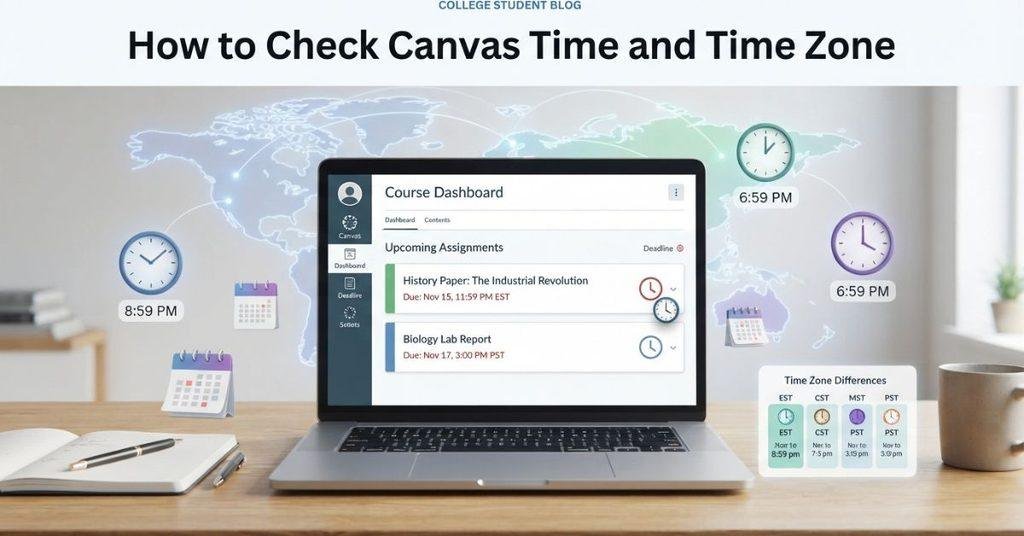
A deadline that looks right in Canvas can still be confusing if the time zone is different from yours.
If you’re wondering how to check Canvas time CSP, you’re not alone. Canvas uses time zone settings to display assignment deadlines, quiz times, and course availability windows. A mismatch can make an important deadline appear earlier or later than expected.
This matters especially for beginners who are still learning how Canvas handles course schedules. Your computer or phone may show your local time, while Canvas can display course deadlines based on another time zone.
In this guide, you’ll learn how to check the Canvas time zone and understand which time Canvas uses. You’ll also see how to identify incorrect deadline times and fix common time zone issues.
By the end, you’ll know exactly how to verify your Canvas time before submitting important coursework.
What Time Does Canvas Use?
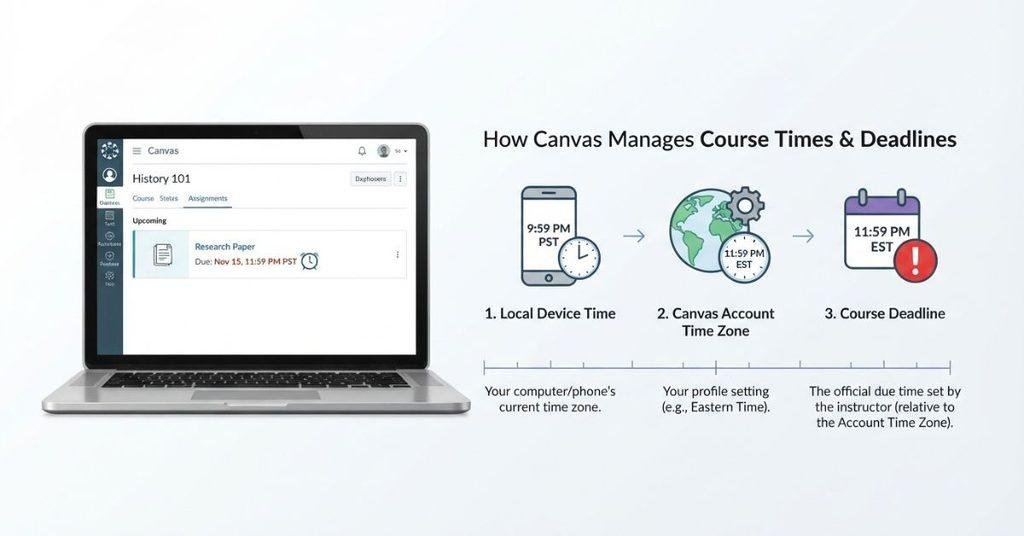
Canvas uses time zone settings to determine how it displays course dates and deadlines. This includes assignment due dates, quiz windows, discussions, and scheduled course content.
The important point is that a Canvas deadline is tied to a specific time zone. Your screen may then display that deadline in a local time based on your settings. This can cause confusion when students live in different time zones.
If you manage several deadlines in Canvas, you may also find it useful to learn how to link your Canvas Calendar to Google Calendar for easier scheduling.
Does Canvas Use Your Local Time?
Canvas can display dates and times based on your selected time zone. Your personal time zone settings can affect how course dates appear on your screen.
For example, an assignment may have a deadline of 11:59 PM in one time zone. A student in another time zone could see a different local clock time for that same deadline. The actual deadline does not simply change because the student moved locations.
Your device’s clock and Canvas’s time zone settings are also separate. A correct phone or computer clock does not guarantee that Canvas uses the time zone you expect. Check your Canvas settings when a deadline looks unusual.
Why Does Canvas Time Matter?
Canvas time matters because many course activities depend on exact dates and times. Missing a cutoff by even a short period can prevent you from submitting work or accessing course content.
Pay close attention to Canvas time for:
- Assignment due dates: Know the exact deadline before submitting coursework.
- Quiz availability: Check when a quiz opens and when it closes.
- Discussion deadlines: Confirm when posts or replies are due.
- Course announcements: Scheduled announcements may appear at specific times.
- Scheduled content: Modules and lessons may become available according to set times.
- Submission cutoffs: Canvas can stop accepting submissions after a specified deadline.
Pro Tip: Always check the displayed time zone when a deadline seems different from your local clock. This simple check can prevent avoidable submission problems.
How to Check Your Time Zone in Canvas
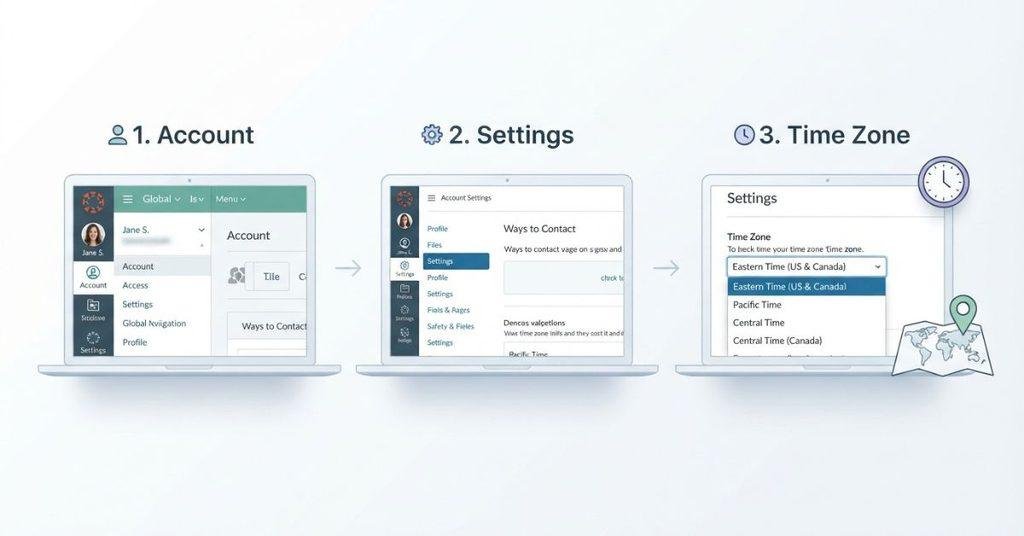
Checking your Canvas time zone is a simple way to avoid confusion about course deadlines. The exact menu names can vary slightly between schools, but the process usually follows these steps.
Step 1 — Log In to Canvas
Open Canvas through your college or university’s Canvas website. Enter your school credentials and sign in to your account.
Once Canvas loads, look for the global navigation menu. On most Canvas accounts, you’ll find your profile options through the Account menu.
Step 2 — Open Account Settings
Select Account from the Canvas navigation menu. Then look for Settings or the profile settings area.
Your institution may use a slightly different Canvas layout. If you don’t see Settings, check the available options under your Account menu.
Step 3 — Find Your Time Zone
Look through your account settings for a Time Zone option. The selected setting shows which time zone Canvas uses for your personal display.
You may see a named time zone rather than a simple abbreviation. Check the selection carefully instead of assuming it matches your device’s location.
Step 4 — Compare It With Your Local Time
Compare the selected Canvas time zone with your actual local time zone. Common U.S. zones include Eastern, Central, Mountain, and Pacific Time.
Some states also use additional time-zone rules. Daylight saving time can change the displayed clock time during part of the year.
Step 5 — Save Any Changes
If Canvas lets you change your time zone, select the correct option and save your settings. Not every institution allows students to change this setting.
If the option isn’t available, don’t assume you should modify anything. Your school may control the relevant Canvas settings.
Students who prefer another planning system can also see how to link the Canvas Calendar to Notion and organize upcoming coursework.
How to Check the Time for a Canvas Assignment
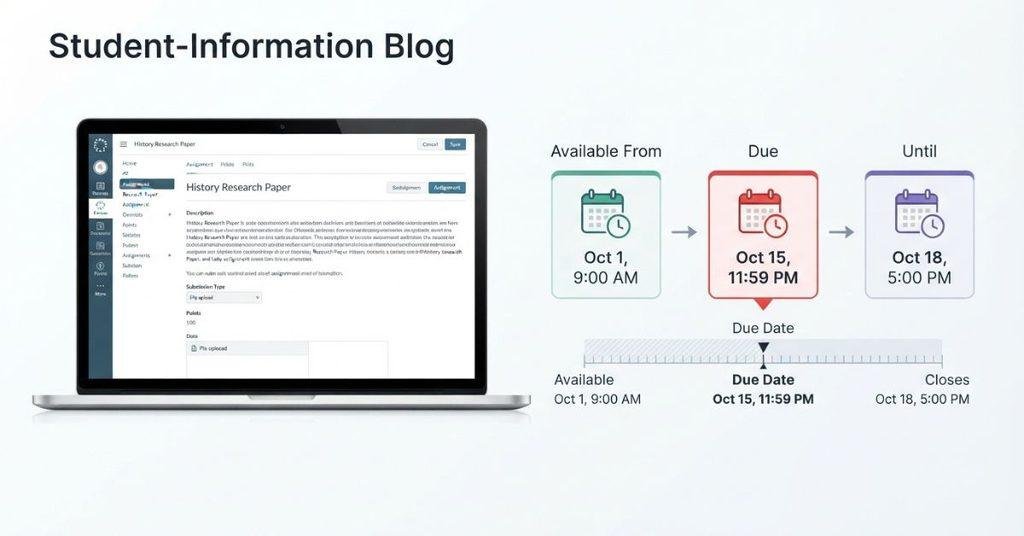
Checking an assignment’s exact timing helps you understand when Canvas expects your work. Look at both the deadline and any availability restrictions.
Open the Assignment
Sign in to Canvas and open the course containing the assignment. Select the assignment from the course navigation or Modules area.
Read the assignment details before starting your submission. Look for the listed dates and times near the assignment information.
Check the Due Date and Time
Find the Due date and time shown by Canvas. This tells you when the assignment is scheduled to be due.
For example, Canvas might show a due time such as 11:59 PM on a specific date. Treat the displayed deadline as important when planning your submission.
Check the Available From and Until Times
Canvas can show several different time settings for an assignment. Each one serves a different purpose:
- Due: The scheduled deadline for submitting the assignment.
- Available From: When the assignment becomes available to students.
- Until: The time after which Canvas may stop allowing access or submissions.
An assignment can have an availability window that differs from its due date. Always check all three fields when they’re displayed.
Compare the Deadline With Your Canvas Time Zone
If an assignment time seems unusual, compare it with your Canvas time-zone setting. A time-zone difference can make the displayed clock time different from what you expected.
For example, a deadline set for one time zone may appear at another local clock time elsewhere. Checking your Canvas settings helps explain these differences before you submit.
How to Check the Time for a Canvas Quiz
Canvas quizzes can have several different time settings. Checking each one helps you understand when the quiz opens, when it’s due, and when access ends.
Open the Quiz
Open Canvas and enter the course that contains your quiz. Select the quiz from the course navigation or Modules page.
Read the quiz instructions before starting. Look for the dates and times listed with the quiz details.
Check the Available Date and Time
Find the Available From date and time. This shows when Canvas makes the quiz available to you.
You may not be able to access the quiz before this time. Check the date carefully if the quiz isn’t available when you expect it.
Check the Due Date
Next, check the Due date and time. This indicates the scheduled deadline for the quiz.
Don’t assume the due time is the same as the time when the quiz closes. Canvas can use separate settings for these dates.
Check the Until Date
Look for the Until date and time when one is provided. This setting can determine when the quiz stops being available.
An instructor may set an Until time that differs from the Due time. Always check both before planning when you’ll take the quiz.
What If the Quiz Closes at the Wrong Time?
First, check the time zone shown or used by your Canvas account. Then compare it with your local time and the quiz’s displayed deadline.
If the timing still appears incorrect, contact your instructor. They can confirm the intended quiz schedule and check whether the course settings are correct.
How to Check Canvas Time on the Student App
The Canvas Student app can display course deadlines directly on your phone. However, your device’s clock and Canvas settings aren’t always the same thing.
Open the Canvas Student App
Open the Canvas Student app on your phone or tablet. Sign in through your school’s Canvas account if needed.
Make sure you’re viewing the correct school account if you use Canvas for multiple institutions.
Open Your Course
Select the course where you have the assignment or quiz. Open the relevant assignment, quiz, calendar item, or course activity.
Check the listed date and time instead of relying only on your phone’s clock.
Check an Assignment or Quiz Deadline
Open the assignment or quiz and look for its deadline information. Check the Due, Available From, and Until times when they’re shown.
These settings can have different purposes. Review each one before assuming when your work must be completed.
Compare the Displayed Time With Your Device
Compare the Canvas deadline with the time shown on your phone. A difference doesn’t automatically mean Canvas is incorrect.
Your device displays its own local time. Canvas may apply account, course, or institution time-zone settings.
What to Do if Mobile and Desktop Show Different Times
If the Canvas Student app and desktop version show different times, don’t rely on one device alone. Recheck the course and assignment details on both platforms.
Check your Canvas time-zone settings and confirm the exact deadline. If the difference remains unclear, ask your instructor to confirm the intended deadline.
Pro Tip: For important submissions, verify the deadline in Canvas before the final day. This gives you time to resolve unexpected time-zone issues.
Why Is Canvas Showing the Wrong Time?
If Canvas shows a deadline that seems wrong, don’t immediately assume the assignment has an error. Time-zone settings, daylight saving changes, and course configurations can all affect displayed times.
Your Canvas Time Zone Is Different
Your Canvas account may use a different time zone than your current location. This can make assignment and quiz times appear earlier or later than expected.
Solution: Open your Canvas account settings and check the selected time zone. If Canvas allows changes, select the correct zone and save it.
Your Device Time Zone Is Different
Your phone or computer may use an incorrect time zone. This can create confusion when you compare your device clock with Canvas.
Solution: Check your device’s date and time settings. Make sure the device uses the correct location or time-zone setting.
The Course Uses a Different Time Zone
Course dates can depend on course or institution settings. Your personal time zone may not always explain every displayed deadline.
Solution: Check the exact deadline shown in Canvas. If it still seems incorrect, ask your instructor which time zone applies to the course.
Daylight Saving Time Changed the Offset
Daylight saving time can change the difference between time zones during part of the year. This may make a deadline appear one hour different.
Solution: Don’t manually add or subtract an hour. Check the current Canvas time-zone setting and the displayed deadline.
The Instructor Set the Wrong Deadline
Sometimes the issue may come from an incorrect course deadline. An instructor could accidentally enter the wrong date or time.
Solution: Compare the Canvas deadline with the instructor’s instructions. Contact the instructor if the information conflicts.
Canvas App and Browser Display Differences
The Canvas Student app and browser can sometimes display course information differently. Device settings can also affect what you see.
Solution: Check the assignment or quiz from both platforms. Focus on the course’s displayed deadline and verify your time-zone settings.
Pro Tip: Take a screenshot when a deadline looks incorrect. It can help your instructor understand the issue quickly.
How to Change Your Time Zone in Canvas
Changing your Canvas time zone can help you interpret course deadlines correctly. However, available settings can vary between institutions.
Open Your Canvas Account Settings
Sign in to Canvas and select Account from the global navigation menu. Then open Settings or the available profile settings area.
Look for your account’s personal preferences. The exact menu may vary depending on your institution’s Canvas configuration.
Find the Time Zone Setting
Look for a setting labeled Time Zone. The selected option shows the time zone associated with your Canvas account.
Review the selection carefully. Don’t assume it matches your current location just because your device shows the correct local time.
Select the Correct Time Zone
If Canvas allows you to edit the setting, choose the time zone that matches your location. Use the named time zone rather than guessing from an abbreviation.
This helps you interpret course dates using the appropriate local time.
Save the Change
Save your updated settings if Canvas provides a save or update option. Then return to your course and check an assignment or quiz deadline.
The displayed time should now reflect the updated setting where applicable.
What If You Can’t Change Your Canvas Time Zone?
Some institutions control certain Canvas settings. Your account may not provide an option to change the time zone.
If you can’t edit the setting, don’t try to work around the restriction. Contact your school’s Canvas support team or instructor for guidance.
Checking your grades alongside upcoming deadlines can help you plan your coursework, and the Canvas Grade Calculator gives you a quick way to test different score scenarios.
Does Canvas Automatically Adjust for Daylight Saving Time?
Canvas can work with time-zone rules that account for daylight saving time. This means the displayed offset can change when a region moves between standard time and daylight time.
Standard time is the regular time used outside the daylight saving period. Daylight time shifts the clock forward by one hour in regions that observe daylight saving time.
This change can affect how a course deadline appears compared with another time zone. For example, a student may notice a one-hour difference during part of the year.
Don’t manually add or subtract an hour from a Canvas deadline. Instead, check the time zone associated with your Canvas account and read the deadline displayed for the assignment or quiz.
If a deadline still seems incorrect after checking these settings, contact your instructor. They can confirm the intended deadline and course time zone.
Canvas Time Zone vs. Course Time Zone
Canvas time can be confusing because several different time settings may affect what you see. Understanding each one helps you interpret deadlines correctly.
| Time | What It Means |
|---|---|
| Your local/device time | The time set by your phone, tablet, or computer |
| Canvas account time zone | The time zone associated with your Canvas account settings |
| Course/institution settings | Settings that may affect how course dates are configured or displayed |
| Assignment due time | The submission deadline displayed for that assignment in Canvas |
These settings don’t always represent the same thing. Your device clock can be correct while your Canvas time-zone setting differs.
When checking an assignment, follow the deadline and instructions displayed for your course. If the displayed time conflicts with your instructor’s instructions, ask for clarification before the deadline.
What Time Zone Does Canvas Use for Assignment Deadlines?
Canvas displays course dates and times according to the time-zone settings that apply to your Canvas account and course. The exact behavior can depend on your institution’s configuration.
Are Canvas Due Dates Based on Your Time Zone?
A Canvas due date is associated with a specific time. How that time appears can depend on the time-zone settings applied to your account or course.
Don’t assume that every deadline uses your device’s local clock. Check the time displayed directly in Canvas.
Can an Instructor Set a Different Time Zone?
Course and institution settings can affect how dates are configured. An instructor may also provide specific time-zone instructions for a course.
If your instructor gives a deadline in a particular time zone, follow those instructions. Ask the instructor if the Canvas deadline doesn’t match the stated requirement.
Why Do Two Students See Different Times?
Students in different time zones may see the same deadline at different local clock times. The underlying deadline can remain tied to the same scheduled moment.
For example, students on opposite sides of the United States may see different clock times for one course deadline.
What Should You Do Before a Major Deadline?
Before an important submission, check these four sources:
- Assignment page: Confirm the exact due date and time.
- Course calendar: Look for the scheduled deadline.
- Canvas time-zone settings: Verify the time zone associated with your account.
- Instructor instructions: Check for specific deadline or time-zone guidance.
If these sources conflict, contact your instructor before submitting.
How to Check if Your Canvas Deadline Is Correct
Use this quick checklist before an important Canvas submission:
- Open the assignment.
- Check the exact due date.
- Check the exact due time.
- Check your Canvas time-zone setting.
- Compare it with your device’s time zone.
- Read the course instructions for any special deadline information.
- Contact your instructor if any information conflicts.
This checklist helps you confirm the deadline without relying only on your phone or computer clock.
Pro Tip: Check important deadlines early, especially when traveling or studying across time zones. This gives you time to resolve conflicting information before the submission cutoff.
Canvas Time Is Wrong Before an Assignment Is Due — What Should You Do?
If Canvas shows a deadline that seems wrong, stay calm and verify the information before assuming there’s an error. A time difference can come from your settings, the course configuration, or your device.
Don’t Assume the Deadline Is Wrong
A deadline that looks unusual isn’t automatically incorrect. Canvas may display a course deadline based on applicable time-zone settings.
Don’t manually convert the deadline before checking Canvas. The displayed course deadline should be your starting point.
Check the Assignment Page
Open the assignment and review the exact Due date and time. Also check the Available From and Until times if they’re listed.
Make sure you’re viewing the correct course and assignment. A different assignment or course section may have different dates.
Check Your Time Zone
Open your Canvas account settings and check the selected time zone. Compare it with the time zone your device currently uses.
If Canvas allows you to change your time zone, select the appropriate setting and save it. Don’t change anything if your institution controls the setting.
Check Course Instructions
Read your course syllabus, assignment instructions, and instructor announcements. Your instructor may provide specific information about deadlines or time zones.
If the Canvas deadline conflicts with those instructions, don’t guess which one applies.
Contact Your Instructor Before the Deadline
If the deadline still appears incorrect, contact your instructor as soon as possible. Include the assignment name, displayed deadline, and the specific conflict you noticed.
Don’t wait until after the deadline to report the issue. Use the deadline displayed in Canvas rather than manually converting times yourself, unless your instructor provides different instructions.
Once you understand your Canvas deadlines, you can use the Canvas Grade Calculator to estimate how your current scores may affect your overall course grade.
Conclusion
Checking Canvas time becomes much easier once you understand your time-zone settings and course deadlines. You can verify assignment and quiz times directly in Canvas before submitting your work.
If you’re learning how to check Canvas time CSP, start by checking your Canvas time zone. Then review the assignment page, course calendar, and instructor instructions. Don’t rely on manual time conversions when Canvas already shows the course deadline.
Taking a few minutes to verify important deadlines can help you avoid unnecessary submission problems. If something still looks wrong, contact your instructor before the deadline.
For more helpful Canvas tips and student resources, explore the other guides on our website. Share this guide with classmates who may also have Canvas time-zone questions.
Canvas Time and Time Zone FAQs
Open Account in Canvas and select Settings or the available profile settings area. Look for the Time Zone option. The selected time zone shows the setting associated with your Canvas account. Your institution may control this option.
Open an assignment, quiz, or course calendar item and review its displayed date and time. You can also check your Canvas account settings for the selected time zone. Use the deadline shown in Canvas rather than relying only on your device clock.
Canvas can display dates and times according to applicable account and course time-zone settings. Your phone or computer may use a different time zone. That’s why a Canvas deadline can sometimes appear different from your local clock.
Go to Account → Settings and look for the Time Zone setting. If Canvas allows you to edit it, select the appropriate time zone and save the change. Some institutions restrict this setting for students.
The issue may come from a different Canvas time zone, device setting, course configuration, or daylight saving change. Check the assignment page and your Canvas time-zone setting first. Contact your instructor if the displayed deadline conflicts with course instructions.
Canvas deadlines are associated with a specific time zone. How they appear can depend on your account and course settings. Check the exact deadline displayed in Canvas and follow any specific time-zone instructions from your instructor.
Your assignment may display a different time because of time-zone differences or course settings. Check the Due, Available From, and Until times. Then compare your Canvas time-zone setting with your device’s setting.
Time-zone rules can account for daylight saving changes. This can affect the displayed offset during part of the year. Don’t manually add or subtract an hour. Check the deadline displayed in Canvas and verify your time-zone settings.
Canvas can display course dates based on the time-zone settings that apply to your account and course. The exact behavior can vary by institution. Always check the deadline shown for the specific assignment or quiz.
Your phone and computer may use different time-zone settings. Canvas can also apply its own account or course settings. Check the same assignment on both devices, then verify your Canvas time zone and course instructions.

We are the Canvas Academic Team, a developer team focused on building simple and practical tools that help students succeed academically. This platform was created specifically for Canvas LMS students to make grade tracking, GPA calculations, exam planning, and academic management easier and more efficient.
Our focus is on creating fast, accurate, and student-friendly educational tools along with helpful learning resources that improve productivity and reduce academic stress.
Through CanvasGradeCalculator.com, our goal is to continue building useful resources that help students study smarter, stay organized, and achieve better academic results.

