

Table of Contents
Introduction
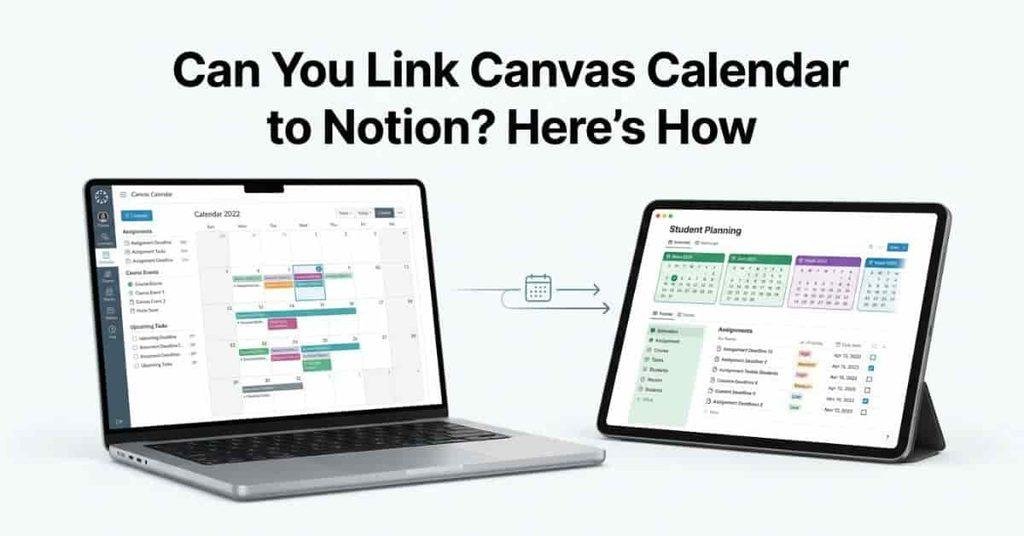
What if your Canvas deadlines could fit neatly into the Notion workspace you already use?
For many college students, Canvas is where assignments and deadlines live. Notion is where they plan classes, tasks, notes, and study goals. Managing both can become frustrating when important dates are scattered across different platforms.
So, can you link Canvas Calendar to Notion? The answer depends on the type of connection you want. Canvas can provide calendar information through supported calendar feeds, but Notion does not treat every calendar connection like a full assignment sync.
In this guide, you’ll learn how Canvas Calendar and Notion can work together. We’ll explain calendar feeds, available connection methods, and practical alternatives for organizing Canvas assignments in Notion.
You’ll also learn what may sync, what may not, and how to troubleshoot common problems. By the end, you’ll know which approach makes the most sense for your student workflow.
Whether you’re new to Canvas or building your first Notion student dashboard, this guide will keep things simple.
If you prefer using a traditional calendar to manage Canvas assignments and due dates, you can also learn how to link Canvas Calendar to Google Calendar and keep your academic schedule organized.
Can You Link Canvas Calendar to Notion?
Yes, but Canvas does not offer a simple native Canvas-to-Notion integration. You can use a Canvas calendar feed, a supported calendar service, or manually organize assignments in a Notion database. The best method depends on whether you want calendar viewing or detailed assignment management.
Canvas supports an iCal calendar feed that lets students subscribe to their Canvas calendar through external calendar applications. Notion Calendar, however, currently supports Google, Apple, and Microsoft calendars rather than adding arbitrary calendar feeds directly.
That creates four practical approaches:
- Direct integration: Canvas and Notion don’t provide a simple native connection.
- Calendar feed/iCal: Use Canvas’s calendar feed with a compatible calendar service.
- Google Calendar bridge: Connect the Canvas feed through Google Calendar, then view it in Notion Calendar.
- Manual organization: Add Canvas assignments to a Notion database for greater control.
If you also use Google Calendar for your daily schedule, see our guide on how to link your Canvas Calendar to Google Calendar for another planning option.
What Can You Bring From Canvas Into Notion?
The information you can bring over depends on the calendar method you choose. A Canvas calendar feed focuses on calendar information rather than creating full Notion assignment pages.
You may be able to work with items such as:
- Assignment due dates
- Course calendar events
- Class schedules
- Important academic deadlines
- Other events included in your Canvas calendar feed
If you manually build a Notion assignment database, you can add more details. For example, you could include the course name, assignment status, priority, notes, and due date.
This approach gives students more control over their planning system. Notion databases can display dated items in Notion Calendar, which makes them useful for organizing assignments alongside other commitments.
Does Canvas Automatically Sync With Notion?
Not usually as a direct, two-way sync. The result depends on the calendar method you use and which services sit between Canvas and Notion.
For example, a Canvas calendar feed can provide calendar information to a compatible calendar service. Notion Calendar can then display supported calendar accounts alongside Notion databases.
However, this does not mean every Canvas assignment becomes a fully editable Notion database entry. Notion also states that external calendar events cannot currently be brought directly into a Notion page as a native Notion calendar.
Updates can also take time, depending on the calendar service and feed. A changed Canvas deadline may not appear immediately in every connected view.
Pro Tip: Treat Canvas as your source of truth for official deadlines. Use Notion mainly for planning, tracking, and organizing your workload.
How Does the Canvas Calendar Work?
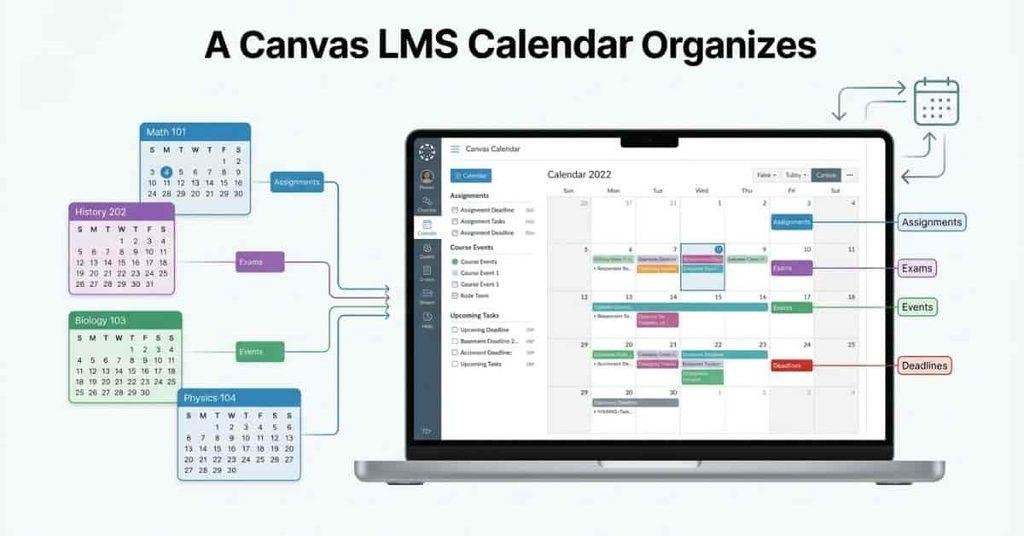
Canvas Calendar gives students one place to track course schedules, assignments, and important academic events. Each course can contribute dates to your overall Canvas calendar. This helps you see deadlines across multiple classes without checking every course separately.
Assignment due dates usually appear as calendar items when instructors add deadlines to Canvas. Other calendar events can include class meetings, quizzes, exams, office hours, or course-specific events. The exact items depend on how your school and instructors use Canvas.
Canvas also provides calendar feeds for connecting calendar information with supported external calendar applications. These feeds use a calendar subscription format, which can help you view Canvas dates outside the main Canvas interface.
Notion is useful for detailed planning, while Google Calendar can make it easier to manage time-based events and assignment deadlines. Learn how to link Canvas Calendar to Google Calendar to explore another convenient option.
What Is a Canvas Calendar Feed?
A Canvas calendar feed is a special link that lets another compatible calendar service access your Canvas calendar information. Instead of copying every deadline by hand, you can subscribe to the feed through a supported calendar application.
Think of it like a window into your Canvas calendar. When Canvas publishes calendar information through the feed, the connected service can display those events.
Your feed can include dates from the calendars available to you in Canvas. That may include assignment deadlines, course events, and other scheduled items.
The feed is especially useful when you manage school deadlines across multiple calendars. It can reduce repeated data entry and make your schedule easier to review.
However, a calendar feed isn’t the same as a full Canvas integration. It doesn’t automatically turn every Canvas assignment into a detailed Notion database page. Information and update behavior depend on the service receiving the feed.
Expert Tip: Keep checking Canvas for official deadlines, even when you use another calendar for planning.
What Is iCal and Why Does Canvas Use It?
iCal is a common calendar format that helps different calendar applications share scheduled events. Canvas uses an iCal-compatible calendar feed to let users subscribe to their Canvas calendar through supported calendar applications.
You may see this described as Canvas iCal, a Canvas calendar feed, or a Canvas calendar URL. These terms generally refer to the calendar subscription information you use to access your Canvas events outside Canvas.
The Canvas calendar URL acts as the connection address for the feed. You can copy that address and use it with a compatible calendar service that supports calendar subscriptions.
For students, the main benefit is simple: you can keep Canvas deadlines visible alongside other important dates. This can make it easier to plan assignments, exams, and study time.
The exact setup varies between calendar services. Some services may also refresh subscribed calendars at different times, so updates aren’t always immediate.
How to Get Your Canvas Calendar Feed
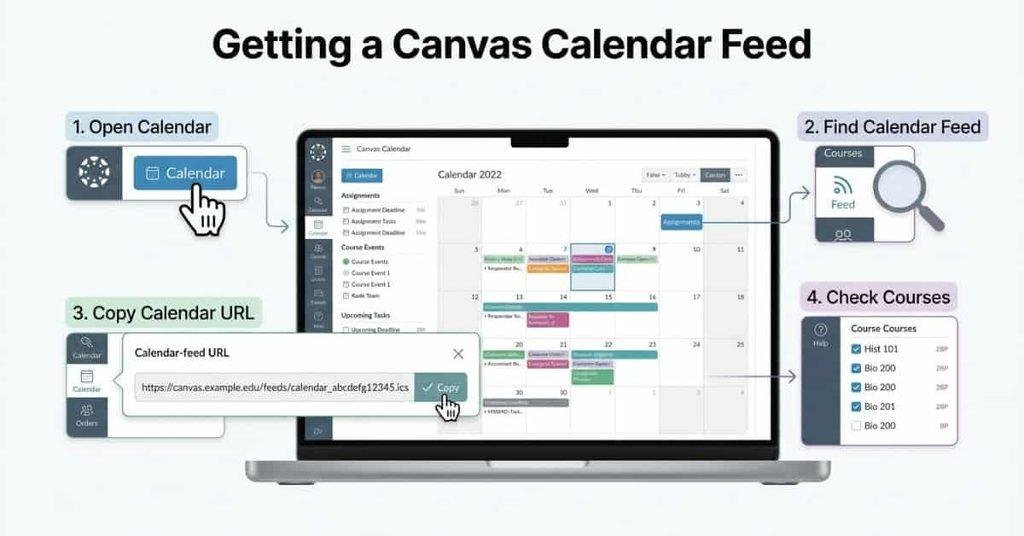
Before connecting Canvas with another calendar, you need your Canvas calendar feed URL. This link allows a compatible calendar service to access your Canvas calendar information. Canvas provides this feed from the Calendar area, making it easier to use your course dates outside Canvas.
The exact menu names can vary slightly by Canvas version or school setup. If you don’t see the feed option, your institution may have different settings.
Accurate deadlines depend on your Canvas settings, so you may also want to learn how to check Canvas time and time zone before organizing your schedule.
Step 1 — Open Your Canvas Calendar
First, sign in to your Canvas account through your school’s Canvas website. From the main Canvas dashboard, open Calendar from the global navigation menu.
You should now see your calendar with dates from your available courses. Check that the correct courses appear before continuing.
If you’re using Canvas on a phone, the menu layout may look different. The desktop or web version usually makes calendar settings easier to find.
Step 2 — Find the Calendar Feed
Inside Canvas Calendar, look for the Calendar Feed option. It’s commonly located in the calendar sidebar or under the calendar’s settings area.
Canvas may show a link specifically labeled Calendar Feed. Select it to reveal the subscription URL.
This feed contains calendar information that compatible calendar applications can read. It can help you avoid entering every Canvas deadline manually.
If you can’t find this option, check your Canvas school’s help documentation. Your institution may use a customized Canvas setup.
Step 3 — Copy Your Canvas Calendar URL
Once you find the calendar feed, copy the displayed URL. This is your Canvas calendar URL, and you’ll use it when connecting your calendar to a supported service.
Treat this URL like private account information. Don’t post it publicly or share it with people you don’t trust. Someone with access to the link may be able to view calendar information associated with your feed.
Store the URL somewhere secure if you plan to use it later. You may need it when setting up your external calendar workflow.
Step 4 — Check That Your Courses Are Included
Before moving to Notion, check that your required courses appear in your Canvas Calendar. Course calendars can usually be selected or hidden from the calendar sidebar.
Make sure important classes are enabled before relying on the feed. Otherwise, some assignments or events may not appear where you expect them.
Also check whether your instructors have actually added dates to Canvas. A missing assignment deadline isn’t always a syncing problem.
Pro Tip: Keep Canvas open while testing your calendar connection. It makes missing dates easier to compare and verify.
How to Add Your Canvas Calendar to Notion
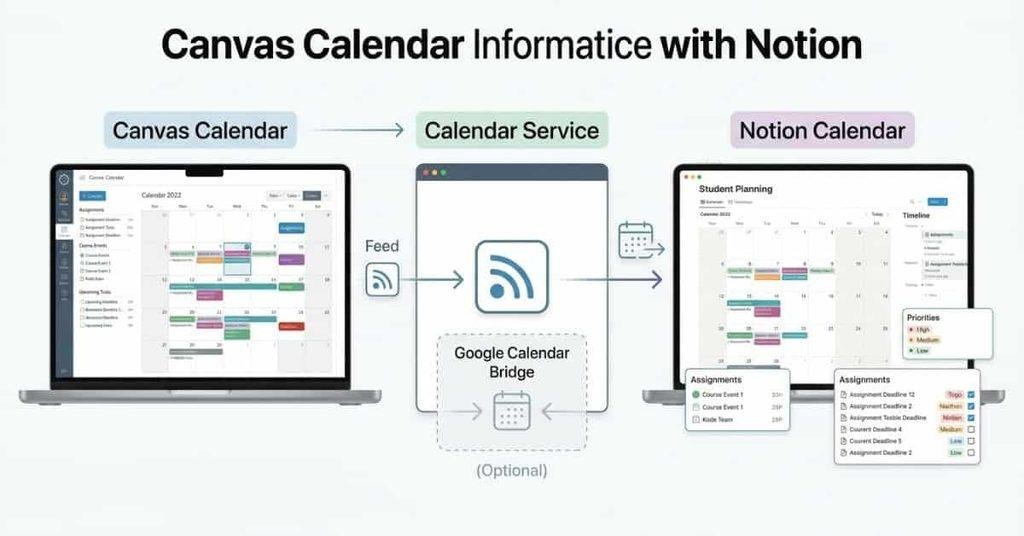
There isn’t a simple one-click Canvas-to-Notion integration that turns your Canvas calendar into a Notion database. Instead, you need to choose a workflow based on how you want your deadlines displayed.
Notion Calendar currently works with calendar providers such as Google, iCloud, and Microsoft Outlook. It can also display Notion databases that contain date properties.
For most students, there are three practical approaches:
- Use a compatible calendar feed workflow.
- Use Google Calendar as a bridge.
- Manually add Canvas assignments to a Notion database.
Option 1 — Use a Calendar Feed Workflow
Start by copying your Canvas calendar feed URL. Next, add that feed to a calendar service that supports calendar subscriptions.
The key point is compatibility. Notion Calendar doesn’t currently let you subscribe directly to a new external calendar feed. Notion recommends subscribing to the calendar through Google Calendar first, when using this type of workflow.
After the feed appears in your supported calendar account, you can connect that account to Notion Calendar. This lets you view your external calendar alongside your Notion database dates.
This approach works best if your main goal is seeing Canvas deadlines in one calendar view. It doesn’t automatically create a detailed Notion page for every Canvas assignment.
Option 2 — Use Google Calendar as a Bridge
A practical workflow is:
Canvas → Google Calendar → Notion Calendar
First, subscribe to your Canvas calendar feed through Google Calendar. Google Calendar then becomes the middle layer between Canvas and Notion.
Next, connect your Google Calendar account to Notion Calendar. Notion officially supports Google Calendar connections, allowing Google events to appear alongside Notion database items.
This approach can be useful when you already use Google Calendar for school and personal schedules. It also avoids trying to add the Canvas feed directly inside Notion Calendar.
However, remember that this isn’t a full Canvas-to-Notion assignment sync. Notion Calendar can display external calendar events, but those events don’t automatically become Notion database records.
Sync timing can also vary between services. Always verify important deadlines in Canvas.
Option 3 — Manually Add Canvas Assignments to Notion
Manual entry takes more effort, but it gives you the most control. You can create a Notion database specifically for your Canvas assignments.
Useful properties include:
- Assignment: Name of the task
- Course: Class or subject
- Due Date: Official Canvas deadline
- Status: Not Started, In Progress, or Done
- Priority: Low, Medium, or High
- Notes: Instructions or study reminders
You can then connect this database to Notion Calendar. Notion supports displaying database entries in Notion Calendar when they have a date property.
This method works especially well for students who want more than a simple calendar. You can add filters, views, priorities, notes, and progress tracking around your Canvas deadlines.
The trade-off is simple: manual organization gives you more control, but it doesn’t automatically update when Canvas changes an assignment. For important deadlines, compare your Notion database with Canvas regularly.
How to Create a Canvas Assignment Calendar in Notion
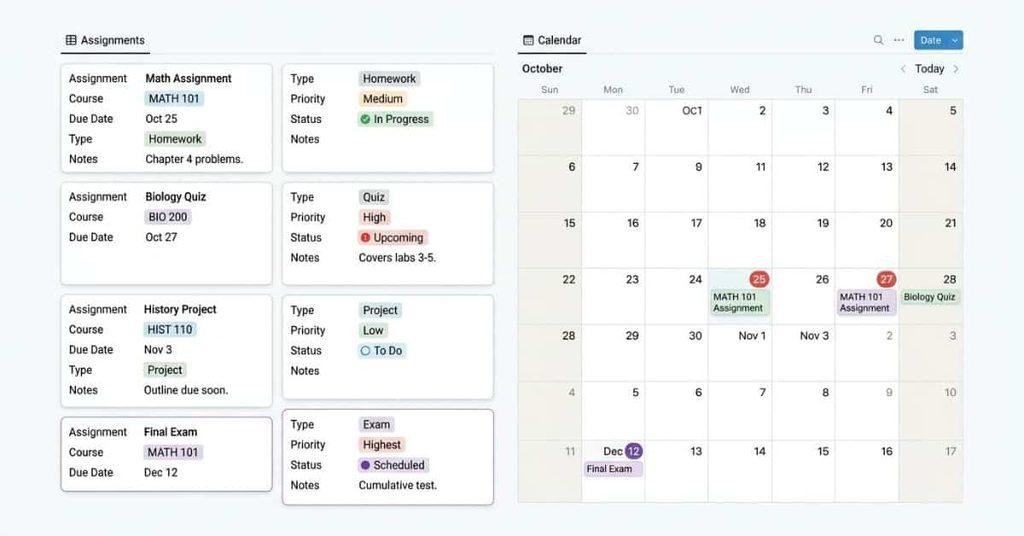
A Notion assignment calendar can turn scattered Canvas deadlines into one organized student dashboard. Instead of tracking every task separately, you can create one database for assignments, projects, quizzes, and exams.
Start by creating a Notion database with a Due Date property. Then add useful details for each Canvas assignment, such as the course, assignment type, priority, and status. You can also add notes for instructions, study reminders, or questions.
A simple system could include:
- Assignment name: Use the exact or shortened Canvas assignment title.
- Course: Record the Canvas course or subject.
- Due date: Add the official deadline shown in Canvas.
- Assignment type: Label it as homework, quiz, project, exam, or another category.
- Priority: Mark tasks as High, Medium, or Low.
- Status: Track Not Started, In Progress, or Done.
- Notes: Add useful instructions or personal reminders.
- Completed: Mark finished assignments so they don’t clutter your active workload.
You can then display the database in a calendar view. Notion Calendar can also display Notion database items that contain date properties.
Suggested Notion Calendar Database
Keep your database simple when you’re starting. You can always add more properties after you understand what information you actually need.
| Property | Purpose |
|---|---|
| Assignment | Assignment name |
| Course | Canvas course |
| Due Date | Official deadline |
| Assignment Type | Homework, quiz, project, or exam |
| Status | Not Started, In Progress, or Done |
| Priority | High, Medium, or Low |
| Notes | Extra information or reminders |
| Completed | Track finished work |
Expert Tip: Use the Canvas deadline as your official due date. Add an earlier personal reminder in Notion when you need extra preparation time.
Can Canvas Assignments Sync With Notion?
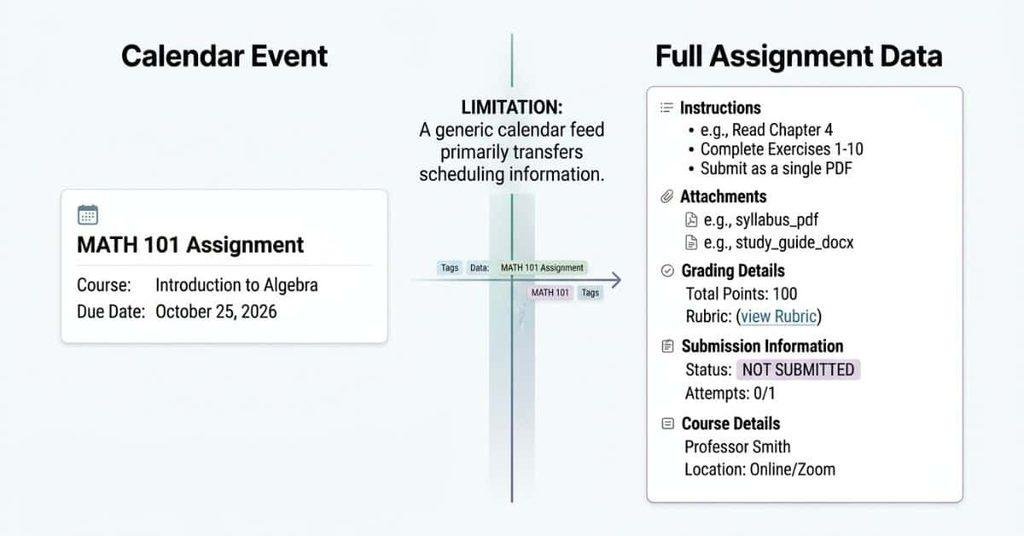
Canvas assignments don’t automatically become full Notion assignments through a standard calendar connection. A calendar workflow can show Canvas dates in a connected calendar, but it doesn’t necessarily transfer all assignment details into a Notion database.
This distinction matters when you’re trying to put Canvas assignments in Notion. A calendar event usually contains basic scheduling information, such as an assignment title and due date. Full Canvas assignment data can include much more.
For example, a Canvas assignment may contain:
- Assignment instructions
- Submission requirements
- Attachments
- Points or grading information
- Submission details
- Due dates
- Course information
A calendar feed focuses mainly on calendar events. It isn’t designed to recreate the complete assignment page inside Notion.
So, if you want to sync Canvas assignments with Notion, you need to decide what information you actually need. For simple deadline tracking, a calendar workflow may be enough. For detailed assignment management, a Notion database with manual entries gives you more control.
This also explains why Canvas assignments to Notion may not work exactly as expected. Connecting calendars doesn’t mean every Canvas assignment becomes an editable Notion page.
Can You Sync Canvas Calendar With Notion Automatically?
You can automate parts of the calendar workflow, but don’t treat it as a guaranteed full Canvas-to-Notion sync. The result depends on the services and calendar feeds involved.
A Canvas calendar feed can provide calendar information to a compatible calendar service. That service may then display those events through a calendar connected to Notion Calendar. Notion supports connecting external calendars such as Google Calendar and displaying those events in Notion Calendar.
However, several factors can affect what you see and when you see it:
- Calendar feed updates: A connected calendar may refresh its subscribed feed periodically.
- Sync frequency: Different services can check external feeds on different schedules.
- Update delays: Changes may take time to appear after a Canvas update.
- Changed deadlines: A changed assignment date may require the connected calendar to refresh.
- New assignments: Newly added Canvas events may not appear immediately.
- Deleted events: Removed or canceled events may also take time to disappear.
Because refresh behavior varies, don’t rely on an external calendar as your only source for important deadlines.
Pro Tip: Check Canvas directly before major exams, projects, or submissions. Use Notion as your planning tool, while Canvas remains the place to verify official course information.
Canvas Calendar Not Showing in Notion? Try These Fixes
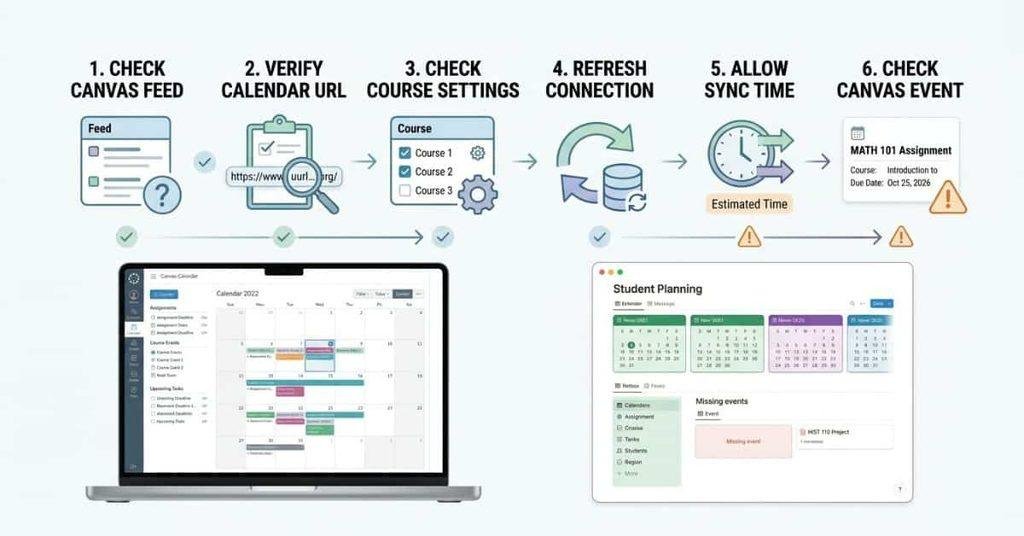
If your Canvas Calendar isn’t showing in Notion, don’t assume the connection failed. Several parts of the workflow can affect whether your events appear correctly.
Start by checking the Canvas calendar itself. Then verify the feed, connected calendar account, and course settings. These simple checks can often identify where the problem occurs.
Check Your Canvas Calendar Feed
First, return to Canvas and open your Calendar. Confirm that the calendar feed option is available and that you’re using the correct feed.
If the feed isn’t working as expected, create or copy the feed URL again. Then check whether your connected calendar service can access it.
Make Sure the Calendar URL Is Correct
A single missing character can make a calendar subscription fail. Compare the URL you copied from Canvas with the URL saved in your calendar service.
Avoid manually typing the address when possible. Copy the complete Canvas calendar URL directly from Canvas.
Also, don’t post your calendar feed URL publicly. Treat it as private calendar information.
Check Your Course Calendar Settings
Open your Canvas Calendar and check which course calendars are enabled. A hidden course may prevent its assignments and events from appearing in your overall calendar.
Turn on the courses you want to track. Then check whether the missing event appears in Canvas before troubleshooting Notion.
Refresh or Reconnect the Calendar
If everything looks correct, refresh the connected calendar. You can also remove and reconnect the calendar when necessary.
For a Google Calendar bridge, check that the correct Google account connects to Notion Calendar. Notion Calendar supports Google Calendar connections and can display those events alongside Notion items.
Check for Sync Delays
Calendar subscriptions don’t always update immediately. Different services can refresh external calendar feeds at different times.
Wait for the connected calendar to refresh before assuming the setup failed. Check again after some time, especially after changing an assignment deadline.
Check Whether the Event Is Actually on Your Canvas Calendar
Finally, confirm that the missing assignment or event appears in Canvas Calendar itself.
An instructor may not have added a calendar event, or the assignment may use settings that affect how it appears. If the event doesn’t exist in your Canvas Calendar, Notion can’t display it through that calendar workflow.
Pro Tip: Troubleshoot from the source outward: Canvas → calendar feed → connected calendar → Notion Calendar. This helps you identify exactly where the event disappears.
Canvas Calendar to Notion vs Google Calendar
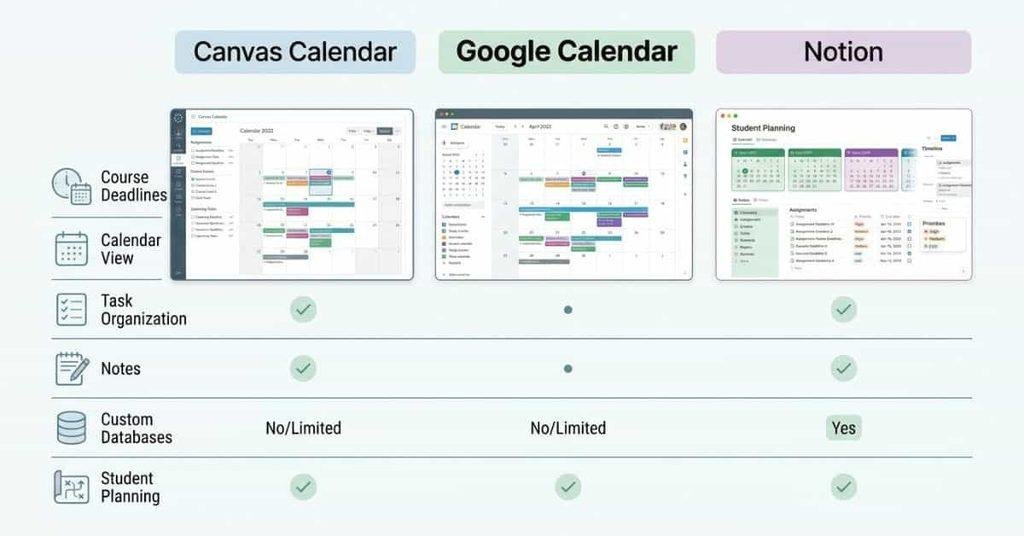
Canvas, Google Calendar, and Notion serve different purposes. The best choice depends on whether you need official course scheduling, calendar management, or detailed task organization.
| Feature | Canvas Calendar | Google Calendar | Notion |
|---|---|---|---|
| Course deadlines | ✅ | ✅ | Depends on workflow |
| Calendar view | ✅ | ✅ | ✅ |
| Task organization | Limited | Moderate | Strong |
| Notes | Limited | Limited | Strong |
| Custom databases | ❌ | ❌ | ✅ |
| Student planning | Good | Very Good | Excellent |
Canvas Calendar works best as your academic source. It keeps course deadlines, assignment dates, and other class events connected to your Canvas courses. It’s the best place to verify official deadlines.
Google Calendar works well when you want one calendar for school, work, appointments, and personal events. It can also act as a bridge for a Canvas calendar feed before you connect supported calendars with Notion Calendar.
Notion is more useful when you want a customized student planning system. You can create databases for assignments, add priorities and notes, track progress, and organize tasks around due dates.
For most students, these tools don’t need to compete. You can use Canvas for official course information, Google Calendar for scheduling, and Notion for deeper task planning.
Best Way for Students to Organize Canvas Assignments in Notion
The best workflow isn’t about moving every Canvas detail into Notion. It’s about turning important deadlines into a simple system you can actually maintain.
A practical student workflow looks like this:
Canvas → Calendar → Notion → Weekly planning
Use Canvas as your official source for assignments, due dates, instructions, and course updates. Use your connected calendar to keep deadlines visible. Then use Notion to organize tasks, priorities, notes, and study plans.
Your Notion dashboard can help you manage:
- Upcoming deadlines: See assignments, quizzes, and exams coming soon.
- Weekly assignment planning: Group tasks by week and plan when you’ll complete them.
- Exam preparation: Track study sessions, review topics, and upcoming tests.
- Priority tracking: Mark urgent or important assignments as High priority.
- Completed work: Move finished tasks to a completed view instead of deleting them.
- Course organization: Keep assignments separated by course for easier planning.
For example, you could review Canvas every Sunday, update your Notion tasks, and plan the week ahead. Add personal preparation dates before major deadlines so you aren’t working at the last minute.
Expert Tip: Keep your system simple. A few useful properties are better than a complicated dashboard you won’t maintain.
This workflow can also pair naturally with a Canvas Student Success Toolkit for students who want additional tools for managing coursework, deadlines, and academic planning.
Conclusion
Connecting Canvas and Notion can make student planning much easier when you use each tool for the right purpose. We covered calendar feeds, Google Calendar workflows, manual assignment tracking, and common syncing problems.
So, can you link Canvas Calendar to Notion? Yes, but the best method depends on what you want to manage. A calendar workflow can help you view important deadlines, while a Notion database gives you more control over tasks and study planning.
For the best results, keep Canvas as your source for official course deadlines. Use Notion to organize priorities, notes, completed work, and weekly plans.
Ready to improve your study workflow? Explore more student planning resources on our website, and share this guide with a classmate who uses Canvas and Notion.
Frequently Asked Questions
Can you link Canvas Calendar to Notion?
Yes, but not through a simple native one-click connection. You can use a calendar feed with a compatible calendar service, such as Google Calendar, and then connect that calendar to Notion Calendar. You can also manually add Canvas assignments to a Notion database. The best method depends on whether you want simple calendar viewing or detailed assignment management.
Can you connect Canvas to Notion?
Canvas and Notion don’t provide a standard direct integration for turning Canvas courses and assignments into Notion pages. You can connect calendar information through supported calendar workflows. For more detailed tracking, create a Notion database and add your Canvas assignments manually.
Can Canvas assignments sync with Notion?
Not as full assignment records through a basic calendar connection. A calendar workflow can transfer or display scheduling information, such as assignment titles and due dates. It doesn’t automatically copy every Canvas detail, including instructions, attachments, grading information, or submission requirements.
How do I add my Canvas Calendar to Notion?
Start by getting your Canvas calendar feed URL. Then subscribe to that feed through a compatible calendar service. You can connect supported calendar accounts to Notion Calendar and view those events there. Notion also lets you display database items with dates, which works well for manually organized Canvas assignments.
Does Canvas work with Notion?
Yes, you can use Canvas and Notion together as part of a student planning workflow. Canvas can remain your source for official course information, while Notion handles task organization, notes, priorities, and study planning. However, this doesn’t mean Canvas and Notion have complete native synchronization.
Can I import a Canvas Calendar into Notion?
You generally can’t import a Canvas calendar directly into a Notion database as complete assignment records. Instead, use a supported calendar workflow to view external calendar events in Notion Calendar. For a customized assignment database, manually add the important Canvas details to Notion.
Can Canvas Calendar sync automatically?
Calendar feeds can update through connected calendar services, but the timing depends on the services involved. New events, changed deadlines, or deleted events may take time to appear. Don’t assume that an external calendar always reflects Canvas immediately. Check Canvas directly for important deadlines.
Why isn’t my Canvas Calendar updating?
First, check whether the event appears correctly in Canvas. Then verify your calendar feed URL and course calendar settings. Check the connected calendar account and allow time for feed updates. If the problem continues, reconnect the calendar and confirm that the correct account is connected to Notion Calendar.

We are the Canvas Academic Team, a developer team focused on building simple and practical tools that help students succeed academically. This platform was created specifically for Canvas LMS students to make grade tracking, GPA calculations, exam planning, and academic management easier and more efficient.
Our focus is on creating fast, accurate, and student-friendly educational tools along with helpful learning resources that improve productivity and reduce academic stress.
Through CanvasGradeCalculator.com, our goal is to continue building useful resources that help students study smarter, stay organized, and achieve better academic results.

