

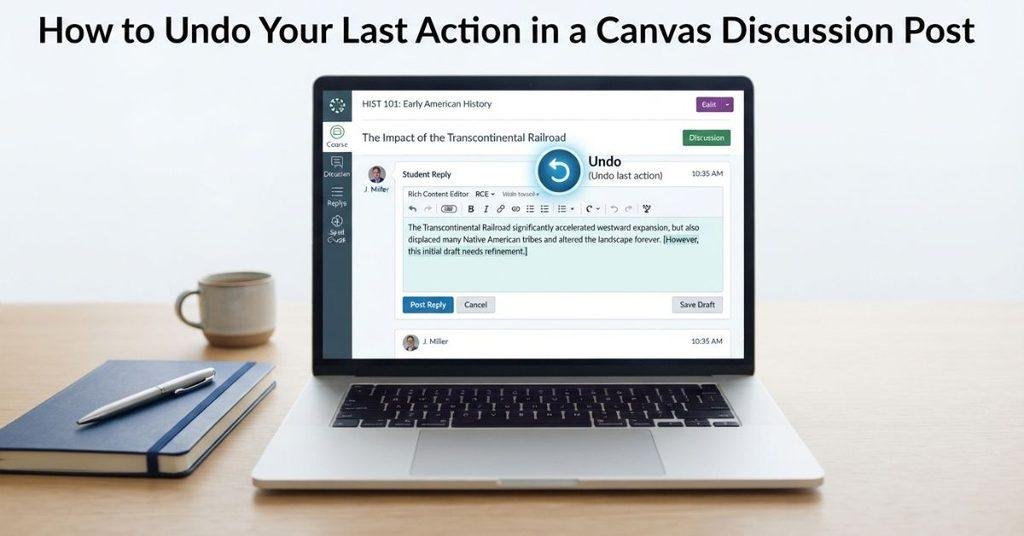
Table of Contents
Introduction
Have you ever made a mistake in a Canvas discussion and wished you could instantly undo it?
For many U.S. college students, Canvas discussions are part of weekly coursework. A small editing mistake or accidental click can quickly become frustrating. Beginners may also confuse undoing text with reversing a posted discussion action.
If you’re searching for how to undo last action in canvas discussion post, this guide will help. You’ll learn what Canvas can undo and what it cannot reverse. We’ll also explain how to edit or delete a discussion reply when possible.
By the end, you’ll know the safest way to fix common Canvas discussion mistakes. You’ll also learn what to do if the Undo option is no longer available.
Can You Undo an Action in a Canvas Discussion Post?
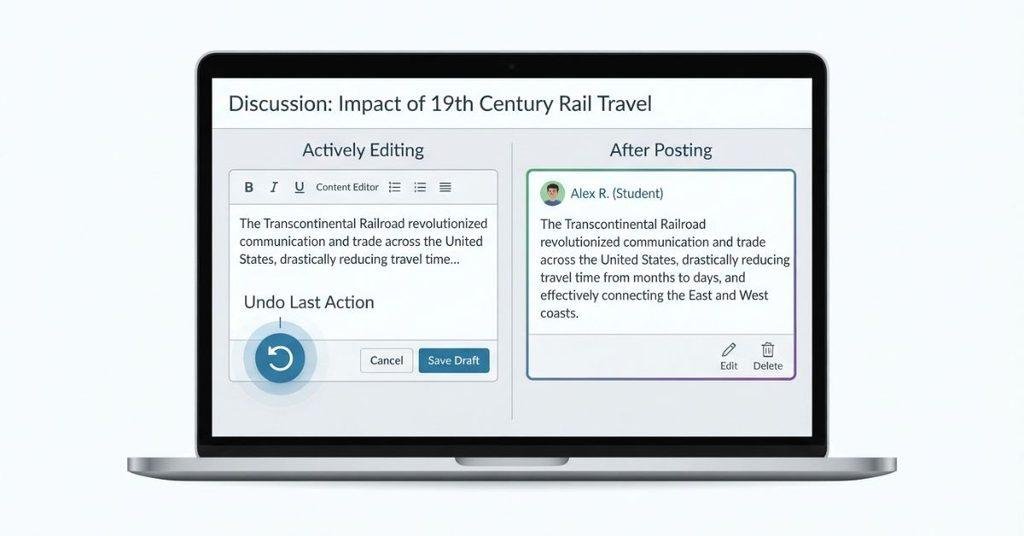
Yes, you can undo recent changes while editing a Canvas discussion post. However, Canvas doesn’t provide a universal “undo everything” button for every discussion action. What you can reverse depends on the action and whether you have already submitted the post.
While typing or editing, the Undo option can reverse recent changes in the editor. This includes actions such as deleting text, changing wording, or making other recent edits. If you post a reply, however, Undo doesn’t automatically remove that published reply. You may need to edit or delete it, depending on your course settings and permissions.
If your discussion includes feedback from classmates, our guide explains how peer review works in Canvas and what students can expect.
What Does the Undo Button Do in Canvas?
The Undo button generally reverses recent editing actions within the current editor session. For example, you can use it after accidentally deleting a sentence or changing text you wanted to keep. This makes Undo useful when you’re still working on your discussion response.
Undo works differently from deleting or changing a discussion after submission. It doesn’t act as a history tool for every action you take in Canvas. Once you leave the editor or submit your response, other options may apply.
Pro Tip: If you make a mistake while writing, use Undo immediately before making more changes. This can make it easier to restore the text you intended to keep.
Does Undo Work After You Submit a Discussion?
Usually, you shouldn’t expect the editor’s Undo function to reverse a discussion after you submit it. Undoing an editing change is different from reversing a submitted discussion post.
After submission, your available options depend on Canvas permissions and course settings. Some courses may allow you to edit a published reply. Others may limit editing or prevent students from deleting their posts.
If you accidentally submit the wrong response, check the discussion for an Edit or Delete option. If those options aren’t available, contact your instructor for help. Avoid submitting another reply just to correct the mistake unless your instructor recommends it.
How to Undo Your Last Action While Writing a Canvas Discussion
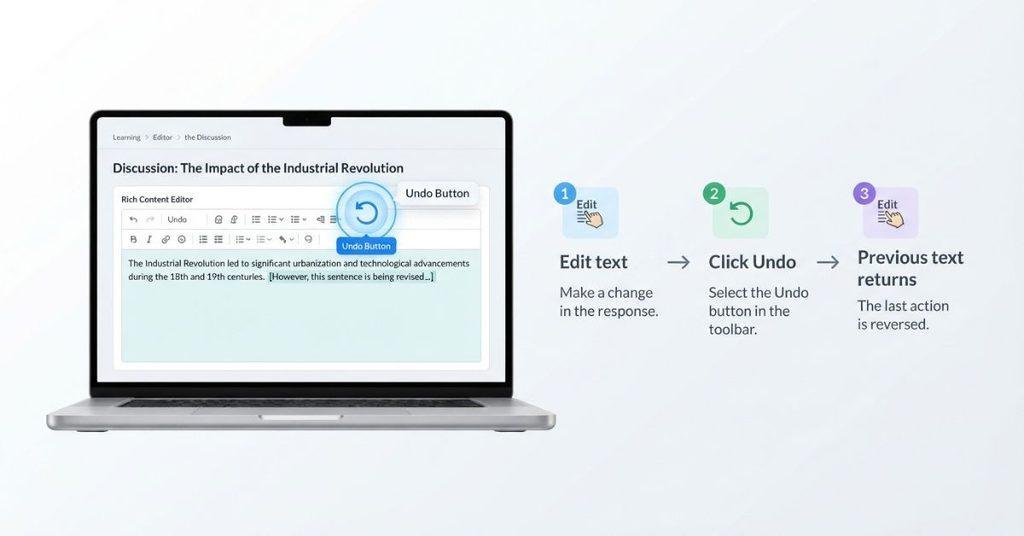
If you accidentally delete or change text while writing, you can often undo that recent edit. Follow these steps before submitting your response.
Step 1 — Open Your Discussion
Sign in to Canvas and open the relevant course. Select Discussions from the course navigation menu. Then, open the discussion where you need to write or edit your response.
Step 2 — Edit or Write Your Response
Open the response editor and start writing your discussion post. Canvas typically uses the Rich Content Editor for composing and formatting discussion responses. You can type text, revise sentences, and make formatting changes before submitting.
Step 3 — Use Undo
If you make an unwanted change, look for the Undo control in the Rich Content Editor toolbar. Depending on your Canvas version and screen size, its location may vary.
Select Undo to reverse your most recent editing action. You can use it again if you need to reverse additional recent changes.
Step 4 — Check That Your Previous Text Returns
Review the editor after selecting Undo. Check whether the deleted or changed text has returned correctly.
If the wrong change remains, use Undo again or manually correct the text. Take a moment to review the surrounding sentence before continuing.
Step 5 — Continue Editing or Submit
Once your original text looks correct, continue editing your response as needed. Check spelling, formatting, and your final answer before posting.
If everything looks right, submit the discussion response. Remember that Undo is mainly for recent editing changes, not for reversing an already-submitted post.
Before submitting any Canvas assignment, it can also help to know whether you can unsubmit or delete a submission on Canvas if you notice a mistake.
How to Undo Deleted Text in a Canvas Discussion
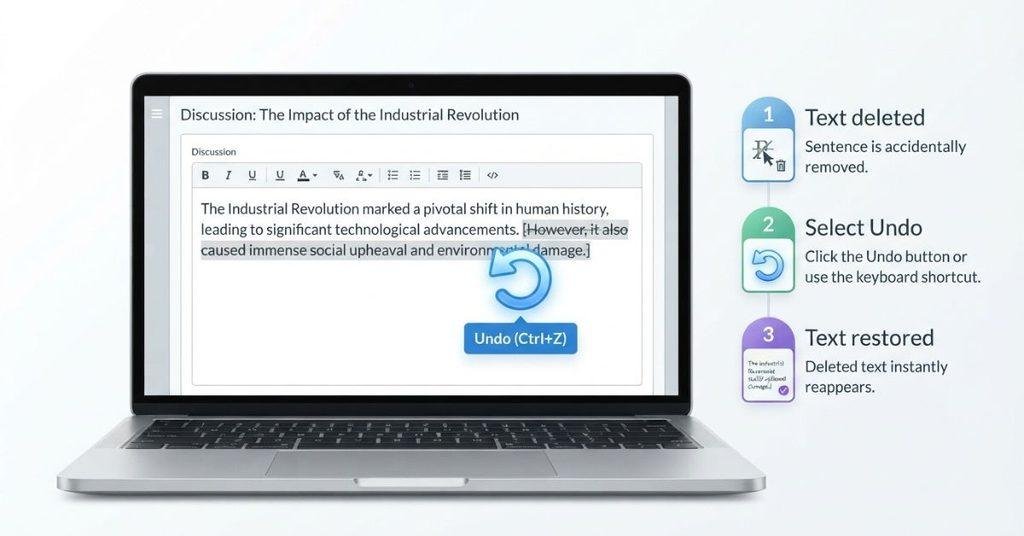
Accidentally deleting text can be frustrating, especially after spending time writing a discussion response. If the deletion just happened, try Undo before making more changes.
If You Just Deleted the Text
Use the Undo control immediately after deleting the text. This can restore your most recent editing change within the current editor session.
Check the response after using Undo. Make sure the missing text returned before you continue writing.
If You Made Several Changes
If you made several unwanted edits, you can try using Undo repeatedly. Each action can reverse another recent editing change supported by the editor.
However, don’t assume Canvas keeps an unlimited history of your changes. Older actions may no longer be available through Undo.
For important assignments, review the restored text carefully. Confirm that earlier edits didn’t remove or alter other parts of your response.
If You Closed or Refreshed the Page
Closing or refreshing the page can affect the editor’s available undo history. You may no longer be able to undo earlier changes after leaving the editing session.
First, check whether your browser recovered any unsaved text. Browser recovery isn’t guaranteed, so avoid relying on it as your main backup.
If you can’t recover the deleted content, reconstruct your response from your notes or saved copy. For longer discussion posts, keeping a separate draft can prevent major content loss.
How to Undo a Canvas Discussion Post After Posting
Once you post a Canvas discussion reply, the situation changes. The editor’s Undo function generally won’t unsend a reply that has already been posted. Your next options depend on your course settings and Canvas permissions.
Can You Unsend a Canvas Discussion Reply?
You generally shouldn’t assume that an already-posted Canvas discussion reply can be unsent. The Undo control is designed for editing actions, not for removing a published response.
If you posted something by mistake, check the discussion for available editing or deletion options. If you can’t find either option, your instructor may need to help.
Can You Edit Your Discussion Reply?
You may be able to edit a published discussion reply if your course permissions allow it. Open your response and look for an Edit option.
If Edit appears, select it and correct the content. Review the entire response before saving your changes.
However, editing availability can vary by course settings and instructor permissions. Don’t assume every Canvas discussion allows students to edit submitted replies.
Can You Delete Your Discussion Reply?
Some Canvas discussions may allow students to delete their own replies. Look for a Delete option near your published response.
If the option appears, make sure you’re deleting the correct reply. Deletion can remove the response from the discussion, depending on the available permissions.
What If Edit or Delete Is Not Available?
Don’t keep trying random Canvas controls if neither option appears. Contact your instructor and explain what happened.
Tell them that you posted the wrong response or made another mistake. Ask whether they can remove the post, reset the discussion, or otherwise help correct it.
How to Recover a Canvas Discussion Post You Accidentally Deleted
Accidentally deleting a discussion reply can be stressful, especially when you spent significant time writing it. Start by checking whether the response is actually gone before assuming you’ve lost it permanently.
Canvas doesn’t guarantee that deleted discussion content can always be recovered. Your available recovery options depend on the course setup, permissions, and what happened to the post.
Check Whether the Post Is Still Visible
Return to the discussion and look carefully for your original response. Refresh the page only after checking the visible content.
Your post may still appear if the action didn’t complete successfully. Check both the discussion thread and your own reply.
Check for an Edit or Restore Option
Look around your discussion response for available controls. Depending on your permissions, you may see options for editing or managing the post.
A restore option may not be available. Don’t assume Canvas provides one for every deleted discussion reply.
Check Your Browser History Carefully
Browser history can help you return to a page you previously visited. However, it usually won’t restore deleted Canvas content.
Use browser history to reopen the relevant discussion if needed. Don’t expect it to recover text that Canvas no longer displays.
Recreate the Response if Necessary
If you can’t recover the original, recreate your response using any saved notes or drafts. Check your computer, notes app, or other location where you may have copied the text.
For future assignments, consider keeping a separate copy of longer discussion responses. This gives you a backup if something goes wrong during editing or submission.
Ask Your Instructor for Help
If the response contained important work and you can’t recover it, contact your instructor. Explain what happened and provide any remaining copy of your response.
Your instructor may have options that aren’t available from the student view. They can tell you the appropriate next step for that specific course.
How to Undo a Canvas Discussion Post on the Mobile App
Canvas works slightly differently on mobile devices. The exact controls can depend on the Canvas Student app version and your course permissions. If you need to fix a discussion response, start by opening the relevant course and checking the available controls.
Open the Canvas Student App
Open the Canvas Student app on your phone or tablet. Sign in to your Canvas account if needed.
Make sure you’re using the account connected to your college or university course. Then open your current course from the dashboard.
Open Your Course and Discussion
Select the course containing the discussion. Open Discussions and find the discussion where you posted your response.
Tap the relevant discussion to view the thread and your reply. Check whether your response is still visible.
Edit Your Response if Available
If Canvas allows you to edit your response, look for an Edit option associated with your reply. Tap it and make the necessary corrections.
Review the complete response before saving your changes. This helps prevent another accidental edit.
Look for Available Editing Controls
Available controls can vary between courses and Canvas interfaces. You may see options such as Edit or Delete, depending on your permissions.
Don’t assume the mobile app provides every control available elsewhere. Your instructor’s course settings can also affect what actions you can perform.
What to Do if Undo/Edit Isn’t Available
If you can’t find Undo or Edit, don’t immediately submit another response. The app and browser versions can have different interfaces and available controls.
Try opening Canvas through a browser and checking the discussion there. If you still can’t change the post, contact your instructor for guidance.
What If I Accidentally Posted the Wrong Canvas Discussion Reply?
Posting the wrong response can happen when you’re working quickly or submitting multiple assignments. The safest approach is to check your existing reply before taking another action.
Don’t Post Another Reply Immediately
First, check whether your original reply can be edited. Posting another response may create additional confusion in the discussion thread.
Open your original reply and look for available management options. This helps you determine what you can safely do next.
Look for the Edit Option
Check your published response for an Edit control. If it’s available, use it to correct the original response instead of creating another reply.
Correct the Post if Editing Is Allowed
Select Edit and carefully fix the incorrect content. Review the entire response before saving your changes.
Make sure your corrected answer meets the discussion requirements. Check your citations, formatting, and wording if applicable.
Delete and Repost Only if Your Course Allows It
If your course allows you to delete your reply, you may be able to remove the incorrect response. You can then repost the corrected version if appropriate.
Don’t delete and repost automatically. Follow your instructor’s discussion rules and avoid creating unnecessary duplicate responses.
Contact Your Instructor if You Cannot Change It
If Edit or Delete isn’t available, contact your instructor. Briefly explain that you accidentally posted the wrong response and couldn’t change it.
Ask what you should do next. Your instructor can determine the appropriate solution based on the course settings and assignment requirements.
Canvas Discussion Undo vs. Edit vs. Delete
Understanding the difference between these actions can prevent confusion when fixing a Canvas discussion post. Undo works mainly while you’re editing, while Edit and Delete may apply after posting.
| Action | What It Does |
|---|---|
| Undo | Reverses recent changes made in the editor |
| Edit | Changes an already-posted response, if permitted |
| Delete | Removes a response, if permitted |
| Repost | Creates a new response in the discussion |
| Instructor assistance | Helps when student controls aren’t available |
The key difference is when the action applies. Undo helps reverse recent editing changes. It isn’t a general tool for reversing every Canvas action.
If you’ve already posted your response, check for Edit or Delete before taking further action. If neither option appears, ask your instructor for help.
Why Can’t I Undo My Last Action in Canvas?
Canvas doesn’t offer Undo for every action. The available options depend on what you did, where you did it, and your course permissions.
The Action Happened Outside the Text Editor
The editor’s Undo function focuses on recent changes made while composing your response. It won’t necessarily reverse other Canvas actions.
For example, posting, deleting, or managing a discussion reply may require different controls.
You Already Submitted the Post
Once you submit a discussion response, the editor’s Undo function generally isn’t the right tool. Check whether your course allows you to edit or delete the published response.
You Refreshed or Left the Page
Leaving or refreshing the page can affect the editor’s available undo history. You may no longer be able to reverse earlier editing actions.
Canvas Doesn’t Provide an Undo Option for That Action
Not every Canvas action has an Undo control. If you don’t see Undo, look for another available option that matches the action you want to reverse.
Your Course Restricts Editing or Deleting
Your instructor or course settings may restrict student editing or deletion. This can prevent you from changing a published discussion response.
You’re Using the Mobile App
The Canvas Student app may present controls differently from the browser version. If an option isn’t visible, check Canvas through a browser as well.
If you still can’t change the response, contact your instructor. Explain what happened and ask about the available solution.
How to Avoid Losing a Canvas Discussion Response
A few simple habits can help protect your discussion responses and reduce accidental changes.
- Draft longer responses somewhere safe first. Use a notes app or document for important assignments.
- Copy important text before major edits. This gives you a backup if something goes wrong.
- Review your response before posting. Check the content, formatting, and discussion requirements.
- Avoid refreshing while composing. Refreshing can affect unsaved text and your available editing history.
- Confirm the correct discussion before submitting. Make sure you’re replying to the right prompt and course.
Conclusion
Canvas gives you ways to fix some mistakes, but how to undo last action in canvas discussion post depends on what happened. Undo can reverse recent editor changes, while editing or deleting a posted reply depends on your course permissions.
Once your discussion or assignment is submitted, the Canvas Grade Calculator can help you estimate how the score may contribute to your course grade.
If you accidentally post the wrong response, check for Edit or Delete before submitting another reply. If those options aren’t available, contact your instructor for help.
Save important drafts before editing, and review your response before posting. These simple steps can help prevent lost work and accidental submissions.
Found this guide helpful? Share it with another student who uses Canvas. You can also explore more Canvas tips and troubleshooting guides on our website.
Frequently Asked Questions
Use the Undo control in the Rich Content Editor while you’re still writing. It can reverse recent text or formatting changes. It generally won’t reverse a discussion after you’ve submitted it.
Yes, if you deleted the text during the current editing session. Select Undo soon after the deletion. If you made several changes, you can try Undo repeatedly.
Not with the editor’s Undo function. After submission, check whether Canvas provides Edit or Delete options. These options depend on your course permissions.
You generally shouldn’t assume a posted discussion can be unsent. Check for Edit or Delete options instead. If neither option appears, contact your instructor for help.
Open the discussion and locate your published response. Look for an Edit option near the post. If available, select it, make your changes, and save the updated response.
You may be able to delete your reply if your course permissions allow it. Open your response and check for a Delete option. If you don’t see it, ask your instructor for help.
Your course settings or instructor permissions may restrict editing. Canvas can also provide different controls depending on the discussion setup. Contact your instructor if Edit isn’t available.
Recovery isn’t guaranteed. Check whether the post remains visible or whether Canvas provides another available option. If you can’t recover it, contact your instructor and recreate the response if necessary.
While writing, look for the Undo control in the editor. After posting, check for Edit or Delete options instead. Available controls can differ between the app and browser.
First, check whether you can edit the original reply. If Edit isn’t available, check whether you can delete it. If neither option works, contact your instructor before posting another response.

We are the Canvas Academic Team, a developer team focused on building simple and practical tools that help students succeed academically. This platform was created specifically for Canvas LMS students to make grade tracking, GPA calculations, exam planning, and academic management easier and more efficient.
Our focus is on creating fast, accurate, and student-friendly educational tools along with helpful learning resources that improve productivity and reduce academic stress.
Through CanvasGradeCalculator.com, our goal is to continue building useful resources that help students study smarter, stay organized, and achieve better academic results.

