

Table of Contents
Introduction
Ever tried opening MyOpenMath through Canvas and had no idea where to start?
If your college uses both platforms, finding the right connection can feel confusing at first. How to add MyOpenMath to Canvas depends on how your school has configured Canvas and its integrations.
Students usually cannot add institutional integrations themselves. Your instructor or school administrator may need to enable MyOpenMath before it appears in your course.
In this guide, you’ll learn how MyOpenMath connects with Canvas and what to do before accessing it. We’ll walk through the common setup process step by step. You’ll also learn what to check if MyOpenMath does not appear in Canvas.
By the end, you’ll understand how to access MyOpenMath through your Canvas course. You’ll also know when to contact your instructor or college support team for help.
What Is MyOpenMath in Canvas?
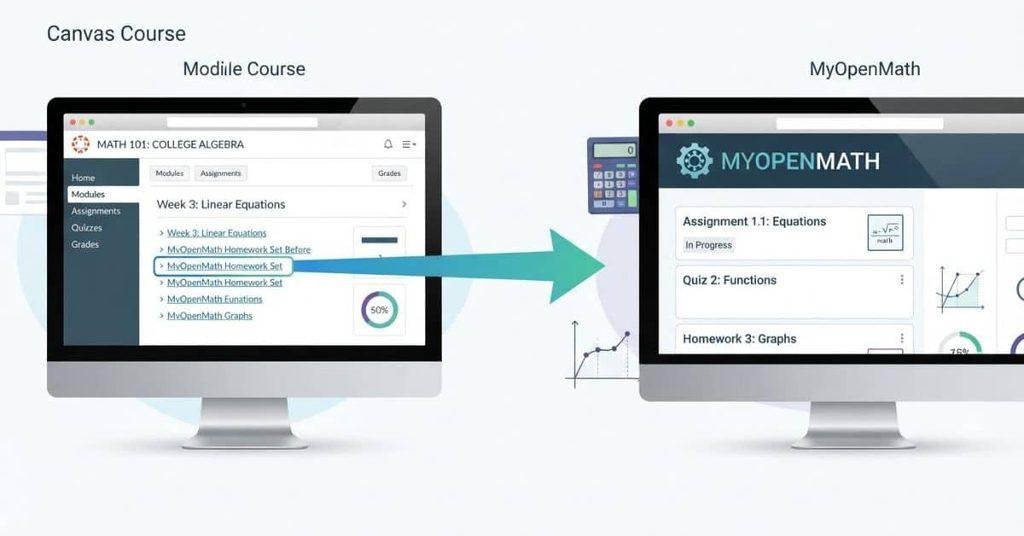
MyOpenMath is an online learning platform designed mainly for mathematics courses. It lets instructors create digital homework, quizzes, tests, and other graded activities.
Students can complete assignments online and receive feedback based on their course settings. Math instructors may use MyOpenMath alongside Canvas to manage coursework more efficiently.
If your course uses other external learning platforms, you may also want to learn how to link Pearson lessons inside Canvas for easier access to course materials.
How Does MyOpenMath Work With Canvas?
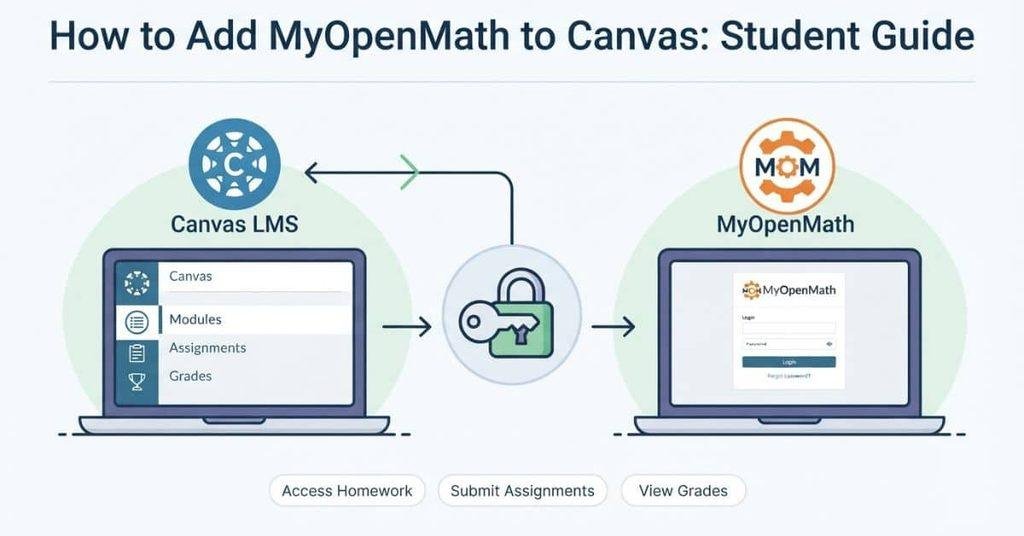
Canvas acts as the main course platform, while MyOpenMath handles specific math activities. Your instructor may place a MyOpenMath link inside your Canvas course.
The basic process usually looks like this:
Canvas course → MyOpenMath link or integration → MyOpenMath course
When you select the provided link, Canvas may connect you to the correct MyOpenMath course. The exact process depends on your college’s setup and integration.
Do Students Add MyOpenMath to Canvas?
Usually, students don’t install or add the MyOpenMath integration themselves. An instructor or Canvas administrator typically enables the connection for the course.
Your course configuration determines which MyOpenMath links and activities you can see. If you don’t find MyOpenMath in Canvas, check your course modules, assignments, or navigation menu first.
Pro Tip: If your instructor provided a specific MyOpenMath link, use that link instead of creating a separate connection.
How to Add MyOpenMath to Canvas
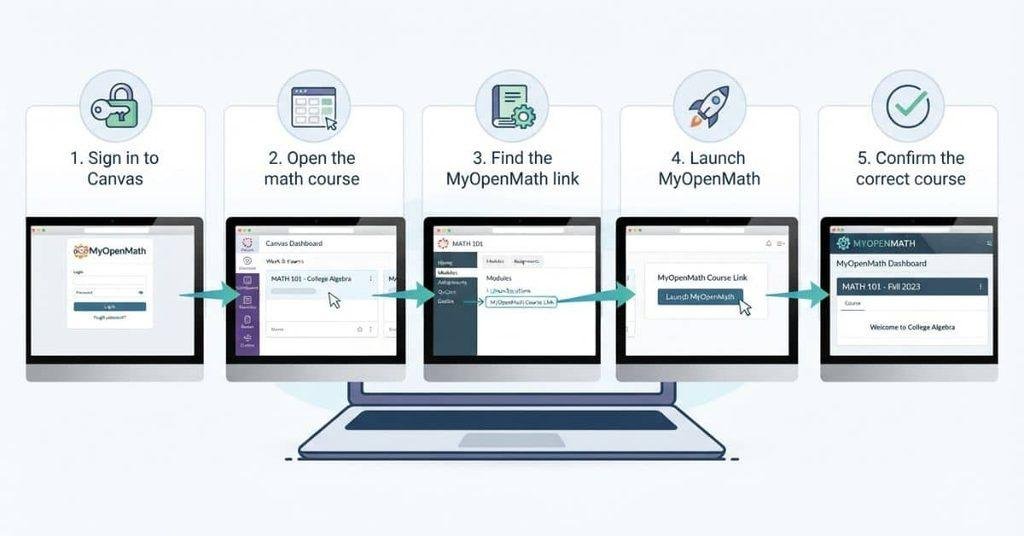
If you’re wondering how to add MyOpenMath to Canvas, the process usually starts inside your Canvas course. In most colleges, students don’t install the integration themselves. Instead, instructors or administrators provide a MyOpenMath link that connects the two platforms.
Follow these steps to find and open MyOpenMath through Canvas.
Step 1 — Log In to Your Canvas Account
Start by opening your school’s Canvas website. Use the Canvas address provided by your college or university.
Enter your school credentials and sign in. After logging in, you’ll usually see your Canvas dashboard with your current courses.
Step 2 — Open Your Math Course
Select Courses from the Canvas menu. Then choose the math class that uses MyOpenMath.
Make sure you open the correct section. Some students take multiple math courses, and each course may use different online tools.
Step 3 — Look for the MyOpenMath Link
Your instructor can place the MyOpenMath link in different areas of Canvas. Check these common locations:
- Course Navigation
- Modules
- Assignments
- Course Pages
The exact location depends on how your instructor configured the course. If you don’t see it immediately, check the course modules and assignments carefully.
Step 4 — Open MyOpenMath Through Canvas
Once you find the MyOpenMath link, select it. Canvas should begin the connection or launch process.
Depending on your school’s setup, MyOpenMath may open in a new browser tab. You may also see a brief authentication or authorization screen.
Step 5 — Sign In or Connect Your MyOpenMath Account
Some Canvas integrations can connect your accounts automatically. Other setups may ask you to sign in or complete an additional authentication step.
Follow the instructions shown on your screen. Avoid creating another MyOpenMath account unless your instructor specifically tells you to do so.
Expert Tip: Always use the MyOpenMath link provided inside your Canvas course. This helps ensure you’re connected to the course your instructor configured.
Step 6 — Confirm Your MyOpenMath Course
After MyOpenMath opens, check that you’re enrolled in the correct course. Look for your instructor’s course name, section, or other identifying information.
Then check whether your assigned homework, quizzes, or other activities appear. If the course is missing or assignments aren’t visible, contact your instructor before changing your account settings.
How to Access MyOpenMath From Canvas
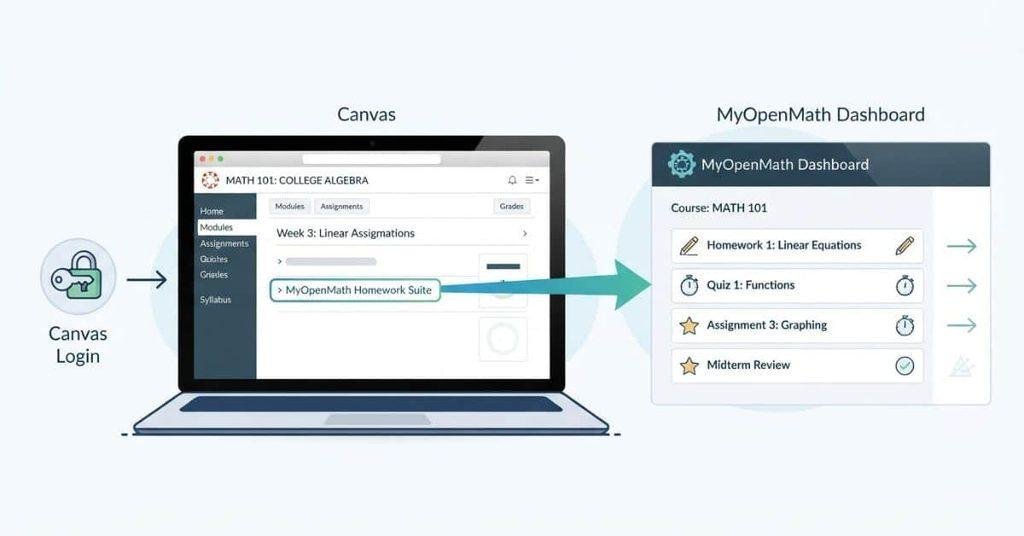
If your instructor has already connected MyOpenMath to Canvas, you usually don’t need to add anything yourself. You simply open the provided link and follow the launch process.
If you are unsure how a new MyOpenMath assignment could affect your final grade, enter your current scores into the Canvas Grade Calculator and test different outcomes.
Open Your Canvas Course
Sign in to your school’s Canvas account and open Courses. Select the math course that uses MyOpenMath.
Make sure you’re viewing the correct course and section before looking for the external tool.
Find the MyOpenMath Link
Look through the course navigation menu, Modules, Assignments, or Pages. Your instructor can place the link in different locations.
If you can’t find it, check your course announcements or syllabus for setup instructions.
Launch MyOpenMath
Select the MyOpenMath link provided by your instructor. Canvas should launch MyOpenMath using your school’s configured connection.
Follow any sign-in or authentication instructions that appear.
Select Your Course
After MyOpenMath opens, confirm that you’ve entered the correct course. Check the course name and instructor information when available.
If you see the wrong course, don’t start completing assignments. Contact your instructor for help.
Check Your Assignments
Open the homework or assignment area in MyOpenMath. Confirm that your expected activities are available.
If everything appears correctly, you’re ready to use MyOpenMath through Canvas.
Important: If your instructor already added MyOpenMath to Canvas, you usually don’t need to add it yourself. Your job is normally to open the provided link and access the assigned course.
What If MyOpenMath Is Not Showing in Canvas?
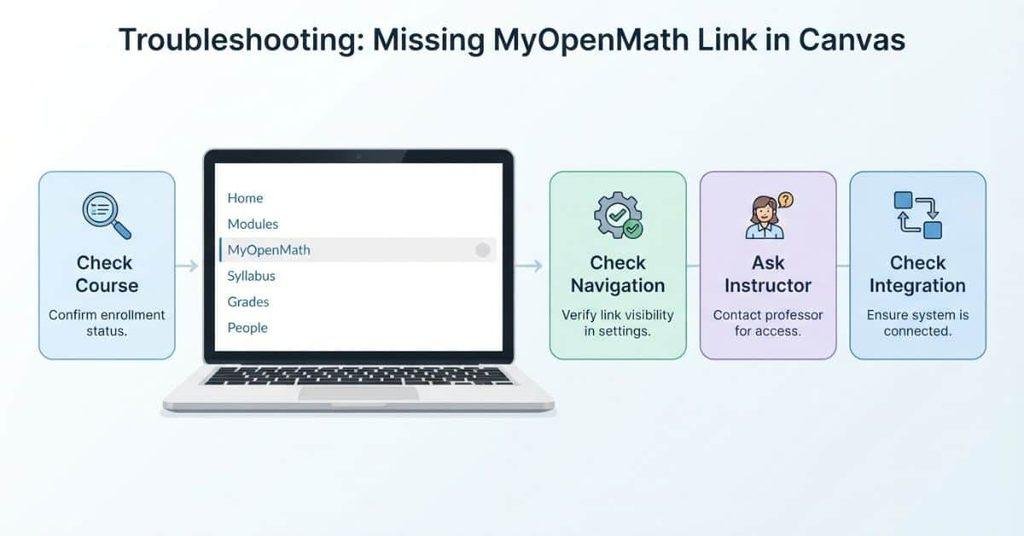
Can’t find MyOpenMath anywhere in your Canvas course? The problem may not be something you can fix yourself. Course settings, instructor permissions, or enrollment syncing can affect what appears.
Your Instructor Has Not Added MyOpenMath
Your instructor may not have added the MyOpenMath tool yet. This is especially possible if the course recently opened.
Next step: Check your syllabus or course announcements first. If there’s no information, ask your instructor whether MyOpenMath has been enabled.
MyOpenMath Is Hidden From Course Navigation
Some Canvas course tools may not appear in the main navigation menu. Your instructor controls which course links students can see.
Next step: Check Modules, Assignments, and Pages for a MyOpenMath link. Don’t assume the tool is unavailable just because it isn’t in the navigation menu.
You’re Looking in the Wrong Course
Students sometimes open a different section or an older Canvas course. MyOpenMath may only appear in the current math course.
Next step: Return to Courses and confirm the course name, section, and semester. Then search that course again.
The Integration Is Not Enabled
Your college may use a MyOpenMath and Canvas integration that requires administrative setup. Students generally cannot enable an institutional integration themselves.
Next step: Ask your instructor or campus Canvas support team whether the integration is enabled for your course.
Your Course Has Not Started Yet
Your instructor may not have published the course or MyOpenMath activities yet. Some course materials remain unavailable until the class officially begins.
Next step: Check the course start date and announcements. Wait for the instructor’s instructions if the course isn’t active yet.
Your Canvas Enrollment Has Not Synced
A delay between Canvas and MyOpenMath can sometimes affect course access. This may happen when enrollment information has not reached the connected platform.
Next step: Confirm that you’re officially enrolled in the Canvas course. If you’re enrolled but still can’t access MyOpenMath, contact your instructor or school support team.
Expert Tip: Don’t create a separate MyOpenMath course to fix a missing Canvas link. Your instructor may already have a connected course waiting for you.
How to Link Your MyOpenMath Account to Canvas
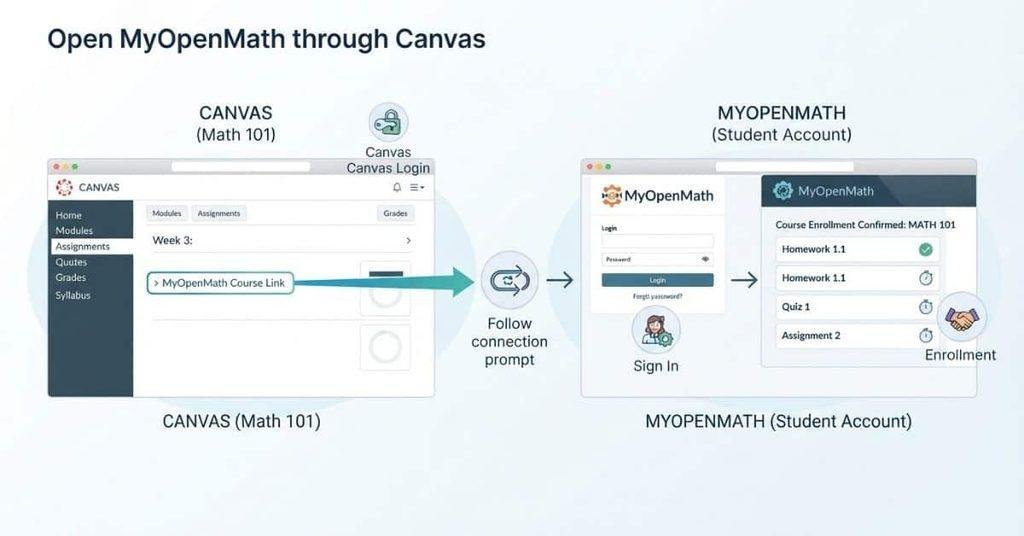
Linking your MyOpenMath account can feel confusing when Canvas redirects you to another platform. In most cases, the connection starts through the MyOpenMath link inside your Canvas course.
Open MyOpenMath Through the Canvas Course
Sign in to Canvas and open the math course that uses MyOpenMath. Find the MyOpenMath link in Modules, Assignments, Pages, or course navigation.
Always start from your Canvas course when possible. This helps the system connect you with the course your instructor configured.
Sign In With Your Existing Account
When MyOpenMath opens, sign in with your existing account if you already have one. Use the account you normally use for your college coursework.
Avoid creating a second account unless your instructor specifically tells you to create one.
Follow the Account Linking Instructions
Depending on your school’s setup, MyOpenMath may connect your account automatically. Other configurations may show instructions for completing the connection.
Follow the prompts shown on the screen. Don’t skip an account-linking step if MyOpenMath requires additional confirmation.
Confirm Your Course Enrollment
After connecting your account, check the MyOpenMath course information. Confirm that the course name and instructor match your Canvas class.
If the wrong course appears, stop before submitting any work. Contact your instructor so they can check your enrollment and integration settings.
Check Whether Your Assignments Appear
Open the assignment area and look for your current homework or quizzes. Your available activities should match what your instructor assigned.
If assignments are missing, the issue may involve course settings or account syncing rather than your login.
What if you used the wrong account? Don’t create more accounts to solve the problem. Contact your instructor and explain which account you used. They can tell you whether the accounts can be corrected or which account you should use.
Why Can’t I Access MyOpenMath Through Canvas?
Not seeing MyOpenMath and being unable to access it are different problems. You may see the link but still encounter an error, wrong course, or missing assignments.
Canvas Says Access Is Unavailable
Canvas may show an access or launch error when you select MyOpenMath. This can happen when the integration isn’t configured correctly.
First, refresh Canvas and try the link again. If the problem continues, contact your instructor or campus Canvas support team.
MyOpenMath Opens but Shows the Wrong Course
MyOpenMath may open successfully but display a different course. This can happen when your account connects to the wrong enrollment.
Don’t submit work in the wrong course. Contact your instructor and ask them to verify your MyOpenMath enrollment.
MyOpenMath Asks You to Log In Again
Some setups may require additional authentication after launching from Canvas. Sign in using your existing MyOpenMath account when prompted.
If repeated login requests continue, avoid creating another account. Ask your instructor or school support team to check the connection.
Your Assignments Are Missing
You may reach the correct course but see no homework or quizzes. Your instructor may not have published the assignments yet.
Check your Canvas course for assignment instructions and due dates. If Canvas shows an assignment that MyOpenMath doesn’t, contact your instructor.
Canvas and MyOpenMath Are Not Syncing
Grades, enrollments, or course information may sometimes fail to update between platforms. The issue may require an administrator or instructor to investigate.
Check that you’re using the correct Canvas course and MyOpenMath account. Then report the problem with screenshots or specific assignment details.
Your Instructor Needs to Check the Integration
Some access problems require instructor or administrator action. Students generally can’t change institutional integration settings themselves.
Give your instructor the exact error message and explain what happens after selecting the MyOpenMath link. This information can help them identify the problem faster.
Pro Tip: When reporting an access problem, include your Canvas course name, MyOpenMath course name, and the exact error message.
How to Add MyOpenMath to a Canvas Course Yourself
The phrase “how to add MyOpenMath to Canvas” can be misleading for students. In most college courses, students don’t control the settings needed to add an external tool.
Canvas course integrations usually depend on instructor or administrator permissions. Your college may also manage the MyOpenMath integration at the institutional level.
If you’re an instructor, your setup process may be different. However, this guide focuses on students who need to access an existing MyOpenMath connection.
What Students Can Do
As a student, your main goal is to access the connection your instructor already configured. Start by checking your Canvas course for the MyOpenMath link.
Look in these areas:
- Course Navigation
- Modules
- Assignments
- Pages
If you can’t find MyOpenMath, ask your instructor whether it has been added. You can also confirm that you’re enrolled in the correct course.
If MyOpenMath opens but shows the wrong account or course, check your account connection. Your instructor may need to correct your enrollment or integration settings.
What Students Usually Cannot Do
Students generally can’t make course-level integration changes without the required permissions. These settings may belong to the instructor, Canvas administrator, or institution.
Students usually cannot:
- Install institution-level MyOpenMath integrations
- Change Canvas course navigation settings
- Configure external tools without permission
- Enable an integration for an entire course
Expert Tip: Don’t try to create a separate Canvas integration when your instructor hasn’t provided one. Ask whether the course connection has been enabled first.
How to Submit MyOpenMath Assignments Through Canvas
If your college has connected MyOpenMath with Canvas, you may access assignments through Canvas. The exact grade workflow depends on your course’s integration settings.
Open the MyOpenMath Assignment
Start in your Canvas course and open the MyOpenMath assignment link. Canvas may launch the activity directly in MyOpenMath.
Check that the assignment belongs to the correct course before starting.
Complete the Assignment
Complete the questions in MyOpenMath according to your instructor’s instructions. Save or submit your work using the available submission controls.
Make sure you follow the assignment’s attempt and deadline rules.
Check Whether the Grade Syncs to Canvas
After submitting, your MyOpenMath score may transfer to Canvas. However, the grade may not appear immediately.
A short delay can occur depending on how your school’s integration handles grade updates.
Where to Check Your Grade
Check MyOpenMath first to confirm that your submission received a score. Then open Grades in Canvas to see whether the score has transferred.
If the MyOpenMath score appears but Canvas remains unchanged, don’t resubmit repeatedly. Contact your instructor if the grade doesn’t update within the expected timeframe.
Important: Completing a MyOpenMath assignment doesn’t necessarily mean the Canvas grade appears immediately. The two systems may update at different times.
MyOpenMath Grade Not Showing in Canvas
A completed MyOpenMath assignment may not show its grade in Canvas right away. The grade transfer depends on your school’s integration and course settings.
Check Your MyOpenMath Grade
First, open the assignment in MyOpenMath and confirm that your submission received a score. Make sure you’re checking the correct course and assignment.
If the score is missing in MyOpenMath, the problem may start there rather than in Canvas.
Check the Canvas Grades Page
Open your Canvas course and select Grades. Look for the assignment and compare its status with the score shown in MyOpenMath.
Remember that your instructor may use different Canvas grade settings for the course.
Allow Time for Grade Sync
Grade transfers between MyOpenMath and Canvas may not happen immediately. The timing can vary based on your institution’s integration and course configuration.
Give the systems time to update before assuming something went wrong. Avoid submitting the same assignment repeatedly just to trigger a grade update.
Confirm You’re Using the Correct Account
Check that you’re using the MyOpenMath account connected to your Canvas course. A different account can cause enrollment or grade-transfer problems.
If you accidentally used another account, contact your instructor before creating additional accounts.
Contact Your Instructor if the Grade Still Doesn’t Sync
If MyOpenMath shows a score but Canvas doesn’t, your instructor may need to check the integration. Explain which assignment is affected and provide the score shown in MyOpenMath.
Pro Tip: Take a screenshot of the MyOpenMath score and Canvas Grades page. These details can help your instructor troubleshoot the issue.
MyOpenMath vs. Canvas: What’s the Difference?
MyOpenMath and Canvas serve different purposes, even when your college connects them. Understanding their roles makes it easier to know where to find assignments and grades.
| MyOpenMath | Canvas |
|---|---|
| Handles math homework and assessments | Serves as the main learning management system |
| Provides math course activities | Provides course content and navigation |
| May calculate assignment scores | May receive or display synced grades |
| Works as a separate platform | Usually serves as the institution’s LMS |
Canvas often provides the main location for your course materials, announcements, modules, and grades. MyOpenMath may handle the interactive math work assigned by your instructor.
This means you may need both platforms for one math class. You might enter MyOpenMath through a Canvas link, complete your homework there, and then return to Canvas to check course information.
The exact workflow depends on how your college and instructor configured the integration. Some courses may use MyOpenMath for only specific assignments, while others may rely on it more extensively.
Expert Tip: Think of Canvas as your course hub and MyOpenMath as the math activity platform. This simple distinction can make troubleshooting easier.
How to Use MyOpenMath After Connecting It to Canvas
Once MyOpenMath works correctly with Canvas, your regular workflow should be straightforward. Start with Canvas and use the provided connection to reach your math activities.
Follow this basic process:
- Open Canvas and sign in to your college account.
- Enter your math course from the Courses menu.
- Open MyOpenMath using the link provided by your instructor.
- Confirm the correct course and instructor information.
- Complete assigned work in MyOpenMath before the stated deadline.
- Check your MyOpenMath results after submitting an assignment.
- Verify grades in Canvas when your course uses grade syncing.
You don’t need to manually reconnect the platforms every time you complete an assignment. Start from your Canvas course and use the configured MyOpenMath link.
If something stops working, check your account, course, and assignment first. Then contact your instructor when the problem requires course-level or integration changes.
Conclusion
Adding MyOpenMath to Canvas usually means accessing an existing course integration. We covered how to find the link, connect your account, access assignments, and troubleshoot grade issues.
Knowing how to add MyOpenMath to Canvas can help you avoid unnecessary account or course changes. In most cases, students simply use the MyOpenMath link their instructor provides.
If MyOpenMath doesn’t appear or your grades don’t sync, check your course and account first. Then contact your instructor when the issue requires administrative access.
Ready to get started? Open your Canvas math course and look for the MyOpenMath link. Share this guide with classmates who may need help connecting MyOpenMath to Canvas.
Frequently Asked Questions
How do I add MyOpenMath to Canvas?
Students usually don’t add MyOpenMath themselves. Your instructor or Canvas administrator typically enables the integration. You can access it through the MyOpenMath link provided in your Canvas course.
How do I access MyOpenMath through Canvas?
Log in to Canvas and open your math course. Find the MyOpenMath link in Modules, Assignments, Pages, or course navigation. Select the link and follow the launch instructions.
Why is MyOpenMath not showing in Canvas?
Your instructor may not have added or enabled MyOpenMath yet. It may also be hidden from course navigation. Check your modules and assignments, then contact your instructor if you still can’t find it.
How do I link MyOpenMath to Canvas?
Start by opening MyOpenMath through the link inside your Canvas course. Sign in with your existing MyOpenMath account and follow any account-linking instructions. Your school’s integration may connect the accounts automatically.
Do students add MyOpenMath to Canvas?
Usually, no. Students generally access an integration that the instructor or institution has already configured. Course-level settings often require instructor or administrator permissions.
Why can’t I access MyOpenMath through Canvas?
Check that you’re using the correct Canvas course and MyOpenMath account. If Canvas shows an access error, contact your instructor or school support team. They may need to check the integration.
Why is my MyOpenMath grade not showing in Canvas?
First, confirm that MyOpenMath shows a score for the assignment. Then check the Canvas Grades page. Grade syncing can vary by institution and integration, so the transfer may not happen immediately.
Can I use MyOpenMath without Canvas?
MyOpenMath can operate as a separate learning platform, but your course may require Canvas for access. Your instructor determines how the two platforms work together. Follow your course instructions for the correct setup.
How do I connect my MyOpenMath account to Canvas?
Open MyOpenMath from your Canvas course and sign in with your existing account. Follow the prompts provided by your school’s integration. If the wrong account connects, contact your instructor before creating another account.
Why does MyOpenMath show the wrong course?
You may be using the wrong MyOpenMath account or course enrollment. Don’t submit work in the incorrect course. Contact your instructor and ask them to verify your enrollment and account connection.

We are the Canvas Academic Team, a developer team focused on building simple and practical tools that help students succeed academically. This platform was created specifically for Canvas LMS students to make grade tracking, GPA calculations, exam planning, and academic management easier and more efficient.
Our focus is on creating fast, accurate, and student-friendly educational tools along with helpful learning resources that improve productivity and reduce academic stress.
Through CanvasGradeCalculator.com, our goal is to continue building useful resources that help students study smarter, stay organized, and achieve better academic results.

