Introduction
Have you been told to submit through Turnitin but cannot find it anywhere in Blackboard?
Learning how to find Turnitin on Blackboard can feel confusing, especially if you are using Blackboard for the first time. Many U.S. college students expect Turnitin to appear as a separate tool or menu option. However, it is usually connected to a specific assignment created by your instructor.
Turnitin checks submitted work for matching text and can help instructors review academic writing. Your course may use Turnitin through Blackboard, but the setup can vary between schools and courses.
In this guide, you will learn where to look for Turnitin in Blackboard. We will explain how to find Turnitin assignments and access the submission area. You will also learn why Turnitin may not appear in your course.
By the end, you should have a clearer idea of where to check and what to do if you cannot find the Turnitin option.
How to Find Turnitin on Blackboard
Wondering how to find Turnitin on Blackboard? Start by opening the course where your instructor assigned the work. Turnitin usually appears through a Blackboard assignment when your school has enabled the integration.
Follow these basic steps:
- Log in to Blackboard and open the Courses area.
- Select the relevant course from your course list.
- Open Course Content or the area where your instructor posts assignments.
- Find the assignment you need to submit.
- Open the assignment and review its details.
- Look for signs that Turnitin is enabled.
- If Turnitin is enabled, follow the assignment’s submission instructions.
In Blackboard Ultra, Turnitin’s current student guidance says the assignment’s Details & Information area shows whether Turnitin is enabled. You can then upload your file or paste your work and submit it through the assignment.
The exact screen can differ between institutions. Your school may use Blackboard Ultra, Blackboard Original, or another Turnitin integration.
Where Is Turnitin on Blackboard?
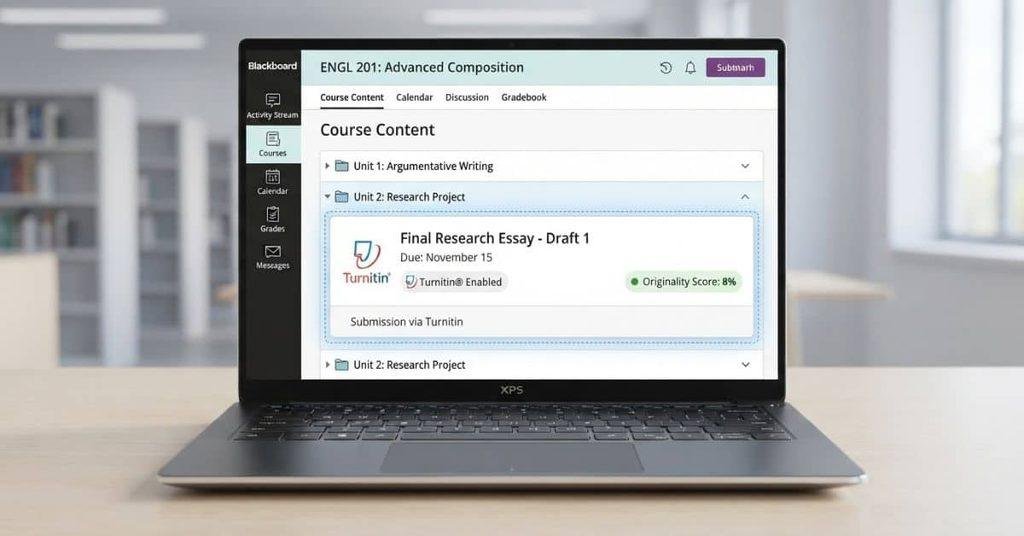
Turnitin does not always appear as a separate button on your Blackboard course page. Its location depends on how your institution configured the integration.
You may find Turnitin:
- Inside a Blackboard assignment
- Under assignment details
- Within the submission workflow
- Through an integrated Turnitin assignment or tool
For Blackboard Ultra assignments, Turnitin can appear directly within the assignment experience. Turnitin’s student instructions specifically direct students to open the assignment and check Details & Information for Turnitin enablement.
Other Blackboard setups may use Turnitin through an LTI integration. These workflows can look different from the Ultra assignment experience.
If you cannot find Turnitin, first check the assignment your instructor mentioned. Don’t assume every assignment includes Turnitin.
Is Turnitin in the Course Content Section?
Yes, the relevant Turnitin assignment may appear under Course Content in Blackboard Ultra. Turnitin’s guidance identifies assignments listed under Course Content as part of the Ultra Assignment integration.
Open your course and look through the Course Content area. Find the assignment that matches your instructor’s instructions, then select its title.
After opening the assignment, check its details and submission area. In the Ultra integration, Turnitin’s Details & Information section shows whether Turnitin is enabled.
If you see no Turnitin indication, don’t immediately assume something is wrong. Your instructor may not have enabled Turnitin for that assignment, or your institution may use a different integration.
Pro Tip: Check the assignment instructions before searching elsewhere. Your instructor may specifically identify which assignment uses Turnitin.
Is Turnitin a Separate Blackboard Course?
Usually, you should not expect Turnitin to appear as a separate Blackboard course. In integrated Blackboard workflows, Turnitin can work inside the assignment your instructor creates.
This means you normally start from your Blackboard course, find the required assignment, and follow its submission process. You don’t need to create a separate Turnitin course just to submit that assignment.
Some institutions use different Turnitin integrations, so your screen may look different. Turnitin currently documents several Blackboard workflows, including Blackboard Ultra and LTI integrations.
If your instructor tells you to use Turnitin but you cannot find the assignment, check your course instructions first. You can also ask your instructor which Blackboard assignment contains the Turnitin submission area.
How to Find Turnitin on Blackboard Ultra
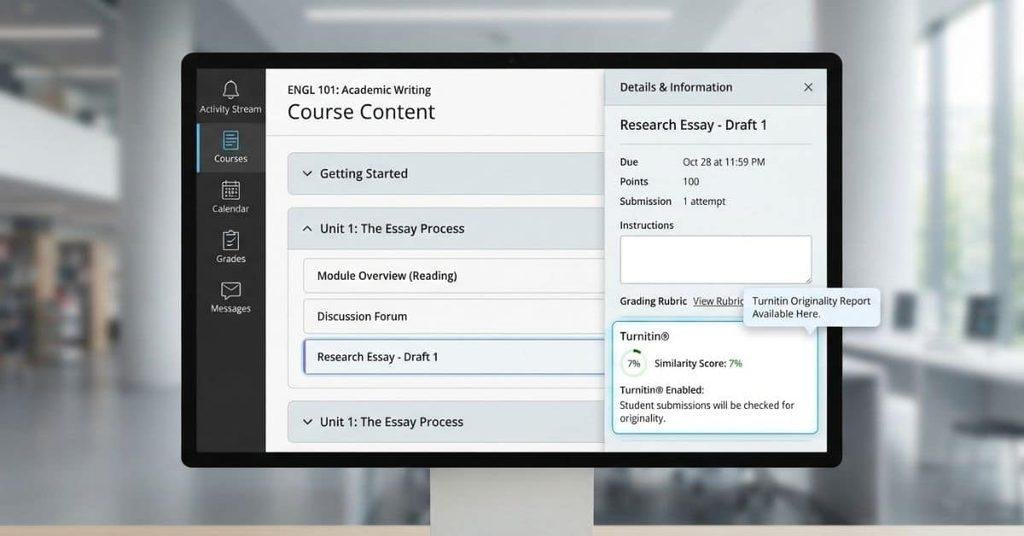
If you use Blackboard Ultra, Turnitin can appear directly inside your assignment. The exact layout depends on your school’s Turnitin setup. Turnitin’s current guidance says students can check Details & Information to see whether Turnitin is enabled. Turnitin’s Blackboard Ultra student guidance
Follow these steps:
- Open Blackboard and select Courses.
- Choose the course containing your assignment.
- Open Course Content.
- Find the assignment you need to submit.
- Select the assignment to open it.
- Check the Details & Information area on the right side.
- Look for Turnitin or Originality information.
- If Turnitin is enabled, follow the assignment’s submission instructions.
- Upload your work and submit it through that assignment.
Turnitin may provide additional information during submission. For example, the submission confirmation can include a Turnitin End User License Agreement statement when Turnitin is enabled. Turnitin’s Blackboard Ultra submission guidance
How Do I Know If Turnitin Is Enabled on Blackboard?
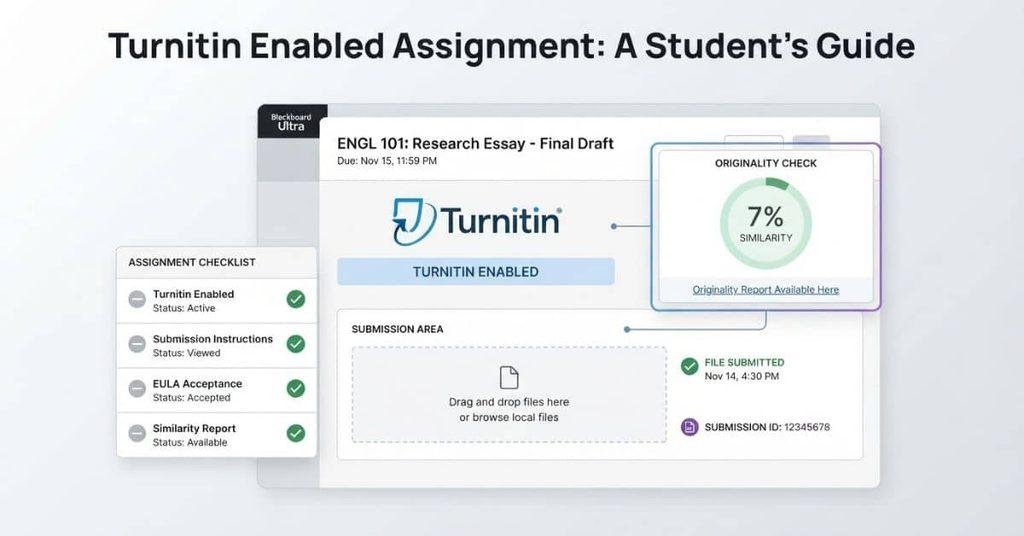
The assignment itself usually provides clues when Turnitin is enabled. Start by opening the assignment and checking its details before submitting your work.
Look for Turnitin, Originality, or other similarity-related information. Your instructor may also include specific Turnitin submission instructions within the assignment.
You may see a Turnitin End User License Agreement (EULA) statement during submission. Turnitin says the submission confirmation can include this statement when Turnitin is included with the assignment. Turnitin’s Blackboard Ultra student guidance
After submitting, you may also see a Similarity Report or score. However, this depends on your instructor’s settings and the assignment configuration.
Signs That Turnitin Is Enabled
Check for these common indicators:
- Turnitin or Originality information in the assignment
- Similarity-related instructions before submission
- A Turnitin submission workflow
- A Turnitin EULA statement during submission, where applicable
- A Similarity Report or score after submission, if student access is enabled
If none of these appear, Turnitin may not be enabled for that assignment. Your institution may also use a different Turnitin integration.
Pro Tip: If your instructor specifically requires Turnitin, ask which assignment you should use. This can prevent submitting your work through the wrong Blackboard assignment.
Why Can’t I Find Turnitin on Blackboard?
Can’t find Turnitin after opening your Blackboard course? Several normal reasons can explain why it doesn’t appear. Turnitin only appears when your instructor and institution have configured the assignment to use it.
Your Instructor Did Not Enable Turnitin
Your instructor may have created the assignment without Turnitin. Blackboard does not automatically add Turnitin to every assignment.
Check the assignment instructions first. If your instructor said Turnitin is required, confirm that you’re opening the correct assignment.
The Assignment Does Not Use Turnitin
Not every assignment needs an originality check. Your instructor may use Turnitin for essays but not for quizzes, discussions, or other coursework.
Look for Turnitin or Originality information inside the specific assignment. If you don’t see it, check the submission instructions.
Your Institution Uses a Different Integration
Schools can configure Turnitin with different Blackboard integrations. Turnitin currently supports Blackboard workflows that include LTI 1.3 and Blackboard Ultra Assignment integrations. Turnitin Blackboard integration guidance
Because of these differences, your Turnitin options may not look exactly like another student’s screen.
You Are Looking in the Wrong Course or Assignment
Students often have several courses and assignments open at once. Turnitin may only be enabled for one specific assignment.
Return to Courses, select the correct class, and check Course Content. Then open the assignment named in your instructor’s instructions.
Turnitin Is Available Only After Opening the Assignment
Turnitin may not appear on the main course page. You may need to open the assignment before seeing its Turnitin or Originality information.
In Blackboard Ultra, Turnitin’s guidance directs students to check the assignment’s Details & Information area. Turnitin’s Blackboard Ultra student guidance
The Assignment Uses SafeAssign Instead
Your instructor may use SafeAssign rather than Turnitin. These are separate originality and similarity tools.
Seeing SafeAssign does not necessarily mean something is wrong with your Blackboard course. Your institution or instructor may have selected SafeAssign for that assignment.
If you want to understand what SafeAssign does and how it works with Blackboard assignments, learn more about how SafeAssign works in Blackboard.
How to Find Turnitin Before Submitting an Assignment
Before uploading your paper, check the assignment carefully. This helps you confirm that you’re using the correct submission method.
Follow these steps:
- Open the assignment in your Blackboard course.
- Read the assignment details and submission instructions.
- Look for Turnitin or Originality information.
- Check whether Turnitin is enabled for the assignment.
- Review any special submission requirements.
- Upload your work through the specified Blackboard workflow.
- Submit only after confirming that you are using the correct assignment.
In Blackboard Ultra, Turnitin’s student guidance says the Details & Information area can show whether Turnitin is enabled. Turnitin’s Blackboard Ultra student guidance
Pro Tip: Don’t submit through another assignment just because it has an upload button. Always follow your instructor’s specified submission path.
How to Find Your Turnitin Similarity Report on Blackboard
After submitting your assignment, you may want to check your Turnitin similarity report. Whether you can see it depends on your instructor’s assignment settings.
If your instructor allows student access, the report or similarity score may become available after submission. In Blackboard Ultra’s Turnitin integration, students can access the report from the grading area when the instructor has enabled report access. Turnitin’s Blackboard Ultra student guidance
Where Is the Turnitin Similarity Score?
Start by opening the assignment you already submitted. Then check the assignment’s grading or submission area for Turnitin information.
If your instructor enabled student report access, you may find a Similarity Report or similarity score there. The exact location can vary with your Blackboard and Turnitin setup.
Don’t assume every submitted assignment will show a score. Your instructor controls whether students can access the report.
Why Can’t I See My Turnitin Report?
Several reasons can explain why your report isn’t visible:
- Your instructor hasn’t allowed student access.
- The Similarity Report hasn’t finished generating.
- The assignment has specific Turnitin settings.
- Your institution uses a different Blackboard integration or configuration.
Turnitin says reports normally generate within minutes, but some reports can take up to 24 hours. Turnitin’s Similarity Report guidance
Pro Tip: If you submitted recently, give the report time to generate before assuming something went wrong.
How to Find Turnitin on Blackboard Original
Blackboard Original and Blackboard Ultra use different interfaces. Your steps may therefore look different depending on your school’s Blackboard setup.
For current LTI 1.3 workflows, Turnitin provides different guidance for Ultra View and Original View. In Original View, instructors access Turnitin through the course’s Content area and the appropriate Turnitin tool. Turnitin Blackboard integration guidance
As a student, open your course and locate the assignment your instructor identified. The exact submission screen depends on the Turnitin integration your institution uses.
Expert Tip: If the steps you see don’t match an Ultra guide, check whether your course uses Blackboard Original instead.
Turnitin vs SafeAssign on Blackboard
Students sometimes confuse Turnitin and SafeAssign because both can check submitted work for matching text. However, they are different tools with different integrations.
Turnitin is an academic-integrity and similarity-checking platform that institutions can integrate with Blackboard. SafeAssign is an originality-checking tool associated with Blackboard.
Your course may use Turnitin, SafeAssign, both, or different configurations. The available options depend on your institution’s setup and the tools your instructor uses.
If you see SafeAssign instead of Turnitin, don’t assume Blackboard is broken. Your instructor may have selected SafeAssign for that assignment.
Learn more in [What Is SafeAssign on Blackboard?].
Is Turnitin Available in Every Blackboard Course?
No. Students should not assume that Turnitin is enabled in every Blackboard course or assignment.
Your institution must have the appropriate Turnitin integration and access. Your instructor must also configure the course or assignment to use Turnitin.
The available Turnitin assignment types and tools can depend on your institution’s configuration. Turnitin currently documents multiple Blackboard integration options, including Blackboard Ultra Assignment and LTI 1.3 workflows. Turnitin Blackboard integration guidance
This means one course may show Turnitin while another course does not. Even within the same course, your instructor may enable it for only certain assignments.
Can You Find Turnitin in Blackboard Quizzes?
Turnitin mainly works through assignment and submission workflows. You should not assume that Turnitin automatically applies to Blackboard quizzes.
Turnitin currently documents its Blackboard Ultra integration as an assignment workflow. Its known-issues documentation also notes that a Turnitin option can incorrectly appear while creating quizzes. That integration does not appear within quizzes. Turnitin Blackboard known issues
If your instructor requires Turnitin, look for the specified assignment rather than a quiz.
See [Can Blackboard Quizzes Detect Cheating?] for more information about quiz monitoring and detection.
What If Turnitin Is Missing From Blackboard?
If you expected Turnitin but cannot find it, work through this quick checklist:
- Confirm you’re in the correct course.
- Open the actual assignment.
- Check the assignment’s Details & Information area.
- Look for Turnitin or Originality wording.
- Read the assignment’s submission instructions.
- Check whether the assignment uses SafeAssign instead.
- Ask your instructor if Turnitin should appear but remains unavailable.
In Blackboard Ultra, Turnitin’s student guidance specifically directs students to check the assignment details for Turnitin information. Turnitin’s Blackboard Ultra student guidance
Turnitin focuses on originality and similarity checking. Your course grade is managed separately through Blackboard.
If you want to estimate your current or potential course grade, use our Blackboard Grade Calculator. It can help you understand how assignment scores may affect your overall course grade.
Conclusion
Finding Turnitin in Blackboard usually starts with the specific assignment your instructor created. We covered where to check in Blackboard Ultra, how to identify Turnitin, and what to do when it is missing.
Now you know how to find Turnitin on Blackboard without searching through your entire course. Remember that Turnitin may not appear in every course or assignment. Your school’s setup and your instructor’s settings can affect what you see.
If Turnitin is missing, check the assignment details and submission instructions first. Contact your instructor if they require Turnitin but you cannot access it.
For more helpful Blackboard guides, explore our student resources. You can also share this guide with classmates who are having the same problem.
Frequently Asked Questions
Open Blackboard, select Courses, and choose the relevant course. Open Course Content and find the assignment you need to submit. Open the assignment and check its details for Turnitin or Originality information. If Turnitin is enabled, follow the assignment’s submission workflow.
Turnitin usually appears inside a Blackboard assignment rather than as a separate course. Open the relevant assignment and check its details, submission area, or Turnitin-related instructions. In Blackboard Ultra, Turnitin information can appear in the Details & Information area.
Open Courses, select your course, and open Course Content. Find and open the required assignment. Then check Details & Information for Turnitin or Originality information. If Turnitin is enabled, submit your work through that assignment.
Open the assignment and check for Turnitin, Originality, or similarity-related information. You may also see Turnitin submission instructions or a Turnitin EULA statement during submission. A Similarity Report may appear after submission if your instructor allows student access.
Turnitin may not be enabled for your assignment. Your instructor may use another tool, such as SafeAssign, instead. Your institution may also use a different Turnitin integration. Check the correct course, open the actual assignment, and review its instructions.
Your Turnitin assignment should appear inside the Blackboard course selected by your instructor. Open Courses, choose the correct class, and check Course Content or the assignment area. Look for the assignment named in your instructor’s instructions.
Submit your assignment first, then check the assignment’s grading or submission area. If your instructor allows students to view reports, a Similarity Report or score may become available. In Blackboard Ultra, the report can be accessed from the grading area when report access is enabled.
Your instructor may not have enabled student access to the report. The report may also still be generating, or the assignment may have specific settings. Turnitin says reports normally generate within minutes, but some can take up to 24 hours. Your institution’s integration can also affect report access.
No. Turnitin does not automatically appear in every Blackboard course or assignment. Your institution needs the appropriate Turnitin integration and access. Your instructor must also configure the relevant assignment to use Turnitin.
No. Turnitin and SafeAssign are different originality and similarity tools. Turnitin is a separate platform that can integrate with Blackboard. SafeAssign is an originality-checking tool associated with Blackboard. Your institution or instructor may choose either tool for a particular assignment.
Turnitin primarily works through assignment and submission workflows. You should not assume that Turnitin automatically applies to Blackboard quizzes. Turnitin’s Blackboard Ultra Assignment integration is designed for assignments. Check your instructor’s instructions to determine which submission method you should use.
First, confirm that you’re in the correct course and assignment. Open the assignment and check its details for Turnitin or Originality information. Review the submission instructions and check whether SafeAssign is being used instead. If your instructor requires Turnitin but you still cannot find it, contact your instructor.

We are the Canvas Academic Team, a developer team focused on building simple and practical tools that help students succeed academically. This platform was created specifically for Canvas LMS students to make grade tracking, GPA calculations, exam planning, and academic management easier and more efficient.
Our focus is on creating fast, accurate, and student-friendly educational tools along with helpful learning resources that improve productivity and reduce academic stress.
Through CanvasGradeCalculator.com, our goal is to continue building useful resources that help students study smarter, stay organized, and achieve better academic results.