Table of Contents
Introduction
Have you ever opened Blackboard before class and wondered, “Is Blackboard down right now?”
When Blackboard suddenly stops loading, it can be hard to know what is wrong. The problem could be a platform outage, school server issue, browser problem, or internet connection.
For beginners in the USA, knowing how to check Blackboard status can save time and avoid unnecessary troubleshooting. It also helps you quickly determine whether the issue affects everyone or only your account.
This guide explains how to check Is Blackboard Down Right Now? using reliable status information. You will also learn what to do when Blackboard is not working.
We will cover common Blackboard outages, maintenance issues, login problems, and course access errors. You will also get simple troubleshooting steps for your browser, app, and internet connection.
By the end, you will know how to identify a Blackboard outage and what to try next. You can then get back to your classes with less frustration.
Is Blackboard Down Right Now?
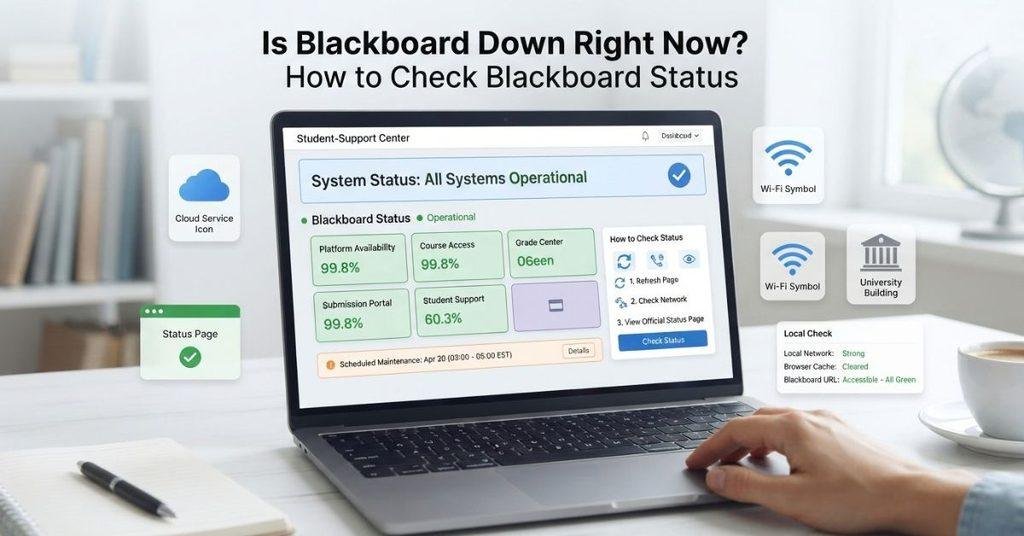
If Blackboard isn’t loading, first check its official status page before changing your browser or account settings. The status page can show whether Blackboard services have an active incident or scheduled maintenance.
A widespread outage can affect many students at once. A regional or service-specific issue may affect only certain Blackboard services. If the official status shows everything as operational, start troubleshooting your local setup.
How to Check if Blackboard Is Down
Check the Official Blackboard Status Page
Start with Blackboard’s official service-status page. It provides the most reliable place to check current service availability.
Look for the status of Blackboard SaaS and mobile services. A normal operational status suggests that Blackboard is currently running as expected. However, your school may still have a separate access or server issue.
Look for an Active Incident
Check whether the status page lists an active incident. An incident can explain problems with login, course access, loading, or other Blackboard features.
Read the incident details and any updates from Blackboard. If Blackboard is investigating the issue, you may need to wait for the service to recover.
Check Blackboard’s Regional Status
Blackboard can show service information by region. Check whether your region has a reported service issue.
This can help explain why Blackboard works for some users but not others. Regional service problems may affect access even when the overall platform appears operational.
Check Scheduled Maintenance
Look for scheduled maintenance on the official status page. Blackboard may list planned service work before it begins.
If maintenance matches the time you’re experiencing problems, waiting may be the best option. Check the page again after the maintenance window ends.
Try Blackboard Again
If no incident or maintenance appears, try Blackboard again after a few minutes. Temporary connection problems can sometimes resolve without additional steps.
If Blackboard still doesn’t work, continue with local troubleshooting. Check your browser, internet connection, Blackboard app, and school-specific access settings.
Why Is Blackboard Not Working?
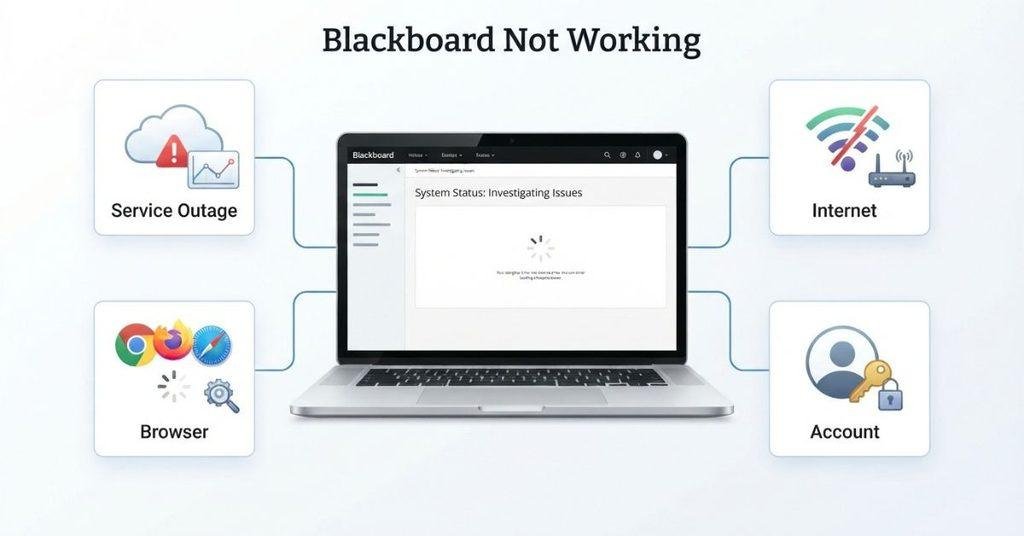
When Blackboard isn’t working, the problem usually falls into one of two categories. Blackboard-wide problems affect many users, while local or account problems may affect only you.
A Blackboard-wide problem may involve a service outage, scheduled maintenance, authentication issue, or active service incident. Check the official status page first to see whether Blackboard has reported a problem.
Your local or account problem may come from your internet connection, browser, app, or login details. Your school’s authentication system, single sign-on (SSO), or a specific course can also cause access problems.
This distinction helps you avoid wasting time. If Blackboard reports an active incident, waiting for service recovery makes more sense than clearing your browser cache.
If the service appears operational, move to student-focused troubleshooting. The symptoms below can help you identify where to start.
Why Is My Blackboard Not Working?
Blackboard Won’t Load
If Blackboard won’t load, first check your internet connection and the official Blackboard status page. Then try opening another website to confirm your connection works.
If other websites load normally, try Blackboard in a different browser. You can also restart your browser and clear its cached data.
Blackboard Login Isn’t Working
Incorrect login details can prevent access to Blackboard. Make sure you use the credentials provided by your school.
Your institution may also use SSO for Blackboard access. If the school authentication system has a problem, Blackboard login may fail even when Blackboard itself is operational.
Blackboard Is Stuck Loading
A page that stays on a loading screen may indicate a browser, connection, or temporary service problem. Refresh the page once and wait briefly.
If the problem continues, try a private browsing window or another supported browser. Disable browser extensions temporarily if they interfere with page loading.
Blackboard Courses Won’t Open
If you can log in but cannot open a course, the issue may be course-specific. Your enrollment, course availability, or instructor settings can affect what you see.
Try opening another course if available. If only one course fails, contact your instructor or school’s Blackboard support team.
Blackboard Pages Won’t Load
If some Blackboard pages work while others don’t, the issue may involve a specific service or course area. Check the status page for reported incidents.
You can also refresh the page or try another browser. If the same page fails repeatedly, contact your school’s support team.
Blackboard App Isn’t Working
If the Blackboard app isn’t working, check whether your app is updated. Also confirm that your device has a stable internet connection.
Try closing and reopening the app. If the problem continues, check Blackboard’s status information before reinstalling the app.
How to Fix Blackboard When It Isn’t Working
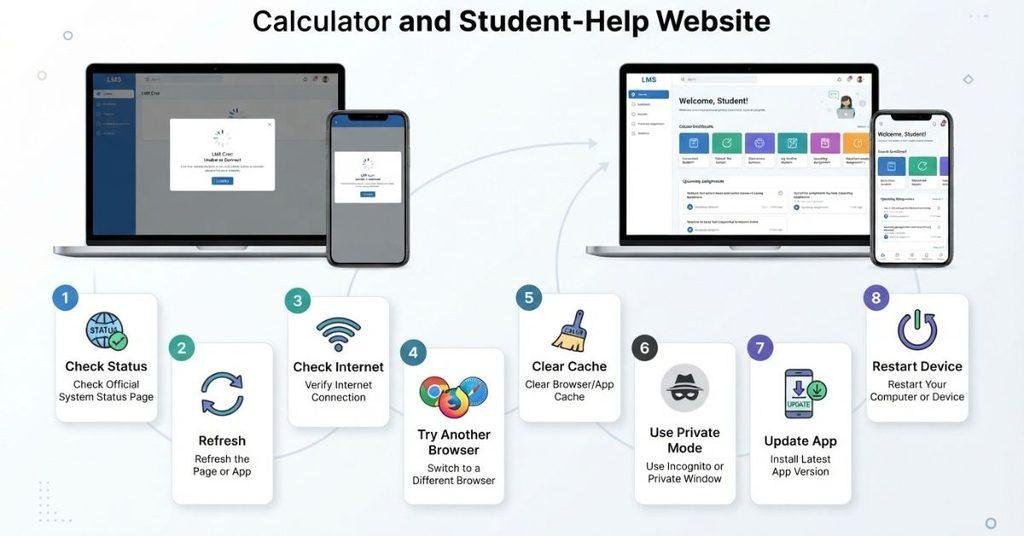
Start with the simplest checks before changing account or device settings. These steps can help identify whether the problem comes from Blackboard, your browser, app, or connection.
1. Check Blackboard’s Official Status
Check Blackboard’s official status page before changing anything on your device. Look for active incidents, service disruptions, or scheduled maintenance.
If Blackboard reports an outage, local troubleshooting may not fix the problem. Wait for status updates and check again later.
2. Refresh Blackboard
Try a normal browser refresh first. A temporary loading error may disappear after the page reloads.
Avoid repeatedly refreshing the page if Blackboard is experiencing an active outage. Too many attempts won’t resolve a platform-wide problem.
3. Check Your Internet Connection
Open another website to test your internet connection. If other websites also fail, the problem may extend beyond Blackboard.
If other websites work normally, your connection may not be the main issue. Continue with the browser troubleshooting steps below.
4. Try a Different Browser
Open Blackboard in another browser to check for a browser-specific problem. This can help determine whether your current browser is causing the issue.
If Blackboard works in the second browser, your original browser may need attention. Updating it or clearing its stored data may help.
5. Clear Browser Cache and Cookies
Old cached files or cookies can sometimes interfere with websites. Clear Blackboard-related browser data, then reopen the site.
You may need to sign in again afterward. Make sure you know your school login details before clearing cookies.
6. Try Incognito or Private Browsing
Open Blackboard in an incognito or private window. This provides a quick way to test whether stored browser data or extensions cause the problem.
If Blackboard works there, your regular browser settings may need further troubleshooting.
7. Update the Blackboard App
If Blackboard isn’t working in the mobile app, check for an available app update. An outdated app can cause compatibility or access problems.
After updating, close and reopen the app. Also make sure your device has a stable internet connection.
8. Restart Your Device
Restart your computer, phone, or tablet if Blackboard still isn’t working. A restart can resolve temporary browser, network, or app problems.
After restarting, open Blackboard again. If the issue continues, check the official status page and contact your school’s support team.
Blackboard Is Down: What Should Students Do?
If Blackboard’s official services show an outage, focus on documenting the problem rather than repeatedly changing settings. Check official status updates for information about the incident and recovery.
Avoid repeatedly changing your Blackboard password unless you have a genuine login problem. An outage usually won’t be fixed by changing your credentials.
If an assignment deadline is approaching, take screenshots of important error messages. Keep evidence showing when you tried to access or submit your work.
If the outage prevents you from submitting an assignment, contact your instructor or institution as soon as possible. Explain the problem and include relevant screenshots or status information.
Once Blackboard reports that services have recovered, try accessing your course again. You can then confirm whether the problem was platform-wide or specific to your account.
How Long Will Blackboard Be Down?
Students often want to know when Blackboard will be back up, especially when an assignment deadline is close. However, there isn’t one fixed recovery time for every Blackboard incident.
The length of an outage depends on the cause and scope of the problem. Blackboard’s official status page can provide incident updates, service information, and scheduled maintenance details when available.
Don’t rely on an estimated recovery time from unofficial posts or guesses. Check the official status page for the latest information and any updates about service restoration.
When Will Blackboard Be Back Up?
If Blackboard is experiencing an active incident, open the incident details and look for the latest update. Blackboard may provide information about the affected service and progress toward resolution.
Scheduled maintenance may include a stated maintenance window. This gives students a better idea of when affected services may become available again.
Unplanned outages may not have a guaranteed recovery time. In that situation, keep checking the official status updates rather than repeatedly changing your password, browser, or device.
If you have an assignment deadline during the outage, document the error and contact your instructor or school support team. This gives you a record of the access problem while Blackboard services recover.
Is Blackboard Down for Everyone or Just Me?
When Blackboard stops working, the first question is whether everyone has the same problem. Checking both Blackboard’s status and your university’s systems can help narrow it down.
Use this simple diagnostic:
- Blackboard status shows Operational: The issue may involve your device, internet, account, or institution.
- Blackboard status shows an Incident: A broader Blackboard service problem may be affecting users.
- Only your university’s Blackboard isn’t working: The issue may involve university infrastructure, authentication, or local configuration.
This distinction helps you choose the right next step. You don’t need to troubleshoot your browser extensively when Blackboard already reports a widespread incident.
Is Blackboard Down for My University?
Blackboard can appear operational globally while one university experiences its own access problem. Your school may have an issue with its authentication system, local configuration, or other institution-managed services.
If Blackboard works for other users but not at your university, check your school’s communication channels. Useful places include:
- Your university’s IT status page
- Campus IT announcements
- Your school email
- Your institution’s Blackboard support or help desk
Your university may also post information about local outages or maintenance. If the official Blackboard status shows normal service, your school’s IT team can provide more specific information.
Blackboard Login Not Working but Blackboard Is Up
If Blackboard is operational but you can’t sign in, the problem may involve your account or your university’s authentication system. Start by checking that you’re using the correct username and password.
Common causes include:
- Incorrect username or password
- University SSO problems
- An account that hasn’t been activated
- An expired password
- An authentication problem
- An institution-specific outage
If other students at your university also cannot log in, contact your institution’s IT support team. If the problem affects only your account, review your login details and account status first.
For step-by-step help, see [How to Log Into Blackboard] and [How to Reset or Change Your Blackboard Password].
Blackboard Website Not Loading
If the Blackboard website won’t load, first check whether Blackboard has reported a service problem. This helps you avoid troubleshooting your device when the issue affects Blackboard itself.
If the status page shows normal service, try these steps:
- Refresh the page to clear a temporary loading error.
- Try another browser to check for a browser-specific problem.
- Use a private or incognito window to test stored browser data.
- Clear your cache and cookies if Blackboard still won’t load.
- Temporarily disable problematic browser extensions, especially those that modify webpages.
- Test another network, such as a different Wi-Fi connection or mobile data.
- Check Blackboard’s official status page again for new incidents or updates.
If Blackboard works on another network or browser, the original setup may be causing the problem. If it fails everywhere, check for a Blackboard or university-specific issue.
Blackboard Courses Not Showing
Can’t find a course after logging into Blackboard? The problem may not mean Blackboard is down.
Several reasons can explain why a course doesn’t appear:
- The course isn’t available to students yet.
- Your enrollment hasn’t synchronized with Blackboard.
- You’re signed into the wrong Blackboard account.
- Your instructor hasn’t made the course available.
- Your institution has a course or account issue.
- A temporary Blackboard service problem is affecting course access.
Start by checking whether other courses appear normally. If other courses are visible, the missing course may have an enrollment or availability issue.
If you recently registered for the course, your enrollment may need time to appear in Blackboard. Contact your instructor or university IT support if the course remains missing.
For more guidance on navigating and using Blackboard, see [How to Use Blackboard].
Blackboard Assignments Not Working
A Blackboard assignment can fail even when the rest of the website works normally. The problem may affect the assignment page, file upload, submission button, or final submission process.
Common assignment problems include:
- The assignment page won’t open.
- The Submit button doesn’t appear.
- Your file won’t upload.
- The page stays stuck loading.
- You receive an error during submission.
- A deadline passes while Blackboard is unavailable.
First, check Blackboard’s official status page for an active incident. If Blackboard appears operational, try another browser, private browsing, or another network.
If the problem continues, check whether the assignment is available and whether your instructor has provided specific submission instructions. For step-by-step help, see [How to Submit an Assignment on Blackboard], [How to Submit a Word Document on Blackboard], [How to Upload a Video to Blackboard], and [How to Resubmit or Unsubmit an Assignment].
Blackboard Down During an Assignment Deadline: What Should You Do?
A Blackboard outage can become stressful when an assignment deadline is approaching. Focus on documenting the problem and contacting the right person quickly.
If you cannot submit your work:
- Check Blackboard’s official status page for an active incident.
- Screenshot the error or page showing the problem.
- Record the date and time when you experienced the issue.
- Try another browser or network if possible.
- Save your assignment locally so you don’t lose your work.
- Contact your instructor or college IT support if submission remains blocked.
- Follow any alternative submission instructions your instructor provides.
Don’t assume an outage automatically gives you an extension. Your instructor or institution decides how deadline issues are handled.
Keeping screenshots, timestamps, and your completed assignment can help explain what happened if you cannot submit normally.
Blackboard Status vs Your University’s Blackboard
Two different systems can affect your Blackboard access: Blackboard’s platform and your university’s own systems. Understanding the difference makes troubleshooting much easier.
Blackboard’s global status shows the health of Blackboard’s platform and services. If it reports an incident, the problem may affect Blackboard users across multiple institutions.
Your university’s IT status covers systems managed by your institution. These can include university authentication, campus networks, local Blackboard configuration, or other school-specific services.
This explains why Blackboard can show Operational while you still cannot access your courses. Your university may be experiencing a separate issue that doesn’t appear on Blackboard’s global status page.
If Blackboard’s status looks normal, check your university’s IT status page and campus announcements. You can also contact your school’s IT support team for institution-specific problems.
Blackboard Grade Calculator
If Blackboard is temporarily unavailable and you already know your assignment scores or grade information, you can still estimate your course grade separately.
Our Blackboard Grade Calculator can help you calculate an estimated grade using the information you enter. It does not connect to Blackboard or automatically retrieve your grades.
This can be useful while you’re waiting for Blackboard access to return. Once Blackboard becomes available, you can compare your estimate with the grades shown in your course.
Conclusion
When Blackboard stops working, first check the official status page before changing your device settings. We covered outages, maintenance, login issues, missing courses, and assignment problems.
If you’re wondering Is Blackboard Down Right Now?, the status page can help you identify broader service issues. If Blackboard appears operational, troubleshoot your browser, internet connection, app, or university systems.
For assignment deadlines, save your work and document any errors or access problems. Contact your instructor or school IT team if Blackboard prevents submission.
Blackboard problems can be frustrating, but the right checks can quickly narrow down the cause. Share this guide with classmates who may need help during an outage, or explore our other Blackboard guides for step-by-step support.
Frequently Asked Questions
Find quick answers to common questions about Blackboard outages, login problems, loading issues, and course access.
Check Blackboard’s official status page for the latest service information. Look for active incidents, regional issues, or scheduled maintenance. If Blackboard reports normal service, the problem may involve your browser, account, internet, or university systems.
Blackboard may experience temporary outages or scheduled maintenance. The official status page is the best place to check current service availability. If no incident appears, troubleshoot your browser, connection, app, or university access.
Blackboard may not work because of a service outage, maintenance, login problem, browser issue, or internet connection. Your university’s authentication system can also cause access problems. Check Blackboard’s status before starting local troubleshooting.
If Blackboard works for others, your issue may involve your browser, app, account, internet, or university authentication. Try another browser or network first. Then check whether your university has reported a local IT issue.
There is no universal recovery time for every Blackboard outage. Check the official status page for incident updates and estimated resolution information when available. Scheduled maintenance may also include a specific service window.
Visit Blackboard’s official status page and check for active incidents or scheduled maintenance. Review global and regional service information. If everything appears operational, troubleshoot your browser, internet, app, account, or university systems.
Not necessarily. A Blackboard-wide incident may affect many users, while regional or university-specific issues can affect smaller groups. Check Blackboard’s status and your university’s IT status page to identify the likely source.
Blackboard can appear operational globally while your university experiences a local issue. Check your school’s IT status page, campus announcements, and school email. You can also contact your institution’s IT support team.
Blackboard may fail to load because of an outage, browser problem, network issue, cached data, or extension conflict. Check the official status page first. If Blackboard is operational, try another browser or private browsing.
Check your username and password first. Your university’s SSO system, account activation, expired password, or authentication service may also cause login problems. If other students have the same issue, contact your school’s IT support team.
A course may not appear because it isn’t available yet, your enrollment hasn’t synchronized, or you’re using the wrong account. Your instructor may also not have made the course available. Contact your instructor or university IT team if the problem continues.
Check your internet connection and make sure the Blackboard app is updated. Close and reopen the app, then try again. If the problem continues, check Blackboard’s official status page for service issues.
Check Blackboard’s official status page and screenshot any errors you see. Record the date and time, save your assignment locally, and try another browser or network. Contact your instructor or school IT team if you cannot submit.
Blackboard outages don’t have one standard duration. Recovery depends on the cause and scope of each incident. Check the official status page for updates instead of relying on an unofficial estimated recovery time.

We are the Canvas Academic Team, a developer team focused on building simple and practical tools that help students succeed academically. This platform was created specifically for Canvas LMS students to make grade tracking, GPA calculations, exam planning, and academic management easier and more efficient.
Our focus is on creating fast, accurate, and student-friendly educational tools along with helpful learning resources that improve productivity and reduce academic stress.
Through CanvasGradeCalculator.com, our goal is to continue building useful resources that help students study smarter, stay organized, and achieve better academic results.