Table of Contents
Introduction
Have you submitted the wrong file on Blackboard and now wish you could replace it?
Knowing how to resubmit or unsubmit an assignment on Blackboard can save you from unnecessary stress. Many students in the USA use Blackboard for online classes, assignments, and grades. However, the available submission options can vary between courses and instructors.
You may see options to submit another attempt, while other assignments may not allow changes after submission. In some cases, students may also wonder whether they can undo a submission before the deadline.
This guide explains how to resubmit or unsubmit an assignment on Blackboard in simple steps. You’ll learn where to look for resubmission options and what to do when an unsubmit option is unavailable. We’ll also explain why Blackboard may restrict these actions and when you should contact your instructor. By the end, you’ll know what options to check before your assignment deadline.
How to Resubmit an Assignment in Blackboard
Need to replace a file you already submitted? Learning how to resubmit an assignment in Blackboard can help you correct an upload before the deadline. The steps may look slightly different across Blackboard courses.
Your instructor controls whether Blackboard allows another attempt or a replacement submission. Some assignments may show a clear resubmission option, while others may not allow changes after submission. Follow these steps to check what your assignment supports.
Open Your Blackboard Course
Sign in to Blackboard and open the course containing your assignment. Use the course menu to find the area where your instructor posts assignments.
Depending on your course setup, assignments may appear under Assignments, Course Content, or another module.
Find the Assignment
Locate the assignment you want to change. Check the assignment title and due date before opening it.
Select the assignment to view its instructions, submission details, and available actions.
Open Your Submitted Assignment
Open your previous submission and review the file you uploaded. Blackboard may display your submission history or attempt information.
Look for options related to your submission. The available choices depend on how your instructor configured the assignment.
Look for the Resubmission or New Attempt Option
Check for an option such as New Attempt, Start New Attempt, Submit Again, or another similar action.
If you don’t see a resubmission option, your instructor may not have enabled additional attempts. In that case, contact your instructor before trying to make changes.
Replace or Upload Your Correct File
Choose the option to upload or attach your corrected file. Remove the old file if Blackboard gives you that choice.
Before continuing, make sure you selected the correct document. Check the filename and file type carefully.
Submit the Assignment Again
Select the Submit button after attaching your corrected file. Blackboard may ask you to confirm the submission.
Don’t close the page until Blackboard confirms that the new attempt was submitted successfully.
Confirm the New Submission
Return to the assignment and check your submission details. Look for the latest attempt, confirmation message, or updated submission information.
If Blackboard still shows the previous file, don’t assume the replacement worked. Contact your instructor if the submission status remains unclear.
Important: The exact resubmission option can vary by Blackboard version, assignment settings, and instructor permissions. If you cannot find a second-attempt or resubmission option, your course may not allow students to resubmit independently.
How to Resubmit an Assignment on Blackboard
If you’re searching how to resubmit on Blackboard, the process usually follows a simple path. Start by opening your course and selecting the assignment you previously submitted.
The typical flow is:
Course → Assignment → Previous Submission → New/Another Attempt → Upload → Submit
Open the assignment and review your previous submission. If your instructor allows another attempt, look for an option such as New Attempt, Another Attempt, or similar wording.
Select that option, upload your corrected file, and submit it again. Check the submission details afterward to make sure Blackboard recorded the new attempt.
The exact labels can vary based on your Blackboard setup and assignment configuration. If you don’t see another-attempt option, don’t assume something is wrong with your account.
Can You Resubmit an Assignment on Blackboard?
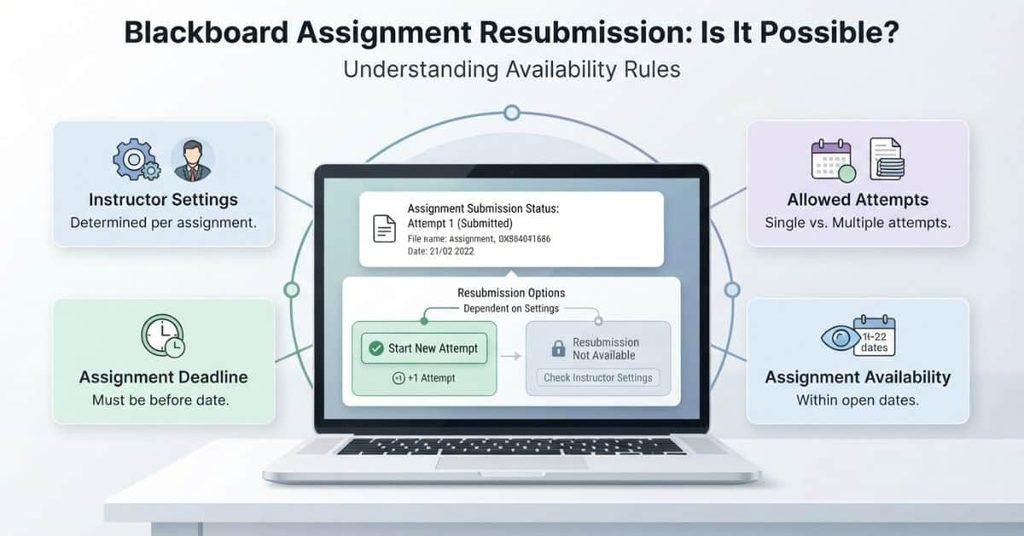
Yes, but only when the assignment settings allow another submission. Blackboard does not automatically guarantee that every assignment can be resubmitted.
Several factors can affect whether you can submit again:
- Instructor settings: Your instructor decides how many attempts students can use.
- Allowed attempts: Some assignments permit multiple attempts, while others allow only one.
- Assignment availability: The assignment must still be available for submissions.
- Deadline: A passed deadline may prevent another attempt, depending on the course settings.
- Another attempt enabled: Blackboard must provide another submission opportunity for you to use it.
If you cannot find a New Attempt or similar option, check the assignment details first. If the option remains unavailable, contact your instructor and ask whether another submission can be enabled.
How to Unsubmit an Assignment on Blackboard
Wondering how to unsubmit an assignment on Blackboard after submitting the wrong file? First, open the assignment and check which submission controls are available.
Blackboard doesn’t guarantee an Unsubmit button for every assignment. The available controls depend on the assignment setup, instructor permissions, attempt limits, and other course settings.
Open the Submitted Assignment
Open your Blackboard course and go to the assignment you already submitted. Select the assignment to view your current submission and available options.
Review the submission details carefully. This helps you confirm whether Blackboard provides any way to change or remove your attempt.
Check for an Undo, Cancel, or Remove Submission Option
Look for an option that lets you undo, cancel, or remove your submission. The exact wording can vary between Blackboard setups.
You may not see any of these options. If they’re missing, don’t assume you can undo the submission through another menu.
Confirm Whether Blackboard Allows You to Undo the Submission
Check the assignment instructions and submission area for information about attempts or changes. Your instructor may have restricted what students can change after submitting.
If Blackboard doesn’t provide an undo option, avoid repeatedly uploading new files. Multiple attempts could use an available submission opportunity.
Make Your Changes
If Blackboard allows you to withdraw or change the submission, follow the available instructions. Replace the incorrect file or make the required changes.
Before submitting again, open the file and confirm that it’s the correct version.
Submit Again if Permitted
If another attempt is available, upload the corrected file and select Submit. Then check the assignment page to confirm Blackboard recorded your latest attempt.
If no new attempt is available, contact your instructor instead of creating unnecessary submissions.
How to Unsubmit an Assignment on Blackboard as a Student
If you’re wondering how to unsubmit an assignment on Blackboard as a student, the key point is that students may not always have an unsubmit option.
If you submitted the wrong file or need to change your work, follow these steps:
- Don’t repeatedly submit new files. You could use another available attempt.
- Check for another attempt. Look for New Attempt, Another Attempt, or similar options.
- Review the assignment instructions. They may explain submission and attempt rules.
- Check the deadline. A closed assignment may prevent additional submissions.
- Contact your instructor. Ask whether they can reopen the submission or provide another attempt.
The controls available to students depend on the assignment configuration. If Blackboard doesn’t show an option to undo the submission, your instructor may need to make the change.
Can You Unsubmit an Assignment on Blackboard?
You may be able to unsubmit an assignment on Blackboard, but there isn’t one universal Unsubmit button for every assignment.
If Blackboard provides an Undo, Cancel, or similar submission option, you may be able to undo your existing submission. The exact control depends on the assignment configuration and permissions set by your instructor.
If no undo option appears, don’t assume you can remove the submission yourself. Check whether another attempt is available and review the assignment instructions.
If neither option is available, contact your instructor. Explain what happened and ask whether they can reopen the assignment or allow another attempt.
This approach is especially important if you uploaded the wrong file. Avoid creating unnecessary attempts while trying to fix the original submission.
What Is the Difference Between Resubmitting and Unsubmitting?
The terms resubmit and unsubmit describe two different actions in Blackboard. Understanding the difference can help you choose the right option.
| Action | Meaning |
|---|---|
| Resubmit | Submit another version or attempt when another attempt is available. |
| Unsubmit | Undo or cancel an existing submission when Blackboard provides that option. |
Resubmitting usually means you are creating another submission with a corrected or updated file. Your instructor’s settings determine whether another attempt is available.
Unsubmitting focuses on undoing an existing submission. However, Blackboard may not provide students with an option to cancel their submission.
If you’re unsure which action applies, check the assignment settings and instructions before making another submission.
How to Resubmit the Correct File on Blackboard
Uploaded the wrong document? You may be able to replace it by using another available attempt.
Start by opening your Blackboard course and selecting the assignment. Review your current submission and check whether Blackboard provides a New Attempt, Another Attempt, or similar option.
If another attempt is available, select it and upload the correct file. Check the filename before submitting to avoid another upload mistake.
After submitting, return to the assignment and review the submission details. Make sure Blackboard shows the correct file and records the latest attempt.
If your corrected file is a Word document, you can also follow our guide on How to Submit a Word Document on Blackboard for help with the upload process.
What If I Submitted the Wrong Assignment on Blackboard?
Submitting the wrong assignment can happen for several reasons. You might upload a wrong file, incomplete file, outdated file, or wrong version by mistake. You may also submit an assignment accidentally before you’re ready.
First, open the assignment and review your current submission. Check whether Blackboard provides a New Attempt, Another Attempt, or similar option.
If another attempt is available, use it to upload the correct file. Review the filename and document before selecting Submit.
If you cannot find another attempt or an unsubmit option, don’t keep submitting random files. Your instructor may control additional attempts or need to reopen the assignment.
Contact your instructor as soon as possible and explain what happened. Include the correct file if they ask you to send it separately.
What If I Can’t Find the Resubmit Option?
If you can’t find a resubmit option, Blackboard may be working as your instructor configured it. Not every assignment allows students to submit multiple attempts.
Common reasons include:
- Additional attempts aren’t allowed: Your instructor may have limited the assignment to one attempt.
- Maximum attempts were used: You may have already used all available attempts.
- The deadline passed: The assignment may no longer accept new submissions.
- The assignment is unavailable: Your instructor may have closed or restricted access.
- Another attempt requires instructor action: Your instructor may need to enable another submission.
- The interface differs: Blackboard settings and available controls can vary between courses.
Check the assignment instructions and submission area first. If no resubmission option appears, contact your instructor before uploading additional files.
What If I Can’t Find the Unsubmit Option?
If you can’t find an Unsubmit option, that doesn’t necessarily mean something is broken. Your assignment may simply not allow students to undo an existing submission.
Start by checking the assignment instructions and submission area. Look for options such as Undo, Cancel, Remove, New Attempt, or Another Attempt.
If you don’t see an unsubmit option, check whether another attempt is available. This may let you submit a corrected version without undoing the original submission.
If neither option appears, contact your instructor. They can tell you whether the assignment allows changes or whether they need to reopen it.
Can You Resubmit After the Blackboard Deadline?
You may or may not be able to resubmit after the Blackboard deadline. The outcome depends on your course and assignment settings.
Several factors can affect whether Blackboard accepts another submission:
- Assignment settings may control additional attempts.
- The deadline may prevent new submissions.
- Late-submission policies may allow or restrict work after the due date.
- Instructor permissions may determine whether another attempt can be opened.
Check the assignment page for its current submission status and instructions. If the deadline has passed and you need to submit again, contact your instructor for guidance.
Don’t assume that Blackboard will automatically accept a late resubmission.
Can You Edit an Assignment After Submitting It?
You generally can’t simply edit the file you’ve already submitted in place. A submitted file remains part of that particular attempt.
If Blackboard allows another attempt, you can upload a corrected version through the new submission. This creates another attempt rather than changing the original file.
For example, you might notice a mistake in a Word document after submitting it. Correct the document on your computer, then use an available new attempt to upload the updated version.
If Blackboard doesn’t provide another attempt, check the assignment instructions or contact your instructor before making additional submissions.
How to Check Which Submission Was Submitted
After resubmitting an assignment, check Blackboard to make sure the correct attempt was recorded. This can help you catch an upload mistake before the instructor reviews your work.
Open the assignment and review the submission details. Depending on your Blackboard setup, you may be able to see:
- Submitted date and time: Shows when the attempt was submitted.
- Attempt number: Helps identify your latest submission.
- Attached file: Check that Blackboard shows the correct document.
- Submission status: Look for confirmation that the assignment was submitted.
- Confirmation or receipt: Some Blackboard setups provide a submission receipt or confirmation details.
If multiple attempts appear, review the latest one carefully. Make sure it contains the corrected file you intended to submit.
Blackboard Grade Calculator
After resubmitting an assignment, you may want to estimate how the updated score could affect your course grade. Our Blackboard Grade Calculator can help you estimate your grade using your assignment scores and course information.
Use the Blackboard Grade Calculator to check how a possible updated assignment score could change your overall course grade.
Conclusion
Knowing how to resubmit an assignment in Blackboard can help you fix mistakes before your work is reviewed. We covered how to resubmit files, check for another attempt, and handle situations without an unsubmit option.
Blackboard doesn’t provide the same submission controls for every assignment. Your instructor’s settings, attempt limits, deadlines, and course rules can affect your options. If you can’t undo or resubmit an assignment, contact your instructor for guidance.
Before leaving the assignment page, verify the latest file, attempt number, submission status, and submission time.
If this guide helped, share it with another Blackboard student who may need it. You can also explore more Blackboard guides and helpful student tools on our website.
FAQs
How do I resubmit an assignment in Blackboard?
Open your Blackboard course and select the assignment. Review your previous submission and look for New Attempt, Another Attempt, or a similar option. If another attempt is available, upload your corrected file and select Submit. Then check the submission details to confirm Blackboard recorded the new attempt. The exact option can vary based on your instructor’s assignment settings.
How do I resubmit on Blackboard?
To resubmit on Blackboard, open the course and assignment containing your previous submission. Check whether Blackboard provides another attempt. If available, select the new attempt option, upload your updated file, and submit it. Afterward, review the assignment page to confirm the correct file was submitted. If no additional attempt appears, check the instructions or contact your instructor.
How do I unsubmit an assignment on Blackboard?
Open the submitted assignment and check the available submission controls. Look for options such as Undo, Cancel, or Remove Submission. If Blackboard provides an option to undo the submission, follow the displayed steps. However, not every Blackboard assignment allows students to unsubmit their work. If no suitable option appears, contact your instructor for guidance.
How do I unsubmit on Blackboard?
Open the assignment and review your existing submission. Check whether Blackboard provides an undo or cancellation option. If you don’t see one, the assignment may not allow students to undo submissions. You can also check whether another attempt is available. If neither option works, contact your instructor before submitting additional files.
How do I unsubmit an assignment on Blackboard as a student?
As a student, you may not always have permission to unsubmit an assignment. Open the assignment and check for an Undo, Cancel, or similar option. If none appears, look for another available attempt and review the assignment instructions. If you submitted the wrong file or need the assignment reopened, contact your instructor and explain the situation.
Can I unsubmit something on Blackboard?
You may be able to unsubmit something on Blackboard if the assignment provides an appropriate undo or cancellation option. However, this isn’t available for every assignment. Your instructor’s settings and assignment configuration determine which submission controls you can access. If you don’t see an unsubmit option, check for another attempt or contact your instructor.
Can I resubmit an assignment after submitting it?
You can resubmit an assignment after submitting it if another attempt is available. Open the assignment and look for New Attempt, Another Attempt, or similar wording. Upload the corrected file and submit it through that attempt. If Blackboard doesn’t provide another attempt, your instructor may need to enable one or reopen the assignment.
Why can’t I see the resubmit option on Blackboard?
The resubmit option may be unavailable because your instructor hasn’t allowed additional attempts. You may have also reached the maximum number of attempts. Other possibilities include a passed deadline, unavailable assignment, or instructor-controlled resubmission settings. Check the assignment instructions first. If you’re still unsure, ask your instructor whether another attempt is possible.
Why can’t I unsubmit my Blackboard assignment?
Blackboard may not provide an unsubmit option for your assignment. Your instructor controls many assignment settings, including whether students can make changes after submitting. Check the assignment instructions and available submission controls. If no undo option appears, don’t repeatedly submit files. Contact your instructor if you need the existing submission reopened.
Can I submit a corrected file on Blackboard?
Yes, you may be able to submit a corrected file if another attempt is available. Open the assignment, check your previous submission, and select the available new-attempt option. Upload the corrected document and submit it. Before finishing, verify the filename and submission details. If another attempt isn’t available, contact your instructor.
Can I resubmit after the deadline?
Whether you can resubmit after the deadline depends on the assignment settings and course policy. Some assignments may allow late submissions, while others may stop accepting work after the deadline. Instructor permissions can also affect your available options. Check the assignment status and instructions. If you need another attempt after the deadline, contact your instructor.
What should I do if I submitted the wrong file?
First, open the assignment and check whether another attempt is available. If it is, upload the correct file through the new attempt and submit it. If you can’t find another attempt or an unsubmit option, don’t keep uploading files unnecessarily. Contact your instructor and explain that you submitted the wrong file. Ask whether they can reopen the assignment or allow another attempt.

We are the Canvas Academic Team, a developer team focused on building simple and practical tools that help students succeed academically. This platform was created specifically for Canvas LMS students to make grade tracking, GPA calculations, exam planning, and academic management easier and more efficient.
Our focus is on creating fast, accurate, and student-friendly educational tools along with helpful learning resources that improve productivity and reduce academic stress.
Through CanvasGradeCalculator.com, our goal is to continue building useful resources that help students study smarter, stay organized, and achieve better academic results.