Table of Contents
Introduction
Ever missed a Blackboard deadline because you forgot to check your course calendar?
A Blackboard Calendar can help you keep assignments, tests, and class events organized. But checking Blackboard separately from your personal calendar can become frustrating. For many college students in the USA, Google Calendar or Apple Calendar is already part of their daily routine.
Connecting these calendars can make important course dates easier to see in one place. However, the available options can vary by school, Blackboard version, and administrator settings.
In this guide, you’ll learn how to connect Blackboard Calendar to Google or Apple Calendar step by step. We’ll explain the available calendar-sharing options and show what to check if syncing does not appear.
You’ll also learn the difference between calendar feeds and direct integrations. This helps you avoid confusing instructions that may not match your Blackboard setup.
By the end, you’ll know which options to look for and how to keep your Blackboard schedule easier to manage.
How to Add Blackboard Calendar to Google Calendar
If you want to know how to add Blackboard Calendar to Google Calendar, start by checking whether your Blackboard setup offers a calendar subscription or sharing link. The exact menu names can differ between Blackboard versions and school configurations.
If your Blackboard account provides a calendar URL, you can usually add that feed to Google Calendar. This can help you view course dates alongside your other schedules. However, Blackboard does not provide the same calendar options for every institution.
Open Your Blackboard Calendar
Sign in to your Blackboard account and open the course area. Look for Calendar in the main navigation or your course tools.
In Blackboard Ultra, the calendar may appear from the main navigation. Your school may use different labels or navigation settings.
Open the calendar and review the available options. If you don’t see a sharing or subscription feature, your institution may not have enabled it.
Find the Calendar Sharing or Subscription Option
Look for an option related to calendar sharing, subscription, or calendar feed. The wording and location can vary based on your Blackboard configuration.
Don’t worry if your screen doesn’t match another Blackboard guide. Your institution may use different settings or permissions.
Pro Tip: Look for options that provide an iCal or calendar feed URL. These links are commonly used to subscribe to calendars in other apps.
Copy the Blackboard Calendar Link if Available
If Blackboard provides a calendar subscription link, copy the complete URL. Check that you copy the entire address without adding spaces or removing characters.
You may see an option specifically labeled iCal, ICS, Calendar Feed, or Subscribe. Only use this step if your Blackboard account actually provides such a link.
Open Google Calendar
Open Google Calendar in your browser and sign in to the Google account where you want your Blackboard events to appear.
Using the web version can make calendar subscription options easier to find. Make sure you’re using the correct Google account before adding the calendar.
Add the Blackboard Calendar
In Google Calendar, look for Other calendars in the left sidebar. Select the option for adding another calendar, then choose the option for adding a calendar from a URL.
Google may update its interface over time, so the exact wording can change.
Paste or Enter the Calendar URL
Paste the Blackboard calendar URL into the URL field. Then confirm the option to add or subscribe to the calendar.
Use the calendar feed URL provided by Blackboard. Don’t paste your Blackboard login page or course URL unless Blackboard specifically identifies it as a calendar feed.
Check That Blackboard Events Appear
Return to your Google Calendar and check whether your Blackboard events appear. Look for assignment due dates, exams, and other course events that Blackboard includes in the feed.
Calendar updates may not always appear immediately. If nothing appears, recheck the URL and confirm that Blackboard still provides the calendar subscription.
Takeaway: The process for how to connect Blackboard to Google Calendar depends on whether your Blackboard setup provides a calendar feed. If that option isn’t available, you may need to use Blackboard and Google Calendar separately.
How to Connect Blackboard to Google Calendar
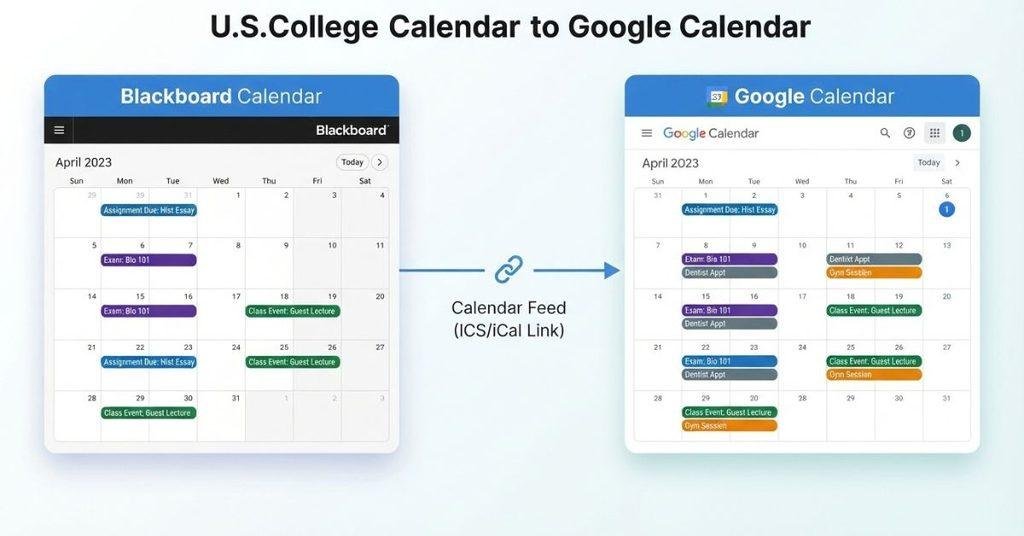
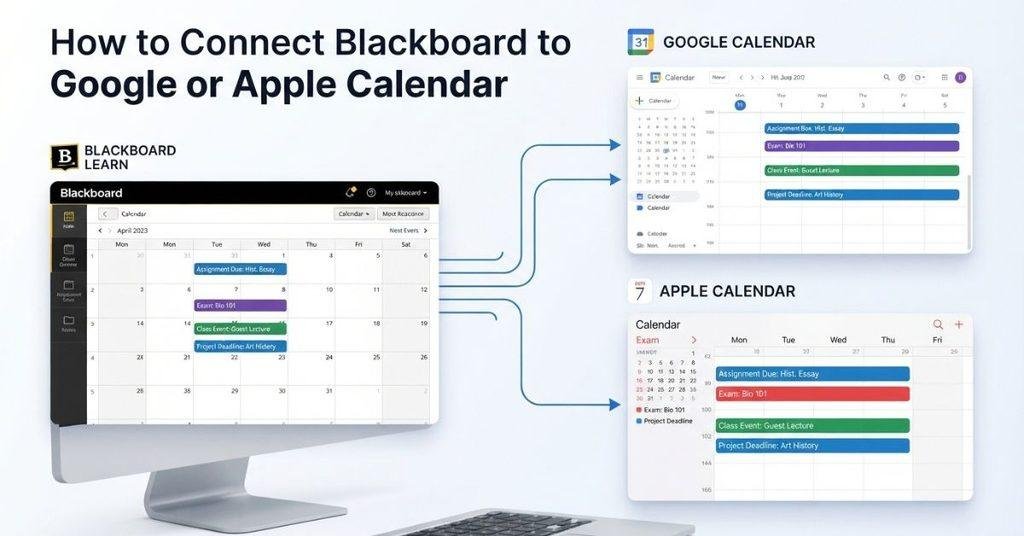
Knowing how to connect Blackboard to Google Calendar starts with understanding what “connect” actually means. Blackboard may let you share or subscribe to a calendar feed, but that isn’t always the same as full synchronization.
A calendar feed subscription lets Google Calendar read events from a Blackboard calendar feed. New or updated Blackboard events may appear in Google Calendar when the feed refreshes. The available behavior depends on your Blackboard configuration.
Importing calendar events is different. An import typically creates a separate copy of events in Google Calendar. Later changes in Blackboard may not automatically update those imported events.
True two-way synchronization is different again. Changes made in Blackboard would sync to Google Calendar, while changes made in Google Calendar would also sync back to Blackboard. Adding a Blackboard calendar feed to Google Calendar does not automatically provide this two-way connection.
For most users, the practical option is a calendar subscription or feed, if Blackboard provides one. Always check your Blackboard settings before assuming two-way syncing is available.
Key Differences
- Calendar feed: Google Calendar reads events from Blackboard.
- Imported events: Google Calendar receives a separate copy of events.
- Two-way sync: Both calendars exchange updates automatically.
- Blackboard availability: Features can vary by institution and configuration.
How to Link Blackboard Calendar to Google Calendar
If you’re searching for how to link Blackboard Calendar to Google Calendar, the calendar-feed method is usually the key option to check.
If Blackboard provides an iCal, ICS, subscription, or calendar feed URL, you can use that link with Google Calendar. Google then displays the Blackboard events through the connected calendar.
This method doesn’t necessarily create two-way synchronization. Changes made directly in Google Calendar may not update Blackboard.
If you don’t see a calendar-sharing or subscription option, your Blackboard setup may not provide a usable calendar feed. In that case, check your institution’s Blackboard documentation or ask your school’s support team which calendar options they enable.
How to Add Blackboard Calendar to Apple Calendar
If you’re learning how to add Blackboard Calendar to Apple Calendar, first check whether Blackboard provides a calendar subscription or feed option. The exact menu and sharing features can vary by institution and Blackboard configuration.
Open Blackboard Calendar
Sign in to Blackboard and open your Calendar. Look through the available calendar tools and settings for an option related to sharing or subscribing.
The location and name of this option may differ between Blackboard setups. Don’t assume every student will see the same menu.
Find the Calendar Sharing or Subscription Option
Look for terms such as Subscribe, Calendar Feed, iCal, ICS, or Calendar Sharing. These options can provide a calendar URL that another calendar app can read.
If none of these options appear, your institution may not have enabled calendar subscriptions.
Copy the Calendar URL if Available
If Blackboard provides a calendar feed URL, copy the complete address. Make sure you don’t accidentally copy a Blackboard course or login URL.
Keep the URL unchanged. Apple Calendar needs the actual calendar subscription address.
Open Apple Calendar
Open the Calendar app on your iPhone, iPad, or Mac. Make sure you’re using the device or account where you want your Blackboard events displayed.
The exact steps can vary slightly by Apple device and operating system.
Add a Subscribed Calendar
Choose the option to add a subscribed calendar. On Apple devices, this option is generally used when you have a calendar subscription URL.
Select the subscription option rather than creating a blank calendar.
Enter the Blackboard Calendar URL
Paste the Blackboard calendar URL into the subscription field. Review the address before continuing.
If Blackboard provides an ICS or iCal feed, use that specific URL. A regular Blackboard webpage address won’t necessarily work as a calendar subscription.
Save the Subscription
Confirm the subscription and save the calendar. Apple Calendar should then add it alongside your other calendars.
You can usually choose how the subscribed calendar appears in your calendar list.
Check That Blackboard Events Appear
Return to your calendar and check for Blackboard events. Look for assignments, exams, and other course dates included in the feed.
If events don’t appear, verify the calendar URL and check whether your Blackboard institution supports calendar subscriptions.
Pro Tip: Calendar feeds can update differently from manually imported events. Give the calendar time to refresh before assuming the connection failed.
How to Sync Blackboard Calendar With Google Calendar
The phrase sync Blackboard Calendar with Google Calendar can mean several different things. Understanding the difference helps you avoid expecting features your Blackboard setup doesn’t support.
One-Way Calendar Feed
With a one-way feed, Blackboard provides calendar information that Google Calendar can display. Blackboard events may appear in Google Calendar after the feed refreshes.
This doesn’t mean Google Calendar sends your changes back to Blackboard.
Two-Way Synchronization
Two-way synchronization is different. Changes made in Blackboard can potentially reach Google Calendar, while supported changes in Google Calendar can also move back to Blackboard.
Don’t assume a normal Blackboard student calendar provides this feature. Availability depends on the specific Blackboard product, integration, and institution configuration.
Takeaway: Adding a Blackboard calendar feed to Google Calendar usually means you’re viewing Blackboard events in Google Calendar, not creating a full two-way sync. Always check your institution’s setup before relying on two-way calendar updates.
How to Sync Blackboard Calendar With Apple Calendar
If you want to sync Blackboard Calendar with Apple Calendar, the usual approach is a subscribed calendar or compatible calendar feed. This allows Apple Calendar to display events supplied by Blackboard.
The process doesn’t necessarily create full synchronization. A subscribed calendar usually lets Apple Calendar read and display Blackboard events. It doesn’t automatically give you permission to edit those events in Blackboard.
For example, if an assignment deadline appears in Apple Calendar, changing that event in Apple Calendar may not change the original Blackboard assignment. Blackboard remains the source of the course information.
Before relying on the connection, check what your institution’s Blackboard setup supports. Calendar subscription features can vary between Blackboard versions and institutional configurations.
Takeaway: Seeing Blackboard events in Apple Calendar doesn’t mean you can manage Blackboard events from Apple Calendar. A calendar feed and two-way synchronization are different features.
Where Is the Blackboard Calendar?
If you’re wondering where the Blackboard Calendar is, start by checking the main navigation after signing in. Blackboard usually provides calendar access through a global navigation area or calendar icon.
The exact location can vary depending on your Blackboard version and your school’s configuration. Your instructor or institution may also control which calendar features students can access.
Common Places to Check
You may find the Blackboard Calendar in one of these areas:
- Global Calendar: Look in the main Blackboard navigation for a Calendar option or calendar icon.
- Course Calendar: Some course-related dates may appear through the calendar associated with your course.
- Course Navigation: Check the course menu for Calendar or related course tools.
- Calendar Icon or Menu: Your Blackboard interface may provide direct calendar access through an icon or navigation menu.
If you can’t find the calendar, don’t assume it’s missing. Your institution may use a different Blackboard layout or restrict certain features.
Pro Tip: Open both the main Blackboard navigation and your individual course menu. Calendar access may appear in one location but not the other.
Why Can’t I Find a Calendar Link or Export Option on Blackboard?
Can’t find a calendar link, export button, or subscription option in Blackboard? That doesn’t necessarily mean you’re looking in the wrong place.
Blackboard features can vary between Ultra and Original, and institutions can configure calendar access differently. Some students may have calendar subscription options, while others may not see them at all.
Here are some common reasons:
- Your Blackboard version or configuration doesn’t expose the option.
- Your institution uses different calendar settings or navigation.
- You’re viewing a course calendar instead of the global calendar.
- Calendar subscription or export isn’t available to students.
- Your Blackboard interface differs between Ultra and Original.
- Your school may restrict certain calendar-sharing features.
If you can’t find the option after checking the global and course calendar areas, don’t assume a specific button should exist. Check your institution’s Blackboard documentation or contact your school’s support team.
Pro Tip: Search your school’s Blackboard help pages for terms like calendar feed, iCal, ICS, calendar subscription, or calendar export. Your institution may provide instructions specific to its Blackboard setup.
Why Isn’t My Blackboard Calendar Showing in Google Calendar?
If you added a Blackboard calendar to Google Calendar but can’t see the events, check the connection step by step. The problem may involve the calendar URL, subscription, refresh timing, or Blackboard access settings.
Calendar Link Was Incorrect
A Blackboard calendar feed needs the correct calendar URL. A normal Blackboard course or login URL won’t necessarily work as a calendar subscription.
Check that you copied the complete feed address provided by Blackboard. Avoid changing any characters when pasting it into Google Calendar.
Subscription Wasn’t Added Correctly
Check Google Calendar’s Other calendars section and confirm that the Blackboard calendar appears there.
If you entered the URL but didn’t complete the subscription process, Blackboard events won’t appear.
Events Have Not Updated Yet
Calendar feeds may not update instantly. Give Google Calendar some time to refresh the subscribed calendar.
If new events still don’t appear, reopen the calendar settings and verify that the subscription remains active.
Blackboard Calendar Doesn’t Provide the Required Feed
Some Blackboard setups may not provide a calendar URL that Google Calendar can subscribe to. If you can’t find an iCal, ICS, or calendar feed option, the feature may not be available in your configuration.
In that case, avoid using a regular Blackboard webpage URL as a substitute.
Institution Settings Limit Calendar Access
Your school may control which calendar features students can access. Calendar subscriptions or exports may not be enabled for your Blackboard setup.
If everything appears correct but the feed still doesn’t work, check your institution’s Blackboard documentation or contact campus support. They can confirm which calendar options your account supports.
Why Isn’t My Blackboard Calendar Showing in Apple Calendar?
If your Blackboard events aren’t appearing in Apple Calendar, check the subscription and calendar settings first. Several issues can prevent a subscribed calendar from displaying correctly.
Wrong Subscription URL
Make sure you copied the correct Blackboard calendar feed URL. A regular Blackboard course or login link won’t necessarily work as a calendar subscription.
If Blackboard provides an iCal, ICS, or calendar feed URL, use that specific address.
Calendar Wasn’t Subscribed
Check Apple Calendar to confirm that the Blackboard calendar was actually added. A URL can be entered without completing the subscription process.
Look through your subscribed calendars and make sure the Blackboard calendar is enabled.
Calendar Account Issue
Check which Apple Calendar account you’re using. Your device may display calendars from multiple accounts, such as iCloud or another connected account.
Make sure the subscribed calendar is enabled and visible in the Calendar app.
Blackboard Doesn’t Provide the Required Feed
Not every Blackboard setup provides a calendar feed that Apple Calendar can subscribe to. Your institution may not expose calendar subscription or export options.
If you can’t find a compatible calendar URL, check your school’s Blackboard documentation.
Events Haven’t Updated
A subscribed calendar may not show new events immediately. Give the calendar time to refresh before troubleshooting further.
If older events appear but newer ones don’t, check the calendar’s refresh settings and subscription status.
Institution Configuration
Your institution may control which Blackboard calendar features students can access. Blackboard configurations can differ between schools and platforms.
If the subscription option isn’t available, contact your school’s support team for the supported calendar options.
Does Blackboard Automatically Sync With Google Calendar?
Not necessarily. Blackboard does not guarantee automatic Google Calendar synchronization for every student account.
The available functionality depends on the Blackboard product, institutional configuration, and integration method being used. A compatible calendar feed may allow Blackboard events to appear in Google Calendar without creating two-way synchronization.
For example, subscribing to a Blackboard calendar feed can let Google Calendar display course events. That doesn’t necessarily mean changes made in Google Calendar will update Blackboard.
If your institution provides a specific Google Calendar integration, follow its instructions. Otherwise, check whether your Blackboard account provides a calendar subscription or feed.
Does Blackboard Automatically Sync With Apple Calendar?
Not necessarily. Apple Calendar may require a compatible Blackboard calendar subscription or feed before it can display Blackboard events.
If Blackboard provides an iCal, ICS, or calendar subscription URL, you may be able to add it to Apple Calendar. However, the available options depend on your institution’s Blackboard setup.
A calendar subscription also doesn’t automatically mean you can edit Blackboard events from Apple Calendar. In most cases, viewing a Blackboard event in Apple Calendar and changing the original Blackboard event are separate functions.
Blackboard Calendar vs Google/Apple Calendar
Blackboard and personal calendar apps serve different purposes. Understanding that difference makes calendar connections easier to manage.
| Calendar | Main Purpose |
|---|---|
| Blackboard Calendar | Course-related academic events |
| Google Calendar | Personal and general scheduling |
| Apple Calendar | Personal and general scheduling |
The Blackboard Calendar focuses on course activities, such as assignment deadlines, tests, and other academic events. Google Calendar and Apple Calendar can hold those events alongside appointments, work schedules, and personal commitments.
Adding Blackboard events to a personal calendar can give you a broader view of your schedule. You can see coursework deadlines while planning around other responsibilities.
Keep in mind that displaying Blackboard events in a personal calendar doesn’t necessarily create two-way synchronization. The available connection depends on your Blackboard setup.
Once you’ve added Blackboard deadlines to your calendar, you can also track how those assignments may affect your course grade.
Use our Blackboard Grade Calculator to estimate your current grade and explore how upcoming assignments could affect your overall course grade.
This can help you plan your coursework with a clearer view of both your schedule and grades.
Conclusion
Connecting your course schedule to a personal calendar can make deadlines easier to track. We covered how to add Blackboard Calendar to Google Calendar and Apple Calendar using available calendar feeds or subscriptions.
Remember that Blackboard features can vary by institution and configuration. A calendar subscription may display Blackboard events without creating two-way synchronization.
Before relying on the connection, confirm that your Blackboard setup provides a compatible calendar feed. If the option isn’t available, your school may use different calendar settings.
For better course planning, pair your calendar with our Blackboard Grade Calculator to estimate your current grade and upcoming assignment impact.
If this guide helped, share it with a classmate who uses Blackboard. You can also explore our other student tools for easier course planning.
If Blackboard provides a calendar feed or subscription URL, you can add it through Google Calendar’s calendar subscription options. The exact Blackboard steps may vary by institution and configuration.
You can connect Blackboard to Google Calendar by subscribing to a compatible Blackboard calendar feed, if available. This usually lets Google Calendar display Blackboard events without creating two-way synchronization.
Look for a Blackboard calendar sharing, subscription, iCal, ICS, or calendar feed option. If Blackboard provides a calendar URL, you can add that URL to Google Calendar.
If Blackboard provides a compatible calendar feed, copy its URL and add it as a subscribed calendar in Apple Calendar. The available subscription option depends on your Blackboard setup.
It may be possible to display Blackboard events in Google Calendar through a calendar feed. However, the available integration and synchronization features depend on your Blackboard product and institution.
Yes, a compatible Blackboard calendar feed may allow events to appear in Apple Calendar. However, this doesn’t necessarily provide two-way synchronization or event editing.
Not necessarily. Automatic synchronization depends on the Blackboard configuration and integration method provided by your institution.
Not necessarily. Apple Calendar may require a compatible Blackboard calendar subscription or feed before Blackboard events can appear.
Look for Calendar in Blackboard’s main navigation, calendar icon, or course navigation. The exact location can differ between Blackboard versions and institutional configurations.
Your Blackboard setup may not provide a calendar subscription or export link. Check both the global and course calendar areas, then review your institution’s Blackboard support information.
Check that you used the correct calendar feed URL and completed the Google Calendar subscription. If the events still don’t appear, the feed may not be available or your institution may restrict calendar access.
Verify the subscription URL and confirm that the Blackboard calendar appears in your Apple Calendar list. If it still doesn’t show, Blackboard may not provide a compatible feed for your institution.

We are the Canvas Academic Team, a developer team focused on building simple and practical tools that help students succeed academically. This platform was created specifically for Canvas LMS students to make grade tracking, GPA calculations, exam planning, and academic management easier and more efficient.
Our focus is on creating fast, accurate, and student-friendly educational tools along with helpful learning resources that improve productivity and reduce academic stress.
Through CanvasGradeCalculator.com, our goal is to continue building useful resources that help students study smarter, stay organized, and achieve better academic results.