Table of Contents
Introduction
Have you ever finished a Blackboard assignment only to realize your instructor wanted double-spaced text?
Learning how to double space in Blackboard can feel confusing at first. Blackboard has different versions, and text editors can vary by course. Some assignments may also provide fewer formatting options than others.
For beginners in the USA, knowing where to find these settings can save time before submitting coursework. Proper spacing can also make your writing easier to read and review.
This guide will walk you through the process step by step. You will learn where to find the Blackboard text editor, select your text, and look for line-spacing controls.
You will also learn what to do when a double-spacing option is not available. The goal is to help you format your work correctly without guessing or changing settings that your Blackboard course does not support.
How to Double Space in Blackboard
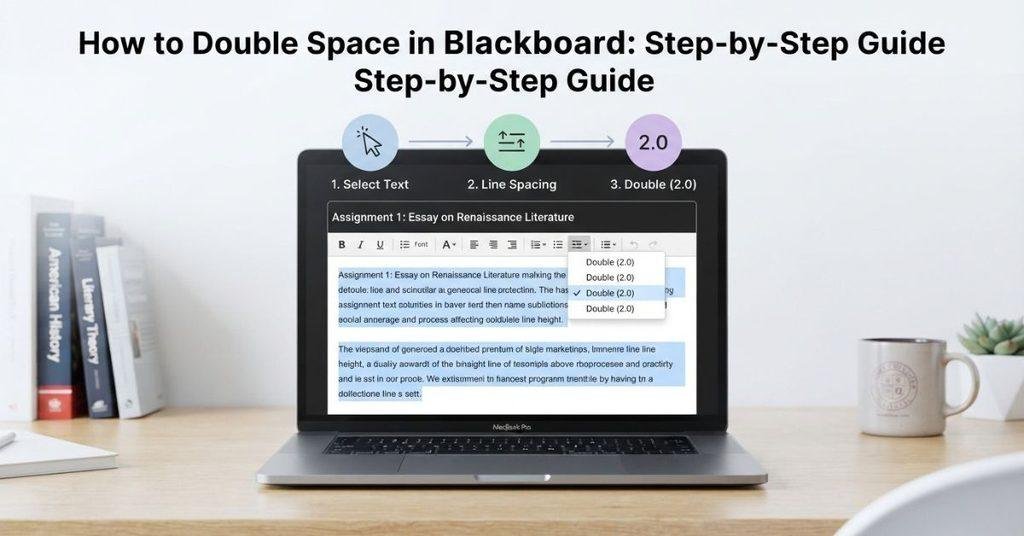
If you need to format an assignment, discussion post, or other Blackboard content with double spacing, start with the text editor. The exact controls may differ between Blackboard Ultra, Original, and the editor enabled by your school.
The basic process is straightforward: open the editor, select your text, find the spacing control, and choose the double-spacing option when available. If you cannot find that option, your Blackboard text field may not support direct line-spacing changes.
Open the Blackboard Text Editor
First, open the Blackboard course and go to the assignment, discussion, or content area where you need to enter text. Select the option that opens the text editor or lets you type your response.
Depending on your Blackboard version, the editor may appear directly on the page or open after selecting an editing button. Look for a formatting toolbar near the text area.
Before typing, check whether the toolbar includes paragraph or formatting controls. Some Blackboard editors provide more options than others.
Pro Tip: If you already typed your response, you can usually select the existing text and format it without retyping everything.
Select the Text You Want to Double Space
Once the text editor is open, select the text you want to format. You can select a specific paragraph, several paragraphs, or the entire response.
On a computer, click and drag across the text. You can also use keyboard shortcuts to select larger sections quickly.
If you want the entire response to use double spacing, select all the text inside the editor. Make sure you select the text rather than highlighting content outside the Blackboard editor.
Selecting the correct text matters because spacing changes usually apply only to the highlighted content.
Pro Tip: If your response contains headings or special formatting, review the selection before changing the spacing.
Find the Paragraph or Line Spacing Option
With your text selected, look through the Blackboard editor toolbar for a paragraph or line-spacing control. The option may appear under a formatting menu rather than directly on the toolbar.
Blackboard does not always use the same editor or toolbar layout. Your available options can depend on the Blackboard version and course settings.
Look for terms such as Line Spacing, Paragraph, or a similar formatting control. If you do not see a spacing option, check any expanded toolbar or formatting menu.
Do not assume every Blackboard text box supports double spacing. Some fields provide only basic text formatting.
Choose Double Spacing
After finding the spacing control, select Double or the equivalent option for two-line spacing. The selected text should update immediately in the editor.
Review the paragraph spacing after making the change. Make sure the text looks consistent and does not contain unexpected gaps between paragraphs.
If Blackboard does not provide a double-spacing option, you may need to format the document before uploading it. For example, an instructor may accept a properly formatted Word document instead of formatted text entered directly into Blackboard.
Always follow your instructor’s formatting instructions when they differ from the available Blackboard controls.
Save or Submit Your Work
After applying double spacing, review your response before saving or submitting it. Check that the formatting appears as expected throughout the selected text.
If the assignment includes a Save Draft option, use it when you need to return later. If you are ready to turn in the work, select the appropriate submission option.
After submitting, review the confirmation or submitted content when Blackboard provides that option. This helps you catch formatting problems before they become an issue.
Pro Tip: If the spacing changes after submission, compare the submitted version with your original document. Blackboard may display some formatting differently from your word processor.
How to Double Space on Blackboard
The phrases “how to double space in Blackboard” and “how to double space on Blackboard” generally describe the same task. You do not need a separate method just because the wording changes.
Whether you use “in” or “on,” the process depends on the text editor available in your Blackboard course. Open the editor, select your text, and look for a line-spacing or paragraph-formatting option.
If your editor provides a Double spacing option, select it and review the text before submitting. If you cannot find one, the text field may not support direct line-spacing changes.
Always follow your instructor’s formatting requirements if they specify a particular method.
How to Double Space a Blackboard Assignment
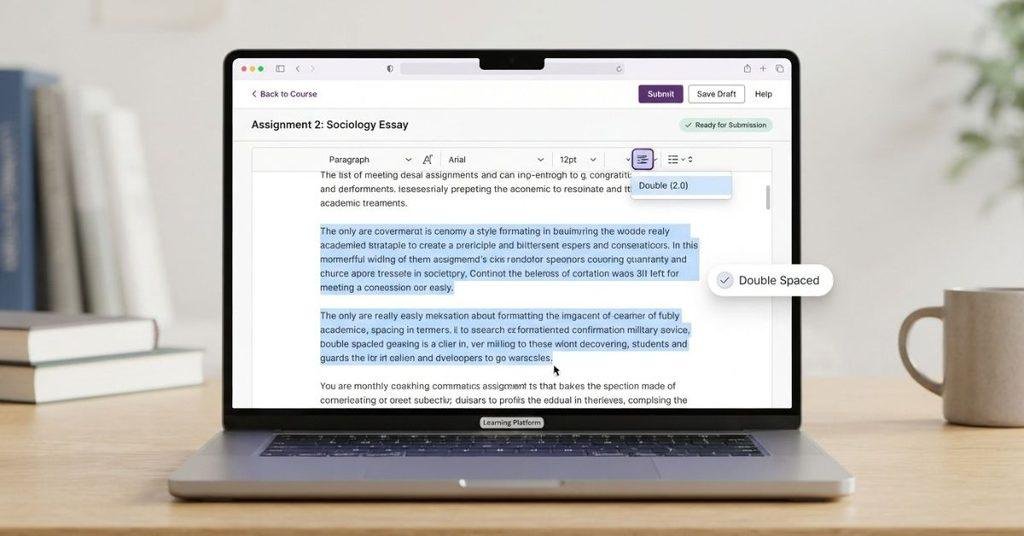
You can double-space a Blackboard assignment when the available text editor supports line-spacing controls. The process can also differ depending on whether you type your response directly into Blackboard or upload a formatted document.
If you type directly into Blackboard, enter your response in the assignment editor. You can then select existing text and apply the available spacing option.
If you prepare your work in Word or another word processor, format the document before uploading it. This can be useful when Blackboard does not provide the spacing controls you need.
Before submitting, check the assignment carefully. Look for consistent spacing throughout your response and make sure your paragraphs follow the instructor’s requirements.
Quick checklist:
- Select existing text before changing its spacing.
- Check whether the editor provides a Double option.
- Format uploaded documents before submission when needed.
- Review the final assignment before submitting it.
How to Double Space Text in Blackboard
Double spacing controls the vertical space between lines of text. It differs from paragraph spacing, which controls the space between separate paragraphs.
Common spacing settings include:
- Single spacing: Lines appear close together with standard line spacing.
- 1.5 spacing: Lines have more space between them than single spacing.
- Double spacing: Lines have approximately twice the standard line spacing.
- Paragraph spacing: Adds space before or after individual paragraphs.
When an instructor asks for double-spaced work, they usually mean the line spacing should use the double setting. This does not automatically mean you should add extra blank lines between paragraphs.
If Blackboard provides separate paragraph-spacing controls, avoid adding unnecessary blank lines unless your instructor specifically requests them. Use the appropriate formatting option instead.
Pro Tip: After changing the spacing, review several paragraphs rather than checking only the first few lines. This helps you catch inconsistent formatting before submission.
How to Double Space in Blackboard Ultra
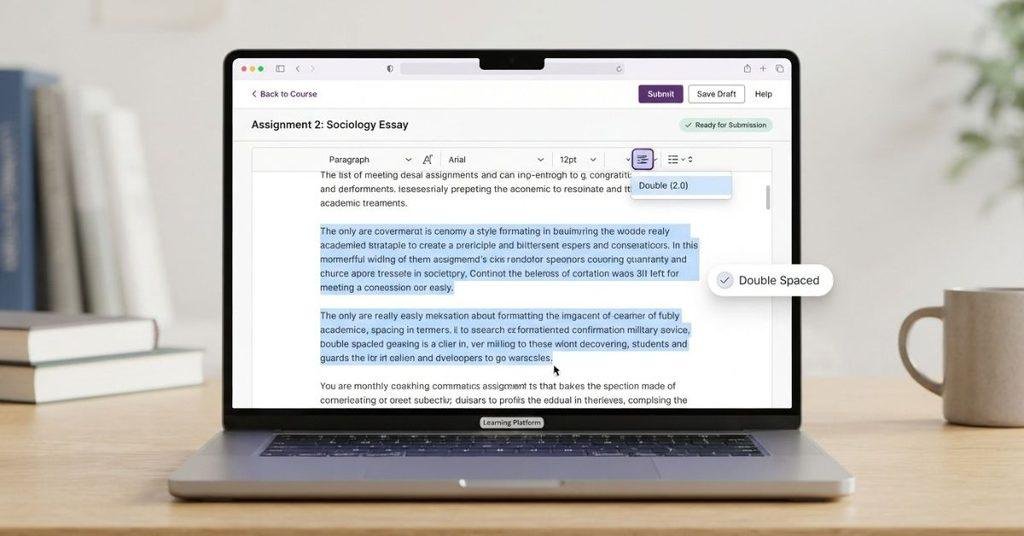
Blackboard Ultra can provide text-formatting controls inside assignments, discussions, and other content areas. However, the available options can vary by content type and institution configuration.
Start by opening the assignment, discussion, or other area where you need to enter text. Click inside the text editor and look for the formatting toolbar.
If the toolbar includes paragraph or line-spacing controls, select the text you want to format. Then choose the available Double spacing option.
If you do not see a line-spacing option, do not assume something is wrong with your course. The specific editor may not provide direct double-spacing controls.
You can also check for an expanded formatting toolbar if additional options are hidden. After making your changes, review the text before saving or submitting your work.
Pro Tip: Blackboard Ultra can look different across courses. Follow the formatting options that actually appear in your editor rather than relying on screenshots from another course.
How to Double Space in Blackboard Original
Blackboard Original uses a different interface from the Ultra experience, so the text editor and formatting controls may look different.
Open the assignment, discussion, or content area where you need to enter your response. Find the text editor and check its formatting toolbar for paragraph or line-spacing controls.
If a Double option appears, select your text and apply the setting. If you cannot find one, the editor may not support direct double spacing in that particular content area.
Some Original courses may also use different editor layouts or available formatting tools. Your institution and course configuration can affect what you see.
Before submitting, review the final formatting carefully. If Blackboard does not provide the required spacing option, check your instructor’s instructions for an accepted alternative, such as uploading a formatted document.
What If Blackboard Doesn’t Have a Double-Spacing Option?
Not every Blackboard text editor includes a direct double-spacing control. If you cannot find one, you still have several practical options for preparing properly formatted work.
The best approach depends on your instructor’s requirements and how the Blackboard assignment accepts submissions.
Format the Text in Microsoft Word First
Microsoft Word provides detailed paragraph and line-spacing controls. You can prepare your assignment there before submitting it through Blackboard.
Select the text in Word and open the paragraph formatting options. Choose Double line spacing, then review the document for consistent formatting.
This method works well when your instructor requires a specific document format. It also lets you check margins, headings, fonts, and other requirements before submission.
Save the finished document in the file format your instructor requests. Then return to Blackboard and follow the assignment’s submission instructions.
Format the Text in Google Docs First
Google Docs can also help you prepare double-spaced text before submitting your work. Open your document and select the text you want to format.
Use the line-spacing controls and choose Double. Then review the document to make sure the spacing looks consistent.
This option can be useful when you write assignments online or need to access your work from multiple devices.
Before uploading the document, check your instructor’s required file type and formatting rules.
Paste the Properly Formatted Text Into Blackboard
If you need to type directly into Blackboard, you can prepare the text in Word or Google Docs first. Format the content with double spacing, then copy and paste it into the Blackboard editor.
However, pasting can sometimes change or remove formatting. Blackboard may not preserve every formatting detail from another application.
After pasting, review the text inside Blackboard. Check line spacing, paragraph breaks, headings, and other important formatting before submitting.
Upload the Document Instead of Typing Directly
If the assignment allows file uploads, you may be able to submit a properly formatted Word document instead of typing everything into Blackboard.
Prepare the document in your preferred word processor and apply the required double spacing. Then upload the completed file through the assignment submission area.
Always check your instructor’s instructions first. Some assignments require text entered directly into Blackboard, while others accept uploaded files.
Pro Tip: Open or preview your final submission when possible. This helps confirm that your formatting appears correctly after uploading.
How to Double Space a Blackboard Discussion Post
Discussion posts can use a different Blackboard editor or content area than assignments. The exact formatting options depend on your Blackboard experience and course configuration.
Start by opening the discussion from your Blackboard course. Select the option to create a new thread or response, then click inside the text editor.
Type your response or paste your prepared text into the editor. If you already entered the content, select the text you want to format.
Next, check the formatting toolbar for a line-spacing or paragraph option. If Double spacing is available, apply it to the selected text.
Finally, review the complete discussion post before submitting it. Check the spacing, paragraph breaks, and overall appearance.
If the editor does not provide double spacing, follow your instructor’s preferred formatting method. You may need to prepare the text elsewhere or use another accepted submission method.
How to Double Space a Blackboard Assignment Submission
The way you double-space an assignment depends on how your instructor expects you to submit it. Blackboard may display spacing controls when you type directly into an assignment editor, but uploaded documents work differently.
If you type directly into Blackboard, enter your response in the available text editor. Select the text and use the line-spacing controls if the editor provides a Double option.
If you upload a Word or PDF document, the spacing usually comes from the document itself. Format the document before uploading it, then review the file to confirm that the required spacing is present.
This distinction matters because Blackboard does not necessarily control the formatting inside an uploaded document. Your instructor may also require a specific file type or submission method.
Always follow the assignment instructions first. If they require double spacing, verify the final version before submitting it.
Can You Double Space in Blackboard?
Yes, you can double-space text in Blackboard when the relevant text editor provides the necessary formatting controls. The exact options can vary by Blackboard experience, content area, and institution configuration.
Open the text editor and check for a line-spacing or paragraph-formatting option. If Double spacing appears, select your text and apply the setting.
If the option does not appear, prepare your work in Microsoft Word or Google Docs instead. Set the document to double spacing, then upload it if the assignment allows file submissions.
You can also paste formatted text into Blackboard when direct text entry is required. However, Blackboard may change some formatting during the paste process.
Always check the final appearance before submitting your work.
Why Isn’t My Double Spacing Showing in Blackboard?
If your text does not appear double-spaced, several formatting issues could explain the problem. Check these common possibilities before submitting your assignment.
- The formatting wasn’t applied: You may have selected the wrong spacing option or not applied it successfully.
- Only part of the text was selected: Unselected paragraphs may keep their original spacing.
- The Blackboard editor removed formatting: Some editors may not preserve every formatting detail.
- Pasted text brought different formatting: Text copied from Word or Google Docs can display differently after pasting.
- You’re viewing the submission differently: The editor and submitted view may display formatting differently.
- The assignment requires an uploaded document: Your instructor may expect spacing to be controlled within a Word or PDF file.
If the problem continues, compare the final submission with your original document. Follow the assignment instructions if they specify a particular submission format.
Does Blackboard Keep Double Spacing When You Paste From Word?
Blackboard may preserve some formatting when you paste text from Microsoft Word, but the result can vary. The specific Blackboard editor and the way you paste the content can affect how formatting appears.
Double spacing may transfer correctly, but other formatting can change or disappear. This can include paragraph spacing, fonts, headings, and other document styles.
For this reason, don’t assume that Word’s formatting will look exactly the same inside Blackboard. After pasting your response, review the text directly in the Blackboard editor.
Check these areas before submitting:
- Line spacing
- Paragraph breaks
- Headings and bold text
- Unwanted blank spaces
- Overall formatting
If the spacing does not transfer correctly, use Blackboard’s available formatting controls or upload the properly formatted document when the assignment permits file submissions.
Blackboard Grade Calculator
Formatting your Blackboard assignment is only one part of submitting your work. If you want to estimate how an assignment grade could affect your overall course grade, use our Blackboard Grade Calculator.
It can help you understand your current grade and estimate how future assignment scores may affect your overall result.
Conclusion
Double spacing in Blackboard is usually simple once you know where the formatting controls are. We covered how to double space in Blackboard, assignments, discussion posts, Ultra, and Original.
If your Blackboard editor does not provide a double-spacing option, prepare your work in Word or Google Docs first. You can then paste or upload it, depending on your assignment requirements. Always check the final version before submitting because formatting may change.
For beginners, the key is to follow your instructor’s formatting instructions and verify your submission. That small check can prevent unnecessary formatting problems.
If this guide helped, share it with a classmate who uses Blackboard. You can also explore our other Blackboard resources for more practical student tips.
Open the Blackboard text editor and select the text you want to format. Look for a line-spacing or paragraph-formatting option in the toolbar. If Double is available, select it and review the text before submitting. The available controls can vary by Blackboard version, course area, and institution settings.
“Double space in Blackboard” and “double space on Blackboard” generally refer to the same task. Open the relevant text editor, select your content, and choose Double spacing if the option is available. You do not need a separate method based on using “in” or “on.”
Yes, if the Blackboard text editor provides a double-spacing option. If the control is unavailable, format your work in Microsoft Word or Google Docs first. You can then upload the document if the assignment allows file submissions.
Open the assignment and enter the text editor. Select your response and look for the line-spacing controls. Choose Double if available. If you are uploading a Word document, apply double spacing before uploading it. Always check the final submission for formatting.
Open the discussion and create your post or reply. Enter your text or paste your prepared content into the editor. Select the text and choose Double spacing if the editor provides that option. Review the completed post before submitting because pasted formatting may change.
You can double-space text in Blackboard Ultra when the relevant editor provides the necessary formatting control. The available toolbar options can vary by content area and institution configuration. If you cannot find a double-spacing option, check whether the assignment accepts a properly formatted uploaded document.
The formatting may not have been applied to all your text, or Blackboard may have changed formatting during editing or pasting. The submitted view can also look different from the editor. Select the entire response and check the spacing again. If necessary, format and upload a document instead.
Yes, you can paste prepared text into Blackboard when the assignment allows direct text entry. However, Blackboard may not preserve every formatting detail from Word or Google Docs. After pasting, check the line spacing, paragraph breaks, and other formatting before submitting.
Yes. You can format your Word document with double line spacing before uploading it to Blackboard. Select the relevant text and apply the Double spacing setting in Word. Then save the document in the required format and upload it according to your instructor’s instructions.

We are the Canvas Academic Team, a developer team focused on building simple and practical tools that help students succeed academically. This platform was created specifically for Canvas LMS students to make grade tracking, GPA calculations, exam planning, and academic management easier and more efficient.
Our focus is on creating fast, accurate, and student-friendly educational tools along with helpful learning resources that improve productivity and reduce academic stress.
Through CanvasGradeCalculator.com, our goal is to continue building useful resources that help students study smarter, stay organized, and achieve better academic results.