

Table of Contents
Introduction
Have you ever logged into Blackboard and wondered where to find your class, assignment, or grades?
How to Use Blackboard becomes much easier once you understand the basic layout and tools. Blackboard is widely used by colleges and universities across the USA for online course management. Students can access course materials, submit assignments, take tests, check grades, and read important announcements.
For beginners, the platform may feel confusing at first. Your Blackboard dashboard can also look different from another student’s dashboard. Your school may use Blackboard Ultra or another Blackboard experience.
This guide will walk you through Blackboard step by step. You will learn how to log in, find your courses, access class materials, submit assignments, and check grades.
We will also cover announcements, discussions, tests, and other common features. By the end, you should feel more comfortable navigating Blackboard for your college courses.
How to Use Blackboard
If you’re learning how to use Blackboard, start with a simple routine each time you log in. The exact buttons may vary by school, but the basic workflow stays similar.
1. Log Into Blackboard
Open your school’s Blackboard website and sign in with your student account. Your college may provide a specific Blackboard login link through its student portal.
2. Open Courses
After signing in, go to Courses from the main navigation. This area shows the classes connected to your Blackboard account.
3. Select Your Course
Choose the class you want to study. You’ll usually see the course homepage or main navigation area after opening it.
4. Open Course Content
Look for Course Content, Content, or a similar section. Your instructor may place readings, lecture materials, videos, and other resources there.
5. Check Announcements
Review Announcements for instructor updates and important course information. Check this area regularly so you don’t miss changes.
6. Review Assignments and Due Dates
Open the assignment area and review upcoming work. Check instructions, submission requirements, due dates, and available attempts before starting.
7. Complete Tests and Quizzes
If your course uses online tests or quizzes, open them from the assigned course area. Follow the instructor’s instructions before submitting your work.
8. Check Your Grades
Use the Grades area to review posted scores. Some instructors may also provide written feedback with individual assignments.
9. Review Instructor Feedback
Open graded assignments to check comments, annotations, or other feedback. This can help you understand mistakes and improve future submissions.
10. Use Calendar and Activity Stream
Use the Calendar and Activity Stream when available to track upcoming tasks. These tools can help you stay organized across multiple courses.
Quick routine: Log in → check updates → review course content → check deadlines → complete work → review grades and feedback.
How Do I Use Blackboard as a Student?
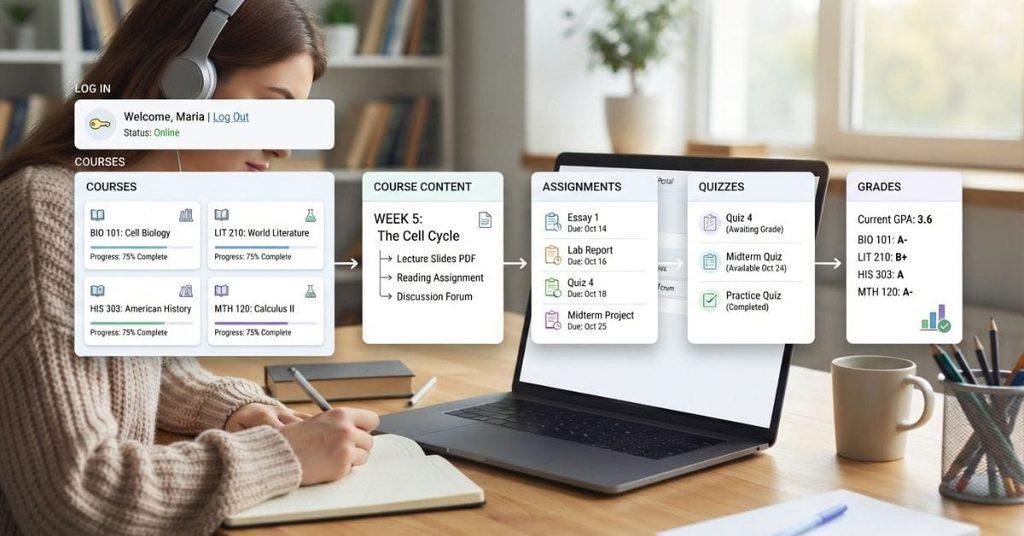
If you’re wondering how do I use Blackboard, think of it as your online hub for managing college coursework. Most students use it to find class materials, complete assignments, check grades, and follow instructor updates.
Your daily routine can be simple. Log in, review your courses, check new announcements, look for upcoming deadlines, and complete assigned work. Then, return to Blackboard after submission to check grades and instructor feedback.
The exact layout can differ between schools and instructors. Some courses may use Blackboard Ultra, while others may have different menus or content arrangements. Use the steps below as a general guide.
1. Log Into Blackboard
Start by signing in through your school’s Blackboard login page. Your college may provide Blackboard access through its student portal or a dedicated login page.
If you’re unsure where to start, see our guide on [How to Log Into Blackboard] for step-by-step login help.
Once you’re signed in, you’ll typically reach your Blackboard homepage. From there, you can access your courses and other available tools.
2. Open Your Courses
Select Courses from the main navigation to see the classes available through Blackboard. Your course list may include current classes and other courses connected to your account.
Choose the course you need to work on. If you have several classes, check the course name carefully before opening materials or submitting an assignment.
Some schools may also organize courses by term or academic year. This helps you find the correct class when multiple courses appear in your account.
3. Open a Course
After selecting a course, explore its main page before starting your work. Look for areas such as Course Content, Announcements, Assignments, Grades, or Modules.
Keep in mind that every instructor may organize Blackboard differently. One instructor might arrange content by week, while another may use units, topics, or modules.
Take a few minutes to understand the course layout. This makes it easier to find important materials and deadlines later.
4. Find Course Materials
Your instructor may place learning materials inside Course Content or another course section. These resources support your classwork and may appear in several formats.
You may find:
- Lecture notes and presentation slides
- PDF documents and study guides
- Recorded or embedded videos
- Assigned reading materials
- Links to external resources
- Course modules organized by topic or week
Open each module or folder to see what your instructor has provided. Some materials may also include instructions for completing related assignments or activities.
5. Check Assignments
Open the Assignments area or the relevant course module to find your assigned work. Always read the full instructions before preparing your submission.
Look for important details such as:
- Assignment instructions and requirements
- Due date and submission deadline
- File types or formats your instructor accepts
- Submission area or upload button
- Number of attempts available
- Posted grades and instructor feedback
After submitting an assignment, return to Blackboard to confirm that your work was successfully submitted. Later, check the assignment again for your grade and any feedback from your instructor.
6. Check Your Grades
The Grades area can help you track scores that your instructor has posted. Depending on your course setup, you may see individual assignment grades, test results, feedback, or an overall course grade.
Blackboard grades don’t always represent your official college GPA. Your school may calculate your official GPA through its student information system or registrar.
For help understanding your GPA, see [How to Check GPA on Blackboard]. You can also use a Blackboard Grade Calculator to estimate your course grade when you have the necessary assignment scores and weights.
Make checking grades part of your regular Blackboard routine. It can help you spot missing work, review instructor feedback, and understand your progress throughout the course.
What Can You Do on Blackboard?
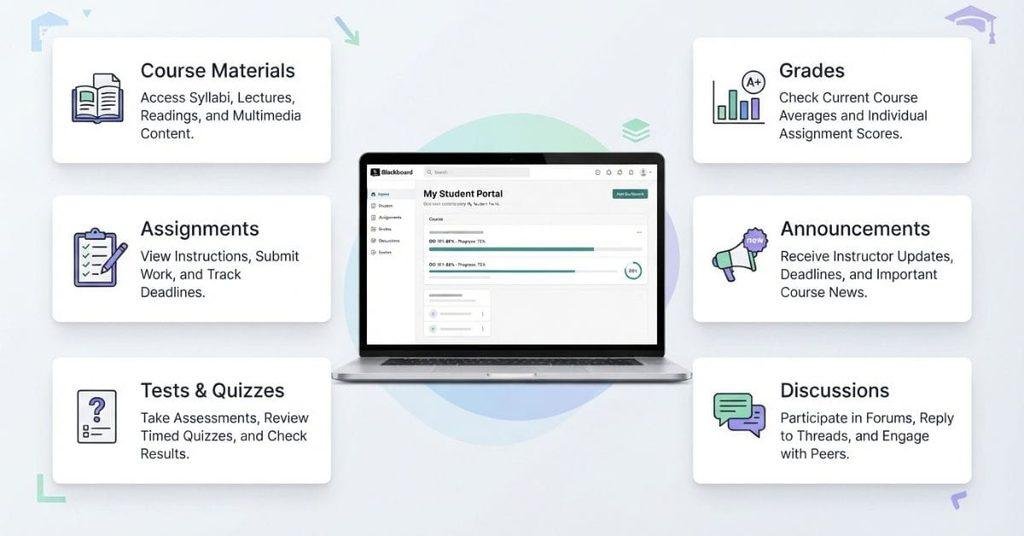
Blackboard gives students one place to manage many parts of their online coursework. Depending on your school and course setup, available features may vary.
As a student, you can use Blackboard to access learning materials, submit work, complete online assessments, and track your academic progress. You can also communicate with instructors and participate in course discussions.
View Course Materials
Open Course Content or the section your instructor uses for class resources. You may find lecture notes, PDFs, presentations, videos, readings, links, and learning modules.
Some instructors organize materials by week, while others organize them by topic or unit. Check the course structure regularly for newly added resources.
Submit Assignments
Blackboard lets you submit many types of course assignments online. Open the assignment to read the instructions, requirements, and deadline before uploading your work.
Depending on the assignment, you may upload a document, enter text, or submit another supported file type. After submitting, check the submission details to confirm your work went through successfully.
Take Tests and Quizzes
Some instructors use Blackboard for online tests, quizzes, and other assessments. Open the assigned test and review the instructions before beginning.
Pay attention to available attempts, time limits, and submission requirements. Don’t close or leave an assessment without checking the instructor’s instructions first.
Check Grades
Use the Grades area to review scores posted by your instructor. You may see grades for assignments, quizzes, tests, discussions, and other activities.
Your Blackboard grade may not equal your official college GPA. Your school may calculate official GPA information through a separate student system.
View Announcements
The Announcements area helps instructors share important course updates. These messages may include changes to assignments, class schedules, deadlines, or other instructions.
Check announcements regularly, especially when starting a new week or returning to Blackboard after several days.
Participate in Discussions
Some courses use Blackboard discussion boards for class participation. Your instructor may ask you to post a response and reply to classmates.
Read the discussion instructions carefully before posting. Requirements can differ for the number of posts, response length, and deadlines.
Check Due Dates and Calendar
Use the Calendar and other available activity tools to keep track of upcoming coursework. Depending on your course setup, you may see assignment deadlines, tests, and other scheduled activities.
Review upcoming dates before planning your study time. This can help you avoid missing important submissions across multiple courses.
Communicate With Instructors
Blackboard may provide tools for communicating with your instructor. Available options can include course messages, email links, or other communication features.
Use the method your instructor recommends for course questions. Include enough context so your instructor can quickly understand what you need.
View Course Feedback
Blackboard can display feedback after an instructor grades your work. Depending on the course setup, feedback may appear with your grade or inside the submitted assignment.
Review comments, annotations, and grading notes when available. Instructor feedback can help you understand where your work can improve on future assignments.
Pro Tip
Don’t use Blackboard only when an assignment is due. Make it part of your regular study routine.
A quick daily check can help you notice new announcements, upcoming deadlines, course materials, and posted grades before they become urgent.
How to Navigate Blackboard
Learning how to navigate Blackboard starts with understanding its main areas. These areas help you move between courses, assignments, grades, messages, and other student tools.
Your Blackboard layout may not match another student’s screen. Schools can configure Blackboard differently, and available features can depend on your institution and course setup.
Institution Page
The Institution Page may contain school-specific information and useful resources. Depending on your institution, you might find support links, announcements, policies, or other student services here.
Use this area when you need information provided by your school rather than a specific course.
Activity Stream
The Activity Stream can show updates and activity connected to your courses. Depending on your setup, it may highlight upcoming work, recently posted content, grades, or other course activity.
Check it regularly for updates that may require your attention.
Courses
The Courses area is where you access your Blackboard classes. Select a course to open its content, assignments, assessments, discussions, and other available resources.
If you have several courses, check the course title and term before opening one.
Calendar
The Calendar can help you track scheduled coursework and important dates. Depending on your course configuration, it may show assignment deadlines, tests, events, and other scheduled activities.
Use it alongside your course pages to plan upcoming work.
Grades
The Grades area lets you review grades that instructors have posted. You may see individual assignment scores, assessment results, feedback, or other available grading information.
Remember that Blackboard grades and your school’s official GPA system may serve different purposes.
Messages
The Messages area may allow you to communicate with instructors or classmates. Available communication tools can vary by institution and course.
Check your course instructions to learn which communication method your instructor prefers.
Profile and Settings
Your Profile or Settings area may contain account preferences and personal options. Available settings depend on your Blackboard environment and institutional configuration.
Before changing important preferences, check whether your school provides specific instructions.
How to Use Blackboard Ultra
Blackboard Ultra provides a modernized course interface designed to make course navigation more streamlined. However, the exact options you see can depend on your institution and individual course configuration.
You may notice differences in menus, course organization, and where instructors place materials. The best approach is to learn the main navigation areas first.
How to Find Your Courses in Blackboard Ultra
Open Courses from the main navigation to see the classes available to you. Select a course to open its main page and explore the available content.
Your course list may include multiple current or past classes. Look at the course name and other details to make sure you’re opening the correct class.
How to Find Course Content
After opening a course, look for Course Content or the main content area. Instructors may organize materials into folders, learning modules, weekly sections, or other structures.
You may find readings, lecture files, videos, links, and instructions within these areas. Open each relevant section to see all available materials.
How to Find Assignments
Assignments are usually placed within the course’s content area. Look for items labeled Assignment or sections containing upcoming coursework.
Open the assignment to review its instructions, due date, submission requirements, and available attempts. Follow your instructor’s requirements before submitting your work.
How to Find Tests and Quizzes
Tests and quizzes may also appear inside the course content area. Your instructor can organize these assessments by module, topic, week, or another course structure.
Select the assessment to review its instructions and available details. Check for time limits, attempts, and submission requirements before starting.
How to Find Grades
Open the Grades area to review grades that your instructor has posted. Depending on your course setup, you may see scores for assignments, tests, quizzes, and other activities.
Open individual graded items when available to review instructor comments or other feedback.
How to Find Announcements
Announcements can provide important information from your instructor or institution. Look for the Announcements area or announcement notifications available within your Blackboard environment.
Check these updates regularly for changes to coursework, deadlines, schedules, or other course instructions.
How to Find the Calendar
Open Calendar from the main navigation when it is available in your Blackboard environment. It can help you review upcoming course events and scheduled deadlines.
Calendar information depends on how your courses are configured. Always compare important deadlines with the assignment or assessment page for the most relevant instructions.
Pro Tip
Don’t worry if your Blackboard Ultra screen looks different from an online tutorial. Your institution may use different settings or course configurations.
Focus on learning where your Courses, Course Content, Assignments, Grades, and Calendar are located. Once you understand those areas, everyday navigation becomes much easier.
How to Submit an Assignment on Blackboard
Submitting coursework on Blackboard is usually a straightforward process. However, the exact buttons and submission options can vary by course and institution.
Before submitting, make sure your file meets the instructor’s requirements. Check the file format, assignment instructions, deadline, and any required attachments.
1. Open Your Course
Sign in to Blackboard and open Courses. Select the class containing the assignment you need to complete.
2. Find the Assignment
Look through Course Content, a module, or another area where your instructor organizes coursework. Select the assignment to open its details.
3. Read the Instructions
Read the complete assignment instructions before uploading your work. Check the required format, questions, attachments, submission rules, and deadline.
Don’t assume every assignment uses the same requirements. Your instructor may provide specific instructions for each submission.
4. Attach or Upload Your File
If the assignment requires a file, use the available upload or attachment option. Select the correct document from your device and wait for it to finish uploading.
Check the displayed filename before continuing. This helps prevent accidentally submitting the wrong document.
5. Review Your Submission
Review your uploaded file and any text you’ve entered before submitting. If Blackboard provides a file preview, use it to check that the document appears correctly.
Make sure you’ve included everything your instructor requested.
6. Select the Appropriate Submit Option
When you’re ready, select the available Submit option. Don’t stop at saving a draft if your instructor requires a completed submission.
Some Blackboard assignments may provide separate options for saving work and submitting it.
7. Confirm the Submission
After submitting, look for a confirmation message or submission details. Depending on the course configuration, Blackboard may provide a confirmation page, receipt, submission status, or confirmation number.
Keep any available confirmation information until your instructor grades the assignment.
How to Know If Your Blackboard Assignment Was Submitted
After selecting Submit, check the assignment page for evidence that Blackboard received your work. You may see a submission confirmation, status update, submission receipt, or other confirmation details.
The exact confirmation can differ between Blackboard environments. If you’re unsure, return to the assignment and check whether your uploaded file and submission status are displayed.
If Blackboard provides a submission receipt, save it for your records. A receipt can be useful if you later need to verify when your work was submitted.
Can You Resubmit an Assignment?
You may be able to resubmit an assignment, but this depends on your instructor’s settings. Some assignments allow multiple attempts, while others may allow only one submission.
Before uploading another file, check the assignment details for the available attempt information. If you cannot resubmit, contact your instructor rather than repeatedly changing your submission.
How to Take a Test or Quiz on Blackboard
Blackboard can also host online tests and quizzes. The steps are generally similar, but your instructor controls important settings such as availability, attempts, and time limits.
1. Find the Test or Quiz
Open your course and go to Course Content or the section containing assessments. Select the test or quiz you need to complete.
2. Read the Instructions
Review the instructions before starting. Check the number of attempts, time limit, required materials, and other rules provided by your instructor.
3. Check the Availability Window
Look for the dates and times when the assessment is available. A test may only be accessible during a specific period set by your instructor.
Don’t wait until the final minutes if you can avoid it. Technical issues or connection problems can interfere with completing an online assessment.
4. Start Your Attempt
When you’re ready, select the available option to begin the test or quiz. Follow the instructions shown on the screen as you work through the assessment.
5. Answer the Questions
Work through each question according to the instructor’s directions. Depending on the assessment, you may encounter multiple-choice, true-or-false, short-answer, essay, or other question types.
Use any navigation options carefully. Some assessments may have rules about moving between questions.
6. Save and Submit
Complete the required questions and review your answers when the assessment allows it. Then use the appropriate Save or Submit option.
Saving work and submitting an assessment aren’t always the same action. Make sure you complete the required submission step.
7. Verify Your Submission
After submitting, look for a confirmation or submission status. If Blackboard displays a confirmation page or receipt, review it before leaving the assessment area.
For questions about online assessment monitoring or academic integrity, see our related guide [Can Blackboard Quizzes Detect Cheating?]. That topic is separate from the basic process of taking a Blackboard quiz.
How to Check Grades on Blackboard
Checking your grades regularly can help you track your progress and spot missing work. Blackboard may display assignment scores, test results, feedback, and an Overall Grade when your course settings support it.
1. Open Grades
Sign in to Blackboard and select Grades from the main navigation when available. Your Blackboard environment may place this option in a different location.
2. Select the Relevant Course
If you have multiple classes, open the course you want to review. Make sure you’re checking the correct class before reviewing individual scores.
3. Review Assignment and Test Scores
Look through your graded activities to see your posted scores. You may find grades for assignments, quizzes, tests, discussions, projects, and other coursework.
Not every activity will have a grade immediately. Your instructor may still be reviewing recent submissions or may not have graded certain activities yet.
4. Look for an Overall Grade
Some Blackboard courses may display an Overall Grade. This can give you a summary of your current course performance based on the grading setup used by your instructor.
The Overall Grade isn’t necessarily your official final course grade. Its availability and calculation depend on your course configuration.
5. Check Instructor Feedback
Open individual graded assignments when feedback is available. Your instructor may leave comments, annotations, or other notes explaining your score.
Reviewing feedback can help you understand mistakes and improve future assignments.
Blackboard Grade Calculator
If you want to estimate your current or potential course grade from your Blackboard scores, use our [Blackboard Grade Calculator].
It can help you work with the scores and grading weights from your course. This is especially useful when you want to understand how upcoming or missing work could affect your overall course grade.
How to Find GPA on Blackboard
Blackboard and your university’s student information system may show different types of academic information. Blackboard may display individual course grades or an Overall Grade, depending on your course setup.
However, Blackboard may not display your official semester or cumulative GPA. Your university may provide official GPA information through its student portal or academic records system.
For a detailed walkthrough, see [How to Check GPA on Blackboard]. This guide explains where students may find GPA-related information and what Blackboard grades can tell you.
How to Find Turnitin on Blackboard
If your instructor uses Turnitin, you may access it through a Blackboard assignment. The exact setup depends on your institution and how Turnitin integrates with Blackboard.
Open the relevant course and look through Course Content or the assignment area. A Turnitin-enabled assignment may provide submission or originality-checking options as part of the assignment workflow.
Not every Blackboard course uses Turnitin. If you don’t see it, your instructor may use another tool or may not require an originality check.
For more guidance, see [How to Find Turnitin on Blackboard].
How to Find SafeAssign on Blackboard
Some instructors and institutions use SafeAssign to support originality and similarity checking. SafeAssign is separate from Turnitin, so the tools may appear differently in Blackboard.
If your course uses SafeAssign, you may encounter it through an assignment or related course activity. The exact location and submission process can depend on your institution’s Blackboard setup.
Seeing SafeAssign in a course doesn’t automatically mean there is a problem with your submission. Your instructor or institution decides how the tool is used.
Learn more in our guide [What Is SafeAssign on Blackboard?].
How to Use Blackboard on Your Phone
You can access Blackboard from a mobile device when your institution supports mobile access. This can make it easier to check course updates, assignments, grades, and notifications while you’re away from a computer.
The available features and mobile experience can change based on your institution, Blackboard environment, and app version.
Using Blackboard on Android
Android users can access Blackboard through the Blackboard mobile app when supported by their institution. Start by installing the official app and selecting or searching for your institution during sign-in.
After signing in, open Courses to access your classes. Depending on your course setup, you can review materials, check assignments, view grades, and read course updates.
Notifications can also help you notice new course activity. Check your device and Blackboard notification settings if you expect alerts.
Using Blackboard on iPhone
iPhone users can also use the Blackboard mobile app when their institution supports it. Sign in using your institution’s Blackboard information rather than creating a separate course account.
After signing in, open Courses and select the class you need. You may be able to review course content, assignments, grades, and other available activities.
Use notifications to stay aware of important course updates. For major assignments or tests, however, review the full course instructions before relying only on your phone.
Pro Tip
Use your phone for quick checks, such as reviewing announcements, deadlines, grades, and notifications. For detailed assignments or tests, follow your instructor’s instructions about the preferred device and submission method.
How to Stay Organized on Blackboard
Knowing how to use Blackboard is only part of managing your online coursework. A consistent routine can help you keep track of assignments, announcements, grades, and deadlines.
Check Blackboard Regularly
Make Blackboard part of your normal study routine. Check your courses regularly for new materials, assignments, announcements, grades, and other updates.
A quick check can help you notice changes before they become urgent.
Watch Assignment Due Dates
Review upcoming assignment deadlines before planning your study time. Check both the course page and Calendar when available.
Pay attention to the specific deadline shown by your instructor. Course settings can affect how dates appear across Blackboard.
Check Announcements
Review course announcements regularly for instructor updates. Important information may include schedule changes, assignment instructions, deadline updates, or other course notices.
Don’t rely only on email notifications. Check the course itself when an important deadline or instruction is involved.
Review Grades
Check posted grades throughout the semester instead of waiting until the end. Look for missing grades, recently posted scores, and available instructor feedback.
If you want to estimate your course performance from Blackboard scores, use the [Blackboard Grade Calculator].
Turn On Useful Notifications
If notification options are available, choose settings that help you stay aware of important course activity. Useful alerts may include announcements, assignment updates, or grades.
Avoid enabling every notification if it creates too much noise. Choose alerts that support your study routine.
Keep Track of Missing Work
Check your course regularly for incomplete or missing assignments. If Blackboard marks work as missing, review the assignment details and deadline.
If you believe an assignment was submitted correctly but appears missing, contact your instructor and provide any available submission confirmation.
Pro Tip
Create one simple routine: check updates → review deadlines → complete work → check grades. Repeating this process can make Blackboard much easier to manage.
Common Blackboard Problems and How to Fix Them
Blackboard problems can happen for different reasons. The issue may involve your account, course settings, internet connection, browser, app, or your institution’s Blackboard setup.
Start with basic troubleshooting before contacting support. If the problem continues, your school’s IT or Blackboard help desk can provide account-specific assistance.
Can’t Log Into Blackboard
First, confirm you’re using your school’s correct Blackboard login page. Check your username and password, then try signing in again.
If you still can’t access your account, see [How to Log Into Blackboard] for additional login guidance.
Forgot Blackboard Password
If you’ve forgotten your password, use your institution’s password recovery process. Your school may manage Blackboard credentials through its student account system.
For step-by-step guidance, see [How to Reset or Change Your Blackboard Password].
Can’t Find Your Course
Check the Courses area and make sure you’re viewing the correct term or course list. A course may not appear if your institution hasn’t made it available yet.
If you recently enrolled in a class and still can’t find it, contact your instructor or institution’s support team.
Can’t See an Assignment
Check the course’s Course Content, modules, and other areas where your instructor places coursework. Confirm that you’re viewing the correct course.
The assignment may have a release date, availability restriction, or course-specific location. If classmates can see it but you cannot, contact your instructor.
Can’t See Your Grade
Not every assignment receives a grade immediately. Your instructor may still be reviewing submissions or may not have released the grade.
Check the Grades area and the individual assignment page when available. If you believe a grade should already appear, ask your instructor for clarification.
Blackboard Page Isn’t Loading
First, check your internet connection and refresh the page. You can also try another supported browser or restart your current browser session.
If Blackboard remains unavailable across different pages or devices, the issue may require help from your institution’s IT team.
Assignment Won’t Submit
Check that your file meets the assignment requirements and has finished uploading. Confirm that you’re selecting the actual Submit option rather than only saving a draft.
If the deadline is approaching, document the problem and contact your instructor or institution’s support team as soon as possible.
Blackboard App Isn’t Working
Check your internet connection and make sure you’re signing in through your institution’s Blackboard access. Restarting the app can also help with temporary issues.
If the problem continues, try accessing Blackboard through a browser. Contact your institution’s IT or Blackboard support team if you still cannot access your course.
Pro Tip
When reporting a Blackboard problem, include the course name, assignment or feature involved, error message, device, and approximate time of the issue. Screenshots can also help support staff identify the problem.
Blackboard Student Quick Guide
Use this quick reference when you need to find something in Blackboard. The exact location can vary by institution, course, and Blackboard experience.
| What you want to do | Where to look |
|---|---|
| Find courses | Courses |
| Find assignments | Course → Content |
| Take a quiz | Course → Test/Quiz |
| Check grades | Grades |
| Find due dates | Calendar / Course |
| Find announcements | Activity Stream / Course |
| Submit work | Assignment |
| Find Turnitin | Turnitin-enabled assignment |
| Calculate course grade | Blackboard Grade Calculator |
Quick Navigation Tips
If you can’t find an item in the expected location, check the course’s main content area first. Instructors can organize materials differently, so there isn’t one layout that applies to every Blackboard course.
For grades, start with Grades. For assignments and assessments, open the relevant course and check Course Content.
For upcoming deadlines, check the Calendar when available. For announcements and recent activity, review the Activity Stream or your course’s announcement area.
If a feature appears to be missing, check your instructor’s course instructions. You can also contact your institution’s Blackboard support team when basic troubleshooting doesn’t resolve the issue.
Conclusion
Learning how to use Blackboard becomes much easier when you understand its main tools and daily workflow. You can use Blackboard to access courses, review materials, submit assignments, take tests, check grades, and follow important updates.
Your Blackboard layout may differ because each school and instructor can configure courses differently. Start with the basics, then build a routine around deadlines, announcements, grades, and course content.
If you’re new to Blackboard, don’t worry if the platform feels confusing at first. Regular use will make the navigation more familiar.
Use our Blackboard Grade Calculator when you need to estimate your course grade from available scores. Explore our other Blackboard guides for help with specific features and common problems.
How do I use Blackboard?
To use Blackboard, sign in through your school’s Blackboard login or student portal. Open Courses to select your class, then use the course area to find materials, assignments, tests, announcements, and grades. The exact layout can vary by school and Blackboard version.
How do you use Blackboard as a student?
As a student, you can use Blackboard to manage your online coursework. Check your courses regularly, review class materials, complete assignments, take quizzes, read announcements, and check your grades. Your instructor may organize each course differently, so review the course menu carefully.
What is Blackboard used for?
Blackboard is an online learning platform used to manage college and university coursework. Students may use it to access course materials, submit assignments, take tests, participate in discussions, view grades, and receive announcements. Available features depend on the institution and course setup.
How do I find my courses on Blackboard?
After signing in, open the Courses section. You should see courses available to your Blackboard account, often organized by term or semester. If a course is missing, check whether the course has started and contact your instructor or school support if necessary.
How do I find assignments on Blackboard?
Open the course where you need to complete the assignment. Look through Course Content, weekly modules, folders, or the area your instructor uses for assignments. You can also check the Calendar or activity updates for upcoming deadlines when those features are enabled.
How do I submit an assignment on Blackboard?
Open your course and select the assignment. Read the instructions, attach the required file, review your submission, and select Submit or the equivalent submission option. After submitting, look for a confirmation or submission status to make sure Blackboard recorded your work.
How do I take a quiz on Blackboard?
Open your course and find the assigned test or quiz. Check the instructions, availability dates, time limit, and allowed attempts before starting. Complete the questions, save your work as needed, and submit the attempt when finished. Check for a submission confirmation afterward.
How do I check my grades on Blackboard?
Open the Grades area and select the relevant course if needed. You may see scores for assignments, tests, quizzes, and other activities. Some courses also show an Overall Grade. Your instructor controls which grades and feedback are visible.
How do I find GPA on Blackboard?
Blackboard may show your course grades or an Overall Grade, but it may not display your official semester or cumulative GPA. Check your college or university’s student information system for your official GPA. You can also use our [How to Check GPA on Blackboard] guide for more help.
How do I use Blackboard Ultra?
Blackboard Ultra uses a modern course interface with areas such as Courses, Calendar, Grades, and activity updates. Open your course, then use the course content area to find materials, assignments, tests, and other activities. Your exact options depend on how your institution configured Blackboard Ultra.
Can I use Blackboard on my phone?
Yes, Blackboard can be used on a phone through its mobile experience or app when supported by your institution. You can typically check courses, announcements, grades, and assignments from a mobile device. For detailed assignments or tests, follow your instructor’s device requirements.
Why can’t I find my course on Blackboard?
Your course may not appear if it has not been made available yet, the term has not started, or your enrollment has not updated. First, check your Courses area and confirm you are using the correct school account. If the course is still missing, contact your instructor or institution’s Blackboard support team.
What should I do if Blackboard isn’t working?
First, refresh the page and check your internet connection. Try signing out and back in, or use another supported browser or device. If the problem continues, contact your school’s IT or Blackboard support team. Include the course, feature, error message, device, and any useful screenshots.

We are the Canvas Academic Team, a developer team focused on building simple and practical tools that help students succeed academically. This platform was created specifically for Canvas LMS students to make grade tracking, GPA calculations, exam planning, and academic management easier and more efficient.
Our focus is on creating fast, accurate, and student-friendly educational tools along with helpful learning resources that improve productivity and reduce academic stress.
Through CanvasGradeCalculator.com, our goal is to continue building useful resources that help students study smarter, stay organized, and achieve better academic results.

