Table of Contents
Introduction
Ever stared at a Blackboard login screen and wondered where to start?
Blackboard helps college students access courses, assignments, grades, announcements, and class materials online. However, finding the correct login page can be confusing for beginners. Each college or university may use a different Blackboard login address. Your school may also require single sign-on (SSO) before you can access your courses.
This guide explains how to log into Blackboard step by step. You’ll learn how to find your school’s login page and enter your credentials correctly. We’ll also cover SSO, common login problems, and what to do if you forget your password.
By the end, you’ll know the basic Blackboard sign-in process. You’ll also understand why your college’s login instructions may differ from another school’s process.
How to Log Into Blackboard
Learning how to log into Blackboard starts with finding your school’s correct login page. Colleges and universities often provide their own Blackboard sign-in link. Your school may also use a separate single sign-on (SSO) system.
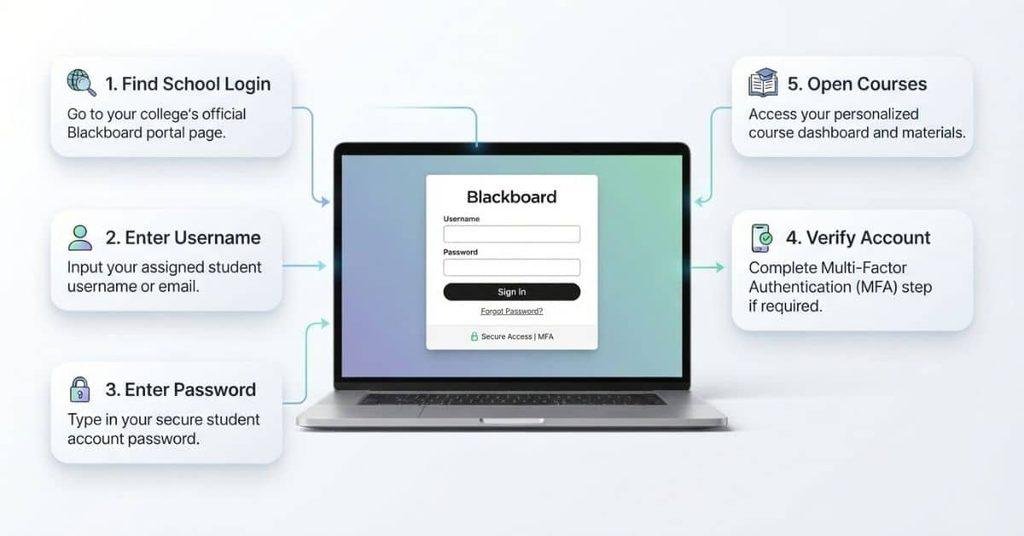
Follow these steps to access your Blackboard account:
- Find your school’s Blackboard website. Check your college website, student portal, or enrollment emails for the correct link.
- Open the official Blackboard login page. Use the login address provided by your school.
- Select “Log In” or “Sign In.” The button name may vary by institution.
- Enter your university username. Use the student credentials provided by your school.
- Enter your password. Make sure your credentials are entered correctly.
- Complete verification if required. Your school may require multi-factor authentication (MFA).
- Select “Sign In.” Wait for Blackboard to load your student account.
- Open “Courses.” You can then access your classes, assignments, grades, and course materials.
How Do You Log Into Blackboard?
If you’re asking, how do you log into Blackboard, the process is usually straightforward. Start with your school’s Blackboard login page. Then enter your student username and password.
If your college uses SSO, Blackboard may redirect you to another school login page. Follow the prompts and complete any required verification. Once you’re signed in, select Courses to find your classes.
Pro Tip: Bookmark your school’s official Blackboard login page after signing in. This makes future access faster and helps you avoid unofficial login pages.
How Do I Sign Into Blackboard?
If you’re wondering how to sign into Blackboard, the process is similar to logging in. The terms “log in” and “sign in” mean essentially the same thing here. Your school may use either phrase on its Blackboard login page.
Start by opening the Blackboard or learning management system (LMS) link provided by your college. Enter your university username and password, then complete any required multi-factor authentication. Select Sign In to access your account.
After signing in, open Courses to find your current classes. You may also see assignments, grades, announcements, and other course materials. If your school uses single sign-on (SSO), you may first reach your university’s authentication page.
Where Do I Log Into Blackboard?
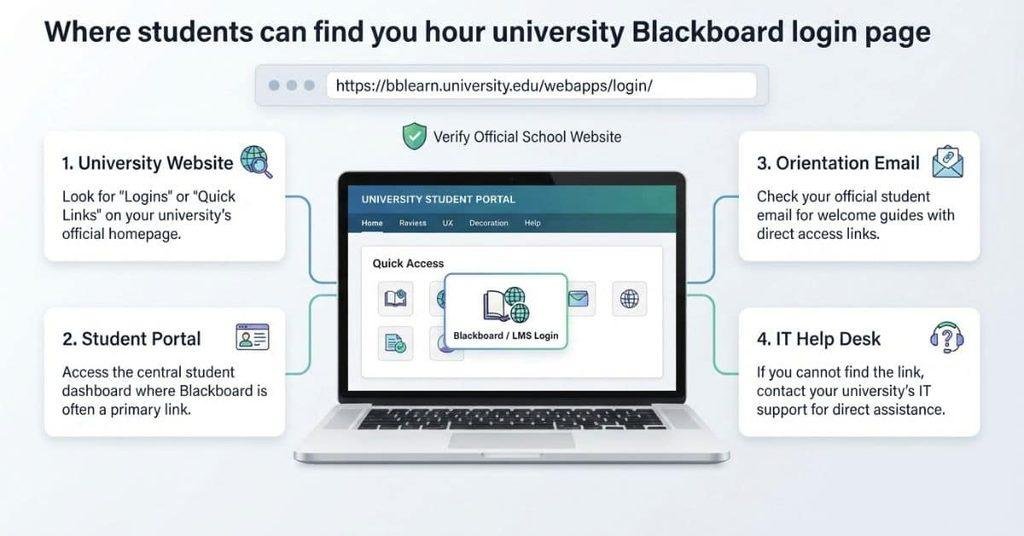
Students should normally start with their college or university’s official website. Look for a link labeled Blackboard, LMS, Student Portal, or a similar option. Your school may also provide a direct Blackboard login address in orientation emails or student instructions.
Avoid assuming that one Blackboard URL works for every university. Your institution controls how students access its Blackboard environment. The login process may also include school-specific authentication or SSO.
Does Blackboard Have One Login Page for Every University?
No. Blackboard serves many colleges and universities, and institutions can provide their own access URL. They may also use different authentication methods for students and staff.
This means you should use the Blackboard link provided by your school. If you find a login page through a general web search, confirm that it belongs to your institution before entering your credentials.
How Do I Find My University’s Blackboard Login?
Try these options if you don’t know your school’s Blackboard login address:
- Check your university’s official website.
- Search the school’s website for “Blackboard.”
- Review your student orientation materials or emails.
- Check your student portal for an LMS link.
- Contact your university’s IT or help desk if you’re still unsure.
How to Log Into Blackboard Ultra
Blackboard Ultra is a modern learning experience within Blackboard. Students generally access it through their institution’s existing Blackboard or LMS login process. You don’t usually need a separate universal Ultra login.
After signing in, your school may provide access to features such as Courses, Calendar, Grades, Activity Stream, and Messages. The exact layout can vary because institutions may configure their Blackboard environment differently.
If you don’t immediately see a course, check your institution’s Blackboard page for enrollment or course-availability information. You can also contact your instructor or school support team when a course appears to be missing.
What Do You Need to Log Into Blackboard?
Before you try to access Blackboard, make sure you have the basic information your school requires. The exact requirements can vary between colleges and universities.
University Username
You’ll usually need the username or student credentials provided by your university. Your school may use your student ID, email address, or another account name.
Blackboard Password
Have the password connected to your university account ready. Enter it carefully, especially if your password contains uppercase letters or special characters.
Internet Connection
A stable internet connection helps Blackboard load correctly. If pages do not open, check your Wi-Fi or mobile data before troubleshooting your account.
Multi-Factor Authentication
Some institutions require multi-factor authentication (MFA) during sign-in. You may need to approve a notification or enter a verification code.
School Account
Your Blackboard credentials may be tied to your university account. This depends on your institution’s authentication setup. If your school uses single sign-on, the same credentials may work across several campus services.
What to Do If You Can’t Log Into Blackboard
A failed Blackboard login does not always mean your account has a problem. Check these common issues before contacting your university’s support team.
Check Your Username
Make sure you’re using the credentials provided by your institution. Check for typing mistakes or extra spaces.
Check Your Password
Enter your password again carefully. Make sure Caps Lock is not causing an unexpected change.
Reset Your Password
Use your institution’s official password-reset process if you cannot remember your password. Your school may provide this through its student portal.
Check Your Internet Connection
Test another website to see whether your connection works. Try switching between Wi-Fi and mobile data if available.
Try Another Browser
Open your school’s Blackboard login page in another supported browser. This can help identify browser-specific problems.
Clear Browser Cache and Cookies
Old browser data can sometimes interfere with websites. Clear the cache and cookies, then reopen the Blackboard login page.
Check if Blackboard Is Down
If several Blackboard features stop working, check your university’s IT announcements or system-status information. Your institution may post outage updates there.
Contact Your University’s IT Help Desk
If you still cannot sign in, contact your university’s IT or help desk. Support staff can check your account and explain the correct access process.
Why Can’t I Log Into Blackboard?
If Blackboard won’t let you sign in, the issue may involve your credentials, browser, account, or your school’s login system. Use this quick troubleshooting table to identify the problem and the next step.
| Problem | What to Try |
|---|---|
| Wrong password | Reset your password through your institution’s official process. |
| Wrong username | Check the username connected to your school account. |
| Account not activated | Contact your institution to confirm your account is active. |
| MFA problem | Check your school’s required authentication method and verification steps. |
| Browser issue | Try opening Blackboard in another supported browser. |
| Blackboard outage | Check your school’s IT or system-status information for service updates. |
| Wrong login page | Use the Blackboard link provided by your university’s official website. |
If none of these steps works, contact your university’s IT help desk. They can verify your account and tell you which login method your institution uses.
What to Do After Logging Into Blackboard
Once you successfully log into Blackboard, your next step is finding the tools for your courses. The exact layout can vary by institution, but you’ll typically find several common course features.
Look for:
- Courses — Open your current and previous classes.
- Grades — Review grades posted by your instructors.
- Assignments — Find submitted and upcoming coursework.
- Tests/Quizzes — Access available online assessments.
- Course Content — View readings, files, lessons, and other materials.
- Announcements — Check updates and messages from instructors.
- Calendar — Review scheduled events, deadlines, and course activities.
- Messages — Find course-related communications when your institution uses Blackboard messaging.
After checking your courses, you may also want to review your grades or find specific learning tools. For example, you can [Check Your GPA → How to Check GPA on Blackboard] or [Find Turnitin → How to Find Turnitin on Blackboard]. If you’re reviewing assignment scores, a Blackboard Grade Calculator can help you estimate your overall course grade.
Blackboard Grade Calculator
Once you’ve logged into Blackboard and checked your course grades, you may want to estimate your current or potential grade. Our Blackboard Grade Calculator can help you calculate your course grade using assignment, quiz, exam, and other scores.
This can be useful when you want to understand how individual scores affect your overall grade. You can also use it to explore what score you may need on an upcoming assessment.
How to Log Into Blackboard on a Phone
You can access Blackboard from your phone through your school’s website or the Blackboard app. The exact setup may depend on your institution.
- Open your school’s Blackboard website or the Blackboard app.
- Select your institution if the app asks you to choose one.
- Sign in with your university credentials.
- Complete MFA if your school requires it.
- Open Courses to find your classes and course materials.
Can I Use Blackboard on Android?
Yes. You can access Blackboard on an Android phone through a supported mobile browser or the Blackboard app. Your institution may provide specific instructions for mobile access.
Can I Use Blackboard on iPhone?
Yes. You can use Blackboard on an iPhone through a supported browser or the Blackboard app. Follow your university’s instructions for signing in and accessing courses.
How to Log Into Blackboard for the First Time
Your first Blackboard login may require a few extra steps. Your university controls the account setup and login process.
First, activate your university account if you haven’t done so. Then find the Blackboard link provided by your institution and sign in with your school credentials.
Complete MFA if your university requires it. After signing in, open Courses and check that your classes appear.
If your courses aren’t showing, don’t assume your login failed. Course availability can depend on your institution’s setup and enrollment process. Contact your university’s IT help desk if you need help accessing a course.
Why Can’t I See My Courses After Logging Into Blackboard?
Logging into Blackboard successfully doesn’t always mean your courses will appear immediately. Course access depends on your university’s setup, enrollment records, and instructor settings.
Here are some common reasons your courses may be missing:
- Course hasn’t started yet: Your course may not be available until a specific date.
- Instructor hasn’t made the course available: Your instructor may still need to make the course accessible to students.
- Wrong student account: Check that you’re signed in with the university account connected to your enrollment.
- Enrollment hasn’t synced yet: Recently added courses may take time to appear in Blackboard.
- Your institution uses another LMS: Some courses may use a different learning management system instead of Blackboard.
If you recently enrolled in a course, check your student account first. If the course still doesn’t appear, contact your instructor or university IT help desk for confirmation.
Conclusion
Logging into Blackboard is usually simple once you have your school’s correct login page and account credentials. This guide covered the Blackboard sign-in process, mobile access, first-time login steps, troubleshooting, and missing courses.
If you’re learning how to log into Blackboard, start with your college or university’s official Blackboard link. Enter your school credentials and complete MFA when required. Then open Courses to find your classes and materials.
If you still can’t access Blackboard, your university’s IT help desk can check your account and enrollment. You can also explore other Blackboard resources on our website for help with grades, courses, and student tools.
Found this guide helpful? Share it with another student who needs help accessing Blackboard.
Frequently Asked Questions
How do you log into Blackboard?
Go to the Blackboard login page provided by your college or university. Enter your school username and password, complete MFA if required, and select Sign In. Then open Courses to access your classes.
How do I log into Blackboard?
Find your institution’s official Blackboard link and open the login page. Enter your university credentials and complete any required verification. After signing in, select Courses to view your classes.
How do I sign into Blackboard?
Sign in and log in mean essentially the same thing in Blackboard. Use your school’s official login page, enter your credentials, complete MFA if required, and select Sign In.
How do you sign into Blackboard?
Start with the Blackboard link provided by your university. Enter your student username and password, complete any required authentication, and select Sign In. Your courses should then be available if they’ve been released.
How do I login to Blackboard?
The correct spelling is usually “log in” when used as a verb. To log in, open your school’s Blackboard page, enter your university credentials, and complete the required sign-in steps.
Where do I log into Blackboard?
Use the Blackboard link provided by your college or university. You can usually find it on the school’s official website, student portal, orientation materials, or emails. Avoid assuming one login page works for every institution.
How do I find my Blackboard login?
Check your university’s official website and search for Blackboard or LMS. You can also check your student portal and orientation emails. If you’re still unsure, contact your university’s IT help desk.
Why can’t I log into Blackboard?
Check your username, password, internet connection, and MFA settings first. Also confirm you’re using your school’s correct Blackboard login page. If the problem continues, contact your university’s IT support team.
What username do I use for Blackboard?
Use the university username or student credentials provided by your institution. Your school may use a student ID, university email, or another account name. Check your school’s login instructions if you’re unsure.
Can I log into Blackboard on my phone?
Yes. You can typically access Blackboard through a mobile browser or the Blackboard app. Sign in with your institution credentials and complete MFA if required. Then open Courses to access your classes.
How do I log into Blackboard Ultra?
Blackboard Ultra generally uses your institution’s existing Blackboard or LMS login process. Open your school’s Blackboard link, sign in with your university credentials, and complete MFA if required.
What should I do if I forgot my Blackboard password?
Use your university’s official password-reset process to create or recover your password. If you cannot reset it, contact your school’s IT help desk for assistance.
Why can’t I see my courses after logging in?
Your course may not have started or your instructor may not have made it available. Enrollment may also need to sync, or you may be using the wrong school account. Some courses may use another LMS instead of Blackboard.

We are the Canvas Academic Team, a developer team focused on building simple and practical tools that help students succeed academically. This platform was created specifically for Canvas LMS students to make grade tracking, GPA calculations, exam planning, and academic management easier and more efficient.
Our focus is on creating fast, accurate, and student-friendly educational tools along with helpful learning resources that improve productivity and reduce academic stress.
Through CanvasGradeCalculator.com, our goal is to continue building useful resources that help students study smarter, stay organized, and achieve better academic results.