

Table of Contents
Introduction
Ever opened your Canvas Dashboard and wondered why your grades aren’t showing on your course cards?
If you’re learning Canvas for the first time, this can feel confusing. Your Dashboard shows your courses, but grade details may not always appear there. The information you see can depend on your instructor’s course settings and Canvas configuration.
Knowing how to display grades on Canvas Dashboard cards can help you check your academic progress faster. It can also save you from opening each course just to find your current grade.
In this guide, you’ll learn what grade information can appear on Canvas course cards. You’ll also discover why grades may be missing and what you can check. We’ll explain the difference between Dashboard cards and the Canvas Grades page. By the end, you’ll know where to find your grades and what to do when they don’t appear.
Can You Display Grades on Canvas Dashboard Cards?
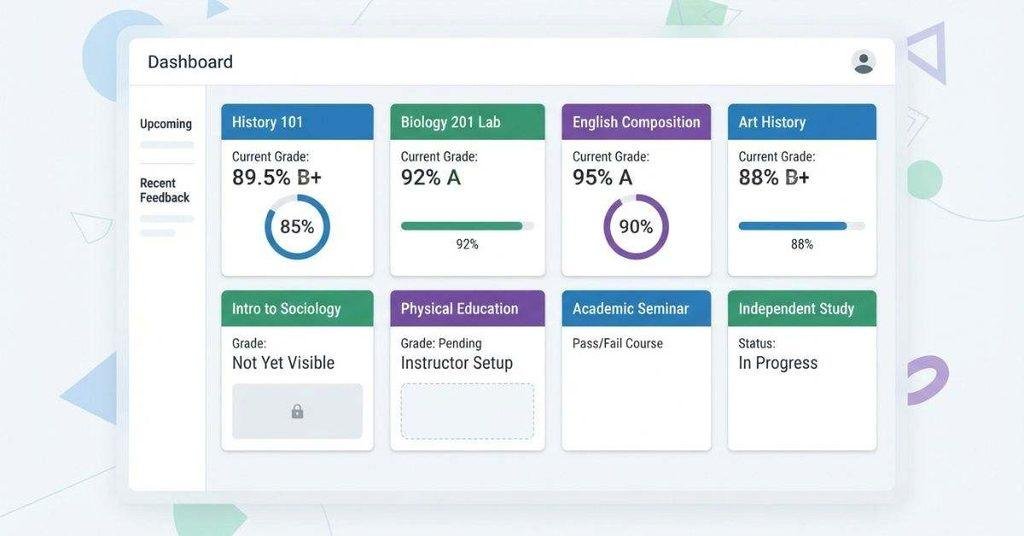
Yes, Canvas can display grade information on Dashboard course cards when the course and Canvas settings support it. However, students usually can’t force grades to appear with a personal Dashboard setting.
If you want to understand your overall academic performance beyond individual course grades, check out our guide on how to check GPA on Canvas and see where your GPA information comes from.
Canvas Dashboard course cards give you a quick view of your courses. A card may show the course name, image, color, nickname, and other available course information. Grade or progress details may also appear when Canvas provides them for that course.
The Dashboard and the Grades page serve different purposes. Dashboard cards provide a quick overview, while the Grades page gives you a more detailed view of assignments, scores, and course grades.
If you don’t see grades on a course card, don’t assume something is wrong with your account. Your instructor’s settings, course configuration, or Canvas version may affect what appears.
If you want to organize the courses shown on your dashboard, see our guide on how to customize your Canvas Dashboard and manage your course cards.
What Information Can Appear on a Canvas Course Card?
A Canvas course card can display several details that help you identify and access a course quickly. The exact appearance can vary based on your school’s Canvas setup and course settings.
Common information may include:
- Course name: The official name assigned to the course.
- Course image: A visual image selected for the course card.
- Course color: A color that helps you recognize the course quickly.
- Course nickname: A shorter name you can use for easier identification.
- Grade or progress information: Grade-related details may appear when Canvas makes them available.
Course cards are designed for quick navigation rather than complete grade tracking. If you need detailed assignment scores or grading information, open the course or visit the Grades page.
Why Don’t I See Grades on My Course Cards?
Several factors can explain why grades don’t appear on your Canvas Dashboard cards. The issue may not require any changes from you.
Common reasons include:
- Your course doesn’t display grade information on the card.
- Your instructor or institution controls related course settings.
- Grades or assignments aren’t available yet.
- The course uses grading features that don’t show on Dashboard cards.
- Your Canvas interface may differ from another school’s setup.
Expert tip: Don’t rely only on Dashboard cards when checking your academic performance. Use the Grades page for the most complete view of your available scores.
How to Display Grades on Canvas Dashboard Cards
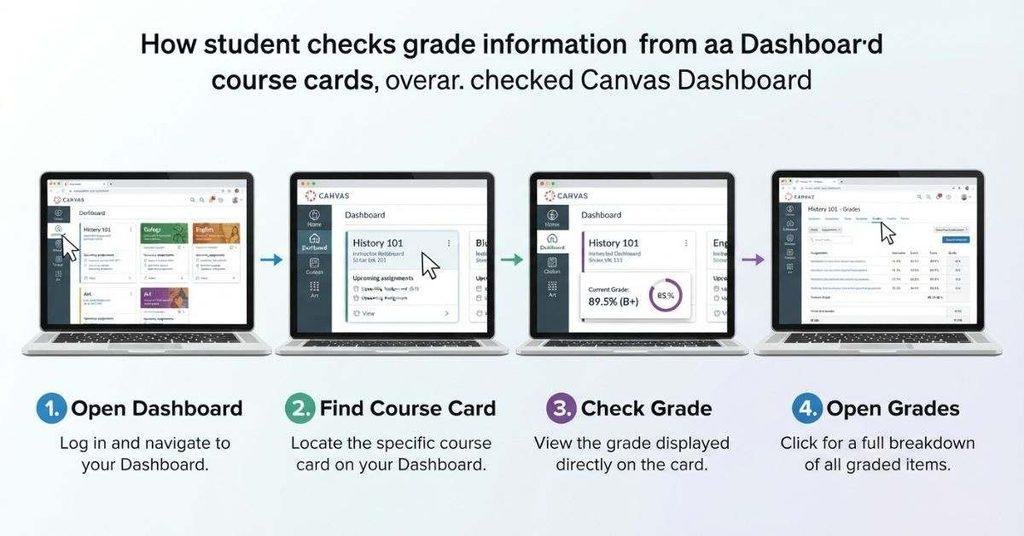
If your Canvas Dashboard doesn’t show grades on course cards, start by checking what information Canvas makes available. Students generally cannot add a grade display to a course card themselves. Grade visibility can depend on course configuration, instructor settings, and your institution’s Canvas setup.
The steps below help you determine whether grades are available but not shown on the Dashboard. They also help you find your grades through the regular Canvas Grades page.
Step 1 — Open Your Canvas Dashboard
First, log in to your Canvas account through your college or university’s Canvas website. Enter your school-provided login details and complete any required sign-in steps.
After logging in, open Dashboard from the Canvas navigation menu. The Dashboard is your main starting point for accessing courses and other Canvas features.
Your Dashboard normally contains course cards for courses that Canvas has placed in your active course list. The exact layout can look different depending on your school’s Canvas configuration.
Tip: If you don’t see the Dashboard option, check your school’s Canvas navigation menu. Your institution may customize how Canvas appears.
Step 2 — Find the Course Card
Look through your Dashboard and find the course where you want to check grade information. Each course card represents a course available through your Canvas Dashboard.
You may see the course name, image, color, or nickname on the card. These details can make it easier to identify the correct class, especially when you have several courses.
Keep in mind that only courses displayed on your Dashboard will have course cards there. A course that doesn’t appear on the Dashboard won’t have a card for you to check.
If the course is missing entirely, check your Courses area and course enrollment status. The course may not currently appear among your Dashboard cards.
Step 3 — Check the Course Card
Once you find the correct course card, examine the information displayed on it. Look for any grade, score, or progress information associated with the course.
The information available on a course card can vary. Some courses may show grade-related information, while others may only display basic course details.
Don’t expect the card to provide the same level of detail as the Grades page. A Dashboard card is mainly a quick access point for your course.
If you see grade information, you can use it as a quick reference. For assignment-level details, open the course and check the Grades page.
Expert tip: Check the Grades page whenever you need an accurate and detailed view of your scores. Dashboard cards should not replace the full grading interface.
Step 4 — Open the Course if Grades Are Not Displayed
If your course card doesn’t show grade information, open the course by selecting its card. Then find Grades in the course navigation menu.
The Grades page can show available assignment scores, grades, feedback, and other grading information. What you see depends on the course and how your instructor uses Canvas.
If grades appear on the Grades page but not on the Dashboard card, your grades may already be available. The difference may simply come from how Canvas displays information on the Dashboard.
If no grades appear on the Grades page either, the issue may involve grading availability. Your instructor may not have posted the grades yet, or the relevant assignments may not have grades available.
This distinction is important. Missing grades on a Dashboard card and missing grades from the course are not always the same problem.
Step 5 — Check Course and Canvas Settings
If grades are available in the course but don’t appear on the Dashboard card, check the settings that you can access. However, don’t assume you can change every setting that affects grade visibility.
Some Canvas options depend on the course configuration or your institution’s setup. Instructors and administrators can control certain course features that students cannot change.
For example, an instructor may control how grades become available to students. Canvas may also display different information depending on the features enabled for the course.
As a student, focus on settings and options that Canvas actually gives you access to. Don’t change or troubleshoot instructor-controlled settings as though they were personal Dashboard preferences.
If you can see your grades under Grades, but they don’t appear on the course card, you may not have a student-side option to enable them. In that situation, contact your instructor or school’s Canvas support team if the Dashboard display is important.
Pro tip: Before contacting support, check both the Dashboard card and the course’s Grades page. This quickly shows whether you’re dealing with a display issue or grades that aren’t available yet.
Once your grades are visible on your Canvas dashboard, you can use our Canvas Grade Calculator to calculate your current grade and see how different scores may affect your final result.
Why Are Grades Not Showing on My Canvas Dashboard?
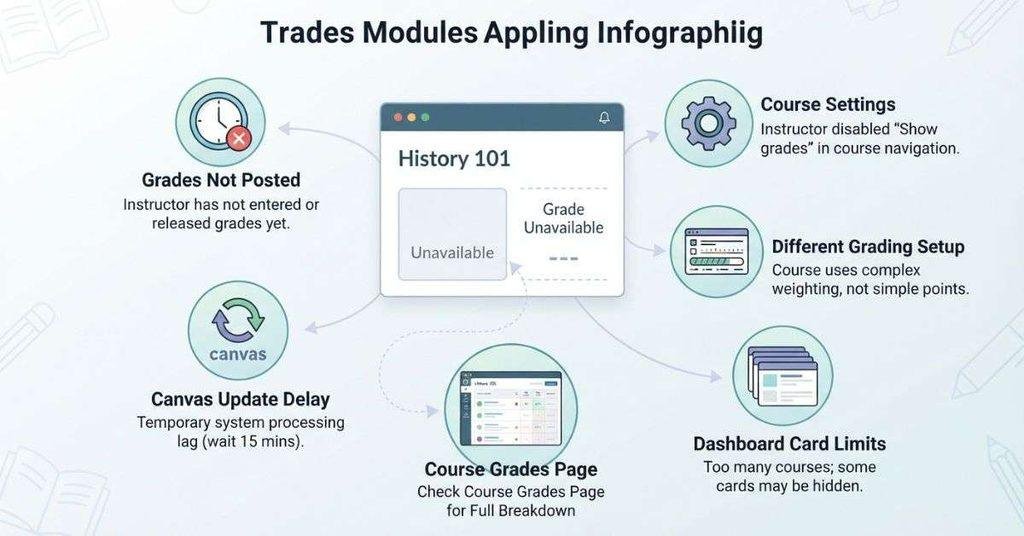
When grades don’t appear on a Canvas Dashboard card, the issue isn’t always your account. Several course and grading factors can affect what you see.
The fastest way to troubleshoot is to compare the Dashboard card with the course’s Grades page. This helps you determine whether grades are missing or simply not displayed on the card.
Seeing your grades on Dashboard cards is useful, but you can also learn how to check your GPA on Canvas when you want a broader view of your academic progress.
Your Instructor Has Not Posted Grades Yet
Submitting an assignment doesn’t always mean your grade is immediately available. Your instructor may need to review the submission and enter or release the grade first.
For example, you might see that an assignment was submitted successfully. However, you may not see a score until your instructor finishes grading it.
Canvas can also show submission information separately from grading information. A submitted assignment confirms that Canvas received your work. It doesn’t necessarily confirm that a grade is available.
If you’re waiting for a particular grade, open the course and check the Grades page. Look for the assignment and see whether a score has been entered.
If the score isn’t there, your instructor may still be grading the work. Check any course announcements or assignment instructions for grading information.
Pro tip: Don’t assume a missing Dashboard grade means your submission failed. Check the assignment’s submission status and the Grades page first.
The Course Does Not Display Total Grades
Canvas courses can use different grading configurations. These settings can affect whether students see a total grade or other summary information.
Your instructor may configure the course so certain grade calculations aren’t displayed. The course may also use grading features that change how totals appear.
If you don’t see a total grade on the Dashboard, open the course’s Grades page. This gives you a better view of the scores Canvas currently makes available.
You may see individual assignment grades without seeing the type of overall grade you expected. This doesn’t necessarily indicate a problem with Canvas.
Students generally cannot change instructor-controlled grading configurations. If you believe the course should display a total grade, ask your instructor about the course’s grading setup.
Your Course Uses a Different Grading Setup
Not every college course uses the same grading method. Your instructor may organize grades using different systems within Canvas.
Common grading approaches include:
- Points: Your grade depends on the number of points earned.
- Percentage: Your score appears as a percentage of available points.
- Letter grades: Canvas or the instructor may use grades such as A, B, or C.
- Weighted groups: Assignment groups can contribute different amounts to the final grade.
These systems can affect how your grades and totals appear. A course using weighted assignment groups may calculate your overall grade differently from a simple points-based course.
If the Dashboard card doesn’t clearly show your grade, open the Grades page. Look at the assignment scores and any available total or percentage information.
When the grading method seems unclear, check the syllabus or course instructions. Your instructor can also explain how the final grade is calculated.
The Course Card Does Not Show Grade Information
A Canvas Dashboard course card and the Grades page don’t necessarily display identical information. The Dashboard provides a quick overview, while the Grades page provides more detailed grading information.
Your course card may show basic course details without showing the grade information you’re looking for. This doesn’t automatically mean your grades are missing.
Open the course and select Grades to check whether your scores are available. If you can see your grades there, Canvas is receiving or displaying the grading information.
In that situation, the issue may simply be the information available on the Dashboard card. Students may not have a setting that forces additional grade details onto the card.
You Are Looking at the Wrong Course
Students often have several courses, sections, or similar classes listed in Canvas. This can make it easy to open the wrong course card.
Check the course name, nickname, instructor, and section information before reviewing your grades. Pay particular attention if you take multiple sections of the same subject.
For example, two sections may have similar names but different instructors. One section may have grades posted while another section does not.
If you’re unsure, open the course and compare its information with your class syllabus or schedule. Then check the Grades page for that specific course.
Canvas Has Not Updated the Grade Information Yet
Recently posted grades may not always appear everywhere at exactly the same time. The timing can depend on the course and current Canvas system state.
If your instructor recently entered or released a grade, give Canvas some time to update the information. Then refresh the Dashboard and check the course again.
You can also open the course directly and check the Grades page. This can help you determine whether the new grade is already available inside the course.
If the grade appears in the Grades page but not on the Dashboard card, the card may simply not show that information. If it doesn’t appear anywhere after a reasonable period, contact your instructor or school’s Canvas support team.
How to Check Your Grades if They Don’t Appear on the Dashboard
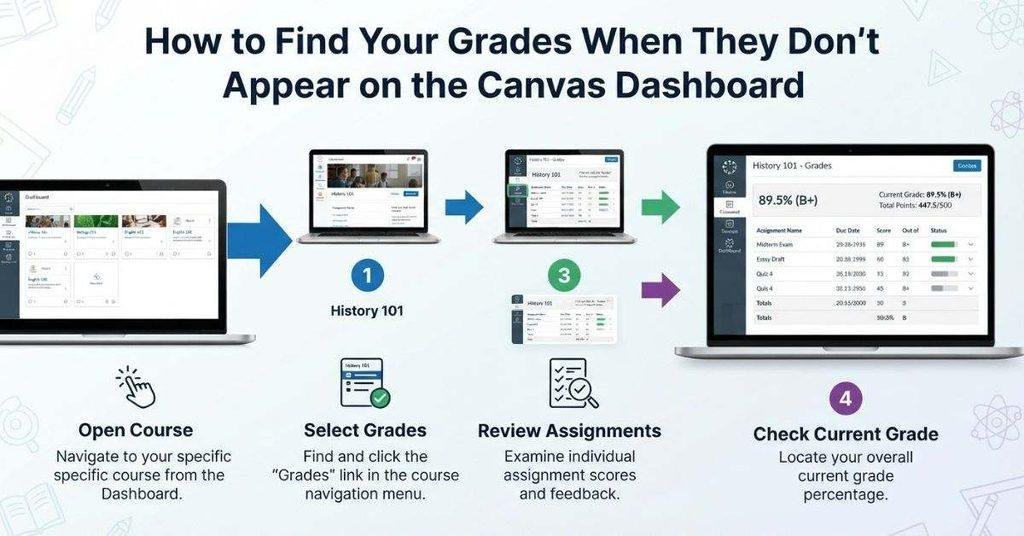
If your Canvas Dashboard card doesn’t show a grade, check the course directly. The Grades page provides more detailed information than the Dashboard card.
This quick check can tell you whether your grades are actually missing. It can also show whether the Dashboard simply isn’t displaying them.
If you also want to estimate your GPA from your Canvas course grades, try our Canvas GPA Calculator to quickly calculate your semester GPA.
Open the Canvas Grades Page
Start by opening the course from your Canvas Dashboard. Select the course card where you expect to see your grades.
Once inside the course, look at the course navigation menu. Select Grades to open your course gradebook view.
Canvas will show the grading information available to you for that course. The exact details can vary based on your instructor’s course settings.
If you don’t see Grades, your instructor or institution may have changed the course navigation. In that case, check the available course menus or contact your instructor.
Select the Correct Course
Before reviewing any scores, make sure you’ve opened the correct course. This matters if you take multiple classes or sections with similar names.
Check the course name, instructor, section, or nickname shown in Canvas. Then compare those details with your college schedule.
Opening the wrong course can make it seem like your grades are missing. Always confirm the course before troubleshooting further.
Review Your Assignment Grades
After opening Grades, review the assignments listed for your course. Look for scores that your instructor has already entered and made available.
You may see individual assignment scores, percentages, comments, or other grading information. Some assignments may still show as ungraded or unavailable.
Remember that a submitted assignment isn’t automatically a graded assignment. Your instructor must enter or release the grade before you can review the score.
If you are planning for an upcoming exam or major assignment, use the Canvas Grade Calculator to see what score you may need to reach your target grade.
Check Your Current/Total Grade
If your course provides a current or total grade, you may find it on the Grades page. The available calculation can depend on the course’s grading setup.
Some courses use points, percentages, letter grades, or weighted assignment groups. These methods can produce different grade displays.
For detailed grade information, the Grades page is usually more useful than the Dashboard card. Use the Dashboard for quick access, then use Grades when you need to review specific scores.
How to Show Grades on Canvas Dashboard on Mobile
Many students use the Canvas Student app to check courses and grades from their phones. The app provides access to Dashboard course cards, but its display can differ from the Canvas web interface.
Your course settings still affect what grade information appears. If you don’t see grades on a mobile course card, check the course’s Grades area instead.
Open the Canvas Student App
Open the Canvas Student app on your phone or tablet. Sign in using your school’s Canvas account if you haven’t already.
Make sure you’re using the Canvas account connected to your college or university. Different institutions can have different Canvas configurations.
Once you’re signed in, you’ll typically start from the app’s main navigation area.
Open Dashboard
Select Dashboard to view your available course cards. The Dashboard organizes your courses into cards for easier access.
If you have many courses, scroll through the cards until you find the class you want to check.
If a course isn’t listed, check your available courses or Canvas enrollment. A missing card means you can’t check its Dashboard information from that card.
Find Your Course Card
Locate the course where you want to check grade information. Select the card to open the course when you need more details.
Review the information displayed directly on the card. The available details can vary between courses.
Your course card may show basic course information without displaying the grade details you’re looking for.
Check the Available Grade Information
Look at the course card for any available grade or progress information. If Canvas provides that information for the course, it may appear as part of the card.
Don’t expect every course card to display the same information. Your instructor’s settings and institutional Canvas configuration can affect what you see.
For a detailed breakdown, open the course and navigate to Grades. That page gives you a better view of available assignment scores and grade information.
What to Do If Grades Don’t Appear
If grades don’t appear on the mobile Dashboard card, don’t assume your grades are missing. First, open the course and check its Grades page.
If your scores appear there, your grades are available. The mobile Dashboard simply may not display all of that information.
If your grades aren’t available on the Grades page either, check whether your instructor has posted them. You may also need to wait if the grades were recently entered.
Expert tip: Compare the Canvas Student app with the web version when troubleshooting. If both show the same information, the course configuration may determine what you can see.
Can You Turn On Grades for Canvas Dashboard Cards?
Generally, students cannot manually turn on grade information for Canvas Dashboard course cards. The information shown on a card depends partly on how the course is configured and what Canvas makes available.
You can customize parts of your Dashboard, such as which courses appear and how you organize them. However, those controls don’t give you access to instructor-controlled grading settings.
For example, you can’t use a personal Dashboard setting to make an instructor’s hidden grades appear. You also can’t change when an instructor releases grades or how the course calculates them.
If grades aren’t visible on your card, check the course’s Grades page first. This tells you whether the grades are available but simply aren’t displayed on the Dashboard card.
What Students Can Change
Canvas gives students several ways to organize their Dashboard. These options can make your course cards easier to find and manage.
Depending on your Canvas setup, you may be able to change:
- Dashboard course visibility: Choose which active courses appear on your Dashboard.
- Favorites: Mark courses as favorites so they appear more prominently.
- Course card appearance: Some Canvas setups let you customize parts of a card’s appearance.
- Course organization: Arrange and organize your Dashboard to make frequently used courses easier to access.
These options affect your Dashboard organization. They don’t change how your instructor manages grades.
For example, making a course a favorite doesn’t automatically make its grades appear. It only changes how that course is presented or prioritized on your Dashboard.
Expert tip: Use Dashboard customization to organize your courses, not to troubleshoot missing grades. Check the Grades page when you need actual grade information.
What Students Usually Cannot Change
Students usually don’t control the grading settings that determine how grades become available. Those settings belong to the instructor, course, or institution.
Students generally cannot change:
- Instructor grading settings: These control how instructors manage and release grades.
- Grade posting policies: These can affect when grades become visible to students.
- Course grading scheme: This determines how grades may be represented or calculated.
- Assignment grade availability: An instructor controls when an assignment’s grade becomes available.
Because of these limits, you generally can’t force Canvas to display information that the course configuration doesn’t provide.
If your instructor hasn’t released a grade, changing your Dashboard settings won’t make it appear. Likewise, changing a course favorite won’t add a missing total grade.
When you’re unsure, open the course’s Grades page. If the information isn’t available there, ask your instructor about the course’s grading settings.
Canvas Dashboard Grades vs. Canvas Grades Page
The Canvas Dashboard and Grades page serve different purposes. The Dashboard helps you access courses quickly, while the Grades page provides more detailed grading information.
A course card may provide a quick grade or progress overview when that information is available. However, it doesn’t necessarily show everything available through the Grades page.
| Feature | Dashboard Course Card | Grades Page |
|---|---|---|
| Course access | ✅ | ✅ |
| Course card | ✅ | ❌ |
| Individual assignment grades | Limited | ✅ |
| Detailed grade information | Limited | ✅ |
| Current/total grade | May appear | ✅ when available |
| Instructor-controlled settings | Yes | Yes |
The Grades page is the better place to check complete grade details. It can show individual assignments and other grading information that won’t fit on a Dashboard card.
The Dashboard remains useful for quickly finding your courses. Think of it as a starting point rather than a complete gradebook.
If a grade doesn’t appear on your Dashboard card, open the course and select Grades. This simple check can tell you whether the grade exists but isn’t displayed on the card.
If the grade appears there, your Dashboard may simply provide less information. If it doesn’t appear there either, the grade may not have been posted or released yet.
What If My Canvas Grade Is Missing or Incorrect?
A missing or incorrect grade can make your Dashboard look confusing. Before assuming there’s a Canvas problem, check the assignment and Grades page first.
These checks can help you determine whether the issue involves your submission, grade availability, or the Dashboard display.
Check the Assignment Submission
Open the assignment and review its submission status. Make sure Canvas shows that you submitted the correct work.
Check the submission date and any available submission details. A successful submission doesn’t necessarily mean your instructor has graded it.
If you submitted the assignment but don’t see a score, your instructor may still need to review it.
Check the Grades Page
Open the course and select Grades from the course navigation. Find the assignment that’s missing or showing an unexpected score.
Compare the score with the assignment details. The Grades page gives you more information than a Dashboard course card.
If the score appears correctly on the Grades page, the Dashboard may simply not display that grade information.
Check Whether the Grade Has Been Posted
A grade may not appear immediately after your instructor finishes reviewing an assignment. Check whether the score has been posted or released to students.
If the assignment still appears without a grade, give your instructor time to complete the grading process.
You can also check course announcements or assignment instructions for information about grade release.
Contact Your Instructor
Contact your instructor if the grade appears missing or incorrect after checking the assignment and Grades page.
Explain which assignment you’re checking and what information you see in Canvas. Include relevant details, such as the submission status or displayed score.
Your instructor can confirm whether the grade was entered correctly and whether it has been released.
Contact Canvas Support if It Appears to Be a Technical Problem
Contact your school’s Canvas support team if the information appears inconsistent or Canvas isn’t working correctly.
For example, you may see a grade in one area but experience unexpected behavior elsewhere. Your institution’s support team can investigate technical issues with your Canvas account or course.
Before contacting support, check both the Dashboard and Grades page. This gives you useful information about where the problem occurs.
How to Refresh Canvas Dashboard Grade Information
Sometimes recently updated information may not appear immediately. A quick refresh can help Canvas display the latest available information.
These steps are simple troubleshooting options. They won’t override instructor settings or make unavailable grades appear.
Refresh the Dashboard
Start by refreshing your Canvas Dashboard. On a browser, reload the Canvas page and wait for the course cards to load again.
Then check the course card for updated grade information. If nothing changes, open the course and check the Grades page.
Close and Reopen Canvas
If you’re using the Canvas Student app, completely close the app. Then open it again and return to the Dashboard.
This can refresh the app’s current session and reload your course information.
Log Out and Back In
If the Dashboard still looks outdated, log out of Canvas. Then sign back in using your normal school account.
Return to the Dashboard and check the relevant course card again. This can help when your current session isn’t displaying updated information correctly.
Try Canvas in a Browser
If you’re using the Canvas Student app, try opening Canvas through a web browser. Sign in through your school’s Canvas website and check the same course.
Comparing the app and browser can help you identify whether the issue is specific to the app interface.
Update the Canvas Student App
Check whether your Canvas Student app has an available update. Using an outdated app can sometimes cause differences in how information appears.
After updating, reopen Canvas and check your Dashboard again. Remember that an app update cannot override course grading settings or unavailable grades.
Conclusion
Canvas Dashboard cards can provide quick course information, but they may not always show complete grade details. We covered how to check grades, understand course settings, and troubleshoot missing Dashboard information.
Knowing how to display grades on Canvas Dashboard cards starts with understanding what students can control. You can organize your Dashboard, but instructor settings can affect grade visibility. When grades don’t appear, the Canvas Grades page is the best place to check detailed information.
If a grade still looks missing or incorrect, check your submission and confirm whether the grade was posted. Then contact your instructor or Canvas support when needed.
Found this guide helpful? Share it with a classmate who uses Canvas, or explore more helpful Canvas guides on our website.
Frequently Asked Questions
Canvas may display grade information on Dashboard course cards when the course configuration supports it. Students generally cannot manually force grades to appear. If grades aren’t visible, open the course’s Grades page to check available scores.
Your instructor may not have posted or released the grades yet. Course grading settings can also affect what appears on Dashboard cards. Check the course’s Grades page to confirm whether your grades are available.
Usually, no. Students can organize their Dashboard and manage course visibility, but they generally can’t add grade information themselves. Grade displays depend on Canvas and course settings.
Open the relevant course and select Grades. If your instructor has enabled the required grade information, Canvas may show your current or total grade there.
Dashboard cards don’t always show the same information as the Grades page. Your instructor’s settings or course configuration may affect the information displayed on the card.
Open the course and select Grades from the course navigation. This is the better place to review individual assignment scores and available grade details.
You can check available grades through the Canvas Student app. Open the course and navigate to its Grades area. Dashboard card information may differ from the web version.
Not necessarily. The information shown on Dashboard cards depends on the course and Canvas configuration. Some grade information may appear, while other details remain available only through Grades.
Students generally cannot turn on instructor-controlled grade settings. You can customize your Dashboard, but you can’t override course grading or grade-release settings.
The Dashboard card and Grades page serve different purposes. The Grades page provides more detailed information, while the Dashboard card may show only limited grade or progress information.

We are the Canvas Academic Team, a developer team focused on building simple and practical tools that help students succeed academically. This platform was created specifically for Canvas LMS students to make grade tracking, GPA calculations, exam planning, and academic management easier and more efficient.
Our focus is on creating fast, accurate, and student-friendly educational tools along with helpful learning resources that improve productivity and reduce academic stress.
Through CanvasGradeCalculator.com, our goal is to continue building useful resources that help students study smarter, stay organized, and achieve better academic results.

