

Table of Contents
Introduction
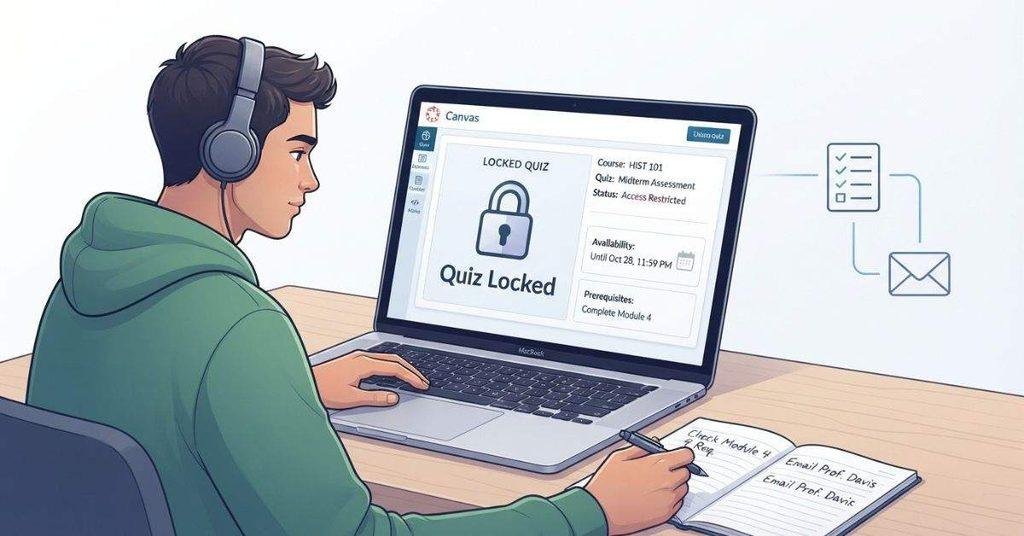
Have you ever opened Canvas for a quiz, only to find that it says the quiz is locked?
If you’re wondering how to take a locked Canvas quiz, you’re not alone. Many college students in the USA encounter locked quizzes because of course settings, availability dates, or required prerequisites. Canvas can also prevent access when an instructor restricts attempts or closes the quiz window.
The good news is that a locked quiz does not always mean you missed your chance. In many cases, you can identify why the quiz is locked and take the correct steps to regain access.
This guide explains what a locked Canvas quiz means and why it happens. You’ll learn how to check availability dates, complete prerequisites, and handle quizzes locked before or after the due date. We’ll also explain when you need to contact your instructor and what information to include in your message.
What Does a Locked Quiz Mean on Canvas?
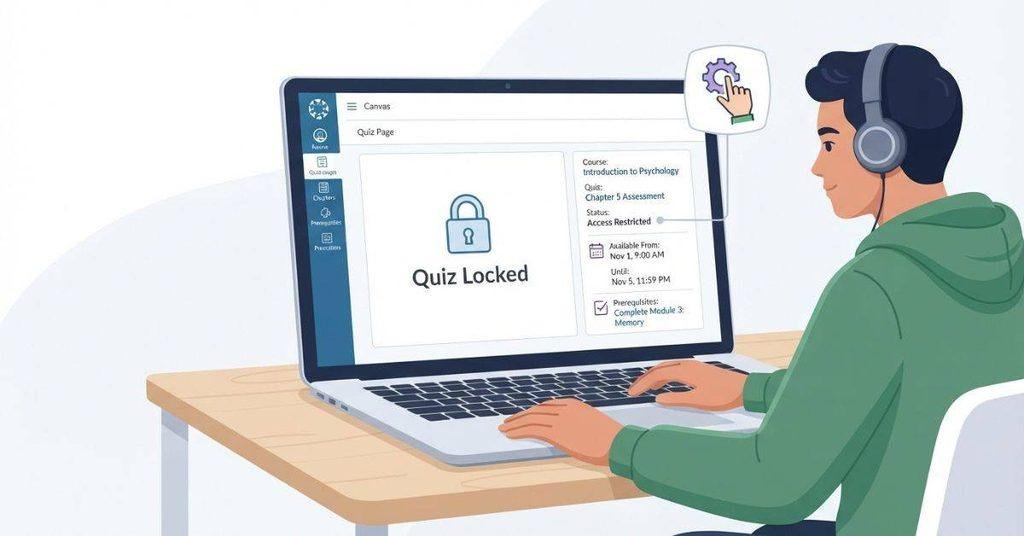
A locked Canvas quiz means you currently cannot start or submit the quiz. The lock usually comes from course settings rather than a problem with your account. Canvas can restrict access based on availability dates, prerequisites, module requirements, or instructor settings.
After completing your Canvas quizzes and assignments, you may want to check your overall academic progress, so our guide on how to check GPA on Canvas can help you find and understand your GPA information.
The exact message can help you identify the reason. Check the quiz details page for an availability period, lock message, or required course activity before contacting your instructor.
“This Quiz Is Locked” Message
When Canvas shows “This quiz is locked,” it means the quiz is currently unavailable to you. Canvas may also display when the quiz will become available. You can usually still view basic quiz details, such as the due date and availability information.
A locked quiz does not necessarily mean you did something wrong. The instructor may have set specific access rules for the course. These rules can control when students can open the quiz or which requirements they must complete first.
Start by checking the quiz page carefully. Look for a message explaining when access begins or what requirement you need to complete. If the message does not explain the problem, check the course modules and assignment instructions.
If your quiz is locked because of browser or access requirements, you may also want to learn whether Canvas has a lockdown browser and when it may be required.
Quiz Is Locked Before the Due Date
A quiz can remain locked even when its due date has not arrived. Canvas uses availability dates to control when students can access course activities.
The quiz may have a specific start date and time. Before that time, Canvas prevents students from opening the quiz. For example, a quiz might be due Friday but remain unavailable until Wednesday morning.
The quiz can also have an end date and time. This creates an availability window that determines when students can access the quiz. The due date and availability dates are not always the same.
Check the quiz details for wording such as “Available from” or “Until.” If the current time falls outside that window, you generally need to wait or contact your instructor.
Quiz Is Locked After the Due Date
A quiz may stay locked after its due date if the course does not allow late attempts. The due date tells you when the work is expected, while the availability period can determine whether Canvas still accepts access.
Some instructors allow students to complete quizzes after the due date. Others set an end date that completely closes access. Your course settings determine which situation applies.
If you missed the deadline, check the quiz page for an end date or late-attempt instructions. If Canvas no longer allows access, your instructor may need to reopen the quiz or provide another option.
Quiz Is Locked Because of a Prerequisite
Canvas can also lock a quiz when you have not completed a required course activity. This commonly happens when an instructor uses Modules to control the order of course work.
For example, you may need to complete a reading, assignment, or earlier quiz before opening the next quiz. Canvas can display module requirements or prerequisites that explain what you need to finish first.
Open the course Modules page and look for incomplete requirements. Check whether an earlier assignment, quiz, page, or module must be completed before continuing.
Students taking online quizzes often wonder what Canvas can track, so see our guide on whether Canvas can see if you switch tabs during a quiz.
Why Is My Canvas Quiz Locked?
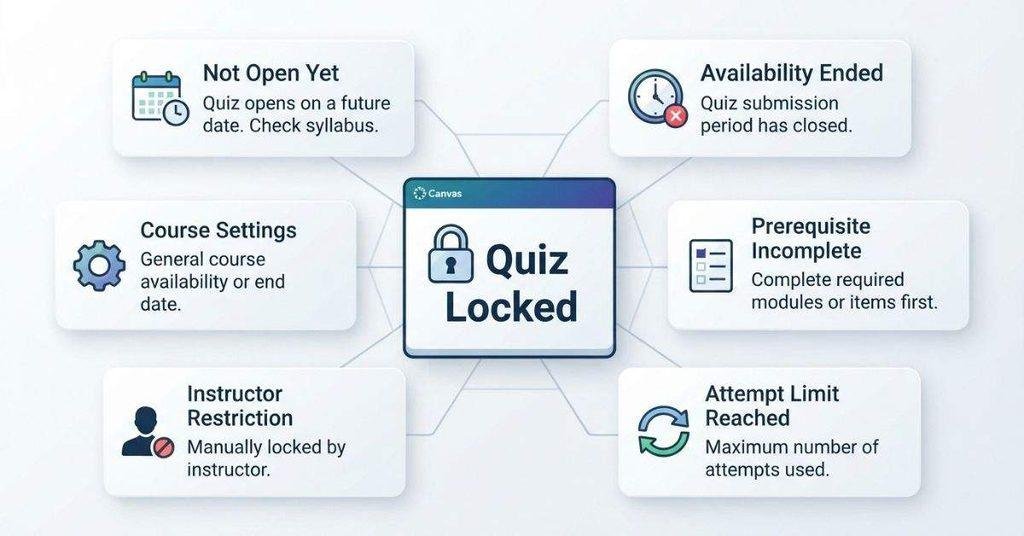
If your Canvas quiz is locked, the cause usually relates to course settings or your progress. Canvas follows rules set by your instructor, so you often cannot remove the restriction yourself.
Before contacting your instructor, check the quiz page, course modules, and assignment instructions. The message shown by Canvas can often tell you what prevents access.
The Quiz Has Not Opened Yet
Your instructor may have scheduled the quiz to open at a specific date and time. The due date does not always mean the quiz becomes available immediately.
Check the quiz details for an Available From date. If that time has not arrived, you normally need to wait until the scheduled opening.
If other students can access the quiz while you cannot, check your course section and enrollment. Your instructor may have assigned different availability dates to different groups.
The Quiz Availability Date Has Passed
Canvas can close a quiz after its Until date. This can happen even if you have not submitted an attempt.
Check the quiz page for the availability period. If the closing time has passed, Canvas may prevent further access.
You cannot usually change this setting yourself. Contact your instructor and explain that the quiz is locked. Ask whether they can reopen it or provide another approved option.
You Have Not Completed a Required Module
Your quiz may require you to complete earlier course activities. Canvas Modules can use prerequisites and requirements to control access.
Open the Modules page and check for incomplete items. Look for required readings, assignments, quizzes, or other activities.
Complete the missing requirements first. If Canvas still shows the quiz as locked, contact your instructor with a screenshot of the module requirements.
The Instructor Has Locked the Quiz
An instructor can control when students access a quiz. They may also restrict access for specific students, sections, or course groups.
Check the quiz instructions and module information for any access rules. If nothing explains the restriction, your instructor is the best person to contact.
Ask whether the quiz is intentionally locked and whether you have an approved way to access it. Do not try to bypass the restriction.
You Have Already Used Your Allowed Attempts
Your instructor may limit how many times you can take a quiz. After you use all allowed attempts, Canvas can prevent another attempt.
Check the quiz instructions or your previous submission details. Look for information about the number of attempts allowed.
If you need another attempt because of a technical problem or another valid reason, contact your instructor. Only the instructor can decide whether to provide an additional attempt.
Your Course Enrollment Has Changed
A recent enrollment change can affect your access to course content. This may happen after a section change, course withdrawal, or enrollment update.
First, confirm that the course still appears in your Canvas dashboard. Then check whether you can access other course materials.
If the course or quiz disappeared unexpectedly, contact your instructor or school support team. Explain what changed and when you first noticed the problem.
There Is a Canvas or Course Configuration Issue
Sometimes the settings appear correct, but the quiz still does not work. A browser problem, course configuration issue, or temporary Canvas problem may affect access.
Try refreshing Canvas and signing out and back in. You can also try another supported browser or device.
If the problem continues, take a screenshot of the error message. Send it to your instructor or school’s Canvas support team. Include the quiz name, course name, and approximate time the problem occurred.
Pro tip: Always check the quiz details and Modules page before asking for help. This gives your instructor useful information and can save time when troubleshooting.
A quiz score can have a direct impact on your course grade, and our Canvas Grade Calculator can help you see how your quiz and assignment scores affect your overall Canvas grade.
How to Take a Locked Quiz on Canvas
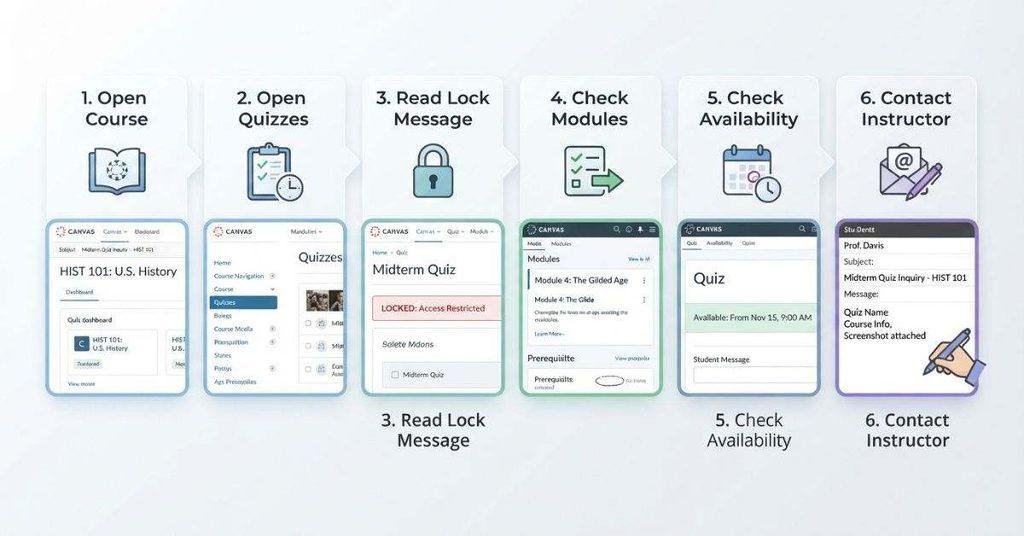
If a Canvas quiz is locked, the first step is to find out why access is restricted. You usually cannot unlock the quiz yourself. However, you can check the course settings, complete missing requirements, and contact your instructor when the quiz should be available.
Follow these steps in order. They can help you identify the restriction quickly and show your instructor exactly what is preventing access.
Step 1 — Open the Canvas Course
Start by logging into your school’s Canvas account using your normal student credentials. Open Canvas through your school’s official website or student portal if required.
After signing in, open the course containing the locked quiz. Make sure you select the correct course, especially if you have several classes with similar names.
Once inside the course, check whether other course materials are available. If you cannot access the course itself, the problem may involve your enrollment rather than the quiz.
Step 2 — Open the Quizzes Section
Use the course navigation menu to find Quizzes. Your instructor may place this option directly in the course menu.
Select Quizzes and locate the quiz you need to take. Click the quiz title to open its details page.
Don’t worry if Canvas still shows a lock icon. The quiz page may provide important information explaining the restriction.
If you cannot find the Quizzes section, your instructor may have hidden it from course navigation. Check the Modules page instead, because the quiz may be linked there.
Step 3 — Read the Lock Message
Carefully read any message Canvas displays on the quiz page. The message often provides the most useful clue about why you cannot access the quiz.
Check specifically for:
- Availability dates: The quiz may not have opened yet.
- Prerequisites: You may need to complete another activity first.
- Attempt limits: You may have already used your allowed attempts.
- Instructor instructions: Your instructor may have provided special access requirements.
Don’t assume the quiz is broken just because it shows a lock. Canvas can intentionally restrict access based on rules configured for that course.
If the message gives a specific requirement, follow that requirement before contacting your instructor.
Step 4 — Check the Course Modules
Next, open the course’s Modules page. Look for the module containing the locked quiz and review the items listed before it.
Canvas modules can include requirements that control access to later activities. For example, you might need to view a page, submit an assignment, or complete an earlier quiz.
Look for incomplete items, check marks, or requirement messages. Complete any required activities that you have not finished.
After completing a requirement, return to the quiz. Canvas may update your access automatically. If the quiz remains locked despite completing every requirement, save a screenshot and contact your instructor.
Step 5 — Check the Quiz Availability Date
Check the quiz details for its opening and closing times. A quiz can remain locked before its opening time, even when the due date appears to be later.
Look for information such as:
- Available from — when you can start the quiz.
- Due — when your work is expected.
- Until — when Canvas stops allowing access.
Pay attention to the closing date and time as well. A quiz can become unavailable after its configured end time.
Also consider the course’s configured time zone. If you’re studying from a different location, the displayed time may not match the time you expected.
If the availability period looks correct but Canvas still locks the quiz, move to the final step.
Step 6 — Contact Your Instructor if It Should Be Available
If the quiz should be available but remains locked, contact your instructor promptly. Explain the problem clearly instead of simply saying, “My quiz is locked.”
Include these details:
- Quiz name
- Course name
- Screenshot of the lock message
- Module or assignment you completed
- Expected availability date and time
This information helps your instructor identify the restriction faster. It also shows that you checked the normal course requirements before asking for help.
Your instructor may need to adjust the quiz settings, reopen access, provide an additional attempt, or explain a course-specific requirement. You generally cannot make these changes yourself.
Pro Tip: Take a screenshot before contacting your instructor. Include the full Canvas message and relevant dates when possible. This creates a clear record of what you saw and helps avoid unnecessary back-and-forth.
If you already know your current percentage and quiz weight, the Canvas Grade Calculator can help you test different possible quiz scores.
Can Students Unlock a Locked Canvas Quiz?
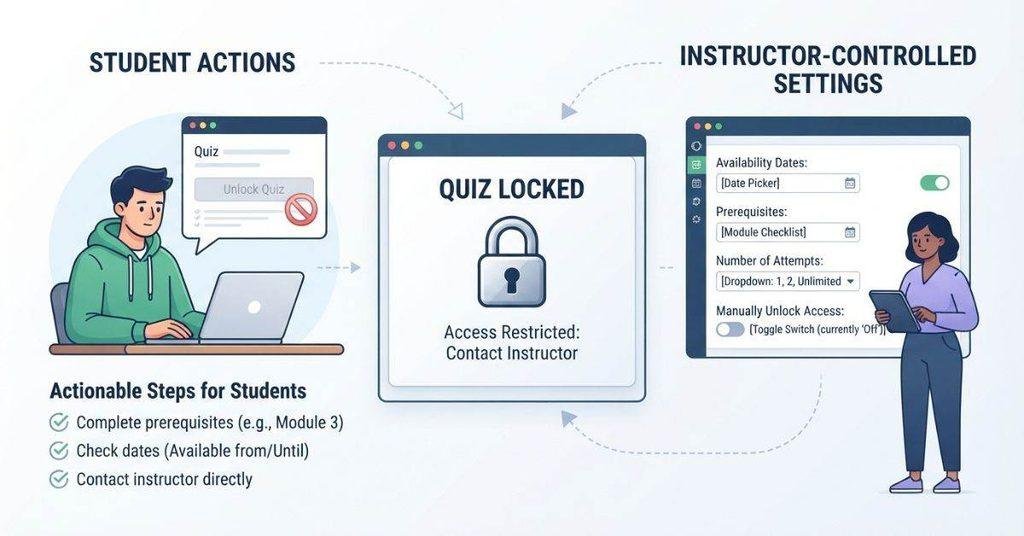
Usually, no. Students generally cannot unlock a Canvas quiz when an instructor has restricted access. Canvas uses course and quiz settings to control when students can open, attempt, or submit quizzes.
These restrictions may involve availability dates, prerequisites, attempt limits, or other instructor-configured requirements. Changing those settings usually requires the appropriate course permissions.
Avoid trying to bypass a locked quiz through browser tricks, unusual links, or other workarounds. Besides being unreliable, bypassing course restrictions can conflict with your instructor’s rules.
The correct approach is straightforward. First, check the quiz requirements and complete anything you still need to finish. If everything looks correct, ask your instructor to review the quiz settings.
If the instructor confirms that you should have access, they can determine whether the quiz needs to be reopened or its settings adjusted.
How to Unlock a Canvas Quiz That Hasn’t Opened Yet
If the quiz hasn’t opened, you may not need to unlock anything. The most likely issue is that Canvas is following the availability settings configured for your course.
Before contacting your instructor, check each item below. These checks can help you determine whether the quiz is working as intended or whether something needs attention.
Check the Available From Date
Open the locked quiz and look for the Available From date and time. This setting determines when students can begin accessing the quiz.
For example, an instructor may set a quiz to open at 9:00 AM on Monday. Canvas can keep the quiz locked until that scheduled time.
Compare the displayed opening time with your current local time. If the opening time has not arrived, you normally need to wait.
Don’t confuse the due date with the opening date. A quiz can have a Friday due date while remaining unavailable until Wednesday.
Check the Until Date
Look for an Until date and time on the quiz details page. This setting can determine when Canvas stops allowing access.
If the Until date has already passed, the quiz may remain unavailable even though its due date appears different.
If you believe the quiz should still be open, record the displayed dates. Your instructor can confirm whether the closing time was configured correctly.
Check the Course Time Zone
Time zones can cause confusion when a quiz appears to open at an unexpected time. Canvas courses can use a configured time zone for course activities.
Check the time zone associated with your course and compare it with your device’s local time. This matters particularly for students studying away from the location associated with their course.
If the displayed time seems unusual, don’t assume the quiz settings are wrong. Ask your instructor to confirm the intended opening time and course time zone.
Check Whether You Have a Required Prerequisite
A quiz may remain locked because you haven’t completed a required course activity. Open Modules and review the items leading up to the quiz.
Look for requirements involving assignments, pages, discussions, previous quizzes, or other learning activities. Complete any required items that remain unfinished.
After completing them, return to the quiz and check whether access has updated. If the lock remains, take a screenshot showing the completed requirement and locked quiz.
Ask the Instructor to Confirm the Quiz Settings
If the dates and prerequisites look correct, contact your instructor. Explain that the quiz remains locked even though you appear to meet its requirements.
Include the quiz name, course name, lock message, availability dates, and completed prerequisites. A screenshot can make the problem easier to understand.
Ask the instructor to confirm whether the quiz settings match the schedule provided to students. If something was configured incorrectly, the instructor can determine the appropriate correction.
If you’re taking multiple courses and want to see how your grades could affect your GPA, use our Canvas GPA Calculator to estimate your overall GPA.
Pro Tip: Check the quiz page and Modules before contacting your instructor. A clear screenshot of the restriction can make troubleshooting much faster.
How to Take a Locked Quiz After the Due Date
Missing a quiz deadline can be stressful, especially when Canvas now shows the quiz as locked. A locked quiz after the due date does not automatically mean you can never complete it.
The key question is whether your instructor allows late submissions or additional attempts. Canvas settings can prevent access after a specific date, so the available options depend on how your course is configured.
Check Whether Late Submissions Are Allowed
Start by opening the quiz and reviewing its instructions. Look for information about late attempts, availability dates, or additional attempts.
The Due date and Until date can serve different purposes. A quiz may have a due date while remaining available for some period afterward.
If Canvas shows that the availability period has ended, you may not be able to start another attempt. Check your course syllabus and assignment instructions for the instructor’s late-work policy.
If the policy allows late work but Canvas still locks the quiz, contact your instructor. Explain that you missed the deadline and ask whether late access is available.
Ask the Instructor for an Extension
If you need another attempt after the deadline, your instructor is usually the right person to contact. Be honest and explain why you need access.
Include the quiz name, course name, original due date, and reason for requesting an extension. If a technical problem caused the missed deadline, include a screenshot or other relevant details.
Your instructor can decide whether an extension is appropriate. They may reopen the quiz, change its availability dates, or provide another approved solution.
Don’t try to access the quiz through an unauthorized method. A legitimate extension gives you clear permission to complete the work.
What Happens After an Instructor Reopens the Quiz?
If your instructor reopens the quiz, they may adjust its availability period or attempt settings. The exact change depends on the course configuration.
You may receive access immediately, or the instructor may provide a new opening or closing time. If your previous attempt used the available limit, they may also need to allow another attempt.
After your instructor confirms the change, return to the quiz and check its details. Make sure the new availability dates and attempt information match what your instructor told you.
If the quiz still appears locked, send your instructor a screenshot. They can verify whether the correct settings were applied.
What If You Already Completed the Required Work?
Sometimes students complete every required activity but still cannot access the quiz. This can happen when a requirement has not registered correctly in Canvas.
Start by opening Modules and reviewing the requirements before the quiz. Look for incomplete indicators or messages showing that an activity still needs attention.
Check whether you completed the specific activity Canvas requires. For example, submitting an assignment may be different from simply opening its page.
Also check whether you completed a required previous quiz. Some courses require a particular score or completion status before unlocking the next activity.
Review your Grades area when appropriate. Confirm that your assignment submission or previous quiz attempt appears in Canvas.
If everything appears complete, the requirement may not have registered as expected. Refresh Canvas and check the module again. Avoid repeatedly submitting work unless your instructor tells you to do so.
If the quiz remains locked after all requirements show as complete, contact your instructor. Send a screenshot showing the completed requirement and the locked quiz. This gives them enough information to investigate the course settings or completion rules.
Canvas Quiz Says Locked but It Should Be Open
If a Canvas quiz should be available but still shows as locked, first check the actual restriction. Browser troubleshooting can help with display problems, but it cannot normally remove instructor-set quiz restrictions.
Start with the quiz details, availability dates, prerequisites, and course settings. Then try these basic troubleshooting steps if everything appears correct.
Refresh Canvas
Refresh the Canvas page and open the quiz again. A refreshed page can sometimes display updated course information after a requirement changes.
If you recently completed an assignment or module requirement, refreshing can help you check whether Canvas now recognizes it.
Log Out and Back In
Sign out of Canvas completely, then sign back into your school’s account. Open the course and check the quiz again.
This can help when your current session does not display updated course information correctly. However, logging back in will not override a genuine quiz restriction.
Try Another Browser
Open Canvas using another supported browser if the quiz still appears locked. This can help identify a browser-specific display or loading issue.
If the same lock message appears in another browser, the problem is more likely related to course settings or quiz availability.
Check the Canvas Student App vs Browser
If you normally use the Canvas Student app, check the quiz through a browser as well. You can also compare the app and browser versions of the course.
Look for differences in the quiz message, availability dates, or module requirements. If both versions show the same restriction, changing platforms probably will not unlock the quiz.
Check Your Course Time Zone
Review the course time zone when the quiz should have opened but remains locked. The scheduled opening time may differ from what you expected.
Compare the quiz’s availability time with the course’s configured time zone. Ask your instructor if you’re unsure which time zone controls the quiz.
Check the Quiz Availability Dates
Return to the quiz details and check the Available From and Until dates. Confirm that the current date and time fall within the allowed access period.
Also check the Due date separately. A due date does not necessarily tell you when the quiz opens or closes.
Contact Your Instructor
If the quiz remains locked after these checks, contact your instructor. Include the quiz title, course name, lock message, availability dates, and any completed prerequisites.
A screenshot can also help your instructor identify the problem quickly.
Pro Tip: Don’t spend too much time changing browsers if Canvas clearly says the quiz is restricted. Check the restriction first, then troubleshoot technical issues.
Can You Take a Locked Quiz From the Canvas Student App?
You can check a quiz’s access status through the Canvas Student app. Open the relevant course and go to Quizzes if that option is available.
Select the quiz and carefully read the lock or restriction message. It may explain whether the quiz has not opened, has closed, or requires another course activity.
If the quiz is genuinely restricted by course settings, switching from the app to a browser will not normally remove that restriction. The same applies when switching from a browser to the app.
Use the app to check the quiz and its available information. If the restriction comes from an instructor setting, prerequisite, or availability date, follow the stated requirement or contact your instructor.
If the app behaves differently from the browser, compare both versions. This can help determine whether you’re dealing with a technical display issue or an actual course restriction.
What Should You Tell Your Instructor?
When contacting your instructor about a locked quiz, give enough information to explain the problem clearly. A detailed message can help them check the correct quiz settings without unnecessary back-and-forth.
Include these details:
- Quiz title: Give the exact quiz name.
- Course: Include the course name or section.
- What you see: Describe the lock message Canvas displays.
- Expected access: Mention when you expected the quiz to open.
- Prerequisites: Explain which required assignments or modules you completed.
- Screenshot: Attach one if it clearly shows the restriction.
Keep your message short and factual. Avoid asking your instructor to “unlock Canvas” without explaining what you already checked.
Example message:
Hi Professor, I’m trying to access the [Quiz Name] in [Course Name], but Canvas shows that the quiz is locked. I expected to access it on [date/time]. I’ve completed the required [assignment/module/previous quiz], but the quiz still appears unavailable. I’ve attached a screenshot of the message. Could you please confirm whether the quiz settings are correct?
This gives your instructor the information needed to check the quiz availability, requirements, or attempt settings.
Conclusion
If you’re wondering how to take a locked Canvas quiz, start by checking why Canvas restricted access. Review the quiz availability dates, course modules, prerequisites, and attempt limits before assuming something is wrong.
Students usually can’t unlock a restricted quiz themselves. If you’ve completed the required work and the quiz should be available, contact your instructor with the quiz name, course details, and a screenshot of the lock message.
In most cases, the issue comes from a course setting or access requirement. Checking these details first can help you identify the problem quickly and get the correct access without trying to bypass Canvas restrictions.
Frequently Asked Questions
First, read the lock message shown on the quiz page. Check the availability dates, prerequisites, module requirements, and attempt limits. Complete any required activities before trying again. If the quiz should be available but remains locked, contact your instructor with a screenshot and relevant course details.
A Canvas quiz can be locked for several reasons. It may not have opened yet, its availability period may have ended, or you may have an incomplete prerequisite. The instructor may also limit attempts or restrict access through specific course settings.
Usually, students cannot unlock a quiz themselves. Canvas restrictions come from course and quiz settings controlled by instructors or authorized course staff. Complete any required prerequisites first. If the restriction appears incorrect, ask your instructor to review the quiz settings.
There is no general student option for unlocking a restricted quiz. Check the quiz’s availability dates and required module activities first. If everything appears complete but access remains blocked, contact your instructor. They can determine whether the quiz needs different settings or additional access.
A quiz can be locked before its due date because the Available From time has not arrived. The due date only indicates when the work is expected. Check the quiz’s opening time, closing time, prerequisites, and course time zone to identify the restriction.
It depends on why the quiz is locked and your instructor’s course policy. If the availability period has ended, Canvas may prevent another attempt. Your instructor may choose to reopen the quiz or provide an approved extension.
Check whether your course allows late attempts first. If Canvas has closed the quiz, contact your instructor and explain the situation. Include the quiz name, course name, original due date, and screenshot of the lock message. Your instructor can decide whether to provide another opportunity.
Canvas displays a locked message when you currently cannot access the quiz. Common reasons include unavailable dates, expired access, incomplete prerequisites, attempt limits, or instructor restrictions. Read the message carefully because it may identify the specific reason.
You can check the quiz through the Canvas Student app. Open your course, select Quizzes, and review the restriction message. However, changing from the app to a browser will not normally remove a genuine course restriction.
Check the Available From and Until dates first. Then review your course modules and confirm that all required activities are complete. Check the course time zone and try refreshing Canvas or signing in again. If the quiz remains locked, contact your instructor with a screenshot and the relevant details.

We are the Canvas Academic Team, a developer team focused on building simple and practical tools that help students succeed academically. This platform was created specifically for Canvas LMS students to make grade tracking, GPA calculations, exam planning, and academic management easier and more efficient.
Our focus is on creating fast, accurate, and student-friendly educational tools along with helpful learning resources that improve productivity and reduce academic stress.
Through CanvasGradeCalculator.com, our goal is to continue building useful resources that help students study smarter, stay organized, and achieve better academic results.

