

Table of Contents
Introduction
Have you ever wondered if you can manage your Canvas courses right from your phone?
If you’re a student in the USA, you likely use Canvas for classes, assignments, grades, and announcements. Checking everything from a computer is not always convenient, especially when you’re away from your desk.
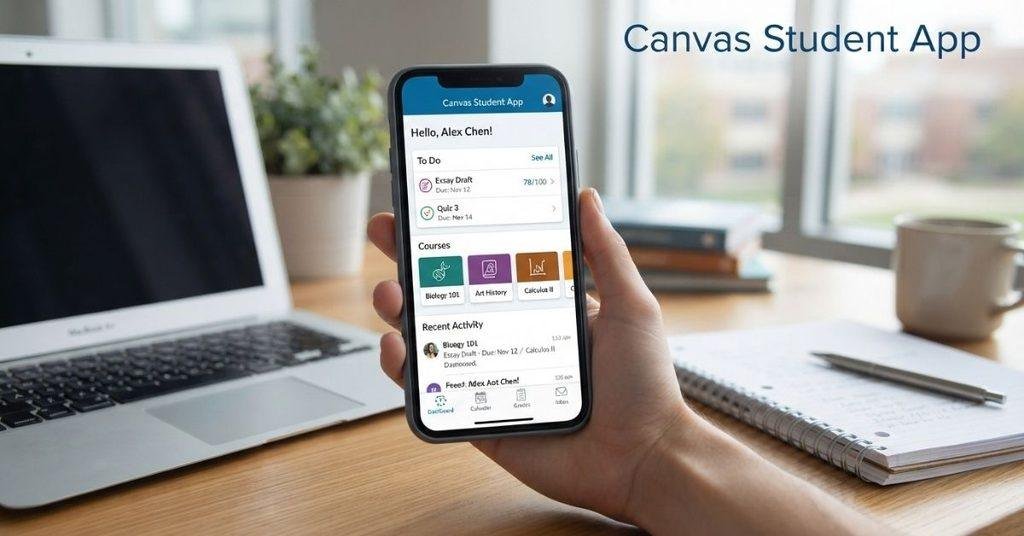
So, does Canvas have an app? Yes, Canvas has an official mobile app for students. The Canvas Student app lets you access many important course features from your iPhone, iPad, or Android device.
The app can make it easier to stay updated while you’re on the go. You can check assignments, view grades, read announcements, join discussions, and review course materials. Your school may also enable or limit certain features.
In this guide, you’ll learn what the Canvas Student app does and where to download it. We’ll also explain how to log in and use Canvas through your phone’s browser.
By the end, you’ll know which mobile option works best for your Canvas needs.
Does Canvas Have an App for Students?
Yes, Canvas has an app for students called the Canvas Student app. It gives students mobile access to their Canvas courses from supported smartphones and tablets.
The app works on iPhone and iPad devices through the App Store. Android users can also access Canvas through the official Canvas Student app on Google Play.
With the app, students can stay connected to their coursework without opening a computer. Available features can vary based on your school, course settings, and Canvas configuration.
Canvas also offers a separate Canvas Teacher app for instructors. The Student app focuses on student tasks, while the Teacher app supports teaching and course management.
If you want to organize your courses after opening Canvas on your phone, learn how to customize your Canvas Dashboard and manage the courses you see.
Canvas Student App vs. Canvas Teacher App
The two apps serve different users and purposes:
- Canvas Student: Designed for students to access courses, assignments, grades, and other learning tools.
- Canvas Teacher: Designed for instructors to manage courses, communicate with students, and handle teaching tasks.
What Is the Canvas Student App?
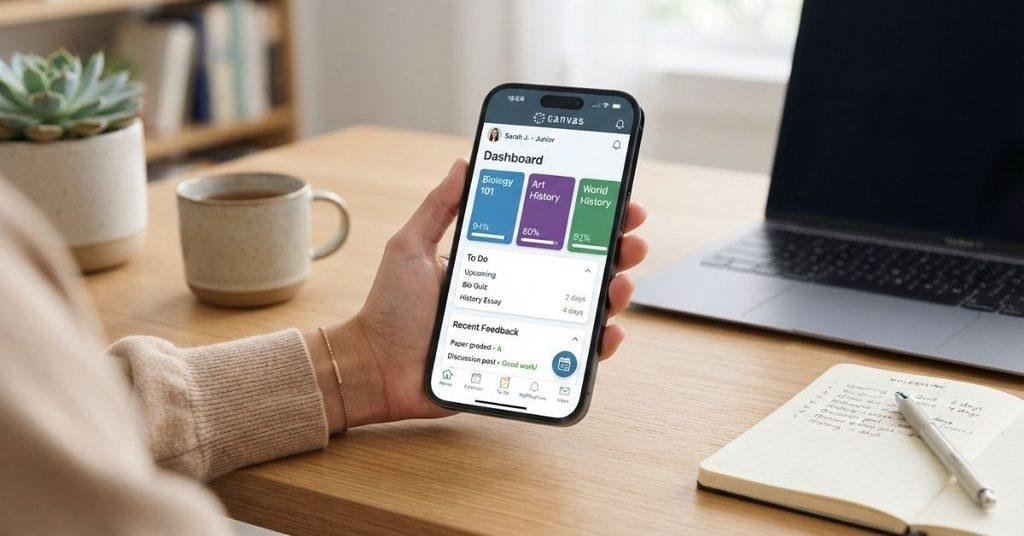
The Canvas Student app is a mobile app designed to help students manage Canvas coursework from their devices. It provides convenient access to many features students use during their classes.
You can open your enrolled courses, review assignments, and check grades from your phone or tablet. You can also read instructor announcements and participate in course discussions when those features are enabled.
The app can also help you stay aware of course updates through notifications. You can access available modules, pages, files, and other course materials without relying on a computer.
Some features may differ between schools and individual courses. Your institution or instructor can control which Canvas tools and activities are available.
For students who regularly check Canvas away from a computer, the app provides a convenient mobile option.
Where Can You Download the Canvas Student App?
Students should download the official Canvas Student app from their device’s official app store. This helps ensure they install the correct application from the legitimate developer.
For iPhone and iPad, search for Canvas Student in the Apple App Store. Android users should search for Canvas Student in the Google Play Store.
Before installing, check the app name and developer information carefully. Avoid unrelated third-party apps that claim to provide Canvas access.
You should also keep the app updated when new versions become available. Updates can provide improvements, bug fixes, and compatibility changes.
How to Log In to the Canvas Student App
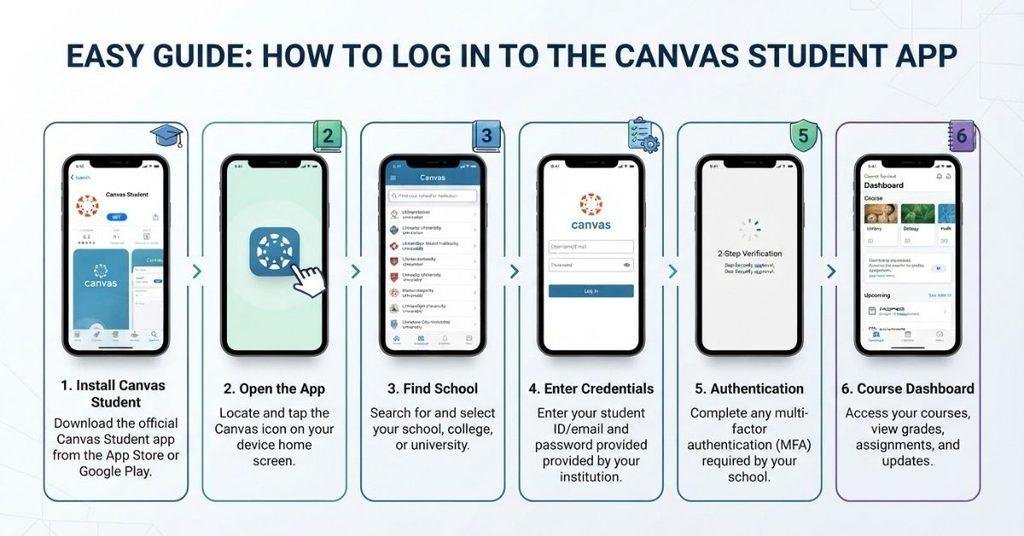
Logging into the Canvas Student app usually takes only a few steps. Your school may use a custom login or single sign-on (SSO) system.
- Install Canvas Student from your device’s official app store.
- Open the app and choose the option to find your school.
- Search for your school or institution and select the correct result.
- Enter your Canvas login details when prompted.
- Complete any required authentication, such as your school’s SSO or verification process.
- Open your course dashboard after signing in successfully.
The exact login screen can differ between institutions. Some schools connect Canvas with their existing student accounts and authentication systems.
If you cannot find your school, check its student portal for Canvas login instructions. Your school may provide a specific sign-in method or Canvas URL.
The Canvas app is also useful for checking course information, including grades, so you can learn how to display grades on Canvas Dashboard cards for easier grade tracking.
Can You Use Canvas on Your Phone Without the App?
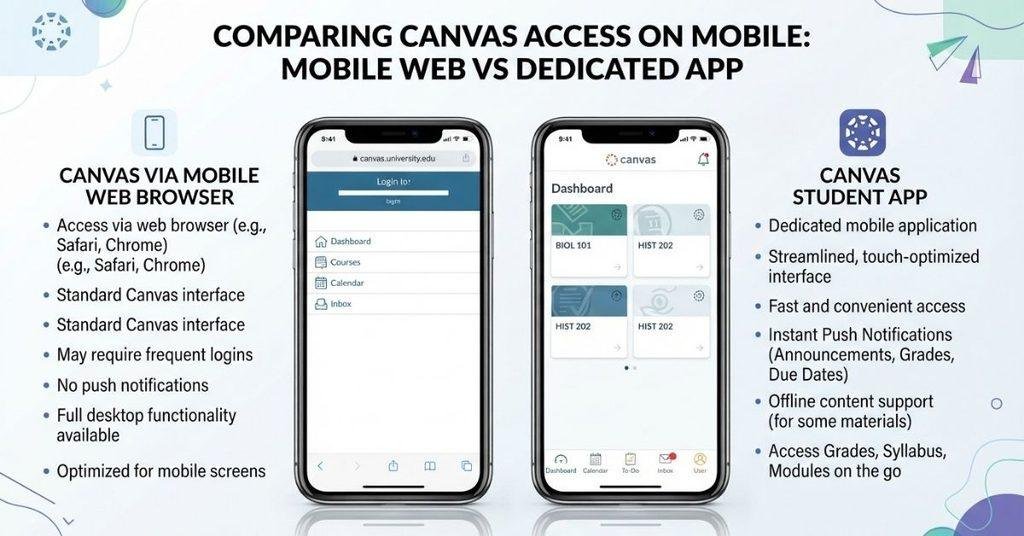
Yes, you can access Canvas through a mobile web browser without installing the app. Open your school’s Canvas website in a browser and sign in with your usual credentials.
However, the Canvas Student app is built specifically for mobile use. It provides a dedicated mobile interface and supports app-based notifications and settings.
A browser can be useful if you don’t want another app on your device. The app may feel more convenient if you check Canvas frequently throughout the day.
| Feature | Canvas on Browser | Canvas Student App |
|---|---|---|
| Access method | Mobile browser | Dedicated mobile app |
| Installation | Not required | Required |
| Interface | Mobile website experience | Mobile-focused interface |
| Notifications | Browser notification settings | App notification settings |
| Convenience | Quick browser access | Convenient regular access |
Your school’s Canvas setup can affect which features you can access. Both options can provide access to your coursework.
What Can Students Do in the Canvas App?
The Canvas Student app gives students mobile access to many everyday course activities. Available tools can vary by institution and course settings.
Courses
Students can view their enrolled courses and open available course content. This makes it easier to check class information while away from a computer.
Assignments
You can review assignment instructions and deadlines from the app. Canvas also supports assignment submissions in the app where the relevant submission options are enabled.
Grades
The app lets students check available grades and review course performance. Some grading details may depend on how an instructor configures the course.
Discussions
Students can read course discussions and participate when discussions are enabled for mobile access. This can help students stay involved in class conversations.
Announcements
Instructor announcements can appear in the app. Students can use them to stay updated about important course information and changes.
Calendar
The Calendar helps students review upcoming deadlines, events, and other scheduled course activities. It can provide a quick overview of what’s coming next.
Notifications
Students can receive relevant Canvas notifications through the app. Notification options can help users stay aware of course updates.
Course Content
The app can provide access to available modules, pages, files, and other course materials. What appears depends on the content published by the instructor.
Can You Take Canvas Quizzes on the App?
Yes, some Canvas quizzes can be accessed through the Canvas Student app. However, quiz availability depends on how your instructor configured the course and quiz.
Before starting, check the quiz instructions and availability dates. Some quizzes may include requirements that work differently on mobile devices.
Certain quizzes or external assessment tools may require a web browser. Some may also require additional software or specific device settings.
If a quiz doesn’t open correctly in the app, try accessing it through Canvas in your browser. Your instructor or school may also provide specific instructions.
Can You Use Pearson Through the Canvas App?
Pearson content integrated with Canvas may have different mobile requirements. Access can depend on the specific Pearson tool, Canvas integration, and course setup.
Some Pearson lessons or activities may work on mobile, while others may require a browser. Always follow the access instructions provided by your instructor or school.
Canvas Student App vs. Canvas Website
The Canvas Student app and website provide many of the same core student features. However, the website can offer broader access to the full Canvas interface.
The app is designed for convenient mobile access. The website can be more useful when you need specialized tools or a desktop-style interface.
| Feature | Canvas Student App | Canvas Website |
|---|---|---|
| View courses | ✅ | ✅ |
| Check grades | ✅ | ✅ |
| View assignments | ✅ | ✅ |
| Discussions | ✅ | ✅ |
| Notifications | ✅ | ✅ |
| Full desktop interface | ❌ | ✅ |
| Some specialized tools | Depends | Usually broader |
Features affected by course settings or external integrations can vary on both platforms. If a feature doesn’t work in the app, try the Canvas website.
Why Isn’t the Canvas App Working?
If the Canvas Student app isn’t working correctly, a few simple troubleshooting steps may help. Start with the easiest fixes before contacting your school’s support team.
Try these steps:
- Check your internet connection: Make sure your Wi-Fi or mobile data works properly.
- Update the app: Install the latest available version of Canvas Student.
- Restart the app: Close Canvas completely, then open it again.
- Sign out and back in: Re-enter your Canvas account credentials if needed.
- Check your institution: Your school’s Canvas system may have a temporary issue.
- Try a browser: Open your school’s Canvas website through a mobile or desktop browser.
- Contact support: Ask your school’s Canvas or IT support team for help if problems continue.
If Canvas itself seems unavailable, check our guide on Why Is Canvas Not Working? for additional troubleshooting steps.
Why Can’t I See My Course in the Canvas App?
A missing course doesn’t always mean something is wrong with the Canvas app. Several account or course settings can prevent a course from appearing.
Your course may not be published yet. Instructors typically need to publish courses before students can access them.
Other possible reasons include:
- Enrollment hasn’t synchronized: Your registration may not have reached Canvas yet.
- Wrong institution or account: You may have signed into a different Canvas account.
- Course isn’t currently available: The course may have specific availability dates.
- Temporary synchronization issue: Canvas may need time to update enrollment information.
First, confirm that you’re using the correct school and Canvas account. Then check whether your course appears when you access Canvas through a browser.
If your course remains missing, contact your instructor or school’s Canvas support team.
For more troubleshooting help, see Why Are My Classes/Courses Not Showing on Canvas?
Can You Use Canvas Student App Offline?
The Canvas Student app supports some offline access to content, but not every Canvas feature works without an internet connection.
Students should connect to the internet for activities that require live communication with Canvas. This includes submissions, quizzes, synchronization, and other interactive features.
Offline availability can also depend on the type of course content and how Canvas handles that content. Don’t rely on offline access when completing time-sensitive coursework.
For important assignments or quizzes, connect to a reliable internet connection before starting. This helps ensure your activity can sync correctly with Canvas.
For students tracking grades throughout the semester, the Canvas Grade Calculator can also help you test different assignment and exam scores.
Conclusion
Canvas makes it easy for students to stay connected with their courses from almost anywhere. The Canvas Student app lets you access courses, assignments, grades, discussions, announcements, and other available course materials.
So, does Canvas have an app? Yes, Canvas has an official app for students on supported mobile devices. You can also use Canvas through a mobile browser when the app isn’t the best option.
Features can vary by school, course settings, and external integrations. If you experience problems, basic troubleshooting or your school’s Canvas support team can usually help.
Ready to make the most of your Canvas grades? Try our Canvas GPA Calculator to estimate your GPA from your current grades. Explore more Canvas guides on our website for additional student tips.
Frequently Asked Questions
Yes. Canvas has an official Canvas Student app for students. It provides mobile access to courses, assignments, grades, announcements, discussions, calendar items, notifications, and available course materials. The app is available for supported iPhone, iPad, and Android devices. Some features may vary based on your school, course settings, or external integrations.
The Canvas Student app is the mobile version of Canvas designed for students. You can use it to access courses, review assignments, check available grades, read announcements, join discussions, and view course materials. It also provides notifications for relevant Canvas activity. Your institution and instructors control which features and content are available.
The official Canvas Student app is available as a free app for students. However, access to Canvas itself depends on your school or institution. Some courses may also use external services with separate requirements or costs. Download the official Canvas Student app through your device’s official app store.
Install and open the Canvas Student app, then search for and select your school or institution. Enter your Canvas login information and complete any required authentication. Some schools use single sign-on (SSO), so the login process can look different. After signing in, you should see your available courses on the dashboard.
Yes. You can access Canvas through a mobile web browser without installing the Student app. Open your school’s Canvas website and sign in normally. The app provides a mobile-focused experience, while the browser can provide broader access to the Canvas website. Either option can be useful depending on your needs.
Yes. Students can use the Canvas Student app to view available course grades and assignment results. What you can see depends on your instructor’s grading settings and course configuration. If you want to estimate your GPA using your Canvas grades, you can also use our Canvas GPA Calculator.
Yes, some assignment submission types work through the Canvas Student app. However, available options depend on how your instructor configured the assignment. Always check the assignment instructions before submitting. Some specialized submission types may work better through Canvas in a web browser or on a computer.
Some Canvas quizzes can be accessed through the Student app. Quiz availability depends on the course and how your instructor configured the quiz. Certain quizzes or external assessment tools may require a browser or additional software. If a quiz doesn’t work correctly in the app, try accessing it through Canvas in a browser.
Your course may not appear because it hasn’t been published yet or your enrollment hasn’t synchronized with Canvas. You could also be signed into the wrong Canvas institution or account. A course may have availability dates that prevent access. Temporary synchronization issues can also affect course visibility.
First, check your internet connection and update the Canvas Student app. You can also close and reopen the app or sign out and sign back in. Try accessing Canvas through a browser to determine whether the problem affects the app specifically. If the issue continues, contact your school’s Canvas or IT support team.
Some Canvas content may be available through offline functionality. However, not every Canvas feature works without an internet connection. Students should connect to the internet for submissions, quizzes, synchronization, and other activities requiring a live connection. For important coursework, use a reliable internet connection whenever possible.
Yes. Canvas provides separate mobile apps for students and instructors. The Canvas Student app focuses on coursework, grades, assignments, discussions, and other student activities. The Canvas Teacher app provides tools for instructors to manage courses and teaching tasks. Students should use the Student app for their coursework.
It depends on the Pearson tool and how your school integrated it with Canvas. Some Pearson content may work on mobile, while other activities may require a browser or additional software. Check your course instructions before starting a Pearson activity. Your instructor or institution can provide specific access requirements.
The assignment may use a submission type that the mobile app doesn’t support in the same way. Check the assignment instructions for the required submission method. If the expected option isn’t available, try opening Canvas through a browser. You can also contact your instructor if you’re unsure which submission method to use.

We are the Canvas Academic Team, a developer team focused on building simple and practical tools that help students succeed academically. This platform was created specifically for Canvas LMS students to make grade tracking, GPA calculations, exam planning, and academic management easier and more efficient.
Our focus is on creating fast, accurate, and student-friendly educational tools along with helpful learning resources that improve productivity and reduce academic stress.
Through CanvasGradeCalculator.com, our goal is to continue building useful resources that help students study smarter, stay organized, and achieve better academic results.

