

Table of Contents
Introduction
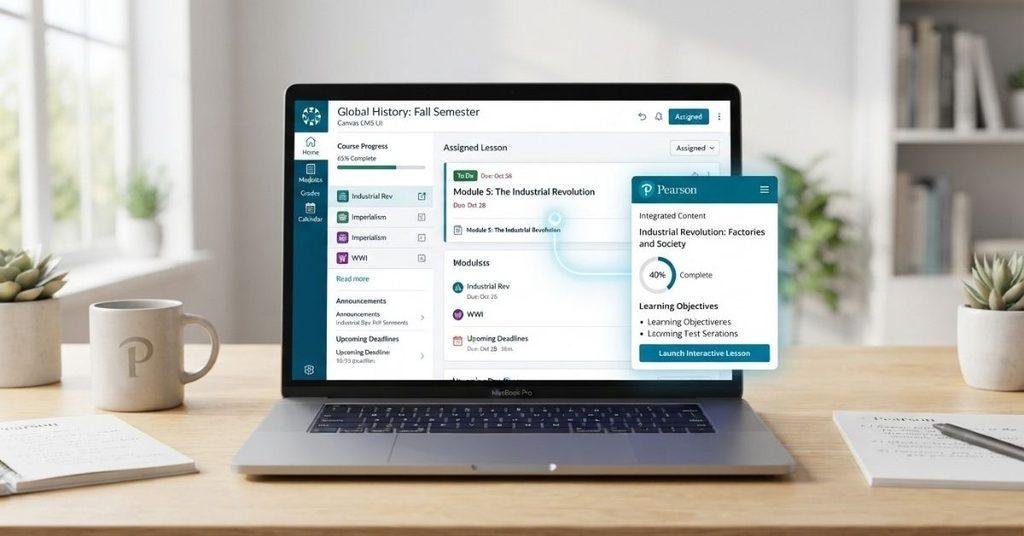
A Pearson lesson should be easy to open, but finding the right Canvas link can feel confusing.
If your college uses Canvas with Pearson or Pearson+, you may need to connect both platforms. The process can also look different between schools, courses, and instructors.
If you are wondering how can i link pearson lessons inside canvas, you are not alone. Many beginners are unsure where to find the Pearson link or how to connect their accounts.
The good news is that you usually do not need advanced technical skills. Your instructor or school typically provides the Pearson access point inside your Canvas course.
In this guide, you will learn how to find the Pearson link, connect your account, and open your assigned lessons. We will also explain what to do when the Pearson link is missing or does not work.
By the end, you will have a simple process for accessing Pearson lessons through Canvas with fewer headaches.
Can You Link Pearson Lessons Inside Canvas?
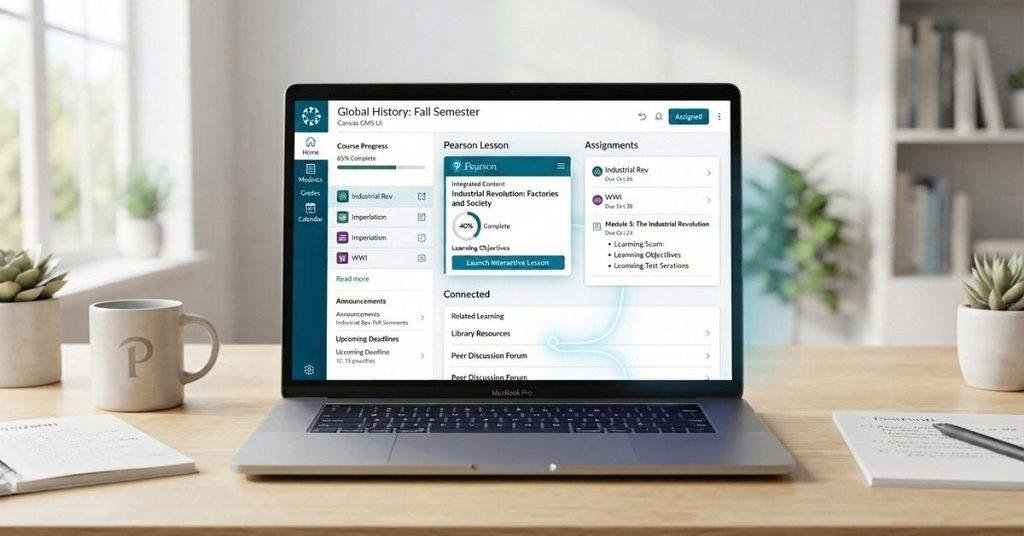
Yes, you can access Pearson lessons through Canvas when your school has enabled the required integration. Canvas can connect with Pearson learning content, allowing students to open assigned materials from their course.
If you’re searching how can i link pearson lessons inside canvas, the first step is to check your Canvas course. Your instructor may place the Pearson link inside Modules, Assignments, Course Navigation, or another learning materials section.
The exact link can vary because schools may use different Pearson products and Canvas configurations. Some students may see a Pearson link, while others may see Pearson+ or a different external tool option.
Your instructor or institution usually handles the setup. They may need to connect the Pearson course, add the correct content, or provide access instructions before you can use the lessons.
If your course uses more than one external learning platform, you may also want to learn how to add MyOpenMath to Canvas for easier access to online coursework.
If you don’t see any Pearson option, don’t assume your account is broken. Check your instructor’s course instructions first. If the link is still missing, contact your instructor or school’s support team for help.
How to Link Pearson Lessons Inside Canvas
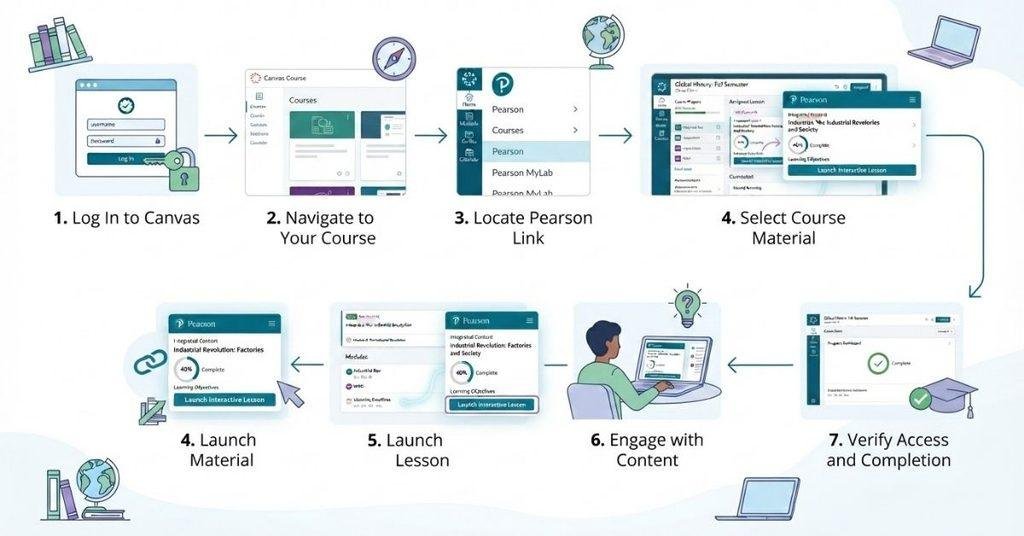
If you’re learning how can i link pearson lessons inside canvas, the process usually starts inside your Canvas course. Follow these steps to find the Pearson content and connect your accounts.
Step 1: Log In to Canvas
Open your school’s Canvas website and sign in with your student account. From the dashboard, select the course that uses Pearson content.
Make sure you choose the correct class before opening any external learning tools.
Step 2: Open the Pearson Link
Look for a Pearson or Pearson+ link in your course. Your instructor may place it under Modules, Assignments, Course Navigation, or learning materials.
Open the link your instructor provided. Avoid using an unrelated Pearson link from another course.
Step 3: Sign In or Connect Your Pearson Account
Canvas may ask you to sign in to Pearson or connect your existing account. Follow the authentication instructions shown on your screen.
If you already have a Pearson account, use the account associated with your course. This can help prevent access problems later.
Step 4: Open the Assigned Pearson Content
After connecting your account, look for your Pearson course and assigned materials. Find the lesson, assignment, chapter, or activity your instructor selected.
Open the correct item and check that it matches your current class.
Step 5: Confirm the Course Connection
Check that Pearson connects to the correct Canvas course. Review the course name, instructor, or other available details.
This step matters if you use Pearson for multiple classes. A wrong course connection can lead to missing assignments or incorrect content.
Step 6: Open the Lesson
Select the assigned Pearson lesson to start learning. Depending on your school’s setup, the content may open within Canvas or in another browser tab.
Follow your instructor’s directions for completing the activity and submitting any required work.
Step 7: Verify Your Access
Return to Canvas after opening the Pearson activity. Confirm that the lesson or assignment opens correctly from your course.
If the link fails, shows the wrong course, or requests unexpected access, contact your instructor or school’s support team.
Note: Pearson and Canvas menu names can differ between institutions. Your course may use a different Pearson integration or navigation layout.
Students who use Canvas to access digital course materials can also learn how to customize their Canvas Dashboard and organize their courses.
How to Link Pearson Plus Lessons Inside Canvas
Yes, you can access Pearson+ lessons through Canvas when your school has enabled the relevant Pearson integration. The exact setup can vary by course and institution.
Pearson+ provides access to Pearson learning content, while your Canvas course acts as the place where your instructor may provide access links. You may find a Pearson+ link inside Modules, Assignments, Course Navigation, or course materials.
If you’re searching how can i link pearson plus lessons inside canvas, start by opening the Pearson+ link provided in your Canvas course. You may then need to sign in or connect your Pearson account.
Use the Pearson account associated with your class. After signing in, look for the assigned lesson or learning material. Open the content and confirm that it belongs to the correct Canvas course.
If you can’t find a Pearson+ link, check your instructor’s directions first. Your institution may use a different integration or may need to activate the connection.
How to Connect Your Pearson Account to Canvas
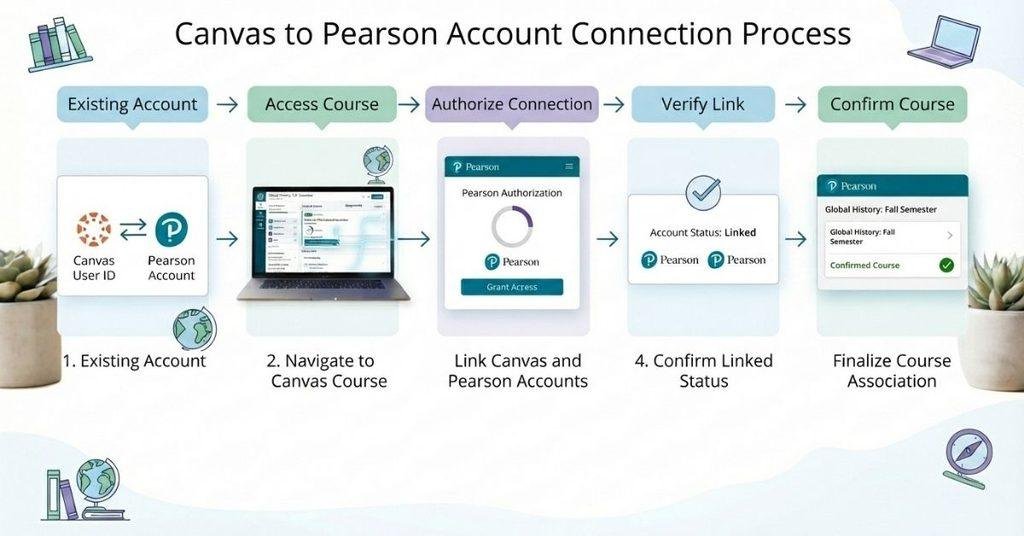
Connecting the correct Pearson account is an important part of accessing Pearson content through Canvas. The connection process usually starts when you open the Pearson link provided inside your course.
If you already have a Pearson account, sign in with those existing credentials when prompted. Use the account associated with your current class and student information.
If you don’t have an account, Canvas or Pearson may provide instructions for creating one. Follow the instructions shown on your screen rather than creating multiple accounts.
Pay close attention to the student email address you use. Using a different Pearson account can cause problems finding your course or assigned lessons.
You may also see an authorization or account-connection prompt. Read the message and follow the instructions to approve the connection when appropriate.
Before continuing, check that you’re connecting the intended Pearson account. If you accidentally connect the wrong account, contact your instructor or school support team before creating another account.
How to Find Pearson Assignments in Canvas
Pearson assignments can appear in different parts of a Canvas course. Your school and instructor decide how the content is organized.
Start by checking the Course Navigation menu for a Pearson or Pearson+ option. Some instructors may instead place Pearson activities inside Modules or Assignments.
You may also find Pearson content through an external tool or integration. In some courses, your instructor may provide a direct Pearson link within a page, module, announcement, or assignment.
Because Canvas setups vary, don’t expect every course to use the same location. A Pearson link in one class might appear under Modules, while another class may use Assignments.
If you can’t find the content, check your instructor’s instructions first. Search the course for terms such as Pearson, Pearson+, or the name of your assigned lesson.
If nothing appears, the content may not be available to students yet. Ask your instructor where the Pearson activities should appear before changing your account settings.
How to Open a Pearson Lesson From a Canvas Course
Once Pearson is connected to your Canvas course, opening a lesson usually follows a simple workflow.
Start by signing in to Canvas and opening the relevant course. Find the Pearson or Pearson+ link provided by your instructor.
Select the link to launch the connected Pearson content. You may then see your Pearson course, assigned activities, or available learning materials.
Find the lesson or activity your instructor assigned. Select it to open the Pearson learning content and begin the activity.
The basic path looks like this:
Canvas → Course → Pearson Link → Lesson or Activity → Pearson
Depending on your institution’s integration, Pearson may open within Canvas or in a new browser tab or window. This doesn’t necessarily mean something is wrong.
After the lesson opens, confirm that you’re viewing the correct course and assignment. Check the course name or other available details before starting your work.
If the lesson doesn’t open correctly, return to Canvas and try the Pearson link again. Persistent problems may require help from your instructor or school’s technical support team.
Expert Tip: Keep your Canvas course open while using Pearson. This makes it easier to return to your assignments and course instructions.
Pearson Lesson Isn’t Showing in Canvas — What Should You Do?
Can’t find your Pearson lesson in Canvas? Several setup or account issues could explain why the content isn’t appearing.
First, check whether your instructor has published the content. An assignment may exist in the course but remain unavailable to students until it’s published.
Next, make sure the Pearson integration is enabled for your course. Your institution may need to configure the connection before Pearson content becomes available.
Also confirm that you’re viewing the correct Canvas course. If you have multiple classes using Pearson, it’s easy to check the wrong course.
Your Pearson account may also need to be connected. Sign in through the link provided by your instructor and follow any account-connection prompts.
Other possible causes include:
- The instructor hasn’t assigned the Pearson content yet.
- Your course enrollment hasn’t synchronized correctly.
- The Pearson activity has not become available yet.
- A temporary technical issue is affecting the connection.
If you’ve checked these points and the lesson still doesn’t appear, contact your instructor. Tell them which Canvas course you’re using and what you see on screen.
Pearson Link Isn’t Working in Canvas
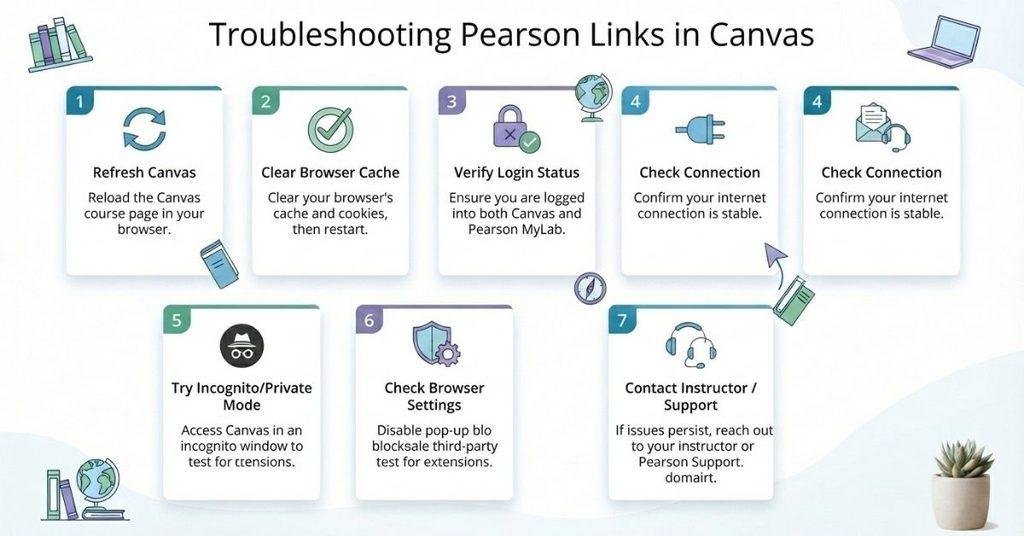
A Pearson link that doesn’t open can be frustrating, but several simple checks may solve the problem. Try these steps before contacting your instructor.
- Refresh Canvas: Reload the course page and try the Pearson link again.
- Sign out and back in: Log out of Canvas, then sign in again.
- Check your Pearson account: Make sure you’re using the account connected to your current course.
- Check the course status: Confirm that your course and assigned content are published and available.
- Try another browser: Use another supported browser if the link still won’t open.
- Check browser settings: Pop-up blockers or disabled cookies can sometimes interfere with external integrations.
- Contact your instructor: If the link remains unavailable, ask your instructor to confirm your Pearson access.
Pro Tips
Avoid creating a new Pearson account just because the link isn’t working. First, confirm which account your school expects you to use.
If the problem continues, describe the error clearly when contacting support. Include the Canvas course name and the Pearson activity you’re trying to open.
Why Does Pearson Ask Me to Sign In Again?
Pearson may ask you to sign in again when Canvas launches Pearson content. This can happen for several normal account or browser-related reasons.
Your authentication session may have expired, especially if you have been signed in for a while. Pearson may then require you to verify your account again.
You might also be using a different Pearson account from the one connected to your Canvas course. Check the account details before continuing.
The way your school’s Canvas and Pearson integration works can also affect when sign-ins appear. Some setups may require additional authentication when launching external content.
Browser cookies and saved sessions can also affect the connection. Clearing certain browser data or changing browser settings may sometimes help.
If Pearson repeatedly asks you to sign in, check that you’re using the correct account. Then try signing out of both services and signing back in through the Pearson link inside Canvas.
If the issue continues, your instructor or school support team may need to check the course integration.
Can You Access Pearson Lessons Without Canvas?
Sometimes, but it depends on how your school and instructor configured Pearson for your course.
Some Pearson content may be available directly through Pearson after you sign in. However, that doesn’t mean every lesson can be accessed independently from Canvas.
If your instructor requires Canvas integration, you may need to launch the Pearson activity through your Canvas course. This connection can help associate the Pearson activity with your course and assigned work.
Before trying to access Pearson directly, check your instructor’s instructions. They may specifically require you to use the Pearson link provided inside Canvas.
If direct access doesn’t show your course or assigned lesson, return to Canvas and use the provided Pearson link. Contact your instructor if you’re unsure which access method your class requires.
What If the Pearson Lesson Opens but Doesn’t Record My Progress?
Sometimes a Pearson lesson opens normally, but your progress doesn’t appear where you expect. This can happen even when the lesson itself loads correctly.
One possible cause is using the wrong Pearson account. Your lesson may open, but your activity could be connected to a different account or course.
The Canvas and Pearson connection may also have a synchronization issue. In some setups, information may take time to appear in Canvas.
You may also have launched the activity outside the expected Canvas workflow. If your instructor provided a Pearson link through Canvas, try opening the lesson through that link again.
What Should You Do?
Start with these checks:
- Verify your Pearson account: Confirm you’re using the account connected to your Canvas course.
- Reopen through Canvas: Return to your course and launch Pearson using the provided link.
- Check the assignment status: Look at Canvas and Pearson to see whether your activity shows as completed or submitted.
- Allow time for updates: Some integrated information may not appear immediately.
- Contact support: Ask your instructor or Pearson support for help if your progress remains missing.
Expert Tip: Take a screenshot of completed work when possible. It can help your instructor investigate missing progress or synchronization issues.
You can also enter your current Pearson and Canvas assignment scores into the Canvas Grade Calculator to test different possible final grades.
Pearson + Canvas vs. Pearson Direct Access
Pearson lessons can sometimes be accessed through Canvas or directly through Pearson. Your available option depends on your course and institution’s setup.
| Method | Student Experience |
|---|---|
| Pearson through Canvas | Launch Pearson content from your Canvas course. |
| Direct Pearson access | Sign in to Pearson and access available course content there. |
| Integrated assignment | Assignment progress or grades may synchronize with Canvas, depending on the integration. |
Using Pearson through Canvas can provide a direct path from your course to assigned learning content. Your instructor may expect you to use this workflow for integrated assignments.
Direct Pearson access can work differently. You may see your course materials after signing in, but the connection to Canvas may not work the same way.
If an assignment is connected to Canvas, don’t assume direct Pearson access will automatically update your Canvas status. Synchronization depends on the specific integration and course setup.
Conclusion
Linking Pearson lessons through Canvas is usually straightforward when your course integration is set up correctly. You learned how to find Pearson links, connect your account, open assigned lessons, and troubleshoot common access problems.
If you’re wondering how can i link pearson lessons inside canvas, start with the Pearson link provided by your instructor. Always use the correct Pearson account and confirm you’re in the right Canvas course.
If a lesson won’t open or your progress isn’t recorded, check your account and reopen Pearson through Canvas. Contact your instructor if the issue continues.
Was this guide helpful? Share it with classmates who use Pearson and Canvas. You can also explore more student guides and helpful resources on our website.
Frequently Asked Questions
Open your Canvas course and find the Pearson or Pearson+ link provided by your instructor. Select the link and follow the instructions to sign in or connect your Pearson account. Then find your assigned lesson or activity and open it. The exact location can vary between courses, so check Modules, Assignments, Course Navigation, and instructor-provided links.
Open the Pearson+ link your instructor added to your Canvas course. Sign in with the Pearson account associated with your class and follow any connection prompts. After connecting your account, find your assigned Pearson+ lesson and open it. Your school’s setup may determine where the Pearson+ link appears and how the lesson launches.
Start by opening the Pearson link inside your Canvas course. Sign in to your existing Pearson account or create one if required. Use the correct student email and follow the authorization prompts. Before continuing, confirm that the Pearson account connects to the correct Canvas course. Avoid creating multiple accounts unless your school instructs you to do so.
Several issues can prevent a Pearson lesson from appearing. Your instructor may not have published or assigned the content yet. The Pearson integration may also need to be enabled or configured. Check that you’re viewing the correct Canvas course and using the connected Pearson account. Enrollment synchronization or temporary technical issues can also affect access.
First, refresh Canvas and try opening the Pearson link again. You can also sign out and back in to your Canvas and Pearson accounts. Confirm you’re using the correct Pearson account and that the course is published. Try another supported browser and check whether pop-ups or cookies are blocking the connection. Contact your instructor if the link remains unavailable.
It depends on your course and institution’s setup. Some Pearson content may be available directly through Pearson after signing in. However, your instructor may require you to launch integrated lessons through Canvas. Direct Pearson access doesn’t always provide the same connection to Canvas assignments. Follow your instructor’s instructions to use the expected access method.
Pearson may request another sign-in because your authentication session expired. You may also be using a different Pearson account from the one connected to Canvas. Browser cookies or session settings can affect authentication too. Some Canvas and Pearson integrations may also require additional sign-ins. Try signing in through the Pearson link inside your Canvas course.
Your progress may not appear if you’re using the wrong Pearson account or course connection. It can also happen because of an integration synchronization issue. Reopen the activity through the Pearson link inside Canvas and check the assignment status. If your progress still doesn’t appear, contact your instructor or Pearson support for assistance.
First, check the Pearson account you’re using. Make sure it is the account connected to your current Canvas course. Then return to Canvas and launch Pearson through the instructor-provided link. Check the course name and instructor information after Pearson opens. If the wrong course continues to appear, contact your instructor before creating another Pearson account.
Check that you’re using the correct Pearson account and course connection. Then return to Canvas and reopen the lesson through the provided Pearson link. Check the assignment status in Canvas and Pearson. Progress may take time to synchronize depending on the integration. If your progress remains missing, contact your instructor or Pearson support.

We are the Canvas Academic Team, a developer team focused on building simple and practical tools that help students succeed academically. This platform was created specifically for Canvas LMS students to make grade tracking, GPA calculations, exam planning, and academic management easier and more efficient.
Our focus is on creating fast, accurate, and student-friendly educational tools along with helpful learning resources that improve productivity and reduce academic stress.
Through CanvasGradeCalculator.com, our goal is to continue building useful resources that help students study smarter, stay organized, and achieve better academic results.

