

Table of Contents
Introduction
Can you unsubmit on Canvas after clicking Submit too soon? It is a common concern for students who spot a mistake afterward.
Canvas submissions can feel confusing, especially when you are new to online classes. You may want to replace a file, fix an answer, or remove the wrong submission. However, the options you see can depend on how your instructor configured the assignment.
So, can you unsubmit on Canvas? The answer is not always the same for every assignment. Some submissions may offer options to change or resubmit your work. Others may not provide an Unsubmit or Delete button at all.
This guide explains what happens after you submit an assignment in Canvas. You will learn whether you can unsubmit or delete a submission. We will also show you how to check your available options.
If you cannot remove your submission, do not panic. We will explain what to do next and when to contact your instructor.
Can You Unsubmit an Assignment on Canvas?
So, can you unsubmit on Canvas after sending an assignment? Usually, students cannot manually undo a submission unless Canvas provides an available option. The exact choices depend on the assignment setup and your course settings.
After submitting, you may see options to view your submission, submit another attempt, or replace your work. Some assignments may not show an Unsubmit button at all. Canvas does not provide the same controls for every assignment.
Your instructor’s settings can affect what you can do after submitting. For example, the instructor may allow multiple attempts or limit submissions to one attempt. The assignment deadline can also matter, especially if submissions are no longer accepted.
The submission type can affect your available actions too. File uploads, text entries, website URLs, and other submission methods can behave differently.
If you cannot find an Unsubmit option, don’t assume something is wrong. Check the assignment instructions first. If you need to correct your work, ask your instructor whether you can resubmit or replace the original submission.
If you are editing an assignment before submitting it, our guide on how to add a hanging indent in Canvas can help you format written work correctly.
Pro Tip
Before submitting, review your file and answers carefully. Once submitted, your ability to change the work may depend on your instructor’s Canvas settings.
Can You Delete a Submission on Canvas?
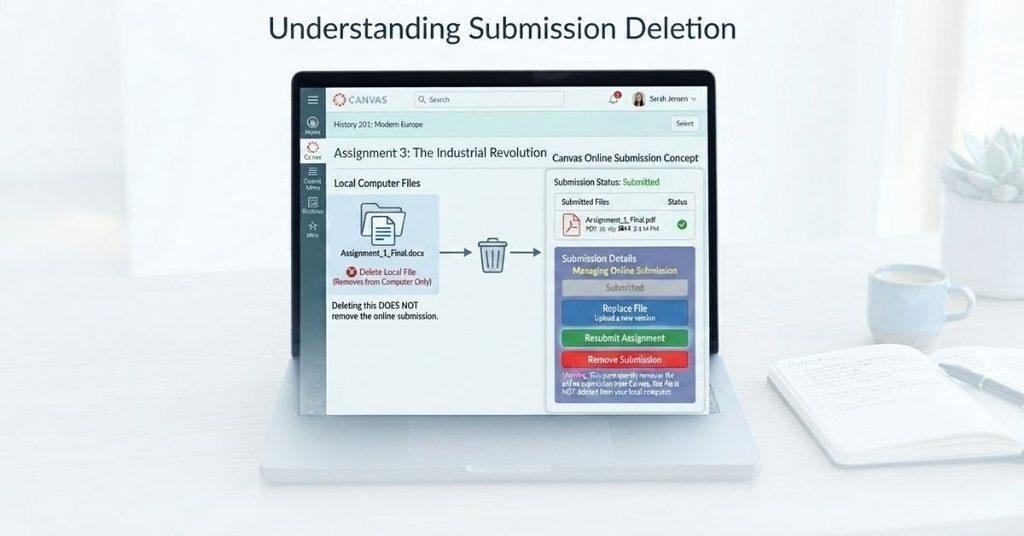
Can you delete a submission on Canvas after submitting an assignment? In many cases, students cannot remove a completed submission themselves. The available options depend on the assignment settings and permissions set by the instructor.
You may not see a Delete button because Canvas does not give students a universal way to withdraw submitted work. Your instructor may allow additional attempts instead. Some assignments may also lock submission controls after a deadline or based on the selected submission type.
It’s also important to separate deleting a file from deleting a submission. Removing a file from your device does not remove the copy already submitted through Canvas. A submitted assignment remains part of the course’s submission records unless an authorized user changes it.
If you submitted the wrong file, contact your instructor as soon as possible. Explain what happened and ask whether you can submit a corrected version.
Can I Delete a Submission on Canvas?
Can I delete a submission on Canvas if I uploaded the wrong file? Sometimes, but students should not expect a Delete option on every assignment.
Your available controls depend on the assignment’s configuration and your instructor’s settings. You may have another attempt available, or your instructor may need to handle the change.
If you cannot find a way to remove or replace your submission, check the assignment instructions first. Then contact your instructor and explain the issue clearly. Ask whether you can resubmit the correct file.
Remember, deleting a file from your computer does not delete the version already submitted in Canvas. The two actions are separate.
How to Check If You Can Unsubmit or Delete Your Canvas Submission
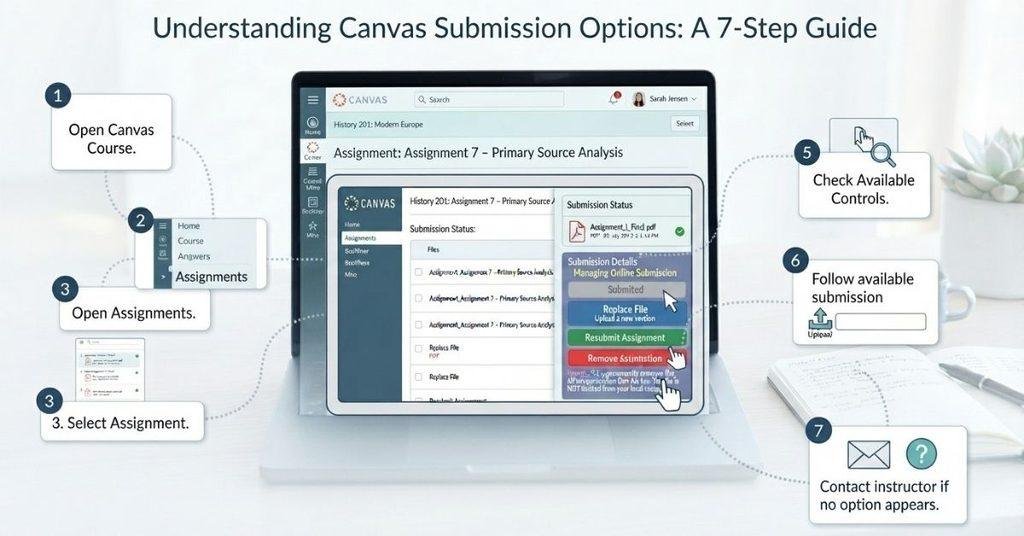
If you’re unsure whether you can change a submitted assignment, check the assignment page first. Canvas can show different controls based on your instructor’s settings, submission type, and course configuration.
Step 1: Open your Canvas course.
Sign in to Canvas and open the course containing your submitted assignment.
Step 2: Open Assignments.
Go to the Assignments area from your course navigation menu.
Step 3: Select the relevant assignment.
Find the assignment you already submitted and open its page.
Step 4: Open your submission details.
Look for the area showing your submitted file, text, or other submission information.
Step 5: Check the available controls.
Review the buttons and options shown around your submission. Look for options that let you change, replace, or resubmit your work.
Step 6: Follow the available instructions.
If Canvas provides an Unsubmit or Delete option, follow the on-screen instructions carefully.
Step 7: Contact your instructor if needed.
If no suitable option appears, check the assignment instructions. Then ask your instructor whether you can replace or resubmit your work.
For assignments that include student feedback, you may also want to understand how peer review works in Canvas before submitting your work.
What If There Is No Unsubmit or Delete Button?
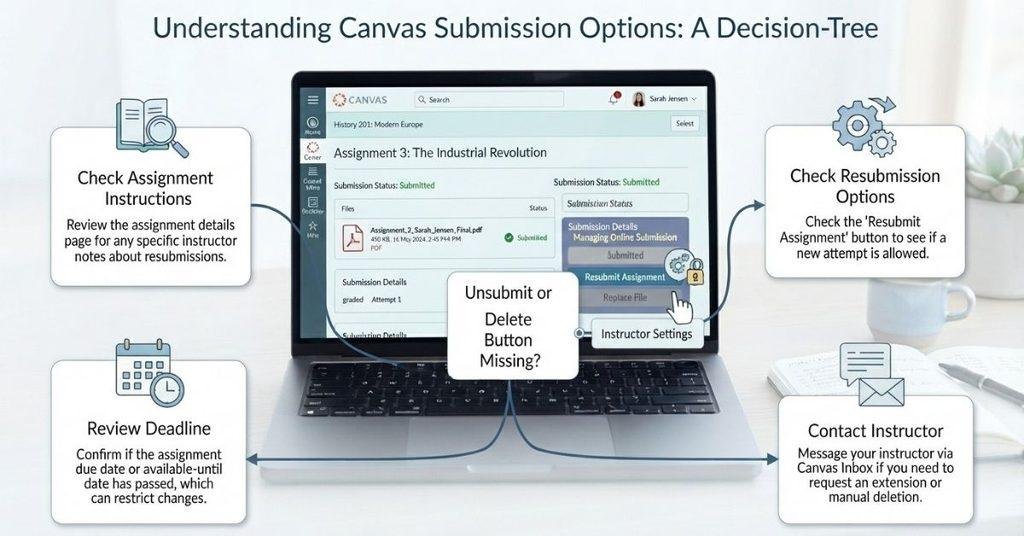
If you don’t see an Unsubmit or Delete button, your submission may still be manageable. Canvas options can vary based on your course and assignment setup.
Several factors may explain why the option isn’t available:
- Instructor settings: Your instructor may control whether you can submit again.
- Assignment type: Different submission methods can provide different options.
- Submission status: Your current attempt may affect which controls appear.
- Deadline: A passed deadline may limit available submission actions.
- Course configuration: Your school may use specific Canvas settings or restrictions.
- Institution restrictions: Some controls may be limited by your institution’s Canvas setup.
Start by checking the assignment instructions for resubmission rules. Then look for an option to submit another attempt or replace your work.
If you still cannot make the needed change, contact your instructor. Explain what you submitted and what needs changing. Ask whether they can allow another attempt or provide another solution.
Can You Edit a Canvas Submission After Submitting?
You may be able to change your work after submitting, but editing a submission isn’t always the same as making another attempt. Canvas may let you submit a revised version when the assignment allows multiple attempts.
For file-based assignments, this can mean re-uploading a corrected file through another allowed attempt. Your instructor’s settings determine whether another submission is available.
Text-based assignments can work differently. Canvas may provide editing options for certain submission methods, but you shouldn’t assume every submission can be edited directly.
Before making changes, check whether the assignment allows multiple attempts. Look at the submission details and assignment instructions for available options.
If you cannot find a way to revise your work, contact your instructor. Ask whether you can resubmit the assignment or replace the original file.
Can You Resubmit an Assignment on Canvas?
Yes, you may be able to resubmit an assignment on Canvas, but it depends on the assignment settings. Some instructors allow multiple attempts, while others limit students to one submission.
Your instructor controls whether additional attempts are available. The assignment may also have specific rules about deadlines, attempts, or submission types.
If another attempt is allowed, Canvas may let you submit a revised file or new response. How the new attempt appears can depend on the assignment configuration. It may become the active submission while earlier attempt information remains available to the instructor.
Before resubmitting, check the assignment instructions and your available submission options. If you’re unsure, ask your instructor before making another attempt.
If you later create a dedicated guide on how to resubmit an assignment on Canvas, this section would be a natural place to link to it.
If you are deciding what score you need on a resubmission or upcoming assignment, use the Canvas Grade Calculator to test different score scenarios.
What Happens If You Delete a Submitted File?
Deleting a file from your device does not automatically remove the submission you already sent through Canvas. These are separate actions.
Students often confuse four different actions:
- Removing an uploaded file: Deletes or removes a file from a particular interface or location.
- Removing a submission: Attempts to withdraw the submitted assignment itself.
- Uploading a replacement: Sends a different file when Canvas allows another submission.
- Creating another attempt: Submits new work under another allowed attempt.
The exact controls depend on the assignment configuration. Canvas may not provide students with an option to remove an existing submission.
If you uploaded the wrong file, check whether another attempt is available. If no suitable option appears, contact your instructor rather than deleting files and assuming the submission disappeared.
Can Your Teacher See a Deleted or Previous Submission?
Your instructor may be able to see information about previous submissions or attempts, depending on the assignment setup and Canvas’s submission behavior. Don’t assume that deleting something makes every record permanently invisible.
Canvas can handle attempts differently based on assignment configuration. Your instructor may have access to submission information that isn’t visible from your student view.
This matters if you submitted the wrong file, changed an answer, or made multiple attempts. A missing button or changed submission status doesn’t necessarily mean earlier information has disappeared.
If the assignment is important, communicate with your instructor instead of relying on deletion. Explain what happened and ask what they can see or what you should do next.
For more information about instructor visibility, consider linking this section to What Can Teachers See on Canvas? when that guide is available.
Can You Unsubmit a Canvas Quiz?
A Canvas quiz is not necessarily managed like a regular assignment. The submission and attempt rules can differ between these activities.
For assignments, your available options depend on the assignment’s settings. Quizzes have their own attempt and submission rules. These rules can affect whether you can restart, retake, or change an attempt.
That’s why you shouldn’t assume an Unsubmit or Delete option available for an assignment will also exist for a quiz. Your instructor and course configuration determine the controls you receive.
If you’re unable to access a quiz or encounter a restriction, check the quiz instructions first. You can also refer to How to Take a Locked Canvas Quiz for help with locked quiz situations.
What If You Submitted the Wrong File?
Submitting the wrong file can be stressful, but don’t panic. You may still have a way to correct it if the assignment allows another submission.
Follow these steps:
- Check whether resubmission is allowed. Review the assignment instructions and available attempt options.
- Look for a submission option. Canvas may provide a way to submit another attempt.
- Upload the correct file. If another attempt is available, choose the correct file and submit it.
- Confirm the new submission. Check that Canvas recorded the updated attempt successfully.
- Contact your instructor if needed. If you cannot change the submission, explain the mistake immediately.
Don’t assume that deleting the wrong file from your computer will fix the Canvas submission. Canvas and your device manage those files separately.
What If You Submitted Before the Deadline by Mistake?
Submitting early by mistake doesn’t always mean you have a problem. First, check whether the assignment allows another attempt or resubmission.
Review the assignment instructions and your available submission controls. If another attempt is allowed, you may be able to submit the corrected work.
If Canvas doesn’t provide a way to change your submission, contact your instructor. Explain that you submitted early and ask whether they can reopen the assignment or allow a correction.
Avoid waiting until the deadline passes if you need help. Contacting your instructor promptly gives them more time to review your situation.
Can an Instructor Remove or Delete Your Canvas Submission?
Student controls and instructor controls aren’t always the same. An instructor may have access to submission management options that aren’t available to students.
Your ability to remove or change a submission depends on the course’s Canvas setup. If you don’t see a suitable option, your instructor may need to handle the change.
If you submitted the wrong work, explain the situation clearly. Tell your instructor which submission needs attention and what you want to replace or correct.
Don’t assume that asking your instructor to remove a submission will erase every record of the attempt. Submission history and visibility can depend on the assignment configuration.
Pro Tip
If you need an instructor to change a submission, contact them before making repeated attempts. Clear communication can prevent confusion.
Conclusion
Canvas doesn’t always provide a simple way to undo a submitted assignment. Whether you can change, resubmit, or remove your work depends on the assignment settings and instructor permissions.
So, can you unsubmit on Canvas? Sometimes, but you shouldn’t expect an Unsubmit or Delete option on every assignment. You may have another attempt available, or you may need your instructor’s help.
If you submitted the wrong file, don’t panic. Check the assignment instructions and available submission options first. Contact your instructor quickly if you cannot make the needed change.
Have you dealt with a Canvas submission problem? Share your experience below. For more helpful Canvas guides, explore the other student resources on our website.
Frequently Asked Questions
Can you unsubmit on Canvas?
You may not always be able to unsubmit an assignment on Canvas. Available options depend on the assignment settings, submission type, deadline, and instructor permissions. If you don’t see an Unsubmit option, check the assignment instructions. Contact your instructor if you need to change your submission.
Can you delete a submission on Canvas?
Students cannot always delete a submitted assignment themselves. Canvas may not provide a Delete option for every assignment. Your instructor’s settings and the assignment configuration determine what controls are available. If you submitted the wrong file, ask your instructor about resubmitting or replacing it.
Can I delete a submission on Canvas?
You may be able to change or replace a submission if another attempt is allowed. However, Canvas doesn’t guarantee a Delete option for students. Deleting a file from your computer also doesn’t remove the version already submitted to Canvas.
Why can’t I unsubmit my Canvas assignment?
You may not see an Unsubmit option because of the assignment’s settings or submission rules. The deadline, submission type, course configuration, or instructor permissions can affect available controls. Check the assignment instructions and contact your instructor if you need a correction.
Can I edit an assignment after submitting it on Canvas?
Sometimes, but it depends on the assignment configuration. Canvas may allow another attempt or let you upload a corrected file. Text-based submissions may have different options. Check whether the assignment allows multiple attempts before making changes.
Can I resubmit an assignment on Canvas?
Yes, if your instructor allows multiple attempts or resubmissions. Some assignments permit several attempts, while others allow only one. Check the assignment instructions and submission area to see whether another attempt is available.
Can teachers see a previous Canvas submission?
Teachers may be able to see previous attempts or submission information, depending on the assignment setup and Canvas behavior. Don’t assume that replacing or deleting something makes earlier submission information permanently invisible. Ask your instructor if you’re concerned about a previous attempt.
Can you unsubmit a Canvas quiz?
Canvas quizzes and assignments don’t necessarily use the same submission controls. Quiz attempts follow their own rules, which can depend on the quiz configuration and allowed attempts. Don’t assume that an Unsubmit option for an assignment will also apply to a quiz.
What should I do if I submitted the wrong file on Canvas?
First, check whether the assignment allows another submission attempt. If it does, upload the correct file and confirm that Canvas recorded it. If you cannot replace the file, contact your instructor immediately. Explain what you submitted and which file needs changing.
What happens if I submit an assignment too early on Canvas?
Submitting early doesn’t automatically mean you made a serious mistake. Check whether another attempt is available and review the assignment instructions. If you cannot change the submission, contact your instructor and explain that you submitted before you intended to.

We are the Canvas Academic Team, a developer team focused on building simple and practical tools that help students succeed academically. This platform was created specifically for Canvas LMS students to make grade tracking, GPA calculations, exam planning, and academic management easier and more efficient.
Our focus is on creating fast, accurate, and student-friendly educational tools along with helpful learning resources that improve productivity and reduce academic stress.
Through CanvasGradeCalculator.com, our goal is to continue building useful resources that help students study smarter, stay organized, and achieve better academic results.

