

Table of Contents
Introduction
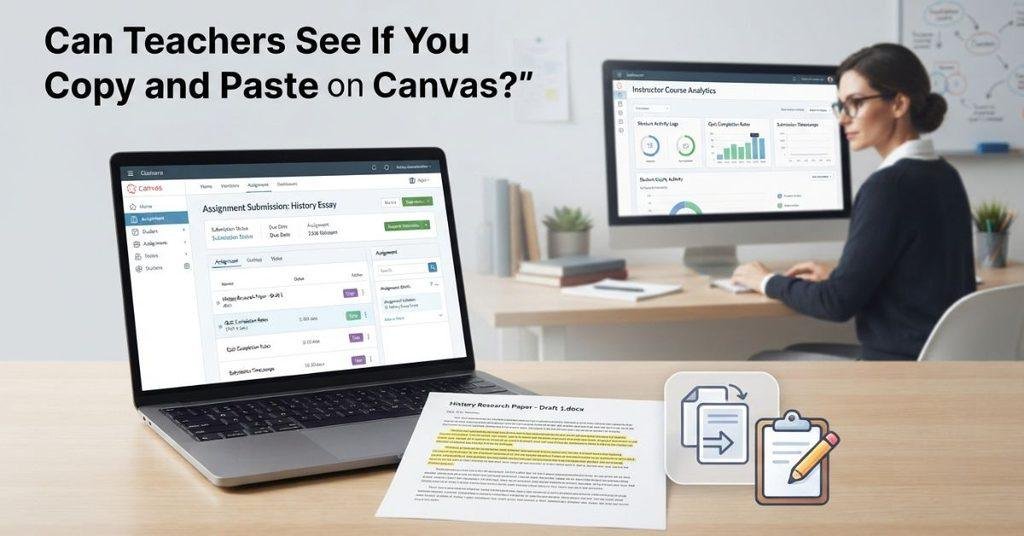
Have you ever copied text into Canvas and wondered if your teacher could see exactly what you did?
If you’re asking, can teachers see if you copy and paste on Canvas, you’re not alone. Many students worry about what instructors can actually see during online coursework.
Canvas records certain activity and submission information. However, that does not automatically mean your teacher can see every copy-and-paste action.
For beginners, the difference between Canvas activity tracking and actual clipboard monitoring can be confusing. Assignment submissions, quizzes, page views, and originality tools can also affect what instructors see.
In this guide, you’ll learn what teachers can actually access on Canvas. We’ll also explain what happens when you paste text into assignments or quizzes.
You’ll see how Canvas activity differs from copy-and-paste detection. We’ll also cover Turnitin, outside websites, and tab switching.
If you want to know what Canvas itself can detect, see our guide on whether Canvas can see if you copy and paste.
By the end, you’ll understand what Canvas may show your instructor and what it does not automatically reveal.
Can Canvas See If You Copy and Paste?
Canvas does not automatically show teachers every copy-and-paste action you perform. Copying text and Canvas recording course activity are two different things. Canvas can provide instructors with activity data, such as page views and participation, but that does not mean every keyboard shortcut or clipboard action becomes visible.
When you copy text, your device temporarily stores that content in its clipboard. Pasting it into Canvas creates content that may become part of an assignment or quiz submission. However, students shouldn’t assume Canvas automatically records each Ctrl+C or Ctrl+V action for their instructor.
Canvas does provide activity information that can help instructors understand whether students accessed course resources. Its documentation describes page views as an indication of course activity, not a complete record of everything a student does.
Takeaway: Seeing Canvas activity does not automatically prove that a student copied or pasted something. The information available to an instructor depends on the Canvas features and tools used in that course.
Copy-and-paste activity is part of a broader discussion about Canvas tracking, so you may also want to learn what professors can see on Canvas during assignments and quizzes.
Can Canvas See When You Copy and Paste?
The word “when” matters here. Canvas may record certain activity connected to a course, such as opening a page or starting a quiz. However, that is different from recording the exact moment you copied text or pasted it.
For example, an instructor may see evidence that you accessed a course page. That can show that activity occurred, but it doesn’t automatically show what you copied from that page. Likewise, seeing a submission time does not by itself reveal when you pasted the submitted text.
It’s helpful to separate three different things:
- Activity: Canvas may record certain course interactions.
- Access: Activity data can indicate that you accessed a course resource.
- Clipboard action: This does not automatically mean Canvas showed your exact copy or paste action.
Expert tip: Don’t treat Canvas page-view or activity information as a complete record of every action on your device. Canvas itself notes that page-view data is an approximation of activity.
Does Canvas Track Copy and Paste?
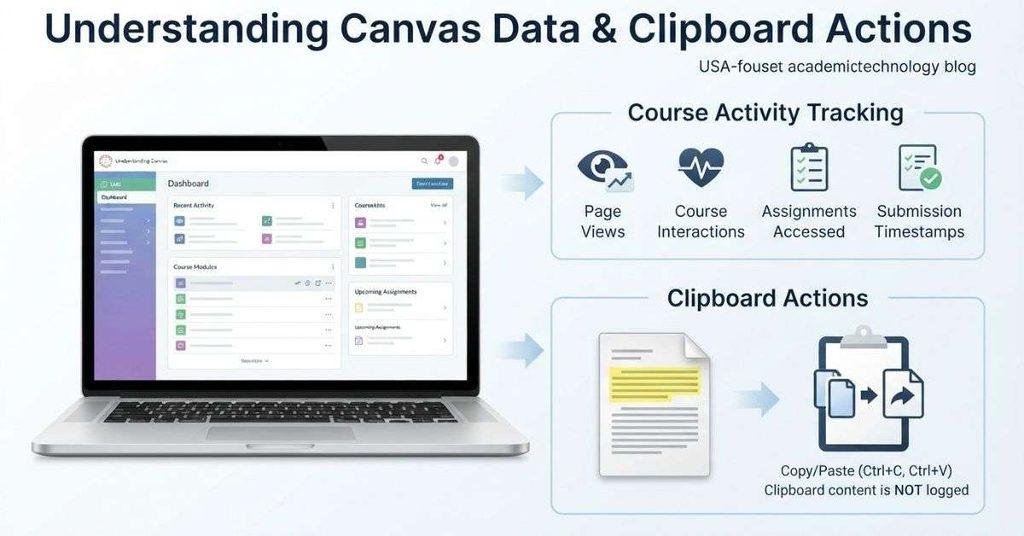
Canvas provides instructors with activity and analytics data, but that doesn’t mean it tracks every copy-and-paste action. Canvas copy paste tracking should not be confused with general course activity tracking. Its documented analytics focus on information such as grades, submissions, participation, and other course activity.
Canvas may provide instructors with page-view information and other activity details. These records can help show how students interact with course content. However, they don’t automatically establish that a specific copy or paste action occurred.
So, can Canvas detect copy and paste? You shouldn’t assume that every clipboard action becomes visible to your instructor. A student might copy text from a webpage, document, or another source without that action appearing as a specific copy event in Canvas.
What Canvas activity data can cover may include:
- Assignment submission status and submitted work
- Grades and course participation
- Certain course activity and page views
- Quiz-related activity, depending on the setup
The important distinction is between tracking course activity and tracking clipboard actions. Seeing that you accessed a page or submitted an assignment doesn’t automatically show how you created that content.
Expert tip: Check your course instructions and school policies before using outside sources. Canvas tracking and academic-integrity rules are separate issues.
What Can Canvas Actually Track?
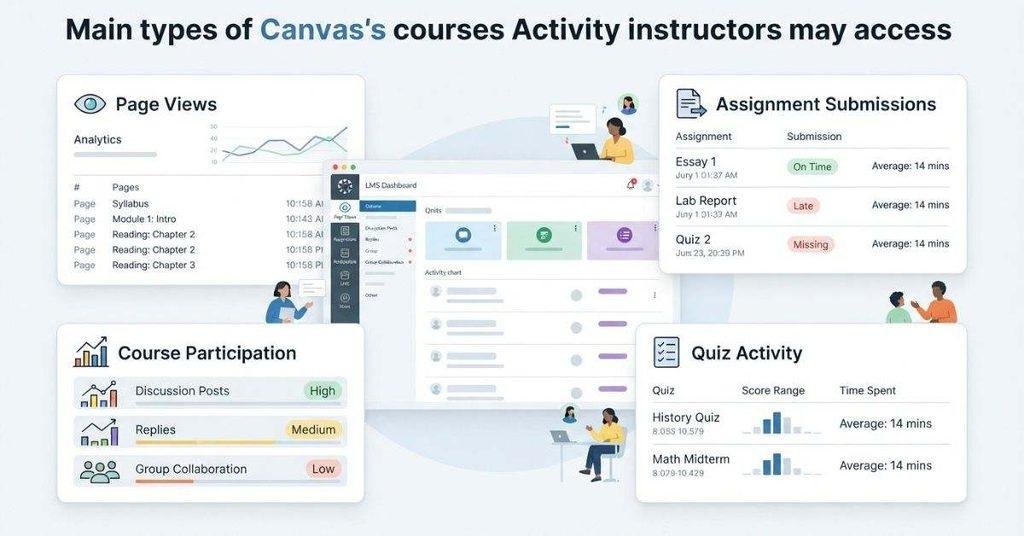
Canvas can provide instructors with several types of course activity information. These records help instructors understand student engagement, submissions, and activity within a course.
However, the exact information available can vary by Canvas features, course settings, and instructor permissions. Activity data also doesn’t automatically reveal every action a student takes on their device.
Canvas may record certain types of activity, but that does not necessarily mean your instructor can see everything you do. Learn more about what Canvas can actually track when you copy and paste.
Page Views and Course Activity
Canvas can provide page-view and course activity information through its analytics features. This information can help instructors understand whether students accessed course materials or interacted with parts of a course.
A page view can indicate that a student accessed a Canvas page. It doesn’t automatically explain everything the student did while viewing that page.
For example, activity data may show that you opened a course resource. It doesn’t necessarily show whether you copied text from that resource.
Assignment Submissions
Canvas can show instructors information related to assignment submissions. This can include whether work was submitted and details associated with the submission.
The instructor can generally review the content submitted through the assignment. Submission information can also help establish when work entered Canvas.
However, submitted content alone doesn’t prove how you created it. A teacher seeing your final submission doesn’t automatically mean they saw your copy-and-paste process.
Course Participation
Canvas analytics can provide information about course participation when the relevant features are available. Instructors may use this information to understand student engagement with course activities.
The available data depends on the tools and analytics enabled for the course. Not every Canvas course provides instructors with identical activity information.
Login and Course Activity Data
Canvas can contain different types of activity information across its features. What an instructor can access depends on available permissions, course configuration, and the specific Canvas tools being used.
Pro Tip: Treat Canvas activity records as course-engagement information, not as a complete log of everything you do on your computer.
Can Canvas Tell If You Copied Text From Another Website?
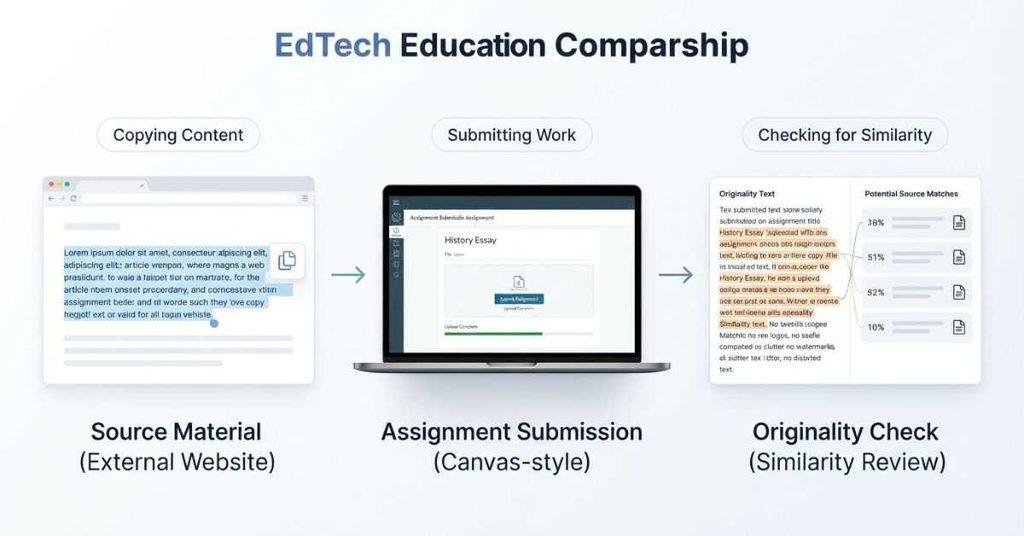
Copying text from another website and detecting plagiarism are two different things. Canvas activity tracking doesn’t automatically mean Canvas checks every piece of text you copy from the web.
When you copy information from a website, that action happens on your device. If you later paste that information into a Canvas assignment, the submitted text becomes part of your assignment.
An instructor may then review that submitted work for accuracy, citations, originality, or academic-integrity concerns. Some schools also use separate plagiarism or originality tools that integrate with Canvas.
These tools can compare submitted work against available sources and identify similarities. However, that is different from Canvas simply showing the teacher that you copied the text.
The key distinction is:
- Copying: You move text from one location to another.
- Submitting: You send your work through a Canvas assignment.
- Originality checking: A separate tool may analyze submitted content for similarities.
- Instructor review: A teacher may evaluate the submission and its sources.
So, don’t treat normal Canvas activity records as automatic plagiarism detection.
Can Canvas Detect Pasted Text in an Assignment?
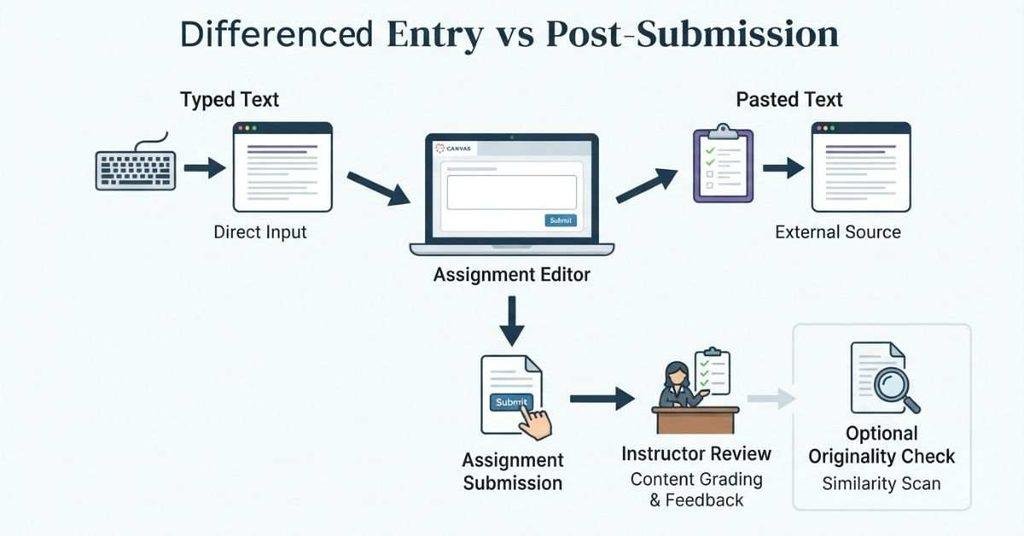
Students often wonder whether Canvas treats typed and pasted text differently. The important issue is usually the submitted work, rather than assuming Canvas exposes how every piece of text entered the assignment.
If you are wondering about other types of assignment monitoring, our guide explains whether Canvas has AI detection and what students should know.
You might type an answer directly into Canvas or paste text from another document. Once submitted, the instructor can review the content included with that assignment submission.
Canvas can also provide submission-related information, such as the submitted work and submission details. Depending on the course and institution, an originality tool may analyze the submitted content separately.
That creates an important distinction:
How text entered the assignment and what happens to the submitted text are not necessarily the same thing.
For example, an instructor reviewing a submission can see the answer you submitted. If an originality checker is enabled, it may also identify similarities with other sources.
However, seeing copied wording in a submission doesn’t automatically mean the teacher saw the moment you pasted it.
Pro Tip: Focus on proper citations and your course’s academic-integrity rules. The safest approach is to submit work you can explain and support yourself.
Wondering about Canvas activity beyond what your teacher can see? Our guide to whether Canvas can detect copy-and-paste activity explains the difference.
Can Teachers See If You Copy and Paste on Canvas?
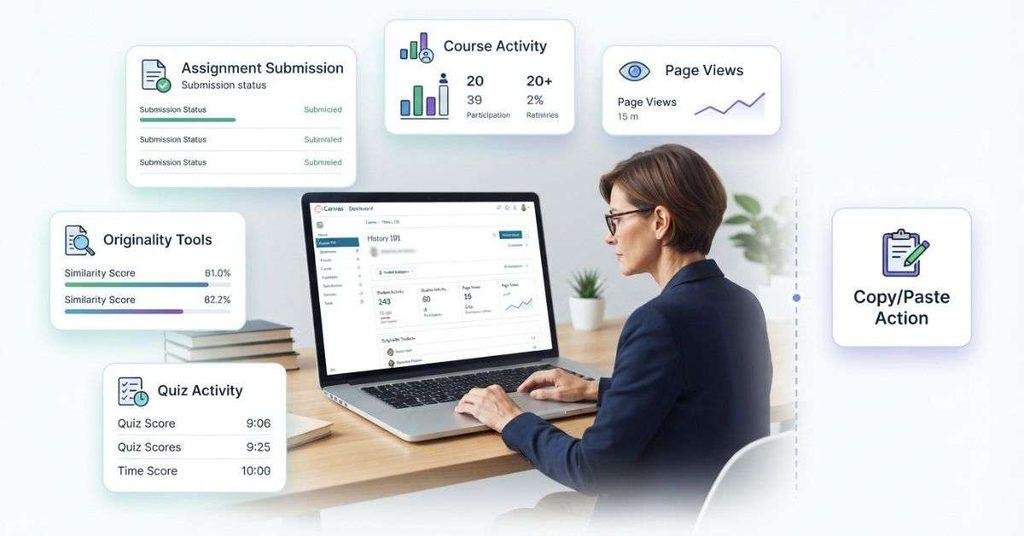
Teachers can access certain Canvas activity and submission information, but that doesn’t automatically mean they can see every copy-and-paste action. What an instructor can see depends on the Canvas features enabled for the course and any additional tools used by the school.
For example, an instructor may review assignment submissions, course activity, or quiz-related information. Separate originality or proctoring tools can provide additional information beyond standard Canvas features.
The key point is simple: Canvas activity data should not be treated as a complete record of everything you do on your device.
If you want the teacher-specific answer, see Can Teachers See If You Copy and Paste on Canvas? for a closer look at instructor visibility, submissions, quizzes, and additional monitoring tools.
Does Canvas Know If You Copy and Paste During a Quiz?
Quiz situations can involve different monitoring features than regular assignments. Canvas can provide information about quiz attempts and related activity, depending on the quiz setup and available course features.
Some institutions may also use browser restrictions, device controls, or separate proctoring software during exams. These tools can change what instructors or administrators can monitor.
However, you shouldn’t assume that Canvas automatically detects every copy-and-paste action during every quiz. Monitoring depends on the specific tools, settings, and policies used by the course or institution.
Quiz-related information may include:
- Quiz attempts and submission details
- Activity associated with the quiz
- Restrictions configured for the quiz
- Additional monitoring from institutional tools
- Proctoring information when separate software is required
Expert tip: Check your quiz instructions before starting an exam. If your school requires proctoring or browser restrictions, those requirements may provide additional monitoring beyond standard Canvas activity.
Can Canvas Detect Copy and Paste From Another Tab?
Switching to another browser tab and copying text are different actions. Canvas may record certain activity within its platform, but that doesn’t automatically mean it can see everything happening in another tab.
For example, Canvas may record a page view when you open a Canvas page. That information can show that you accessed a resource, but it doesn’t automatically reveal everything you did afterward.
It’s useful to separate these concepts:
- Switching tabs: Moving between browser tabs happens within your browser.
- Opening another page: A page outside Canvas is not automatically the same as a Canvas page view.
- Page views: Canvas can provide information about certain pages accessed within Canvas.
- Browser monitoring: Specialized software may monitor browser activity differently.
- External proctoring: Proctoring systems can provide additional monitoring based on their configuration.
Therefore, don’t assume normal Canvas activity tracking automatically records every action in another browser tab.
Does Canvas Track What You Do Outside Canvas?
Canvas can provide information about activity that happens within the Canvas environment. Depending on the available features, instructors may access information about page views, course interactions, assignments, quizzes, and submissions.
That doesn’t mean Canvas automatically creates a complete record of everything you do on your computer. Students shouldn’t assume that normal Canvas activity tracking shows every website they visit or every action they take elsewhere.
Canvas activity can potentially include:
- Page views within Canvas
- Course interactions
- Assignment activity and submissions
- Quiz attempts and related activity
- Other course activity available through enabled analytics
It should not automatically be treated as a record of:
- Every action on your computer
- Everything you do on another website
- Every browser-tab interaction
- Every clipboard action
Separate browser-monitoring or proctoring software can have different capabilities. Schools may use these tools alongside Canvas for specific quizzes, exams, or assignments.
What About Turnitin and Other Plagiarism Checkers?
Turnitin and other originality tools are different from standard Canvas activity tracking. Canvas can provide course activity and submission information, while an originality tool may analyze the content you submit.
Depending on the institution and assignment, an integration may compare submitted text with available sources. The resulting report can highlight matching or similar wording for an instructor to review.
These systems can involve:
- Similarity checking: Identifying matching or similar text in submitted work.
- Submitted text: Analyzing the content included in an assignment submission.
- Originality reports: Providing results that instructors can review.
- Institution-specific integrations: Connecting originality tools with Canvas.
- Instructor review: Evaluating similarities alongside the assignment requirements and context.
This creates an important distinction. “Can Canvas see copy and paste?” asks about activity and clipboard actions. “Can Canvas detect plagiarism?” asks about analyzing submitted work for potential similarities or academic-integrity concerns.
An originality report also doesn’t automatically explain how text entered your assignment. It focuses on the submitted content and the results available to the instructor.
Does Copying and Pasting Mean Canvas Will Flag You?
Copying and pasting text does not automatically mean Canvas will flag you for plagiarism. The outcome can depend on the submitted content, assignment requirements, available originality tools, and your institution’s policies.
For example, an assignment may allow you to quote information from outside sources when you cite them correctly. Another assignment may require entirely original writing.
Factors that can matter include:
- Submitted content: What you actually turn in through Canvas.
- Similarity checking: Whether an originality tool analyzes the submission.
- Assignment requirements: Rules about sources, quotations, and outside assistance.
- Instructor review: How your teacher evaluates the submitted work.
- Course or institution policies: Academic-integrity rules that apply to the assignment.
The important point is that copying and pasting describes how text moves, while plagiarism concerns how submitted work uses someone else’s material.
A similarity result also isn’t automatically the same as a plagiarism finding. Instructors may need to review the highlighted content and assignment context before reaching a conclusion.
How to Stay Safe With Copying and Pasting in Canvas
Copying and pasting can be useful when working with legitimate sources. The important part is using outside information according to your instructor’s requirements.
Before submitting an assignment, check what your course allows. Some assignments may permit outside sources, while others may require completely original work.
Follow these practices to avoid common academic-integrity problems:
- Use sources properly: Make sure outside information supports your assignment appropriately.
- Paraphrase carefully: Rewrite ideas in your own words instead of simply changing a few terms.
- Cite outside sources: Give credit when you use someone else’s ideas, words, or information.
- Follow assignment instructions: Check the rules for sources, collaboration, and outside assistance.
- Check originality requirements: Confirm whether the assignment requires entirely original work.
- Review before submitting: Read your final submission and verify that quotations and citations are correct.
conclusion
Canvas can show certain course activity, page views, submissions, and quiz information. However, that doesn’t automatically mean teachers can see every copy-and-paste action.
So, can teachers see if you copy and paste on Canvas? Not every clipboard action is automatically visible through standard Canvas activity tracking. What instructors can access depends on course settings, available Canvas features, and additional tools.
Originality checkers can analyze submitted work for similarities. Separate proctoring or browser-monitoring tools may also provide additional information.
The safest approach is simple: follow assignment instructions, cite outside sources, and submit work honestly.
Have questions about Canvas tracking? Share your experience or explore more Canvas guides on our website for helpful answers.
Common Questions About Canvas Copy and Paste
Canvas does not automatically show instructors every copy-and-paste action. It can provide course activity and submission information, depending on the features enabled.
Canvas may record certain course activity or page views. That does not automatically show the exact time you copied or pasted text.
Copying or pasting text on your device is different from activity Canvas records. Standard Canvas activity data does not automatically reveal every clipboard action.
Canvas can receive text you submit through an assignment. Separate originality tools may analyze that submitted text for similarities.
Teachers can access certain Canvas activity and submission information. However, that does not automatically mean they can see every copy-and-paste action.
Canvas tracks certain course activity through its available analytics and features. This should not be treated as automatic tracking of every clipboard action.
Quiz monitoring varies by course and institution. Canvas quiz features, browser restrictions, or separate proctoring tools may provide different types of information.
Canvas does not automatically provide a complete record of everything you copy from other websites. Submitted content may be reviewed or analyzed by separate originality tools.

We are the Canvas Academic Team, a developer team focused on building simple and practical tools that help students succeed academically. This platform was created specifically for Canvas LMS students to make grade tracking, GPA calculations, exam planning, and academic management easier and more efficient.
Our focus is on creating fast, accurate, and student-friendly educational tools along with helpful learning resources that improve productivity and reduce academic stress.
Through CanvasGradeCalculator.com, our goal is to continue building useful resources that help students study smarter, stay organized, and achieve better academic results.

