Table of Contents
Introduction
Ever opened Blackboard and wondered where your GPA went?
If you are new to college, Blackboard can make grades feel confusing at first. You may see individual assignment scores, course grades, or an Overall Grade.
Learning how to check GPA on Blackboard can help you understand your academic progress. However, Blackboard does not always display an official GPA. Your school may use a separate student portal for semester or cumulative GPA information.
In this guide, you will learn exactly where to find your grades in Blackboard. You will also learn what the Overall Grade means and when it can help estimate your GPA.
We will explain the steps for Blackboard Ultra in simple terms. You will also learn why your Blackboard grade may differ from your official GPA.
By the end, you will know where to check your current grades and where to find your official GPA.
How to Check GPA on Blackboard
If you’re wondering how to check GPA on Blackboard, start by checking your course grades. Blackboard can display your current grade or an Overall Grade when your instructor enables it.
Follow these steps:
- Log in to Blackboard using your school’s Blackboard account.
- Open Grades from the main navigation menu.
- Find the course you want to check.
- Open the course’s grades area.
- Look for your Overall Grade or current course grade.
- Select the grade to view more calculation details, if available.
In Blackboard Ultra, you can access grades from the global Grades area or inside a specific course. An Overall Grade may appear when your instructor has configured it. The available information can vary by course and school settings.
Pro Tip: Check your course syllabus before interpreting an Overall Grade. Your instructor may use weighted categories, points, or other grading rules.
If you want to estimate your current course grade from individual assignments, try our Blackboard Grade Calculator. It can help you understand how different scores affect your overall grade.
How to Find GPA on Blackboard
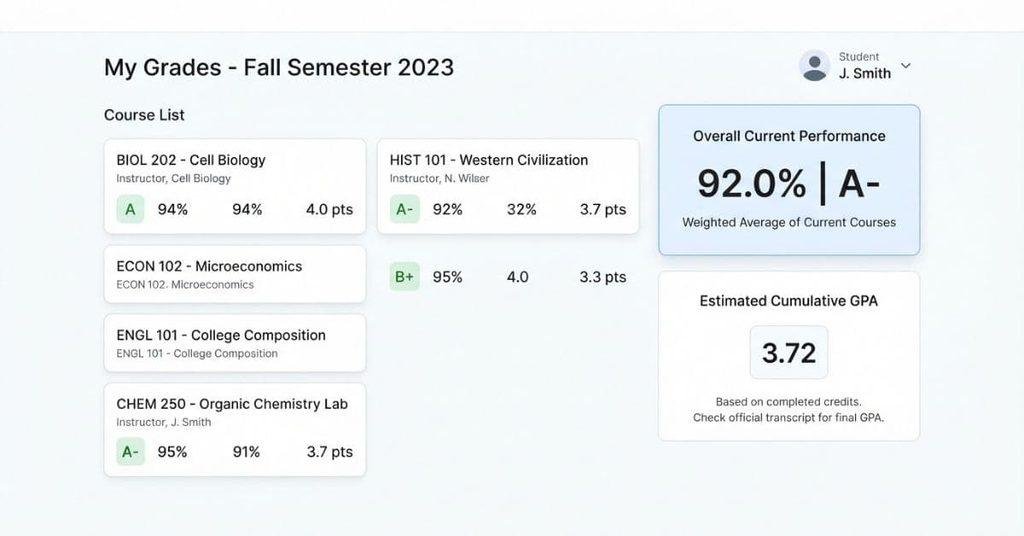
If you’re searching for how to find GPA on Blackboard, first check what type of grade Blackboard displays. You may see a course grade, Overall Grade, percentage, points, or letter grade.
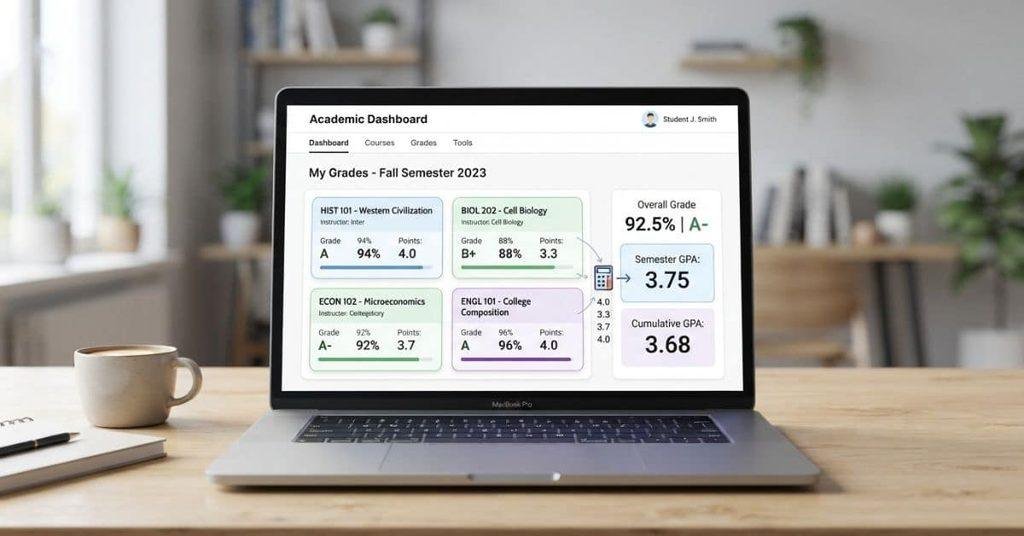
These grades help you understand your performance in a specific course. However, they don’t always represent your official GPA. Your school may calculate GPA separately using multiple courses and its own grading rules.
Blackboard may not display an official semester or cumulative GPA. In that case, check your school’s student portal, academic records, or registrar system.
Does Blackboard Show Your GPA?
Blackboard and GPA serve different purposes. A Blackboard course grade usually reflects your performance in one course. Your semester GPA combines applicable courses from a specific academic term.
Your cumulative GPA generally reflects applicable completed coursework across multiple terms. Schools can use different GPA policies, scales, and calculation rules.
For example:
- Blackboard course grade: Your performance in one course.
- Semester GPA: Your GPA for courses included in one term.
- Cumulative GPA: Your GPA across applicable completed coursework.
Therefore, don’t assume an Overall Grade equals your official GPA. Check your school’s student records for the GPA used for academic decisions.
Not sure how your Blackboard grades add up? Use the Blackboard Grade Calculator to enter your scores and estimate your overall course grade before final grades are posted.
How to See GPA on Blackboard Ultra
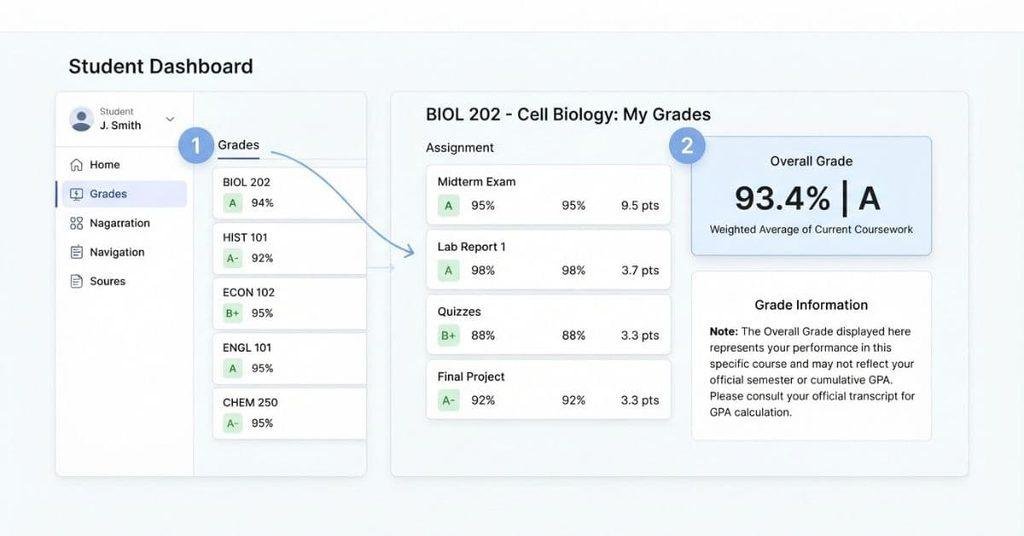
Blackboard Ultra gives students several ways to review their grades. You can check grades from the main Grades area or from an individual course.
Where Is Grades in Blackboard Ultra?
From the Blackboard homepage, open Grades from the main navigation. You can then select the course you want to review.
You can also enter a course and open its Grades or Gradebook area. The exact labels and navigation can vary based on your school’s Blackboard setup.
If you don’t see Grades in the expected location, check the course navigation or contact your school’s Blackboard support team.
How to See Your Overall Grade
If your instructor has enabled the Overall Grade, it can appear on the course grades page. Select the Overall Grade to view additional information when Blackboard provides it.
For weighted courses, Blackboard may show category percentages and how each category contributes to your overall course grade. This information can help you understand your course performance.
An Overall Grade does not automatically mean you are viewing your official GPA. Your school may calculate and report GPA through a separate academic system.
Blackboard may show individual assignment scores without making the calculation clear. Our Blackboard Grade Calculator makes it easier to estimate your overall course grade from those scores.
Why Can’t I See My GPA on Blackboard?
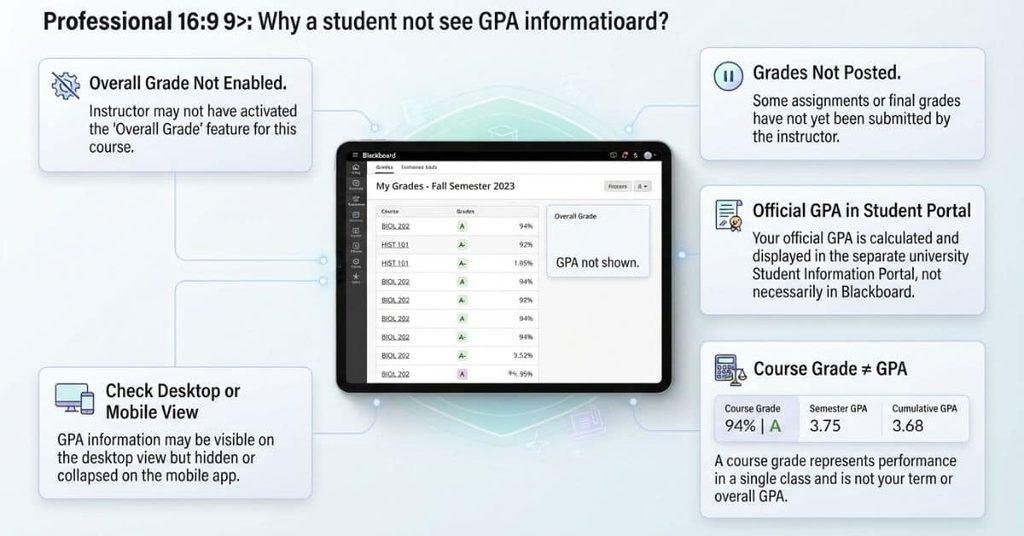
Not seeing a GPA in Blackboard doesn’t necessarily mean something is wrong. Blackboard may show course grades without displaying an official semester or cumulative GPA.
Your Instructor Hasn’t Set Up an Overall Grade
The Overall Grade isn’t necessarily available in every course. Your instructor must configure the grading settings for it to appear.
If you only see individual assignments or categories, your course may not have an Overall Grade enabled.
Your Grades Have Not Been Posted Yet
Some grades may remain hidden until your instructor posts or releases them. Check whether recent assignments show a grade.
You may need to wait until your instructor releases additional grades before your course grade becomes complete.
Your School Does Not Display GPA in Blackboard
Some schools use Blackboard mainly for course grades and assignment information. They may keep official GPA records in another student system.
Check your school’s student portal, academic records, or registrar system for your official GPA.
You’re Looking at a Course Grade Instead of Your GPA
A course grade measures your performance in one class. GPA combines grades from multiple applicable courses using your school’s calculation rules.
An Overall Grade in Blackboard can therefore differ from your semester or cumulative GPA.
You Are Using Blackboard Mobile vs. Desktop
Blackboard’s navigation can look slightly different in the mobile app and web interface. Options may also vary based on your school’s configuration.
If you can’t find Grades in the app, try signing in through your school’s Blackboard website. Then check the main navigation and your course’s grade area.
How to Check Your Current Grade on Blackboard
Many students search for their GPA when they really want to check their current course performance. Blackboard can help you review several types of grade information in one place.
Open your course and go to the Grades or Gradebook area. Depending on your course setup, you may see your Overall Grade, individual assignment grades, quiz and test scores, and weighted categories.
You can also review missing or ungraded work when Blackboard displays that information. Instructor feedback may appear with individual assignments or assessments.
Blackboard Ultra can show individual assessment grades and, when configured by the instructor, an Overall Grade. The information available depends on the grading setup for your course.
What Is the Overall Grade on Blackboard?
The Overall Grade represents your current calculated performance in a course. It uses the grading method and settings configured by your instructor.
Your Overall Grade may include assignments, quizzes, tests, projects, or grading categories. The calculation can change as new grades become available.
Overall Grade vs GPA
An Overall Grade and GPA measure different things. Understanding this difference can prevent confusion when checking your academic progress.
| Grade type | What it represents |
|---|---|
| Overall Grade | Your current performance in one course |
| GPA | A calculation based on grades from multiple applicable courses and credits |
Your school may convert letter grades or other course results into grade points. It then uses its GPA rules to calculate a semester or cumulative GPA.
Therefore, your Blackboard Overall Grade should not automatically be treated as your official GPA.
Can Blackboard Calculate a Weighted Overall Grade?
Yes, Blackboard can display weighted calculations when the instructor configures the Gradebook and Overall Grade accordingly.
For example, an instructor might assign different weights to exams, assignments, and projects. Blackboard can then use those configured weights to calculate the Overall Grade.
The exact calculation depends on your course’s grading settings. Check the Gradebook details or syllabus to understand how your instructor calculates the final course grade.
How to Calculate Your GPA If Blackboard Doesn’t Show It
If Blackboard doesn’t display your GPA, you can estimate it using your course grades and credit hours. Your school’s GPA policy determines the exact grade-point values and calculation method.
Follow these basic steps:
- Find your final or current grades for each applicable course.
- Convert each grade to GPA points using your school’s grading scale.
- Identify the credit hours for each course.
- Multiply grade points by credit hours for each course.
- Add the quality points from all applicable courses.
- Divide total quality points by total GPA credit hours.
For example, a 3.0 grade-point value in a 3-credit course gives 9 quality points. Repeat this calculation for each applicable course.
⭐ Use Our Blackboard Grade Calculator
If Blackboard shows your individual grades but doesn’t provide the GPA information you need, our Blackboard Grade Calculator can help. You can estimate your course grade and explore different grade scenarios before final grades are posted.
Place this link near the calculator section rather than only in the footer. It gives students a useful next step when Blackboard shows grades but not their GPA.
Can You See Your Cumulative GPA on Blackboard?
Whether you can see your cumulative GPA depends on how your institution uses Blackboard. Blackboard may show course-level grades or an Overall Grade without displaying your official cumulative GPA.
Your university may maintain official GPA records in its student information system instead. This system can contain your semester and cumulative academic records.
If Blackboard doesn’t show your cumulative GPA, check your university’s student portal or transcript system. Your official GPA should come from the system your school uses for academic records.
Blackboard GPA vs Official University GPA
Blackboard grades and your official university GPA serve different purposes. Knowing the difference helps you avoid treating a course grade as your GPA.
| Blackboard | University Student Portal |
|---|---|
| Course grades | Official academic record |
| Overall course grade | Semester GPA |
| Assignment and test grades | Cumulative GPA |
| Instructor-posted results | Official transcript information |
Blackboard mainly helps you track performance within your courses. Your university’s student portal usually contains official GPA and academic record information.
Your school may use different systems or grading policies. Always use your university’s official academic record when you need your reported GPA.
Want to check how your grades could affect your final result? The Blackboard Grade Calculator lets you calculate an estimated course grade using your assignment scores and grading weights.
What If My Blackboard Grade Looks Wrong?
A Blackboard grade may look incorrect for several reasons. Check the grade details before assuming Blackboard has calculated something incorrectly.
Common possibilities include:
- Missing assignment: An assignment may appear without a submitted grade.
- Incorrect score: The points shown may not match the result you expected.
- Grade not posted: Your instructor may not have released the grade yet.
- Weighted category issue: Different categories may have different weights.
- Recently updated grade: Blackboard may show a recent change after an update.
- Instructor changed a grade: Your instructor may have corrected or replaced an earlier result.
- Overall Grade not configured: Your course may not have an Overall Grade enabled.
Start by opening the assignment, quiz, or assessment details. Check the score, submission status, feedback, and available grading information.
If something still appears incorrect, contact your instructor. Blackboard allows instructors to control which grades and results students can see, so not every grading detail will always appear.
Introduction
Checking grades in Blackboard is simple once you know where to look. You can review course grades, Overall Grade details, and individual assessment results.
However, Blackboard may not display your official semester or cumulative GPA. That depends on your school’s Blackboard setup and academic record system.
Knowing how to check GPA on Blackboard can help you understand your current academic progress. If Blackboard only shows course grades, use your university’s student portal for your official GPA.
You can also use our Blackboard Grade Calculator to estimate your course grade and explore different grade scenarios.
Have questions about finding your grades or GPA? Share your experience or explore more student calculators on our website.
Frequently Asked Questions
Open Blackboard and select Grades from the main navigation. Choose your course and look for an Overall Grade or current course grade. Blackboard may not display your official GPA, so check your university’s student portal for semester or cumulative GPA information.
Go to Grades and select the course you want to review. Blackboard may show an Overall Grade, percentage, points, or letter grade. These results represent course performance and may not equal your official GPA.
Check the Grades area in Blackboard Ultra or open the Gradebook inside your course. If your instructor enabled an Overall Grade, you may see it there. Your official GPA may appear only in your university’s student information system.
Blackboard can show course grades and an Overall Grade when the course settings allow it. However, Blackboard does not necessarily display your official semester or cumulative GPA. Your institution determines where official GPA information appears.
There may not be a specific GPA section in Blackboard. Start with Grades and check your course’s Gradebook or Overall Grade. For an official GPA, check your university’s student portal or transcript system.
Log in to Blackboard and open Grades from the main navigation. Select your course to view available assignment, quiz, test, and course grades. You may also see instructor feedback and an Overall Grade.
Open your course and go to its Grades or Gradebook area. If your instructor configured the Overall Grade, Blackboard may display it there. Selecting the grade may reveal additional calculation details.
Your course may not have an Overall Grade configured, or some grades may not have been posted. Your school may also keep official GPA information outside Blackboard. Check your student portal for official GPA records.
Blackboard does not necessarily calculate or display a cumulative GPA. Cumulative GPA usually depends on multiple courses, credit hours, and your institution’s GPA rules. Your university’s academic system is the appropriate source for official GPA information.
Yes, you can estimate your GPA if you have the required course grades, grade-point values, and credit hours. Apply your school’s GPA calculation rules to those grades. Remember that an estimate may differ from your official GPA.
Check your university’s student portal, academic records system, or official transcript. These systems typically provide the GPA used for academic records. If you’re unsure, contact your school’s registrar or academic advising office.

We are the Canvas Academic Team, a developer team focused on building simple and practical tools that help students succeed academically. This platform was created specifically for Canvas LMS students to make grade tracking, GPA calculations, exam planning, and academic management easier and more efficient.
Our focus is on creating fast, accurate, and student-friendly educational tools along with helpful learning resources that improve productivity and reduce academic stress.
Through CanvasGradeCalculator.com, our goal is to continue building useful resources that help students study smarter, stay organized, and achieve better academic results.