

Table of Contents
Introduction
Have you ever started a Canvas quiz and wondered, “Can my professor see my screen right now?”
If you are a student in the USA, this question can cause real stress before an online quiz. Many students confuse Canvas with the separate tools schools may use for online exam monitoring. Knowing the difference can help you understand what actually happens during a quiz.
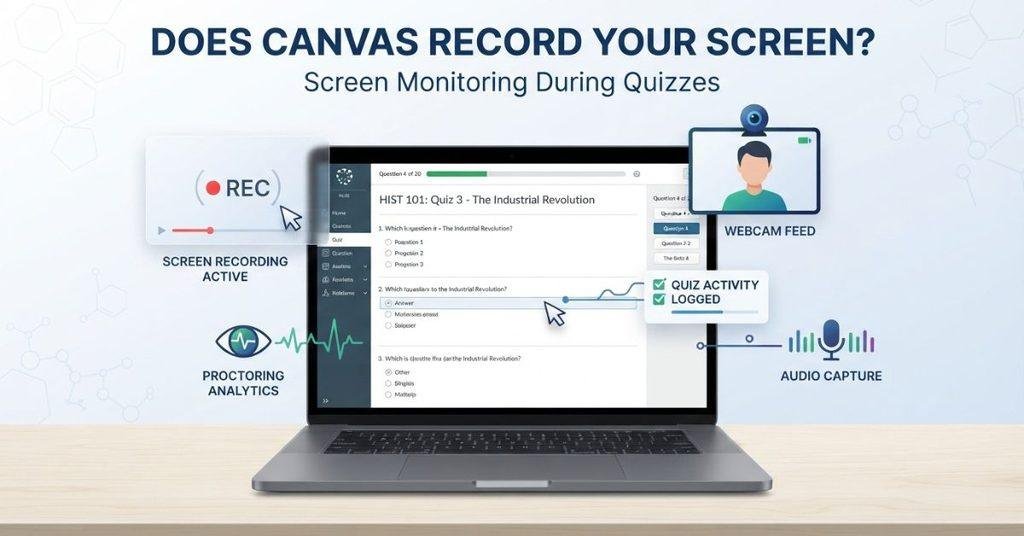
So, does Canvas record your screen when you take an online quiz? The short answer is no, not simply because you are using Canvas. However, your course may use third-party proctoring or monitoring software with additional recording features.
In this guide, we’ll explain how Canvas handles quiz activity and what it can actually track. You’ll also learn when screen, webcam, or audio recording may be involved. We’ll cover common monitoring features and explain what to check before starting an online exam.
By the end, you’ll have a clearer understanding of Canvas monitoring and what your instructor may be able to see.
Screen monitoring is often discussed alongside browser restrictions, so you may also want to read whether Canvas has a lockdown browser for quizzes and exams.
Does Canvas Record Your Screen?
Does Canvas record your screen just because you open the website or take a quiz? No. Standard Canvas does not automatically start recording your screen when you log in or access course content.
Canvas is primarily a learning management system (LMS). It can handle courses, assignments, quizzes, grades, submissions, and certain activity records. These features are different from continuous screen recording.
Simply opening Canvas does not mean your screen is being captured. Screen recording usually requires separate software or a browser-based monitoring tool with specific permissions.
This distinction matters during online quizzes. An instructor or school may connect Canvas with a third-party proctoring service. That service may add features such as screen recording, webcam monitoring, or other exam controls.
Why Quiz Configuration Matters
The monitoring experience depends on how your instructor or school sets up the quiz. A standard Canvas quiz can work differently from an exam that requires proctoring software.
Before starting a monitored quiz, check the instructions for required apps, browser extensions, webcam access, or screen-sharing permissions. These details can tell you what monitoring features the exam requires.
Pro Tip: Check the quiz instructions before starting an exam. If monitoring software is required, review its permissions and recording features first.
Does Canvas Record You?
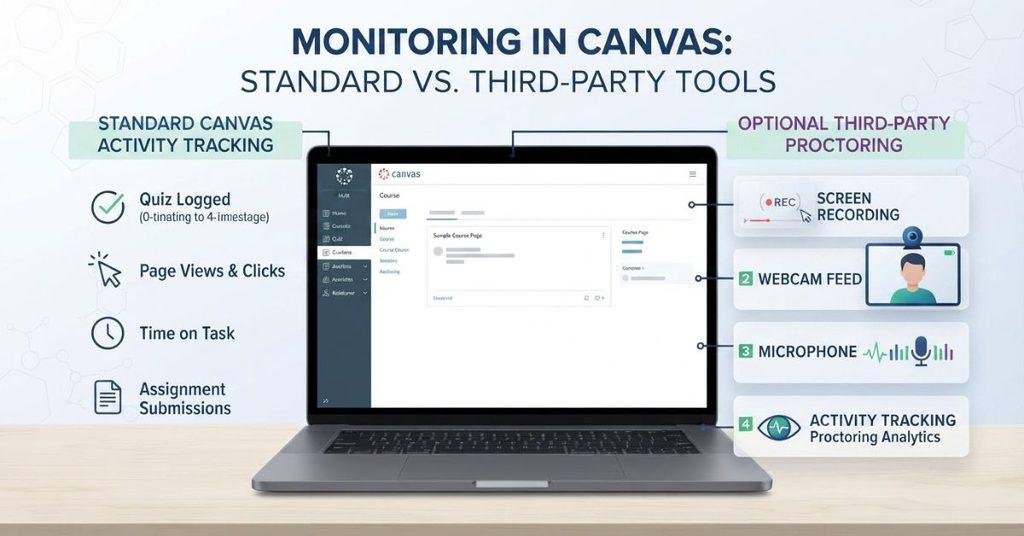
When students ask, “does Canvas record you?”, they may mean several different types of monitoring. Screen recording, webcam recording, audio recording, and activity tracking are separate functions.
Standard Canvas does not automatically turn on your webcam, microphone, or screen recording. Simply logging into Canvas or opening a course does not mean it continuously records you.
However, Canvas can record certain activity and quiz events. For example, the system may store information related to quiz attempts, submissions, or interactions. This type of activity tracking is different from recording your screen or surroundings.
Third-party proctoring tools can add more monitoring features. Depending on the software and exam settings, these may include screen capture, webcam access, microphone access, or browser restrictions.
The key point is that activity monitoring does not automatically mean video or screen recording. Always check the specific quiz requirements before assuming what Canvas can see.
If you are concerned about other quiz activity, see our guide on whether Canvas can see if you switch tabs while taking a quiz.
Does Canvas Record Your Screen During a Quiz?
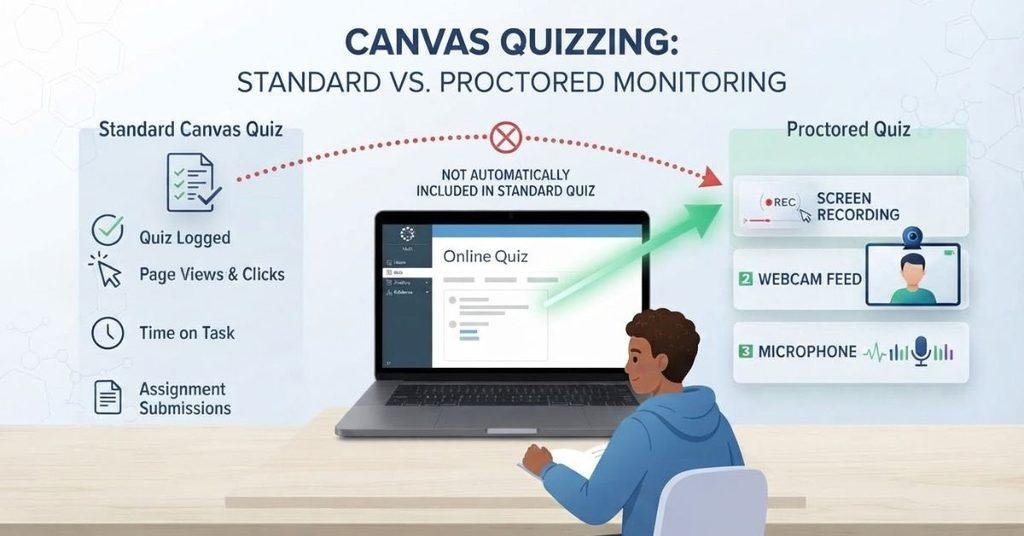
Does Canvas record your screen during quiz attempts? A normal Canvas quiz does not automatically record your screen.
However, an instructor or school may require additional proctoring software. These tools can work alongside Canvas and may provide screen, webcam, or audio monitoring.
Your quiz instructions should explain any required monitoring software or special permissions. You may also need to install an application, browser extension, or use a specific browser.
Before starting the quiz, check for requirements involving screen sharing, webcam access, microphone access, or exam monitoring. These requirements can vary between courses and institutions.
If no monitoring tool is required, taking a regular Canvas quiz does not by itself mean your screen is being recorded.
If you are preparing for a monitored quiz, the Canvas Grade Calculator can help you estimate how your expected score may affect your course grade.
Can Canvas Record Your Screen Without You Knowing?
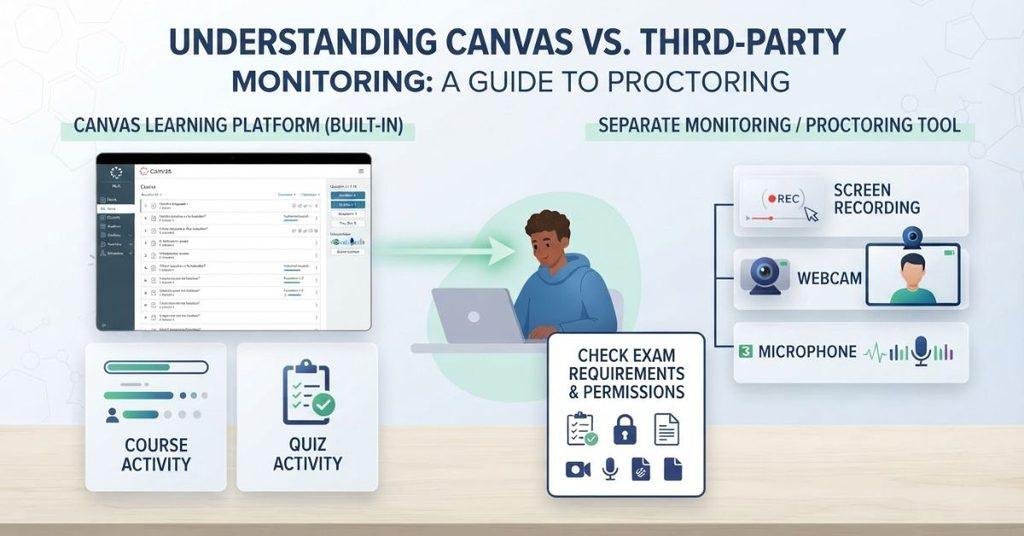
It’s easy to assume Canvas can secretly record your screen during an online exam. However, Canvas itself and third-party monitoring tools work differently.
Standard Canvas does not automatically begin screen recording when you open a course or quiz. Screen recording usually involves a separate proctoring or monitoring tool connected to the course.
If your exam requires monitoring software, check the quiz instructions before starting. Look for requirements involving screen sharing, webcam access, microphone access, browser extensions, or special applications.
You should also review the monitoring software’s stated permissions. This can help you understand what the software may access during the exam.
Does Canvas Monitor Your Activity During a Quiz?
Yes, Canvas can record certain quiz, submission, and activity events. However, activity tracking is not the same as continuously recording your screen.
For example, Canvas may store information related to quiz attempts and interactions. This helps the platform manage submissions and provide instructors with course activity information.
These records are different from screen recording, which captures what appears on your display. They’re also different from browser or tab restrictions that may limit what you can do during an exam.
Proctoring software adds another layer of monitoring. Depending on its configuration, it may monitor your screen, webcam, microphone, or other exam-related activity.
This distinction also matters when students wonder Can Canvas See If You Switch Tabs? An activity recHow Does Canvas Detect Cheating?
Many students search how does Canvas detect cheating because they worry about being flagged during online quizzes. The important point is that Canvas does not use one universal “cheating detector.”
Instead, instructors may use different sources of information to review student activity. Depending on the course setup, these may include:
- Quiz activity and attempt logs
- Submission details and timestamps
- Course activity records
- External plagiarism detection tools
- AI-detection tools, where enabled
- Lockdown browsers
- Third-party proctoring software
These tools can provide different types of information. For example, a plagiarism checker focuses on submitted content. A proctoring tool may monitor an exam environment.
Canvas activity records can provide useful context about a quiz attempt. However, an activity record is not automatically proof of cheating. An instructor may need to review the broader situation before making any judgment.
Expert Tip: Don’t treat one unusual activity record as an automatic cheating flag. Course settings and instructor review matter.ord does not automatically mean Canvas is watching your entire screen.
Does Canvas Show Cheating?
So, does Canvas show cheating through a simple warning or universal cheating score? Not generally. Canvas can show instructors certain information about student activity and assessments, but it does not simply label every suspicious action as cheating.
What an instructor can see depends on how the course and assessment are configured. Available information may also vary based on the Canvas features and external tools being used.
Factors can include:
- Quiz configuration and settings
- Canvas features enabled for the course
- External plagiarism or proctoring integrations
- Course-specific settings
- Lockdown or monitoring software
For example, an instructor may see quiz activity information without seeing a recording of your screen. A connected proctoring tool could provide additional information that standard Canvas does not provide.
Knowing your current percentage can make quiz planning easier, and the Canvas Grade Calculator lets you test different possible results.
Does Canvas Record Webcam and Microphone?
Students may also wonder whether Canvas can record their webcam or microphone during an online exam. Standard Canvas usage does not automatically mean your camera or microphone is recording.
Webcam and microphone monitoring are generally associated with proctoring or specialized exam software. These tools may integrate with Canvas and add monitoring features that standard Canvas does not provide.
If your quiz requires webcam or microphone access, the exam instructions should explain those requirements. The specific monitoring features depend on the software and settings used by your school or instructor.
Before starting an exam, check whether you need to grant camera or microphone permissions. You should also review the software’s stated permissions so you understand what it may access.
This is different from a lockdown browser, which mainly focuses on restricting certain browser or device actions. Learn more in our guide: Does Canvas Have a Lockdown Browser?
Does a Lockdown Browser Automatically Record Your Screen?
Not necessarily. A lockdown browser primarily restricts certain browser and device behaviors during an online exam.
For example, a lockdown browser may prevent students from opening other websites, applications, or browser tabs. These restrictions help create a controlled testing environment.
However, restricting browser activity is different from screen recording. A lockdown browser may not automatically record everything displayed on your screen.
Some products can work with an additional proctoring component. That component may provide features such as screen recording, webcam monitoring, or microphone monitoring.
Therefore, don’t assume that using a lockdown browser automatically means your screen is being recorded. Check the specific product and exam instructions to understand which features are enabled.
For more details, see Does Canvas Have a Lockdown Browser?
How Can Students Tell If a Quiz Uses Screen Recording?
If you’re unsure whether a Canvas quiz records your screen, check the exam instructions first. Look for specific language about monitoring, recording, or proctoring.
Use this quick checklist before starting your quiz:
- “Proctored exam” wording — This may indicate additional monitoring.
- Webcam requirement — Check whether camera access is required.
- Screen recording notice — Look for an explicit screen-capture requirement.
- Required software — Check whether you must install an exam or monitoring application.
- Lockdown browser instructions — See whether a specific browser is required.
- Permission requests — Watch for requests involving your screen, camera, or microphone.
- System-check instructions — Complete any required equipment or software check.
- Course or instructor instructions — Review all exam-specific guidance before starting.
The exact requirements can vary between courses and schools. A normal Canvas quiz doesn’t automatically tell you that your screen is being recorded.
What Should You Do If Canvas Says Your Exam Is Being Recorded?
Don’t panic if your exam instructions say that your screen or other activity will be recorded. First, carefully read the complete exam instructions.
Check which software the exam requires and review its stated recording or monitoring requirements. Look for details about screen capture, webcam access, microphone access, or other permissions.
If the course provides a system check, complete it before the exam. This can help identify technical problems before your testing session begins.
If the recording requirement isn’t clear, contact your instructor before starting the exam. Ask which software is being used and what information it records.
Avoid trying to bypass or disable required monitoring. Doing so could violate your course or exam rules. Instead, clarify the requirements and follow the approved testing process.
Canvas Screen Recording vs. Activity Tracking
Canvas activity tracking and screen recording are not the same thing. Understanding this difference can help students avoid common misunderstandings about online quizzes.
| Feature | Standard Canvas | Monitoring/Proctoring Tool |
|---|---|---|
| Course activity | May record relevant activity | May also record activity |
| Quiz events | May record | May record |
| Screen recording | Not automatically | May be available |
| Webcam | Not automatically | May be required |
| Microphone | Not automatically | May be required |
| Browser restrictions | Not automatically | May be provided |
| Proctoring | Not standard | May be included |
Standard Canvas can handle course and quiz activity without continuously recording your screen. External monitoring tools can add features that standard Canvas doesn’t provide.
The exact features depend on the software, quiz configuration, and requirements set by your institution. Always check the exam instructions before assuming a particular monitoring feature is active.
Expert Tip: Treat activity logs, screen recording, and proctoring as separate functions. One does not automatically mean the others are active.
Does Screen Recording Mean Canvas Is Watching Your Entire Computer?
Not necessarily. Screen recording, Canvas activity tracking, browser restrictions, and full-device monitoring are different types of technology.
Canvas may collect information related to your course or quiz activity. That doesn’t automatically mean it captures everything happening on your computer.
Screen recording is different because it can capture content displayed on your screen. Browser restrictions work differently by limiting certain actions, websites, tabs, or applications.
Full-device monitoring can involve broader controls or monitoring capabilities. Whether these features exist depends on the specific software being used.
Therefore, don’t assume that one monitoring feature automatically includes every other feature. Check the software requirements and exam instructions to understand what your specific quiz requires.
Conclusion
Canvas can track certain quiz and course activity, but standard Canvas does not automatically record your screen. Screen recording, webcam monitoring, and other proctoring features usually depend on additional software and exam settings.
So, does Canvas record your screen? Not simply because you use Canvas or take a regular quiz. If your exam uses a proctoring tool, check its requirements and permissions before starting.
Understanding the difference between activity tracking, screen recording, and browser restrictions can remove much of the confusion around online exams. When you’re unsure, review the exam instructions or ask your instructor for clarification.
Have you taken a Canvas quiz with screen recording or proctoring? Share your experience in the comments. For more helpful Canvas guides, explore our related resources.
Does Canvas record your screen?
No, standard Canvas does not automatically record your screen. Simply logging into Canvas or taking a regular Canvas quiz does not start screen recording. Screen recording may occur when an instructor or school uses a separate proctoring or monitoring tool with Canvas.
Does Canvas record you?
Standard Canvas does not automatically record your webcam, microphone, or screen. However, Canvas can record certain course, quiz, and submission activity. Separate proctoring software may add webcam, microphone, screen recording, or other monitoring features.
Does Canvas record your screen during a quiz?
A standard Canvas quiz does not automatically record your screen. However, some quizzes use third-party proctoring software that may include screen recording. Check your quiz instructions for required software, permissions, or proctoring requirements before starting.
Can Canvas record your screen without you knowing?
Standard Canvas does not secretly start screen recording simply because you open a quiz. If a course uses third-party monitoring software, review its stated permissions and the exam instructions. These should explain what monitoring features the exam requires.
Does Canvas monitor your activity during a quiz?
Canvas can record certain quiz and submission activity. This may include information related to a quiz attempt or other course interactions. Activity tracking is different from screen recording and does not automatically mean Canvas is continuously watching your screen.
How does Canvas detect cheating?
Canvas does not have one universal cheating detector. Instructors may use quiz activity, submission information, plagiarism tools, lockdown browsers, proctoring software, or other approved tools. An activity record alone is not automatically proof that a student cheated.
Does Canvas show cheating?
Canvas does not simply display a universal “cheating detected” result for every student. Instructors may see certain quiz or activity information based on the course setup. External tools can provide additional information depending on their features and configuration.
Does Canvas record your webcam?
Standard Canvas does not automatically record your webcam. Webcam recording is generally associated with third-party proctoring or specialized exam software. If webcam access is required, the exam instructions should explain the requirement.
Does Canvas record your microphone?
Standard Canvas does not automatically record your microphone during normal course use or regular quizzes. A third-party proctoring tool may request microphone access for a monitored exam. Check the software permissions and exam instructions before granting access.
Does a lockdown browser record your screen?
Not necessarily. A lockdown browser primarily restricts certain browser or device behaviors during an exam. Screen recording or webcam monitoring may require an additional proctoring component, depending on the specific product and configuration.
How can you tell if a Canvas quiz is being recorded?
Check the quiz instructions for terms such as “proctored exam,” “screen recording,” or “webcam required.” Also look for required software, lockdown browser instructions, permission requests, and system-check requirements. When unclear, ask your instructor before starting.
Can Canvas see if you switch tabs?
Canvas may record certain quiz or activity events, but this does not automatically mean it continuously watches your screen. Tab-switching information can depend on the quiz setup and tools being used.
Does Canvas use a lockdown browser?
Canvas itself is a learning management system and does not automatically turn every quiz into a lockdown exam. An instructor or institution may require a separate lockdown browser or exam tool. The specific requirements depend on the course and assessment setup.
Can Canvas see what you do on other websites?
Standard Canvas does not automatically monitor everything you do across other websites. A third-party exam or proctoring tool may impose browser restrictions or provide additional monitoring. What it can access depends on the specific software and permissions required.
What should you do if a Canvas exam says it is being recorded?
Read the complete exam instructions and identify the software being used. Review its stated recording and monitoring requirements, then complete any required system check. If the instructions remain unclear, contact your instructor before beginning the exam rather than trying to bypass the monitoring.

We are the Canvas Academic Team, a developer team focused on building simple and practical tools that help students succeed academically. This platform was created specifically for Canvas LMS students to make grade tracking, GPA calculations, exam planning, and academic management easier and more efficient.
Our focus is on creating fast, accurate, and student-friendly educational tools along with helpful learning resources that improve productivity and reduce academic stress.
Through CanvasGradeCalculator.com, our goal is to continue building useful resources that help students study smarter, stay organized, and achieve better academic results.

