

Table of Contents
Introduction
Have you ever opened a Canvas quiz and wondered, “Do I need a special browser to take this exam?”
If you’re asking does Canvas have a lockdown browser, you’re not alone. Many students in the USA see terms like LockDown Browser, webcam monitoring, or proctoring before a quiz. These requirements can feel confusing, especially when you are taking your first online exam.
Canvas is the learning platform, but some courses use additional tools for secure testing. Your instructor or school may require one of these tools for specific quizzes or exams. Other Canvas quizzes may work normally without any special software.
In this guide, you’ll learn exactly how Canvas works with lockdown browsers. We’ll explain when a lockdown browser may be required and whether it uses your webcam. You’ll also learn what to check before starting a Canvas quiz, so you can avoid unexpected problems.
Does Canvas Have a Lockdown Browser?
If you’re wondering does Canvas have a lockdown browser, the key is understanding that Canvas and a lockdown browser serve different purposes. Canvas is a learning management system (LMS) that schools use for courses, assignments, quizzes, grades, and other learning activities. A lockdown browser is separate software designed to restrict what students can do during certain online exams.
Canvas itself does not mean every quiz uses a lockdown browser. An instructor or school may connect a separate testing or proctoring tool to a Canvas course. The specific tool depends on the school, instructor, and exam requirements.
If your quiz requires additional security measures, you may also want to read how to take a locked Canvas quiz and check common access issues.
What Does Canvas Do?
Canvas provides the main online classroom where students access their course materials and complete assignments. Depending on the course, students may use Canvas to:
- View lectures, readings, and course materials
- Submit assignments
- Take quizzes and exams
- Check grades and feedback
- Communicate with instructors and classmates
Canvas manages the course experience, but instructors decide how individual quizzes are configured.
What Does a Lockdown Browser Do?
A lockdown browser adds restrictions during an online exam. It can limit access to other websites, applications, or browser features while the exam is running.
An instructor may require one to reduce opportunities for students to access outside resources. Some testing setups may also include separate proctoring features.
Why Do Requirements Differ Between Courses?
Canvas courses can have different quiz settings and connected tools. One instructor might allow students to take a quiz directly in Canvas. Another might require a lockdown browser or additional proctoring software.
Your school may also have its own testing policies. That means you shouldn’t assume every Canvas quiz requires the same setup.
Pro Tip: Check the quiz instructions before starting. Look for requirements about special browsers, webcam access, microphone permissions, or identity verification.
Does Canvas Have Lockdown Browser?
If you search does canvas have lockdown browser, you may see different answers because schools configure Canvas courses differently. Students can encounter a lockdown-browser requirement while taking a Canvas quiz or exam. However, the required software may come from a separate product that integrates with Canvas.
The important distinction is where the requirement comes from. Canvas provides the course and quiz environment, while the connected lockdown tool applies additional exam restrictions. Your instructor or school usually determines whether that tool is required.
This means one Canvas course may require special exam software, while another course may not. Even within the same school, different instructors can use different testing methods.
Always check the specific quiz instructions before starting an exam. They should tell you whether you need to install or open additional software.
Students often ask what Canvas can monitor during online assessments, so see our guide on whether Canvas can see if you switch tabs during a quiz.
What Is a Lockdown Browser?
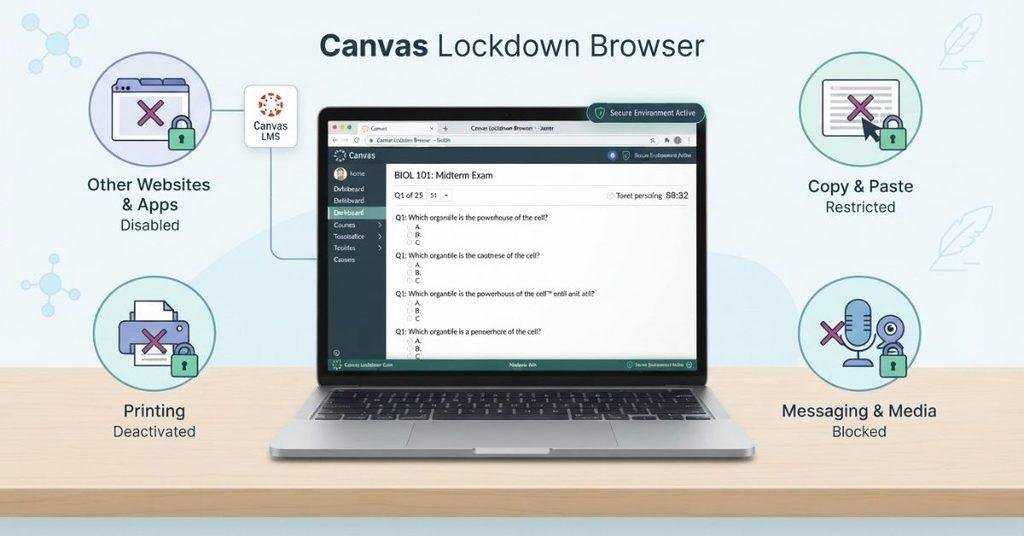
A lockdown browser is software designed to limit certain browser or device activities during an online exam. It helps instructors create a more controlled testing environment.
Depending on the product, a lockdown browser may restrict students from:
- Opening other websites
- Switching to other applications
- Using certain browser features
- Copying or pasting content
- Printing pages
- Accessing unauthorized resources
These restrictions can make it harder to leave the exam environment or use outside materials. However, exact restrictions vary by lockdown-browser product and configuration.
Some exam systems may also work with separate webcam or proctoring tools. A lockdown browser alone does not automatically mean your webcam is being used.
If your instructor requires one, follow the school’s setup instructions carefully. Test the software before exam day when possible, especially if you need additional permissions or installation.
How Does a Lockdown Browser Work With Canvas?
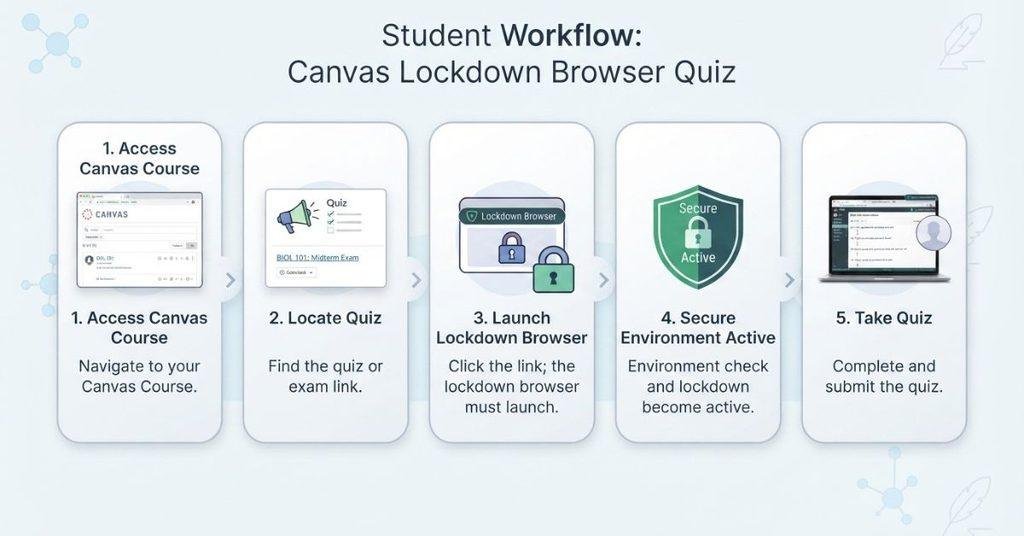
A lockdown browser usually works alongside Canvas rather than replacing it. The instructor configures the quiz with the required testing tool and provides setup instructions.
The typical student workflow looks like this:
Canvas Course → Quiz or Exam → Lockdown Browser Requirement → Install or Open Required Tool → Authenticate → Take Quiz
Here’s what students can generally expect:
- The instructor enables the requirement. The instructor selects the appropriate testing settings for the quiz.
- Canvas displays the instructions. Students may see information about required software before starting the quiz.
- The student installs or opens the required tool. Some setups require software installation before the exam.
- The quiz launches through the configured environment. The testing tool connects with the quiz according to the course setup.
- The student completes the quiz. The specified restrictions remain active during the exam.
The exact process can vary by school, instructor, and lockdown-browser product. Always follow the instructions provided for your specific course.
How Do You Know If a Canvas Quiz Requires a Lockdown Browser?
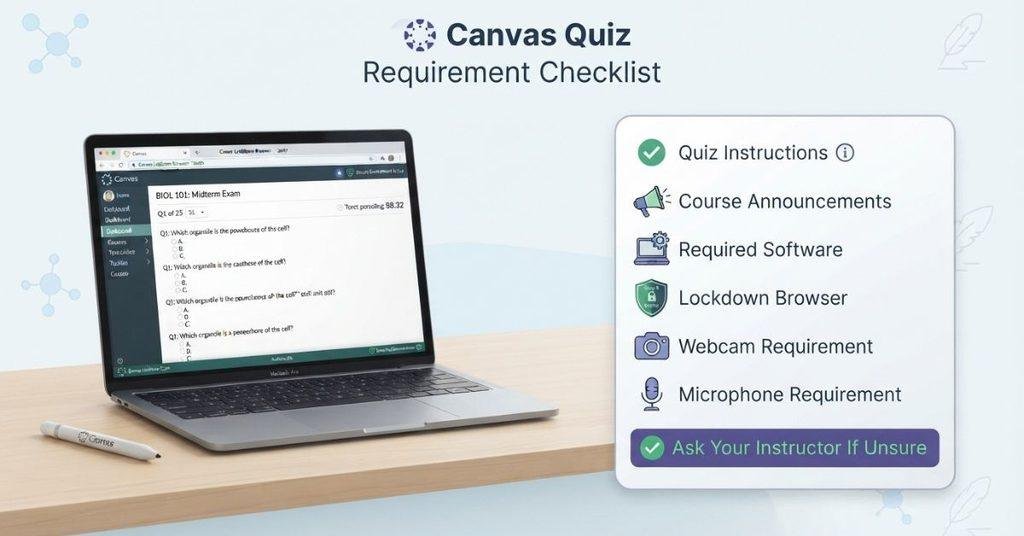
You can usually find the requirement in the quiz or course instructions. Instructors may provide setup information before students attempt an exam.
Check these areas for important requirements:
- Quiz instructions
- Course announcements
- Assignment or quiz details
- “Lockdown Browser” instructions
- Download or installation instructions
- Required software notices
- Webcam or microphone requirements
Some instructors may provide a separate link or detailed setup steps. Read these instructions before launching the quiz.
If you don’t see clear information, ask your instructor before installing anything. Don’t download random lockdown-browser software from an unfamiliar website.
Your instructor or school should identify the required product and provide appropriate installation instructions. This can also prevent compatibility problems before an important exam.
Does Canvas Lockdown Browser Use a Webcam?
If you’re searching does canvas lockdown browser use webcam, the answer is not necessarily. A lockdown browser does not automatically require access to your webcam.
A lockdown browser mainly restricts browser or device activity during an exam. It can limit actions such as opening other websites or switching to unauthorized applications.
Proctoring software serves a different purpose. Depending on the setup, it may add features such as:
- Webcam monitoring
- Microphone access
- Identity verification
- Video recording
- Additional exam monitoring
Some testing systems combine lockdown features with proctoring features. Others use them separately.
The exact requirements depend on the software your school uses and how your instructor configured the exam. Check the quiz instructions for specific webcam or microphone requirements before starting.
Does a Canvas Quiz Always Require a Webcam?
No, a Canvas quiz does not always require a webcam.
Canvas supports many types of quizzes, and instructors can use different testing configurations. A standard Canvas quiz may not require any webcam access.
A webcam requirement usually comes from an additional proctoring or monitoring setup. Your instructor or institution may configure that system for certain exams.
Before starting a quiz, check for instructions mentioning:
- Webcam access
- Microphone access
- Identity verification
- Proctoring software
- Video monitoring
- Required browser or testing applications
If the instructions don’t clearly mention a webcam, don’t assume one is required. Contact your instructor if you’re unsure about the exam requirements.
Does Lockdown Browser Record Your Screen?
A lockdown browser’s restrictions and screen recording are not necessarily the same feature. A lockdown browser may restrict certain activities without recording everything displayed on your screen.
However, some proctoring solutions can include screen recording or other monitoring features. These capabilities depend on the specific software and the settings selected for your exam.
That’s why you shouldn’t assume that every lockdown browser records your screen. Check the software’s instructions and your course requirements to understand what monitoring applies.
Can a Lockdown Browser Detect Other Tabs?
A lockdown browser may restrict or prevent access to other websites or browser tabs during an exam. The exact behavior depends on the specific product and its configuration.
This is different from standard Canvas functionality. Canvas and a lockdown browser serve different roles during online testing.
For more details, see Can Canvas See If You Switch Tabs?.
Can You Take a Canvas Quiz Without Lockdown Browser?
It depends on how your instructor configured the quiz. If a lockdown browser isn’t required, you can usually access the quiz through the normal Canvas environment.
If the instructor requires specific exam software, you may not be able to access the quiz normally without it. The quiz may require the configured software before you can begin.
Don’t assume every Canvas quiz has the same requirements. Check the quiz instructions first, and contact your instructor if the requirements aren’t clear.
What Happens If Lockdown Browser Isn’t Working?
Technical problems can happen before or during an online exam. Start with basic troubleshooting before contacting support.
Try these steps:
- Confirm you’re using the correct software.
- Check the quiz instructions for setup requirements.
- Update the required application if an update is available.
- Restart your computer or other device.
- Check your internet connection.
- Close unauthorized applications if the instructions require it.
- Try launching the quiz again.
If the problem continues, contact your instructor or school IT support. For an upcoming exam, contact them promptly if the deadline is approaching.
Avoid repeatedly changing settings or installing unrelated software. Follow the official instructions provided by your school or instructor.
Why Does Canvas Say I Need Lockdown Browser?
If Canvas says you need a lockdown browser, the instructor or course has likely configured that quiz to require a specific exam environment.
The requirement usually comes from the quiz settings or an integrated testing tool. Canvas displays the requirement so students know what they need before starting the assessment.
Before attempting the quiz, check:
- Quiz instructions
- Required software or browser
- Course announcements
- Institution testing instructions
If you’re unsure which software to use, ask your instructor or school IT department. Don’t install a random lockdown browser based only on the name.
Lockdown Browser vs. Proctoring Software
Lockdown browsers and proctoring software can overlap, but they aren’t exactly the same. The features available depend on the specific product and course configuration.
| Feature | Lockdown Browser | Proctoring Software |
|---|---|---|
| Restrict websites | Often | Depends |
| Restrict browser actions | Often | Depends |
| Webcam | Not necessarily | May be required |
| Microphone | Not necessarily | May be required |
| Screen recording | Depends | May be included |
| Identity verification | Usually not the main purpose | May be included |
| Works with Canvas | Can integrate | Can integrate |
A lockdown browser mainly focuses on controlling the exam environment. Proctoring software focuses more broadly on monitoring or verifying the student.
Some solutions combine both functions. Others provide only certain features. Always check the requirements for your specific exam rather than assuming every product works the same way.
If your exam has a large weight in the course, the Canvas Grade Calculator can show how different exam scores could affect your final grade.
What Should Students Check Before a Locked Canvas Quiz?
A few minutes of preparation can help prevent problems when starting a locked Canvas quiz. Review the course and quiz instructions before exam day.
Use this checklist:
- Required browser or software: Confirm which application you need.
- Webcam requirement: Check whether webcam access is required.
- Microphone requirement: Confirm whether microphone access is needed.
- System requirements: Check whether your device meets the software requirements.
- Internet connection: Make sure your connection is stable.
- Quiz start and end time: Confirm the exact availability window.
- Allowed resources: Check which materials you can use during the quiz.
- Instructor instructions: Follow any additional exam-specific directions.
- Practice environment: Check whether your school provides a practice or system test.
If anything remains unclear, contact your instructor before the quiz begins. This is especially important when the exam has a strict deadline.
Conclusion
Canvas and lockdown browsers work together, but they serve different purposes. Not every Canvas quiz requires special exam software or a webcam.
If you’re still asking does Canvas have a lockdown browser, remember that requirements depend on your instructor, school, and quiz settings. A lockdown browser may restrict websites and browser actions, while proctoring software can add webcam, microphone, or monitoring features.
Before starting an exam, check the quiz instructions and confirm all software requirements. Test your device and contact your instructor if anything seems unclear.
Have you used a lockdown browser for a Canvas quiz? Share your experience or questions in the comments. For more helpful Canvas guides, explore the other student resources on our website.
Frequently Asked Questions
Canvas itself is a learning management system, not a lockdown browser. However, instructors and schools can connect Canvas with separate lockdown-browser tools for certain quizzes and exams. If your Canvas quiz requires one, the instructions should identify the required software and explain how to use it. Not every Canvas course uses a lockdown browser. Requirements can vary between instructors, courses, and institutions. Always check your specific quiz instructions before installing or launching any exam software.
Canvas can work with lockdown-browser software, but a lockdown browser isn’t automatically part of every Canvas course. A school or instructor may configure a separate exam tool to work with Canvas. This can restrict certain browser or device activities during a quiz. Other courses may allow students to complete quizzes directly in Canvas without additional software. If you’re unsure about your course, check the quiz details or ask your instructor which testing setup applies.
A lockdown browser does not automatically require a webcam. Its main purpose is usually to restrict certain browser or device activities during an exam. Webcam monitoring typically comes from additional proctoring software or features configured with the exam. Depending on the setup, proctoring may also require microphone access, identity verification, or video recording. Check your quiz instructions carefully to see whether your specific exam requires webcam access or other monitoring features.
No, every Canvas quiz does not require a lockdown browser. Instructors decide how individual quizzes and exams are configured. Some quizzes can be completed directly through the normal Canvas interface. Others may require a lockdown browser or additional proctoring software. Requirements can also differ between courses at the same school. Before starting a quiz, review the instructions for required software, browser restrictions, webcam access, and other exam requirements.
Not necessarily. A lockdown browser primarily controls certain browser or device activities during an exam. Screen recording may be available as a separate feature, depending on the software and exam configuration. Some proctoring solutions can include screen recording alongside other monitoring features. Therefore, you shouldn’t assume that every lockdown browser records your screen. Check your school’s instructions and the specific software requirements to understand what monitoring applies to your exam.
A lockdown browser may restrict or prevent access to other websites and browser tabs during an exam. The exact behavior depends on the particular product and its configuration. This is different from standard Canvas functionality, which does not make every quiz a lockdown environment. If your exam uses a lockdown browser, follow the restrictions explained by your instructor. For more details about Canvas tab activity, see Can Canvas See If You Switch Tabs?
It depends on the quiz requirements set by your instructor or institution. If the quiz doesn’t require lockdown software, you can generally access it through the normal Canvas environment. If lockdown browser software is required, the quiz may prevent normal access until you use the configured exam environment. Don’t try to bypass a required exam restriction. Instead, review the quiz instructions or contact your instructor if you believe the requirement is incorrect.
Your Canvas quiz likely requires a lockdown browser because the instructor or institution configured it as part of the exam setup. The software can help create a more controlled testing environment by restricting certain browser or device activities. Check the quiz instructions for the required application and setup steps. You can also review course announcements or institution testing policies. If the requirement seems unexpected, contact your instructor before attempting the quiz.
First, confirm that you’re using the correct software and following the quiz instructions. Check whether the application needs an update, then restart your device and verify your internet connection. Close any applications that the exam instructions identify as unauthorized. Try launching the quiz again after completing these checks. If the problem continues, contact your instructor or school IT support promptly. If an exam deadline is approaching, report the technical problem as soon as possible.

We are the Canvas Academic Team, a developer team focused on building simple and practical tools that help students succeed academically. This platform was created specifically for Canvas LMS students to make grade tracking, GPA calculations, exam planning, and academic management easier and more efficient.
Our focus is on creating fast, accurate, and student-friendly educational tools along with helpful learning resources that improve productivity and reduce academic stress.
Through CanvasGradeCalculator.com, our goal is to continue building useful resources that help students study smarter, stay organized, and achieve better academic results.

