

Table of Contents
Introduction
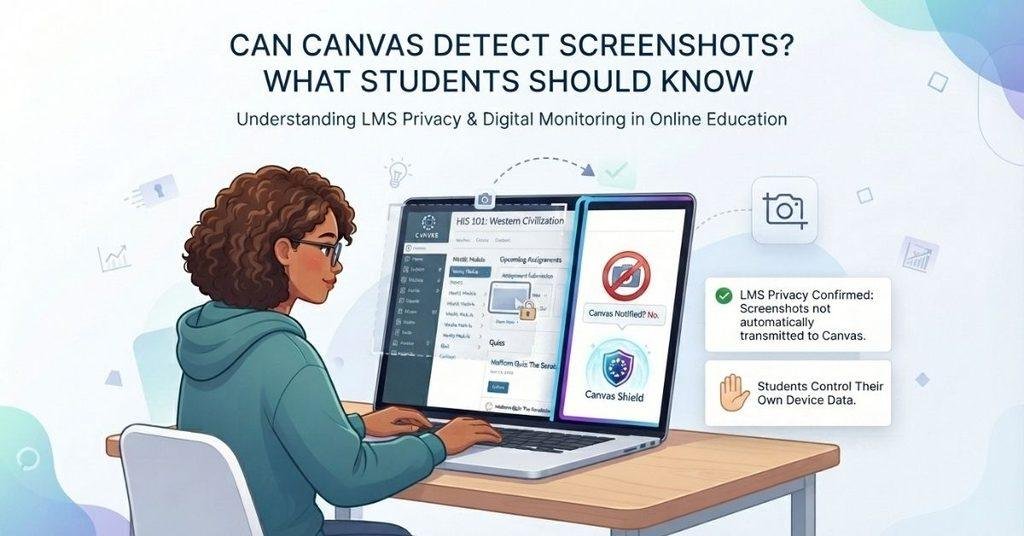
Have you ever taken a screenshot in Canvas and wondered if your professor could see it?
If so, you are not alone. Many students worry about screenshot detection while studying, completing assignments, or taking online quizzes. The question can Canvas detect screenshots depends on more than Canvas alone.
Canvas is a learning management system, not a tool that normally watches everything on your device. However, your browser, device, Canvas setup, or additional monitoring software can affect what happens. This makes the answer less simple than a basic yes or no.
In this guide, you’ll learn how screenshot detection works with Canvas. We’ll explain what Canvas can normally access and what it cannot. You’ll also learn how quizzes, phones, computers, and proctoring tools can change the situation.
By the end, you’ll understand the difference between taking a screenshot and sharing one with Canvas. You’ll also know what does Canvas know when you screenshot really means in different situations.
Screenshot detection is one part of the broader question of Canvas activity tracking, so you may also want to read what professors can see on Canvas during quizzes and assignments.
Can Canvas Detect Screenshots?
Can Canvas detect screenshots? Usually, standard Canvas does not receive a screenshot event just because you capture your screen. Canvas can record learning activity, such as page views, quiz actions, submissions, and other events supported by its logging system. However, taking a screenshot happens at the operating-system level on your device.
When you press a screenshot shortcut, your computer or phone creates an image using its built-in tools. That action does not automatically send the image to Canvas. Canvas also doesn’t normally act as a live viewer of everything happening on your screen.
The situation can change when your school uses additional monitoring or proctoring software. These tools may have access to features that standard Canvas does not provide. Their capabilities depend on the software, device, browser, permissions, and exam settings.
Key point: Don’t treat Canvas and proctoring software as the same thing. Standard Canvas functionality and third-party monitoring can have very different capabilities.
What Canvas Can Detect
Canvas can collect information about activity within its learning environment. Depending on the feature and configuration, this may include:
- Opening course pages or materials
- Starting or submitting quizzes
- Uploading assignments
- Viewing certain course content
- Other recorded Canvas activity
A screenshot taken outside Canvas is a separate device-level action. Unless the system or additional software captures that event, Canvas should not automatically receive the screenshot itself.
Pro Tip: Check your course or exam instructions before assuming what monitoring technology your school uses.
Can Canvas See If You Take a Screenshot?
So, can Canvas see if you screenshot something? Standard Canvas should not be treated as having automatic access to every screenshot you take on your device. Taking a screenshot creates an image through your phone, tablet, or computer’s operating system.
For example, Windows and macOS handle screenshots through their own system features. iPhones, iPads, and Android devices also manage screenshots at the operating-system level. Canvas runs within its app or browser environment rather than controlling your entire device.
This means taking a screenshot does not automatically mean Canvas receives the image. It also doesn’t mean your instructor can automatically view screenshots stored on your device.
However, your specific environment matters. A school may use browser extensions, lockdown browsers, screen-monitoring tools, or online proctoring software alongside Canvas. Those tools can introduce additional monitoring capabilities or restrictions.
Expert tip: Always distinguish between Canvas activity tracking and device monitoring. They are separate systems, and their capabilities can differ significantly.
If you are taking an online quiz, you may also wonder whether Canvas can see if you switch tabs while the quiz is open.
Does Canvas Know When You Screenshot?
Does Canvas know when you screenshot? Not necessarily. Standard Canvas does not automatically receive every screenshot event from your device. Screenshot creation usually happens through your device’s operating system, such as Windows, macOS, iOS, or Android.
Canvas can record actions that happen inside its own environment. However, that doesn’t mean it automatically knows about every action happening outside Canvas. Whether screenshot activity becomes visible depends on the specific device, browser, app, permissions, and software involved.
The important distinction is between standard Canvas functionality and additional monitoring tools. A school may require proctoring software, a lockdown browser, or another monitoring system during an exam. Such tools can have different capabilities and may apply additional restrictions or monitoring.
Therefore, does Canvas know when you screenshot has no universal yes-or-no answer for every setup. Check the software and exam instructions to understand what your specific environment monitors.
Can Canvas See Your Screenshots?
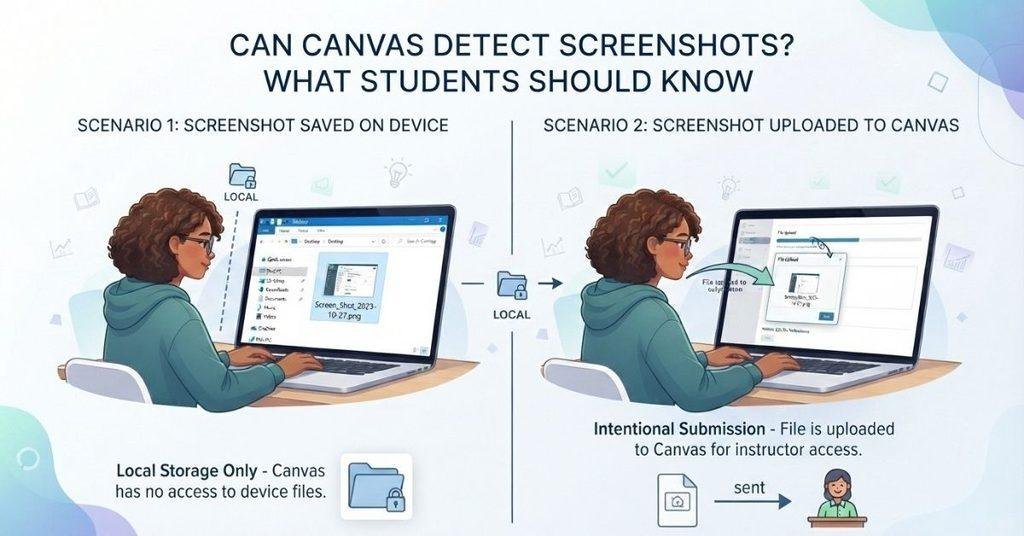
Can Canvas see screenshots? Standard Canvas should not automatically see screenshots saved on your device. Taking a screenshot and uploading that screenshot to Canvas are two completely different actions.
When you take a screenshot, your device creates and stores an image. Canvas doesn’t normally receive that image simply because you captured your screen. The screenshot remains on your device unless you share or upload it.
The situation changes when you submit the screenshot through Canvas. For example, you might attach a screenshot to an assignment or upload it as part of a course activity. In that case, Canvas receives the submitted file, and your instructor may be able to view it.
Think of it this way:
- Take a screenshot: Your device creates the image.
- Store the screenshot: The image remains on your device.
- Upload the screenshot: Canvas receives the submitted file.
- Instructor views the submission: The uploaded image can become part of your course record.
This distinction helps prevent confusion about what Canvas can actually access.
Can Canvas Detect Screenshots During a Quiz?
Can Canvas detect screenshots during a quiz? Standard Canvas should not be assumed to automatically detect every screenshot. A screenshot is created by your device’s operating system, while Canvas records activity within its learning environment.
Canvas quizzes can record certain actions and events related to quiz activity. However, quiz activity logging and screenshot detection are different things. A student shouldn’t assume that taking a screenshot automatically creates a specific “screenshot” event in their Canvas quiz record.
The exact behavior can depend on the Canvas setup, device, browser, and other technology used by the school. Some courses may also require additional monitoring or proctoring software. These tools can introduce capabilities that aren’t part of standard Canvas.
For example, an online exam may use Canvas alongside a lockdown browser or proctoring platform. That additional software may monitor or restrict device activity according to its own settings and policies.
Does Canvas Notify Teachers When You Take a Screenshot?
Canvas does not automatically mean a teacher receives a screenshot notification whenever you capture your screen. A notification and an activity log are two different things.
Canvas can generate notifications for certain supported course activities and events. However, you shouldn’t assume that taking a screenshot automatically triggers a teacher notification. Whether any screenshot-related alert exists depends on the technology and configuration involved.
The distinction becomes especially important when additional monitoring software is involved. A proctoring or monitoring tool may have its own alerts, restrictions, or reporting features. Those capabilities don’t necessarily represent standard Canvas functionality.
Your instructor may also receive information about quiz activity through Canvas without receiving information about screenshots. Seeing a quiz activity record, for example, doesn’t automatically mean Canvas detected a screenshot.
Pro Tip: If you’re concerned about privacy during an online exam, review the course’s technology requirements and monitoring policy before starting the quiz.
Can Canvas Detect Screenshots on a Phone?
Can Canvas detect screenshots on a phone? Standard Canvas should not be assumed to automatically detect every screenshot you take. Screenshots are created by the phone’s operating system, not by Canvas itself.
On iPhone and iPad, the operating system handles screenshot creation and storage. Android devices similarly manage screenshots through their own system features. The Canvas Student app or a mobile browser provides access to Canvas, but that doesn’t mean Canvas has operating-system-level access to everything on your phone.
This distinction matters because an app’s permissions and capabilities depend on the device and operating system. Simply using Canvas on your phone doesn’t automatically give Canvas unrestricted access to your screenshots or other device activity.
The situation can differ if your school requires additional monitoring software. Such software may have separate permissions, restrictions, or monitoring features.
Expert tip: Separate the Canvas app’s functionality from your phone’s built-in screenshot system. They aren’t the same thing.
Can Canvas Detect Screenshots on a Computer?
Can Canvas detect screenshots on a computer? Standard browser-based Canvas should not automatically be treated as a tool that detects every screenshot. Windows and macOS handle screenshots through their respective operating systems.
When you use Canvas through Chrome, Edge, Safari, or another supported browser, Canvas operates within that browser environment. Taking a screenshot through your computer’s built-in tools is a separate operating-system action.
However, the situation can change when additional software is involved. A school may require a lockdown browser, browser extension, screen-monitoring tool, or proctoring platform. These technologies can have capabilities beyond standard Canvas.
Therefore, can Canvas detect screenshots depends on the environment you’re using. The answer may differ between ordinary Canvas access and a monitored exam setup.
Pro Tip: Before an online test, check which applications, extensions, or monitoring tools your school requires. Their policies can determine what activity gets monitored.
What If a Lockdown Browser or Proctoring Tool Is Used?
The answer can change when your school uses a lockdown browser or proctoring tool with Canvas. These tools operate separately from standard Canvas and may add controls or monitoring features.
Depending on the product and configuration, additional tools may provide features such as:
- Restricting which websites or applications you can open
- Monitoring activity during an exam
- Using your webcam for identity or environment checks
- Recording parts of the exam session
- Detecting certain device or browser activity
These capabilities aren’t the same across every product. Settings chosen by your school can also affect what the software monitors or records.
That’s why you shouldn’t assume that standard Canvas behavior applies to a monitored exam. A student using ordinary Canvas may have a different experience from someone taking a proctored quiz with additional software.
Can Teachers See a Screenshot You Take?
Teachers can see a screenshot if you upload or submit it through Canvas. That’s different from Canvas automatically showing teachers every screenshot stored on your device.
For example, suppose you take a screenshot of a webpage on your laptop. The image normally remains on your computer unless you share or upload it somewhere. Simply using Canvas doesn’t automatically send that stored screenshot to your instructor.
The situation changes when you submit the image through a Canvas assignment, quiz, discussion, or other course activity. Once you upload the file, your instructor may be able to access it as part of that submission.
Additional monitoring software can create another situation. If your school uses a proctoring or monitoring tool, its capabilities and policies may differ from standard Canvas.
So, the key distinction is simple:
- Screenshot saved on your device: Not automatically a Canvas submission.
- Screenshot uploaded to Canvas: Your instructor may see the submitted file.
- Additional monitoring software: May introduce separate monitoring capabilities.
For more information, see [What Can Teachers See on Canvas?] to understand what instructors can access through Canvas.
Screenshot Detection vs. Screen Recording
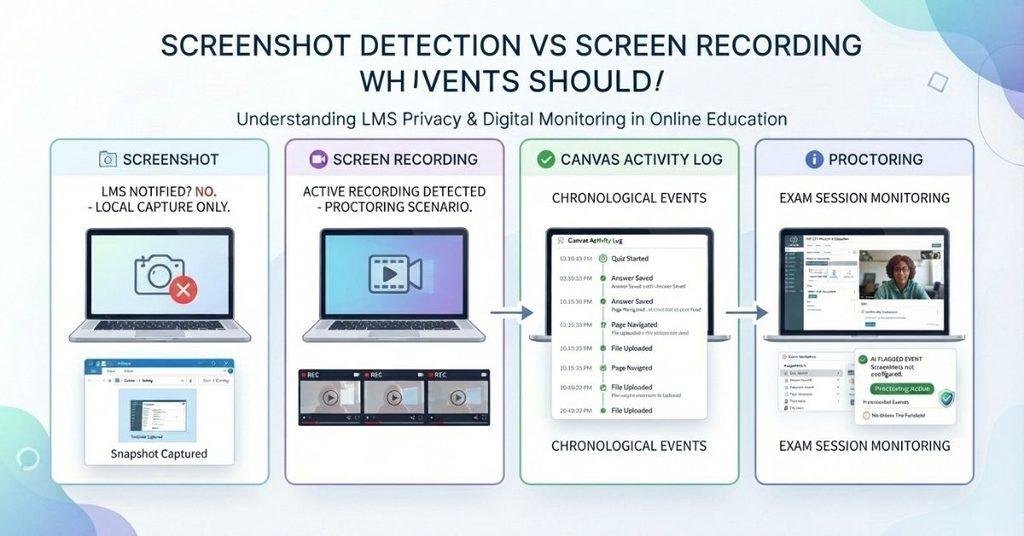
Students often confuse screenshot detection with screen recording. These are different technologies, and understanding the difference makes Canvas monitoring easier to understand.
A screenshot captures one still image at a specific moment. Screen recording captures ongoing activity as video. Meanwhile, a Canvas activity log focuses on certain actions within the learning platform.
| Feature | What It Means |
|---|---|
| Screenshot | A still image captured from your screen |
| Screen recording | Continuous video capture of screen activity |
| Canvas activity log | Records certain events and actions within Canvas |
| Proctoring | Adds exam monitoring features through separate software |
A screenshot doesn’t automatically mean your screen was recorded. Likewise, screen recording doesn’t necessarily mean a system detected each individual screenshot.
Standard Canvas activity logging and proctoring also serve different purposes. Canvas can record supported LMS events, while additional proctoring software may monitor exam sessions according to its settings.
The exact capabilities depend on the tools and configuration used by your school. That’s why it’s important to identify whether an exam uses standard Canvas, additional monitoring, or both.
Knowing your current course percentage can make assessment planning easier, and the Canvas Grade Calculator lets you test possible future scores.
Does Taking a Screenshot Mean Canvas Detects Cheating?
Taking a screenshot does not automatically prove that a student is cheating. A screenshot only shows that an image was captured from a screen. Its meaning depends on the situation, course rules, and available activity information.
For example, a student might take a screenshot to save study material, document a technical problem, or review instructions later. Another student might take one during a restricted exam for a prohibited reason. These situations aren’t automatically equivalent.
Several factors can affect how an instructor interprets screenshot activity:
- Why the screenshot was taken
- Course or instructor rules
- Quiz and assignment instructions
- Whether monitoring or proctoring software was used
- What activity information the instructor actually receives
Canvas activity records can provide information about actions within the LMS. However, instructors generally need to consider the broader context when evaluating potential academic misconduct.
Pro Tip: Always follow your instructor’s exam and course policies. When you’re unsure whether screenshots are allowed, ask before taking one.
What Can Canvas Actually Track During a Quiz?
Canvas can record certain information about quiz activity, depending on the quiz feature and course setup. This information helps instructors understand how students interact with quizzes inside the Canvas environment.
Examples of information that may be available include:
- Quiz attempts and attempt status
- Quiz submissions and submission times
- Timestamps associated with certain activities
- Certain quiz events recorded by Canvas
- Other activity associated with supported Canvas features
However, Canvas activity tracking has an important limitation. Tracking activity inside Canvas isn’t the same as seeing everything happening on a student’s computer.
For example, an activity record may show that a student interacted with a quiz. It doesn’t automatically mean Canvas can see every application, file, or action on the student’s device.
The exact information available can vary based on the Canvas feature, institution settings, and tools used with the quiz. Additional monitoring or proctoring software can provide separate information beyond standard Canvas activity records.
How to Know Whether Your Canvas Quiz Uses Extra Monitoring
You can usually find clues about extra monitoring in your course instructions. Check the requirements before starting a quiz, especially if it’s an important exam.
Look in these places:
- Quiz instructions: Check for monitoring, recording, or browser requirements.
- Course syllabus: Look for policies about online exams and proctoring.
- Instructor announcements: Teachers may provide separate testing instructions.
- Required browser or software: Check whether you must install a specific application.
- Lockdown browser instructions: Look for requirements to use a restricted testing browser.
- Webcam or microphone requirements: These can indicate additional proctoring.
- Proctoring instructions: Check whether you must complete an identity check or environment check.
If the instructions mention a third-party monitoring tool, don’t assume standard Canvas rules explain everything. That software may have separate features, permissions, and privacy policies.
When instructions aren’t clear, ask your instructor which tools the quiz uses and what they monitor. This gives you a reliable answer for your specific course.
Conclusion
Canvas can track certain activity within its learning environment, but that doesn’t mean it automatically sees every screenshot on your device. Can Canvas detect screenshots? The answer depends on your device, browser, Canvas setup, and any additional monitoring software.
Standard Canvas should not be treated as a tool that automatically receives every screenshot you take. However, proctoring tools or lockdown browsers may add separate monitoring features.
If you’re taking an online quiz, check its instructions, required software, and monitoring policies first. When something isn’t clear, ask your instructor before starting.
Understanding these differences can help you avoid unnecessary worry and follow your course rules confidently.
Have questions about Canvas monitoring? Share this guide with other students or explore more Canvas resources on our website.
Frequently Asked Questions
Standard Canvas should not be assumed to automatically detect every screenshot you take. Screenshot creation happens at the device or operating-system level. Additional monitoring software may have different capabilities.
Usually, standard Canvas does not automatically receive the screenshot when you capture your screen. The screenshot normally stays on your device unless you upload or share it.
Canvas can track certain activity within its own environment. However, that doesn’t mean it automatically knows whenever your device creates a screenshot. Your specific testing setup can affect what gets monitored.
Not necessarily. Standard Canvas and your device’s screenshot function are separate systems. A lockdown browser or proctoring tool may introduce additional monitoring features.
Taking a screenshot does not automatically mean Canvas receives a screenshot event. What gets detected depends on the software, browser, device, and monitoring setup involved.
Canvas can see a screenshot when you upload or submit it through the platform. It should not be assumed to automatically access screenshots stored on your device.
Don’t assume that taking a screenshot automatically creates a specific Canvas quiz event. Standard Canvas records certain quiz activity, while additional monitoring tools may provide separate capabilities.
You shouldn’t assume that Canvas automatically sends teachers a screenshot notification. Notifications and activity logs are separate, and additional monitoring software may have its own alerts.
Standard Canvas should not be assumed to automatically detect screenshots on iPhone, iPad, or Android devices. The phone’s operating system handles screenshot creation. Additional monitoring can change the situation.
A lockdown browser can restrict or monitor certain computer activity, but capabilities vary by product and configuration. Check your school’s specific instructions to understand what the required software monitors.

We are the Canvas Academic Team, a developer team focused on building simple and practical tools that help students succeed academically. This platform was created specifically for Canvas LMS students to make grade tracking, GPA calculations, exam planning, and academic management easier and more efficient.
Our focus is on creating fast, accurate, and student-friendly educational tools along with helpful learning resources that improve productivity and reduce academic stress.
Through CanvasGradeCalculator.com, our goal is to continue building useful resources that help students study smarter, stay organized, and achieve better academic results.

