

Table of Contents
Introduction
Have you ever wished your Canvas deadlines could appear right inside the calendar you already use every day?
If you are a college student, managing Canvas and Google Calendar separately can feel frustrating. Important assignments, course events, and personal plans can easily get scattered across different places.
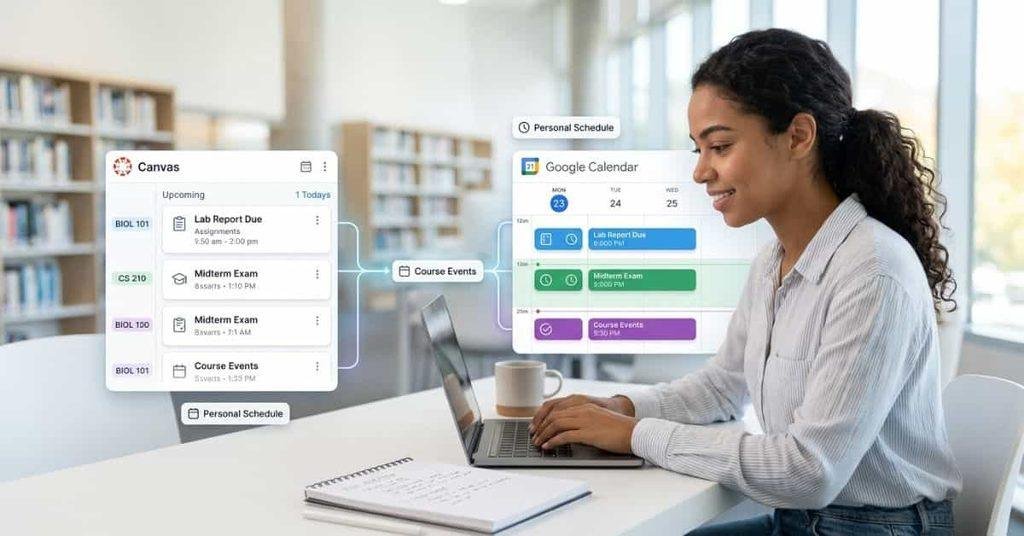
So, can you link Canvas Calendar to Google Calendar? Yes, you can use Canvas’s calendar feed to bring supported Canvas events into Google Calendar. This can make it easier to see your academic schedule alongside personal plans.
In this guide, you will learn how to link Canvas Calendar to Google Calendar step by step. We will also explain what Canvas events can appear, how updates work, and what to check when syncing does not work.
By the end, you will know how to organize your Canvas deadlines in Google Calendar. You will also have practical tips for keeping your school schedule easier to manage.
If you want another way to organize Canvas assignments and deadlines, you can also learn how to link Canvas Calendar to Notion for a more customizable academic planning workflow.
Can You Link Canvas Calendar to Google Calendar?
Yes, you can link Canvas Calendar to Google Calendar through Canvas’s calendar feed. The connection lets supported Canvas events appear alongside your personal schedule in Google Calendar.
Depending on your Canvas setup, the feed can include assignment due dates, course events, calendar events, and other important academic dates. This gives students one place to review school deadlines and personal plans.
The biggest benefit comes from combining both tools. Canvas remains your official source for course deadlines. Google Calendar can help you organize those deadlines around work, appointments, study sessions, and personal events.
There is also an important difference between viewing Canvas dates and managing them in Google Calendar. A calendar subscription lets Google Calendar display information from Canvas. It does not necessarily give you full control over those Canvas events.
Pro Tip: Keep checking Canvas for the official deadline if an instructor changes an assignment date.
If you prefer managing coursework in another planning workspace, you can also learn how to link your Canvas Calendar to Notion and organize your assignments there.
What Can You Sync From Canvas to Google Calendar?
A Canvas calendar feed can include several types of academic dates. The exact events depend on what your Canvas calendars and institution include.
Common examples include:
- Assignment due dates
- Course events
- Calendar events
- Important academic deadlines
- Other dates included in the Canvas calendar feed
This can help you see upcoming coursework without switching between multiple calendars.
However, Google Calendar should not replace Canvas as your main course source. Your instructor may change deadlines or add new course information in Canvas.
Takeaway: Use Google Calendar for planning, but use Canvas to confirm your current academic deadlines.
Does Canvas Automatically Sync With Google Calendar?
Canvas does not work like a two-way calendar where every change becomes instantly editable from Google Calendar. Instead, students typically use a calendar subscription or feed to display Canvas information.
That differs from manually copying events. When you copy an event, you create a separate Google Calendar event. Future changes in Canvas will not automatically update that copied event.
A calendar subscription can update information from the source calendar. However, updates may not appear immediately because the calendar service controls its refresh schedule.
This distinction matters when assignment dates change. A copied event can become outdated, while a subscribed Canvas calendar can receive updated information.
For important deadlines, always verify the latest information in Canvas before submitting your work.
How to Get Your Canvas Calendar Link
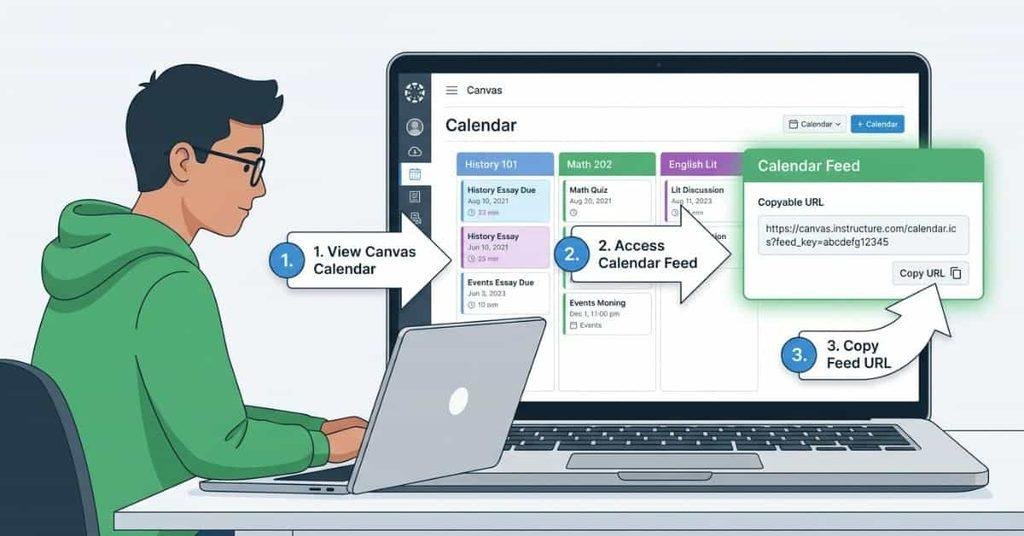
Before connecting Canvas to Google Calendar, you need the calendar feed URL from Canvas. This URL lets Google Calendar subscribe to your Canvas calendar information.
Besides Google Calendar, Notion can also help students organize upcoming assignments, due dates, and coursework. See how to link Canvas Calendar to Notion to explore this alternative setup.
The exact menu names can vary slightly between Canvas versions or institution settings. The steps below follow the standard Canvas calendar workflow.
Step 1 — Open Canvas Calendar
Sign in to your Canvas account and open Calendar from the main navigation menu. You should see your course calendars and upcoming events.
If you use Canvas for several classes, check that the correct courses appear in your calendar view.
Step 2 — Find the Calendar Feed
Look for the Calendar Feed option in the Canvas Calendar interface. Canvas provides a calendar feed URL that you can use with external calendar applications.
The feed is usually found within the calendar’s options or sidebar area.
Step 3 — Copy the Canvas Calendar URL
Select the option to generate or view your calendar feed. Then copy the provided URL.
Treat this URL like a private calendar subscription link. Avoid posting it publicly or sharing it with people you don’t trust.
Step 4 — Check Your Course Calendars
Before connecting the feed, review the courses selected in Canvas. Make sure the calendars you need are enabled and visible.
This step matters because your Google Calendar view depends on the Canvas calendar information included in the feed.
Pro Tip: Check your course list before copying the feed. It can help prevent confusion when expected assignments don’t appear later.
How to Link Canvas Calendar to Google Calendar
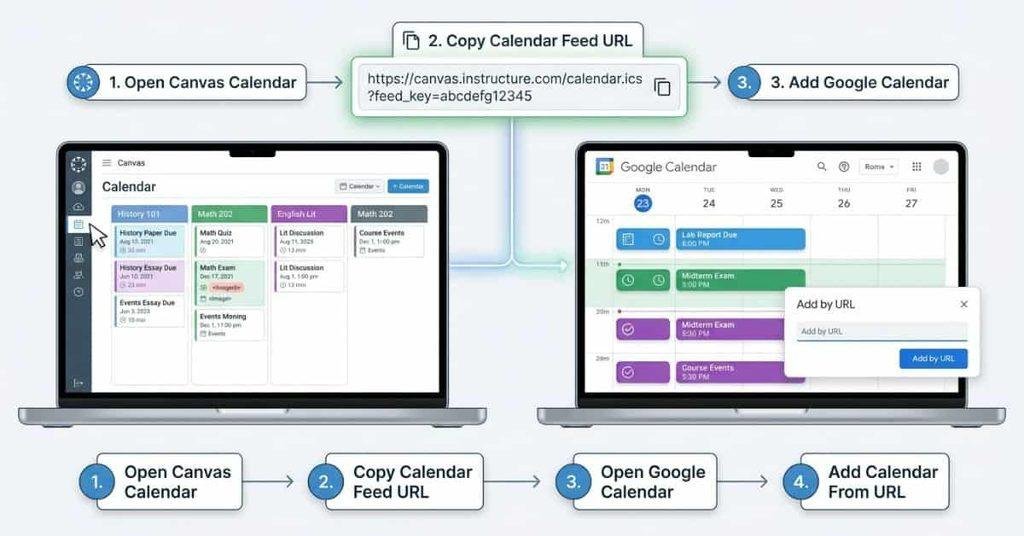
Once you have your Canvas calendar URL, you can add it to Google Calendar as a calendar subscription. This keeps your Canvas dates available alongside your other schedules.
Step 1 — Open Google Calendar
Open Google Calendar on your computer and sign in to the Google account you use for school planning.
The web version provides the calendar settings needed to add a calendar from a URL.
Step 2 — Find “Other Calendars”
On the left side of Google Calendar, find Other calendars. Select the option for adding another calendar.
Google may display slightly different wording depending on its current interface.
Step 3 — Add a Calendar From URL
Choose From URL under the available calendar options. Google Calendar will then provide a field for an internet calendar address.
This option lets you subscribe to a calendar feed instead of manually entering every event.
Step 4 — Paste Your Canvas Calendar Link
Paste the Canvas calendar feed URL into the provided field. Then select the option to add or subscribe to the calendar.
Google Calendar should process the feed and add it to your calendar list.
Step 5 — Check Your Canvas Events
Open your Google Calendar and look for the newly added Canvas calendar. Check several upcoming dates to confirm the connection works.
You may see assignment deadlines, course events, and other Canvas dates included in the feed. Updates may take time to appear, so don’t expect every change immediately.
How to Add Canvas Assignments to Google Calendar
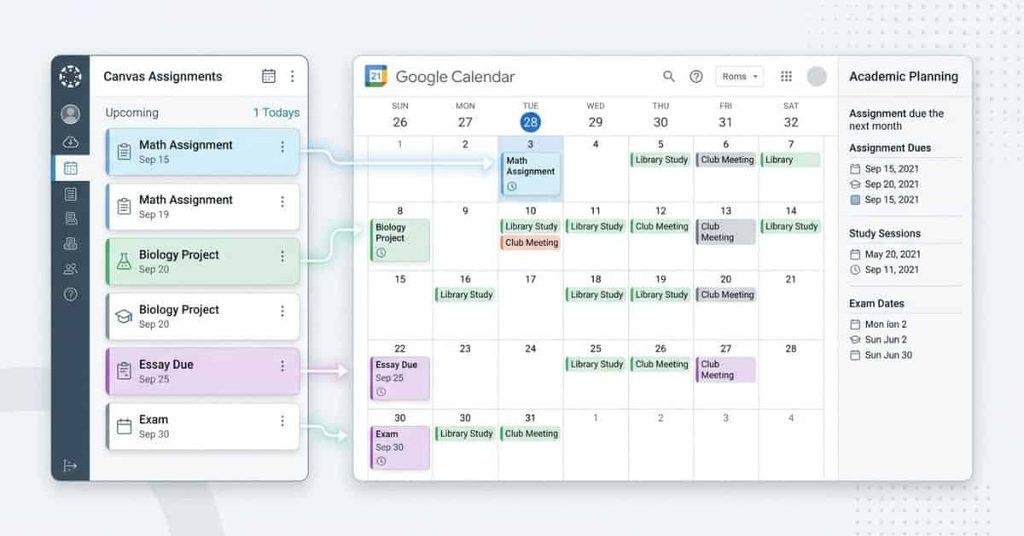
You don’t need to enter every Canvas assignment manually into Google Calendar. Assignments can appear when they’re included in the relevant Canvas calendar feed.
This makes Canvas assignments in Google Calendar easier to review with your other plans. You can check upcoming deadlines while planning study sessions, appointments, or personal activities.
The key is making sure the correct Canvas course calendars are included before using the feed. If an assignment isn’t part of the calendar feed, it may not appear in Google Calendar.
If Google Calendar is not the only planning tool you use, you may also want to explore how to link Canvas Calendar to Notion and create a more flexible system for managing your academic deadlines.
Do Canvas Assignment Due Dates Appear in Google Calendar?
Yes, Canvas assignment due dates can appear in Google Calendar when they’re included in your Canvas calendar feed.
The assignment must have a calendar date that Canvas includes in the feed. Once Google Calendar receives the information, the due date can appear as a calendar event.
However, Google Calendar isn’t the official source for your course requirements. Check Canvas if you’re unsure about an assignment’s current due date or details.
This is especially important when instructors change deadlines. Your Google Calendar view may not reflect the change immediately.
Can You See Multiple Canvas Courses in Google Calendar?
Yes, multiple Canvas courses can appear through the relevant calendar feed. This can help you manage several classes from one Google Calendar view.
For example, you might have assignments from English, Biology, and Mathematics appearing alongside your personal schedule.
You can organize your view by using Google Calendar’s calendar settings and color options. Clear organization makes busy academic weeks easier to understand.
Pro Tip: Use a consistent color for your Canvas coursework. Then use different colors for exams, study sessions, and personal commitments.
How Often Does Canvas Calendar Sync With Google Calendar?
Canvas and Google Calendar don’t necessarily update your subscribed calendar instantly. The refresh timing can depend on how Google Calendar processes the external calendar feed.
When Canvas information changes, Google Calendar may need time to retrieve the updated feed. This can affect several types of changes, including:
- New assignments added to a course
- Assignment due dates changed by an instructor
- Calendar events added or removed
- Other updates to dates included in the Canvas feed
A new assignment might not appear in Google Calendar immediately. Likewise, a changed deadline may continue showing the previous information temporarily.
Because refresh timing can vary, avoid relying on Google Calendar alone for urgent deadlines. Check Canvas directly when a deadline is important or recently changed.
Canvas Calendar Not Showing in Google Calendar? Try These Fixes
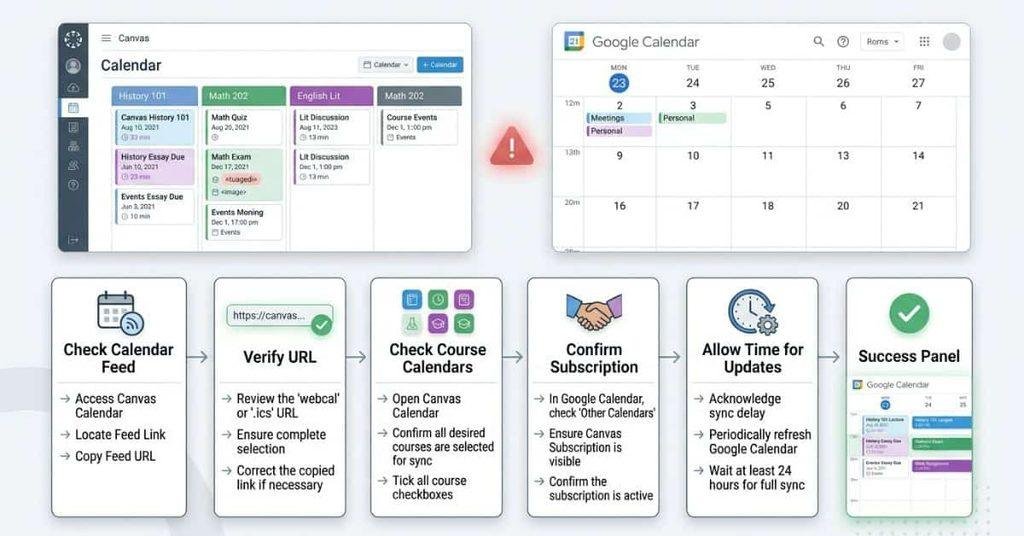
If your Canvas Calendar isn’t showing in Google Calendar, don’t assume the connection failed. A few settings can prevent events from appearing correctly.
Work through these checks before removing the connection. Most issues involve the feed URL, selected courses, subscription setup, or update timing.
Check Your Canvas Calendar Feed
Start by returning to Canvas and opening the Calendar area. Confirm that the calendar feed is available and that you’re using the current feed URL.
If Canvas provides a new feed URL, use that address instead of an older copied link.
Make Sure the URL Was Copied Correctly
A single missing character can prevent Google Calendar from reading the feed correctly. Copy the entire Canvas calendar URL again.
Avoid typing the address manually. Copying it directly from Canvas reduces the chance of mistakes.
Check Your Canvas Course Calendars
Make sure the courses you need are selected and visible in Canvas. An assignment from an unselected course may not appear as expected.
Review your Canvas calendar before troubleshooting Google Calendar further.
Make Sure You Added the Calendar as a Subscription
Check that you added the Canvas URL through Google Calendar’s From URL option. This creates a calendar subscription rather than a manually copied event.
Manually entering assignments won’t create an ongoing connection with Canvas.
Give the Calendar Time to Update
New events and changed deadlines may take time to appear. Google Calendar controls how often it refreshes external calendar feeds.
Don’t rely on an immediate update when an instructor changes an important deadline.
Remove and Re-Add the Canvas Calendar
If the feed still doesn’t work, remove the subscribed calendar from Google Calendar. Then copy the current Canvas feed URL and add it again.
This can help when the original subscription contains an outdated or incorrect URL.
Check Whether Your Institution Restricts Calendar Features
Some Canvas features can depend on your institution’s configuration. Your school may also limit certain external calendar options.
If the feed doesn’t work after these checks, contact your school’s Canvas administrator or support team.
Can You Link Canvas Calendar to Apple Calendar?
Yes, Canvas can provide a calendar feed that you can use with compatible calendar applications, including Apple Calendar. The general process uses the Canvas calendar feed rather than manually copying individual events.
You first obtain the calendar feed URL from Canvas. Then, you add that subscription to the calendar app using its subscription options.
The exact steps can differ between Apple devices and software versions. So, check Apple’s current instructions if the menu names don’t match your device.
This approach is useful if you prefer Apple Calendar for your daily schedule. You can keep Canvas deadlines alongside personal appointments without entering each event manually.
For now, this section provides the basic answer without taking focus away from Google Calendar. If you later publish a dedicated Apple Calendar guide, this section can link to it naturally.
Canvas Calendar vs Google Calendar
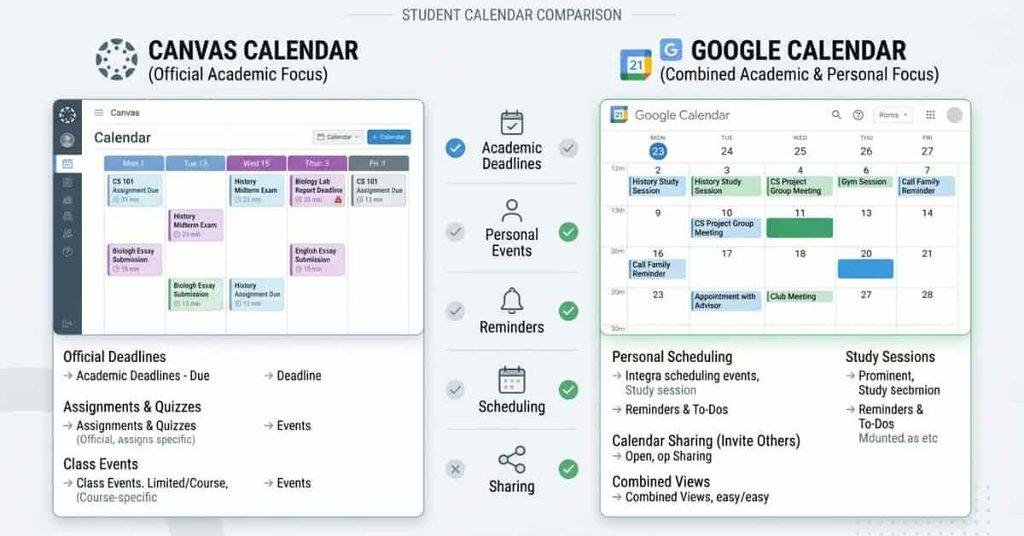
Canvas and Google Calendar serve different purposes. Canvas focuses on academic information, while Google Calendar provides broader scheduling tools.
| Feature | Canvas Calendar | Google Calendar |
|---|---|---|
| Canvas assignments | ✅ | ✅* |
| Course events | ✅ | ✅* |
| Personal events | Limited to Canvas | ✅ |
| Reminders | Canvas-based | ✅ |
| Calendar sharing | Limited | ✅ |
| Personal scheduling | Good | Excellent |
* Availability depends on the Canvas calendar feed and connection setup.
Canvas is best for checking official course dates and assignment information. Google Calendar works better when you want to combine school deadlines with your personal schedule.
Why Students Should Use Google Calendar With Canvas
Connecting Canvas with Google Calendar can make school planning much easier. Instead of checking several places, students can view academic and personal commitments together.
Google Calendar can help you:
- Track assignment deadlines without searching through every course.
- Plan study sessions before important assignments are due.
- Add personal events around your academic schedule.
- Avoid deadline conflicts by seeing busy days in advance.
- View school and personal plans together in one calendar.
- Plan exams and projects by creating time blocks before major deadlines.
This setup works especially well for students balancing classes, work, family commitments, and other activities. Canvas provides the academic dates, while Google Calendar helps you build a practical schedule around them.
How to Organize Your Canvas Deadlines in Google Calendar
A connected calendar becomes more useful when you organize it around how you actually study. A simple structure can make busy weeks much easier to manage.
Before relying on a synced deadline, make sure your Canvas time settings are correct by learning how to check Canvas time and time zone.
Start by separating academic deadlines from your other commitments. Then use colors and planned study blocks to create a schedule you can understand at a glance.
Create Separate Calendars for Different Purposes
Consider creating separate calendars for different parts of your student life:
- Canvas Courses — assignments and course events
- Exams — tests, quizzes, and major assessments
- Study Sessions — planned study and revision time
- Personal Events — appointments, activities, and commitments
This structure helps prevent academic deadlines from getting lost among personal events.
You can also turn individual calendars on or off when you need a simpler view.
Use Different Calendar Colors
Colors can help you recognize different types of activities quickly. For example, you might use one color for coursework and another for exams.
You could also assign separate colors to different courses. This makes a busy week easier to scan without opening every event.
Keep your color system simple. Too many colors can make your calendar harder to understand.
Add Study Time Around Canvas Deadlines
Don’t wait until an assignment is due to start working on it. Use the Canvas deadline as the starting point for planning your study time.
For example, if an assignment is due Friday, schedule research on Tuesday and writing time on Wednesday. Then leave Thursday for reviewing and making final changes.
This approach gives you a clearer workload and reduces last-minute pressure.
Canvas Calendar vs Google Calendar vs Notion
Each tool works best for a different part of student planning.
| Tool | Best For |
|---|---|
| Canvas Calendar | Official course deadlines |
| Google Calendar | Scheduling and reminders |
| Notion | Detailed student planning |
Canvas should remain your main source for official academic dates. Google Calendar is useful for combining those dates with personal schedules and study sessions.
Notion can take planning further with notes, databases, task lists, and detailed study systems. If you want to combine Canvas with Notion, see our guide on Can You Link Canvas Calendar to Notion?
Expert Tip: You don’t have to choose one tool. Use Canvas for course information, Google Calendar for time planning, and Notion for detailed organization.
Conclusion
Connecting Canvas Calendar with Google Calendar can make student scheduling simpler and more organized. You can use a Canvas calendar feed to bring supported course dates into your Google Calendar.
So, can you link Canvas Calendar to Google Calendar? Yes, you can connect them through a calendar subscription. This can help you track assignment deadlines, course events, exams, and personal commitments together.
Remember to use Canvas as your official source for course deadlines. Google Calendar works best for planning study sessions and managing your overall schedule.
Ready to make your academic schedule easier to manage? Try connecting your Canvas calendar and organize your upcoming deadlines today. For more student productivity tips, explore our other Canvas guides.
Frequently Asked Questions
Yes. You can connect Canvas Calendar to Google Calendar using a Canvas calendar feed. The feed lets supported Canvas events appear in Google Calendar.
You can view assignment deadlines, course events, and other calendar dates alongside your personal schedule. However, Canvas remains the best place to verify official course information.
Yes, you can link Canvas to Google Calendar through a calendar subscription. Canvas provides a calendar feed URL that Google Calendar can use.
The connection helps you view supported academic events without manually entering every date. Your exact results may depend on your Canvas course settings and institution configuration.
First, open Canvas and find your Calendar Feed. Copy the provided calendar URL.
Then open Google Calendar and find Other calendars. Choose From URL, paste your Canvas calendar link, and add the calendar. Afterward, check your Google Calendar for upcoming Canvas events.
Canvas assignments can appear in Google Calendar when they’re included in the relevant Canvas calendar feed. This can make upcoming deadlines easier to track.
However, don’t assume every assignment will appear automatically. Check Canvas if an assignment or deadline seems missing from your Google Calendar.
Canvas and Google Calendar can update subscribed calendar information, but updates aren’t necessarily immediate.
New assignments, changed due dates, and removed events may take time to appear. Google Calendar controls the refresh process for external calendar feeds, so you shouldn’t rely on instant updates.
Check that your Canvas calendar feed URL is correct and current. Also confirm that the relevant course calendars are selected in Canvas.
Make sure you added the feed through Google Calendar’s From URL option. If the problem continues, remove the subscription and add the current Canvas feed again.
Yes. You can generally use the Canvas calendar feed with compatible calendar applications, including Apple Calendar.
The process uses a calendar subscription rather than manually copying events. Menu names can vary by Apple device and software version, so check the current setup instructions for your device.
Yes, multiple Canvas courses can appear when they’re included in the relevant Canvas calendar feed.
Before connecting the feed, check your Canvas Calendar and make sure the courses you need are selected. This helps you keep assignments and course events together in Google Calendar.

We are the Canvas Academic Team, a developer team focused on building simple and practical tools that help students succeed academically. This platform was created specifically for Canvas LMS students to make grade tracking, GPA calculations, exam planning, and academic management easier and more efficient.
Our focus is on creating fast, accurate, and student-friendly educational tools along with helpful learning resources that improve productivity and reduce academic stress.
Through CanvasGradeCalculator.com, our goal is to continue building useful resources that help students study smarter, stay organized, and achieve better academic results.

