Table of Contents
Introduction
Ever wondered exactly what score you need on your final to reach your goal grade? For many students in the USA, finals can feel overwhelming, and guessing your overall grade often leads to stress and mistakes. Beginners, especially, struggle to understand how different assignments, quizzes, and exams affect their final percentage.
A canvas what-if grade calculator can take the guesswork out of grade predictions. With this tool, you can enter your current scores, test hypothetical final exam results, and see your projected overall grade instantly. No more confusing spreadsheets or manual math errors.
In this article, we’ll show you how to use a what-if grade calculator effectively. You’ll learn step-by-step how to predict your grades, plan for finals, and identify the exact score needed to achieve your target. By the end, you’ll have a clear strategy to stay on track, reduce stress, and study smarter, not harder.
Whether you’re tackling a heavy course load or just trying to improve your GPA, this guide will make grade prediction simple and actionable for beginners.
Why Students Need a What-If Grade Calculator

Final exams bring pressure. One test can change your whole course grade.
Many students keep asking the same question: “What score do I need to pass or get an A?”
Guessing doesn’t work. Manual math takes time and often leads to mistakes.
A small calculation error can make you think you’re safe when you’re not.
That’s where a canvas what-if grade calculator helps. Instead of doing formulas by hand, you can quickly test scenarios:
- What if I score 85% on the final?
- What if my project grade improves?
- What if I miss one quiz?
- What’s the minimum score I need to reach my target?
In tools like Canvas LMS, students often try to estimate grades manually or rely on rough guesses. But weighted categories, extra credit, and dropped assignments make calculations confusing fast.
A what-if calculator removes that stress. You enter your numbers once and see instant predictions. No spreadsheets. No complex formulas. No surprises at the end of the semester. Most importantly, it helps you plan smarter. You know exactly where to focus your effort. Instead of worrying, you study with confidence.
Understanding how to calculate your grades accurately is essential before using the Canvas What-If Grade Calculator.
What Is a Canvas What-If Grade Calculator? Simple Explanation
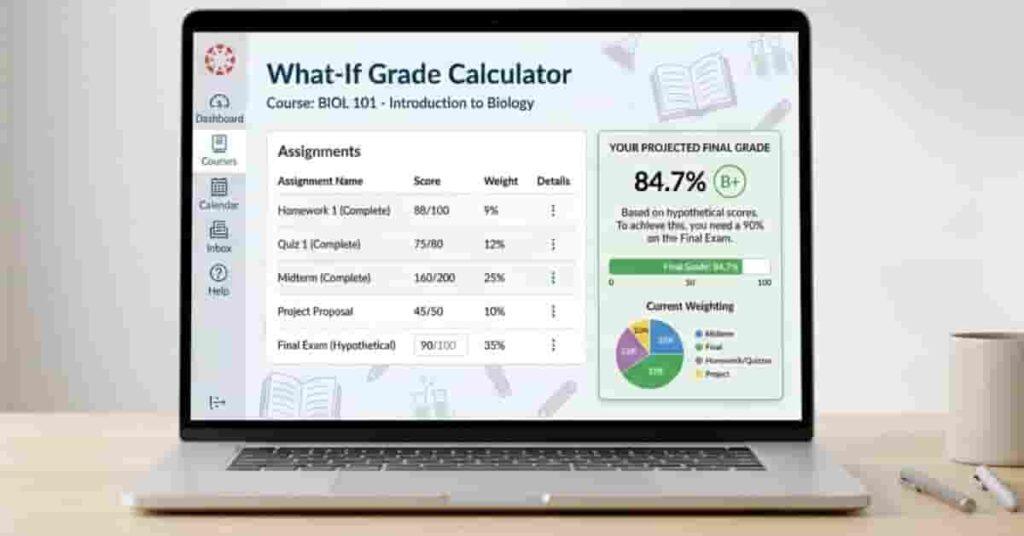
A canvas what-if grade calculator is a tool that shows how future scores might change your final grade.
In simple words, it answers one question:
“If I score X, what will my overall grade become?”
Instead of waiting until grades are posted, you can test results in advance.
You enter a hypothetical score, and the calculator instantly predicts the outcome.This works using a basic weighted grade formula:
Final Grade = (Earned Points ÷ Total Points) × 100
If your course uses weights, each category is multiplied by its percentage before being summed.
For example:
- Current grade: 88%
- Final exam weight: 30%
- Expected final score: 85%
The calculator combines these values and shows your new projected grade. No manual math needed.
It’s also important to understand the difference between current and predicted grades:
- Current grade → what you have right now
- What-if grade → what you could have after future scores
That prediction helps you plan rather than guess.
Many students using Canvas LMS try to calculate this by hand or with spreadsheets. But weighted categories and extra credit can get confusing fast. A what-if calculator simplifies everything into one quick result.
Imagine this real-life case:
You need 90% overall to get an A. Your current grade is 87%. You test different final exam scores until the tool shows the minimum you need. Now you know your exact target and can study with a clear goal in mind.
Tracking your grades regularly can help you make the most of a Canvas What-If Grade Calculator.
Limitations of the Built-In Canvas Grade Tool
The grade view inside Canvas LMS helps check scores. But it isn’t designed for deep planning or grade prediction. You can see your current percentage and enter rough “what-if” values. That’s fine for quick checks. Still, it has clear limits when you want a detailed analysis.
First, projections feel basic. You can change one score at a time, but testing many scenarios takes effort. There’s no smooth way to compare outcomes side by side.
Second, you don’t get a full breakdown. The tool doesn’t clearly show:
- How each category affects your grade
- Which assignments hurt you the most
- where you can gain points fastest
So you’re left guessing where to focus.
It also skips helpful academic insights. There’s usually:
- no letter grade or GPA view
- no “score needed to reach target” calculation
- No study suggestions
- no export or sharing options
This makes planning harder, especially before finals.
Another issue is speed. If you want to test five different final exam scores, you must enter each one manually. That slows you down and breaks your workflow. In short, the built-in tool shows your grades. It doesn’t help you strategize your grades.
That’s why many students look for a more flexible what-if calculator that offers clearer predictions and smarter planning.
Meet the Enhanced Canvas What-If Grade Calculator (Better Alternative)
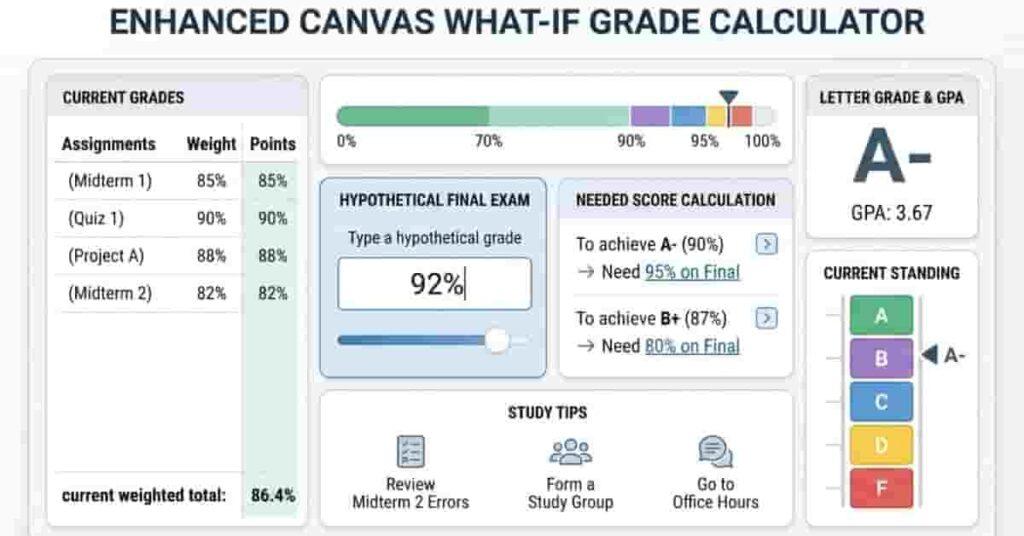
If the built-in tools feel limited, you don’t have to rely on guesswork.
An enhanced canvas what-if grade calculator gives you deeper insights and faster predictions in one place. Instead of checking scores one by one inside Canvas LMS, you can see everything clearly on a single screen. Enter your grades, adjust numbers, and watch results update instantly. The goal isn’t just to show your current grade. It helps you plan your next move.
Here’s what makes this calculator more powerful:
Features
- Current grade tracking — See your performance without the final exam included.
- Hypothetical final score testing (What-If mode) — Try different scores and preview outcomes
- Needed score calculator — Know the exact mark required to hit your target grade
- Weighted categories — Match real course structures like homework, quizzes, and exams
- Letter grade + GPA view — Understand results beyond percentages.
- Study tips & export results — Get guidance and save or share your progress.
This means fewer surprises at the end of the semester. You always know where you stand and what to aim for.
Instead of asking, “I hope this is enough,” you can say,
“I need 92% on the final — now I have a clear goal.”
That clarity reduces stress and helps you study smarter, not longer.
Step-by-Step – How to Use the Canvas What-If Grade Calculator
Using a canvas what-if grade calculator is simple. You don’t need spreadsheets or formulas. Just enter your numbers and the tool handles the math for you.
Follow these steps to predict your grade and plan your target score with confidence.
Step 1 – Enter Your Assignments and Weights
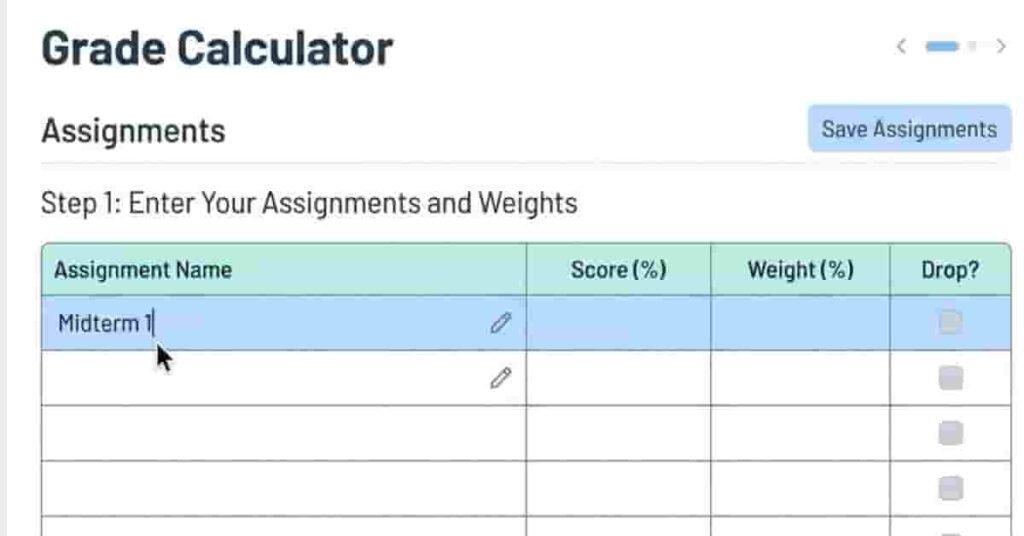
Start by adding each assignment or category. Include homework, quizzes, midterms, participation, and projects.
For every item, enter:
- score (%)
- weight (%)
This shows your current grade without the final exam.
Make sure all weights match your course syllabus in Canvas LMS.
Step 2 – Add Your Final Exam Weight
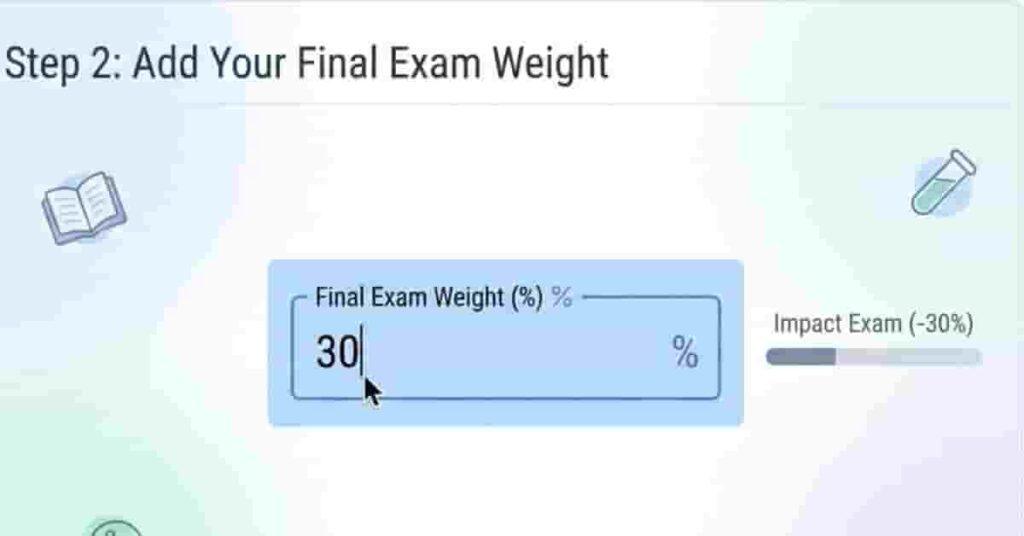
Next, enter how much the final exam counts.
Most courses use 20–40%.
This tells the calculator how strongly the final affects your overall grade.
Step 3 – Set Your Desired Overall Grade
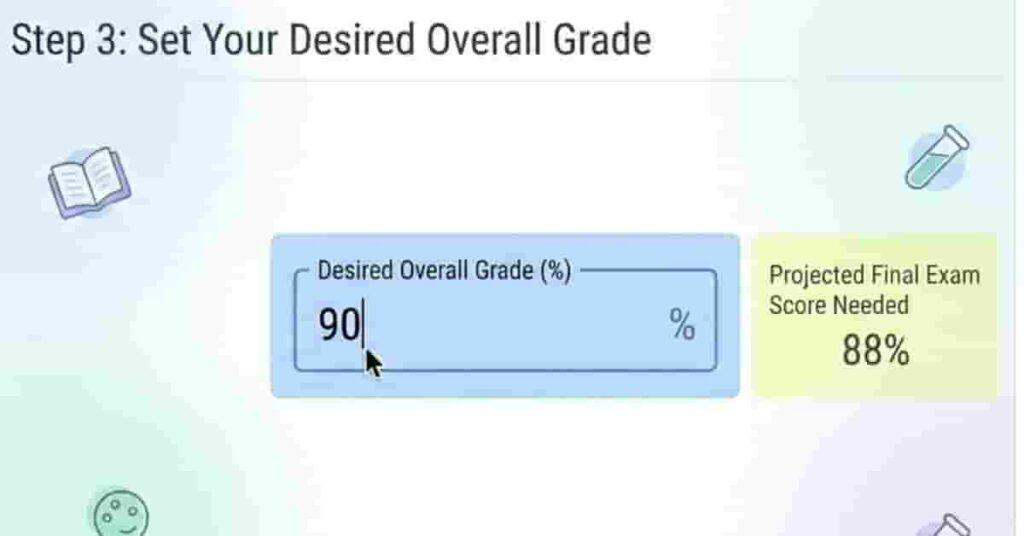
Now choose your target.
For example: 85% (B) or 90% (A).
The tool will calculate the exact score you need on the final to reach that goal. This removes guessing and gives you a clear study target.
Step 4 – Enter a Hypothetical Final Exam Score
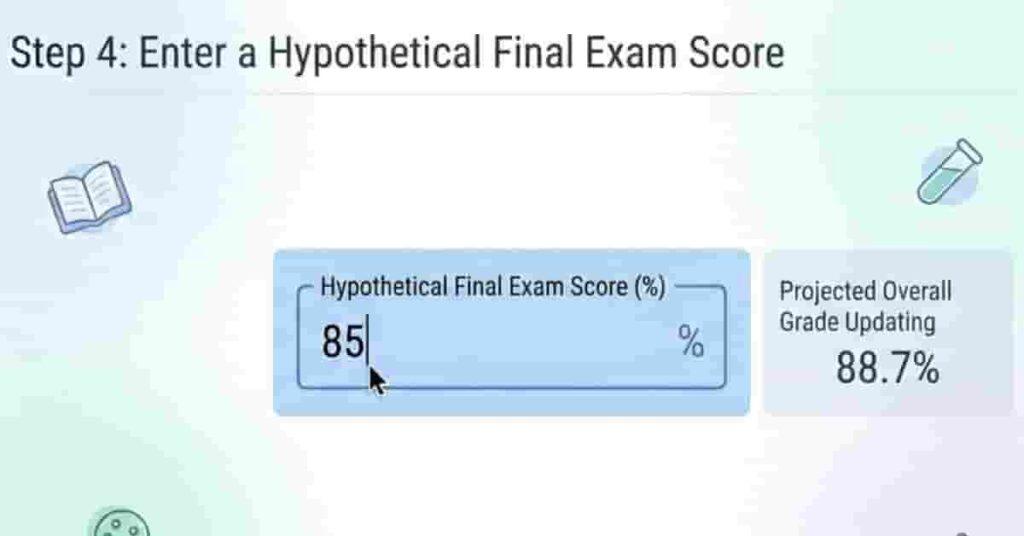
Test different “what-if” scenarios.
Try:
- 80%
- 85%
- 90%
Each time, the projected grade updates instantly. You can see how small changes affect your result.
Step 5 – View Projected Grade Instantly
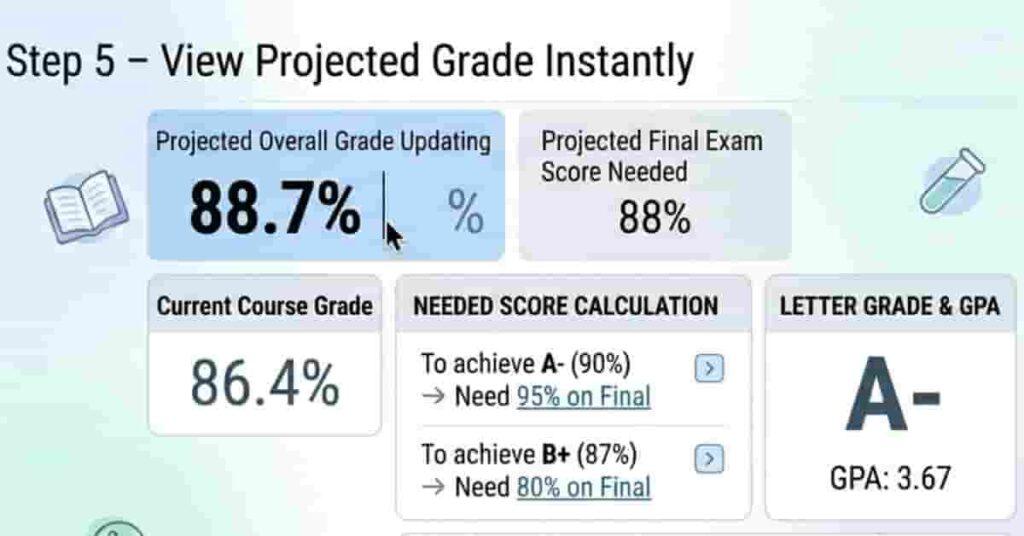
Check your results panel.
You’ll see:
- projected overall grade
- needed score on final
- letter grade or GPA
Everything updates in real time. No manual math needed.
Step 6 – Adjust Numbers to Test Different Scenarios
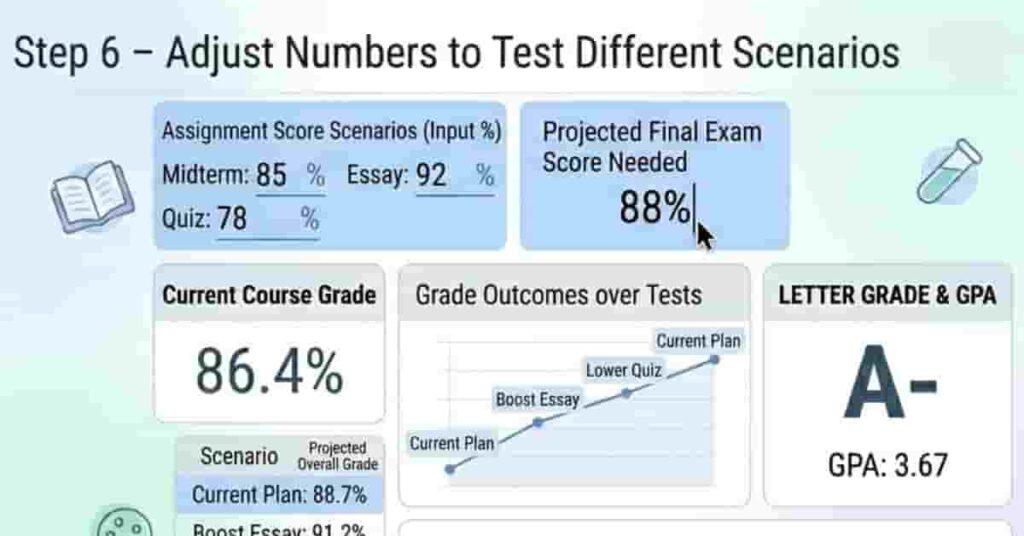
Finally, experiment.
Change scores, tweak weights, or test multiple outcomes. This helps you plan smart strategies, like focusing on high-weight exams first.
After a few tests, you’ll know exactly what’s possible and what’s realistic.
Practical What-If Scenarios (Real Student Examples)
Using a what-if grade calculator isn’t just about numbers — it’s about planning smart and reducing stress.
Here are real scenarios students face, along with how the tool helps address them.
Scenario 1 – “What Do I Need on the Final to Get an A?”
Emma’s current grade in her psychology class is 87%.
Her target is 90% (an A).
Instead of guessing, she enters her current grades and final exam weight.
The calculator instantly shows that she needs at least 92% on the final.
Now Emma can focus her studies on the most important topics and track progress efficiently.
Scenario 2 – “What If I Score Lower Than Expected?”
John expects 85% on his final but worries about 75%.
By entering the lower hypothetical score, he sees his projected grade drop to 84%.
This gives John insight: he may need extra credit or improved homework scores to hit his goal.
Takeaway: Planning for worst-case outcomes reduces surprises.
Scenario 3 – “Testing Multiple Outcomes Quickly”
Instead of redoing calculations manually, students can:
- Enter 80%, 85%, 90% as hypothetical final scores
- See the effect on the overall grade instantly.
- Decide which score is realistic and set a study plan.
Pro tip: Test a few scenarios to find the balance between effort and achievable results.
Scenario 4 – “Dropping Lowest Assignment Impact”
Some courses allow dropping the lowest score.
Using the calculator, students can see:
- How dropping a low quiz or homework affects their current grade
- Whether focusing on the final exam is enough to reach the target
This helps in smart prioritization of study time.
Grade Calculation Formula (For Manual Verification)
Even with a what-if calculator, it’s helpful to understand how grades are calculated.
Knowing the formula builds trust and helps you verify results manually if needed.
1. Basic Percentage Formula
To calculate a simple assignment percentage:
| Assignment | Earned Points | Total Points | Percentage |
|---|---|---|---|
| Project | 45 | 50 | 45 ÷ 50 × 100 = 90% |
| Quiz | 8 | 10 | 8 ÷ 10 × 100 = 80% |
| Homework | 18 | 20 | 18 ÷ 20 × 100 = 90% |
| Total | 71 | 80 | 71 ÷ 80 × 100 ≈ 88.75% |
Percentage Formula:
Percentage = Earned Points ÷ Total Points × 100
Example: You scored 45 out of 50 on a project → 45 ÷ 50 × 100 = 90%
Example:
You scored 45 out of 50 on a project:
45÷50×100=90%45 ÷ 50 × 100 = 90\%45÷50×100=90%
2. Weighted Grade Formula
Most courses don’t treat all assignments equally.
Use this formula for weighted categories:
Weighted Grade Formula:
Weighted Grade = (Category Grade × Category Weight) + …
Example:
Homework: 90 × 0.2 = 18
Quiz: 80 × 0.3 = 24
Project: 95 × 0.5 = 47.5
Total Weighted Grade = 18 + 24 + 47.5 = 89.5
Step-by-step example:
| Category | Score (%) | Weight (%) |
|---|---|---|
| Homework | 88 | 25 |
| Quiz Average | 92 | 15 |
| Midterm Exam | 85 | 20 |
| Class Participation | 95 | 10 |
| Total Weighted | — | 70 |
Note: Total Weighted shows the sum of category weights completed so far (70%). The actual weighted grade is calculated using the formula:
Weighted Grade = (Category Grade × Category Weight) + …
Weighted calculation:
Weighted Grade Calculation:
(88 × 0.25) + (92 × 0.15) + (85 × 0.20) + (95 × 0.10) = 22 + 13.8 + 17 + 9.5 = 62.3
Explanation: Each category grade is multiplied by its weight, then all are summed to get the total weighted grade.
If the final exam is 30%:
Current Grade Calculation (without final):
Current Grade = 62.3 ÷ 0.7 = 89%
Explanation: The weighted total so far (62.3) is divided by the portion of the course completed (0.7) to find the current grade without including the final exam.
3. Using the Calculator
A what-if calculator automates these steps:
- Adds weighted scores automatically
- Projects’ final grades based on hypothetical inputs
- Shows letter grade or GPA
Understanding the formulas helps students verify predictions, trust the results, and spot any input mistakes.
Common Mistakes to Avoid When Predicting Grades
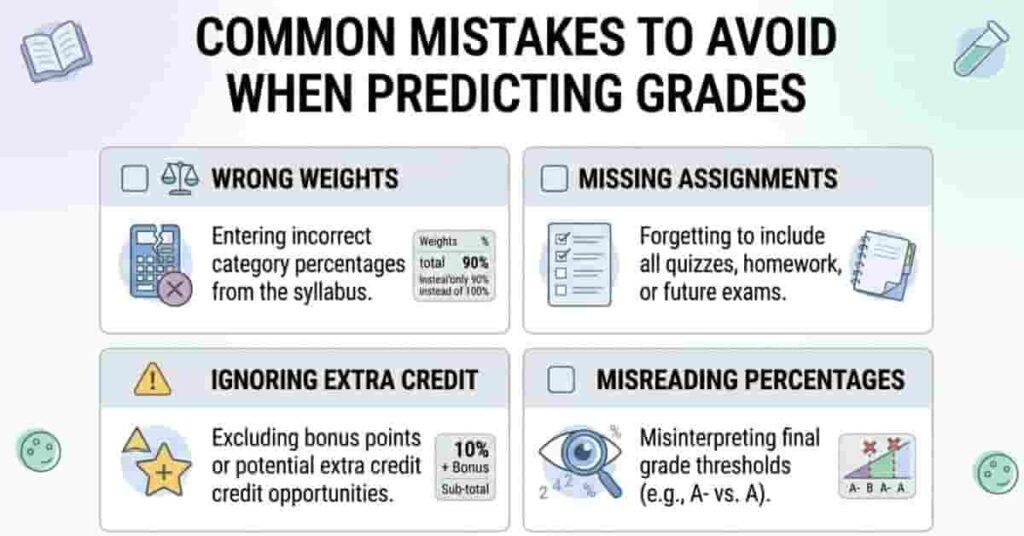
Predicting your grade can save time and stress — but only if done carefully. Here are the most common mistakes students make when using a what-if grade calculator:
1. Entering Wrong Weights
Each assignment has a specific weight in your course. Using incorrect percentages can dramatically change your projected grade. Always double-check your syllabus before entering numbers.
2. Forgetting Assignments
Missing an assignment or category in your calculation gives a false sense of security. Make sure every graded task is included, even small quizzes or participation points.
3. Ignoring Extra Credit
Extra credit can boost your overall grade significantly. If you forget to include it, your predicted grade may look lower than it actually is.
4. Misreading Percentages
Be careful with percentage formats:
- 0–100% scale vs 0–4 GPA
- Weighted contributions
- Partial points vs full points
A small mistake here can throw off your projections.
Pro Tip: Double-check all numbers before trusting the results. Even small errors can make the difference between an A and a B.
Pro Tips to Maximize Accuracy
To get the most reliable predictions from your what-if grade calculator, follow these practical tips. They help you plan smarter and avoid surprises at the end of the semester.
1. Update Weekly
Grades can change quickly as new assignments are posted. Update your calculator at least once a week to keep projections accurate.
2. Use Realistic Scores
When entering hypothetical scores, be honest about what you can realistically achieve. verestimating can give false confidence, while underestimating may cause unnecessary stress.
3. Track Trends
Look at patterns in your grades:
- Are quizzes improving over time?
- Are homework scores consistently high or low?
Tracking trends helps you predict outcomes more reliably and adjust study priorities.
4. Combine With Study Planning
Use the predictions to guide your preparation:
- Focus on high-weight assignments or finals first
- Allocate more time to weaker areas
- Set achievable goals based on what-if scenarios
Conclusion
In this guide, we explored how to predict your grades, calculate hypothetical outcomes, and plan for finals effectively. You learned step-by-step how to use a Canvas what-if grade calculator to see projected overall grades, test different scenarios, and determine the exact score needed to hit your targets.
By understanding common mistakes, tracking trends, and applying pro tips, you can make smarter study decisions and reduce stress before exams. Tools like this give you confidence and control over your academic progress.
Ready to take charge of your grades? Try the Canvas what-if grade calculator today and see how small changes can impact your final results. Share your experience in the comments or explore more resources to stay on top of your coursework.

We are the Canvas Academic Team, a developer team focused on building simple and practical tools that help students succeed academically. This platform was created specifically for Canvas LMS students to make grade tracking, GPA calculations, exam planning, and academic management easier and more efficient.
Our focus is on creating fast, accurate, and student-friendly educational tools along with helpful learning resources that improve productivity and reduce academic stress.
Through CanvasGradeCalculator.com, our goal is to continue building useful resources that help students study smarter, stay organized, and achieve better academic results.