Introduction
Students often feel puzzled when their Canvas grades don’t match what they expected. Hidden assignments, dropped scores, and weighted categories can change your final grade without you even noticing.
In this guide, you’ll get a clear, step-by-step explanation of:
✔ How Canvas calculates your final grade in Canvas
✔ How hidden grades affect your total score
✔ How dropped grades can change your results
✔ How to calculate your grade manually or with a Canvas Grade Calculator
By the end, you’ll know exactly where your grades come from and how to plan for your finals or upcoming assignments. Whether you’re trying to estimate your current standing or figure out what score you need on a test, this guide makes it simple and beginner-friendly.
How Canvas Calculates Grades (Quick Overview)
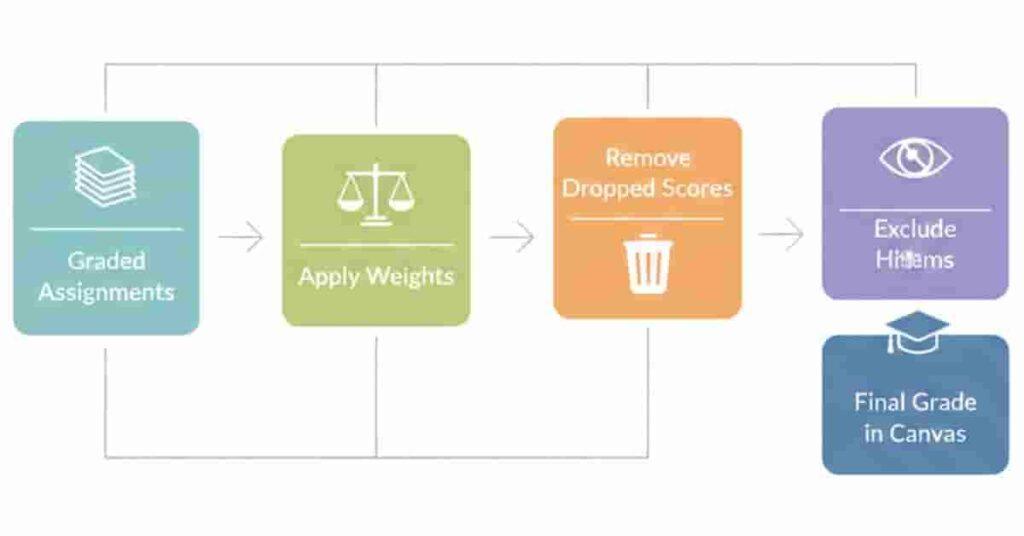
Understanding how Canvas calculates your grades is the first step to taking control of your results. While Canvas does most of the math for you, knowing the process helps you catch errors and plan for upcoming assignments.
Here’s a quick overview:
- Canvas adds graded assignments: Only assignments your instructor has marked as graded count toward your current total. Ungraded or exempt assignments are ignored.
- Applies weights: Many courses use weighted grading, meaning some assignments count more than others. Canvas multiplies each score by its weight to calculate your total.
- Removes dropped scores: If your instructor allows it, Canvas automatically drops the lowest scores in certain categories. These dropped grades are excluded from your total.
- Excludes hidden items: Assignments that are hidden or not yet released are usually not included in your current grade.
Pro Tip: Keep a list of all your assignments and weights. It helps you verify Canvas’s calculations and plan your study strategy.
Final vs Hidden vs Dropped Grades
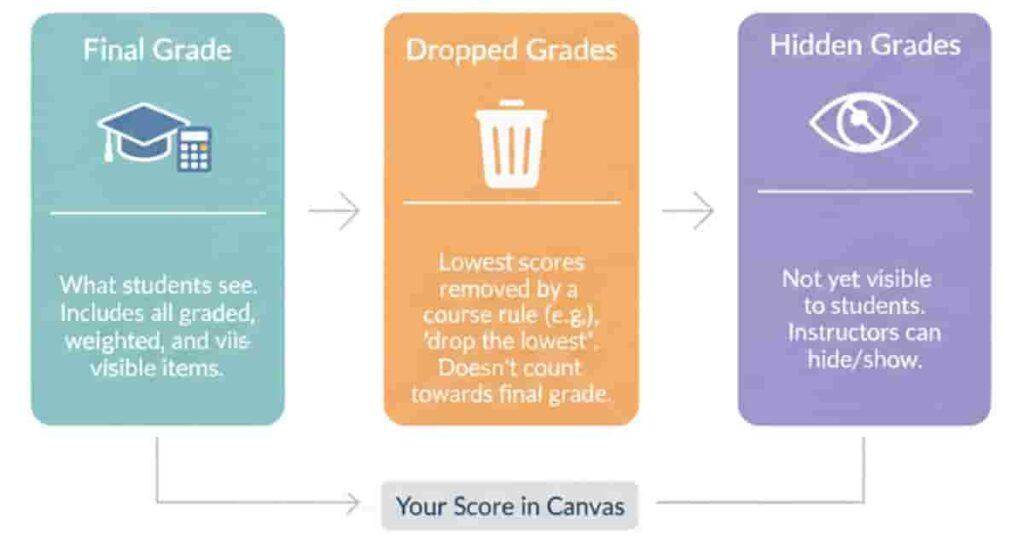
Canvas uses different types of grades, and knowing the difference can help you understand why your total may not match your expectations. Here’s a simple breakdown:
| Type | What it Means | Included in Total? |
|---|---|---|
| Final Grade | Total weighted score | Yes |
| Hidden Grades | Assignments not yet visible | Usually No |
| Dropped Grades | Lowest scores removed automatically | No |
How to Use This Table
- Final Grade: This is what appears in your Canvas gradebook and what your instructor sees.
- Hidden Grades: Sometimes instructors hide assignments until a certain date. These are usually excluded from your total until revealed.
- Dropped Grades: If your course allows dropping the lowest score, Canvas removes it automatically from your calculation.
Pro Tip: Keep a personal log of all assignments, including hidden and dropped ones. This makes it easier to estimate your grade before Canvas updates your total.
Understanding how Canvas calculates final, hidden, and dropped grades is essential when you want to know how to calculate grades on Canvas accurately.
Step-by-Step—How to Calculate Final Grade in Canvas
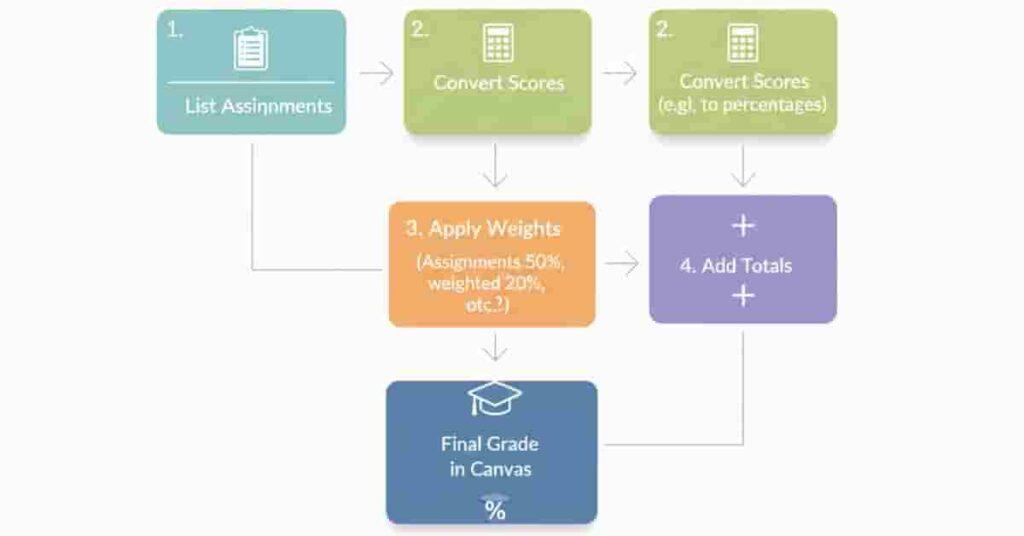
Calculating your final grade in Canvas might seem tricky at first, but breaking it down into simple steps makes it easy. You can do it manually or save time using a Canvas Grade Calculator.
Step 1—List Graded Assignments
Start by writing down all assignments that have been graded. Ignore ungraded or exempt assignments for now. Make sure you have the score for each.
Step 2 – Convert Scores to Percentages
If your scores are in points, convert them to percentages. For example:
- 45/50 points → 90%
- 18/20 points → 90%
Step 3 – Apply Weights
If your course uses weighted grading, multiply each assignment’s percentage by its weight. For instance:
- Assignment 1 – 90% × 20% = 18%
- Assignment 2—80% × 30% = 24%
- Assignment 3 – 70% × 50% = 35%
Step 4 – Add Totals
Add all weighted scores together: 18% + 24% + 35% = 77% → This is your current final grade.
Example with Dropped Grade
Suppose your course drops the lowest score (Assignment 3—70%). Recalculate using the remaining weights:
- Assignment 1 – 90% × 40% = 36%
- Assignment 2 – 80% × 60% = 48% New Total = 84%
Pro Tip: Always double-check weights and dropped assignments manually or with a Canvas Grade Calculator to avoid mistakes.
💡 Save time! Use our free Canvas Grade Calculator to input scores and weights. It instantly calculates your total grade, even with dropped or hidden assignments.
How to Calculate Hidden Grades in Canvas
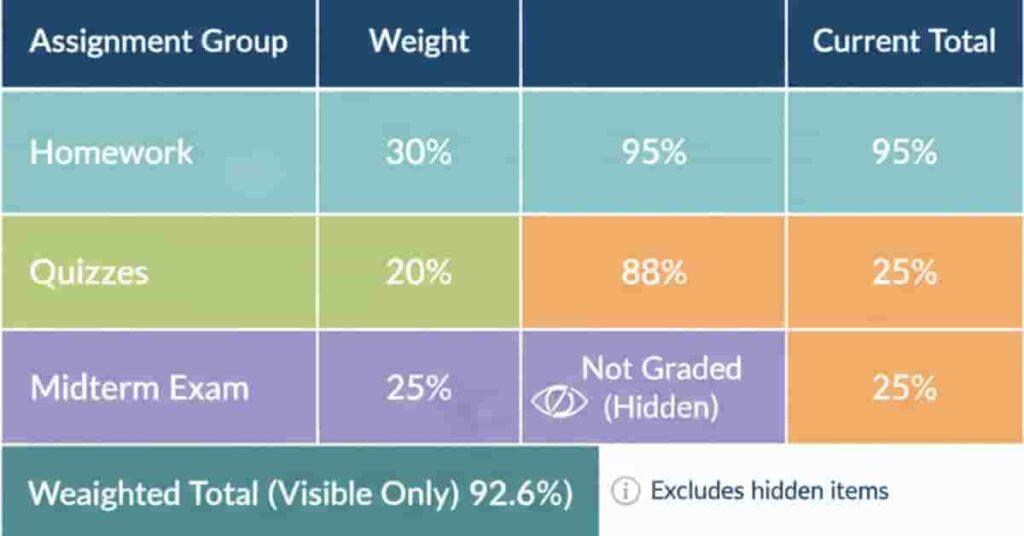
Sometimes, grades in Canvas don’t show up immediately. These are called hidden grades. Knowing how to handle them helps you estimate your current standing and plan your study schedule.
Why Grades Are Hidden
Instructors may hide grades for several reasons:
- Assignments aren’t due yet.
- Grades are being reviewed or moderated.
- To prevent early visibility before feedback is ready
How to Estimate Hidden Grades
Even if a grade is hidden, you can estimate it if you know your score:
- List all assignments, including hidden ones.
- Use your expected or estimated score for each hidden assignment.
- Include them in your calculations along with visible grades.
Manual Example
Suppose:
- Assignment 1: 90% (graded)
- Assignment 2: 80% (graded)
- Assignment 3: 70% (hidden)
If the weights are: 20%, 30%, and 50%, the estimated total with the hidden grade is (90×0.2) + (80×0.3) + (70×0.5) = 77%
Pro Tip: If you’re unsure about the hidden score, use a conservative estimate to avoid surprises when the grade is released.
How Dropped Grades Affect Your Final Score
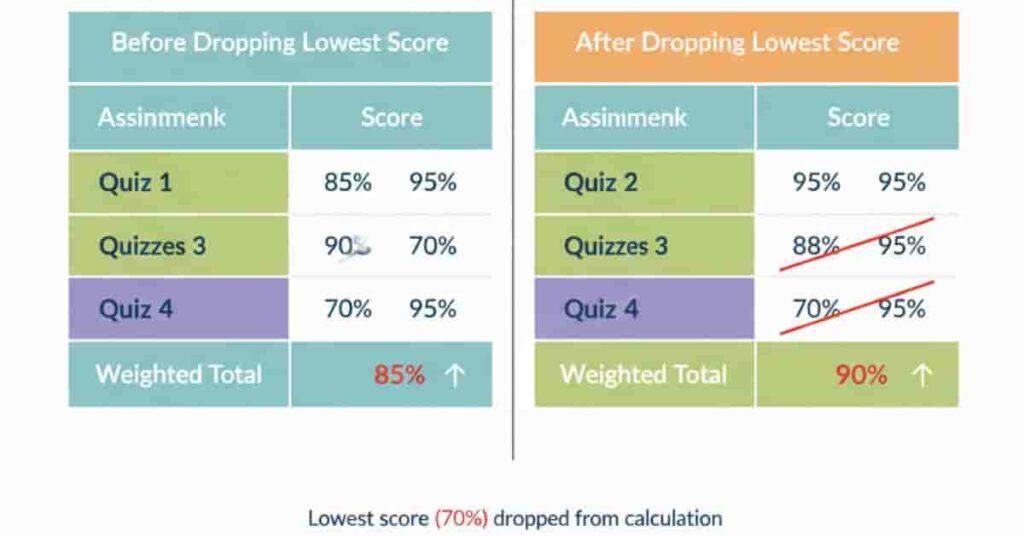
Many courses in Canvas use a dropped grades policy. This means your lowest score(s) in a category may be automatically removed before calculating your total grade. Understanding how this works can help you accurately estimate your grade and avoid surprises.
Dropped grades can significantly affect your total score, so understanding how to drop the lowest grade in Canvas is important.
How the Automatic Drop Rule Works
- Canvas can automatically drop one or more low scores if your instructor enables this feature.
- Only assignments within the designated category are considered for drops.
- The system removes the lowest scores before calculating your weighted total.
What Happens When a Grade is Dropped
When a grade is dropped, it no longer counts toward your total. This can significantly raise your final percentage, especially if the dropped score was much lower than your other assignments.
Step-by-Step Recalculation
- Identify which grades are subject to automatic drops.
- Remove the lowest score(s) from your list.
- Recalculate the weighted total using the remaining grades.
Before vs After Example
Suppose your course has three assignments:
| Assignment | Score | Weight |
|---|---|---|
| A1 | 90% | 40% |
| A2 | 80% | 60% |
| A3 | 70% | 0% (dropped) |
Without Drop: (90×0.4) + (80×0.6) + (70×0) = 84%
With Drop: Canvas removes 70%, so total = (90×0.4) + (80×0.6) = 84%
Pro Tip: Always verify which grades are being dropped. Even a single dropped assignment can change your overall grade. Using a Canvas Grade Calculator helps you see the impact instantly.
Calculate Grades Faster Using Canvas Grade Calculator
Manually calculating your grades can be time-consuming and prone to mistakes. That’s where a Canvas Grade Calculator comes in handy. It helps you quickly see your total grade, including weighted assignments, hidden grades, and dropped scores, without any math errors.
Benefits of Using a Canvas Grade Calculator
- Save time: Instantly calculate totals without manual formulas.
- Avoid errors: Ensures dropped scores, weights, and hidden assignments are correctly applied.
- Plan better: Easily see what score you need on upcoming assignments or finals.
- Experiment safely: Test “what-if” scenarios without affecting your official Canvas grades.
Steps to Use the Calculator
- Enter all your graded assignment scores.
- Input the corresponding weights for each assignment or category.
- Mark any assignments that are dropped or hidden.
- Click “Calculate” to see your total grade instantly.
Example: Enter scores → add weights → drop lowest → instant result = current final grade.
Why It’s Better Than Manual Calculation
- Handles weighted categories, dropped scores, and hidden assignments automatically.
- Reduces human error, especially in complex grading schemes.
- Saves time so you can focus on studying rather than crunching numbers.
Pro Tip: Keep a running log of your scores and use the calculator weekly to track progress and plan for exams.
[Try Free Canvas Grade Calculator] – includes hidden/dropped score feature
Handling Special Situations in Canvas Grades
Sometimes your course uses grading methods that don’t follow standard percentages. Knowing how to handle these special situations ensures your calculations stay accurate.
Bonus Points
- Bonus points are added on top of your total grade.
- They can increase your percentage beyond 100%, depending on your course rules.
- Example: If your total is 85% and you earn 5 bonus points, your new total = 90%. Pro Tip: Include bonus points in your Canvas Grade Calculator to see the true impact.
Fixed Points Assignments
- Some assignments use fixed points instead of percentages.
- Convert fixed points to percentages before including them in weighted totals.
- Example: An assignment worth 25 points, you scored 20 → 20 ÷ 25 = 80% Pro Tip: Always double-check the point system in Canvas to avoid miscalculations.
Curved Grading
- In rare cases, instructors apply a curve to adjust all students’ grades.
- Adjusted grades can change your final percentage significantly.
- Example: Your 85% may become 90% after the curve. Pro Tip: If your instructor announces a curve, enter the adjusted grades in your calculator to see your final impact.
Calculate Based Only on Graded Assignments
- Sometimes you want to know your current grade based only on completed work.
- Exclude ungraded or upcoming assignments from your calculation.
- Example: If 3 out of 5 assignments are graded, calculate total using only those 3 for an accurate snapshot. Pro Tip: This method helps you track progress mid-semester without worrying about missing grades.
Final Tips
In this guide, we covered how Canvas calculates final grades, hidden assignments, dropped scores, and special cases. You also learned step-by-step methods and practical examples using a Canvas Grade Calculator.
By understanding these rules, you can track your grades accurately, plan for upcoming assignments, and avoid surprises. Always double-check assignment weights, record your scores weekly, and use your calculator to ensure precise results.
Using a Canvas Grade Calculator makes estimating your current grade and needed scores simple and error-free. It handles weighted grades, dropped scores, and hidden assignments automatically.
💡 Ready to take control of your grades? Share your experience in the comments or try our Canvas Grade Calculator to see your current and potential final grades instantly!

We are the Canvas Academic Team, a developer team focused on building simple and practical tools that help students succeed academically. This platform was created specifically for Canvas LMS students to make grade tracking, GPA calculations, exam planning, and academic management easier and more efficient.
Our focus is on creating fast, accurate, and student-friendly educational tools along with helpful learning resources that improve productivity and reduce academic stress.
Through CanvasGradeCalculator.com, our goal is to continue building useful resources that help students study smarter, stay organized, and achieve better academic results.