introduction
Ever stared at your Canvas gradebook and wondered, “Am I really on track—or missing something?” You’re not alone. Many students in the USA find Canvas grading confusing, especially when instructors use different systems, such as weighted grades, points, or curves. A slight misunderstanding can make you panic about your performance when, in reality, you might be doing just fine.
This is why learning how to calculate grades on Canvas matters. Knowing the logic behind your grade helps you stay confident and avoid surprises. It may be based on weighted categories, total points, or only graded assignments. Beginners often ask how to calculate the final grade, grade average, or curved grades in Canvas grades are handled. These are all valid concerns, and once you understand them, checking your progress becomes simple.
In this complete guide, I’ll break everything down step by step. You’ll learn how Canvas calculates grades, how to project your final score, and how special scenarios like dropped grades or bonus points affect your totals. By the end, you’ll know exactly where you stand and what score you need to stay on track.
Understanding How Canvas Calculates Grades
When learning how to calculate grades on Canvas, it is helpful first to understand how the system works. Canvas doesn’t total points—it can use weights, averages, and even drop assignments. If you don’t know the logic behind calculations, your grades may look confusing or even inaccurate.
By learning the basics of the gradebook, you’ll be ready to handle common scenarios like weighted categories, averages, dropped grades, or bonus points. Here’s how Canvas builds your score:
Brief Intro to Canvas Grading System
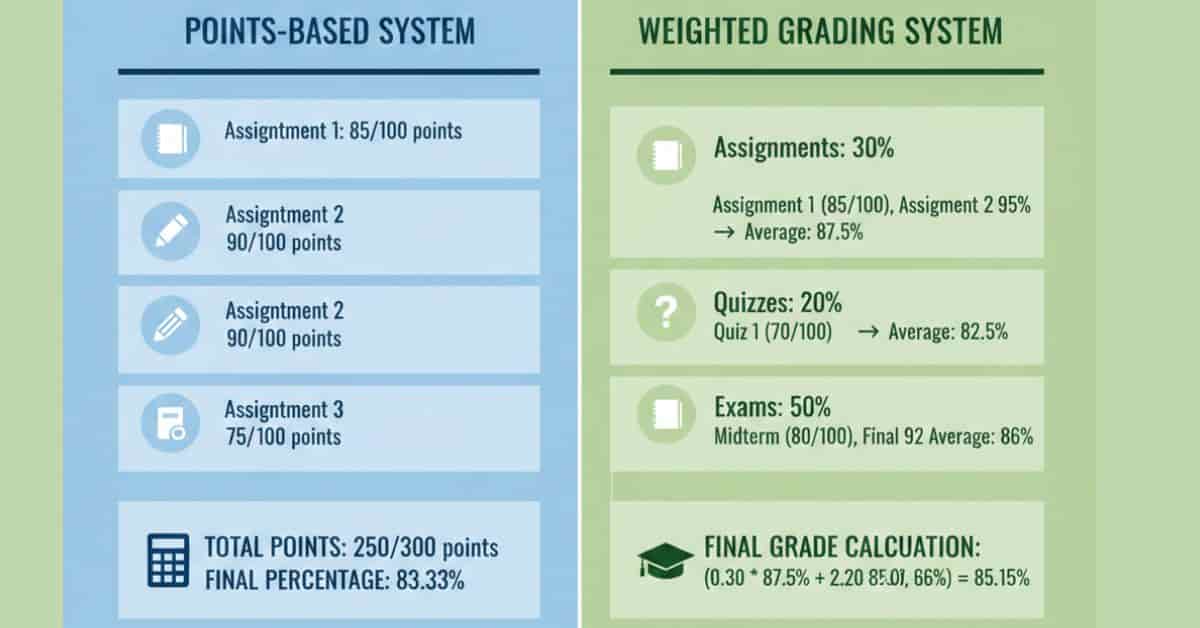
Canvas uses a digital gradebook where instructors record scores for assignments, quizzes, discussions, and exams. Each item contributes to your grade, but the way it’s counted depends on your teacher’s setup.
- Some classes use a total points system.
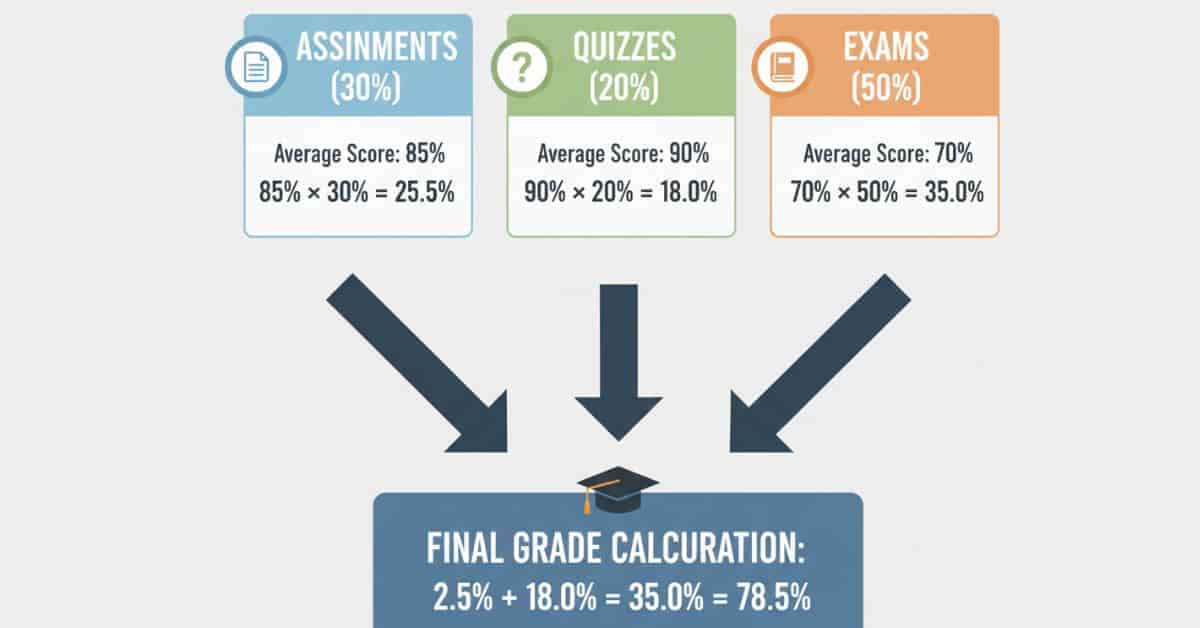
- Others use weighted categories (e.g., assignments 30%, quizzes 20%, exams 50%).
- Teachers may add extra credit or bonus points, which don’t always show the way students expect.
This setup is why methods for calculating final grades in Canvas or calculating grade averages on Canvas can vary from course to course.
Importance of Knowing the Logic Behind Calculations
Understanding how grades are calculated in Canvas can reduce stress and prevent surprises. If you only rely on what appears in the gradebook, you may misunderstand your actual standing.
Here’s why it matters:
- Weighted vs points-based: If categories have different weights, an assignment may count more than you think.
- Dropped grades: Some instructors remove your lowest score, which raises averages.
- Ungraded work: If unsubmitted tasks show as zero, your grade can appear lower than it is.
- Curved grades: Adjustments can boost your score, but they vary by class.
By grasping these rules, you can better project your performance and answer questions like “What score do I need on my final?”.
Canvas Gradebook Basics (Assignments, Quizzes, Exams, Weights)
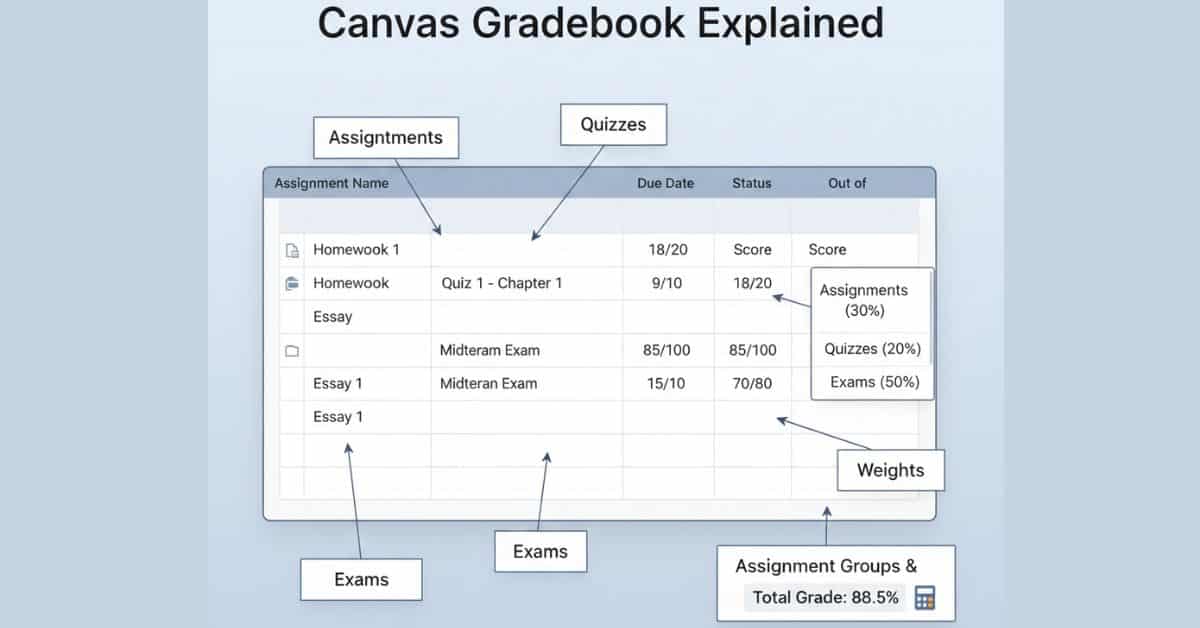
The Canvas gradebook functions like a digital spreadsheet, updating automatically. It includes:
- Assignments → Usually smaller tasks, sometimes grouped into categories.
- Quizzes → Often frequent and can be weighted lower or higher depending on the syllabus.
- Exams → High-value items that may count for 40–60% of your grade.
- Weights → Percentages set by your instructor to balance categories.
For example:
- Assignments (30%)
- Quizzes (20%)
- Exams (50%)
In this system, even if you ace quizzes, a poor exam score can pull down your average. That’s why knowing how Canvas calculates grades based on a fixed number of points or how weights interact is essential. This foundation will prepare you for step-by-step methods. These include calculating grades in Canvas based only on graded assignments, or learning how to calculate dropped grades in Canvas.
👉 Want to skip the manual math? You can also try a Canvas Grade Calculator that shows your results instantly.”
Step-by-Step: How to Calculate Your Grade on Canvas
Learning how to calculate grades on Canvas isn’t just about looking at the number in your gradebook. Canvas can use points, percentages, or weighted categories depending on your instructor’s setup. If you know which method applies, you can run the math yourself and predict your final results with confidence. Here’s how to apply this effectively:
How to Calculate Final Grade in Canvas
Canvas calculates your final grade by combining all graded items, usually through weights or total points. To do this:
- Identify each category’s weight from the syllabus.
- Multiply your average score in each category by its weight.
- Add the results together for your final grade.
👉 input Values :
- Assignments (Homework Assignments row edit karo): 85% (30%)
- Quizzes (Add Assignment): 90% (20%)
- Exams (Add Assignment): 70% (50%)
⚡ Leave the Final Exam Weight (%) field empty (0), because we have already included the exam’s 50% in the Assignments section.

→ Results & Analysis → Current Grade = 78.5%
How to Calculate Grade Average on Canvas
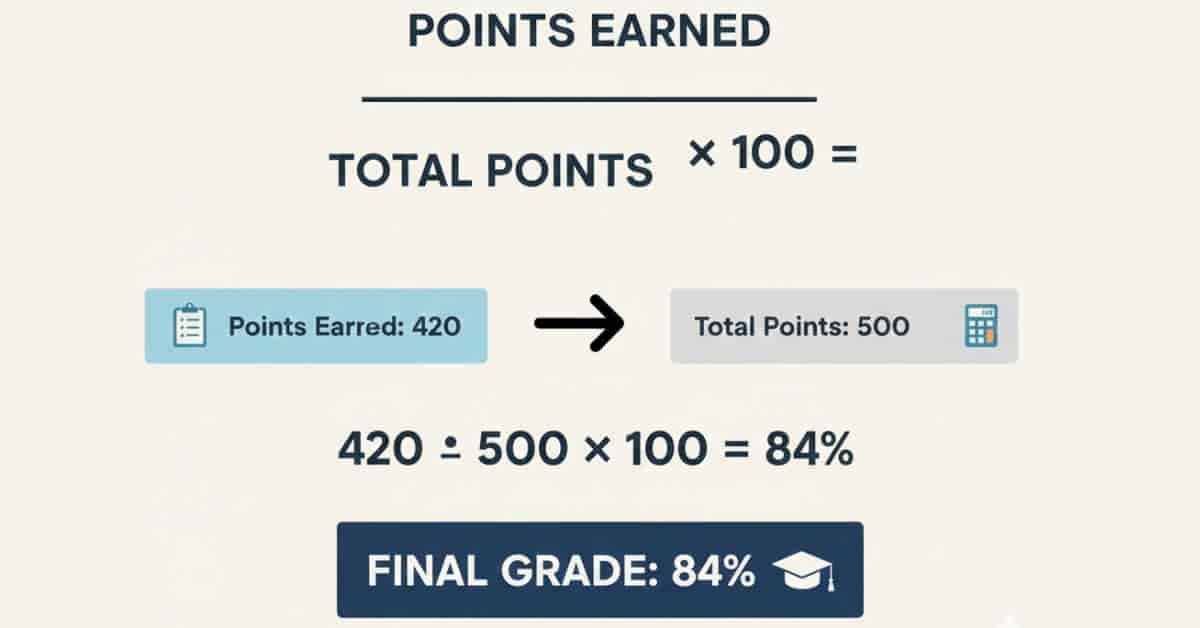
If your instructor uses a simple average, Canvas divides the total points you’ve earned by the total possible points.
Formula:
Grade Average = (Points Earned ÷ Total Points Possible) × 100
Simple words:
- “Points Earned” = the points you got
- “Total Points Possible” = the maximum points you could get
- Divide what you got by the total, then multiply by 100 to get your grade percentage.
Example:
- Earned = 420 points
- Possible = 500 points
Grade Average = (420 ÷ 500) × 100 = 84%
This is the easiest way for students learning how to calculate grade averages on Canvas, especially in point-based classes. Before you calculate anything, it’s important to first check grades on Canvas accurately in your gradebook. If you don’t know where to find scores, learning how to check grades on Canvas helps you avoid entering wrong data.
How to Calculate Grades Based Only on Graded Assignments
Sometimes your teacher sets Canvas to calculate grades only from submitted work. This means that ungraded or missing tasks don’t count until they are entered.
Example:
- Graded: 3 quizzes worth 10 points each → scored 8, 9, 10.
- Ungraded: 2 more quizzes not yet entered.
Canvas Average = (8 + 9 + 10) ÷ 30 = 90%.
But once missing scores are entered as zero, your average drops. Knowing that Canvas calculates based only on graded assignments helps you avoid overestimating your grade.
How to Calculate Grades Based on a Fixed Number of Points
In some classes, teachers use a fixed-point system instead of a percentage-based system. Every item adds to one total.
Steps:
- Add all points earned.
- Divide by the fixed total points.
- Multiply by 100 for your percentage.
Example:
- Fixed course total = 1,000 points
- Earned = 750 points
Final Grade = (750 ÷ 1,000) × 100 = 75%
This method applies when Canvas calculates grades based on a fixed number of points, which is common in high school and some college courses.
My take: Always check your course syllabus before using the calculator. Professors may set custom weights, like quizzes 15% instead of 10%, and missing that will make your result wrong. I find it easiest to write each weight on paper first, then enter them into Canvas or the calculator so nothing gets skipped.
👉 Instead of doing the math yourself, just enter your scores in a Canvas Grade Calculator—it will instantly show your current and final grade.”
Special Scenarios in Canvas Grade Calculation
While standard methods explain most cases, there are times when grades appear differently. Instructors may drop your lowest quiz score, exclude bonus points, or apply a curve to adjust averages. Some students also want to know precisely what they need to know for their final exam.
Understanding these situations helps you avoid surprises and makes calculating grades on Canvas much clearer. Here’s how to apply this effectively:
How to Calculate Dropped Grades in Canvas
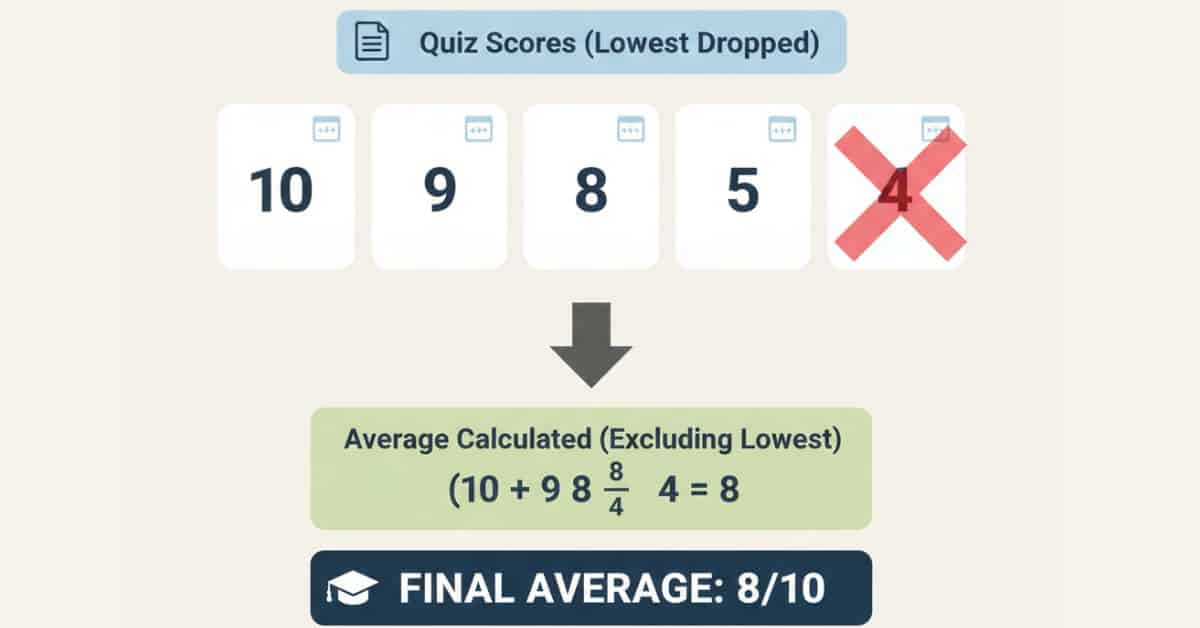
Some instructors set Canvas to automatically drop the lowest score in a category, like quizzes. This can improve your grade.
Example:
- 5 quizzes, each worth 10 points
- Scores: 10, 9, 8, 5, 4
- The lowest score (4) is dropped.
Canvas Average = (10 + 9 + 8 + 5) ÷ 40 = 80%
Without dropping, it would be 36 ÷ 50 = 72%. Knowing how to calculate dropped grades in Canvas helps you see how much this rule benefits you.
Canvas Calculate Grade Excluding Bonus Points
Extra credit or bonus points can raise your score, but Canvas may not always display them in the main percentage. Some instructors keep them separate.
Key points:
- If the bonus is excluded, your grade will reflect only the regular assignments.
- If included, a bonus can push your average above 100%.
Example:
- Regular work = 450 ÷ 500 = 90%
- Bonus = +20 points
Canvas may still show 90% unless your teacher enables the bonus to count. This is why students often ask about Canvas’s calculation of grades, excluding bonus points.
How Are Curved Grades Calculated on Canvas?
A grade curve adjusts scores to improve the class average. Instructors choose how the curve works. Canvas applies it after all scores are entered.
Example:
- Class average = 70%
- Instructor sets the curve to 80%
- Each student’s grade shifts upward by +10%
So, a 65% becomes 75%. But, curves aren’t always the same—sometimes they add points, while at other times they rescale. That’s why it’s tricky to predict precisely how curved grades are calculated on Canvas without your teacher’s input.
How to Calculate the Needed Score on the Final in Canvas
Many students ask: “What score do I need on my final to reach my target grade?” With the Canvas grade calculator, you can figure this out instantly.
Values entered in the calculator:
- Final Exam Weight (%): 40
- Desired Overall Grade (%): 90
- Assignments / Categories: Homework Assignments → Score = 82%, Weight = 60
📊 Calculator Results:
- Current Grade (without final): 82%
- Needed on Final (for desired grade): 102% (Not Possible)
- Letter Grade (current): B- (2.7)
⚠️ This shows that if your target is too high, the calculator warns you when the required score is impossible. That’s why using the Canvas grade calculator helps you set realistic study goals.
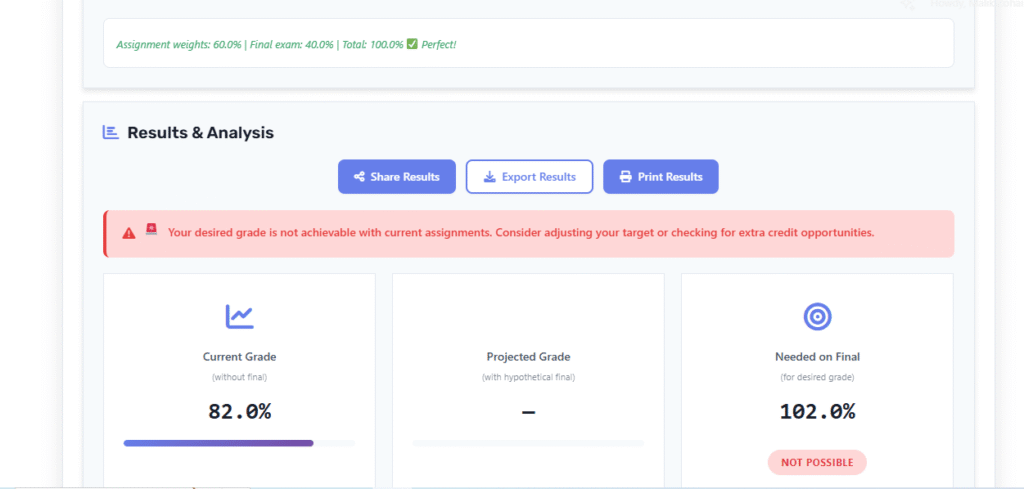
How It Worked in Real Life: A student had an 82% average going into a course where the final exam counted for 40%. They wanted a 90% overall, but after entering the weights into the Canvas calculator, they saw they would need over 100% on the final—something impossible. By checking this early, the student adjusted their goal, focused on solid preparation, and aimed for an A- instead of chasing an unrealistic 90%.
Common Issues & Misunderstandings
Even after you learn how to calculate grades on Canvas, problems can still appear. Grades may appear too low, weights may not add up correctly, or bonus points may not be displayed accurately. These issues often confuse students, but they usually have simple explanations.
Here’s how to apply this effectively:
Canvas Not Showing Accurate Grade → Why?
Sometimes Canvas doesn’t display the grade you expect. This doesn’t mean the system is broken—it’s usually a settings issue.
Possible reasons:
- The instructor hasn’t entered all scores.
- Missing or ungraded items aren’t included yet.
- Canvas is set to show only graded assignments.
For example, if you want to see how to calculate grade average on Canvas but some quizzes aren’t entered, your displayed grade may look higher than your actual average. Always compare Canvas with your syllabus rules to confirm accuracy.
Weighted Grades Not Adding to 100%
Another common issue is when weighted categories don’t total 100%. If the setup is incomplete, Canvas can’t correctly calculate your grade.
Example:
- Assignments: 30%
- Quizzes: 20%
- Exams: 40%
Total = 90%, not 100%. Until it is fixed, Canvas may miscalculate grades. This can affect your understanding of how to calculate a final grade in Canvas or even how Canvas calculates grades based on a fixed number of points.
If you notice this, ask your instructor for clarification.
Some instructors drop the lowest grade in Canvas, which can significantly raise your average. Understanding how to drop lowest grade in Canvas makes it easier to interpret your true performance.
Ungraded Assignments Showing as “0”
Canvas often treats ungraded work as zeros, unless the teacher changes the setting to reflect the actual grade. This can drop your grade suddenly.
Example:
- 4 graded assignments: 90, 85, 88, 92 → average = 88.8%
- 2 missing assignments show as “0” → new average = 59%
This confuses students who believe their grade is higher than it actually is. Knowing whether your instructor uses Canvas to calculate based only on graded assignments helps you interpret the score correctly.
Curves/Bonus Confusing Students
Curves and bonus points can be the most confusing aspects of calculating grades on Canvas. That’s because Canvas doesn’t always display them clearly.
- Curves: Instructors decide how the average shifts, so students can’t predict it.
- Bonus points: Sometimes added separately, so your grade might not show the extra boost.
This confusion explains why many ask about how curved grades are calculated on Canvas or why Canvas calculates grades excluding bonus points doesn’t match expectations. Always confirm with your instructor how these adjustments work.
Always confirm with your instructor how these adjustments work.👉 Still confused if Canvas is showing your grade correctly? A quick check with a Canvas Grade Calculator can give you clarity.”
Pro Tips for Students
Even after you learn how to calculate grades on Canvas, small mistakes can lead to confusion. Instructors use different grading setups, and Canvas sometimes hides details like bonus or dropped scores. With the proper habits, you can track your progress more accurately and reduce stress about final grades.
Here’s how to apply this effectively:
Always Check the Syllabus for the Instructor’s Grading Rules
Your syllabus is the ultimate guide to understanding grades. Canvas follows the rules your instructor sets, but those rules aren’t always obvious.
Why it matters:
- The syllabus clarifies whether grades are weighted or based on a point system.
- It indicates whether dropped grades or bonus points are applicable.
- It shows how much the final exam counts, which helps when figuring out the score you need on the final Canvas. Before relying only on Canvas, review the syllabus to avoid surprises in your final grade calculation.
Use Canvas “What-If” Feature to Project Grades
Canvas includes a “What-If” tool that lets you test possible scores and see how they impact your average. This feature is handy when planning for significant assignments or finals.
Steps:
- Open your gradebook.
- Enter hypothetical scores for upcoming tasks.
- See how they change your grade instantly.
This is the easiest way to project results without running manual formulas. It includes calculating grade averages on Canvas. It also covers understanding how Canvas calculates grades based only on graded assignments.
Double-Check Weights vs Points System
One of the most common mistakes is assuming your course uses one system when it actually uses a different one.
- Points system: Every assignment adds to a fixed total.
- Weighted system: Categories such as exams or quizzes carry more weight.
Example: A 50-point exam may matter less than a 10-point quiz if weights are applied. That’s why you should always confirm whether your class uses Canvas to calculate grades based on a fixed number of points or a weighted breakdown.
Cross-Check with Manual Calculations (Excel, Google Sheets)
Even with Canvas tools, it’s a good idea to verify grades manually. A simple spreadsheet helps you confirm results and catch mistakes.
How to do it:
- Enter each assignment, score, and possible points.
- Apply the weight or total points system.
- Compare with Canvas to see if they match.
This method helps identify exceptional cases. For example, calculating dropped grades in Canvas. Or when Canvas calculates a grade excluding bonus points, which may seem unclear.
Conclusion
We’ve covered everything you need to know about calculating grades on Canvas. This includes weighted averages, point systems, and exceptional cases like dropped grades, bonus points, and curves. You now understand how to calculate the final grade in Canvas, how to calculate the grade average on Canvas, and how to project the score you need on your final exam.
By mastering these basics, you’ll avoid confusion and feel more confident tracking your academic progress. Whether your instructor uses a fixed number of points or calculates grades based only on graded assignments, you can now read your gradebook with ease.
Do you have questions or tips of your own? Share them in the comments—I’d love to hear your experience. And if you found this guide helpful, don’t forget to share it with classmates who may also need it.
👉 Now that you know how grades are calculated, put it into practice—use a Canvas Grade Calculator and instantly see where you stand.”

We are the Canvas Academic Team, a developer team focused on building simple and practical tools that help students succeed academically. This platform was created specifically for Canvas LMS students to make grade tracking, GPA calculations, exam planning, and academic management easier and more efficient.
Our focus is on creating fast, accurate, and student-friendly educational tools along with helpful learning resources that improve productivity and reduce academic stress.
Through CanvasGradeCalculator.com, our goal is to continue building useful resources that help students study smarter, stay organized, and achieve better academic results.