

Table of Contents
Introduction
Have you ever needed to check a Blackboard assignment while away from your computer?
The Blackboard App makes it easier for students to stay connected with their courses from a phone or tablet. It can help you view course materials, check grades, receive notifications, and complete supported tasks.
For beginners in the USA, downloading the right app can sometimes feel confusing. Blackboard may also look different depending on your school and the Blackboard version it uses.
This guide explains how to download and use the Blackboard App step by step. You’ll learn how to find the official app, install it on Android or iPhone, and sign in through your school.
We’ll also explain how Blackboard works on a Mac or computer. This is important because the mobile app and Blackboard website are not the same thing.
By the end, you’ll know which option to use and how to get started without unnecessary confusion.
How to Download the Blackboard App
The Blackboard App is designed for students who want convenient access to their courses from a mobile device. Before downloading it, make sure you choose the official Blackboard app.
Download Blackboard on Android
Android users can download the official Blackboard app through the Google Play Store. Search for the Blackboard app and check the publisher before installing it.
After installation, open the app and continue to the sign-in screen. Your school may use Blackboard Learn with settings specific to your institution.
Download Blackboard on iPhone or iPad
iPhone and iPad users can find the official Blackboard app through the Apple App Store. Search for Blackboard and confirm that you are installing the official app.
Once installed, open Blackboard and follow the prompts to connect with your school.
Sign In to the Blackboard App
Use the Blackboard login information provided by your school. In most cases, this is the same account you use to access Blackboard through your school’s website.
Your school may require additional verification, such as a security code or authentication app.
Select Your School or Institution
The Blackboard App may ask you to find your school before signing in. Enter your university or college name and select the correct institution from the results.
Make sure you choose the correct school. Different institutions can have separate Blackboard systems and login pages.
How to Download Blackboard on Mac
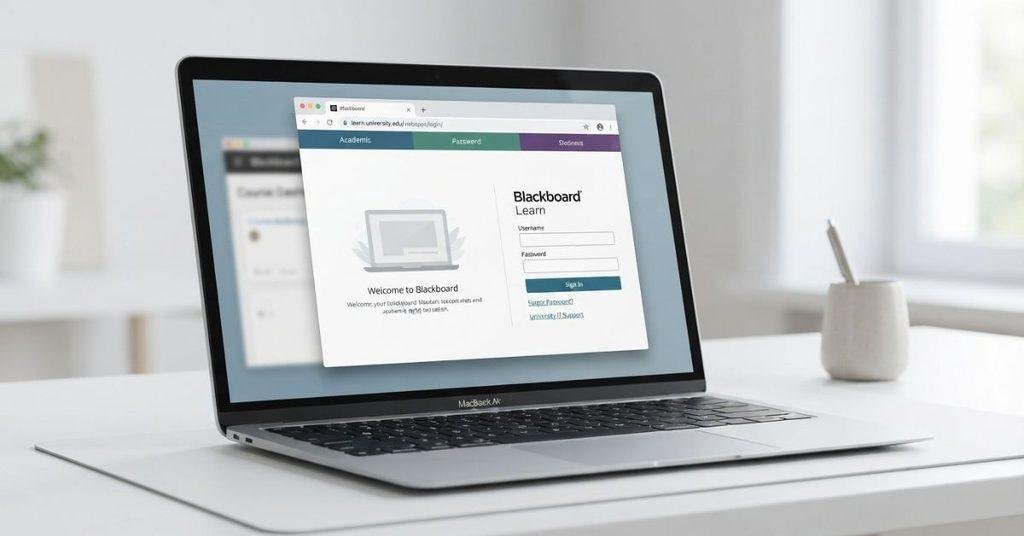
If you use a Mac, you generally do not need to download the mobile Blackboard App. Blackboard is typically accessed through a supported web browser on your computer.
The mobile app is intended for supported phones and tablets. Your university’s Blackboard system can usually be opened directly in a browser on macOS.
Open Blackboard on a Mac
Open a supported web browser on your Mac, such as Safari or Chrome. Then go to your university’s official Blackboard website.
Your school may provide a Blackboard link through its student portal or website.
Find Your University’s Blackboard Login
Search your university’s official website for its Blackboard or student login page. Avoid using unfamiliar third-party links.
The correct login page should connect you to your institution’s Blackboard system.
Sign In Through Your Browser
Enter the username and password provided by your school. Follow any additional security or two-factor authentication steps if required.
Once signed in, you can access your available courses, assignments, grades, announcements, and other Blackboard features.
Bookmark Blackboard for Easy Access
After opening the correct Blackboard login page, bookmark it in your browser. This makes it easier to return to Blackboard without searching for the login page each time.
Tip: Your Blackboard features may differ based on your school, account, and course settings.
How to Download Blackboard on MacBook
If you are searching for how to download Blackboard on MacBook, there is an important detail to know first. MacBook users generally access Blackboard through a supported web browser.
You usually do not need to install the mobile Blackboard App on macOS. Instead, start with your university’s official Blackboard portal.
How to Access Blackboard on a MacBook
- Open Safari, Chrome, or another supported browser.
- Visit your university’s official Blackboard login page.
- Enter your student login credentials.
- Complete any required security verification.
- Open your course from the Blackboard dashboard.
Your university may provide a Blackboard link through its student portal. If you cannot find it, check your school’s official website or contact its support team.
Do You Need to Download Blackboard on a Computer?
Usually, no.
Students can generally access Blackboard through a web browser on a computer when their institution provides Blackboard access. You do not normally need to download the mobile app for a Mac or Windows computer.
The basic difference is:
| Device | Typical Blackboard Access |
|---|---|
| Phone | Blackboard mobile app |
| Tablet | Blackboard mobile app |
| MacBook | Blackboard website in a supported browser |
| Windows PC | Blackboard website in a supported browser |
The browser version is designed for larger computer screens. It may also provide access to course functions that are better suited to desktop use.
Your available features depend on your institution, Blackboard setup, course settings, and device.
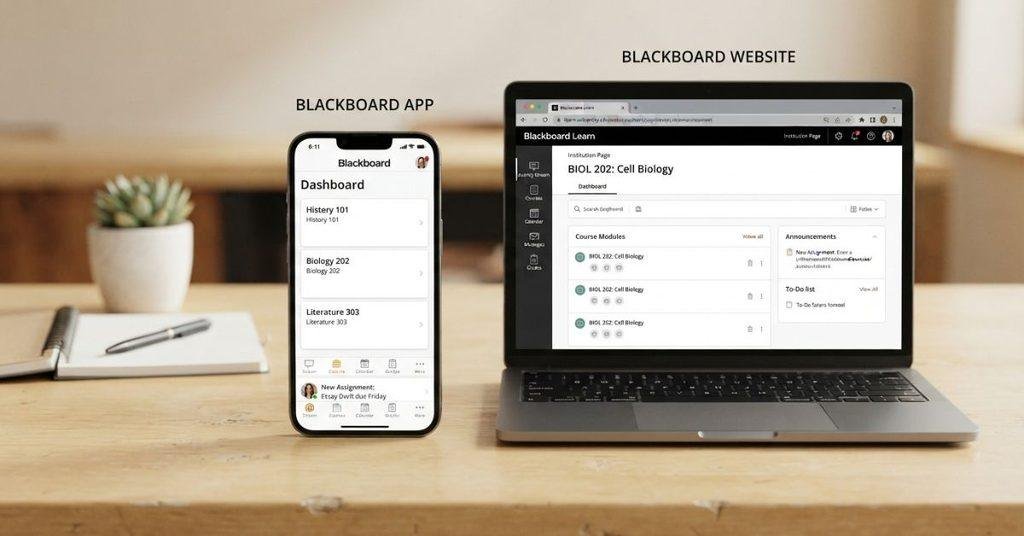
Blackboard App vs. Blackboard Website
The Blackboard App and Blackboard website both help students access their courses. However, they are designed for different devices and experiences.
Blackboard App
The mobile app is focused on convenient access from supported phones and tablets.
You can use supported app features to:
- View course content
- Check grades
- Receive notifications
- Review course activity
- Access supported assignments and other course features
The exact features available can vary by institution and Blackboard setup.
Blackboard Website
The Blackboard website is accessed through a supported browser on a Mac or Windows computer.
It provides a broader desktop interface for working with your courses. Depending on your school’s setup, you may use it for assignments, course materials, grades, discussions, and other Blackboard functions.
Not every feature works exactly the same way in the app and website. If you need a full desktop experience, using Blackboard through your computer’s browser is usually the better option.
How to Log Into the Blackboard App
After installing the official Blackboard app, you can connect it to your school’s Blackboard system. The exact screens may vary based on your institution and Blackboard setup.
Follow these steps:
- Install the official Blackboard app on your supported mobile device.
- Open the app after installation.
- Search for your institution using your school’s name.
- Select your school from the available results.
- Enter your institutional login details when prompted.
- Complete any required authentication, such as two-factor verification.
- Open your courses from the Blackboard dashboard.
Use the same institutional account your school provides for Blackboard access.
If you need help with the general login process, see our guide on How to Log Into Blackboard.
What Can You Do With the Blackboard App?
The Blackboard App gives students convenient mobile access to many course activities. However, available features can vary by Blackboard version, institution, and course settings.
View Your Courses
You can open your available courses from the app. This makes it easier to check course information while away from your computer.
Check Grades
Depending on your institution’s setup, you may be able to view grades and other course-related information through the app.
View Course Content
The app can provide access to supported course materials. Available content depends on what your instructor and institution make available.
Check Assignments
You may be able to view assignments, instructions, due dates, and other assignment information. Some course activities may require you to use Blackboard through a browser.
View Calendar and Deadlines
The app can help you keep track of supported calendar events and upcoming deadlines. This can make it easier to monitor your coursework from your phone.
Receive Notifications
Blackboard can send supported notifications about course activity. Your notification options may depend on your institution and account settings.
Participate in Supported Course Activities
Some Blackboard course activities can be completed or accessed through the app. However, not every Blackboard feature is available in the same way on mobile.
Important: Blackboard features can differ based on the Blackboard version, your institution, your course settings, and the specific activity. If a feature is unavailable in the app, try accessing Blackboard through a supported browser.
Can You Submit Assignments Through the Blackboard App?
Yes, in many cases you can submit assignments through the Blackboard App. However, submission options can depend on the assignment type, your Blackboard version, and your institution’s configuration.
Some assignments may support file uploads or other submission methods through the app. Other activities may require you to use Blackboard through a web browser.
Before submitting, check the assignment instructions carefully. Make sure you upload the correct file and complete any required submission steps.
For detailed instructions, see our guides on:
- How to Submit an Assignment on Blackboard
- How to Submit a Word Document on Blackboard
- How to Upload a Video to Blackboard
These guides can help you understand the specific steps for different assignment types.
Can You Check Grades on the Blackboard App?
Yes, students can check available grades through the Blackboard App. The grades you can see depend on your course settings and what your institution or instructor makes available.
Open the app, select your course, and look for the grades or course activity section. Some grades may not appear immediately if your instructor has not released them.
If you want to understand your overall academic performance, see our guide on How to Check GPA on Blackboard.
You can also use our Blackboard Grade Calculator to help calculate your GPA or estimate your grades based on your course results.
Can You Use Blackboard on a MacBook Without the App?
Yes. You can generally use Blackboard on a MacBook without installing the mobile app. Blackboard can typically be accessed through a supported web browser.
To get started:
- Open your preferred browser on your MacBook.
- Go to your school’s official Blackboard portal.
- Sign in using your institutional credentials.
- Open your courses and use Blackboard through the browser.
- Bookmark the Blackboard login page for quick access later.
Your university may provide its Blackboard link through its student portal or official website. If you are unsure which login page to use, check your school’s official resources.
What Browser Should You Use for Blackboard on Mac?
You can generally access Blackboard on a Mac using a modern, supported web browser. The best choice can depend on Blackboard’s current browser support and your institution’s setup.
Keep your browser updated to the latest supported version. An updated browser can also help prevent compatibility and performance problems.
Blackboard on Safari
Safari is Apple’s built-in browser and can be used to access Blackboard on a Mac when supported by your Blackboard environment.
Open Safari, visit your school’s Blackboard portal, and sign in with your institutional account.
Blackboard on Chrome
Google Chrome is another common option for accessing Blackboard on macOS. Keep Chrome updated before using Blackboard.
If you experience an issue in one browser, your institution’s support team may recommend trying another supported browser.
Blackboard on Other Supported Browsers
Other modern browsers may also work with Blackboard when they meet the platform’s current requirements.
Browser support can change as Blackboard and browser technologies are updated. Not every Blackboard feature is guaranteed to work identically across all browsers.
If a feature does not work correctly, check Blackboard’s current browser requirements and your school’s technical support guidance.
Why Can’t I Download Blackboard on My Mac?
If you cannot find the Blackboard App for your Mac, the issue may not be with your computer. The mobile Blackboard App is designed for supported mobile devices, while Mac users generally access Blackboard through a web browser.
Common reasons include:
- You are looking for the mobile app on macOS. The mobile app is intended for supported phones and tablets.
- You are searching for the wrong Blackboard product or app. Blackboard may have different products and services.
- Your institution provides browser-based access. Your school may expect students to use Blackboard through Safari, Chrome, or another supported browser.
- Your school uses a specific Blackboard portal. You may need to access Blackboard through your university’s official student portal.
For a MacBook, the best starting point is usually your school’s official Blackboard login page.
Why Can’t I Log Into the Blackboard App?
If the Blackboard App will not let you sign in, several issues could be causing the problem. Check each of these possibilities before assuming the app is broken.
Wrong Institution Selected
Make sure you selected the correct school during setup. Different colleges and universities can use separate Blackboard systems.
Incorrect Credentials
Check that you are using the username and password provided by your institution. Your Blackboard credentials may be connected to your school’s main student account.
School Account Is Not Activated
New students may need to activate their institutional account before accessing Blackboard.
Blackboard Access Has Not Been Provisioned
Your school may not have added your account to Blackboard yet. This can happen before a new term or course begins.
Password Problem
If your password is incorrect or expired, you may need to reset or change it through your institution.
See our guide on How to Reset or Change Your Blackboard Password for help.
Authentication or SSO Issue
Some schools use single sign-on or additional authentication. A problem with your school’s authentication system can prevent the app from completing the login process.
App Needs Updating
Check whether a newer version of the Blackboard App is available. Keeping the app updated can help with compatibility and login problems.
Why Can’t I See My Courses in the Blackboard App?
If you can log into the Blackboard App but cannot see your courses, the app may not be the problem. Several account or course settings can affect what appears in your course list.
Possible reasons include:
- Your enrollment has not synchronized yet.
- The course is not available yet.
- Your instructor has not made the course available.
- You selected the wrong institution or account.
- The app needs to be refreshed or updated.
First, confirm that you are signed into the correct school account. Then refresh the course list and check whether the course appears later.
If the course is still missing, contact your instructor or school’s Blackboard support team. They can check your enrollment and course availability directly.
Blackboard App for Mac vs. Blackboard on Mac
The terms Blackboard App for Mac and Blackboard on Mac can be confusing. They usually refer to two different ways of accessing Blackboard.
Blackboard App: The Blackboard App is primarily designed for supported mobile devices, such as phones and tablets. It provides a mobile-focused way to access supported course features.
Blackboard on Mac: Mac users generally access Blackboard through a supported web browser. You can open your university’s Blackboard portal in Safari, Chrome, or another supported browser without installing the mobile app.
In simple terms:
Phone or tablet → Blackboard mobile app
MacBook or other computer → Blackboard website through a browser
The features available in each option can vary based on your institution, Blackboard version, and course settings.
How to Keep Blackboard Easy to Access on a Mac
Once you find your university’s Blackboard login page, you can make future access much easier.
Bookmark Blackboard
Bookmark your official Blackboard login page in your browser. You can then open it without searching for the website each time.
Save the University Login Page
If your school provides a specific Blackboard portal, save that page rather than relying on third-party search results.
Save Credentials Securely
If appropriate, use your browser’s built-in password manager to save your login details securely. Avoid saving passwords on shared or public computers.
Keep Your Browser Updated
Use an up-to-date supported browser on your Mac. Updates can improve compatibility, security, and performance.
Use the Official Institution URL
Always start with the Blackboard link provided by your university. This helps ensure that you reach the correct Blackboard system for your account.
Whether you’re using Blackboard on your phone or Mac, you can use our Blackboard Grade Calculator to calculate your current course grade and estimate what you need on upcoming assignments.
This can be especially helpful when you want to understand how individual assignment scores may affect your overall course grade.
Conclusion
Getting started with the Blackboard App is simple once you know which device and access method to use. This guide covered downloading the app, signing in, using Blackboard on a MacBook, and troubleshooting common issues.
For phones and tablets, the Blackboard App provides convenient access to supported course features. On a MacBook or computer, you can usually access Blackboard through a supported web browser.
Remember that available features can vary by your school, Blackboard version, and course settings.
Ready to make your Blackboard experience easier? Explore our other Blackboard guides for help with assignments, grades, passwords, and course activities. You can also share this guide with classmates who are new to Blackboard.
Yes. Blackboard offers a mobile app for supported smartphones and tablets. Students can use it to access supported courses, view content, check grades, receive notifications, and complete certain course activities.
Download the official Blackboard app from the appropriate app store for your device. Search for Blackboard, verify that it is the official app, and install it. Then open the app and search for your school or institution.
You generally do not need to download the mobile Blackboard app on a Mac. Instead, open a supported browser and visit your university’s official Blackboard portal. Sign in with your institutional credentials to access your courses.
A MacBook typically does not require the mobile Blackboard app. Open Safari, Chrome, or another supported browser and access Blackboard through your school’s official login portal.
Yes. You can generally use Blackboard on a MacBook through a supported web browser. Open your university’s Blackboard portal, sign in, and access your courses directly from the website.
Usually, no. Blackboard can generally be accessed through a supported web browser on a Mac or Windows computer. The mobile app is primarily intended for supported phones and tablets.
Yes. You can generally use Blackboard through a web browser without installing the mobile app. This works on computers and can also provide browser-based access on mobile devices.
In many cases, yes. However, assignment submission options depend on the assignment type, Blackboard version, and your institution’s settings. Some assignments may require you to use Blackboard through a browser.
Yes. The Blackboard App can provide access to available grades for supported courses. What you can see depends on your instructor, course settings, and institution.
You may be looking for the mobile Blackboard app, which is designed for supported mobile devices. On a Mac, Blackboard is generally accessed through a supported browser using your university’s Blackboard portal.
Check that you selected the correct institution and entered the correct login details. Other causes can include an inactive school account, unavailable Blackboard access, authentication issues, password problems, or an outdated app.
Your courses may not appear if enrollment has not synchronized yet or the course is not available. Your instructor may also not have released the course. Check that you selected the correct institution and account, then refresh or update the app.

We are the Canvas Academic Team, a developer team focused on building simple and practical tools that help students succeed academically. This platform was created specifically for Canvas LMS students to make grade tracking, GPA calculations, exam planning, and academic management easier and more efficient.
Our focus is on creating fast, accurate, and student-friendly educational tools along with helpful learning resources that improve productivity and reduce academic stress.
Through CanvasGradeCalculator.com, our goal is to continue building useful resources that help students study smarter, stay organized, and achieve better academic results.

