Table of Contents
Introduction
Have you ever opened Blackboard and wondered why different colors appear across your courses, grades, or calendar?
If you are new to Blackboard, these color codes can feel confusing at first. What Do the Colors Mean on Blackboard? The answer depends on where the color appears and how your school configured Blackboard.
Students in the USA may see colors on course cards, calendars, grades, activity areas, and status indicators. However, Blackboard does not use every color with one universal meaning.
That is why it is important to check the specific Blackboard screen you are viewing. A color can represent a course, activity, grade status, event, or another interface feature.
In this guide, you will learn what Blackboard colors can mean in different areas. You will also learn why the same color may not mean the same thing everywhere.
By the end, you should have a clearer understanding of Blackboard color codes and how to interpret them without confusion.
What Do the Colors Mean on Blackboard?
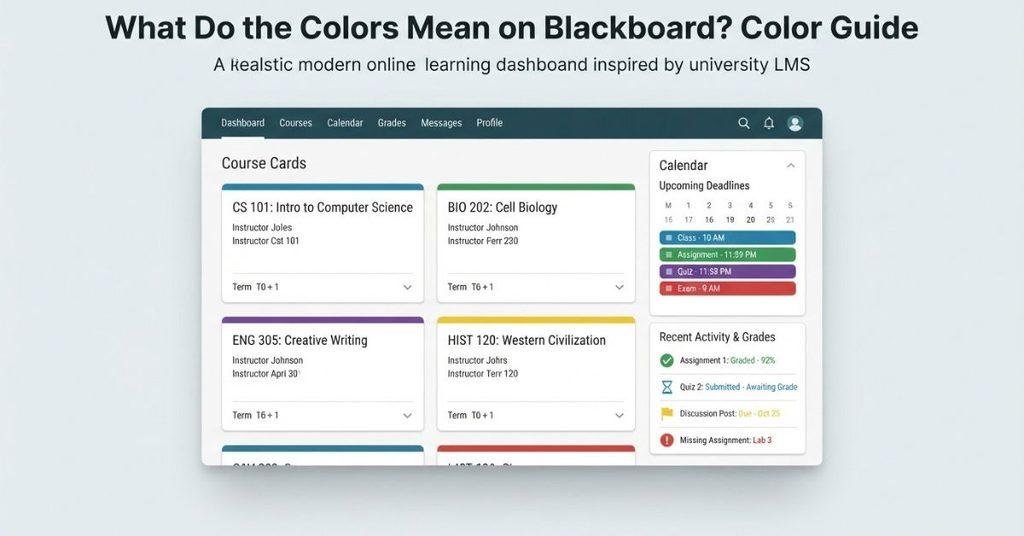
Blackboard colors can look like status codes, but their meaning depends on where you see them. A color on a course card may work differently from a color in the calendar or grades area.
For beginners, the easiest approach is to identify which Blackboard feature uses the color. Common examples include:
- Course colors: Help you identify and separate different courses visually.
- Calendar colors: Help distinguish events or activities from different courses.
- Grade colors: May appear with grades or grading-related information, depending on your Blackboard setup.
- Activity or status colors: Can help show activity, availability, or other interface states.
- Color indicators: May provide visual cues within specific Blackboard features.
Blackboard’s layout can vary between Blackboard Learn Ultra and Original Course View. Your school or instructor may also control which features and indicators appear.
Blackboard Course Colors
Course colors mainly help students recognize different courses quickly. When several classes appear on your Courses page, color can make each course easier to identify.
For example, you might associate one color with your math course and another with your history course. This creates a simple visual reference when moving between classes.
Course colors are generally about visual organization and identification. They should not automatically be treated as warnings, performance indicators, or grading signals.
Blackboard Calendar Colors
Calendar colors can help separate events connected to different courses. This makes a busy schedule easier to scan when assignments, tests, and other events appear together.
The exact colors and controls can depend on your Blackboard version and institution’s setup. Always check the event details if you’re unsure what a color represents.
Blackboard Grade Colors
Colors in a grades area can have a different purpose from course-card colors. Blackboard may display visual indicators alongside grades, feedback, or other grading information.
Don’t assume a particular color means you passed or failed. Check the grade, feedback, and surrounding labels for the actual information.
Blackboard Activity or Status Colors
Some Blackboard areas use colors or visual indicators to show activity or status. These can relate to course activity, availability, notifications, or other interface features.
The meaning depends on the specific Blackboard screen. If a color appears without an obvious label, open the related item to find more context.
Blackboard Color Indicators
A color indicator is best understood as a visual cue, not a universal Blackboard code. Its meaning depends on the feature where it appears.
If you’re unsure, look at nearby text, icons, labels, or item details. This helps prevent mistakes when interpreting Blackboard colors.
What Do Blackboard Course Colors Mean?
If different colors appear on your Blackboard course cards, they usually help you identify courses visually. This can be useful when you have several classes listed on the Courses page.
Course colors give each course a quick visual identity. Instead of reading every course title, you may recognize a class by its associated color.
This can make Blackboard navigation easier, especially when you’re switching between multiple courses. However, the color itself should not be treated as a grade or academic status.
Your Blackboard setup may offer different course-color controls depending on your version and institution. Some options may also vary between Ultra and Original Course View.
Do Blackboard Course Colors Mean Anything About Your Grade?
No. A course-card color should not be interpreted as your grade. Its main purpose is visual course identification, not academic performance reporting.
For example, seeing a red, blue, green, or another color on a course card does not automatically mean you are failing, passing, or missing work.
To understand your academic progress, check the actual Grades area, assignment feedback, and other information provided by your instructor. The course-card color alone does not provide enough information about your performance.
What Do the Colors Mean on the Blackboard Calendar?
Blackboard calendar colors can help you quickly distinguish events connected to different courses or calendars. This can make a busy schedule easier to scan.
For example, your calendar may contain assignment due dates, tests, classes, or other course events. Different colors can help you recognize where those events belong.
However, calendar colors don’t always have one universal meaning. The available colors and their behavior can depend on your Blackboard experience and course setup.
If you regularly use a separate calendar app, you may also want to learn how to connect Blackboard Calendar to Google or Apple Calendar. This can help you manage academic events alongside your other commitments.
Why Are My Blackboard Calendar Events Different Colors?
Different colors can help visually separate events from different courses or calendars. This lets you identify course-related events without opening every calendar entry.
The color itself may not describe the importance of an event. Instead, it can provide a visual connection between an event and its associated course or calendar.
If an event looks different from others, open it and check its course, title, date, and other details. These details provide more reliable information than color alone.
Do Calendar Colors Represent Different Courses?
They can help distinguish events associated with different courses or calendars. When multiple classes appear on the same calendar, color can make those events easier to identify.
However, don’t assume that every color represents a specific academic meaning. A color should not automatically be interpreted as indicating a test, assignment, urgent task, or grade.
Always check the event details to confirm which course and activity it represents.
Can You Change Blackboard Calendar Colors?
The available calendar color controls can depend on your Blackboard experience and institutional settings. If Blackboard provides color options for your calendar, you may be able to adjust them for easier organization.
If you don’t see a color option, your version or course setup may not provide that control. In that case, use the event details and calendar labels to identify courses.
What Do the Colors Mean on Blackboard Grades?
Seeing a colored grade can naturally make you wonder whether the color shows a passing or failing result. However, Blackboard grade colors can depend on the specific Blackboard experience and course configuration.
A color or visual indicator may appear alongside grade-related information, but its meaning isn’t necessarily universal across every Blackboard course.
The safest approach is to focus on the actual grade, grading information, and feedback provided by your instructor. If your course uses a specific grading schema or color system, the course instructions may explain it.
Does a Red Grade Mean You Failed?
Not necessarily. You shouldn’t assume that a red grade automatically means you failed a Blackboard assignment or course.
The meaning of a red indicator can depend on the specific Blackboard feature and how your institution or instructor configured the course.
Check the numerical or letter grade shown with the color. Also review any available feedback, grading information, or course instructions.
Does Green Mean You Passed?
Not necessarily. Green should not automatically be interpreted as a passing grade across all Blackboard courses.
Different Blackboard experiences and course configurations may use colors differently. A color alone doesn’t provide enough information to determine your academic result.
To confirm whether you passed, check the actual grade and the grading rules used in your course. Your instructor or institution may also provide information about how grades are calculated.
Do Blackboard Colors Automatically Represent Letter Grades?
No universal rule says that a particular Blackboard color always represents a specific letter grade.
For example, you shouldn’t assume that red always means an F or green always means an A. The meaning depends on the specific feature and configuration.
When you see a colored grade, use the actual numerical or letter grade as your primary reference. If the color still seems unclear, check your course’s grading information or ask your instructor.
What Does Green Mean on Blackboard?
Seeing green on Blackboard doesn’t automatically mean that you passed, completed an assignment, or received a good grade. Green has no single universal meaning across Blackboard.
Its meaning depends on where the green color appears and which Blackboard feature you are using. A green color on a course card can serve a different purpose from a green indicator near a grade or activity.
For example, green may appear as part of the visual design for course identification. It may also appear as an indicator within a particular Blackboard feature.
If you see green near a grade, check the actual numerical or letter grade before interpreting it. If green appears on a calendar or course card, look at the related course or event details.
The location of the color matters more than the color itself. Blackboard versions and institutional settings can also affect what students see.
What Does Red Mean on Blackboard?
Red on Blackboard doesn’t automatically mean that you failed, missed an assignment, or have a problem. There is no universal rule that makes red mean one specific thing everywhere in Blackboard.
The meaning depends on where the red indicator appears. For example, red may be part of a course’s visual color scheme, a calendar display, or a particular status or grade-related indicator.
If red appears next to a grade, check the actual grade and grading information. If it appears on a calendar event, open the event to see its course, activity, and other details.
You may also see red as part of a warning or status indicator in certain Blackboard features. However, the exact meaning depends on that feature and its configuration.
Don’t interpret red by itself. Use the surrounding labels, icons, grades, and course information to understand what Blackboard is showing.
What Does Blue Mean on Blackboard?
Blue on Blackboard may simply be part of the platform’s interface or course-color system. It doesn’t automatically represent a specific grade, academic status, or course condition.
For example, a blue course color may help you distinguish one course from another on the Courses page. Blue may also appear as part of the visual design of other Blackboard areas.
If you see blue near a grade, calendar event, or activity, check the surrounding information before assigning a meaning to the color.
The key point is simple: blue doesn’t have one universal academic meaning in Blackboard. The feature, screen, and course configuration determine what the color represents.
What Does Yellow or Orange Mean on Blackboard?
Yellow or orange on Blackboard does not have one universal meaning. The meaning depends on the Blackboard screen, feature, and course configuration where the color appears.
You might see yellow or orange as part of a course color, calendar display, grade-related area, or status indicator. The color alone doesn’t tell you whether an assignment is overdue, your grade is low, or an action is required.
When you see one of these colors, check the information displayed beside it. Look for the label, icon, grade, event details, or status message that explains the item’s actual meaning.
This approach is especially useful when you’re using Blackboard for the first time. Different Blackboard experiences can display information differently, so avoid relying on color alone.
Pro Tip: Treat yellow and orange as visual cues until the surrounding Blackboard information confirms what they represent.
Do Blackboard Colors Mean Your Grade?
Not necessarily. Blackboard colors can serve several different purposes, and a color doesn’t automatically tell you whether your grade is good or bad.
The easiest way to understand the difference is to identify what the color belongs to:
- Course Color: Helps you visually organize and distinguish different courses.
- Calendar Color: Helps identify events or activities associated with courses or calendars.
- Grade Color: May appear as part of a configured grade or status presentation.
- Status Indicator: May communicate a particular state within a specific Blackboard feature.
These uses are different, so the same color shouldn’t automatically receive the same interpretation everywhere.
For example, a green course card doesn’t necessarily mean you earned a passing grade. Likewise, a red calendar item doesn’t automatically mean an assignment is overdue.
When interpreting Blackboard colors, check the actual grade, label, icon, event details, or status information next to the color. This gives you a more reliable answer than the color itself.
Why Are My Blackboard Courses Different Colors?
If your Blackboard courses appear in different colors, those colors can help you visually distinguish your courses. A different color doesn’t automatically indicate a different grade, status, or course performance.
The exact reason can depend on your Blackboard experience and how your institution configured the platform. Possible explanations include:
- Different colors assigned to individual courses.
- Course-specific configuration or settings.
- Personal display options, where Blackboard supports them.
- Differences between Blackboard experiences or course views.
- Settings controlled by your institution or course configuration.
If you’re unsure what a particular color represents, check the course title and surrounding information. The color should be treated as a visual cue rather than an academic status.
Can Students Change Blackboard Colors?
Blackboard may provide customization options for course colors, but the available controls can vary by Blackboard experience and institution.
Some students may have options to adjust how courses appear, while others may have limited controls. Your available settings depend on what Blackboard provides in your account.
For the complete step-by-step process, see How to Customize Blackboard as a Student.
How to Change Course Color on Blackboard as a Student
The steps for changing a course color depend on your Blackboard experience and the permissions available to your account. If a color customization option appears, you can use the available course settings to adjust the display.
However, not every student will see the same customization controls. Blackboard Ultra, Original Course View, and institution-specific settings can affect the available options.
For the complete step-by-step instructions, see How to Customize Blackboard as a Student. This guide can help you find the relevant customization settings without repeating the full process here.
Blackboard Colors vs Icons vs Status Indicators
A Blackboard color rarely tells the whole story. Students should interpret the color together with the other information displayed nearby.
When you see a colored indicator, check these details before deciding what it means:
- Color: Note the visual cue, but don’t interpret it alone.
- Icon: Look for symbols that may provide additional context.
- Text label: Read any status, course, or activity label.
- Grade: Check the actual numerical or letter grade when applicable.
- Due date: Confirm whether an assignment or activity has a deadline.
- Submission status: Check whether Blackboard shows submitted, missing, or another status.
- Course or event name: Identify which course or calendar item the indicator belongs to.
This approach can prevent common misunderstandings. A red, green, blue, or yellow color can serve different purposes across Blackboard features.
Why Do Blackboard Colors Look Different for Different Students?
Two students may not always see Blackboard in exactly the same way. Differences can result from the Blackboard experience being used, institutional configuration, or course-specific settings.
Browser or app differences can also affect how interface elements appear. Accessibility and display settings may change how certain colors or visual indicators are presented.
If a classmate sees a different color from you, that doesn’t automatically mean something is wrong. First compare the course, feature, label, and status connected to the color.
If the difference affects important course information, check your course instructions or contact your institution’s Blackboard support team.
Do Blackboard Colors Have the Same Meaning in Ultra and Original?
Blackboard Ultra and Original Course View can present course information and interface elements differently. Because of these differences, a color or visual indicator may not appear exactly the same across both experiences.
Blackboard Ultra Colors
Blackboard Ultra uses its own interface and navigation structure. Course cards, calendars, grades, and other areas may therefore look different from screenshots created for Original Course View.
When following an online guide, make sure its instructions match the Blackboard experience your school uses.
Blackboard Original Colors
Original Course View has a different interface and layout. Some colors, icons, menus, and controls may appear differently from their Ultra counterparts.
This means you shouldn’t assume that a screenshot from one Blackboard experience will match your screen exactly. Focus on the feature and surrounding labels rather than color alone.
What If a Blackboard Color Is Confusing?
If you’re unsure what a Blackboard color means, use this quick checklist:
- Read the text or label next to the color.
- Identify the screen where it appears.
- Check whether it belongs to a course, calendar, grade, or status.
- Look for an icon or tooltip that provides more information.
- Check your course instructions for instructor-specific settings.
- Ask your instructor if the color appears to be course-specific.
- Contact your institution’s Blackboard support team if it appears to be a system or interface issue.
Don’t make an academic decision based on color alone. The surrounding information usually provides the context you need.
If the color you’re seeing appears near a grade, check the actual numerical or letter grade instead of relying only on the color. Blackboard may display colors differently depending on the course and configuration.
You can also use our Blackboard Grade Calculator to calculate your current course grade and better understand your overall progress.
Conclusion
Blackboard colors can look confusing, but they don’t have one universal meaning. Their purpose depends on whether you see them on a course, calendar, grade, or status indicator.
Understanding what the colors mean on Blackboard starts with checking the surrounding information. Look at the text label, icon, grade, due date, or course details before interpreting any color.
Remember that Blackboard Ultra and Original can display features differently. Your institution’s settings may also affect the colors and controls you see.
If a color still seems unclear, check your course instructions or ask your instructor for clarification. Don’t rely on color alone when making decisions about grades or assignments.
Found this guide helpful? Share it with a classmate who is new to Blackboard, and explore our other Blackboard resources for more student tips.
Frequently Asked Questions
Find quick answers to common questions about Blackboard colors, grades, courses, calendars, and status indicators.

We are the Canvas Academic Team, a developer team focused on building simple and practical tools that help students succeed academically. This platform was created specifically for Canvas LMS students to make grade tracking, GPA calculations, exam planning, and academic management easier and more efficient.
Our focus is on creating fast, accurate, and student-friendly educational tools along with helpful learning resources that improve productivity and reduce academic stress.
Through CanvasGradeCalculator.com, our goal is to continue building useful resources that help students study smarter, stay organized, and achieve better academic results.