Table of Contents
Introduction
Ever stared at a Blackboard assignment and wondered, “How do I get my video in there?”
Learning how to upload a video to Blackboard can feel confusing at first. The upload options may look different across courses and Blackboard versions. Your instructor may also set specific file types, size limits, or submission requirements.
For beginners in the USA, knowing the correct upload process can help prevent missed deadlines and incomplete submissions. A few simple checks can also help you avoid common video upload problems.
In this guide, you’ll learn how to upload a video to Blackboard step by step. We’ll cover how to find the assignment, select your video, check the upload, and submit it correctly. You’ll also learn what to check if your video will not upload.
By the end, you’ll have a clear process for submitting your video with confidence.
How to Upload a Video to Blackboard
If you need to submit a video assignment, Blackboard usually lets you attach the file through the assignment submission area. The exact buttons can vary by your school’s Blackboard setup and the course settings.
The steps below explain how to upload a video to Blackboard using a typical assignment workflow. Follow each step carefully, especially the final submission step.
Open Your Blackboard Course
Start by signing in to your Blackboard account through your school or college’s Blackboard website. Your school may use a customized login page or authentication process.
After signing in, open the Courses area and select the course where you need to submit the video. Make sure you choose the correct course before continuing.
Find the Assignment
Look through the course content for the assignment that requires your video. Your instructor may place it under a weekly module, assignment folder, or another course section.
Read the assignment instructions before uploading anything. Check the required video format, file size limit, deadline, and any special submission requirements.
Pro Tip: Keep the final video file easy to identify. A name such as LastName_VideoAssignment.mp4 can make the correct file easier to select.
Open the Assignment Submission Area
Select the assignment to open its details and submission page. Look for an option such as Start Attempt, Create Submission, or Submit.
The wording can differ between Blackboard interfaces. If you cannot find a submission option, check the assignment instructions or contact your instructor.
Select the Video Upload Option
Within the submission area, look for the file attachment or upload control. Depending on your Blackboard setup, you may see an upload icon, an attachment option, or a content editor.
Choose the option that allows you to add your video file. If your instructor requires a specific submission method, follow those instructions instead of choosing a different option.
Choose Your Video File
Select the video file from your computer or supported device. Before confirming the upload, check that you selected the correct assignment video.
Your video should meet the requirements listed by your instructor. Common video formats include MP4, but do not assume a format is accepted unless your course instructions confirm it.
If Blackboard displays a file-size or file-type warning, review the assignment requirements before continuing.
Wait for the Video to Finish Uploading
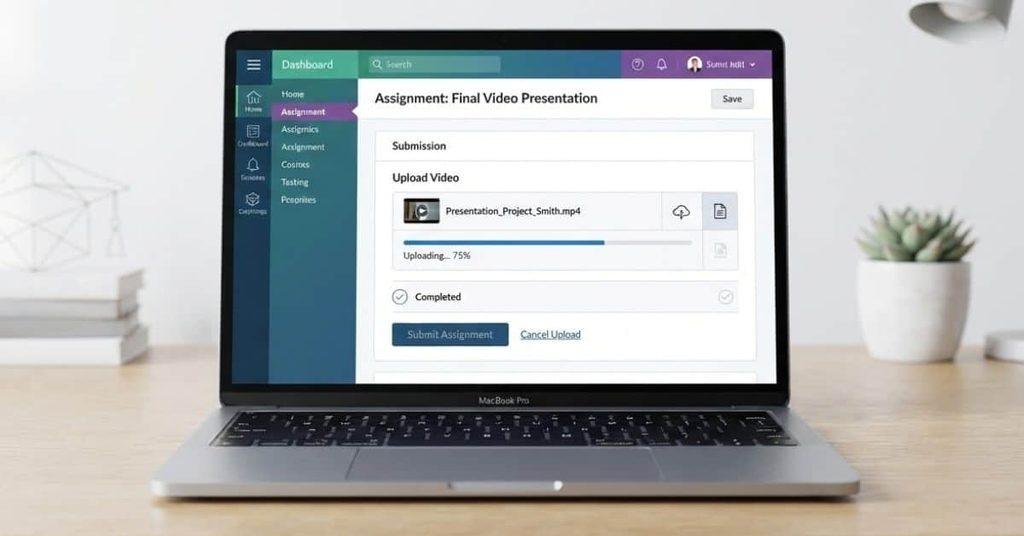
Large video files can take longer to upload than documents. Keep the Blackboard page open while the upload is processing.
Do not immediately close the browser or leave the submission page. Wait until Blackboard shows that the file has finished uploading or appears as an attachment.
Pro Tip: Use a reliable internet connection when submitting large videos. If the upload repeatedly fails, check your connection and the file requirements before trying again.
Check the Uploaded Video
Before submitting, verify that the video appears in the assignment submission area. Check the filename and make sure it matches the file you intended to upload.
If Blackboard provides a file link, attachment name, or preview, use it to confirm the correct video is attached. Do not submit until you can see evidence that the intended file was added.
Submit the Assignment
Once you have confirmed the video is attached, look for the final Submit button. Select it and wait for Blackboard to process the submission.
Look for a submission confirmation or receipt after submitting. If Blackboard shows a confirmation message, save it or take a screenshot for your records.
If you notice a mistake after submission, check whether Blackboard allows another attempt. Otherwise, contact your instructor before making another submission.
How to Submit a Video Assignment on Blackboard
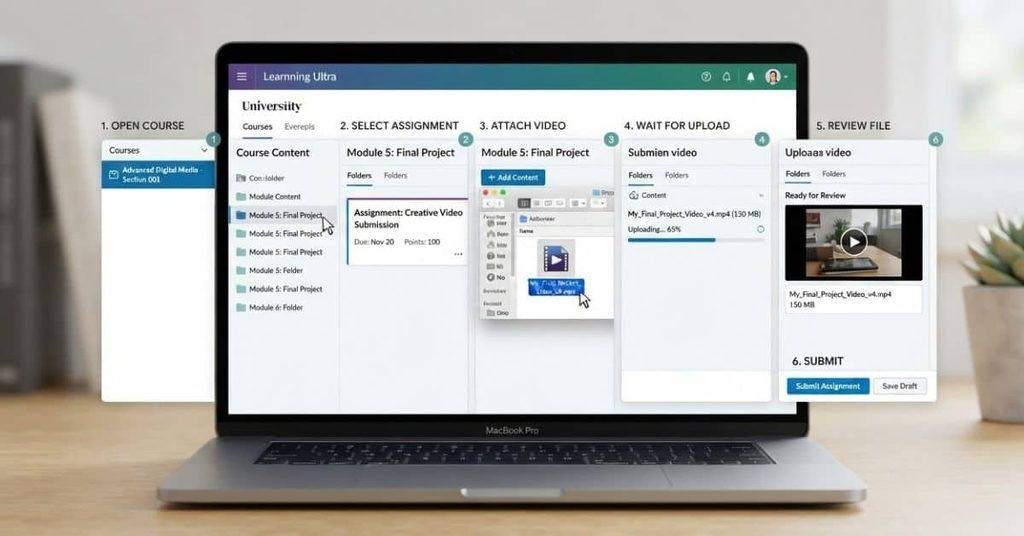
Uploading your video and submitting your assignment are two different steps. Understanding this difference can help you avoid an incomplete submission.
Uploading the video means attaching the video file to your assignment. At this stage, Blackboard may show the filename or attachment in the submission area. However, the assignment may not be officially submitted yet.
Submitting the assignment means selecting the final Submit option after checking your work. This tells Blackboard that you want to send the completed assignment to your instructor.
A simple way to remember the process is:
Choose video → Upload video → Check attachment → Submit assignment → Confirm submission
After selecting your video, don’t close the page immediately. Wait for the upload to finish and confirm that the file appears correctly. Then select Submit and look for a confirmation message or receipt.
Pro Tip: If you uploaded the video but never selected Submit, check the assignment status before the deadline. Your school may show the work as a draft, saved attempt, or unsubmitted assignment.
How to Upload a Video to Blackboard Ultra
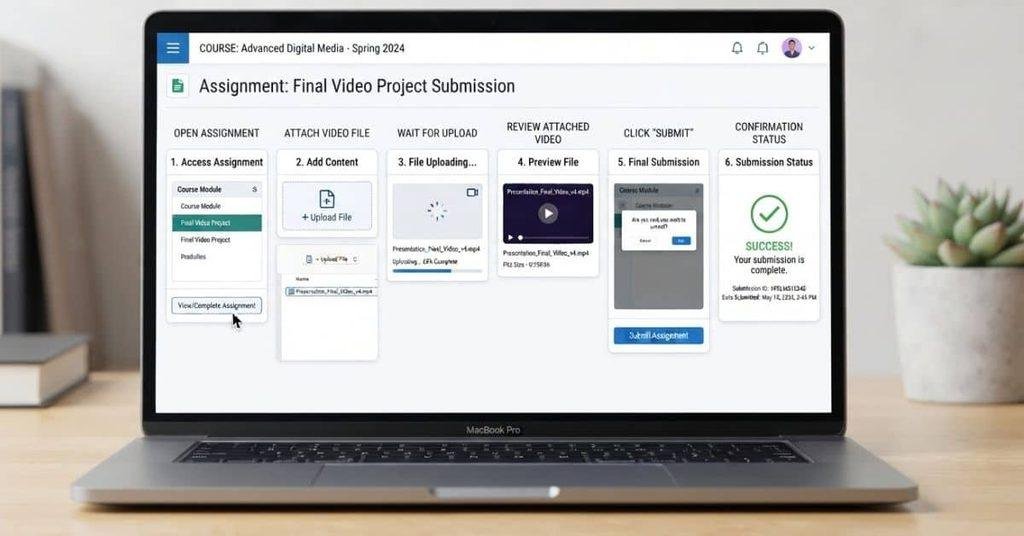
Blackboard Ultra uses a streamlined course interface, but the exact upload controls can vary. Your instructor’s assignment settings can also change the available options.
Start by opening Courses and selecting the course where you need to submit your video. Then open Course Content and locate the assignment.
Open the assignment to access its submission area. Read the instructions before attaching your video, especially any requirements for file type, size, or submission method.
Follow these general steps:
- Open Courses and select the correct course.
- Open Course Content and find the video assignment.
- Open the assignment to view its instructions and submission area.
- Add or attach the video using the available upload option.
- Wait for the upload or processing to finish.
- Review the attachment and confirm the filename is correct.
- Select Submit to complete the assignment.
- Check for confirmation that Blackboard received your submission.
Blackboard may display different labels or buttons depending on your institution’s setup. If an expected upload option is missing, review the assignment instructions or contact your instructor.
Pro Tip: Always verify the final submission status instead of assuming a successful upload means the assignment was submitted.
How to Upload a Video to Blackboard From Your Phone
You can often upload a video assignment directly from your phone when Blackboard supports mobile submissions. The exact options may vary by your institution and assignment settings.
Start by opening Blackboard on your phone and signing in through your school’s Blackboard access page. Then open Courses and select the course containing your assignment.
Find the assignment and open its submission area. Look for an Upload, Attach, or similar option, depending on the interface available to you.
Follow these steps:
- Open Blackboard on your phone and sign in.
- Open the correct course from your Courses list.
- Find and open the assignment that requires your video.
- Select the upload or attachment option available in the submission area.
- Choose your video from your phone’s available files or media.
- Wait for the upload to finish before leaving the page.
- Verify the video attachment and check the filename.
- Select Submit if the assignment is ready to turn in.
- Look for submission confirmation after completing the process.
Large videos can take longer to upload over mobile data or slower internet connections. Keep the upload page open until Blackboard finishes processing the file.
What Video File Types Can You Upload to Blackboard?
There isn’t one universal list of video formats that applies to every Blackboard assignment. Supported file types can depend on your institution, Blackboard setup, and assignment configuration.
Your instructor may specify a particular video format or other file requirements. MP4 is a common video format, but you should not assume it is accepted for every assignment.
Before uploading your video, check the assignment instructions for:
- Required video format
- Maximum file size
- Submission method
- Any instructor-specific requirements
- Deadline and submission restrictions
If your current video doesn’t meet the listed requirements, check the instructions before converting it. Converting a file unnecessarily can reduce quality or create a new compatibility issue.
What If My Video Format Isn’t Accepted?
If Blackboard rejects your video format, first check the assignment instructions. Your instructor may require a specific format or provide an approved list of file types.
If conversion is allowed, use a reliable video conversion tool to create a file in the required format. Follow the assignment’s instructions before changing resolution, compression, or other video settings.
After conversion, open the new file and confirm that the video and audio work correctly. Then return to Blackboard and upload the converted version.
If the instructions don’t explain which format to use, contact your instructor or school’s support team before submitting a different file type.
How Large Can a Video Be on Blackboard?
Blackboard does not have one video file-size limit that applies to every assignment. The allowed size can depend on your institution, assignment configuration, and submission method.
Large videos also take longer to upload and process. A large file may fail because of its size, an unstable connection, browser issues, or restrictions configured for the assignment.
Before uploading, check the assignment instructions for the maximum file size. If no limit appears, check your school’s Blackboard guidance or contact your instructor.
Avoid relying on a single file-size limit found online. Your course’s requirements are the most relevant source for your specific submission.
Pro Tip: If your video is very large and the assignment provides another approved submission method, follow your instructor’s instructions instead of guessing which method will work.
Why Won’t My Video Upload to Blackboard?
A failed video upload can have several causes. Start by checking the file requirements and upload status before trying more complicated fixes.
Video File Is Too Large
Your video may exceed the maximum size allowed for the assignment. Check the assignment instructions for its specific limit.
Solution: If permitted, compress the video or use an approved alternative submission method.
Unsupported Video Format
Blackboard may reject a format that the assignment does not accept. Requirements can vary between institutions and assignments.
Solution: Check the required format and convert the video only when the instructions allow it.
Slow or Unstable Internet
A weak or interrupted connection can stop a large video from uploading successfully.
Solution: Switch to a more reliable Wi-Fi connection if possible. Keep the upload page open while the file transfers.
Upload Is Still Processing
Large videos may need additional time to upload or process. Leaving the page too quickly can interrupt the process.
Solution: Wait until Blackboard shows that the file has finished uploading. Then verify that the attachment appears.
Browser Problem
A browser issue can interfere with file selection or uploading.
Solution: Refresh the page and try again. You can also try an updated, supported browser if the problem continues.
Blackboard Error
A temporary Blackboard or institutional service issue can prevent an upload from completing.
Solution: Try again after a short time. If the problem continues, check your school’s Blackboard support resources.
Assignment Submission Has Closed
An assignment may stop accepting submissions after its deadline or closing time.
Solution: Check the assignment’s availability dates and contact your instructor if you believe you need an extension.
Wrong File or Assignment
You may have selected the wrong video or opened an assignment for a different course or task.
Solution: Check the course name, assignment title, video filename, and submission requirements before uploading again.
What to Do If Your Blackboard Video Upload Is Stuck
A video that appears stuck can be frustrating, especially when an assignment deadline is close. Avoid rushing through the submission process.
First, don’t repeatedly click Submit while the video is still uploading or processing. Multiple clicks can create confusion about the submission status.
Instead, wait for Blackboard to finish processing the video. Large files may need more time, particularly on slower internet connections. Check that your internet connection remains stable during the upload.
If nothing changes after a reasonable wait, consider refreshing or reopening the assignment. Before doing this, confirm whether the video already appears as an attachment. Closing the page too soon could interrupt an incomplete upload.
You can also try another supported browser or device if the problem continues. Make sure you can access the same course and assignment before starting again.
If the deadline is approaching and the issue remains unresolved, contact your instructor promptly. Explain what happened and provide any relevant screenshots or error messages.
How to Know If Your Video Was Successfully Submitted
Uploading a video does not always mean the assignment has been submitted. Check the assignment status after completing the process.
Look for these signs:
- Video filename or attachment: Your intended video should appear in the submission area.
- Upload completion: Make sure Blackboard has finished uploading or processing the file.
- Submitted status: Look for a status indicating that the assignment was submitted.
- Submission confirmation: Blackboard may display a confirmation message after submission.
- Date and time: Check the recorded submission date and time when available.
- Receipt or confirmation: Some Blackboard setups provide a submission receipt or confirmation details.
If the video appears attached but the assignment still shows as a draft or unsubmitted, you may need to complete the final submission step.
Pro Tip: Save the confirmation details or receipt when Blackboard provides one. This gives you a record of the submission if questions arise later.
Can You Replace a Video After Uploading It?
Yes, but what you can do depends on whether you have submitted the assignment.
Before Submitting
If you notice a mistake before submitting, Blackboard may let you remove the attached video and upload a replacement.
Check the submission area for an option to remove or delete the existing attachment. Then select the correct video and wait for the new upload to finish.
Always verify the replacement file before selecting Submit.
After Submitting
After submission, your options depend on the assignment settings. Your instructor may allow another attempt or additional submission, but this is not guaranteed.
If you cannot replace the video yourself, contact your instructor. Explain that you need to correct the submitted video and ask which submission method they want you to use.
Can You Upload a Video Without Submitting an Assignment?
Yes, Blackboard can allow you to attach or upload a video without completing the final submission. Uploading a file and submitting an assignment are not necessarily the same action.
When you attach the video, Blackboard may simply save the file with your assignment attempt. You still need to complete the final submission if Blackboard provides a Submit action.
Before leaving the assignment, check that your video is attached and fully uploaded. Then select Submit and look for a confirmation or submitted status.
This distinction matters because an attached video does not automatically prove that your instructor received a completed assignment.
What If Blackboard Won’t Let Me Submit My Video?
If Blackboard accepts your video but won’t let you submit it, check the most common causes first.
Assignment Deadline Passed
The assignment may no longer accept submissions after its closing date or time.
Solution: Check the assignment’s availability dates. Contact your instructor if you need clarification or an extension.
Submission Attempts Exhausted
Your assignment may limit the number of attempts you can make.
Solution: Check the assignment status for remaining attempts. Contact your instructor if you need another attempt.
File Not Fully Uploaded
Blackboard may prevent submission while the video is still uploading or processing.
Solution: Wait until the upload finishes and confirm that the video appears correctly.
File Type or Size Problem
The video may not meet the assignment’s file requirements.
Solution: Check the required format and maximum file size. Follow your instructor’s requirements before converting or compressing the video.
Technical Issue
A browser, connection, or temporary Blackboard problem can interfere with submission.
Solution: Check your connection and try a supported browser or device. Avoid repeatedly clicking Submit.
Instructor Restrictions
Your instructor may configure specific submission rules that affect available options.
Solution: Review the assignment instructions carefully. If the technical issue continues, contact your instructor for guidance.
If a technical problem prevents submission near the deadline, contact your instructor as soon as possible. Include the error message or a screenshot when appropriate.
After submitting your video assignment, you may want to understand how your score affects your course grade. Our Blackboard Grade Calculator can help you estimate your current grade or see how a potential assignment score could change your overall grade.
Use it to explore different score scenarios before or after your instructor grades the assignment.
Try the Blackboard Grade Calculator to make your grade planning easier.
Conclusion
Learning how to upload a video to Blackboard is straightforward once you understand the complete submission process. You learned how to attach a video, check its upload status, and submit the assignment correctly.
We also covered Blackboard Ultra, mobile uploads, video file requirements, upload problems, and submission confirmation. Remember that Blackboard settings can vary between institutions and assignments.
Before leaving the submission page, confirm that your video appears correctly and the assignment shows as submitted. Save any confirmation or receipt when available.
Ready to submit your next video? Follow these steps carefully and give the upload enough time to finish. You can also explore our other Blackboard resources for help with grades, assignments, and common student tasks.
FAQs
Open your Blackboard course and find the required assignment. Open its submission area and select the available upload or attachment option. Choose your video file and wait for the upload to finish. Check that the correct filename appears before selecting Submit. Always follow your instructor’s specific file and submission requirements.
Open Courses and select your course in Blackboard Ultra. Open Course Content and find the video assignment. Open it, then use the available upload or attachment option. Choose your video and wait for processing to finish. Review the attachment, then select Submit if everything is correct. Button names can vary by assignment settings.
First, attach your video through the assignment submission area. Wait until the upload finishes and confirm that the correct file appears. Then select Submit to complete the assignment. Check for a submitted status, confirmation message, or receipt when available. Uploading the video alone does not necessarily complete the submission.
You may be able to upload a video using Blackboard on your phone. Open the course, find the assignment, and select its upload or attachment option. Choose the video and wait for the upload to finish. Verify the attachment before submitting. Large videos can take longer on mobile data or slower internet connections.
Accepted video formats can vary by institution, assignment, and Blackboard configuration. Formats such as MP4 may be supported, but you should not assume every assignment accepts the same formats. Check your instructor’s requirements before uploading or converting a video. Follow the specified format whenever one is provided.
There is no single video-size limit that applies to every Blackboard assignment. File-size restrictions can depend on your institution and assignment configuration. Check the assignment instructions for its specific limit. Large files may also take longer to upload or process. If your video exceeds the stated limit, follow your instructor’s approved options.
Check whether the video meets the assignment’s file-type and size requirements. A slow connection, browser issue, or temporary technical problem can also interrupt an upload. Make sure the file is fully selected and wait for processing to finish. If the problem continues, try a supported browser or contact your instructor or school support team.
First, wait to see whether Blackboard is still uploading or processing the video. Avoid repeatedly clicking Submit while the upload is incomplete. Check your internet connection and confirm that the file meets the assignment requirements. If necessary, try a supported browser or device. Contact your instructor if the issue continues near the deadline.
Check that your video filename appears correctly in the submission area. Then look for a submitted status, confirmation message, or submission receipt. Blackboard may also display the submission date and time. If the assignment still appears as a draft or unsubmitted, the final submission step may not be complete.
If you have not submitted the assignment, Blackboard may let you remove the video and upload another file. After submission, replacement options depend on the assignment settings. Your instructor may allow another attempt or additional submission. If you cannot replace the video, contact your instructor and explain what needs to be corrected.
No. Uploading or attaching a video is not necessarily the same as submitting the assignment. After the upload finishes, check the video attachment and select Submit when Blackboard provides that option. Then look for a confirmation or submitted status. This helps confirm that Blackboard recorded the assignment as submitted.

We are the Canvas Academic Team, a developer team focused on building simple and practical tools that help students succeed academically. This platform was created specifically for Canvas LMS students to make grade tracking, GPA calculations, exam planning, and academic management easier and more efficient.
Our focus is on creating fast, accurate, and student-friendly educational tools along with helpful learning resources that improve productivity and reduce academic stress.
Through CanvasGradeCalculator.com, our goal is to continue building useful resources that help students study smarter, stay organized, and achieve better academic results.