Table of Contents
Introduction
Forgot your Blackboard password right before an important assignment or class? You’re not alone.
If you need to reset or change your Blackboard password, the steps may not be the same at every college or university. Blackboard often works with your school’s student account and authentication system. Because of this, your institution may handle password changes through its own login portal or account management page.
This can be confusing for beginners, especially when you are unsure whether to use Blackboard or your school’s website. The good news is that the process is usually straightforward once you know where to start.
In this guide, you’ll learn how to reset a forgotten Blackboard password and how to change your password when you still have access. You’ll also learn what to do if the reset option is missing or your new password does not work.
By following the right steps, you can regain access to Blackboard and get back to your coursework without unnecessary delays.
How to Reset Your Blackboard Password
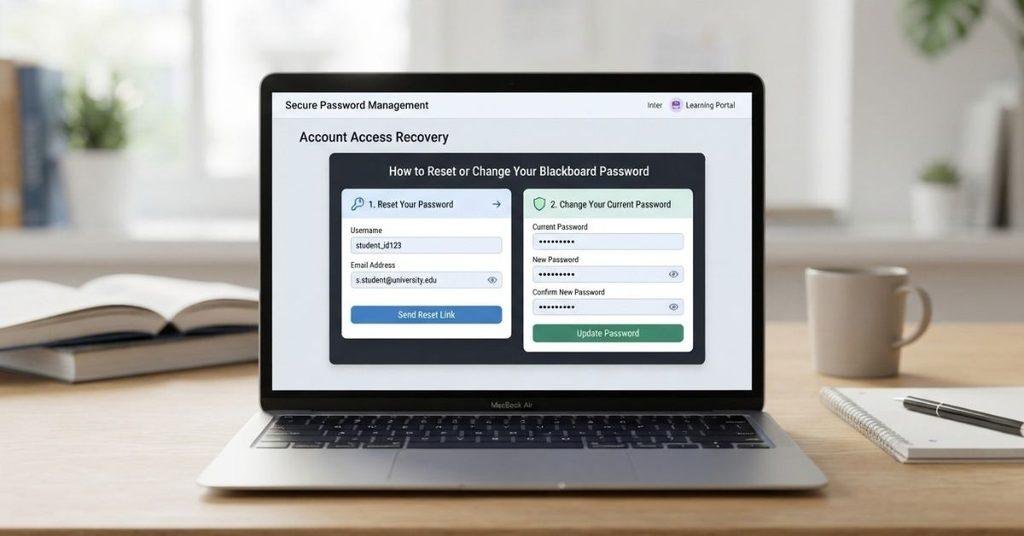
Forgot your login details? You can usually reset your Blackboard password through your university’s official account or login system. The exact steps depend on how your school manages student authentication.
Step-by-Step
- Open your university’s official Blackboard login page.
Use the Blackboard link provided by your school or institution. - Look for a password recovery option.
Select Forgot Password, Reset Password, or a similar option. - Start the recovery process.
Follow the instructions shown on your school’s login or account page. - Enter your account information.
You may need your student ID, username, email, or other account details. - Complete identity verification.
Your institution may ask you to verify your identity before allowing a reset. - Follow the reset instructions.
Check the email, text message, or account portal provided by your institution. - Create a new password.
Choose a strong password that meets your school’s requirements. - Return to Blackboard and sign in.
Use your updated credentials to access your Blackboard account.
Important Note
Blackboard does not have one universal password-reset process for every student. Your university may connect Blackboard to its own authentication system. For that reason, avoid relying on a single universal Blackboard reset URL. If you cannot find the recovery option, check your university’s IT or student support page.
How to Change Your Blackboard Password
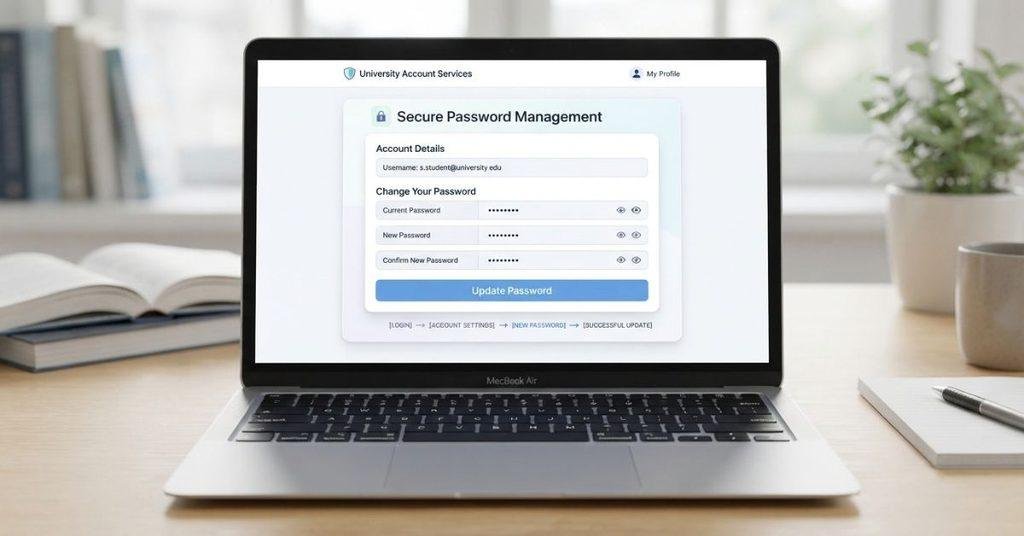
Knowing the difference between changing and resetting your password can save time. If you know your current password, you can usually change your Blackboard password through your university’s account system.
A password change means you know your existing password and want to replace it. A password reset is different. You typically use it when you forgot your password or cannot sign in.
Your university may not manage passwords directly inside Blackboard. Instead, it may connect Blackboard to a central student account or security portal. In that case, you’ll need to change your password through that system.
Before changing your password, check your school’s official instructions. The available options can vary between universities.
How to Change Password in Blackboard
If you’re searching for how to change password in Blackboard, start with your university’s Blackboard login page. Look for an account, password, or security option.
Some schools manage Blackboard credentials through their university account system. You may therefore be redirected to the institution’s account-management page.
After changing your password, return to Blackboard and sign in with your updated credentials. If the new password does not work, check whether your university requires additional account synchronization or support.
Where Is the Change Password Option?
The location of the password option depends on your university’s setup. Check these places:
- Blackboard login page: Look for password or account-recovery links.
- University student portal: Check your profile, account, or security settings.
- Account or security settings: Your institution may provide password controls here.
- University IT or help-desk page: Search for official password-change instructions.
If you cannot find a change-password option, contact your university’s IT support team. They can direct you to the correct account-management page.
How to Change Password on Blackboard
If you’re searching for how to change password on Blackboard, the process is usually the same as changing your Blackboard password. The wording “in Blackboard” and “on Blackboard” reflects the same search intent.
Your university may manage the password through Blackboard or a separate student account system. Check your institution’s official instructions before changing your credentials.
You don’t need separate pages targeting both phrases. Combining them on one helpful page keeps the information focused and avoids unnecessary keyword overlap.
How to Reset a Forgotten Blackboard Password
Forgotten passwords can prevent you from accessing assignments, grades, and other course materials. Start with your university’s official Blackboard login page and look for its password recovery option.
Forgot Your Blackboard Password?
If you forgot your Blackboard password, follow these general steps:
- Open your institution’s official Blackboard login page.
- Select Forgot Password, Reset Password, or a similar option.
- Follow your institution’s password recovery instructions.
- Provide the requested account information.
- Complete any identity verification required by your school.
- Set a new password that meets your institution’s requirements.
- Return to Blackboard and try signing in again.
The exact process may vary because your university can manage Blackboard authentication through its own account system.
What If There Is No “Forgot Password” Link?
Some universities handle password recovery completely outside Blackboard. Their student account or IT portal may control your login credentials.
If you don’t see a Forgot Password link, check your university’s student portal. You can also look for an official IT or help-desk password recovery page.
Avoid using random password-reset websites. Use your institution’s official account or support resources instead.
Blackboard Password Reset vs Password Change
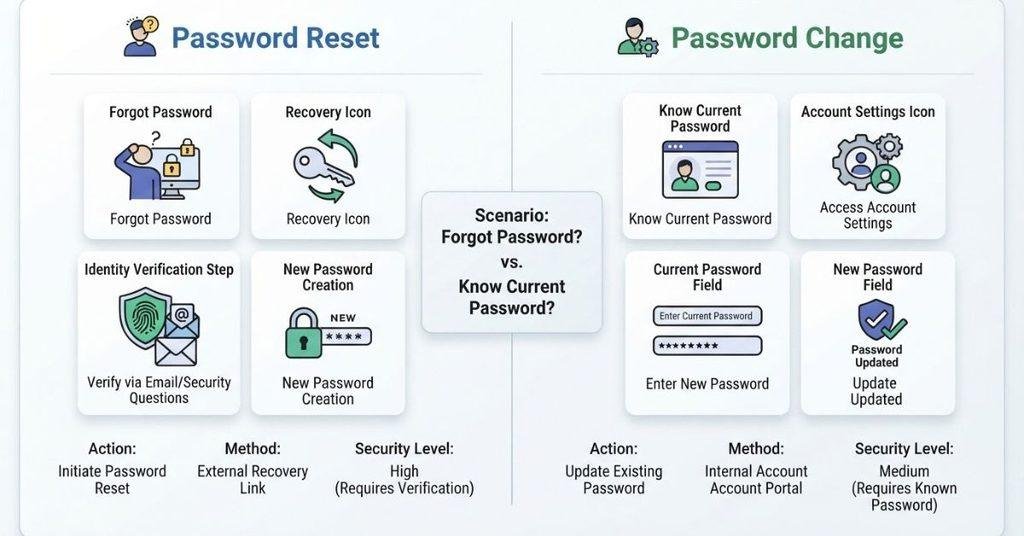
Knowing which option you need can make password problems easier to solve. Use a password reset when you cannot remember your current password. Use a password change when you still know it and want to replace it.
| Situation | What to Use |
|---|---|
| Forgot your password | Password reset |
| Know your password but want a new one | Password change |
| Account is locked | University IT or account recovery |
| Verification problem | Institution’s IT or help desk |
| Blackboard login isn’t working | Check your account and login credentials |
Your university may handle these processes through its own student account system. If the options look different from these examples, follow your institution’s official instructions.
What to Do If Your New Blackboard Password Doesn’t Work
Changing your password does not always solve a login problem immediately. Check your credentials and account settings before contacting support.
Make Sure You Are Using the Correct Username
Your Blackboard username may be different from your personal email address. Check your university’s login instructions and confirm that you’re entering the correct account name.
Check That the New Password Was Saved
Make sure the password-change process finished successfully. If your institution displayed a confirmation message, the change likely completed.
Wait for Account Changes to Sync
Some institutional systems may need a short time to apply password changes across connected services. Wait briefly before trying Blackboard again.
Try Logging Out and Back In
Sign out of Blackboard completely, then open the login page again. Enter your updated credentials manually instead of relying on saved login information.
Try Another Browser or Device
A browser may keep an old password in its saved data. Try a different browser or device to rule out a local login issue.
Contact Your University’s IT Help Desk
If your new password works elsewhere but not in Blackboard, contact your university’s IT team. They can check for account, authentication, or access issues.
What If I Forgot My Blackboard Username Too?
Forgetting both your password and username can make Blackboard access more confusing. Start by recovering your university account details before trying to change your password.
You can usually find or recover your username through:
- University student portal: Check your account or profile information.
- Admission or enrollment email: Look for messages containing your student login details.
- IT help desk: Ask your university’s support team to help identify your account.
- Account recovery system: Your institution may provide a username or account-recovery option.
Your Blackboard username may follow a specific format set by your university. Check the official instructions before assuming it matches your email address.
Do not create a new Blackboard account unless your institution specifically tells you to. Creating another account may not connect you to your existing courses or student records.
Can I Change My Blackboard Password on My Phone?
Yes, you can usually access your university’s password-management page from a smartphone. Open your institution’s official Blackboard login page or student account portal using your mobile browser.
The exact interface depends on your university’s account system. You may need to open an account, security, or password-management section.
If you use the Blackboard mobile app, don’t assume its settings include your university account’s password-change function. Your school may manage that password through a separate authentication system.
If you cannot find the correct option on your phone, open your university’s official IT or student account page. Follow the password instructions provided by your institution.
What If My Blackboard Account Is Locked?
A locked Blackboard account can prevent you from accessing your courses and assignments. Avoid repeatedly entering passwords if you’re unsure of the correct credentials.
Start with your university’s official account recovery or account-unlock process. Follow the instructions provided by your institution and complete any required identity verification.
If the account remains locked after recovery, contact your university’s IT or help-desk team. They can check whether the issue involves your student account, authentication system, or Blackboard access.
Quick Steps
- Stop entering incorrect passwords repeatedly.
- Open your university’s official account recovery page.
- Use the account-unlock or recovery option.
- Complete the required verification.
- Contact IT support if you still cannot access your account.
What to Do After Resetting Your Blackboard Password
After resetting your password, take a moment to confirm that your Blackboard access works correctly. A quick check can help you catch login or account issues early.
Post-Reset Checklist
- Return to your university’s Blackboard login page.
- Sign in with your new password.
- Open your Courses area.
- Check that your Grades are available.
- Confirm that your current courses are accessible.
- Update your saved credentials or password manager if applicable.
If Blackboard accepts your new password but your courses don’t appear, contact your university’s support team. Course access can depend on your institution’s account and enrollment systems.
For help with the next step, see [How to Log Into Blackboard].
Once you’ve regained access to Blackboard, you can review your course grades and track your academic progress. You can also use our Blackboard Grade Calculator to estimate your current or potential course grade.
This can help you understand how individual assignments and scores may affect your overall course grade.
Conclusion
Resetting or changing your Blackboard password usually starts with your university’s official account or login system. We covered password resets, password changes, locked accounts, username recovery, and common login problems.
If you need to reset your Blackboard password, remember that each university may use a different account-management process. Follow your institution’s official recovery instructions and contact IT support when you need help.
After regaining access, check your courses, grades, and saved login details. You can also use your school’s student resources to keep track of your academic progress.
Having trouble with Blackboard access? Share this guide with a classmate who may need it. Explore more Blackboard guides and student tools on our website for additional help.
Frequently Asked Questions
Open your university’s official Blackboard login page and select Forgot Password, Reset Password, or a similar option. Follow your institution’s recovery instructions, complete any required identity verification, and create a new password. The exact process varies by university because your school may manage Blackboard credentials through its own account system.
If you know your current password, use your university’s password-management or account-security page. Some institutions provide the option through their student portal instead of Blackboard. Sign in, open the password settings, and follow the instructions to create a new password. Your university may have specific password requirements.
The process depends on how your university manages Blackboard authentication. Start with your Blackboard login page or student account portal. Look for Change Password, Account Settings, or Security Settings. If you cannot find the option, check your university’s official IT support page.
“Change my password on Blackboard” usually means the same thing as changing your password in Blackboard. Check your university’s Blackboard login page, student portal, or account-management system. Your institution may handle password changes outside Blackboard. Follow the official instructions provided by your school.
Use the Forgot Password or Reset Password option on your university’s official login page. Enter the requested account information and complete the required verification. Then create a new password and try signing into Blackboard again. If no reset option appears, contact your university’s IT help desk.
Start with your university’s official Blackboard login page. If there is no password-reset option, check your student portal or university IT website. Some institutions manage Blackboard passwords through a central account-recovery system. Always use your school’s official recovery process rather than an unofficial reset website.
Your university may manage Blackboard passwords through a separate account or security system. You may also need to know your current password before changing it. Check your student portal and university IT instructions for the correct process. Contact the IT help desk if you cannot access the password-management system.
First, confirm that you are using the correct username and new password. Check whether the password change completed successfully. Your university’s systems may also need a short time to synchronize account changes. Try signing out, then signing in again. If the problem continues, contact your university’s IT support team.
Yes, you can usually access your university’s password-recovery page from a phone. Open your institution’s official Blackboard login page or student account portal. The mobile interface may differ from the desktop version. The Blackboard app may not contain your university’s password-management controls.
Stop entering incorrect passwords and use your university’s official account-recovery or unlock process. Complete any required identity verification and follow the instructions provided. If your account remains locked, contact your university’s IT help desk. They can check your account and authentication status.
Check your university’s student portal, admission or enrollment emails, and account-recovery system. Your IT help desk can also help you identify the correct username. Avoid creating another Blackboard account unless your institution specifically instructs you to do so.

We are the Canvas Academic Team, a developer team focused on building simple and practical tools that help students succeed academically. This platform was created specifically for Canvas LMS students to make grade tracking, GPA calculations, exam planning, and academic management easier and more efficient.
Our focus is on creating fast, accurate, and student-friendly educational tools along with helpful learning resources that improve productivity and reduce academic stress.
Through CanvasGradeCalculator.com, our goal is to continue building useful resources that help students study smarter, stay organized, and achieve better academic results.