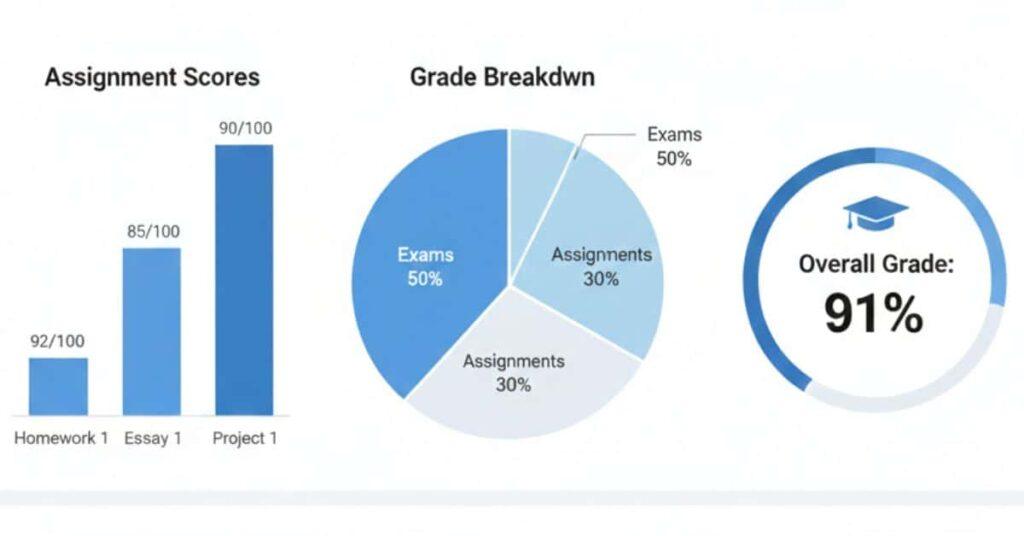
Introduction
Struggling to keep grading consistent in Canvas? You’re not alone.
Many instructors and course creators in the USA rely on Canvas daily. Yet, grading assignments, quizzes, and discussions can feel confusing at first. Small mistakes in scoring or feedback may affect student progress and final grades. Beginners often waste time switching between tools or manually tracking performance.
This guide explains how to grade assignments in Canvas using simple, step-by-step methods. You’ll also learn best practices for grading quizzes in Canvas and grading discussions in Canvas efficiently. By the end, you’ll know how to grade faster, stay organized, and provide clear feedback.
Ready to simplify your grading process? Start using these strategies in Canvas today and see the difference in consistency and efficiency with your students’ grades. Take the first step—try the methods outlined in this guide now.
“Wondering what score you need on your next assignment? Use the Canvas Grade Boundary Calculator to plan ahead.”
Importance of Accurate Grading
Accurate grading in Canvas is the foundation of a trustworthy and effective learning environment. Students rely on grades to understand progress and improve performance. Even small errors can create confusion and lower motivation. Clear and consistent grading helps students know where they stand.
For beginners, grading can seem daunting. Multiple assignments, quizzes, and discussions appear in various locations. Without structure, it’s easy to overlook submissions or grade inconsistently. Accurate grading avoids these problems and saves time later.
Consistent grading improves fairness across the class. Using clear criteria ensures that students are evaluated equally, especially in subjective assignments. Rubrics and comments help explain scores and reduce disputes, reinforcing fairness.
Accurate grading enables effective course planning. When scores reflect actual performance, instructors can pinpoint weak areas. For example, if several students struggle with quizzes, you may revise the content. This insight sharpens learning outcomes and minimizes confusion.
“Before starting, it helps to understand how Canvas grading works before applying these grading steps.”
Another benefit is smoother grade calculation. Canvas updates totals automatically, but only with correct inputs. Inaccurate or missing entries affect final grades, so accurate grading ensures reliable results.
Takeaways
- Accurate grading builds student trust and clarity.
- Consistency improves fairness across assignments.
- Clear scoring reduces grade disputes.
- Correct grades help track learning gaps.
- Reliable data improves final grade calculations.
Overview of Canvas Grading Interface
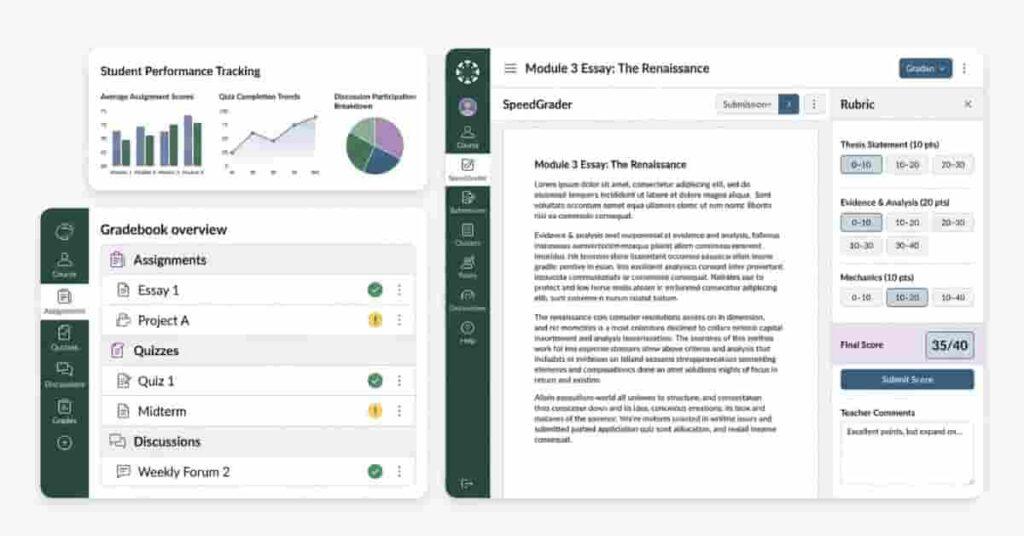
The Canvas grading interface is designed to keep everything organized. Most grading happens inside the Gradebook and SpeedGrader. These tools allow you to review submissions, assign scores, and leave feedback quickly.
The Gradebook displays all students and assignments in a single table. You can enter scores directly or open submissions for deeper review. Filters help you sort by section, assignment group, or missing work. This layout makes tracking progress easier.
SpeedGrader is the main tool for detailed grading. It opens student submissions one at a time. You can add comments, attach files, or record audio feedback. Rubrics appear beside submissions, allowing consistent scoring.
Quizzes have their own grading view. Objective questions grade automatically. Manual review is available for essays or short answers. You can adjust scores and leave comments before publishing grades.
Discussion grading also integrates with SpeedGrader. You can evaluate participation, assign points, and track engagement. This helps maintain consistent grading for collaborative work.
Pro Tips
- Use SpeedGrader for faster, focused grading.
- Apply rubrics to maintain consistent scoring.
- Filter Gradebook to find missing submissions
- Review quiz questions before publishing grades
- Leave brief comments to improve student clarity.
Step-by-Step Guide to Grading Assignments
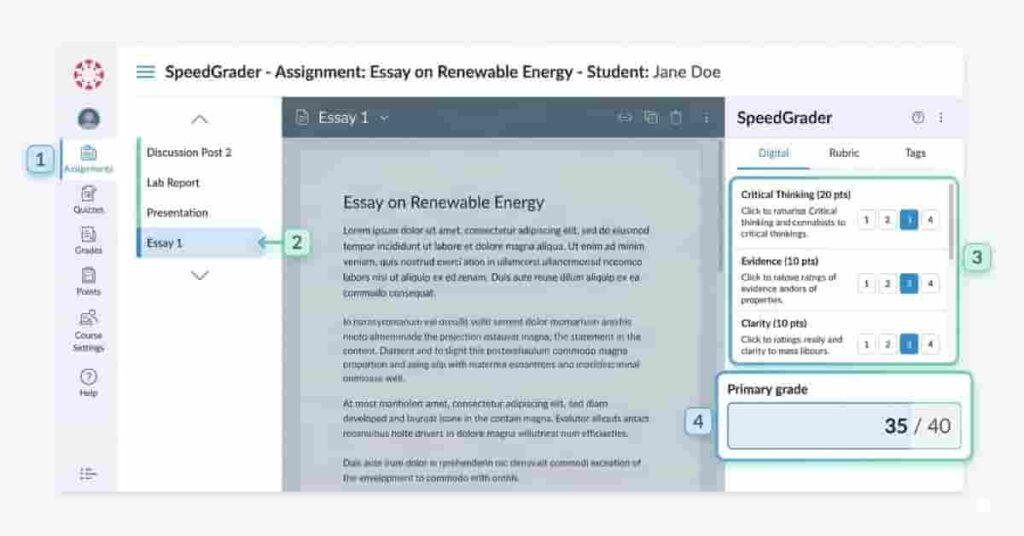
Grading assignments in Canvas becomes simple once you follow a clear workflow. The platform groups submissions, feedback tools, and scores in one place. This helps you review work quickly and stay consistent. A structured approach also reduces errors and saves time during busy grading periods.
Start by opening the assignment and reviewing submissions. Then apply scores, leave comments, and use rubrics where needed. These steps ensure fairness across students. They also make grading transparent and easier to track later.
Want to see how your grades add up? Try our Canvas Grade Calculator to predict your overall score instantly.
Accurate assignment grading also improves communication. Students understand why they received a score. Clear feedback helps them improve on future work. Over time, consistent grading builds trust and reduces grade disputes.
Using built-in tools like SpeedGrader and rubrics speeds up the process. You can move between submissions without leaving the page. This keeps grading focused and organized.
Accessing Assignment Submissions
To start grading, open the assignment from your course dashboard. Canvas displays submission details, due dates, and student status. You can quickly see who submitted work and who is missing. This overview helps prioritize grading tasks.
Next, click “SpeedGrader” to open submissions one at a time. This tool loads student work directly inside the grading panel. You can scroll through documents, view uploads, or play media files. Navigation arrows let you quickly move between students.
The Gradebook also provides another access point. Click any score cell to open the submission directly. This method works well when you grade selectively. Filters allow sorting by section, late submissions, or missing assignments. These options improve efficiency for large classes.
For beginners, SpeedGrader is usually the easiest method. It keeps grading focused and reduces extra clicks. You can review work, score, and comment without switching screens. This saves time and keeps grading consistent.
Some instructors prefer batch review first. They scan submissions, then grade them in order. This approach helps compare students’ performance. It also supports fair scoring decisions.
Grading Options and Commenting
Canvas provides several grading options for assignments. You can enter points, percentages, or complete/incomplete scores. The grading box appears beside each submission. Once entered, Canvas automatically updates the Gradebook.
Adding comments improves clarity for students. Use text comments for quick feedback. File uploads allow for detailed review documents. Audio or video feedback adds a personal touch. These options support different teaching styles.
Inline annotations help highlight specific areas. You can mark text, draw shapes, or add notes. This works well for essays and reports. Students can see exactly where improvements are needed. Clear feedback reduces confusion.
Comment libraries also speed up grading. Save frequently used feedback phrases. Then insert them with one click. This keeps feedback consistent and reduces typing time.
Publishing grades after reviewing is important. Students only see scores once you release them. Double-check entries before publishing. This prevents corrections later.
Using Rubrics for Consistent Scoring
Rubrics help maintain fair and consistent grading. They define criteria and scoring levels for assignments. Students understand expectations before submitting work. This reduces confusion and improves performance.
You can attach a rubric directly to an assignment. Each criterion appears inside SpeedGrader. Click the rating levels to automatically assign points. Canvas calculates totals based on selections. This speeds up grading and reduces manual errors.
Rubrics also improve transparency. Students see how each part of their work was evaluated. Clear criteria reduce grade disputes. They also help instructors stay consistent across multiple submissions.
For discussion posts or essays, rubrics are especially helpful. They standardize subjective grading. You can include criteria like clarity, participation, and accuracy. This ensures balanced evaluation.
Editing rubrics between terms is easy. You can duplicate and adjust them for new courses. Over time, rubrics improve grading efficiency. They also create a predictable structure for students.
“Curious what your current grade means? Try the Canvas Grade Calculator to see your letter grade instantly.”
Grading Quizzes in Canvas
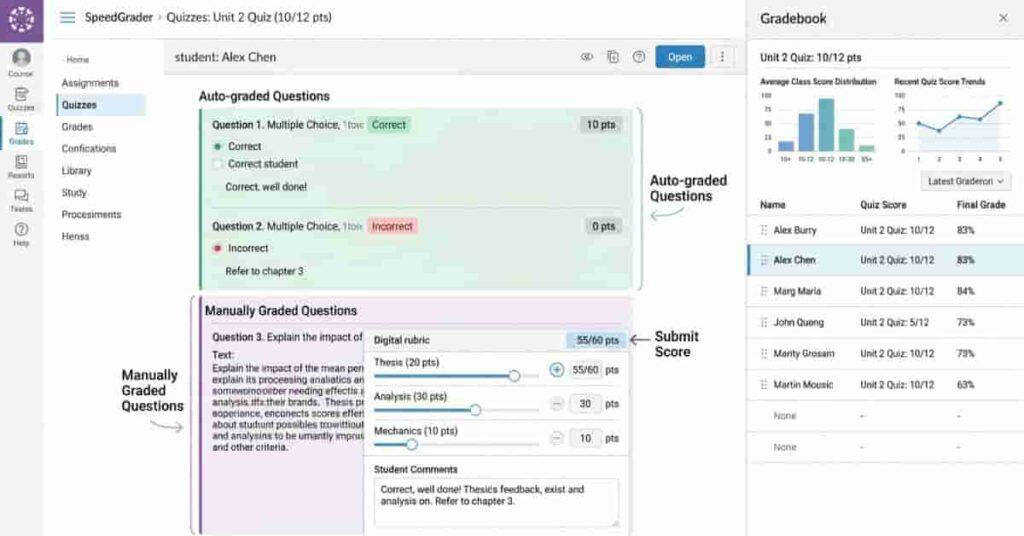
Grading quizzes in Canvas is faster because many questions score automatically. This saves time and reduces manual work. However, some question types still need review. Understanding both options helps ensure accurate grading.
Canvas grades multiple-choice, true/false, and matching questions instantly. Scores appear in the Gradebook after submission. You can quickly identify performance trends. This helps adjust teaching if many students miss the same question.
Manual grading applies to essays and short answers. These responses require instructor review. SpeedGrader lets you read answers and assign points. You can also add comments for clarification. This ensures fair evaluation across subjective responses.
After grading, Canvas automatically updates totals. Still, reviewing scores before publishing is important. Small adjustments can improve accuracy. Consistent quiz grading builds trust and ensures reliable grades.
Automated vs Manual Grading
Canvas supports both automated and manual quiz grading. Automated grading applies to objective questions. These include multiple-choice, true/false, and matching. Canvas scores them instantly when students submit answers.
Automatic grading speeds up large classes. You can review results without checking each response. The Gradebook updates scores immediately. This helps identify difficult questions quickly.
Manual grading is required for subjective responses. Essay and short-answer questions need instructor review. Open SpeedGrader to read each answer. Then assign points based on accuracy and clarity. This keeps grading fair.
Sometimes automated grading needs adjustment. A correct answer might be marked wrong. You can edit the score manually. Canvas recalculates totals automatically. This flexibility ensures accurate grading.
Combining both methods works best. Use automation for efficiency. Apply manual review for deeper evaluation. This balance improves quiz accuracy.
How to Adjust Scores and Provide Feedback
Adjusting quiz scores in Canvas is simple. Open the quiz in SpeedGrader. Navigate to a student response. You can change points directly in the scoring box. Canvas updates totals instantly.
Sometimes questions need re-evaluation. For example, multiple answers may be acceptable. Edit the question or award extra points. This keeps grading fair across all students. Consistent adjustments prevent confusion.
Providing feedback improves learning. Add text comments for explanation. You can clarify mistakes or suggest improvements. Students understand why their score changed. Clear communication reduces follow-up questions.
Canvas also allows general quiz comments. These appear after grading is published. Use them to highlight common errors. This saves time and helps the whole class.
Always review adjustments before releasing grades. This prevents accidental changes. Accurate feedback builds trust and supports improvement.
Best Practices for Accurate Quiz Grading
Following best practices ensures consistent quiz grading. Start by reviewing questions before publishing. Ensure answers and point values are correct. This prevents grading errors later.
Check automated results for unusual patterns. If many students miss one question, review it. The wording may be unclear. Adjust scoring if necessary. This keeps grading fair.
Use consistent feedback across students. Save common responses if possible. This speeds up grading and maintains clarity. Short comments are usually enough.
Publish grades after completing the review. Avoid releasing partial results. Students should see final, accurate scores. This reduces confusion.
Regularly monitor Gradebook totals. Make sure scores align with expectations. Accurate tracking helps predict final grades.
“For assignments using rubrics or standards-based grading, see how special grading types like rubrics and standards-based grading affect your scores.”
Grading Discussions in Canvas
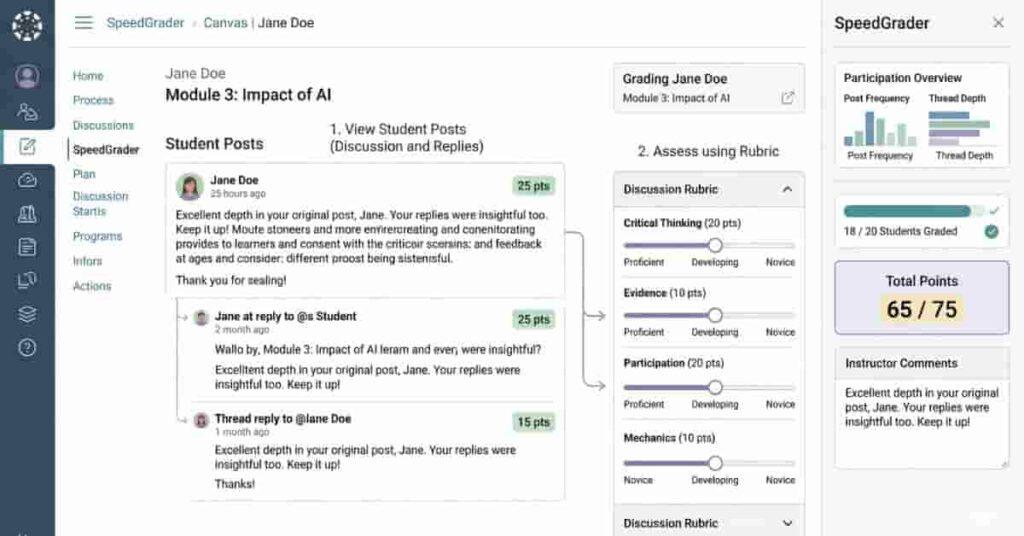
Grading discussions in Canvas helps measure participation and critical thinking. Unlike quizzes, discussions focus on interaction and quality responses. This makes consistent grading even more important. Clear criteria ensure students understand expectations.
Canvas lets you grade discussions directly in SpeedGrader. You can review posts, assign scores, and leave comments. This keeps feedback organized in one place. It also reduces time spent switching between tools.
Discussion grading often includes participation, relevance, and clarity. Using structured criteria improves fairness. Students know what counts toward their grade. This transparency encourages meaningful engagement.
Accurate discussion grading also supports progress tracking. You can identify students who participate regularly. This helps adjust teaching strategies. Consistent grading improves learning outcomes over time.
Using Rubrics for Discussions
Rubrics make discussion grading more consistent. They define clear criteria for participation and quality. Students understand how posts will be evaluated. This reduces confusion and improves engagement.
You can attach a rubric to any discussion. Criteria may include relevance, depth, and interaction. Each level shows point values. Select ratings during grading to assign scores quickly. Canvas calculates totals automatically.
Rubrics also help maintain fairness. Subjective grading becomes more structured. You evaluate all students using the same standards. This prevents bias and improves consistency.
For beginners, start with simple criteria. Use three to four categories. Keep descriptions short and clear. Over time, you can refine the rubric.
Rubrics also save time. Instead of writing long explanations, select rating levels. Students still see how they performed. This improves clarity without extra work.
Providing Feedback and Scores
Providing feedback on discussions helps students improve participation. After reviewing posts, enter scores in SpeedGrader. Canvas updates the Gradebook automatically. This keeps grades organized.
Use short comments to highlight strengths. Mention specific ideas or contributions. This encourages students to stay engaged. Constructive feedback helps them improve responses.
You can also provide general discussion feedback. For example, note common mistakes or strong trends. This saves time and guides the whole class. Students benefit from shared insights.
Inline replies within discussions also work well. Respond directly to posts when needed. This supports conversation and learning. However, final grading should remain in SpeedGrader.
Always review scores before publishing. Accurate feedback reduces follow-up questions. Consistent communication builds trust.
Tracking Student Participation
Tracking participation ensures fair discussion grading. Canvas shows how often students post and reply. This helps measure engagement. You can review activity directly in the discussion thread.
SpeedGrader also displays participation details. You can see each student’s posts. This keeps grading organized. It also prevents missing contributions.
Some instructors track quality and quantity separately. For example, count initial posts and replies. Then evaluate the depth of responses. This approach balances participation scoring.
Canvas analytics can also help. You can identify inactive students quickly. Early intervention improves engagement. Tracking participation supports consistent grading.
Keep the criteria clear for students. Explain how participation affects grades. Transparency encourages meaningful discussion. Students are more likely to contribute thoughtfully.
“Take control of your grades today—enter your scores in the Canvas Grade Calculator and predict your final outcome effortlessly.”
Tips for Efficient Grading
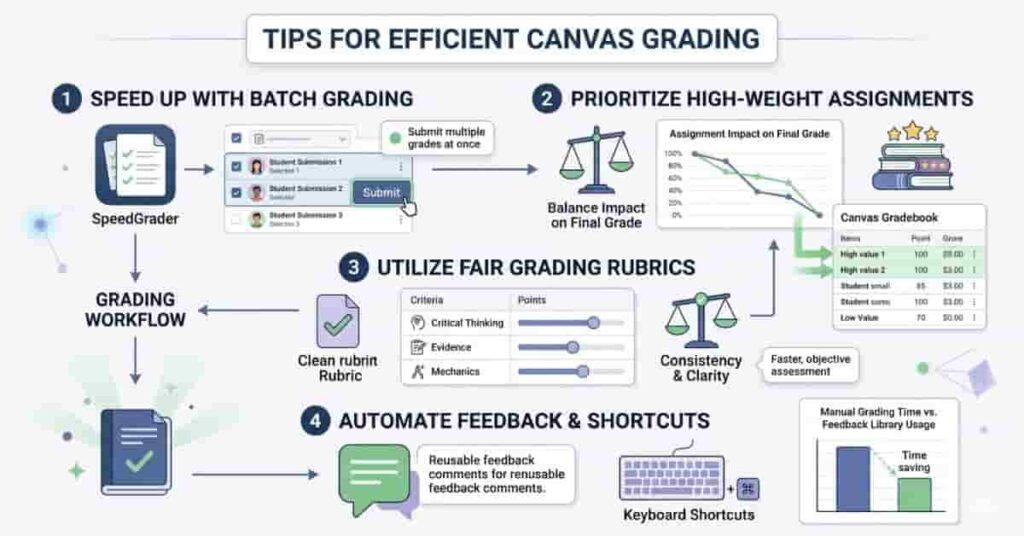
Grading can quickly become time-consuming, especially in large courses. Using efficient grading strategies in Canvas helps reduce workload. You can review submissions faster without sacrificing accuracy. A structured process keeps grading consistent and organized.
Start by planning your grading workflow. Decide which assignments to review first. Many instructors begin with high-weight tasks. This approach ensures important grades are accurate early. It also helps students understand their progress sooner.
Canvas tools like Speed Grader and filters improve efficiency. You can move between submissions without leaving the page. Sorting by missing or late work helps prioritize tasks. These small steps save time during busy grading periods.
Consistent grading habits also prevent rework. When you follow the same method each time, errors decrease. Students receive clearer feedback. This improves communication and reduces the need for follow-up questions.
Efficient grading is not just about speed. It also improves fairness and clarity. Balanced workflows help maintain quality. Over time, these habits make grading easier.
Batch Grading Features
Batch grading allows you to grade multiple submissions quickly. Canvas supports this through SpeedGrader navigation. You can move from one student to the next. This keeps grading focused and efficient.
The Gradebook also supports batch actions. For example, you can set default grades. This is useful for participation or completion tasks. After setting defaults, adjust individual scores if needed. This reduces repetitive work.
Filters help manage batch grading. Sort by assignment, section, or missing submissions. This helps you focus on specific groups. You can also grade late work separately. These options improve efficiency.
Another helpful feature is comment libraries. Save common feedback phrases. Then apply them during batch grading. This keeps feedback consistent and faster.
Batch grading works best with clear criteria. Use rubrics when possible. They allow quick scoring without long explanations. This improves both speed and accuracy.
Tracking High-Weight Assignments
High-weight assignments have the biggest impact on final grades. Tracking them ensures accuracy where it matters most. Canvas displays assignment weights in the Gradebook. This helps you identify important tasks quickly.
Start by reviewing weighted assignments first. This prevents major grading errors. Students also benefit from early feedback. They can adjust performance before finals.
You can group assignments by weight. Canvas assignment groups make this easy. For example, exams may count more than quizzes. Reviewing these groups improves grade reliability.
Monitoring high-weight assignments also helps detect trends. If many students struggle, you can adjust instruction. This supports better outcomes. Accurate scoring in these areas improves final grade calculations.
Keep grading consistent for weighted tasks. Use rubrics or clear criteria. This reduces bias and ensures fairness. Reliable grading builds student confidence.
Ensuring Fair and Consistent Grades
Fair grading builds trust and transparency. Students expect equal evaluation across assignments. Using consistent criteria helps maintain fairness. Canvas tools support this process.
Rubrics are the most effective method. They define expectations clearly. Apply the same rubric to all submissions. This reduces subjective decisions. Students also understand scoring.
Grading in batches improves consistency. Review similar assignments together. This keeps standards aligned. Avoid grading over long breaks. Consistency may decrease.
Clear feedback also supports fairness. Explain scores briefly. Students understand why they received points. This reduces disputes and confusion.
Finally, review grades before publishing. Check for missing or incorrect scores. Accurate entries improve reliability. Consistent grading improves overall course quality.
Conclusion
Grading assignments, quizzes, and discussions in Canvas becomes easier with a clear workflow. Step-by-step grading improves accuracy, saves time, and ensures consistent feedback. Using tools like Speed Grader and rubrics helps beginners stay organized and confident.
These strategies make Canvas grading more reliable and fair. Streamline grading for quizzes and discussions for effortless accuracy. This approach helps students understand scores and reduces confusion.
Take the next step now. Try our Canvas Grade Calculator to plan your grades and predict outcomes before finals. Click here to see how each score will impact your overall result.
Have a helpful grading tip? Share it below or visit our site for more Canvas guides.

Hi, I’m Zohaib Ali, a BS-IT student at the University of Engineering and Technology. 🎓 I created CanvasGradeCalculator.com to make grade and GPA calculations simple, accurate, and stress-free for students, teachers, and parents. Passionate about tech and education, Helping learners plan smarter, study better.