Introduction
Ever wish one bad quiz or homework wouldn’t hurt your entire grade? Many students in the USA face this stress every semester. Understanding how to drop the lowest grade in Canvas can make your course grades fairer and less stressful.
Teachers often want to give students a break on one low score, while students want clarity on how grades are calculated. Luckily, Canvas offers settings that let instructors automatically drop the lowest scores in a gradebook. But many beginners wonder: Does Canvas automatically drop the lowest grade? Can you manually adjust grades or use a drop-lowest-grade calculator to see the impact before finalizing?
In this guide, we’ll explain how to drop a grade in Canvas, when to use assignment group rules, and how to handle individual exceptions. You’ll also learn how to preview changes, use the canvas drop score feature, and check your totals before submitting. By the end, you’ll know exactly how to manage grades, reduce errors, and make the most of Canvas’s built-in features—even as a beginner.
What Does “Dropping a Grade” Mean in Canvas?
Dropping a grade in Canvas lets instructors remove a low score from a student’s final calculation. Many teachers use this feature when students struggle on one quiz or homework early in the term. If you’re trying to drop the lowest grade in Canvas, it helps to understand how Canvas treats dropped scores, excluded grades, and assignment groups. These rules decide how the final grade changes. Here’s how this works and when each option makes sense:
Dropping the Lowest Score vs. Excluding a Specific Assignment
Canvas can drop the lowest score inside an assignment group, but this isn’t the same as excluding a single assignment. When you use the Canvas drop score feature, Canvas finds the lowest score in that group and removes it from the final grade. This helps students recover from one weak attempt.
Excluding a grade works differently. Instructors can mark an assignment as “EX” to remove it for one student. This is useful when you want to avoid unfair penalties and individually drop a student’s grade from the calculation in Canvas.
Use dropping when:
- All students follow the same rule.
- Scores belong to one group.
- You want automatic updates.
Use exclusion when:
- Only one student needs the change.
- The assignment shouldn’t count at all.
- You need a manual override for fairness.
A lowest-grade drop calculator can help you compare both methods before applying them.
Weighted vs. Unweighted Courses
Canvas handles dropped scores differently in weighted and unweighted courses. In unweighted setups, each assignment inside a group has equal value. When you drop a grade in Canvas here, the system simply ignores the lowest score.
In weighted courses, the math changes. Assignment groups carry different percentages. This means dropping one score has a bigger or smaller effect based on how much that group is worth. Understanding Canvas grade weights and dropping rules helps avoid grade surprises.
Here’s how to plan it:
- Use clear groups for quizzes, homework, and projects.
- Drop scores only inside the group, not across the course
- Check how the group weight affects each dropped grade.
If you’re unsure how much a dropped score will shift the final grade, test it with a calculator or preview the gradebook. This helps you see whether Canvas automatically drops the lowest grade or if you need to adjust settings manually.
From my experience: When I first saw my lowest quiz score bring down my overall grade, I panicked. I learned that Canvas allows instructors to drop the lowest grade, which instantly eased my stress. Once the rule applied, my course average reflected my true performance.
Can You Drop a Grade in Canvas?
Canvas does allow instructors to drop grades, but the controls work differently for teachers and students. If you’re trying to drop the lowest grade in Canvas, it’s important to know who has access to these settings and what limits exist. Canvas keeps grade editing secure, so only certain actions are possible for each role. Here’s how to apply this effectively:
Instructor vs. Student Roles
Instructors have full control over drop rules in Canvas. They can set assignment groups, drop the lowest or highest scores, and adjust grade settings. This gives teachers freedom to help students after a tough quiz or homework. They can also excuse a single grade if something unusual happens.
Students, however, cannot change drop rules. They can only view which score was dropped once the instructor enables the feature. This protects the gradebook from mistakes and keeps class rules fair. Students can still track their progress by checking the gradebook or using a simple grade calculator if needed.
Use these tips for clarity:
- Teachers adjust drop rules in the Assignments area.
- Students watch the changes in their Grades view.
- Keep groups organized to avoid confusion.
Limitations: Students Can’t Directly Drop Grades
Canvas does not let students drop or exclude their own grades. This limit prevents errors and keeps grading consistent across the course. Only instructors can set rules like “drop one lowest quiz” or “drop two homework scores.”
Students can still check how a dropped grade affects their score. Many use external tools or manual math to predict the outcome. But the actual change depends on the rules set by the instructor.
Keep these points in mind:
- Students can’t enable drop rules.
- Only teachers can excuse a single grade.
- Dropped grades appear with a small icon in the gradebook
Understanding these limits helps students and teachers avoid confusion and keep grading fair.
My take: If you’re a student, regularly check the Gradebook to track which grades might be dropped. Even though you can’t change rules, using a drop lowest grade calculator helps you plan ahead and understand the impact of each assignment.
How to Drop the Lowest Grade in Canvas (Step-by-Step)
If you want to drop the lowest grade in Canvas, you’ll need to use the Assignment Group settings. Canvas doesn’t drop grades automatically unless you turn on drop rules, and these rules depend on how your groups and weights are set. Many teachers use this feature to remove one weak quiz or homework score, especially when they also use tools like a drop lowest grade calculator to preview the impact. Here’s how to apply this effectively:
“Use our Canvas Grade Calculator to test different drop scenarios and plan your grades confidently before the final exam.”
Step 1: Go to the Assignments Tab

Open your Canvas course and select Assignments from the left menu. This page controls all your grading groups and settings. Canvas uses these groups to decide how to drop grades in Canvas, so make sure you start here.
Inside this tab, you’ll see each assignment and the group it belongs to. If you already use weights, they’ll appear beside each group. This setup matters because Canvas grade weights and dropping rules work together.
Use this quick guide:
- Go to Assignments
- Review each group
- Make sure items belong to the correct group.
Step 2: Create Assignment Groups
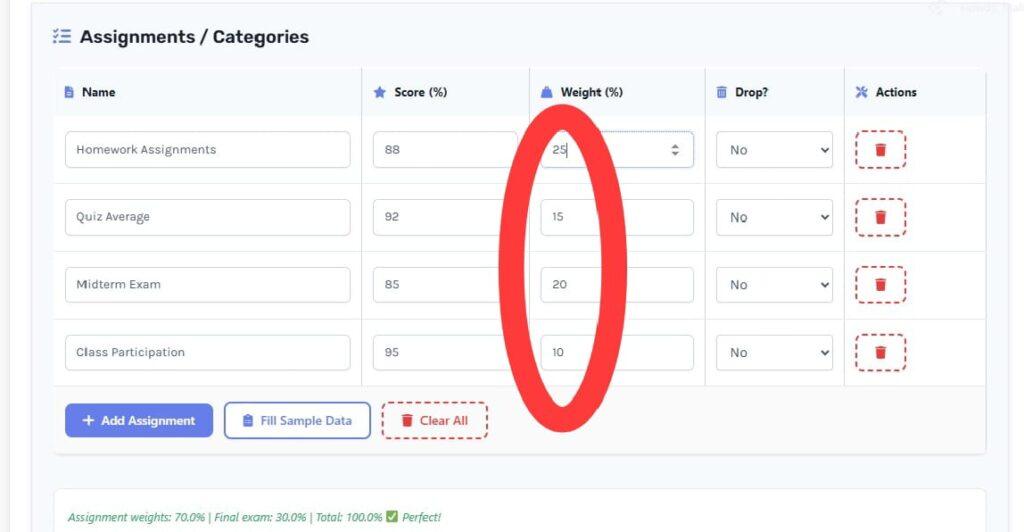
Canvas only drops grades inside a group, so you need clear groups like “Homework,” “Quizzes,” or “Participation.” This keeps scoring fair and helps the Canvas drop score feature work as expected.
To create a group:
- Click + Group
- Name it (Example: Homework Assignments)
- Add assignments to the group.
- Apply weights if needed.
Your calculator example shows perfect grouping:
- Homework – 25%
- Quizzes – 15%
- Midterm – 20%
- Participation – 10%
- Final Exam – 30%
Step 3: Use the “Drop Lowest/Highest” Setting
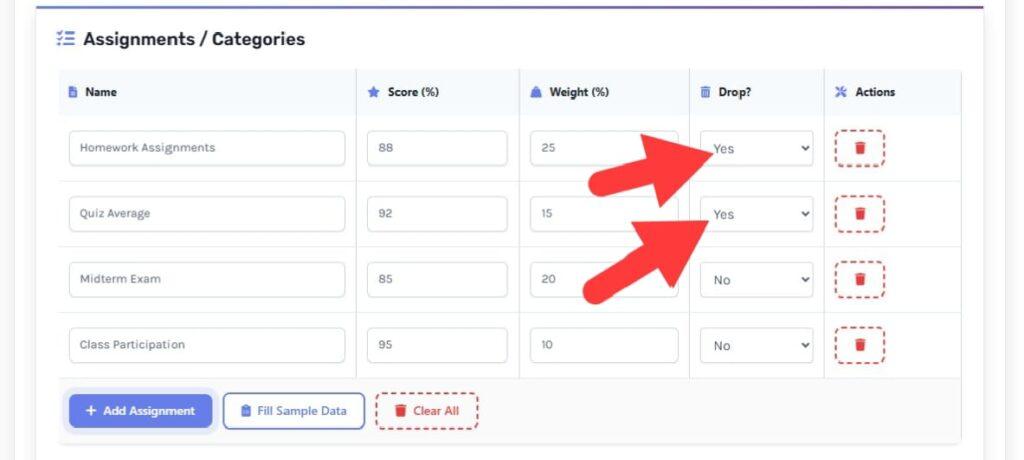
Open the assignment group you want to adjust. Click Edit and look for the drop rule box. This is where you set how many grades to drop.
Examples:
- Drop 1 lowest homework.
- Drop the 2 lowest quizzes.
- Drop the highest if removing bonus items.
Canvas then scans all scores in that group and drops the lowest based on your rule. This helps when you want to reduce stress or boost fairness. If you need to remove a single score for one student only, use how to exclude grades in Canvas instead, since I can individually drop a student’s grade from the calculation in Canvas, which works only through excusing.
Step 4: Save and Check the Gradebook
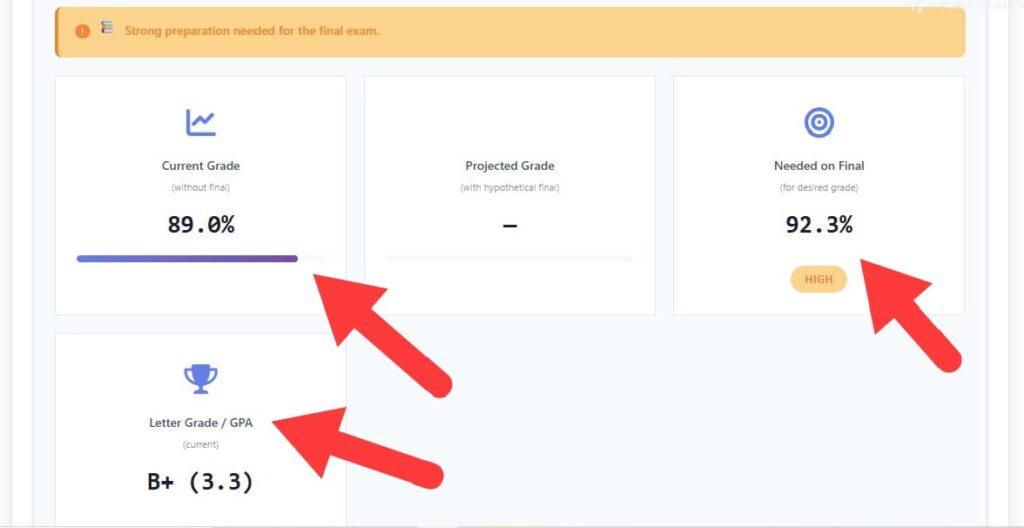
After setting drop rules, click Save. Then open Grades to confirm the lowest score has been removed. Canvas marks the dropped score with a small icon so students can see it too.
Check the total grade:
- Dropped score removed
- Weighted calculation updated
- The needed score on the final exam adjusts.
Your calculator shows real examples of grade impact:
- Current grade: 89%
- Needed on final: 92.3%
- Letter grade: B+ (3.3)
These numbers are perfect for showing results before and after dropping a score.
Case study: A 10th-grade student had a low homework score in a 25% weighted group. After applying the drop rule, her average rose from 87% to 90%, reducing stress and boosting confidence for the final exam. This shows how proper setup can make a real difference.
Can You Drop an Individual Student’s Grade?
When teachers use the Drop Lowest Grade in Canvas feature, the rule applies to everyone in the same assignment group. But sometimes only one student needs a grade removed because of illness, late enrollment, or a verified issue. Canvas handles this differently, and you must use the right tools to avoid changing the entire group. Here’s how to apply this effectively:
Drop Lowest Grade vs. Manually Excluding One Grade
Canvas drop rules apply to all students in a group. When you drop a grade in Canvas, the system looks at every student’s scores and removes the lowest one for each of them. This is a shared rule, not a personal setting. It’s great for fairness, but not ideal when just one score needs to change.
If you need to individually drop a student’s grade from the calculation in Canvas, you must exclude it manually. This doesn’t affect other students and keeps the gradebook balanced with Canvas grade weights and dropping rules. The Canvas icon will show the score as excused, and the grade updates instantly.
Quick comparison:
- Drop the lowest = group rule.
- Exclude grade = single student.
- Best for rare one-off issues
A drop lowest grade calculator can help predict how both choices affect totals.
Workarounds: Excuse Grade and Assignment Settings
Canvas gives two useful workarounds when only one student’s score needs removal. The first is the EX feature, which removes that assignment from the final grade. This is the easiest way to exclude grades in Canvas without altering the whole group. The grade will no longer count toward the student’s total.
The second method is changing the assignment settings. Teachers can adjust scoring, set different rules, or allow extra attempts. These options help when the issue affects multiple students but not the whole class. They also prevent errors where teachers wonder, “Does Canvas automatically drop the lowest grade?” since manual exclusion always overrides drop rules.
Use these tips:
- Use EX for single-student fixes.
- Keep drop rules for group-wide fairness.
- Double-check the gradebook after each change.
These steps keep grading accurate and flexible without breaking your course setup.
From my experience: One of my classmates missed a quiz due to illness. The instructor excused that single grade instead of dropping it for everyone. Her final grade stayed fair, and she felt relieved knowing Canvas allowed this flexibility.
Canvas Drop Lowest Grade Calculator
Understanding how a dropped score changes your final grade can be hard, especially when the “Drop Lowest Grade” in Canvas rules depends on assignment groups and weights. Many students and teachers use an online drop lowest grade calculator to preview grade changes before applying them in Canvas. These tools show how one removed score affects the current grade, needed final exam score, and projected totals. Here’s how to apply this effectively:
“Try our Enhanced Canvas Grade Calculator now to see how dropping a low score can impact your overall grade instantly!”
“Once you know your projected grades, try our Class Rank Calculator to see exactly where you stand among your classmates and your percentile.”
How Online Grade Calculators Help Simulate Grade Impact
A good calculator shows the math behind every score. When you drop a grade in Canvas, the system recalculates your total based on group weights. A calculator previews this change in seconds, even before you use the Canvas drop score feature explained in your course.
Your enhanced calculator is perfect for this. It shows:
- Current grade
- Needed score on final
- Projected grade with hypothetical inputs
- Letter grade and GPA
Users can enter real assignment groups and see how removing one score affects the totals. This helps students check whether a dropped quiz boosts their final grade or whether the weight is too small to matter. It also helps teachers see if they should exclude grades in Canvas manually or use drop rules.
Suggested Visual: Screenshot of your calculator’s Results & Analysis box: “Current Grade 89%, Needed on Final 92.3%, B+ (3.3).” Alt text: Canvas grade calculator showing grade impact after dropping or adjusting scores.
Manual vs Tool-Based Calculation
You can do the math manually, but it’s slow and easy to get wrong. Manual methods require understanding canvas grade weights and dropping rules, plus calculating category percentages. This is where many students wonder, “Why doesn’t Canvas automatically drop the lowest grade?” The answer depends on the group setup, not the score itself.
A tool-based method, like your calculator, does this instantly. It:
- Applies weighted math accurately
- Simulates dropped values
- Shows the needed final exam score.
- Compares outcomes with or without a removed grade
This is faster and avoids mistakes, especially when users ask, “Can I individually drop a student’s grade from the calculation in Canvas?” Online tools can test both options before making changes in the real gradebook.
Common Issues & Fixes
Many instructors face small but frustrating problems when using the Drop Lowest Grade in Canvas feature. These issues often come from missing settings, wrong assignment weights, or confusion about how to exclude grades in Canvas. Students also ask questions like “Does Canvas automatically drop the lowest grade?” or “Can I individually drop a student’s grade from the calculation in Canvas?” This section clears up the most common mistakes and shows simple fixes. Here’s how to apply solutions effectively:
Canvas is not applying the drop rule.
Sometimes Canvas does not apply the drop grade rule even when instructors enable the Canvas drop score feature. This usually happens when assignments are missing due dates, not in the same group, or still marked as “no submission.” Canvas only drops grades within a single assignment group, so the structure must be clean and consistent.
Fixes:
- Place all graded items inside one assignment group.
- Add due dates to every assignment in that group.
- Avoid “manual” or “not graded” types.
- Turn ON the “drop lowest” rule again to refresh the setting.
Quick Check:
- Ask yourself: “Does Canvas automatically drop the lowest grade?” – Yes, but only when the group and rules are set correctly.
Using a drop lowest grade calculator can help you verify if the change is applying correctly.
Dropped grades are not showing in the Gradebook.
A common concern is when the lowest grade should drop, but the gradebook still shows the full score list. This does not mean the rule isn’t working. Canvas hides dropped scores behind a small icon, and students must view “Calculate based only on graded assignments” to see accurate totals.
Fixes:
- Instructors should recheck the assignment group rule and confirm the number of grades to drop.
- Tell students to uncheck the “What-If Grades” if totals look off.
- Use the Gradebook’s filter to show “Excluded Assignments.”
- Remember: you cannot individually drop a student’s grade unless you manually excuse it.
This helps everyone understand how the drop grade in Canvas works in real time.
Case study: A teacher enabled drop rules, but dropped scores weren’t visible in the Gradebook. After checking assignment groups and ensuring all weights totaled 100%, the issue resolved. Students could finally see their corrected averages without confusion.
Weighting errors
Weighting mistakes often break the Canvas grade weights and dropping rules. When assignment group weights don’t add up to 100%, Canvas may not apply the drop rule correctly. Even a small mismatch can cause dropped grades to behave unpredictably.
Fixes:
- Open Assignments → Assignment Groups Weighting and check totals.
- Make sure every active group has a weight.
- Keep “extra” empty groups turned off.
- Reapply the dropping rule after fixing weights.
Tip: If results still look wrong, use a drop lowest grade calculator to compare Canvas math with manual totals.
Proper weighting ensures Canvas knows which assignments matter most and how to exclude grades in Canvas without errors.
Conclusion
In this guide, we covered how to drop the lowest grade in Canvas, including assignment group rules, weighted vs. unweighted courses, and individual exceptions. You also learned common issues, fixes, and how to use tools like a drop lowest grade calculator to preview grade changes.
Understanding the Canvas drop score feature, explained, and how to exclude grades in Canvas ensures your gradebook stays accurate and fair. Even beginners can confidently apply drop rules and see how one low score affects their overall grade.
Now it’s your turn—try applying these steps in your course or test outcomes using a calculator. Share your experiences in the comments, or explore more tips on managing grades on our website to stay on top of your academic performance.
“To get a full picture of your academic progress, use our Class Rank Calculator to check your GPA, class rank, and percentile instantly.”

Hi, I’m Zohaib Ali, a BS-IT student at the University of Engineering and Technology. 🎓 I created CanvasGradeCalculator.com to make grade and GPA calculations simple, accurate, and stress-free for students, teachers, and parents. Passionate about tech and education, Helping learners plan smarter, study better.